Set a static home page in WordPress
The steps
-
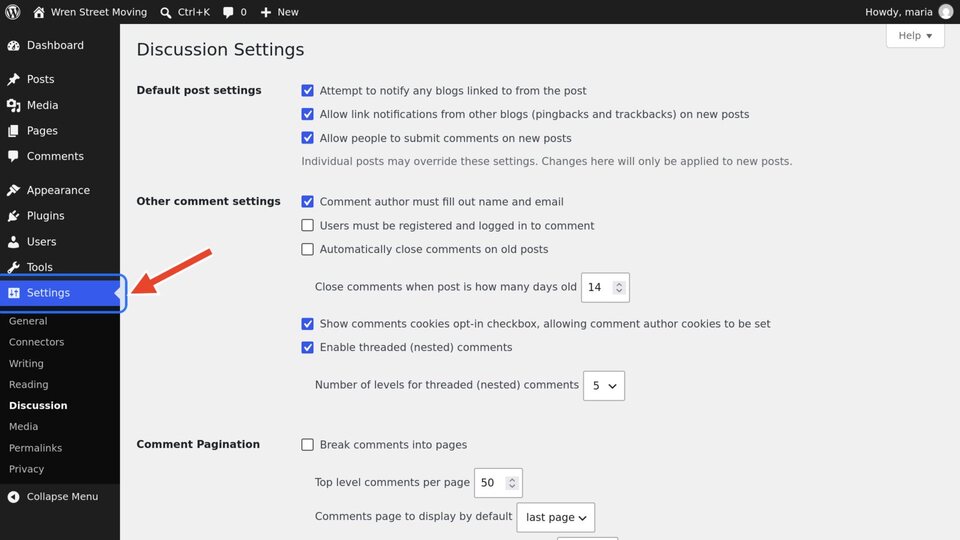
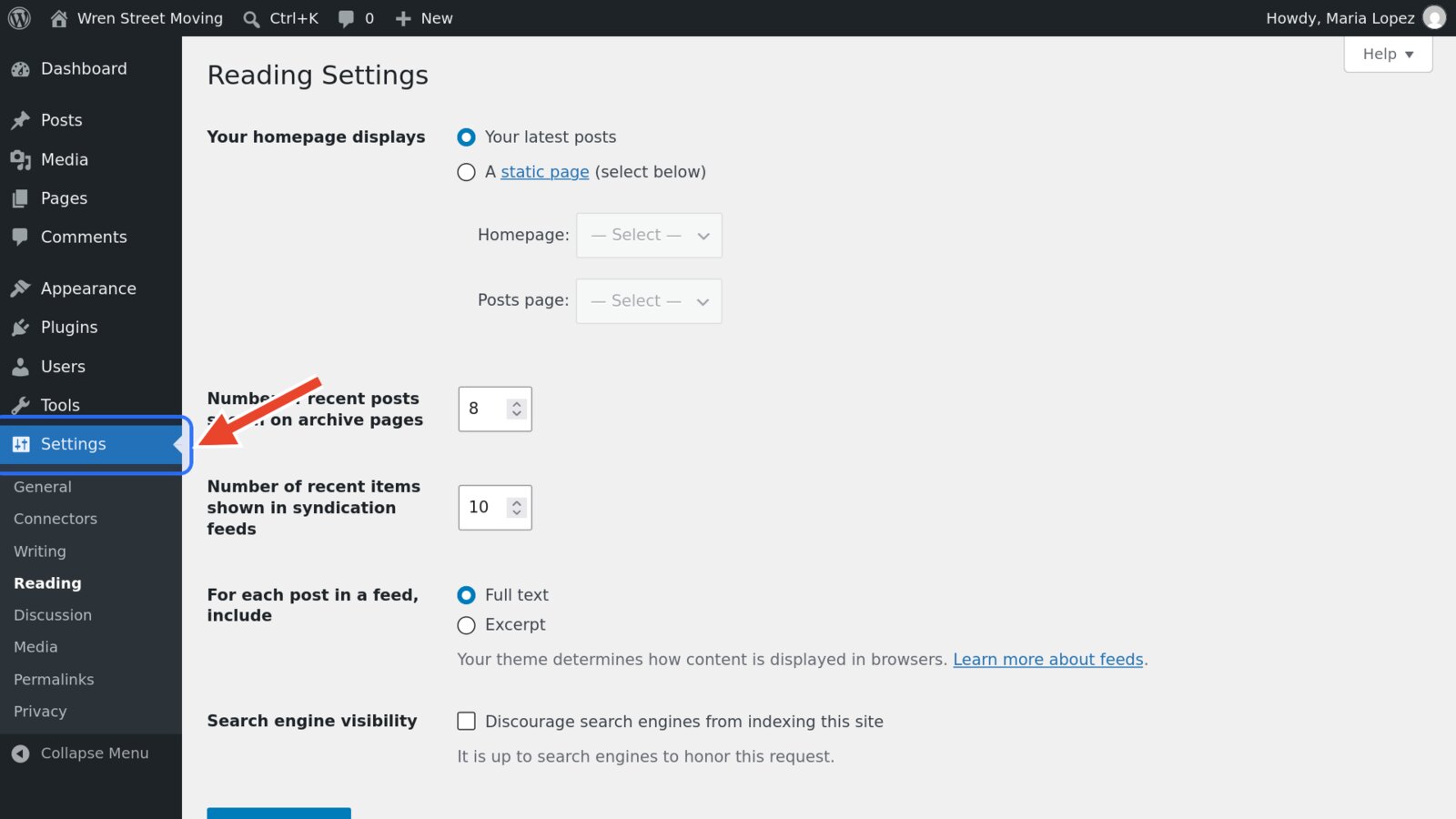
Settings is in the left menu. Everything about how your site works lives here.Settings está en el menú de la izquierda. Aquí está todo sobre cómo funciona tu sitio.
-
Under Settings, Reading is the screen we need.Dentro de Settings, Reading es la pantalla que necesitamos.
Tip: Write the home page first, then choose it here.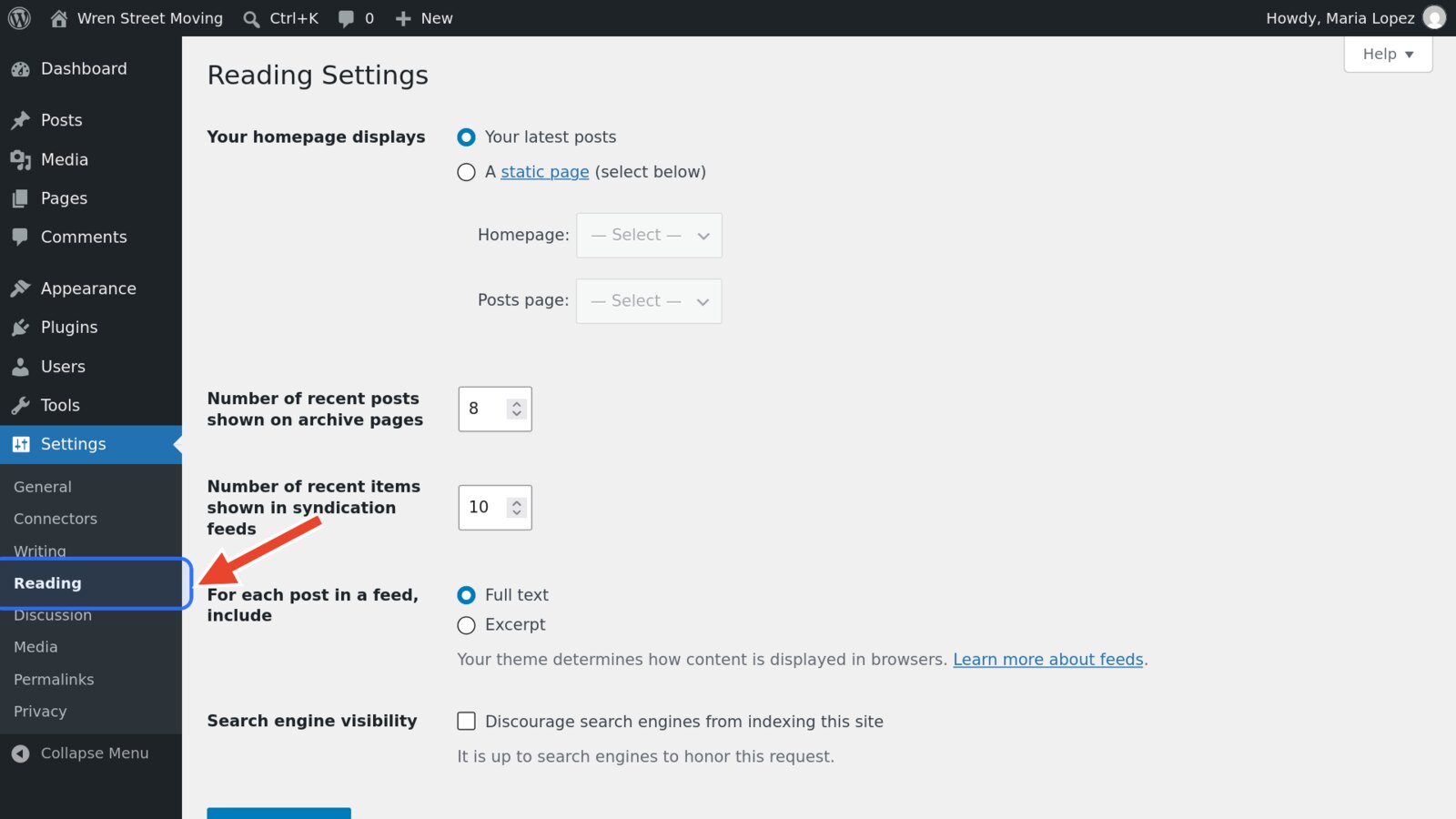
-
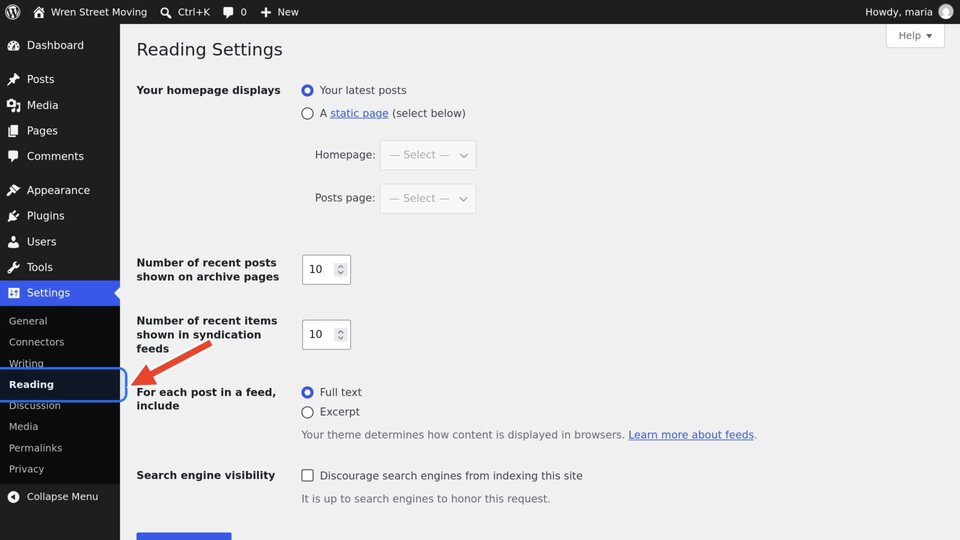
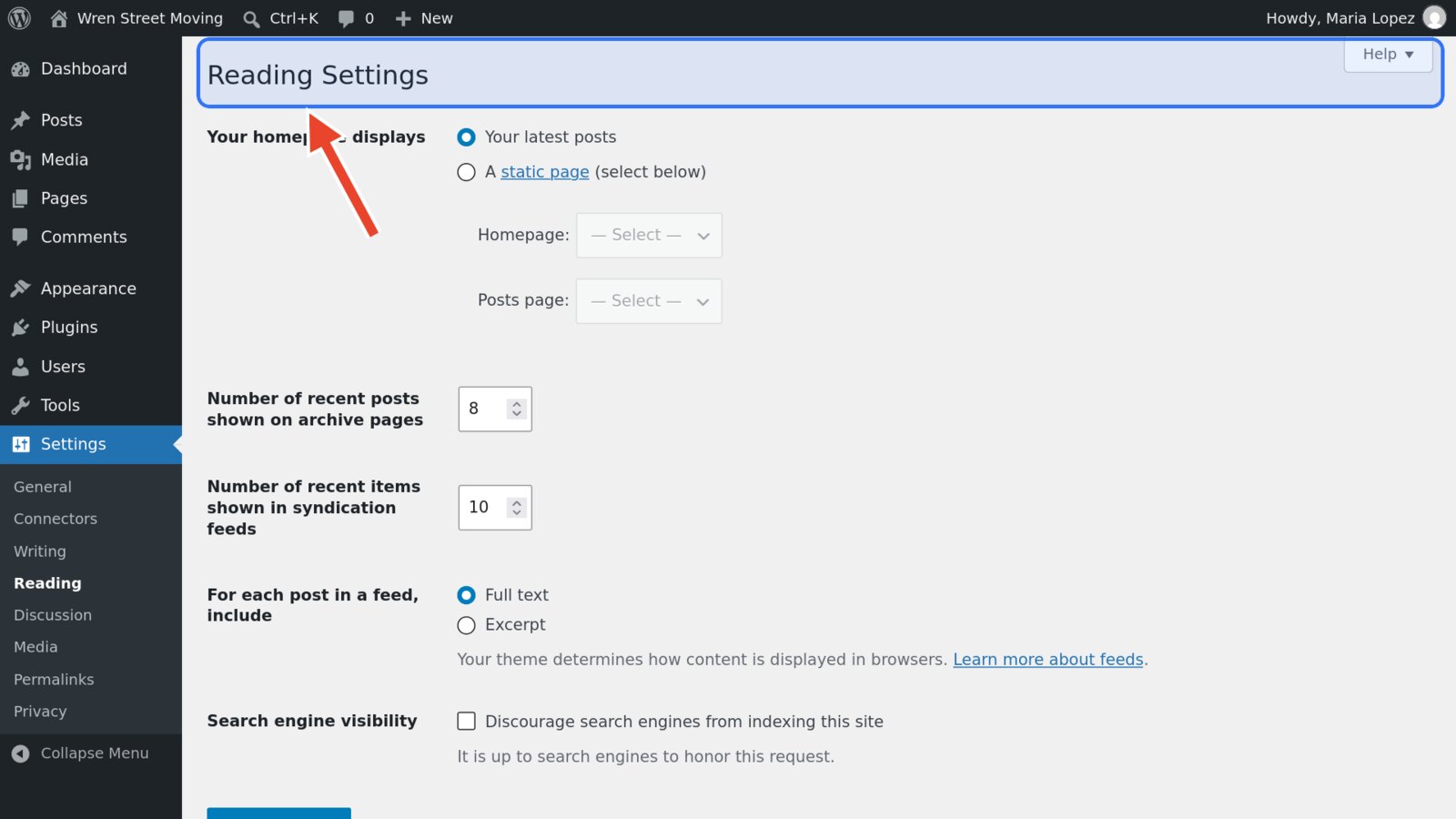
This is Reading Settings. By default, your latest posts show on the home page.Esta es Reading Settings. Por defecto, tus últimas entradas aparecen en la página de inicio.
-
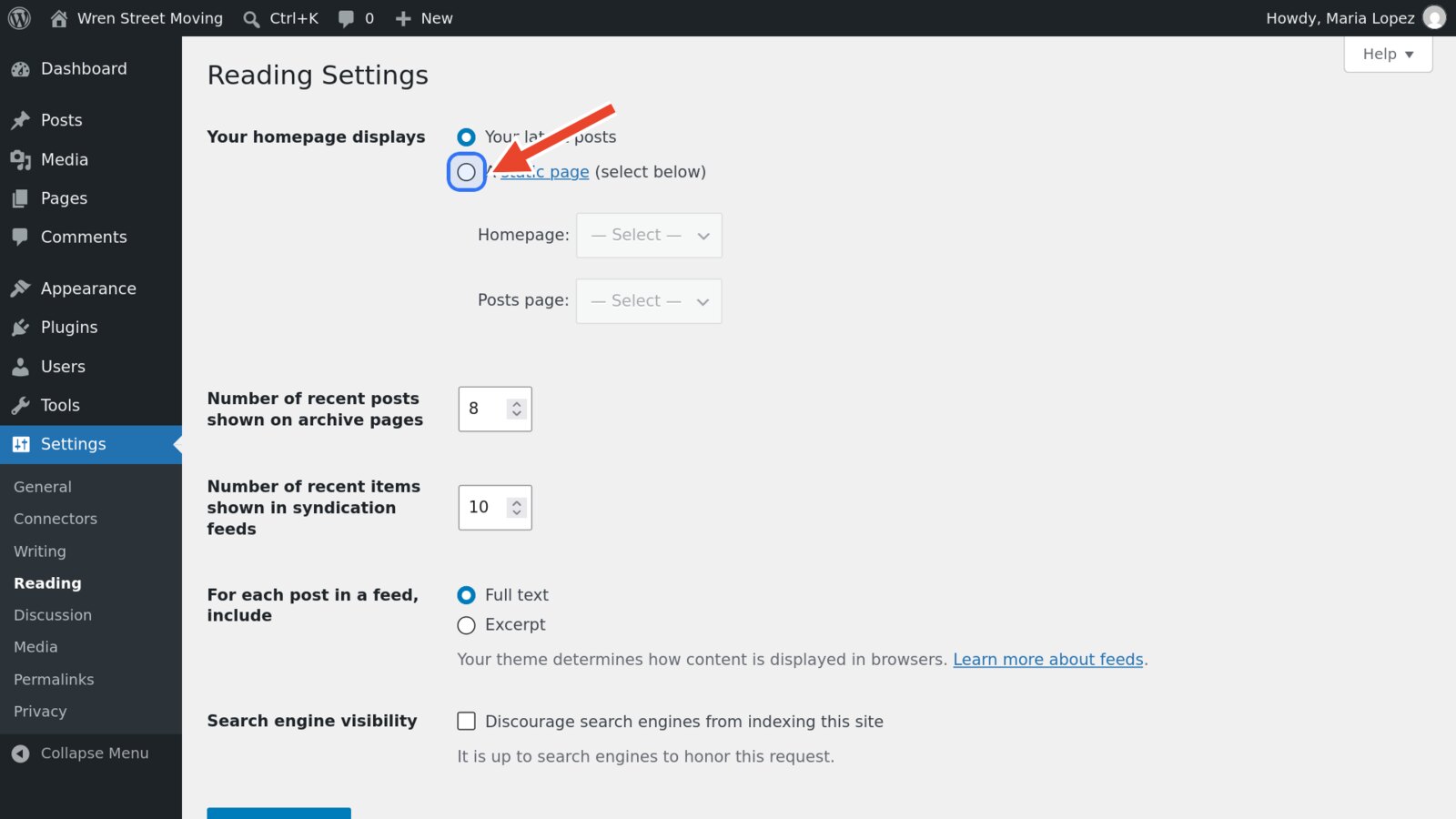
Press A static page, so one fixed page becomes your home page.Presiona A static page, para que una página fija sea tu página de inicio.
-
Now the Homepage list is active. This is where you pick the page.Ahora la lista Homepage está activa. Aquí eliges la página.
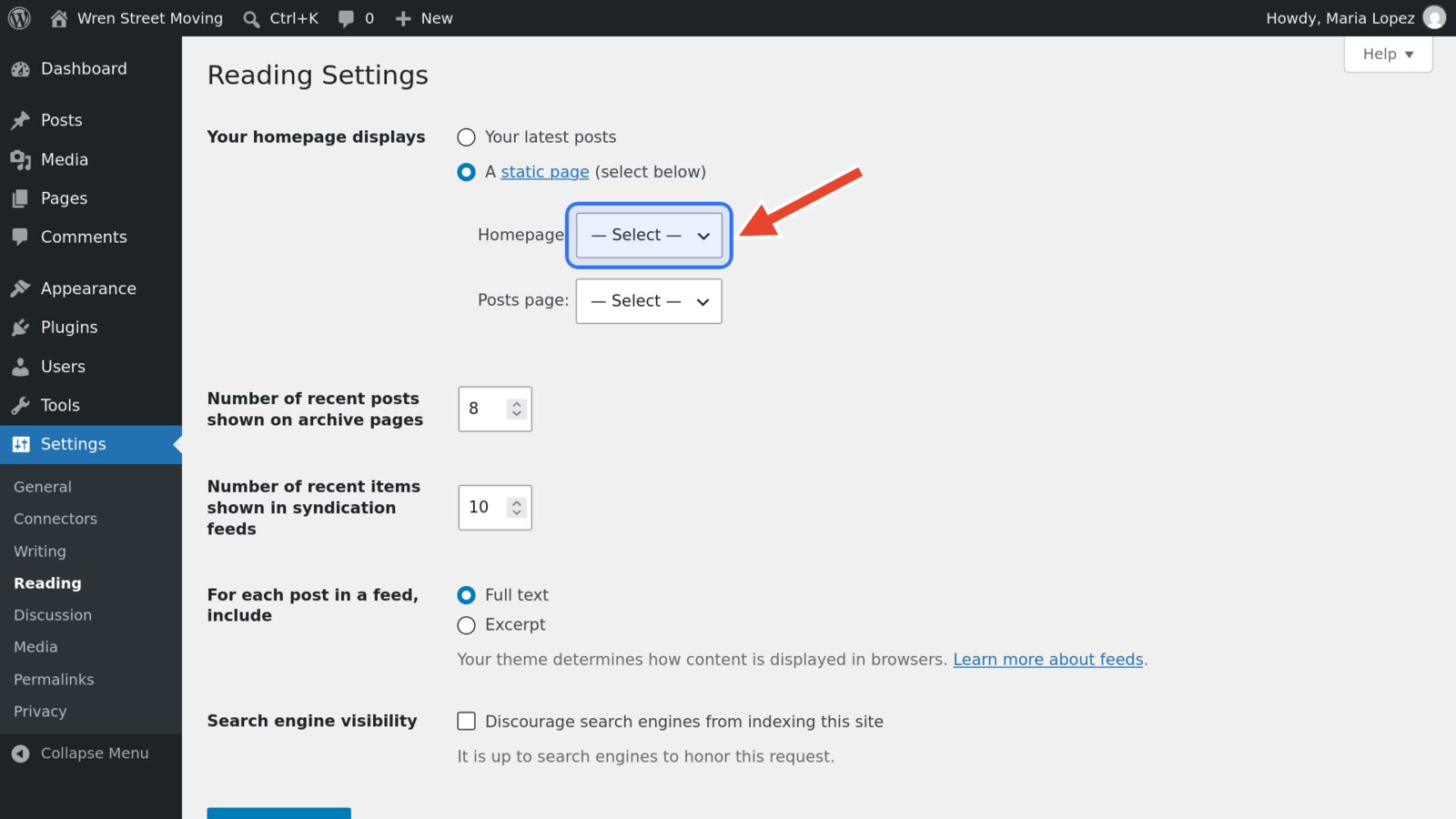
-
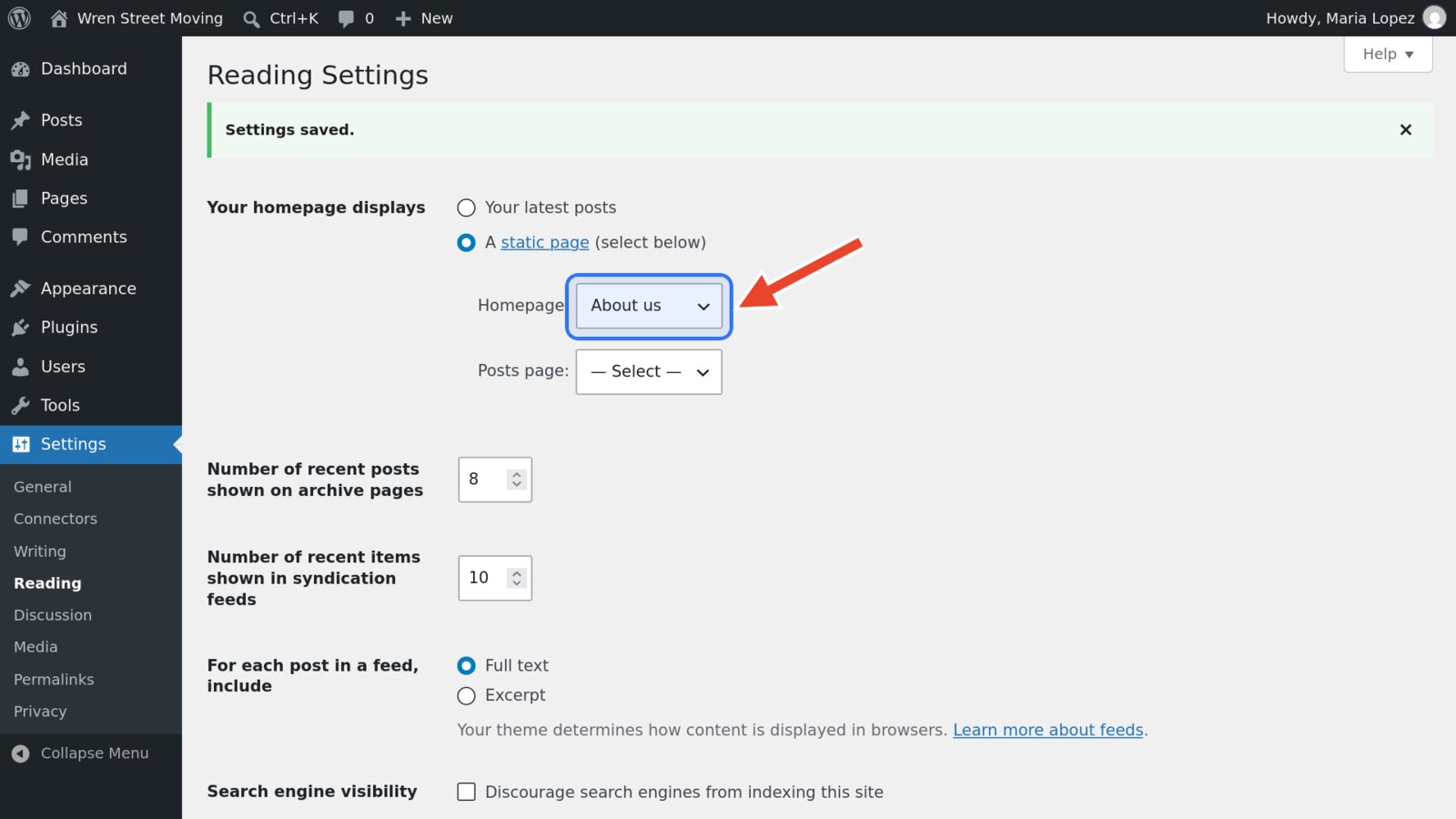
About us is now chosen as the Homepage.About us ya está elegida como Homepage.
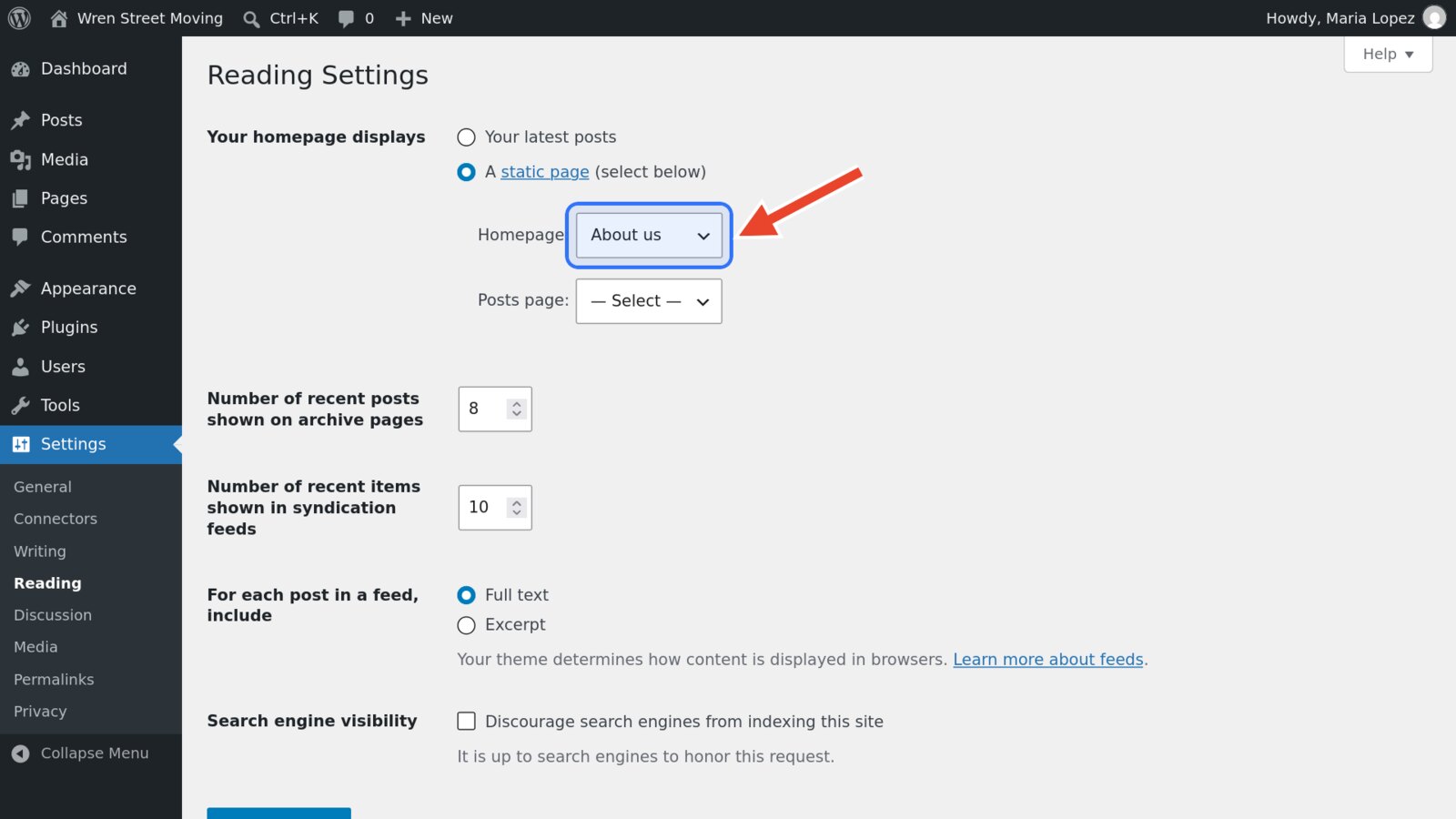
-
Posts page picks where your blog posts show. Leave it if you have no blog yet.Posts page elige dónde aparecen tus entradas. Déjalo así si aún no tienes blog.
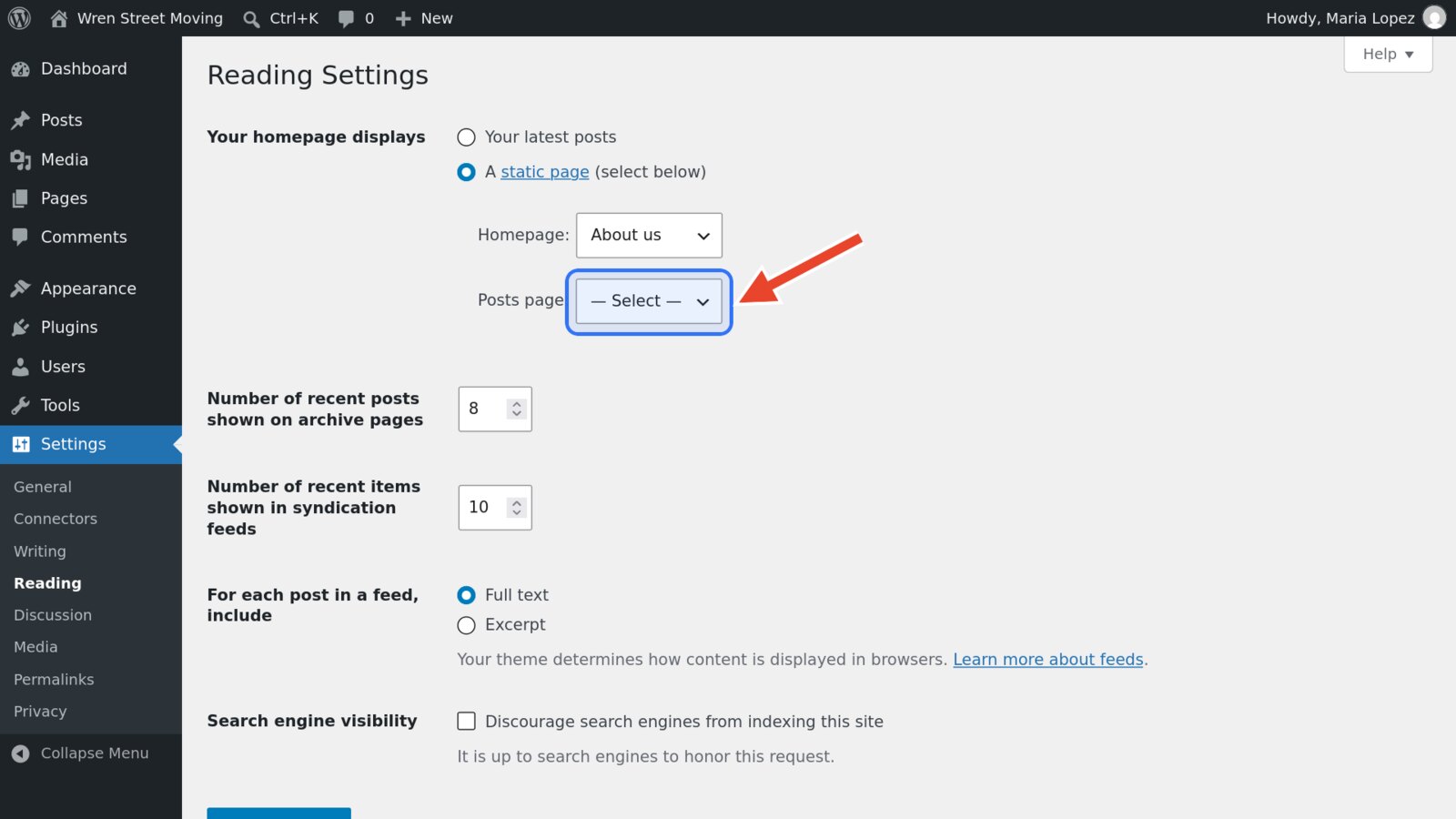
-
Press Save Changes to apply the new home page.Presiona Save Changes para aplicar la nueva página de inicio.
Tip: Nothing changes on your site until you press Save Changes.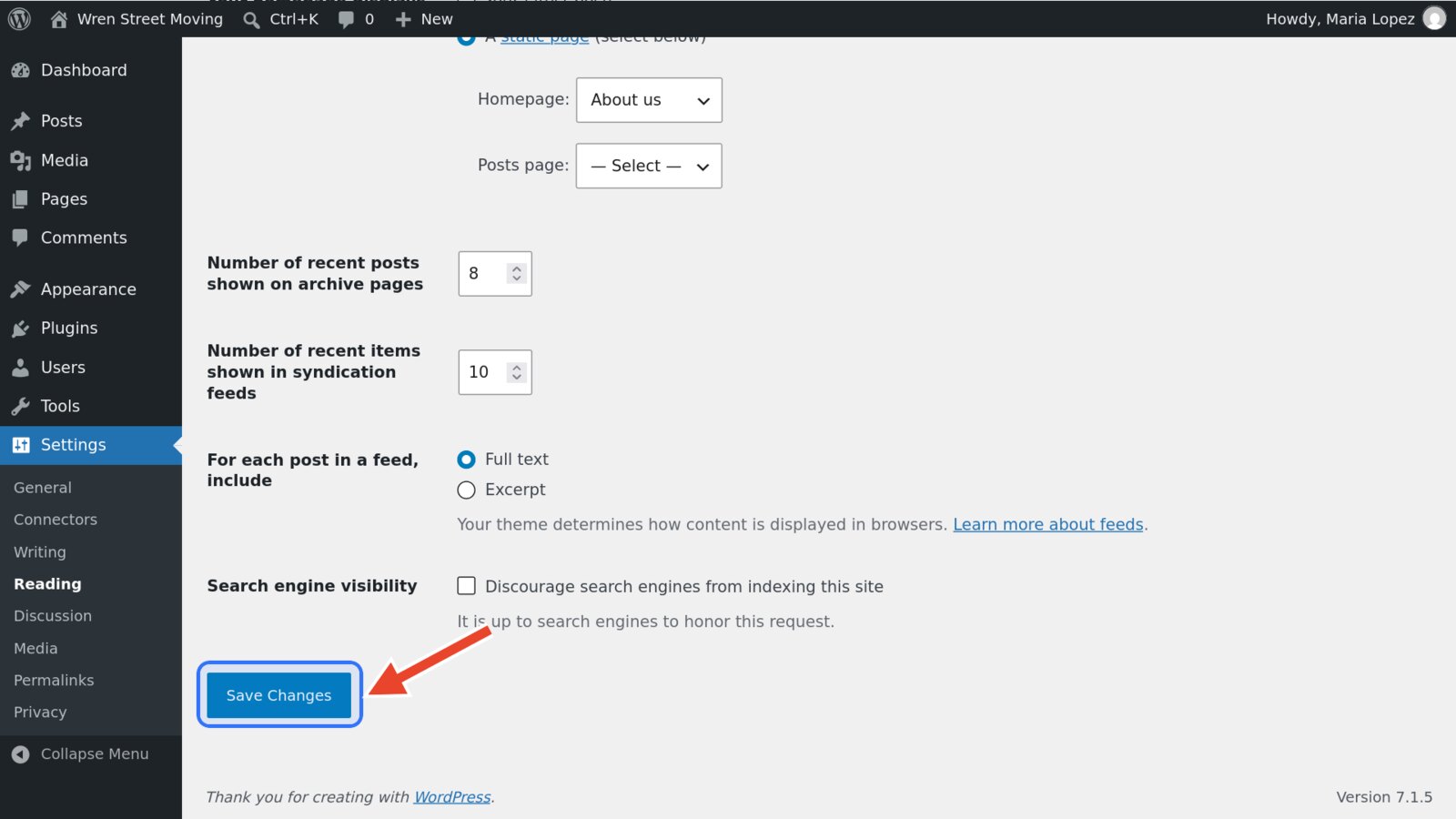
-
Saved. The Homepage list now shows About us, so the setting worked.Guardado. La lista Homepage ahora muestra About us, así que el ajuste funcionó.
Stuck on your own site?
Get walked through it one-on-one, on video, on your real site. Or hand the job over and have it done.
- You click, I guide
- One price per job, set before work starts
- English or Spanish
Where this comes from
Every step was run on a real WordPress site and checked against the official WordPress documentation: