Encuentra, instala y cambia a un nuevo tema de WordPress
Los pasos
-
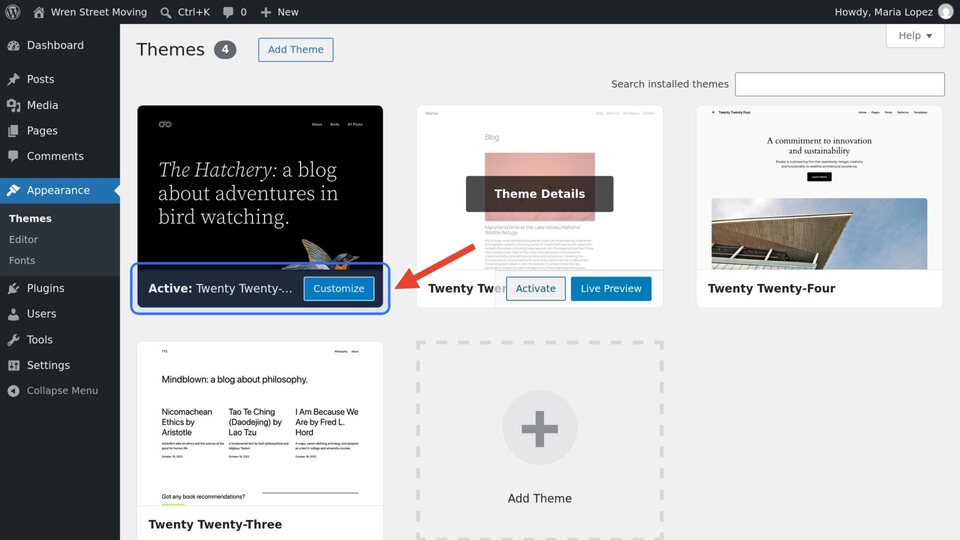
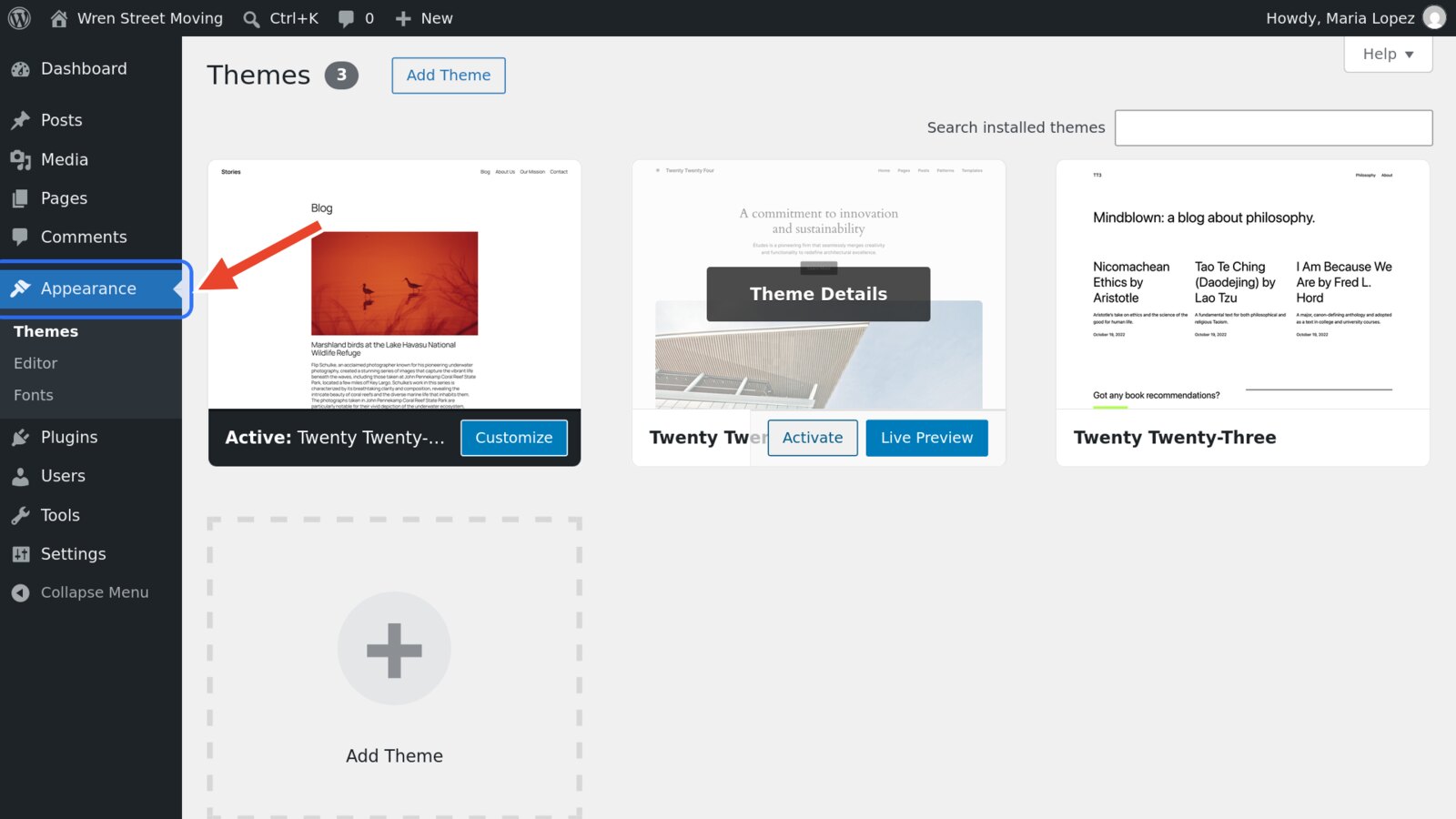
A theme controls how your whole site looks. Themes are under Appearance.Un tema controla cómo se ve todo tu sitio. Los temas están en Appearance.
-
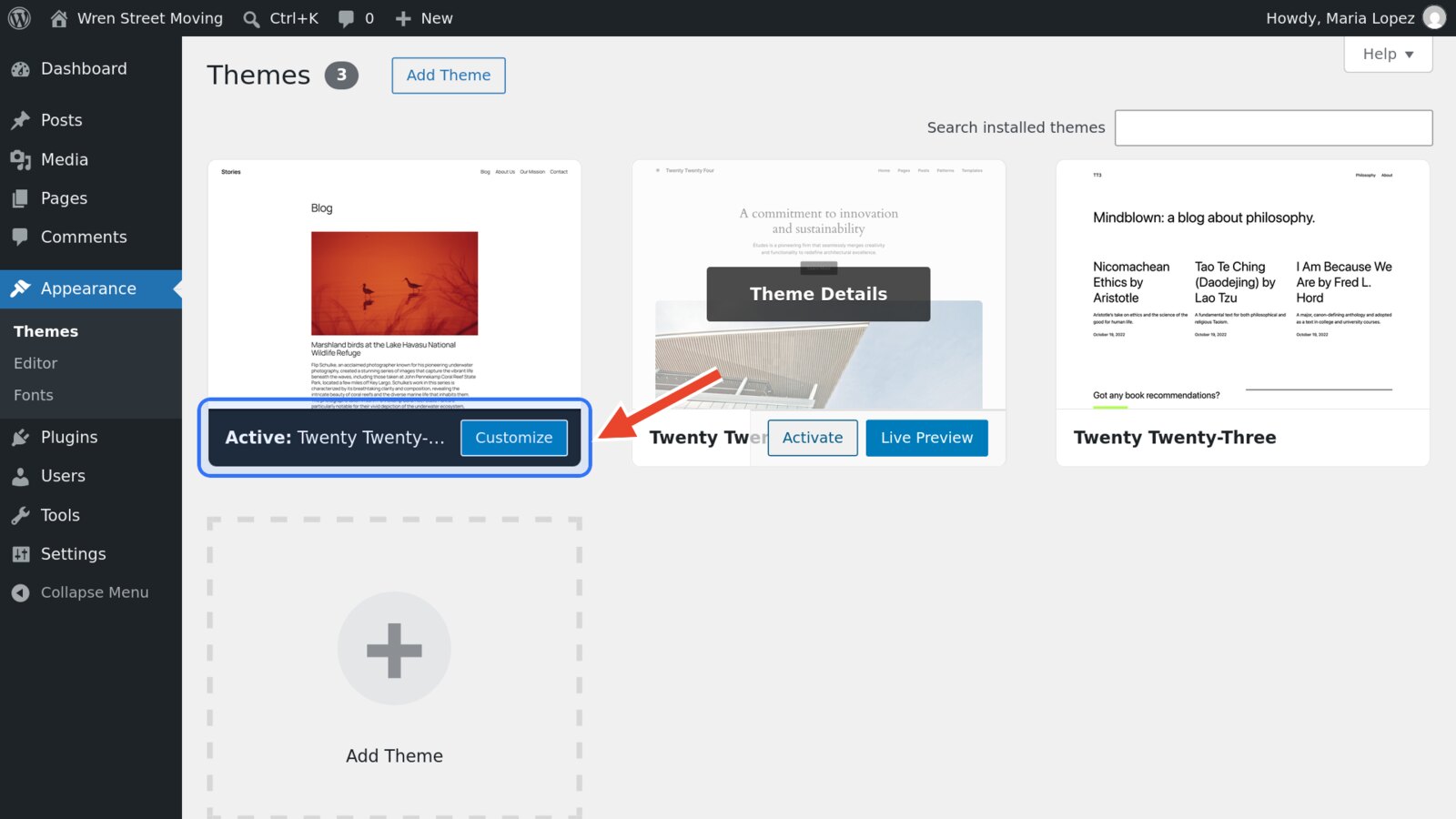
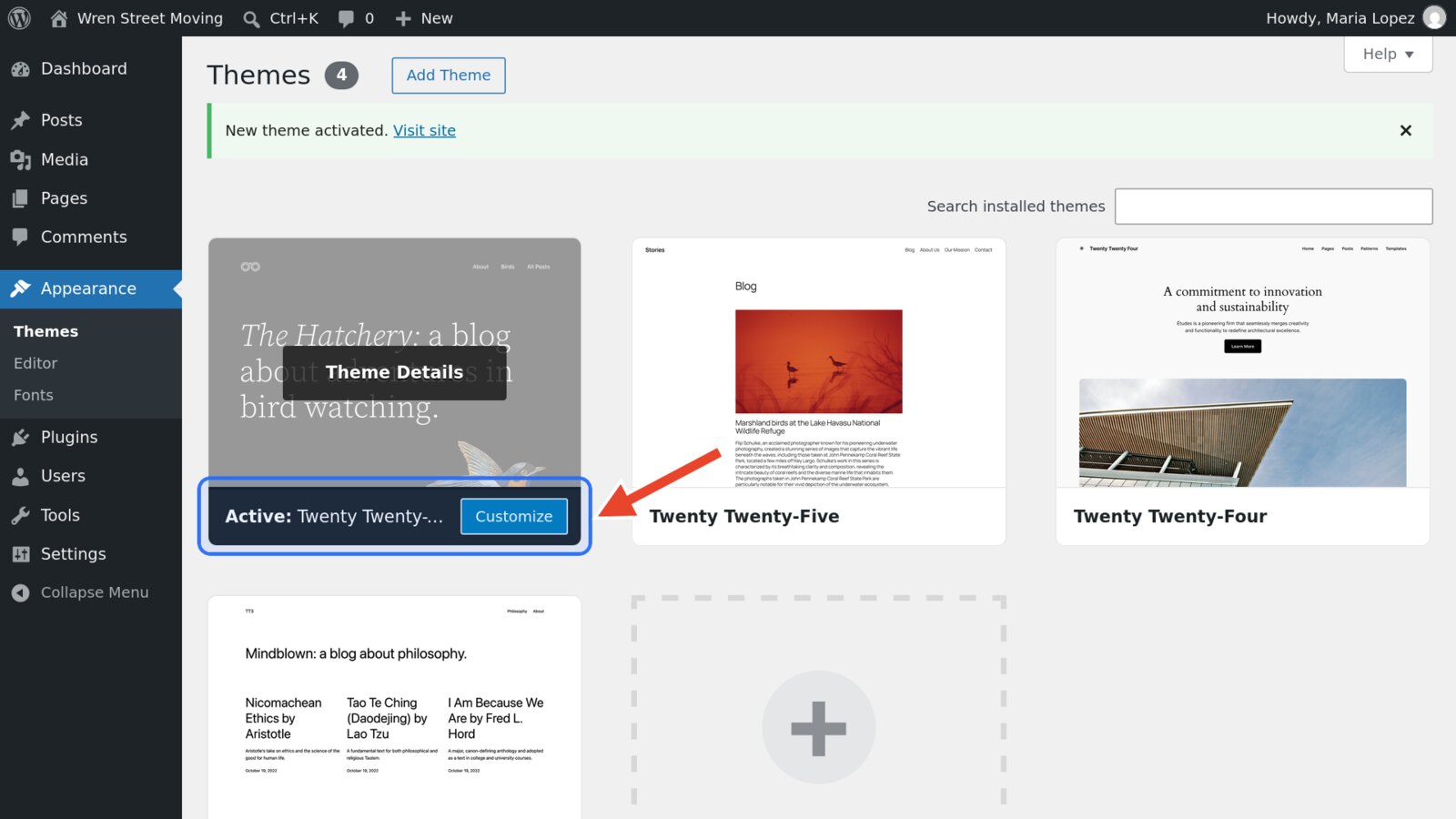
The theme marked Active is the one your visitors see now.El tema marcado como Active es el que tus visitantes ven ahora.
-
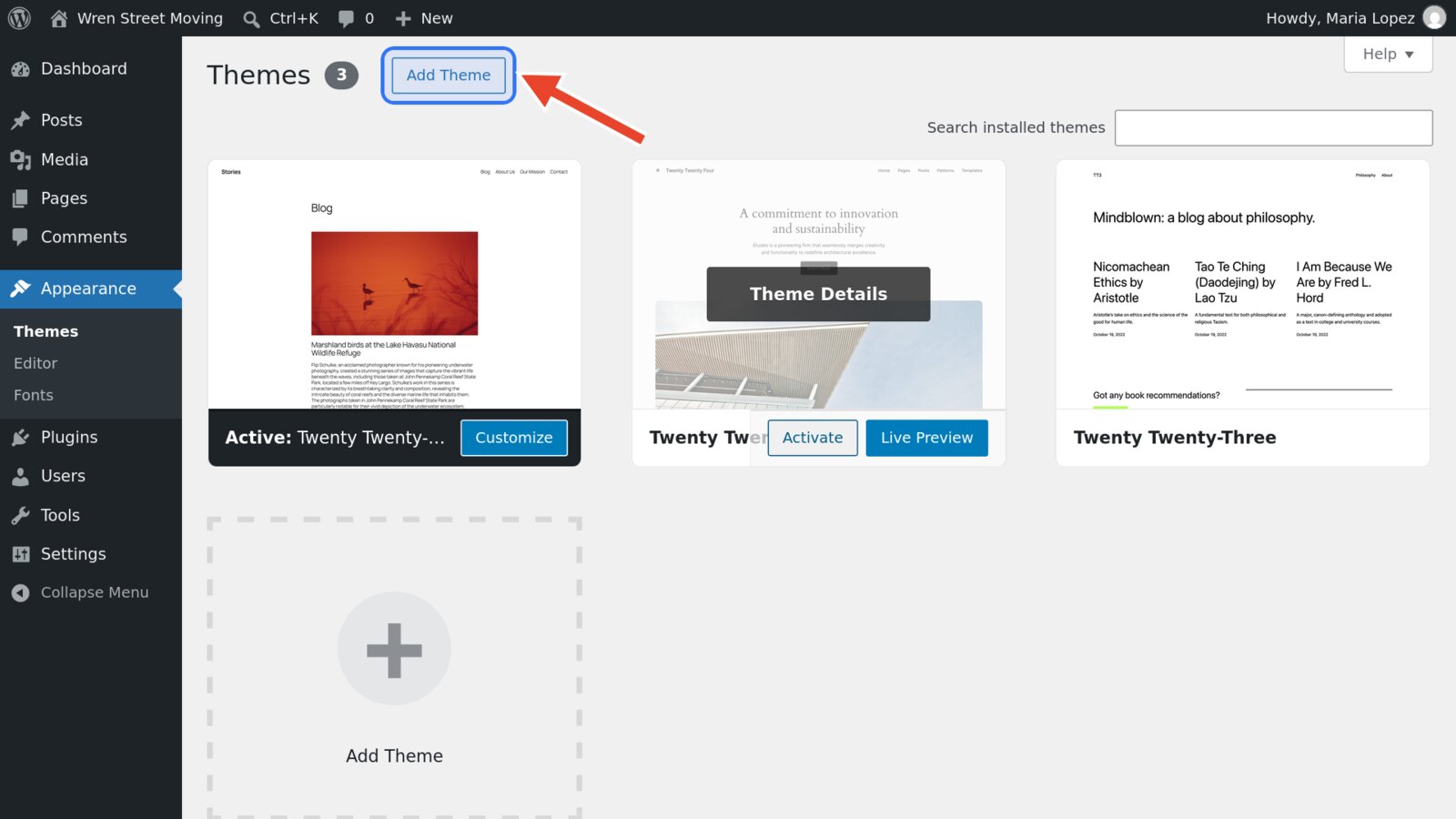
To get a new theme, press Add Theme, at the top.Para conseguir un tema nuevo, presiona Add Theme, arriba.
-
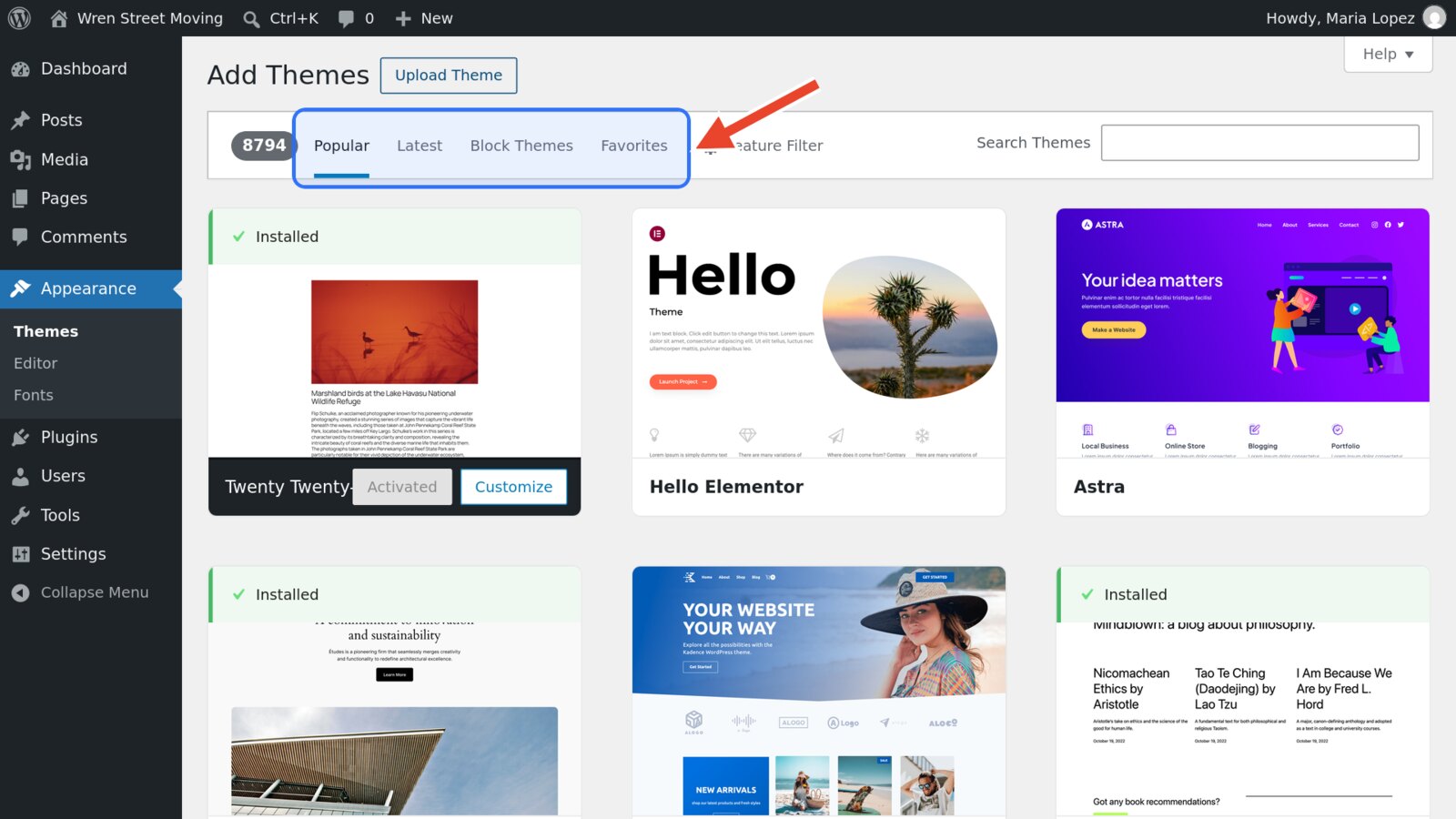
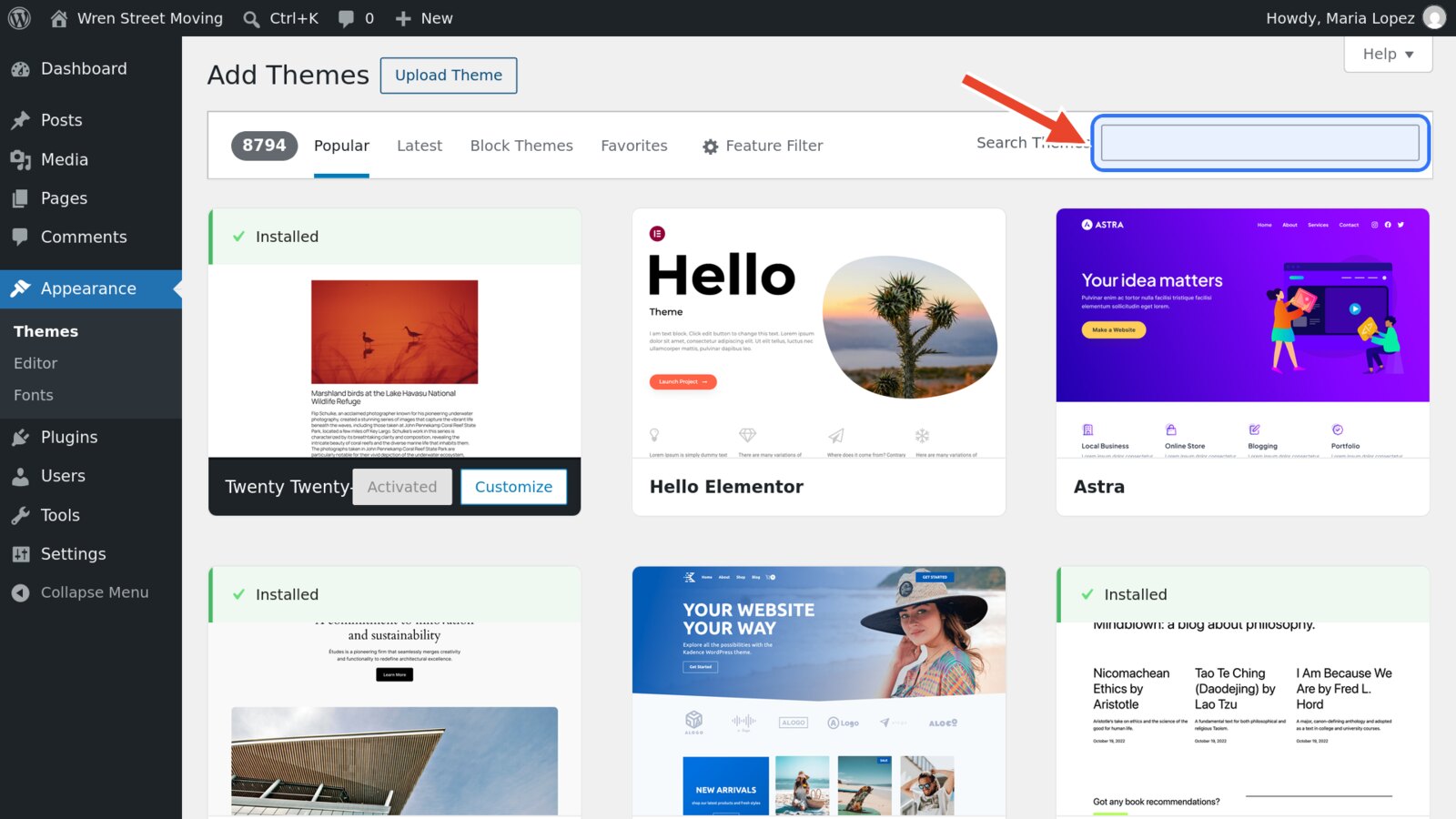
Popular and Latest are quick ways to look around.Popular y Latest son formas rápidas de explorar.
-
Or type a name, or what you need, in the search box.O escribe un nombre, o lo que necesitas, en el cuadro de búsqueda.
-
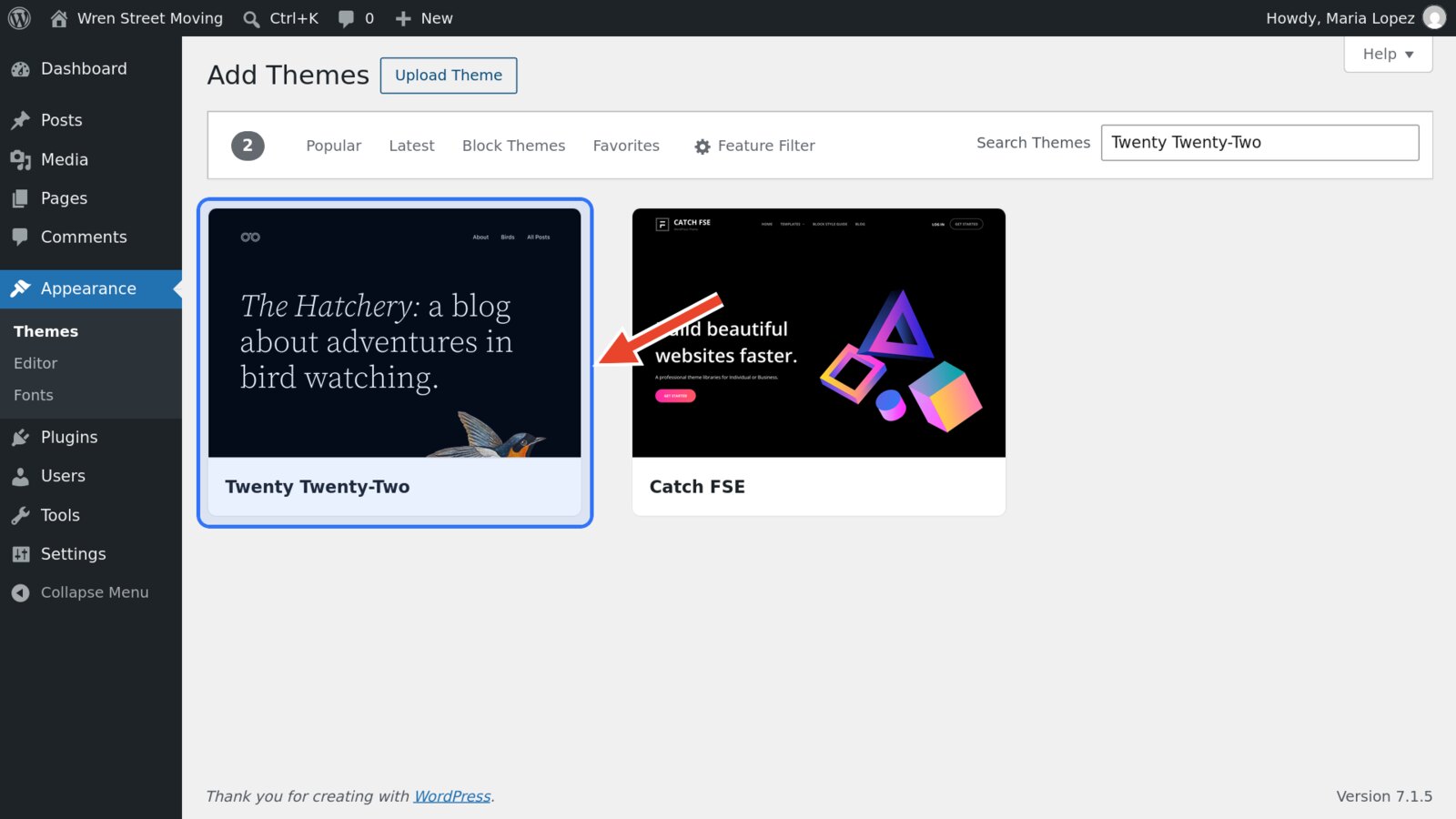
Each result shows a picture of the theme and its name.Cada resultado muestra una imagen del tema y su nombre.
-
Hold the mouse over a theme. Preview shows it before you install anything.Pon el mouse sobre un tema. Preview lo muestra antes de instalar nada.
Consejo: Preview a theme before you install it.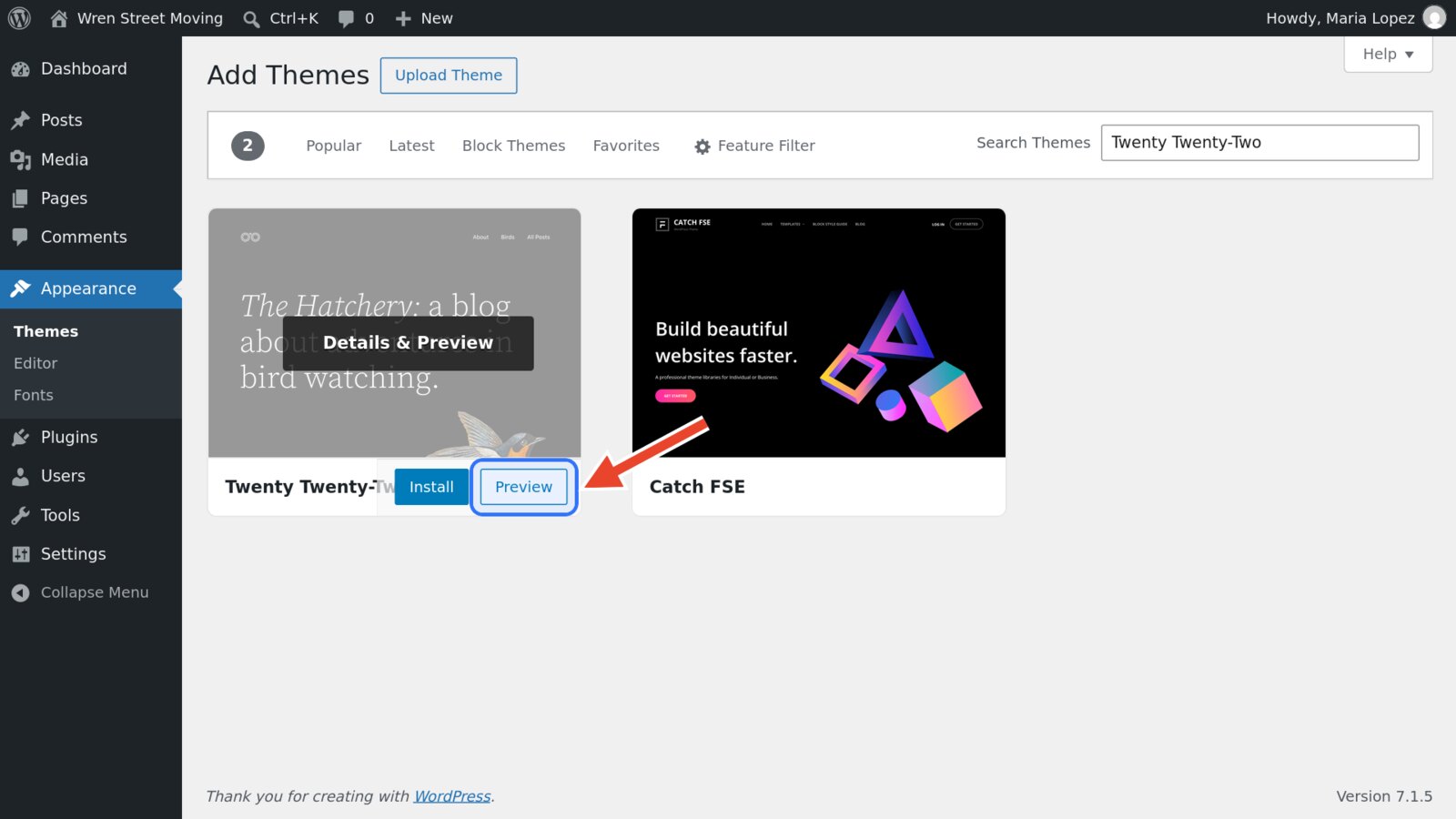
-
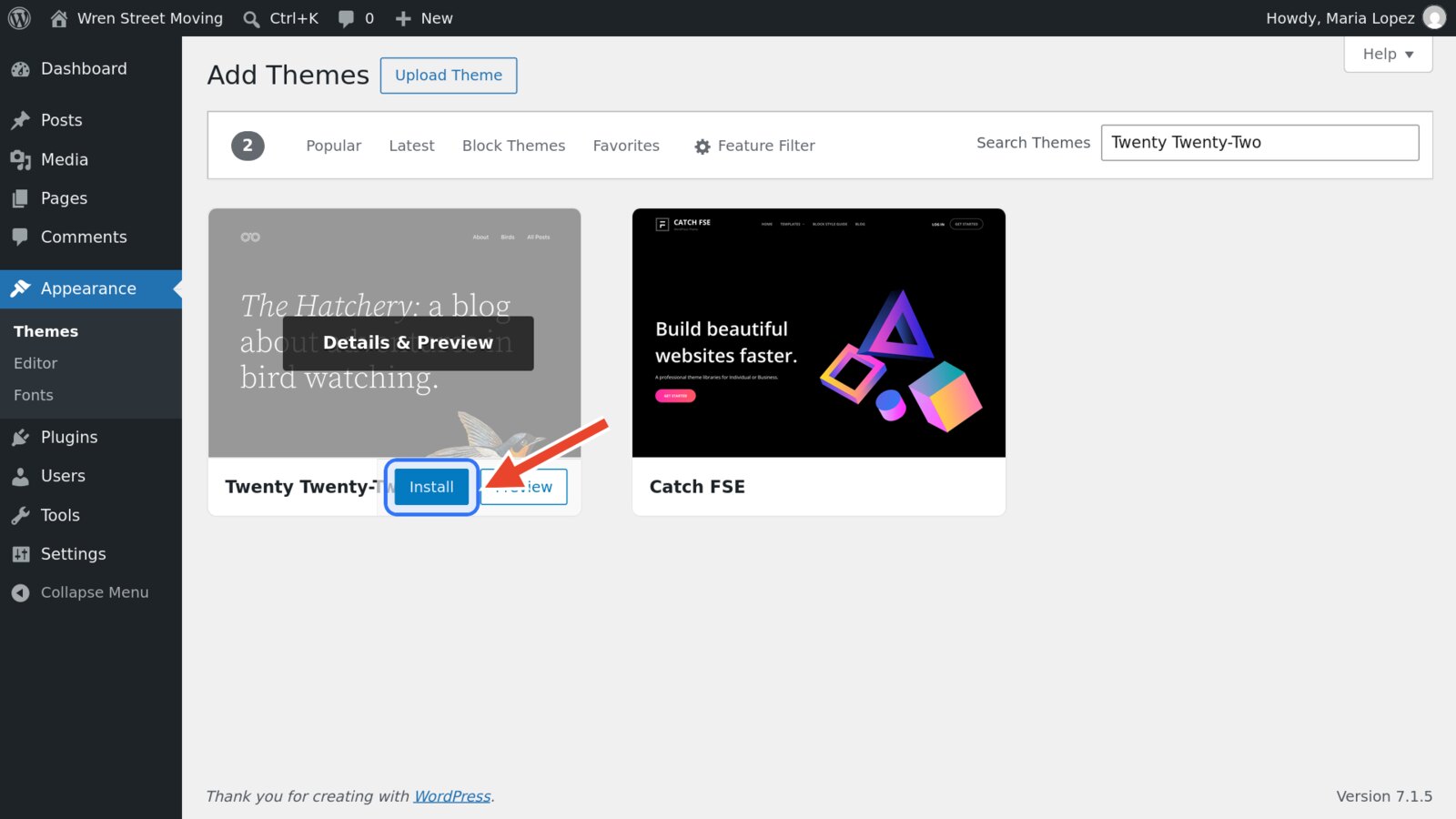
Press Install. This only downloads the theme. Your site does not change yet.Presiona Install. Esto solo descarga el tema. Tu sitio todavía no cambia.
-
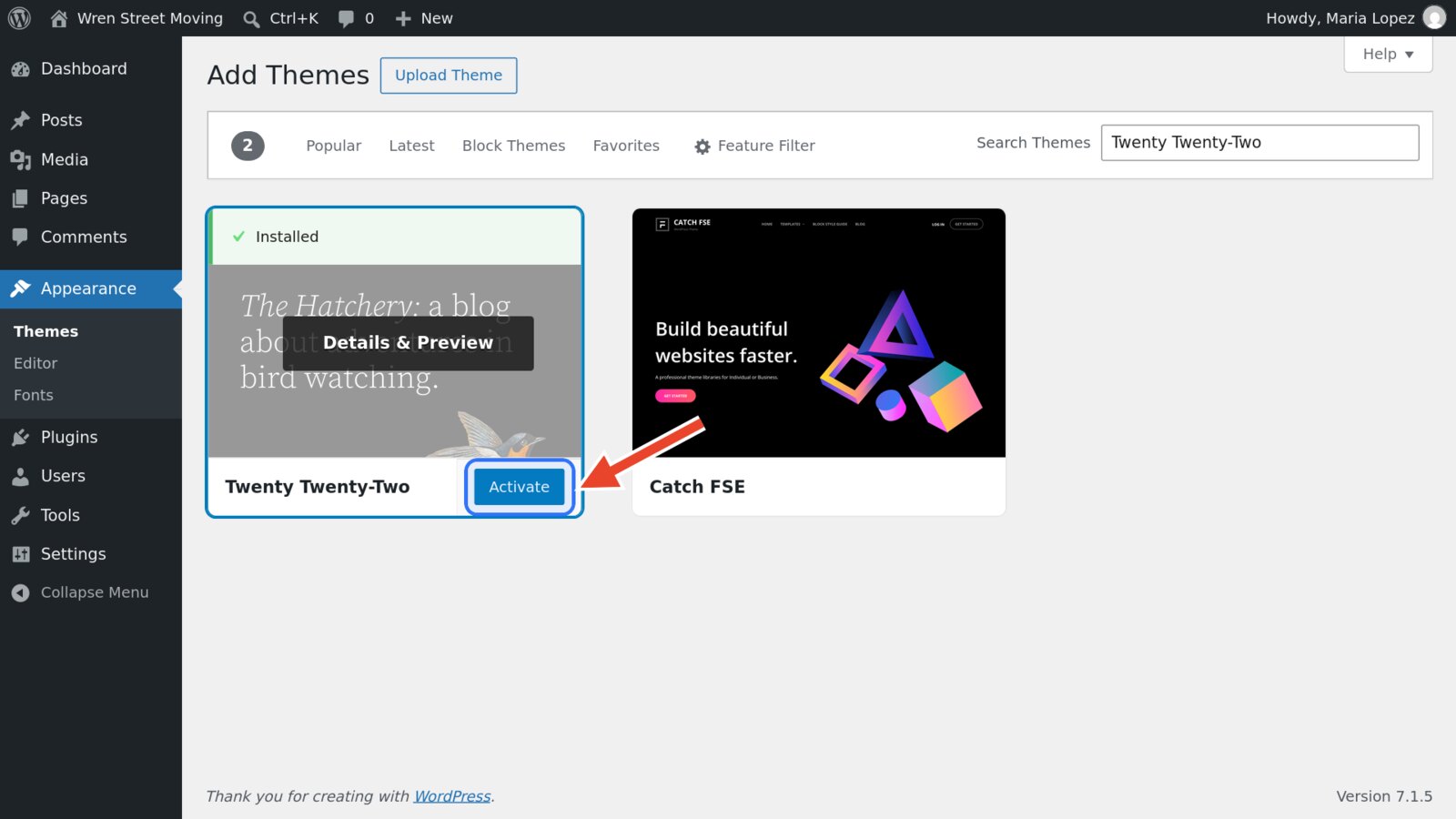
When it is installed, the button changes to Activate. Press it to switch your site.Cuando está instalado, el botón cambia a Activate. Presiónalo para cambiar tu sitio.
-
You are back on Themes, and the new theme is now the active one.Estás de vuelta en Themes, y el tema nuevo ahora es el activo.
-
Open your site from the top bar and look at every page.Abre tu sitio desde la barra superior y revisa cada página.
Consejo: Look at your site after every theme change.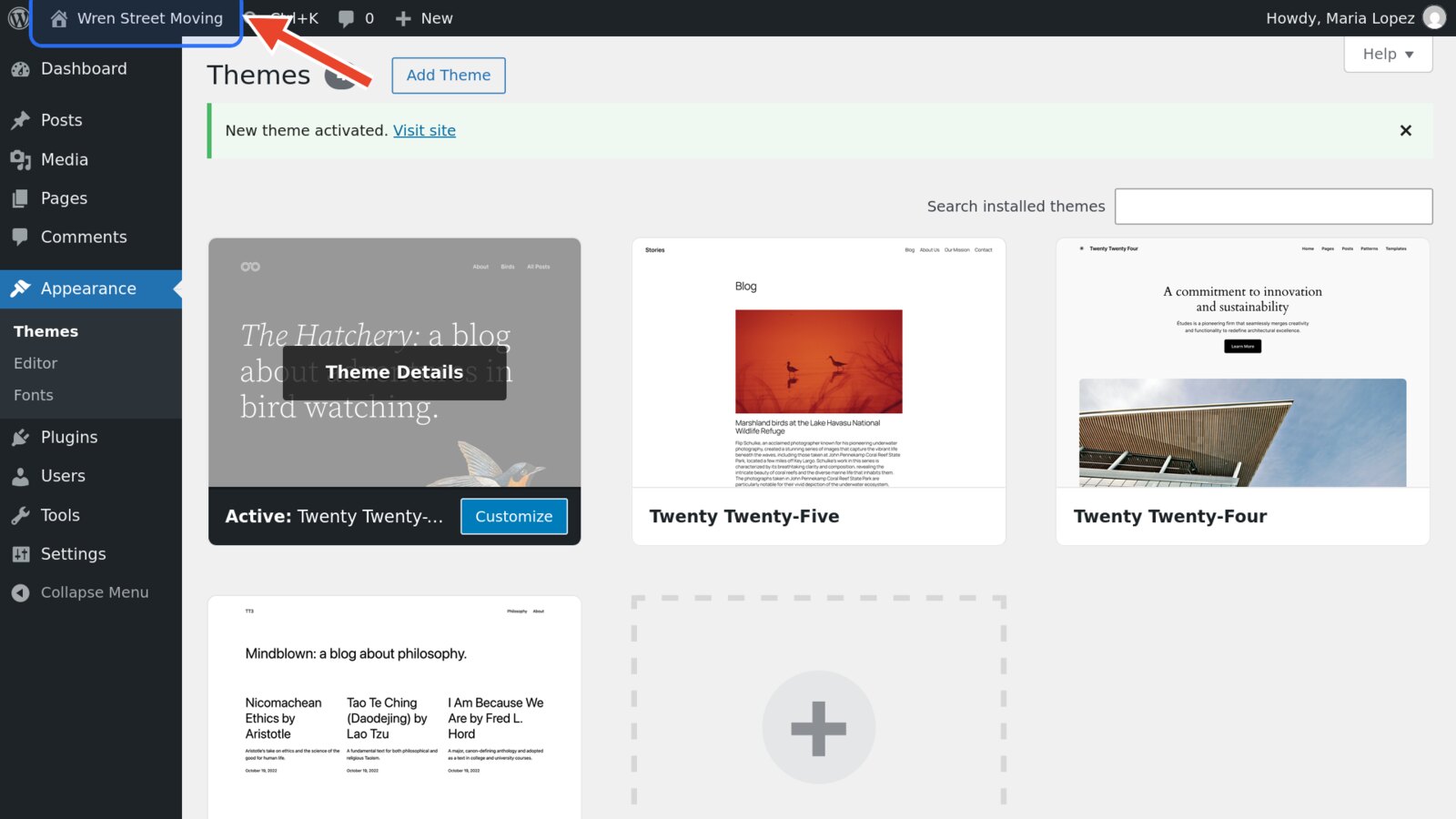
¿Atascado en tu propia página web?
Te guío paso a paso, en video, en tu sitio real. O déjame el trabajo y lo dejo hecho.
- Tú haces clic, yo guío
- Un solo precio por trabajo, fijado antes de empezar
- Inglés o español
De dónde viene esto
Cada paso se realizó en un sitio de WordPress real y se verificó con la documentación oficial de WordPress: