Cambia lo que un usuario está permitido hacer
Los pasos
-
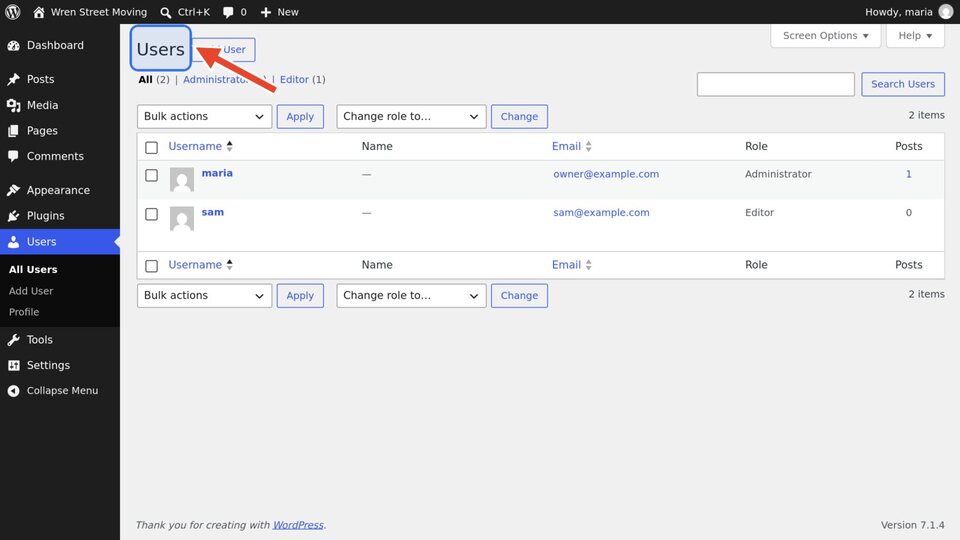
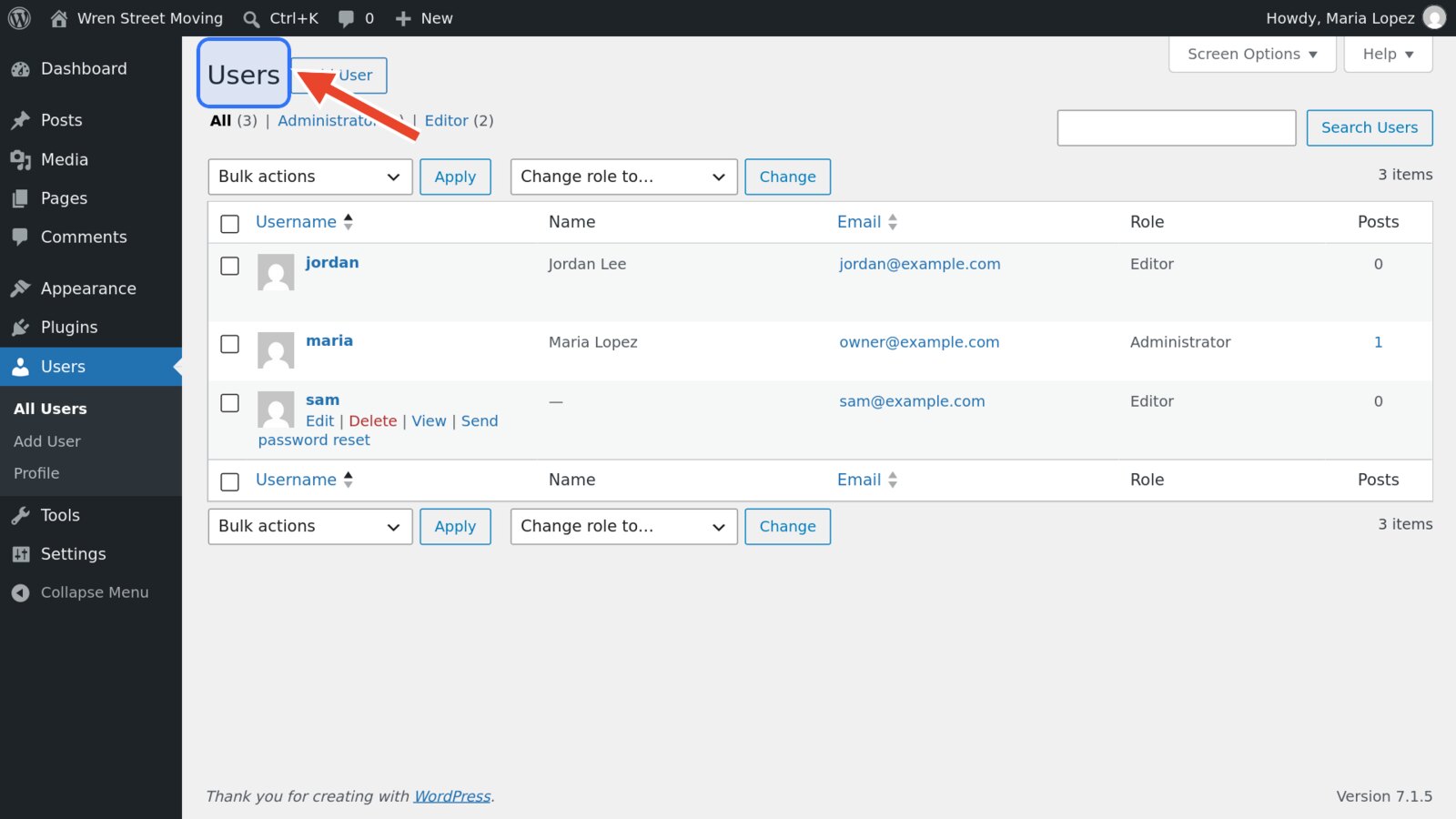
This is the Users screen. It lists everyone who can sign in to the site.Esta es la pantalla Users. Muestra a todas las personas que pueden entrar al sitio.
-
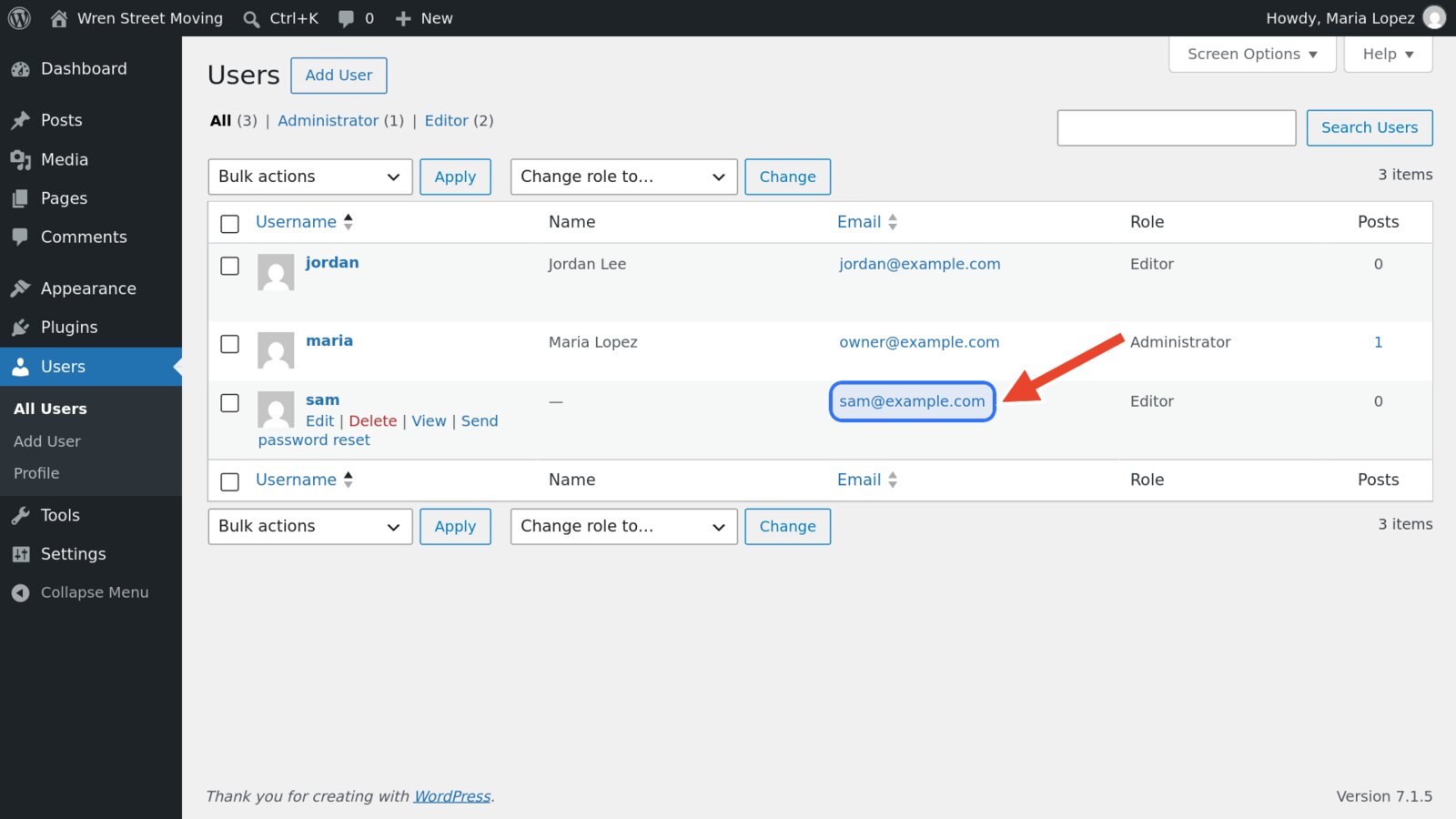
Each row is one person. This row is sam, the user we will change.Cada fila es una persona. Esta fila es sam, el usuario que vamos a cambiar.
-
Leave the other boxes empty. Only the ticked users get changed.Deja vacías las otras casillas. Solo cambian los usuarios marcados.
Consejo: Check that only one box is ticked before you press Change.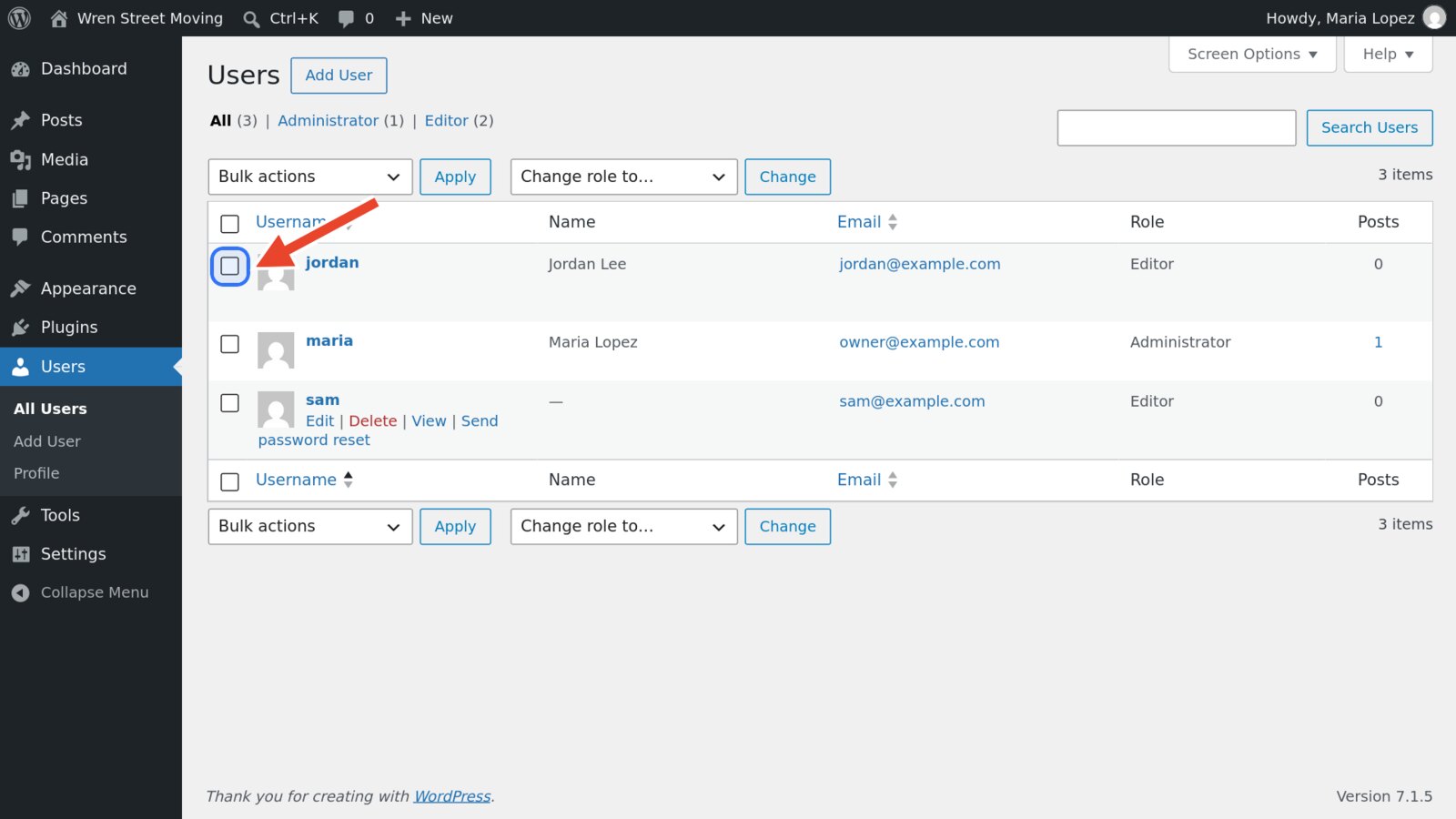
-
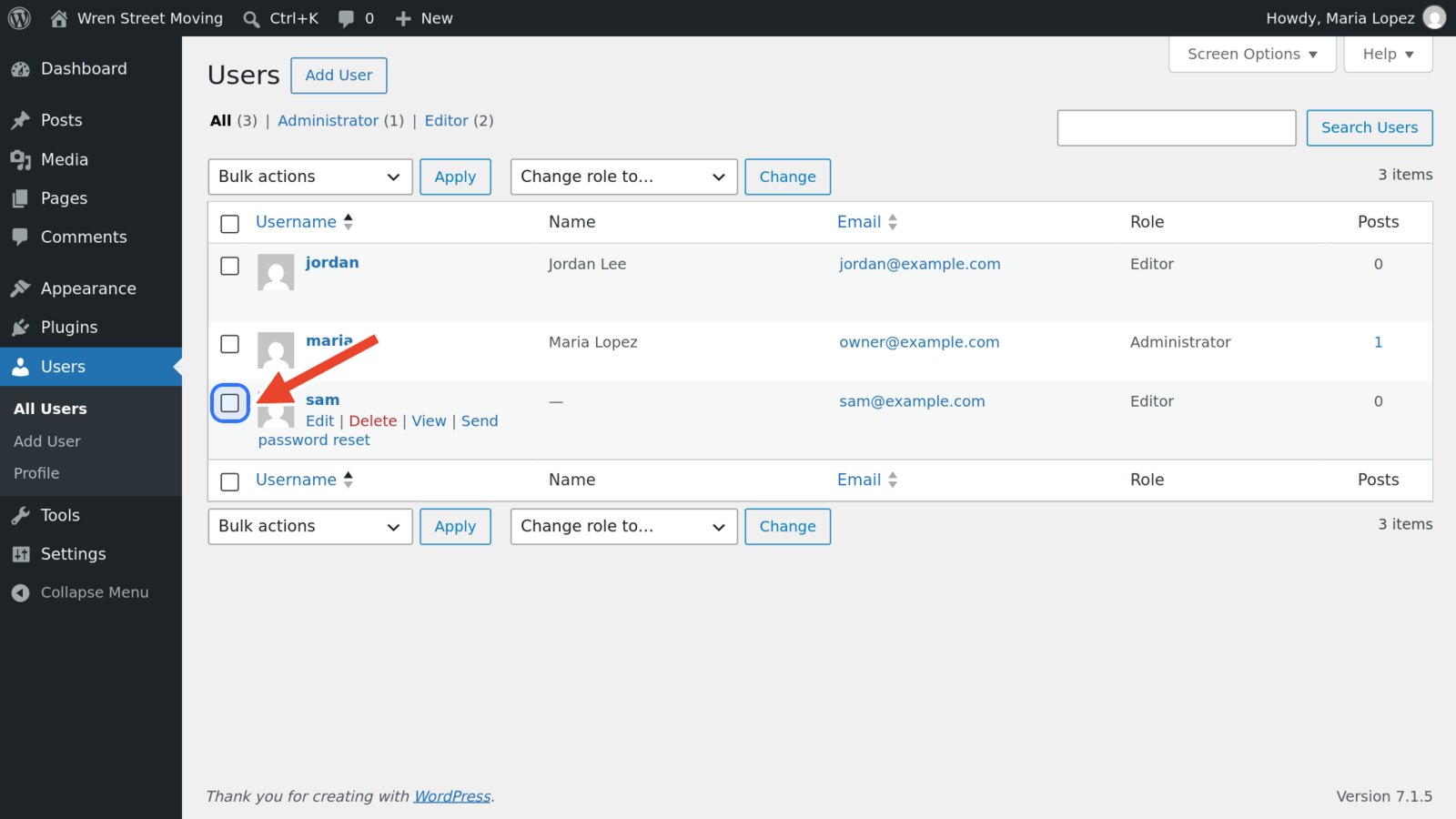
Tick the box in sam's row, on the left.Marca la casilla en la fila de sam, a la izquierda.
-
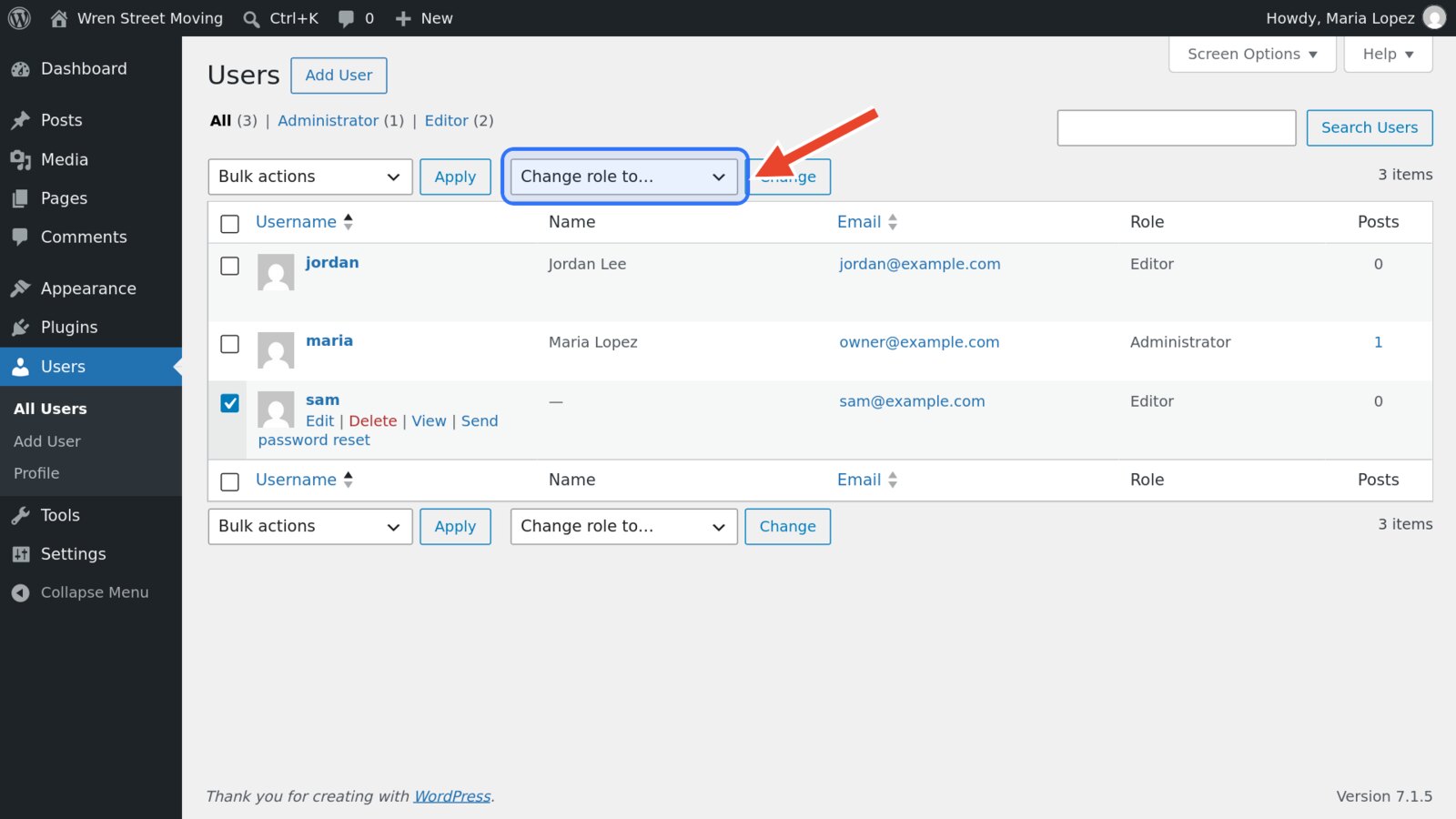
Open the Change role to dropdown, above the list.Abre el menú Change role to, arriba de la lista.
-
Choose Author from the list of roles.Elige Author en la lista de roles.
Consejo: Pick the role that matches the job, not the biggest one.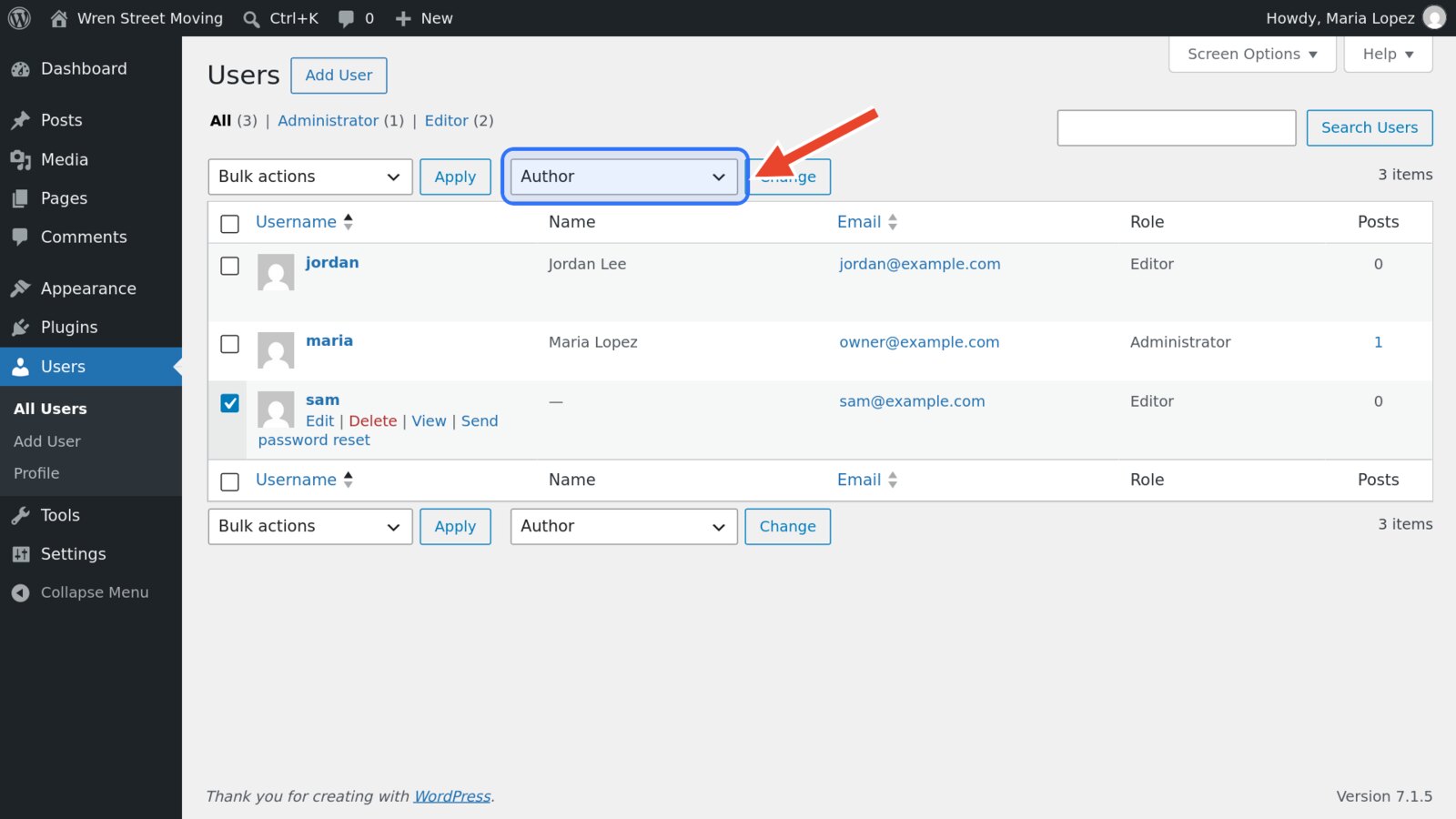
-
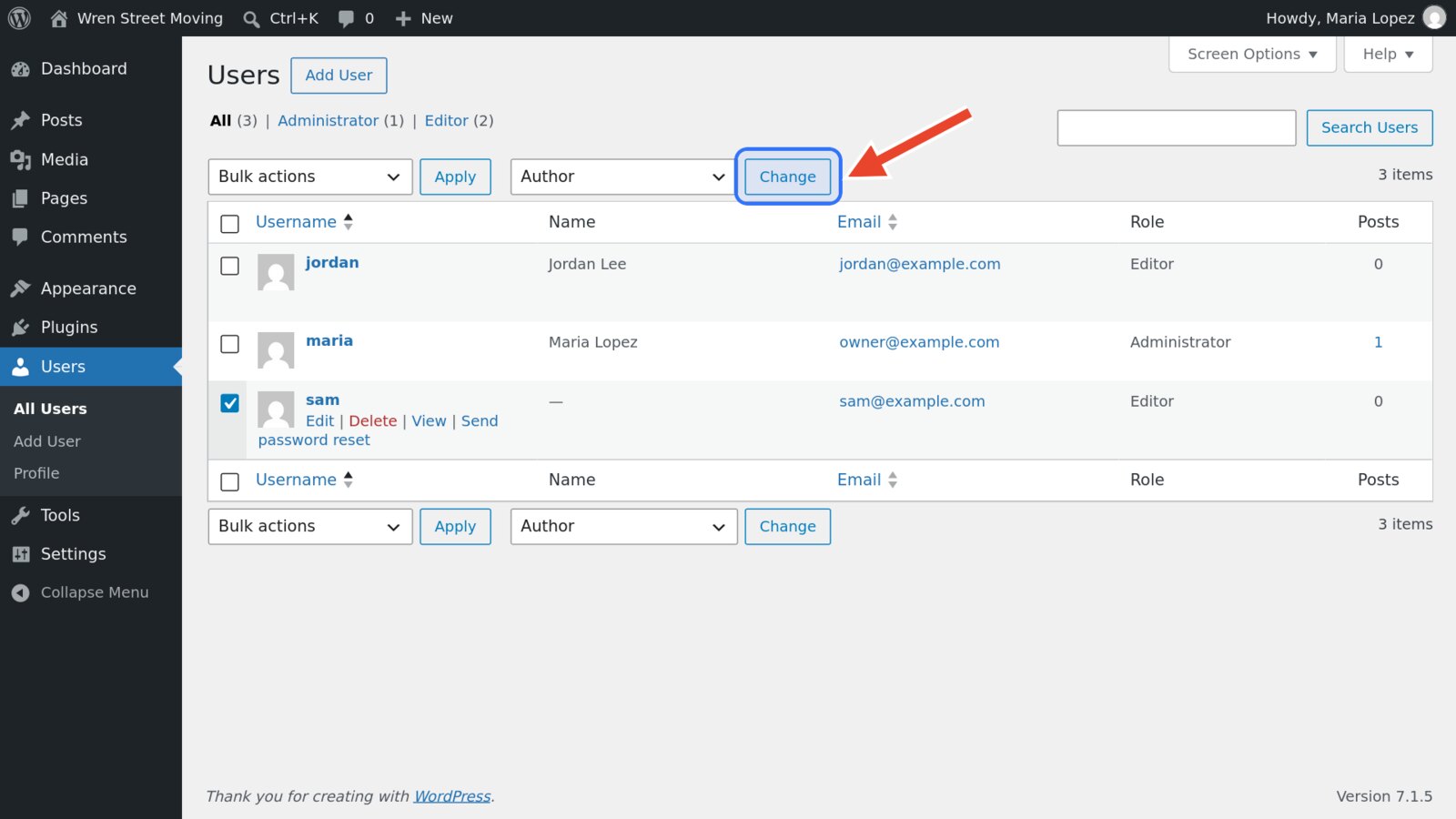
Press Change, right next to the dropdown.Presiona Change, justo al lado del menú.
-
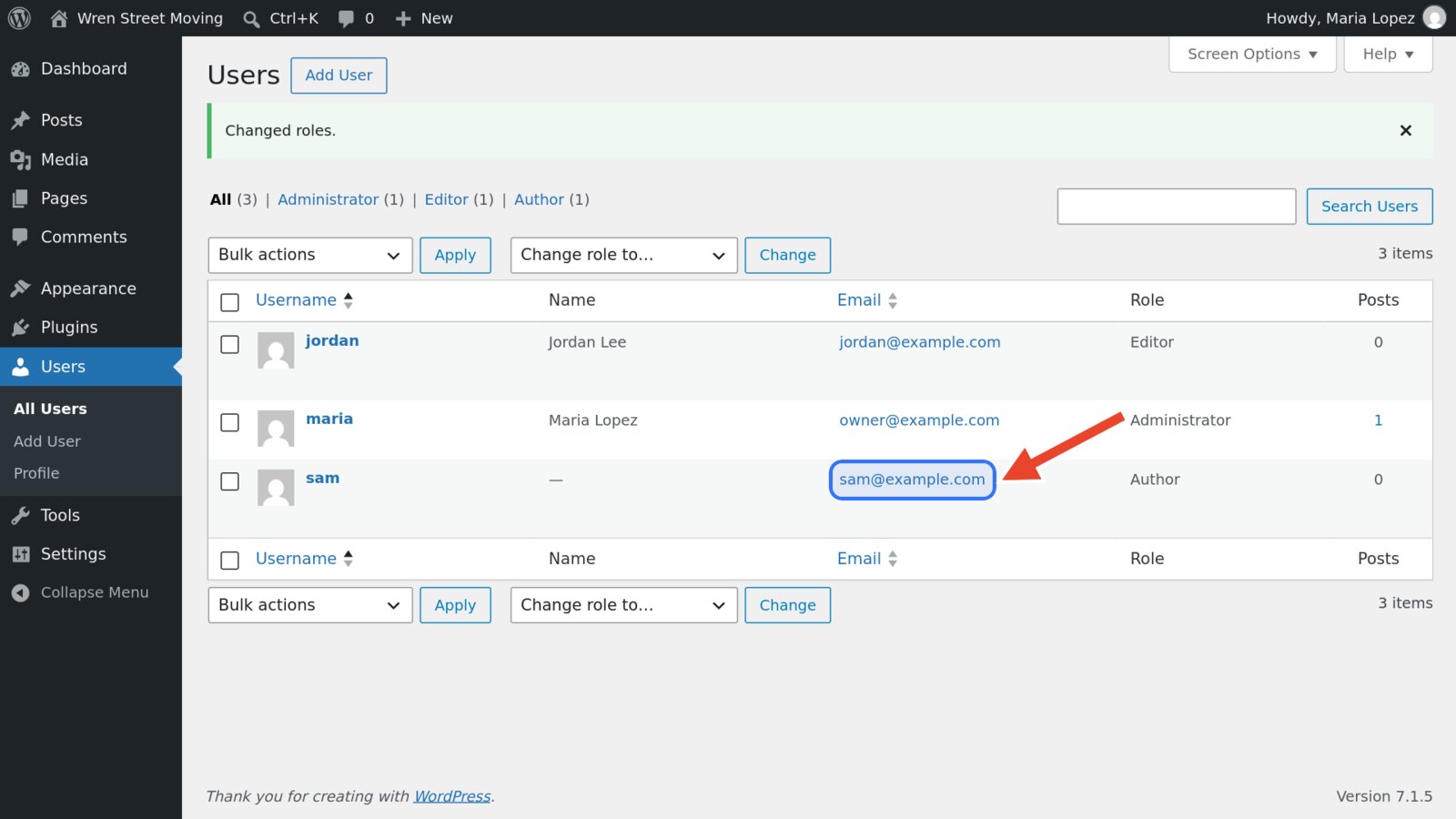
Back in the list, sam's row now shows Author in the Role column.De vuelta en la lista, la fila de sam ahora muestra Author en la columna Role.
¿Atascado en tu propia página web?
Te guío paso a paso, en video, en tu sitio real. O déjame el trabajo y lo dejo hecho.
- Tú haces clic, yo guío
- Un solo precio por trabajo, fijado antes de empezar
- Inglés o español
De dónde viene esto
Cada paso se realizó en un sitio de WordPress real y se verificó con la documentación oficial de WordPress: