Find your way around the WordPress dashboard
The steps
-
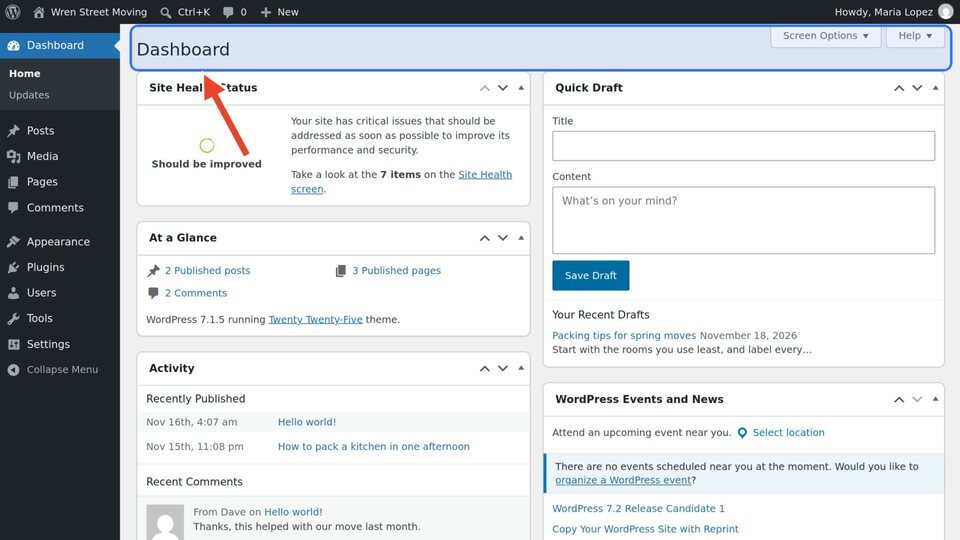
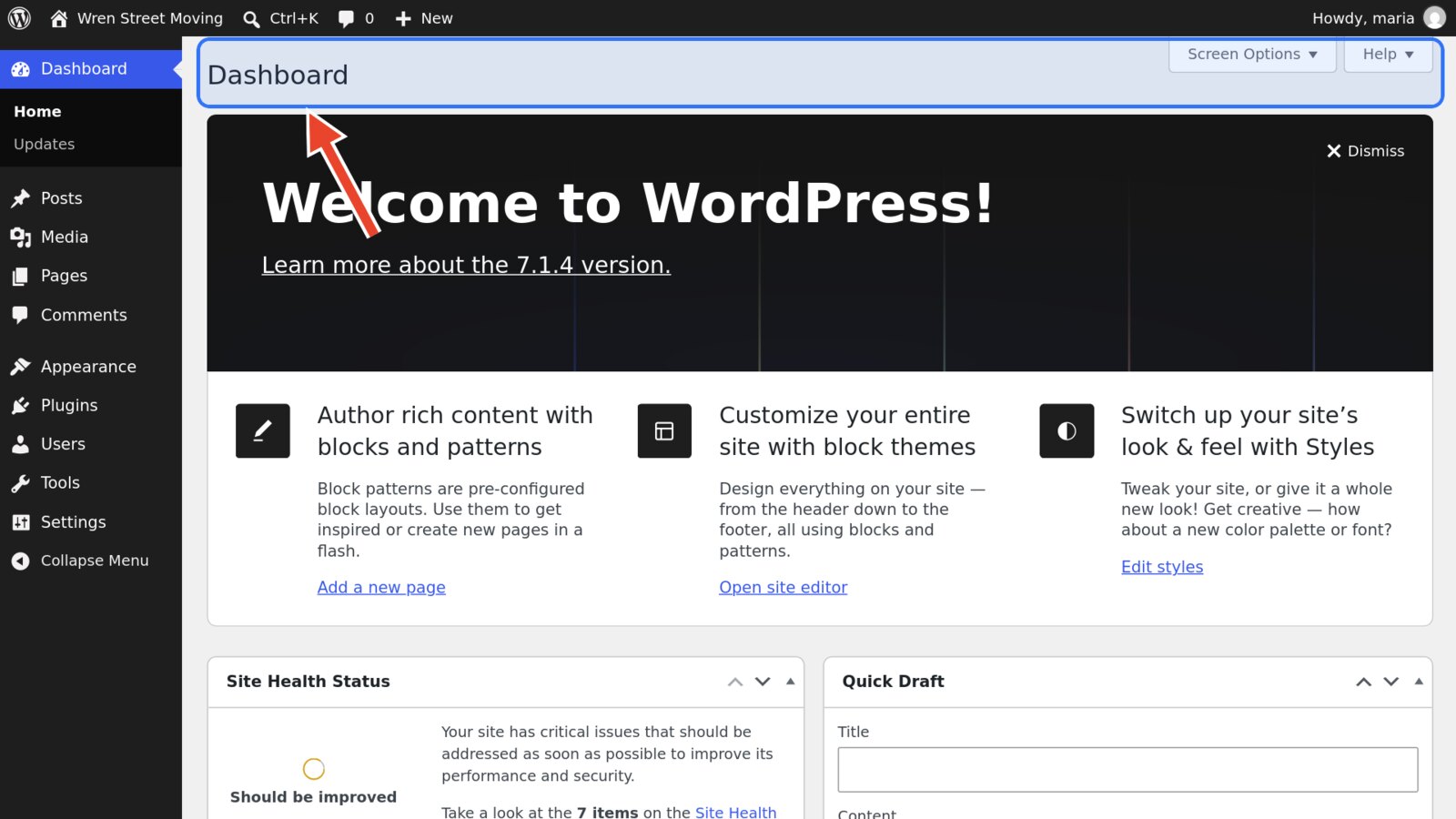
This is the Dashboard, the home screen you see after logging in.Este es el Dashboard, la pantalla de inicio que ves al entrar.
-
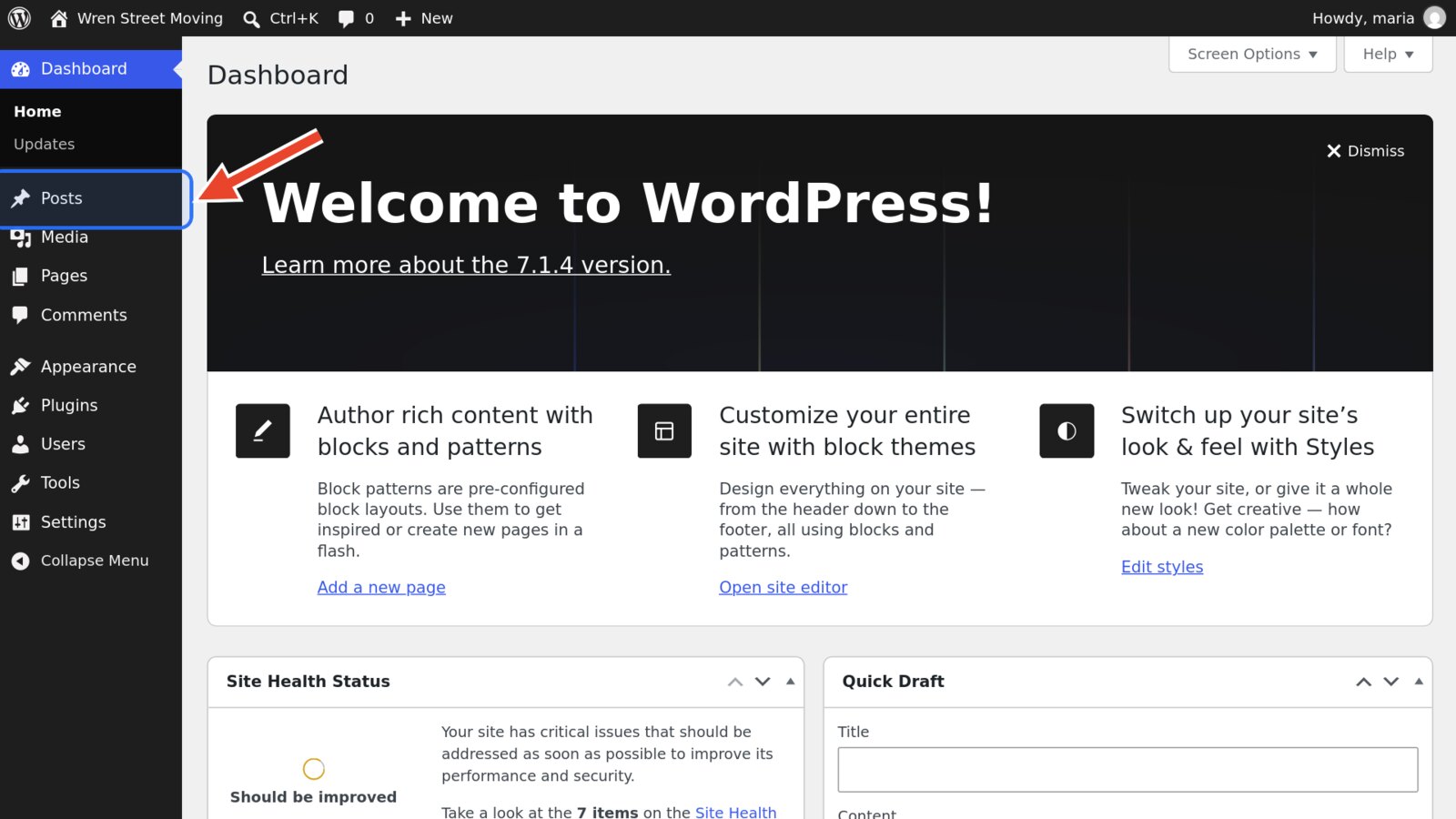
Posts is in the left menu. Your blog articles live here.Posts está en el menú de la izquierda. Aquí viven tus artículos del blog.
-
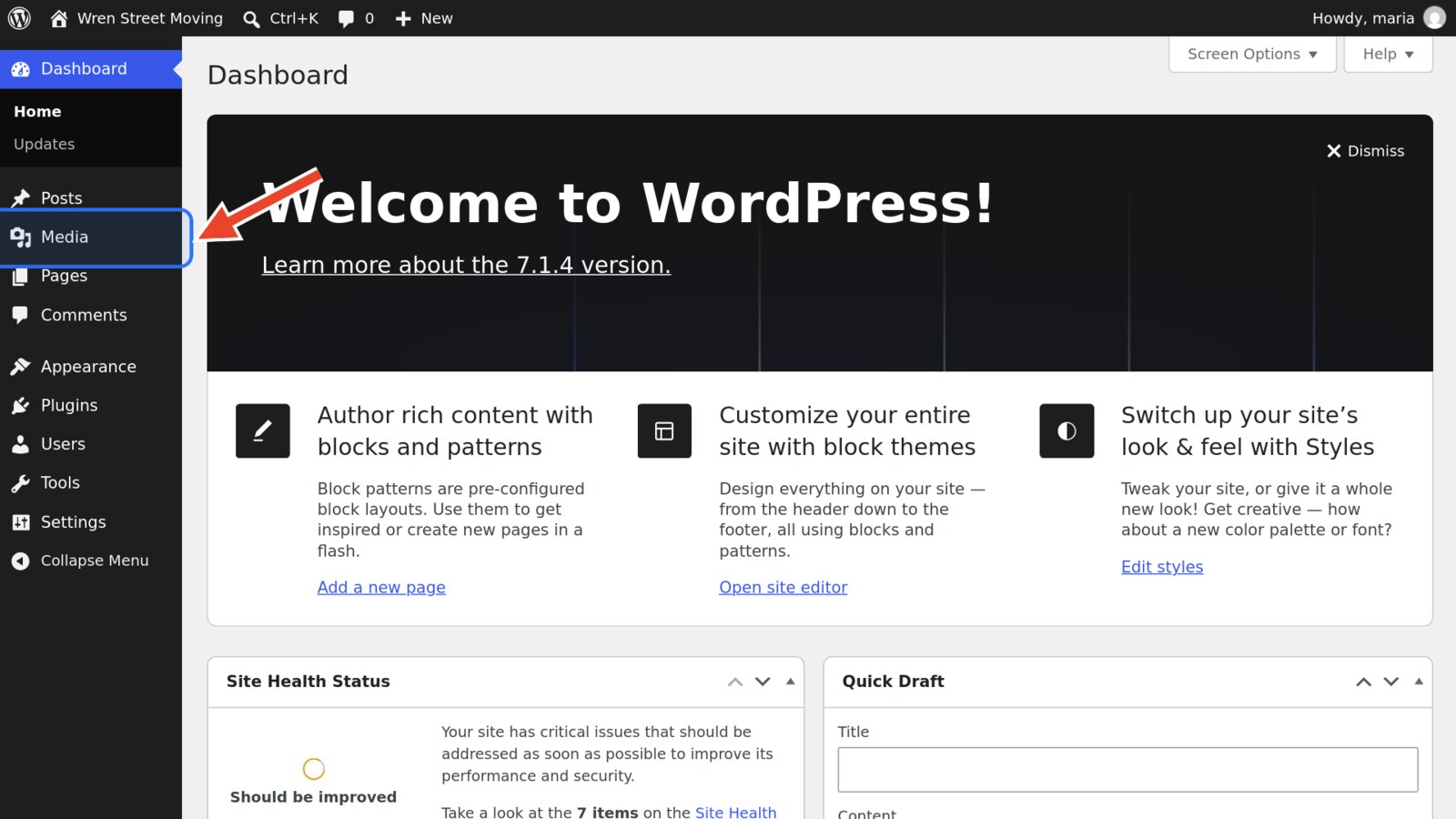
Media holds your uploaded pictures and files.Media guarda tus imágenes y archivos subidos.
-
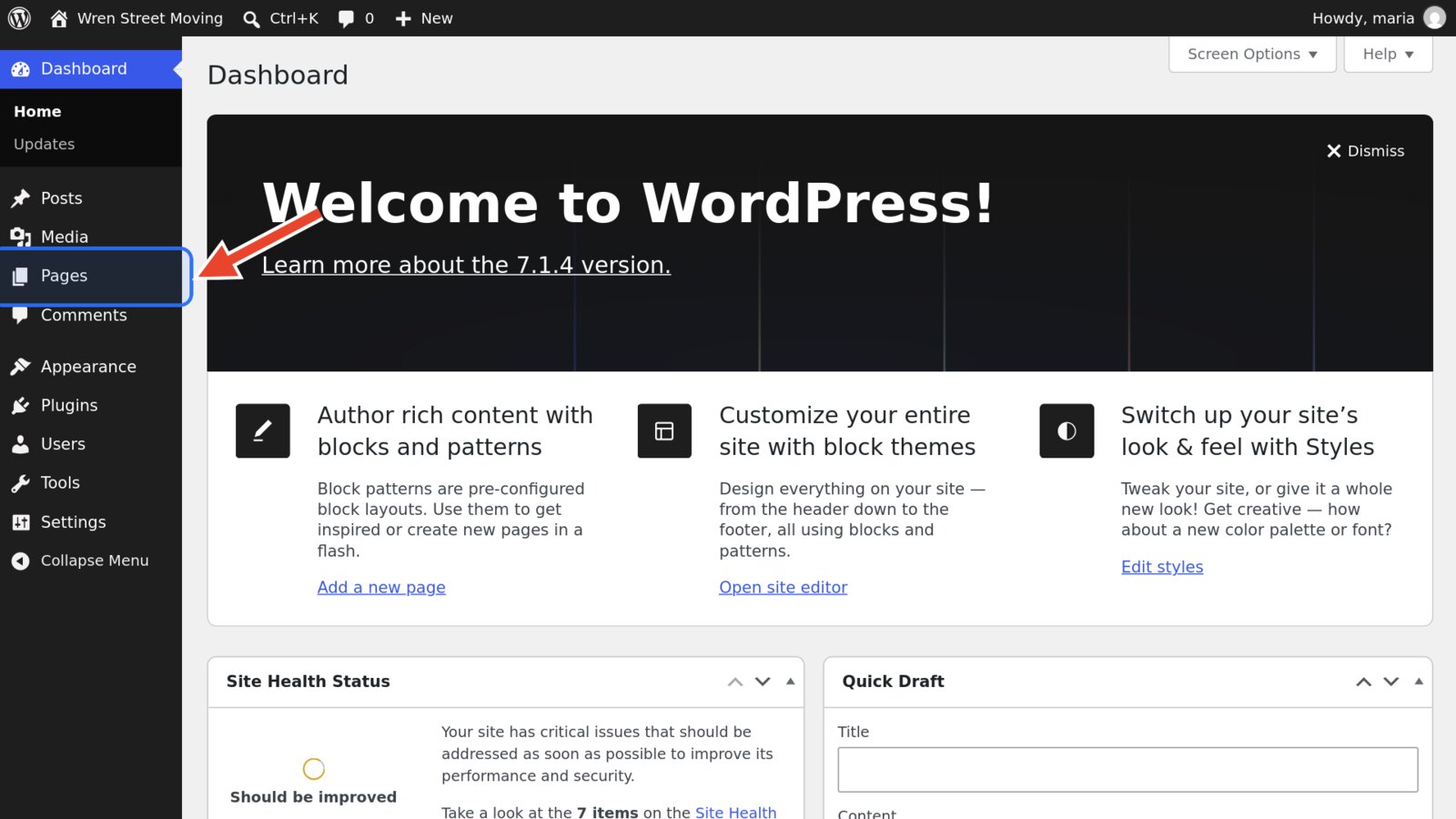
Pages is where your site's pages are managed.En Pages se administran las páginas de tu sitio.
-
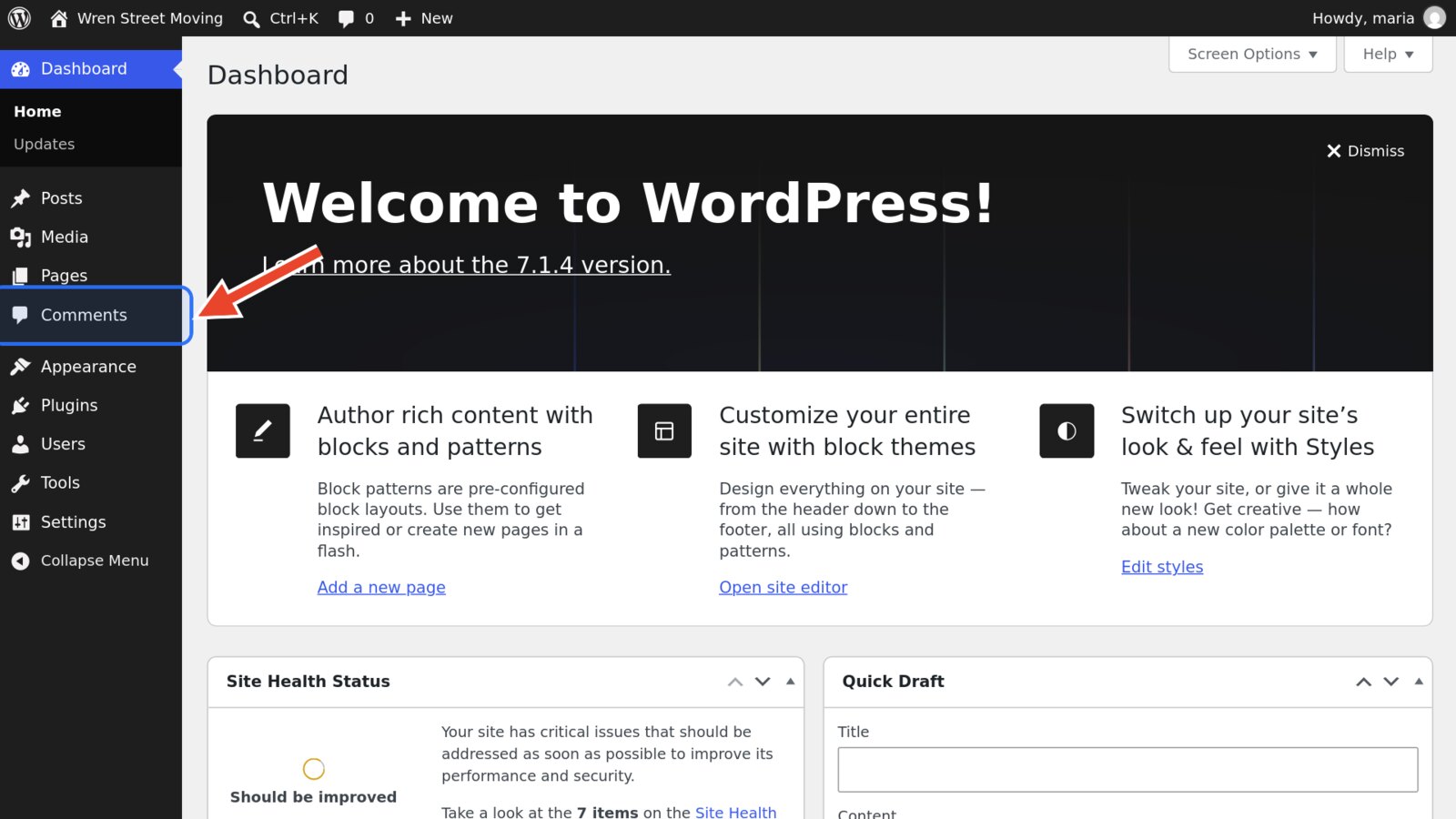
Comments shows what visitors have written on your posts.Comments muestra lo que los visitantes escribieron en tus posts.
-
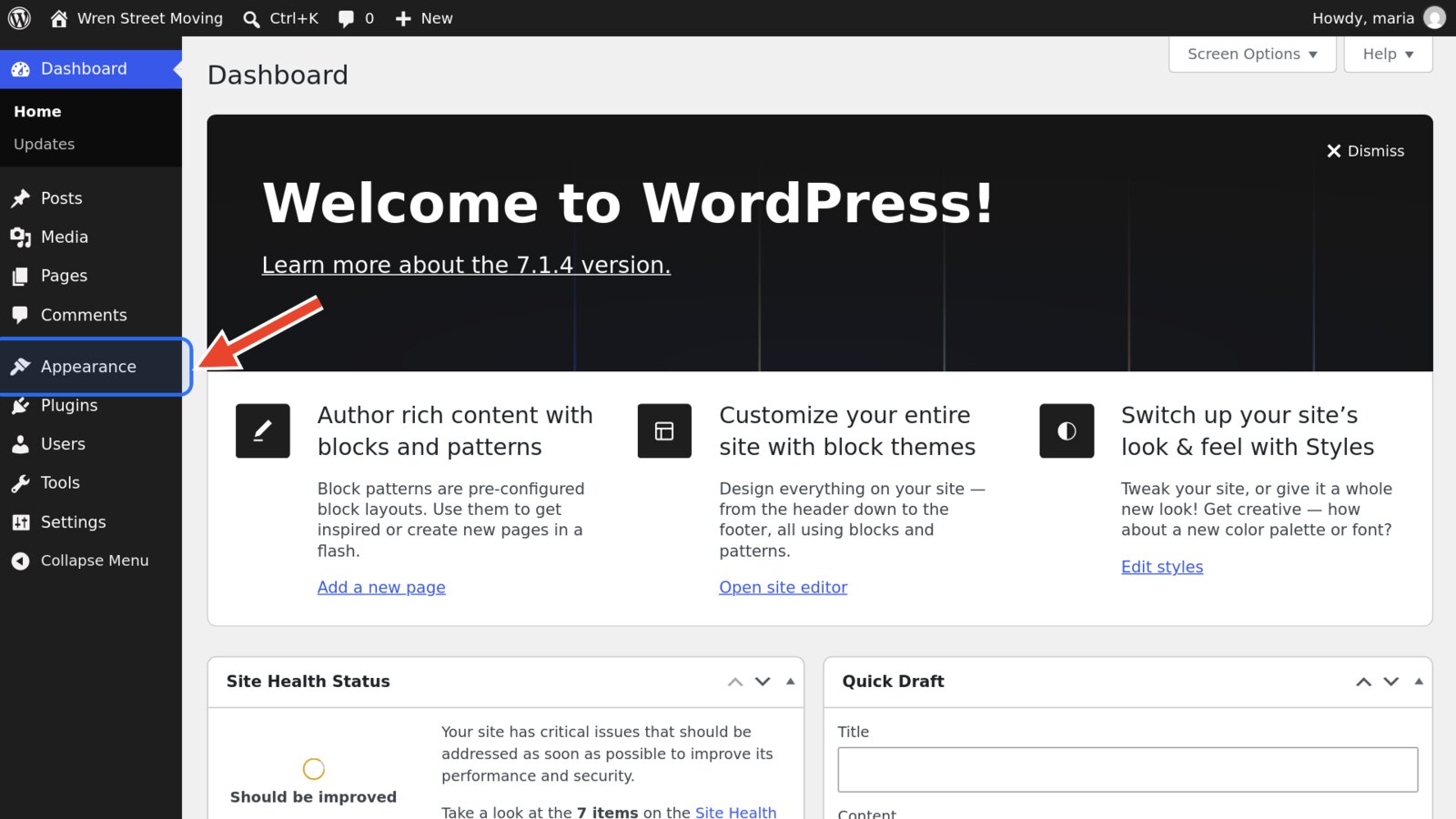
Appearance is where you work with your site's theme.En Appearance trabajas con el tema de tu sitio.
-
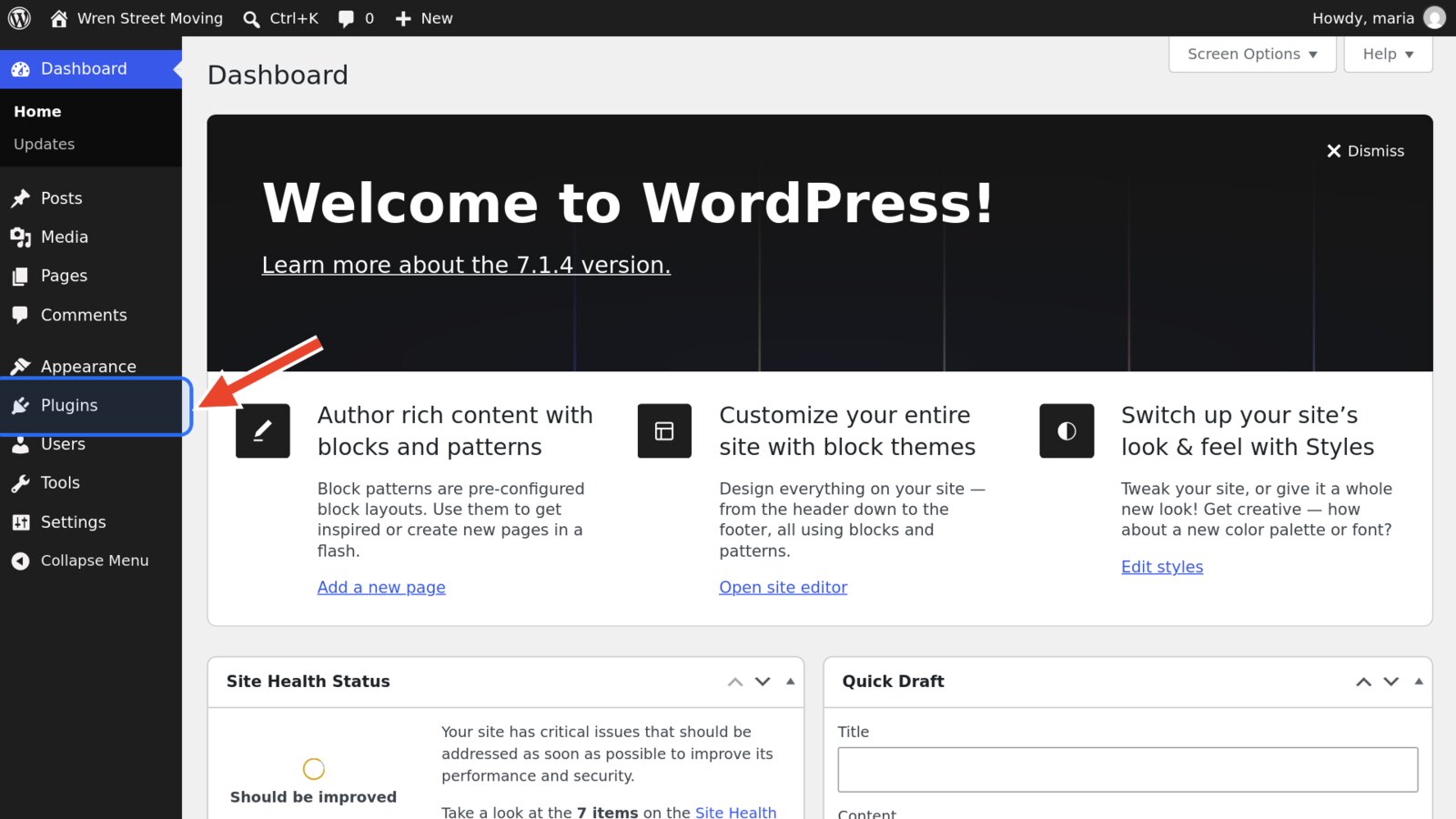
Plugins is where add-ons for your site are kept.En Plugins se guardan los complementos de tu sitio.
-
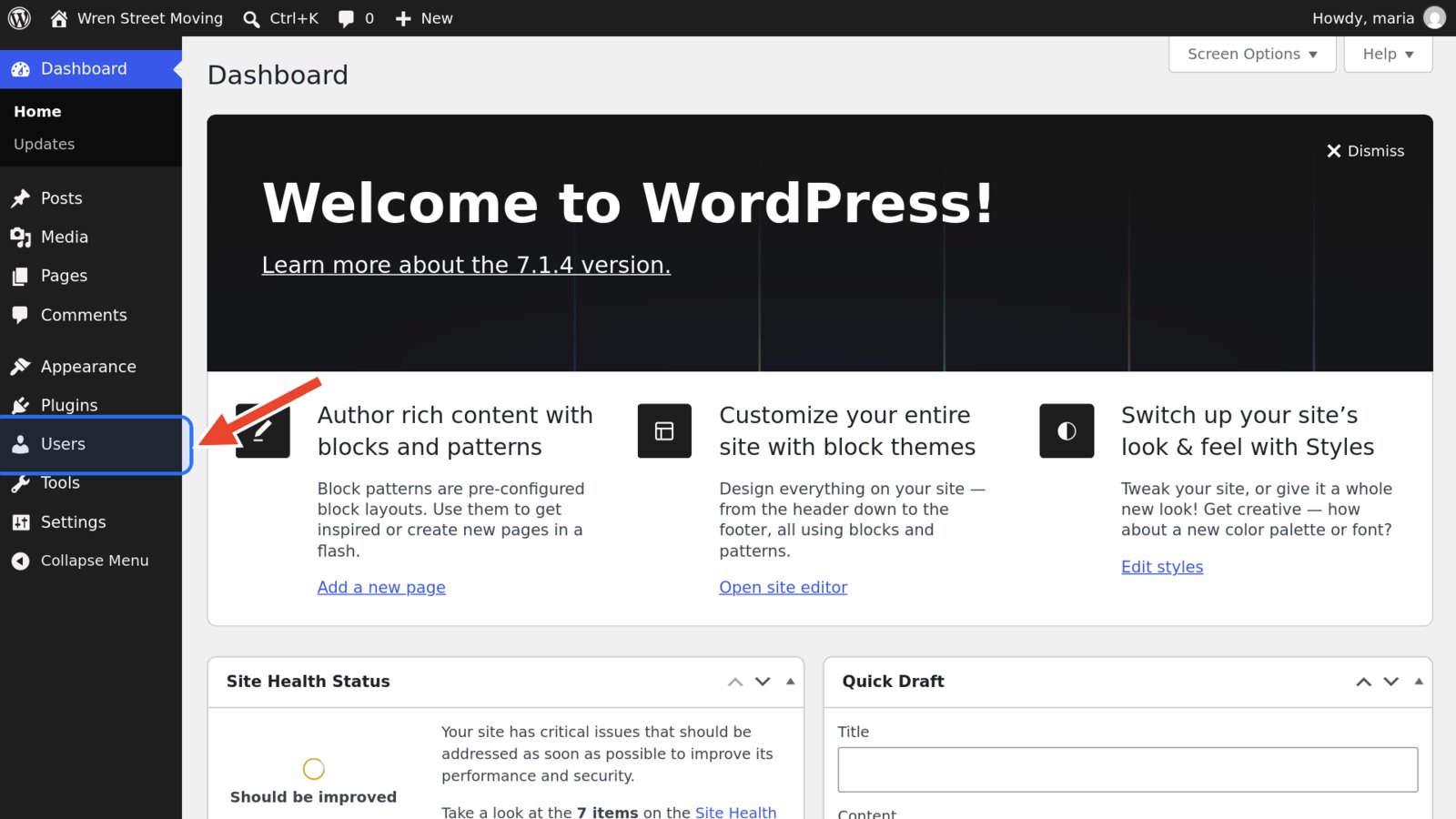
Users lists the people who have accounts on your site.Users muestra las personas que tienen cuenta en tu sitio.
-
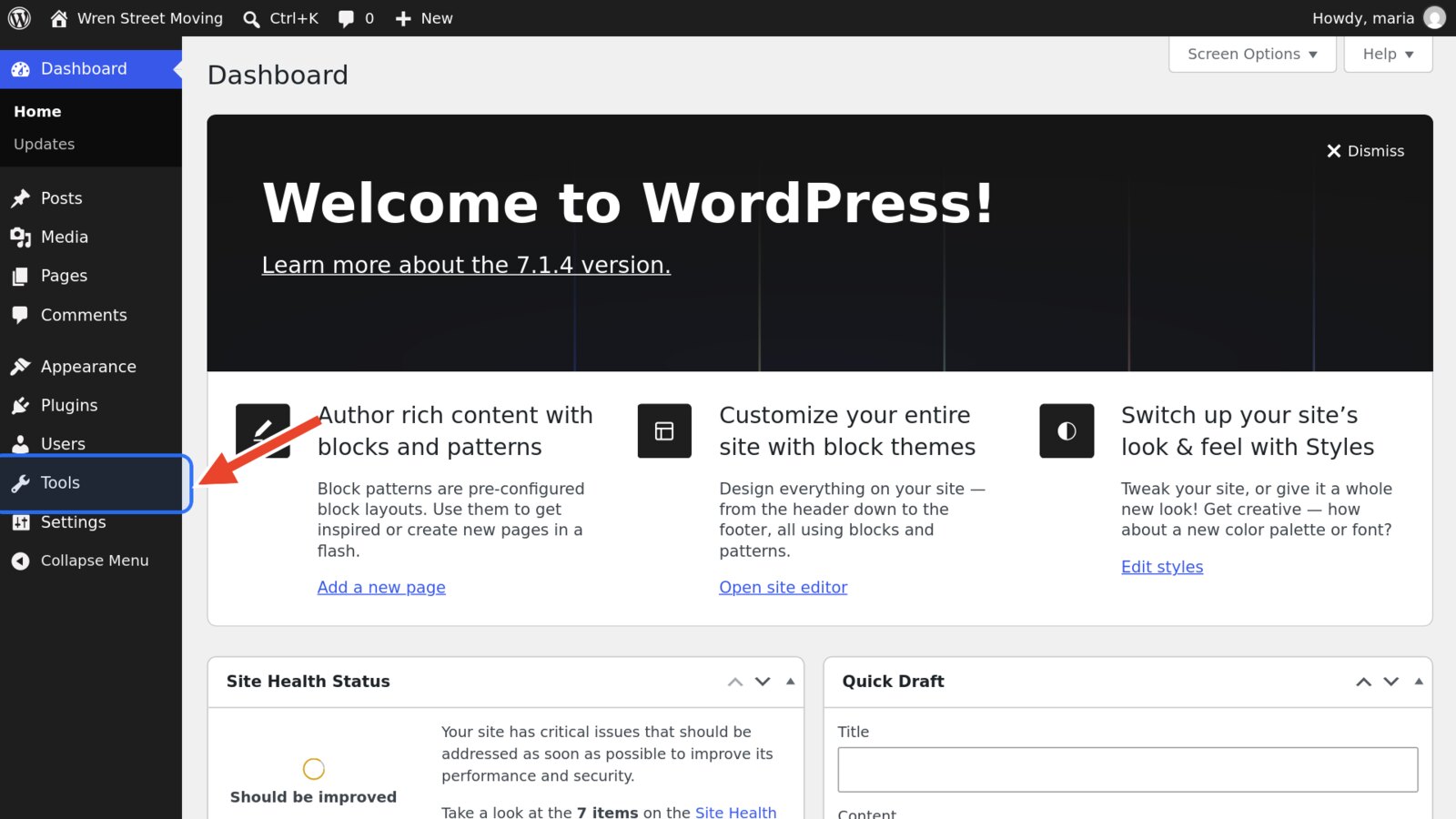
Tools is the next item down in the left menu.Tools es el siguiente elemento del menú de la izquierda.
-
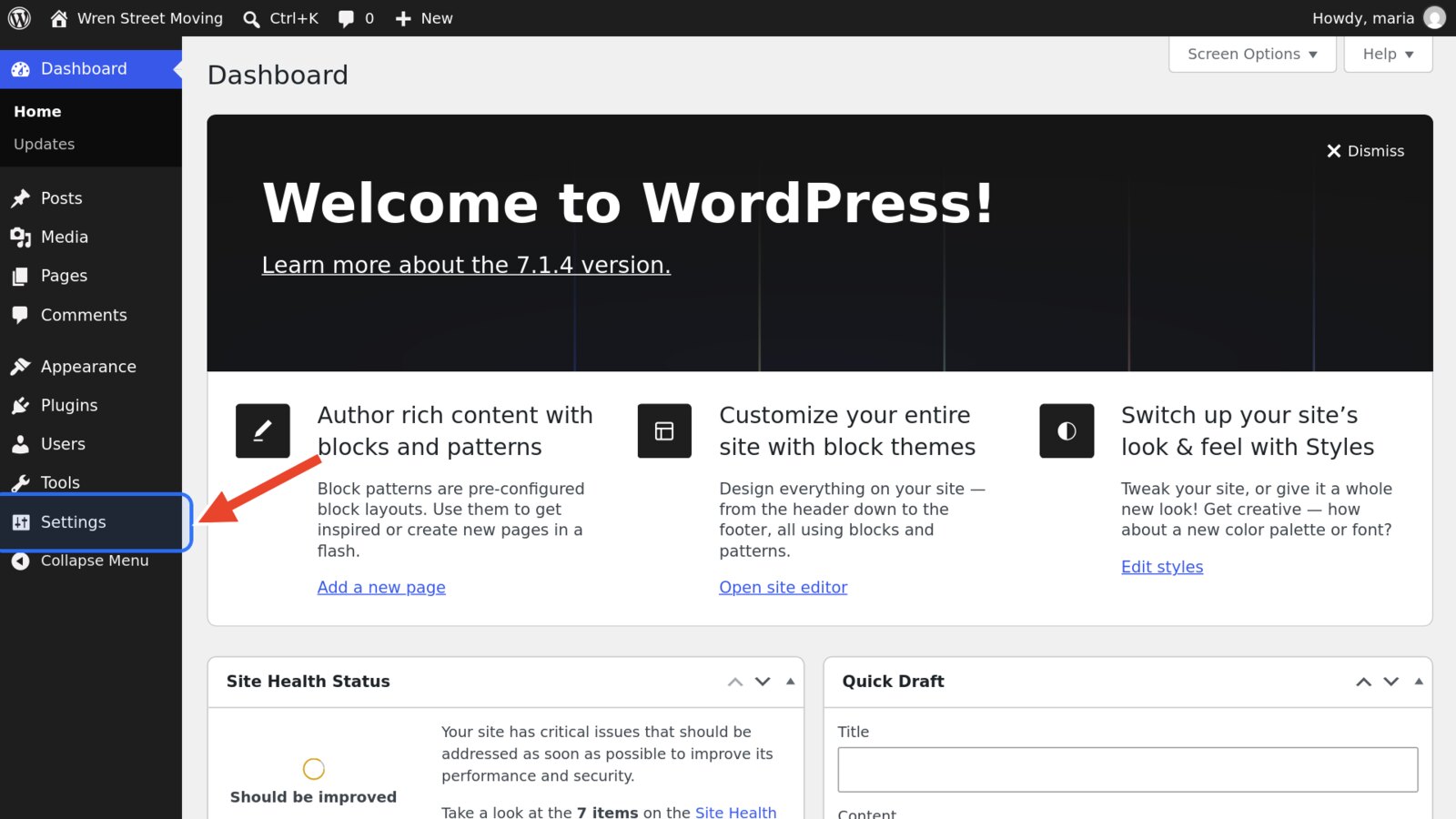
Settings is last in the menu, below Tools.Settings es el último del menú, debajo de Tools.
-
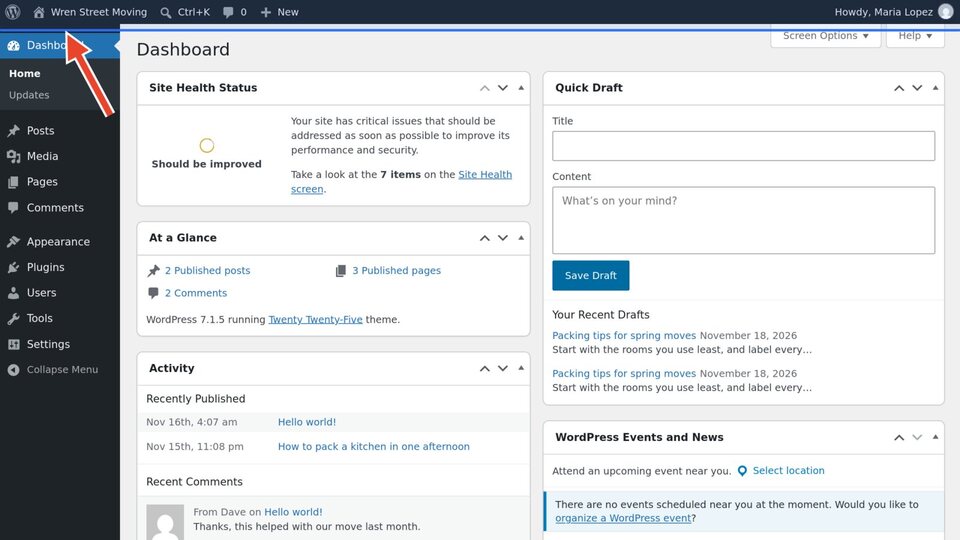
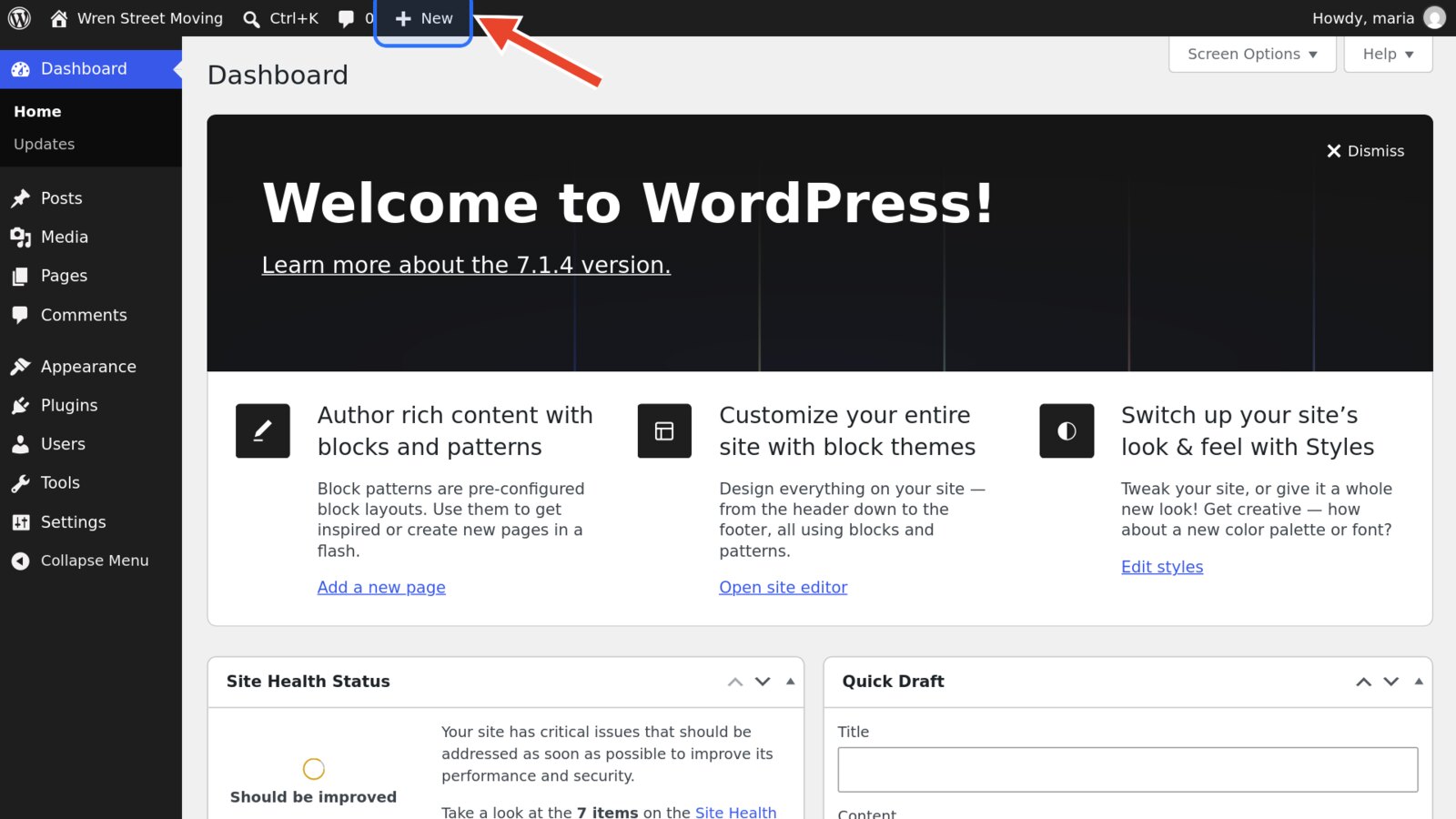
The top bar has a New button for starting something new quickly.La barra superior tiene un botón New para empezar algo nuevo rápido.
-
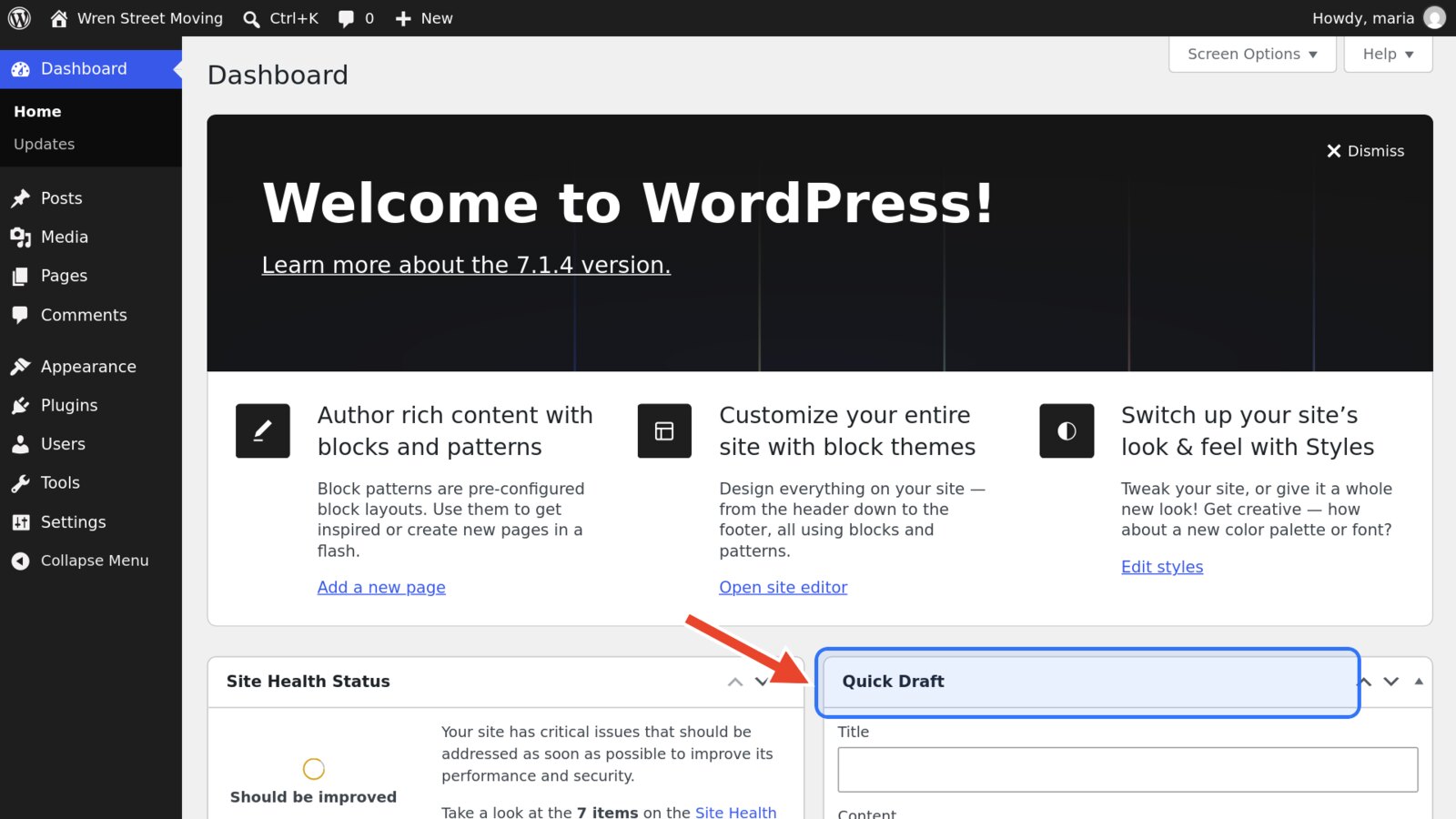
The home screen shows boxes. Quick Draft lets you start a new draft.La pantalla de inicio muestra cuadros. Quick Draft te deja empezar un borrador.
-
Screen Options, at the top right, controls which boxes appear.Screen Options, arriba a la derecha, controla qué cuadros aparecen.
Tip: Use Screen Options to hide boxes you do not use.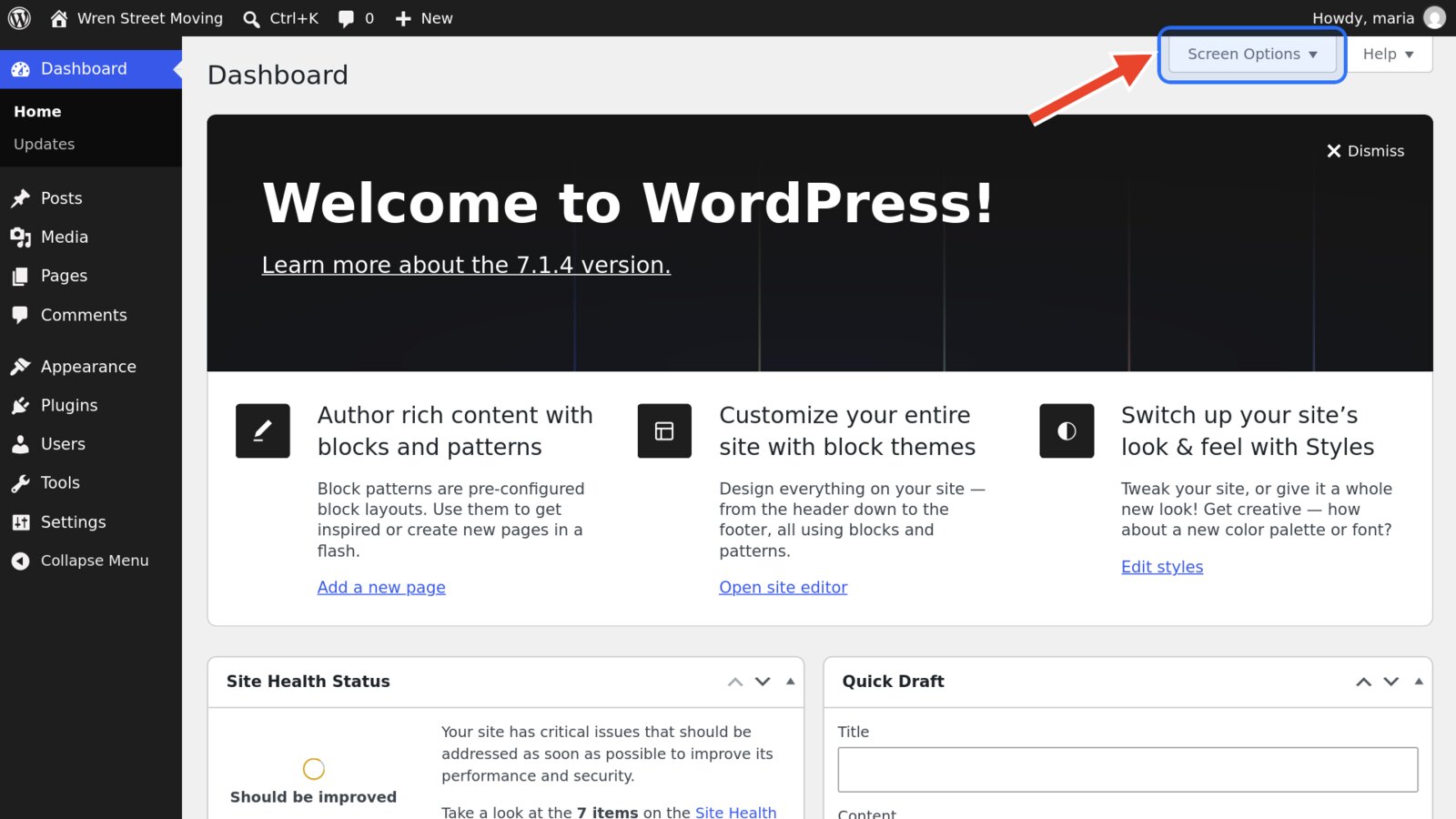
-
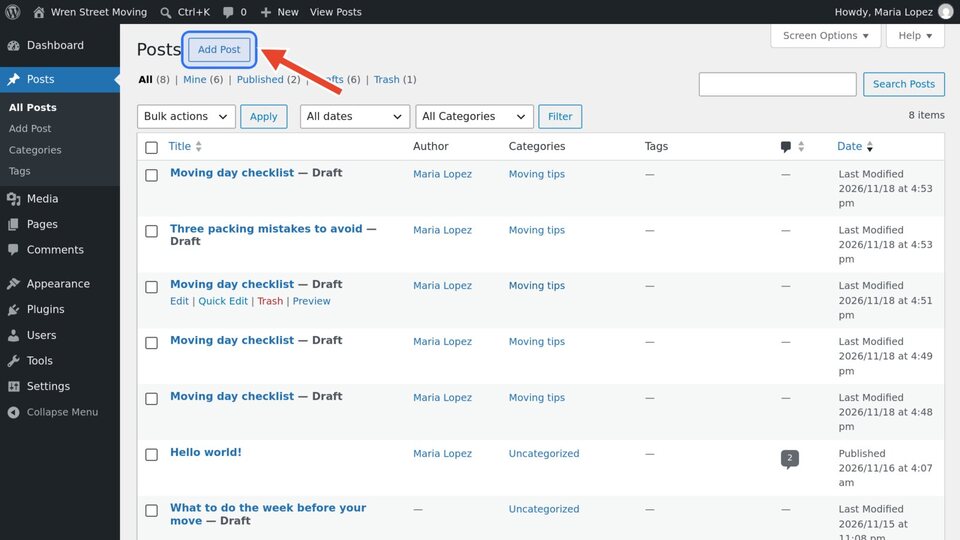
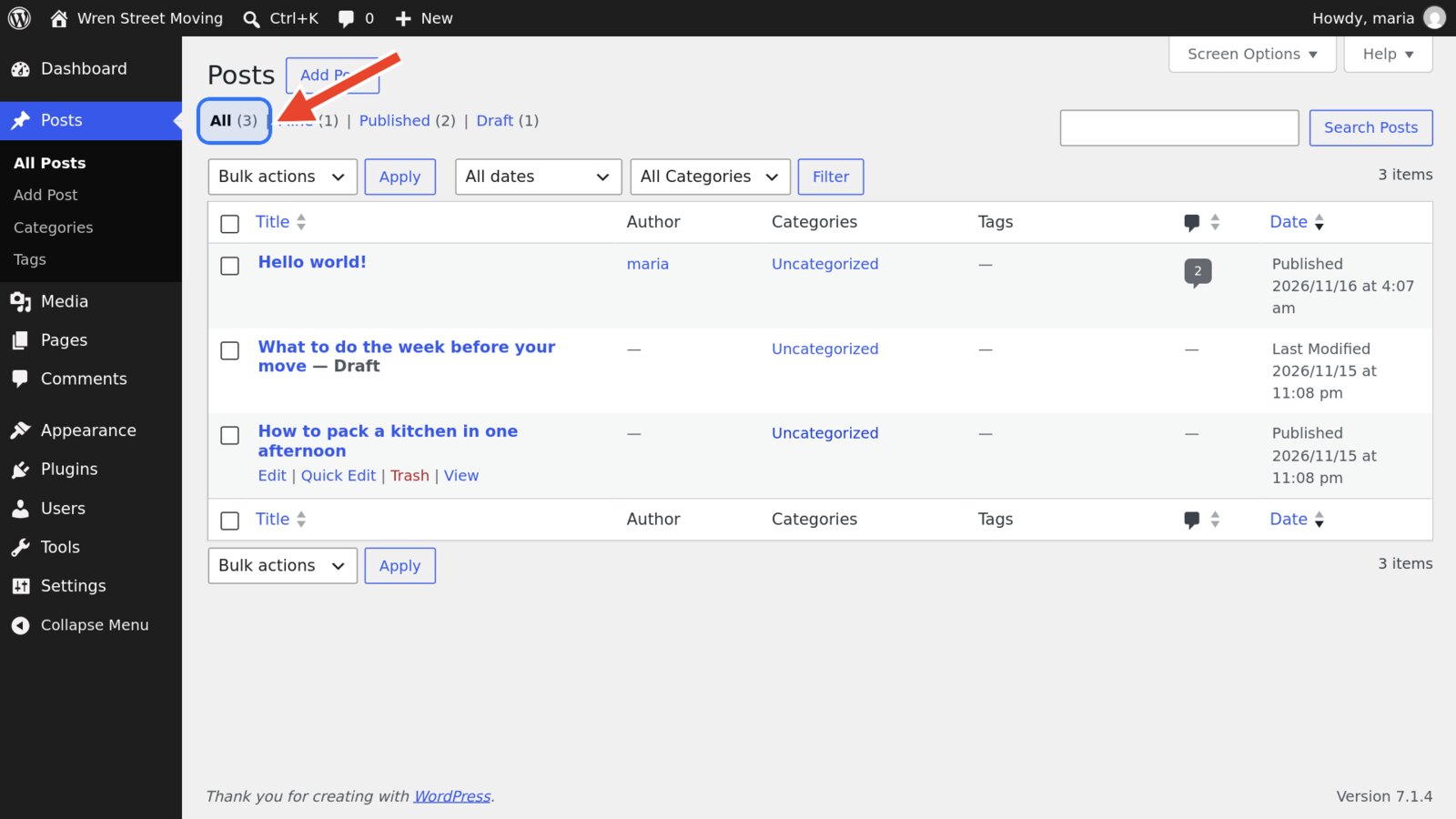
Posts opens a list. All (3) shows every post on the site.Posts abre una lista. All (3) muestra todos los posts del sitio.
Stuck on your own site?
Get walked through it one-on-one, on video, on your real site. Or hand the job over and have it done.
- You click, I guide
- One price per job, set before work starts
- English or Spanish
Where this comes from
Every step was run on a real WordPress site and checked against the official WordPress documentation: