Write and publish a post
The steps
-
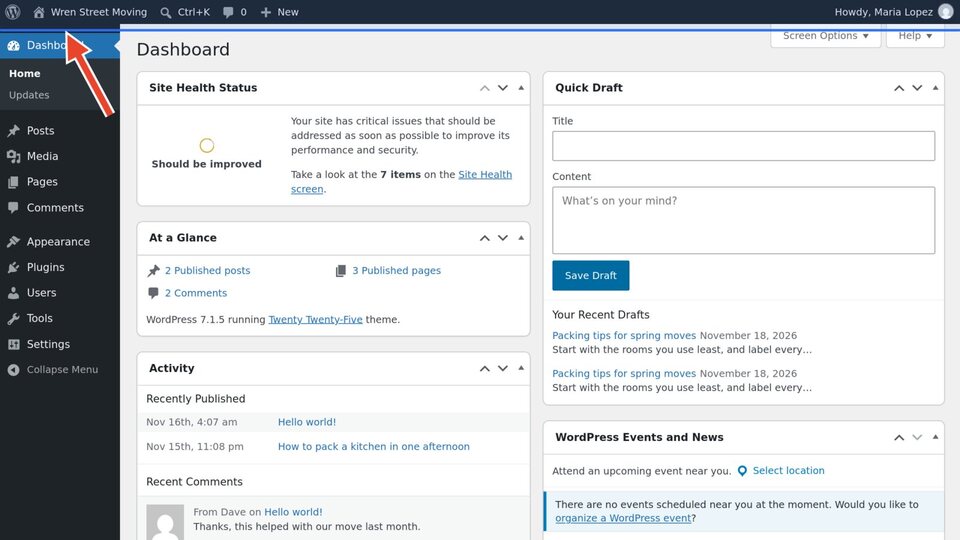
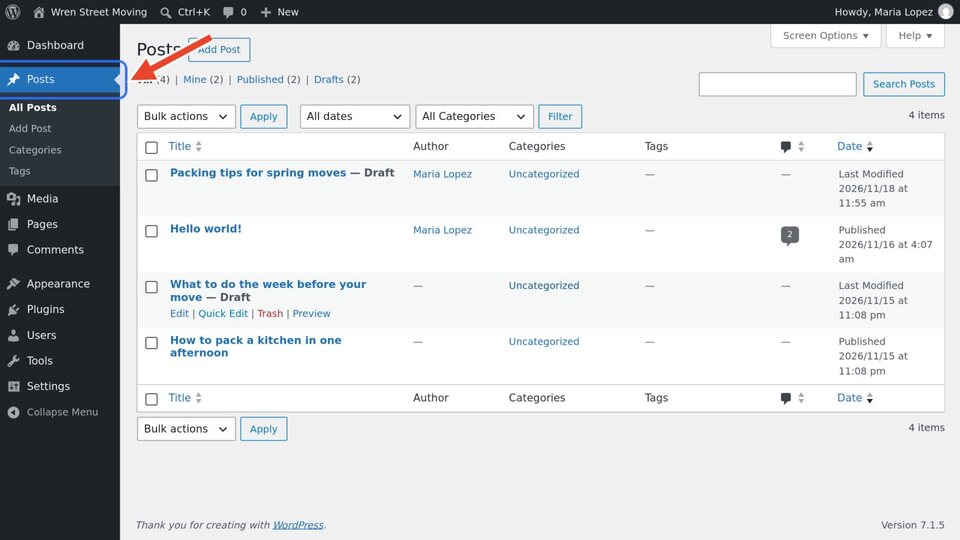
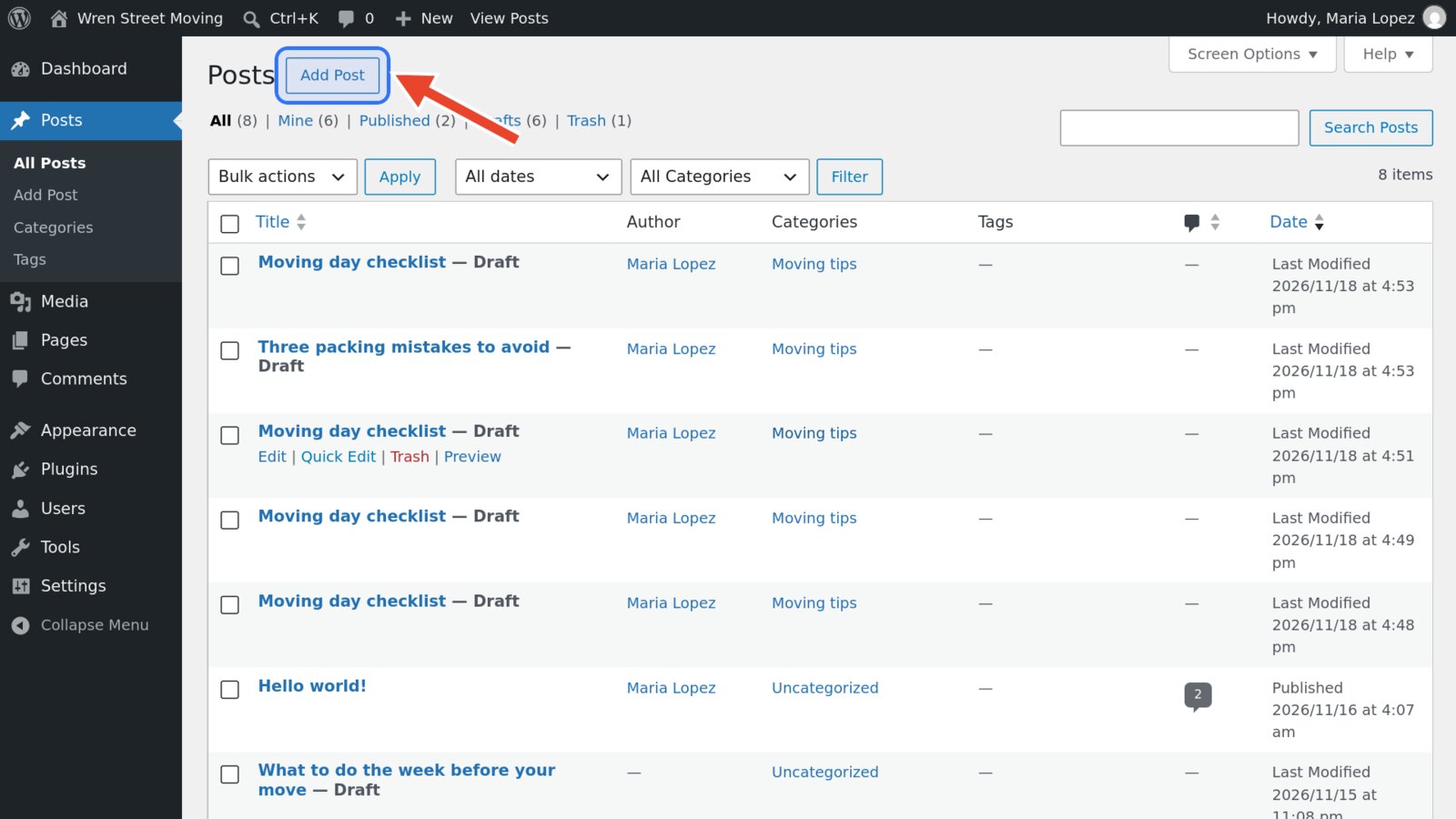
To write a new post, open Posts and press Add Post.Para escribir una entrada nueva, abre Posts y presiona Add Post.
-
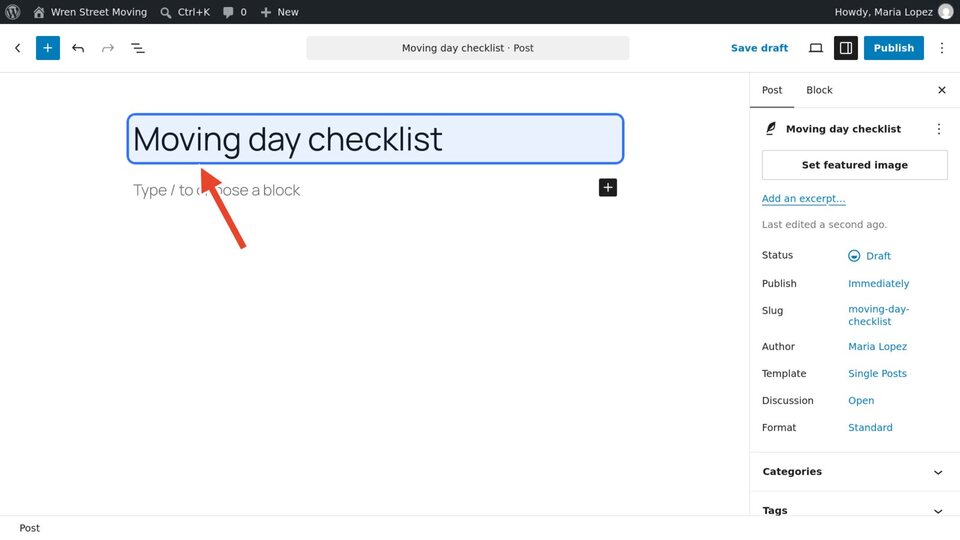
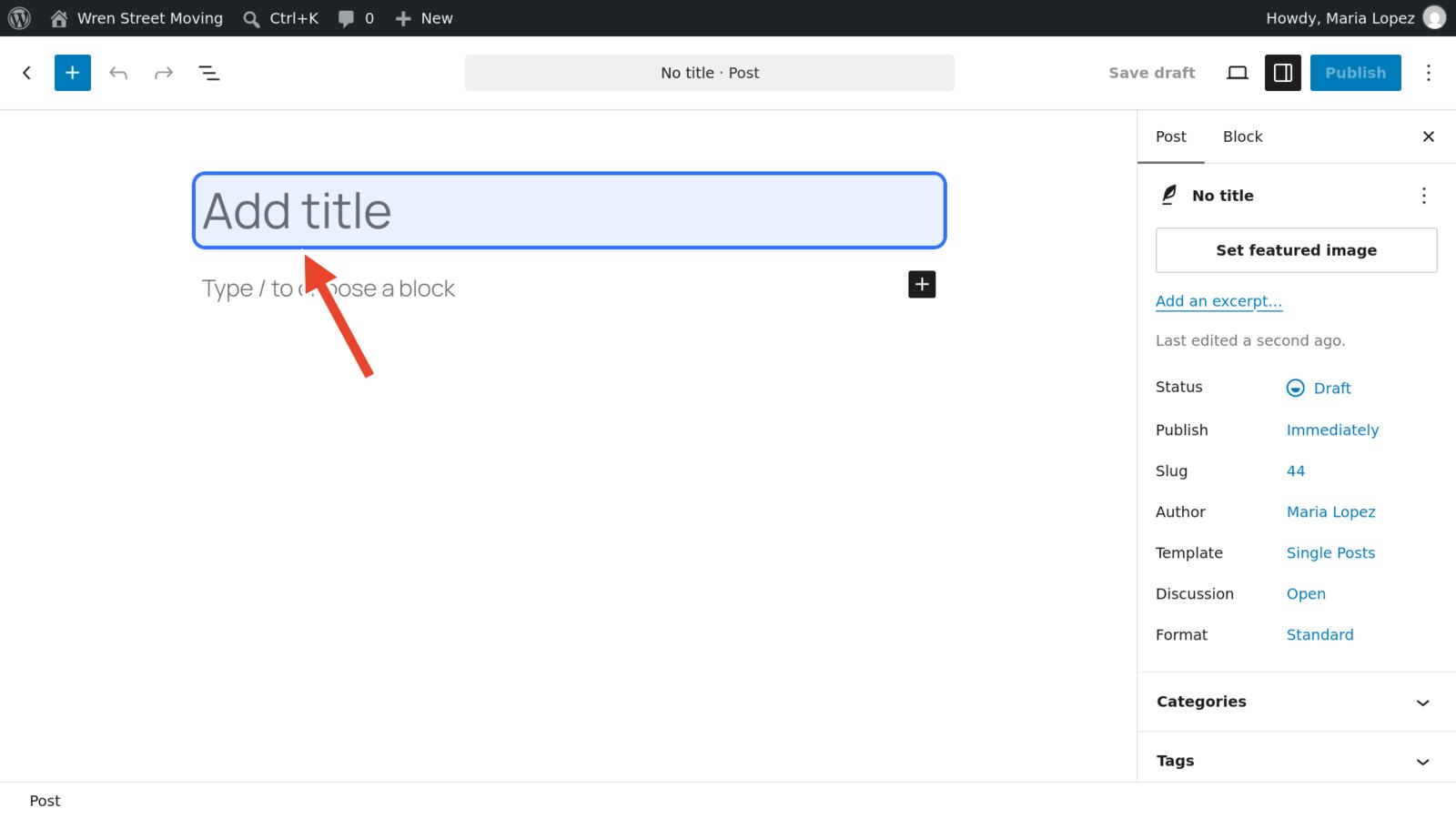
This is the editor. Click Add title at the top.Este es el editor. Haz clic en Add title, arriba.
-
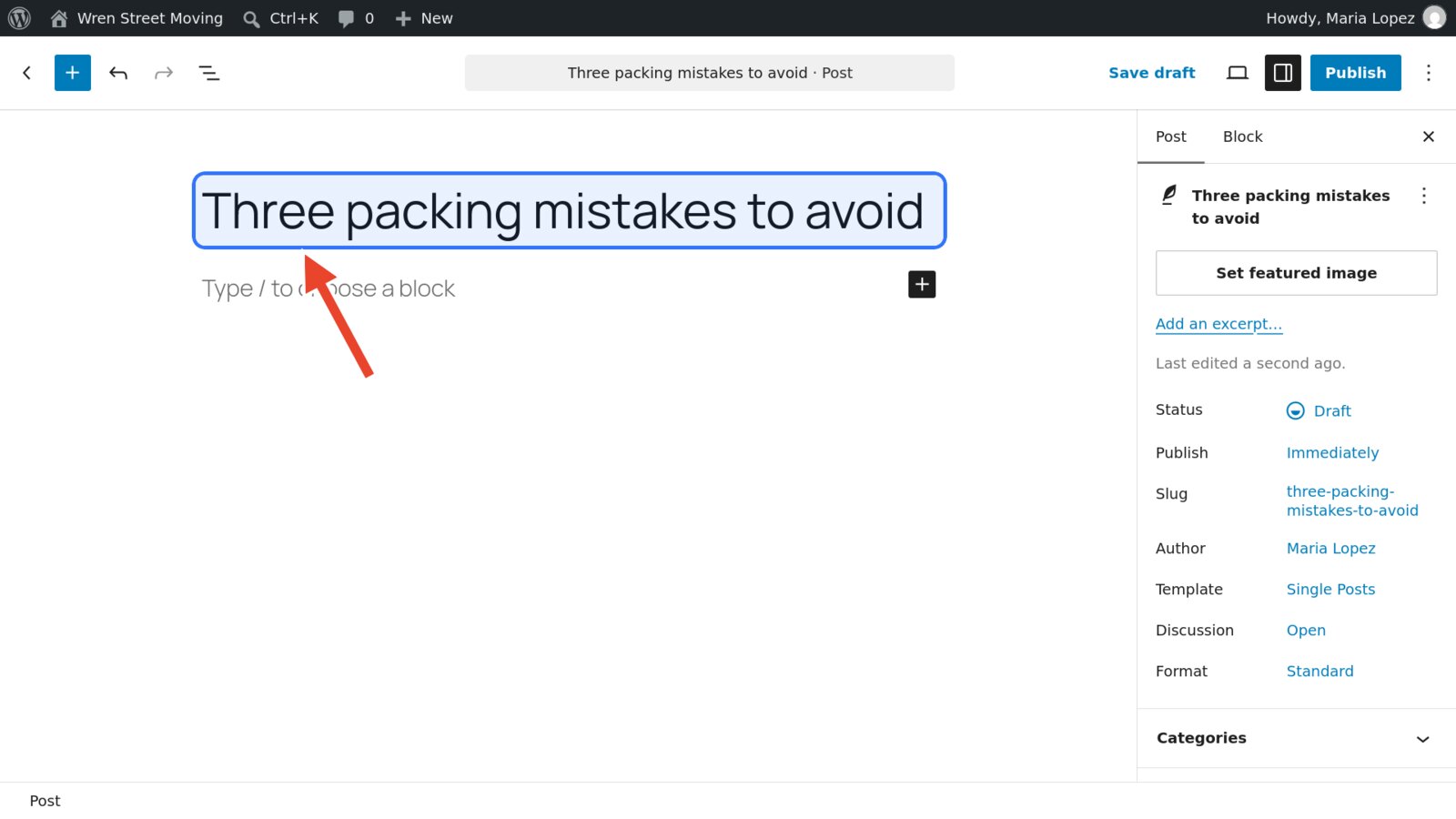
Type the title of your post.Escribe el título de tu entrada.
-
Press Enter, then type your first paragraph.Presiona Enter y escribe tu primer párrafo.
Tip: Each paragraph is its own block. Press Enter to start a new one.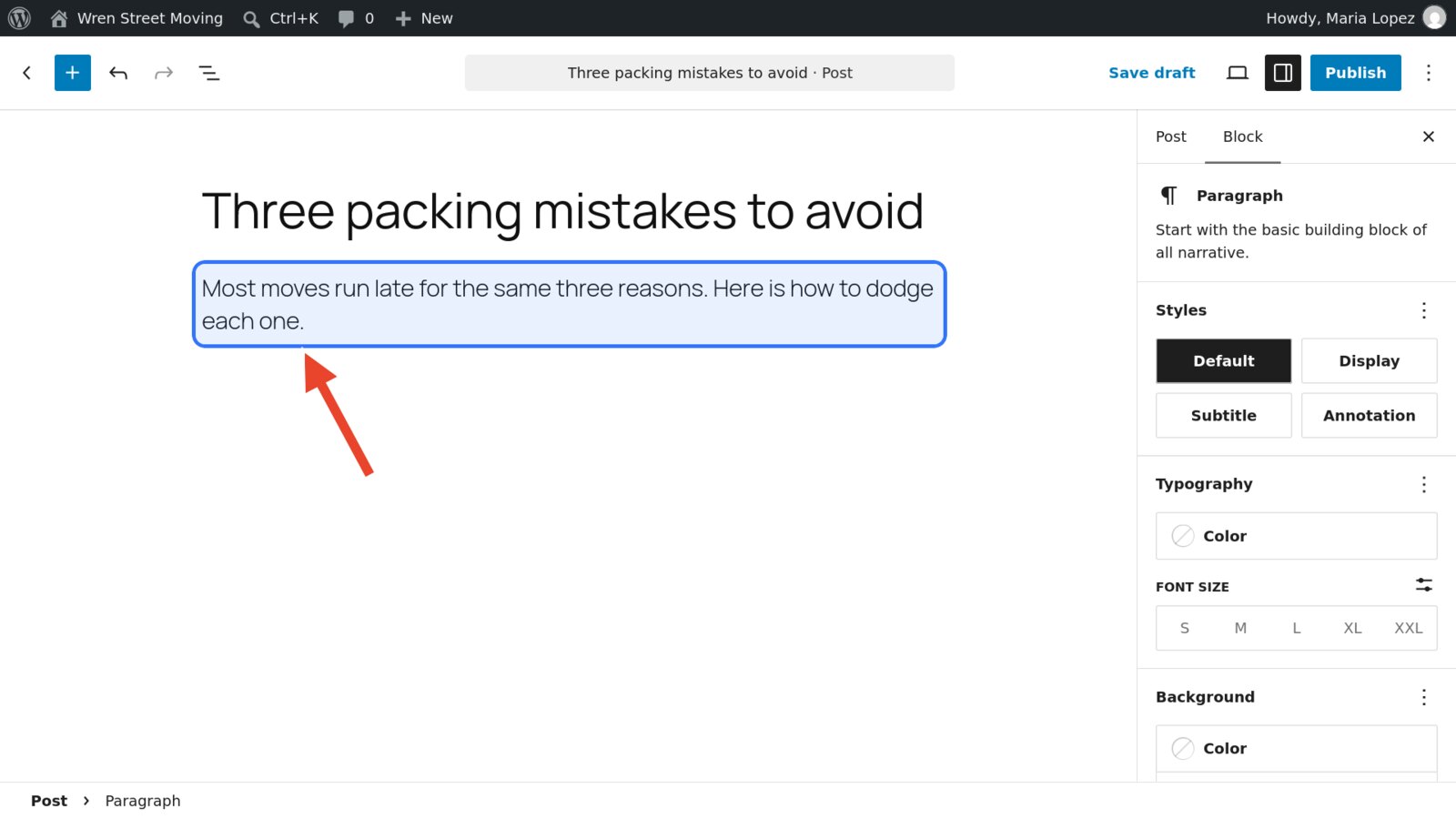
-
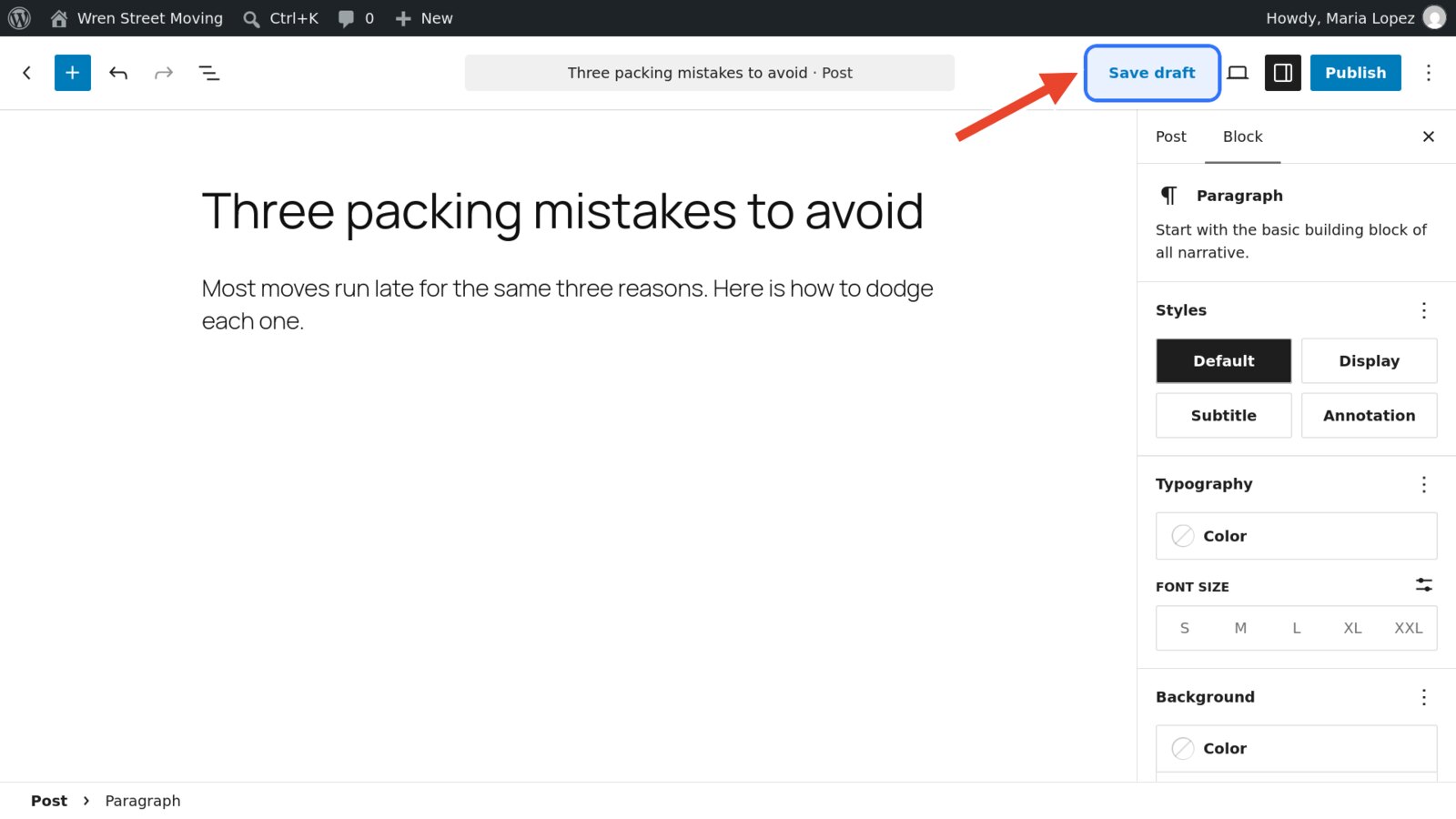
Press Save draft to keep your work without making it public.Presiona Save draft para guardar tu trabajo sin publicarlo.
-
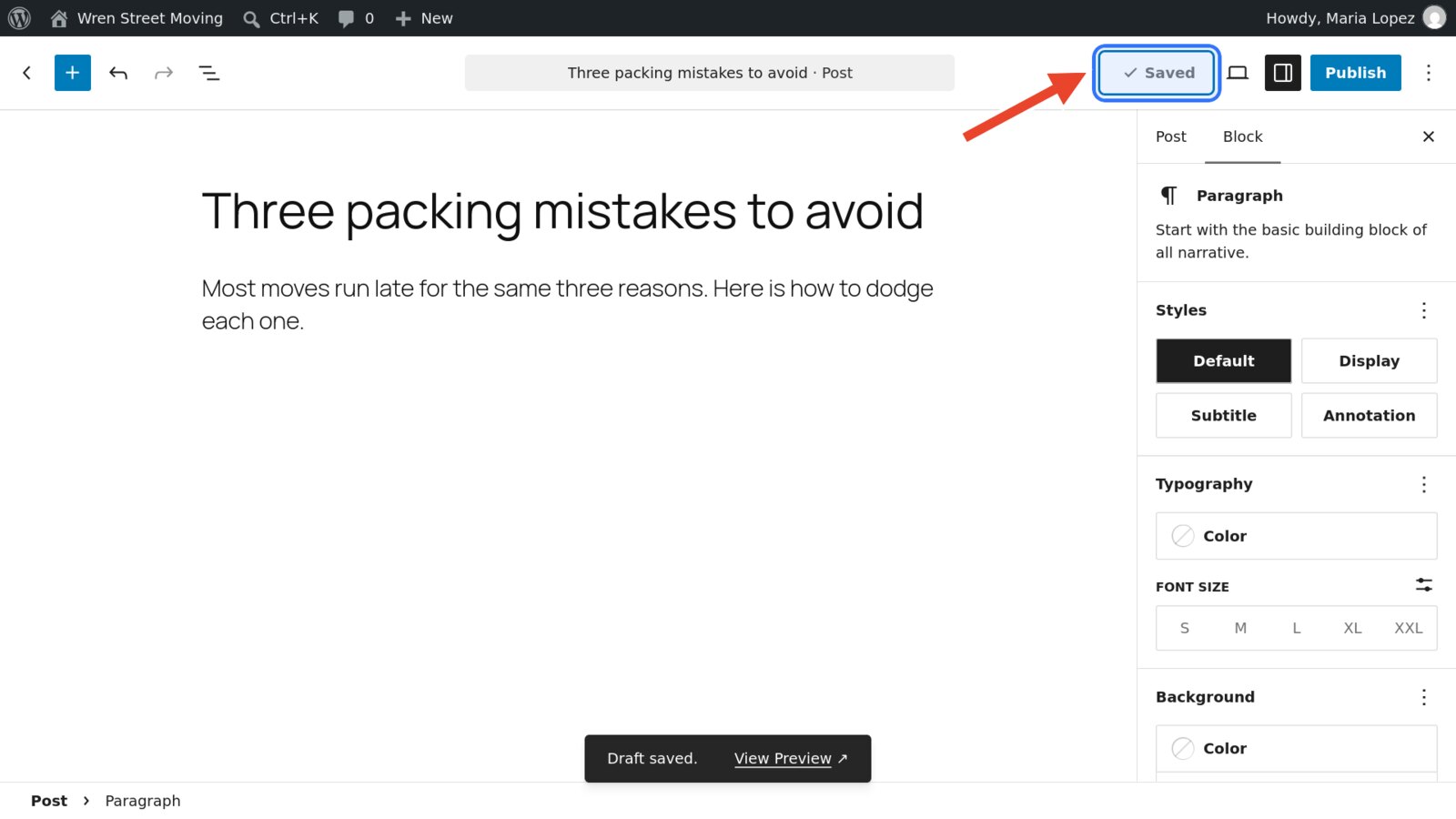
The button now says Saved. Your draft is kept, and nothing is public yet.El botón ahora dice Saved. Tu borrador está guardado y nada es público todavía.
-
View, at the top right, lets you preview the post the way visitors will see it.View, arriba a la derecha, te deja ver la entrada como la verán los visitantes.
Tip: Look at the preview before you publish.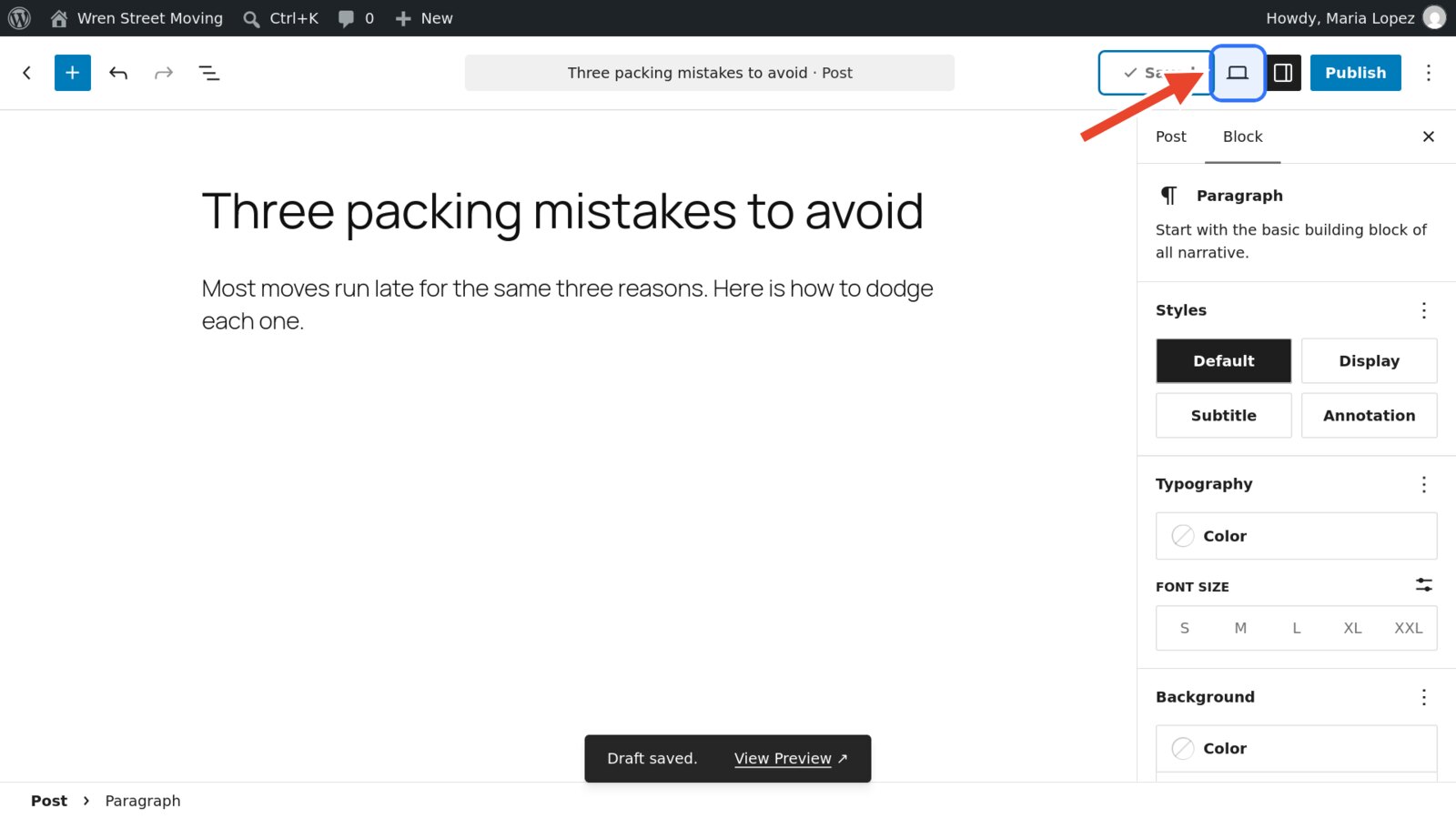
-
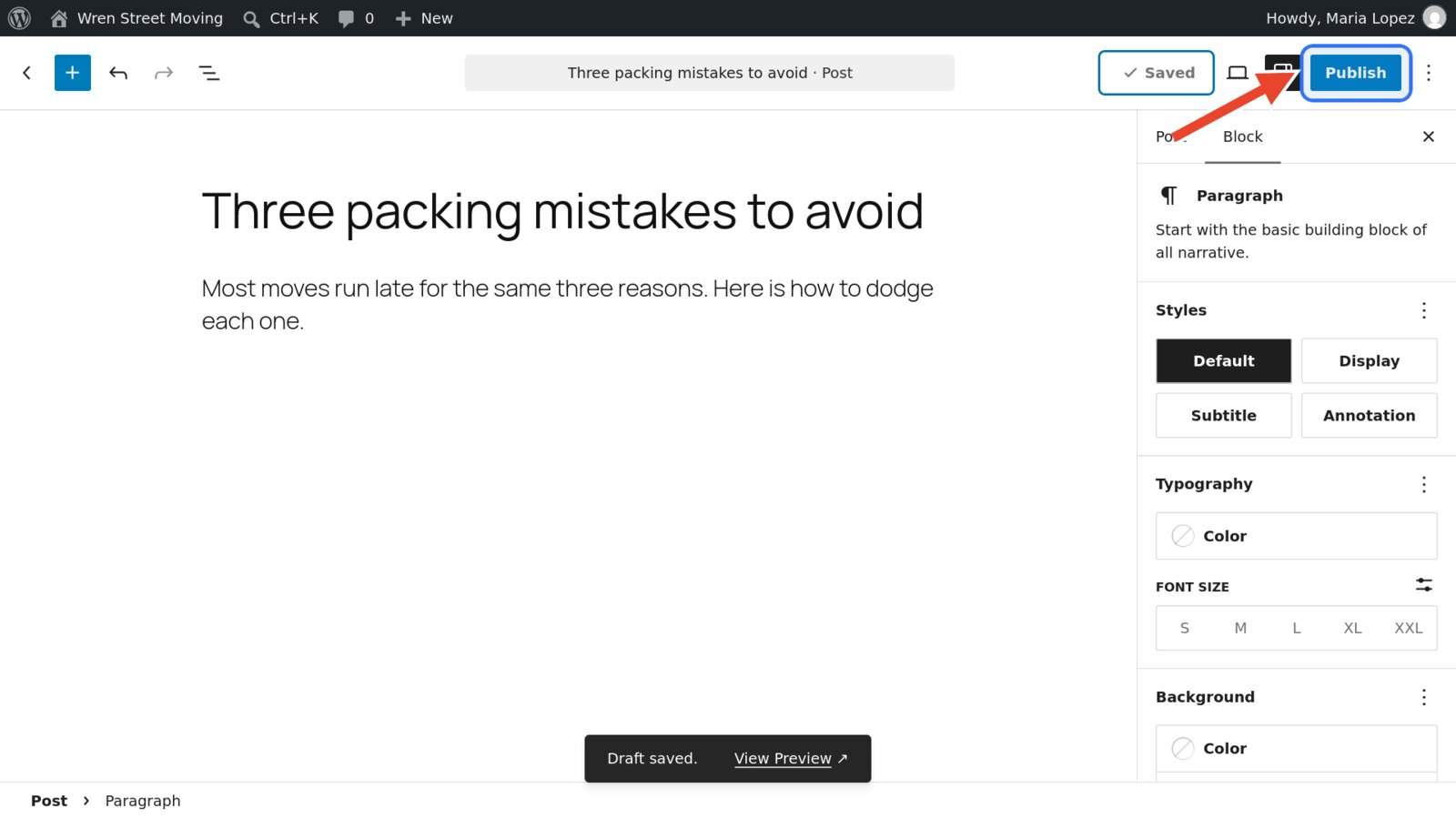
When it is ready, press Publish at the top right.Cuando esté lista, presiona Publish arriba a la derecha.
-
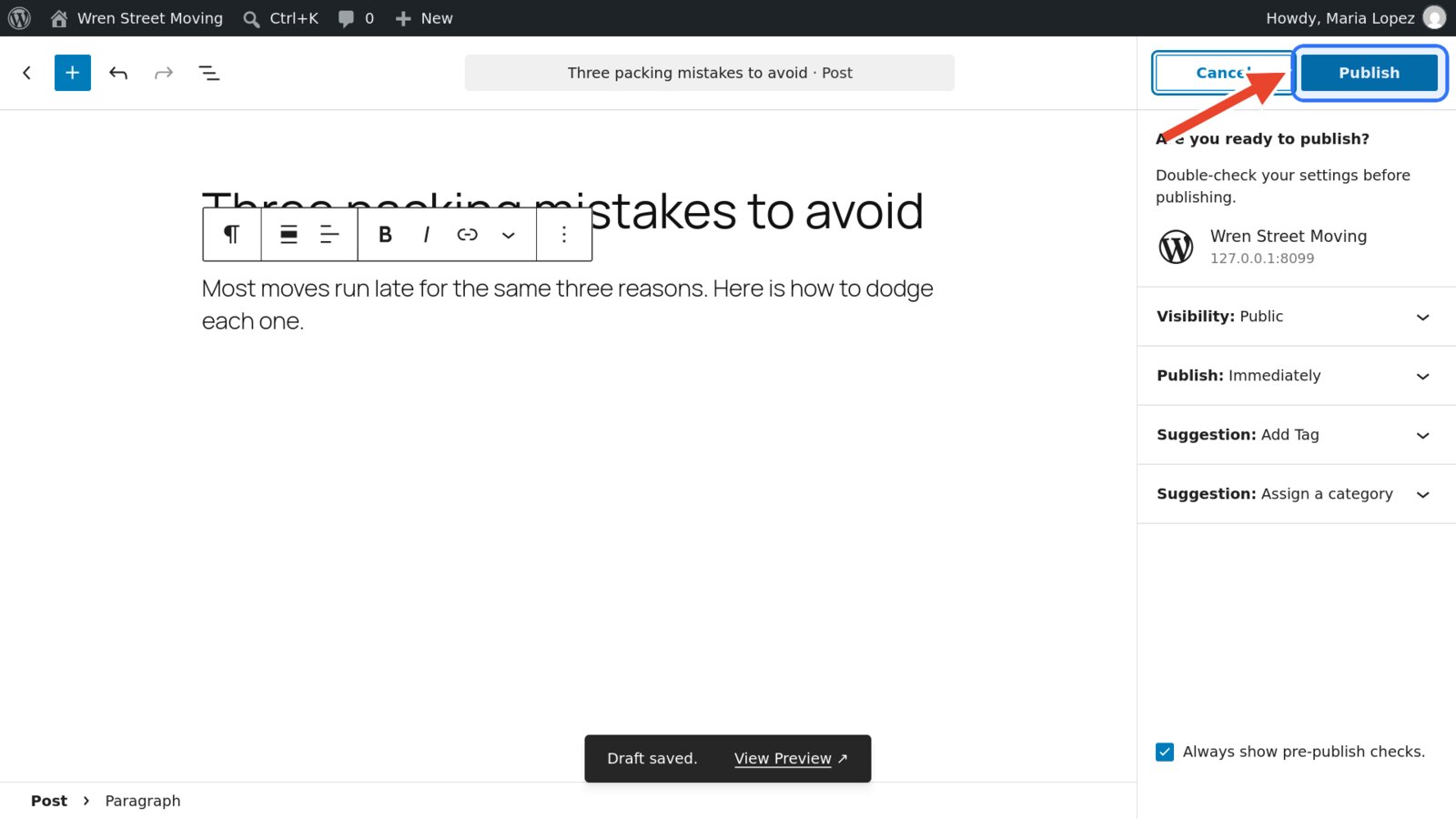
WordPress asks you to check once more. Press Publish again to put it live.WordPress te pide revisar una vez más. Presiona Publish otra vez para publicarla.
-
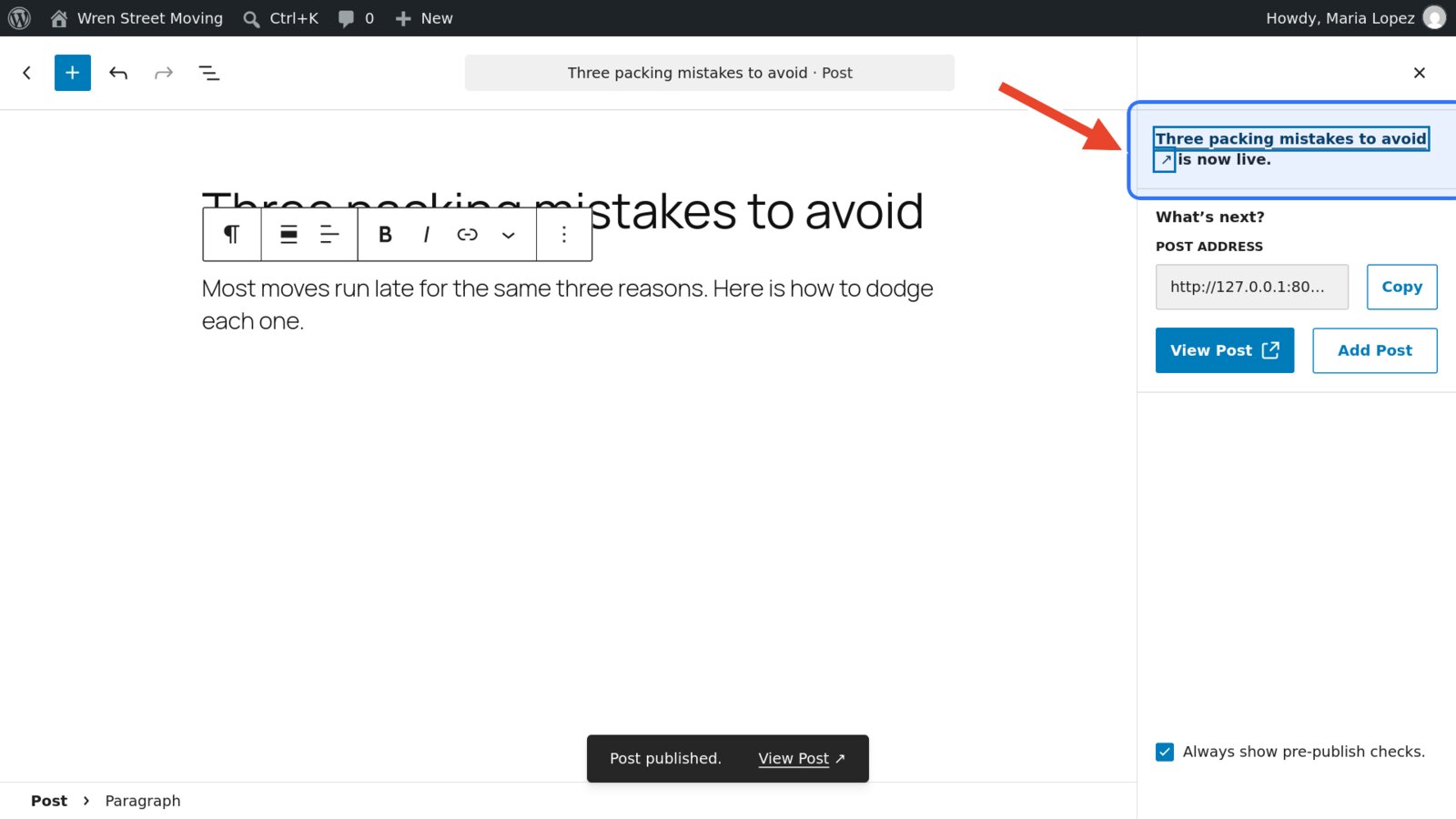
The post is now live. View Post opens it on your site.La entrada ya está publicada. View Post la abre en tu sitio.
-
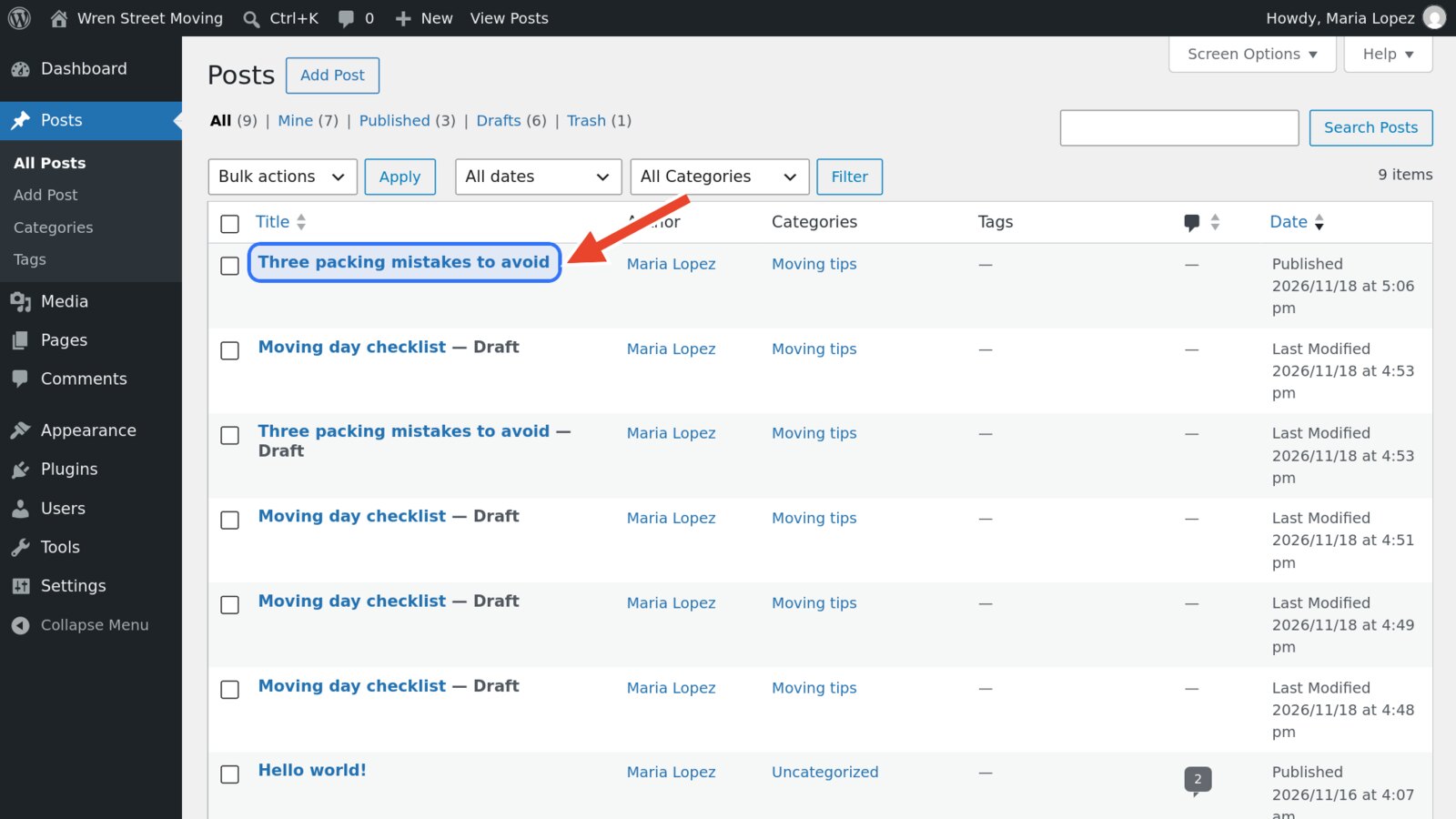
Back in Posts, the new post is at the top of the list, published.De vuelta en Posts, la entrada nueva está arriba de la lista, publicada.
Stuck on your own site?
Get walked through it one-on-one, on video, on your real site. Or hand the job over and have it done.
- You click, I guide
- One price per job, set before work starts
- English or Spanish
Where this comes from
Every step was run on a real WordPress site and checked against the official WordPress documentation: