Pages: what they are and how they differ from posts
The steps
-
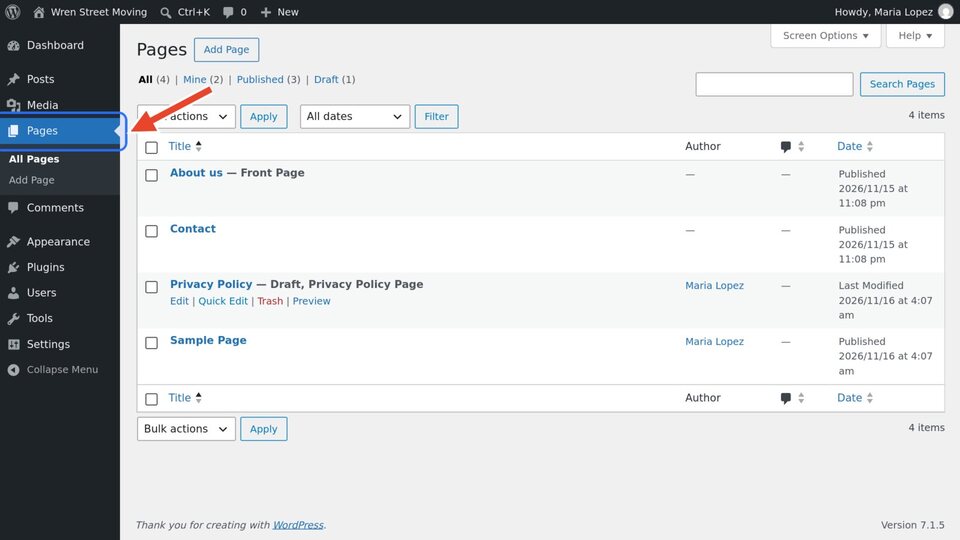
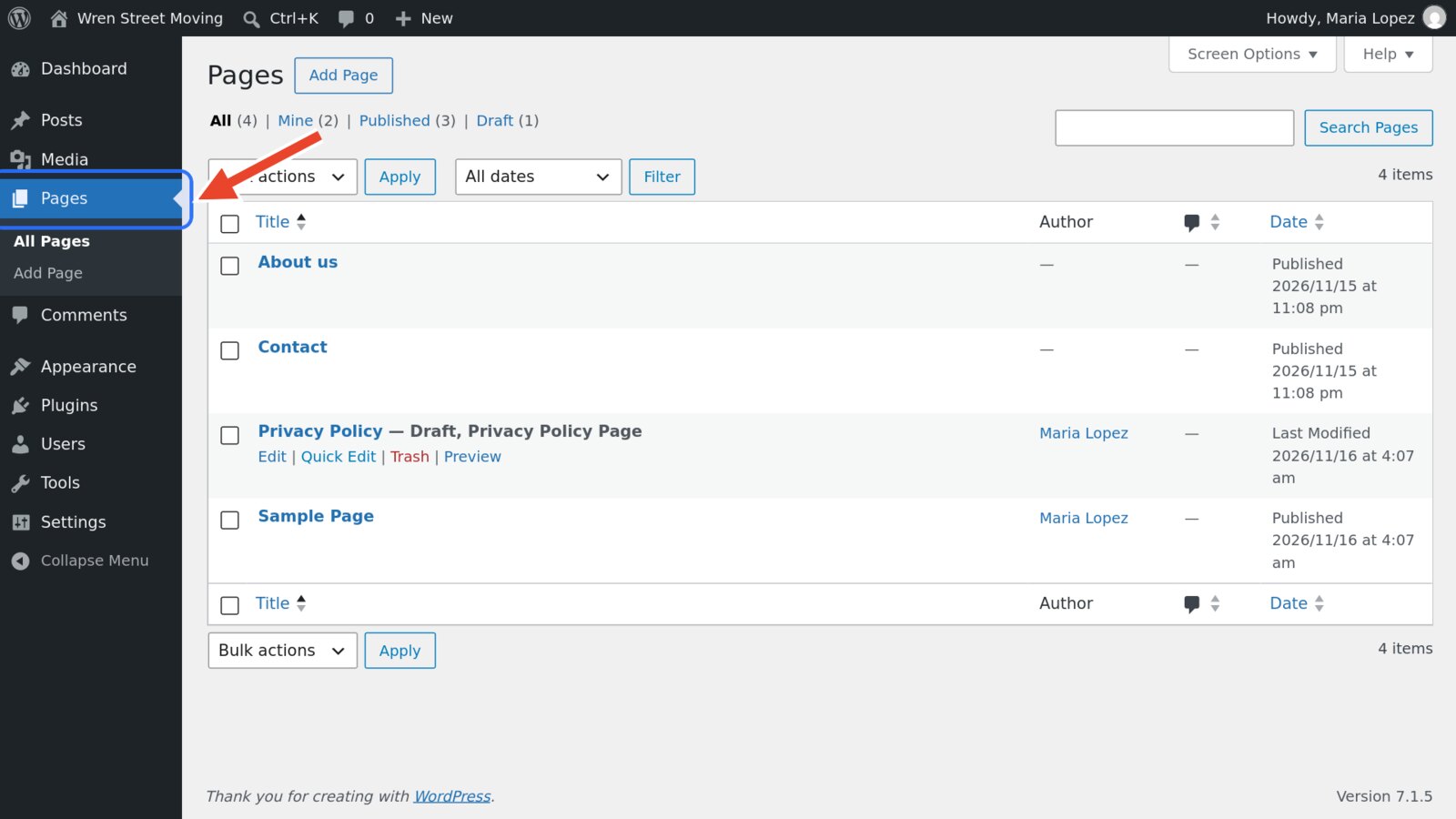
Pages has its own place in the left menu.Pages tiene su propio lugar en el menú de la izquierda.
-
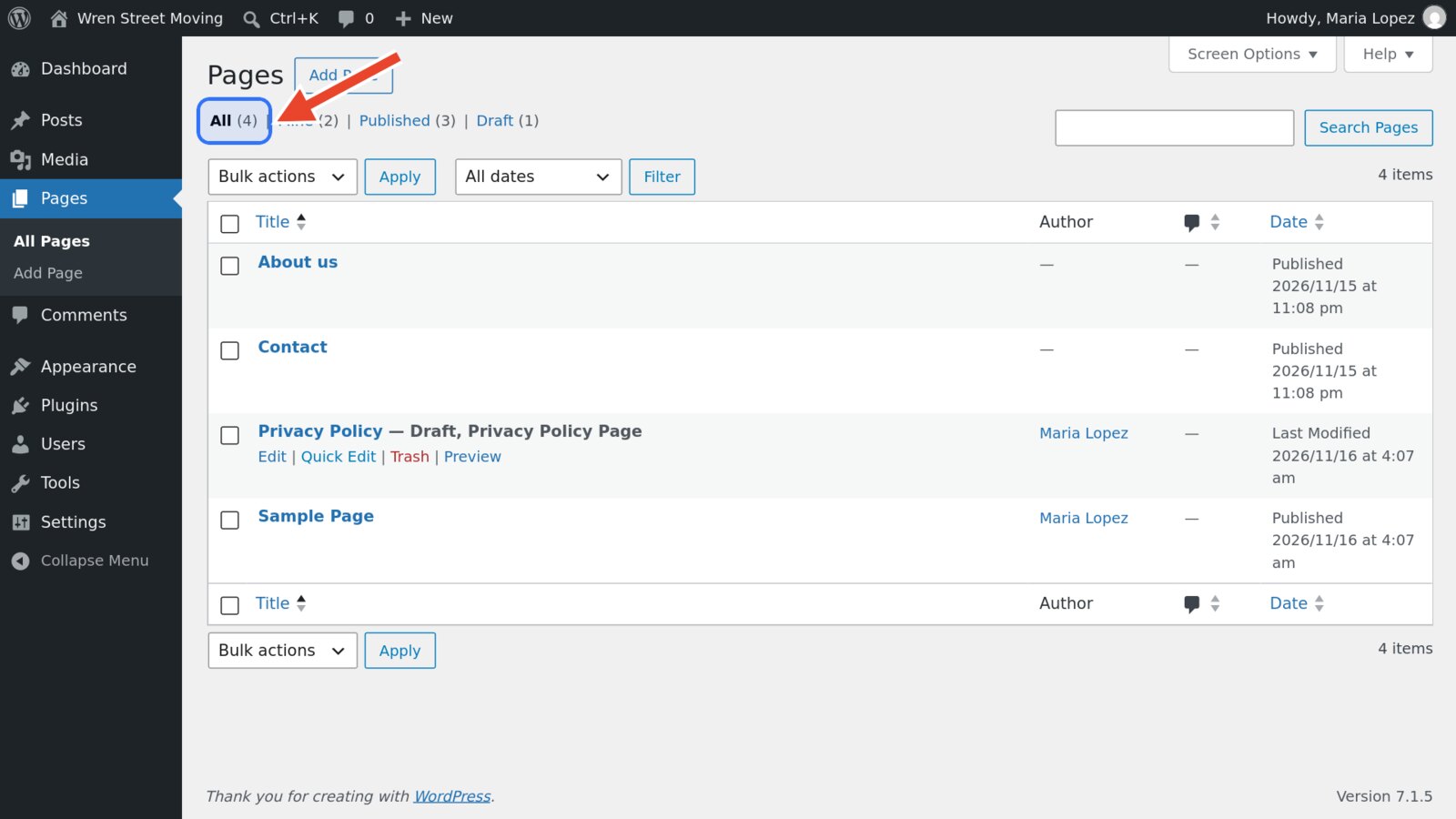
This is the Pages screen. It lists every page on the site.Esta es la pantalla Pages. Muestra todas las páginas del sitio.
Tip: Use pages for things that stay the same, like About and Contact.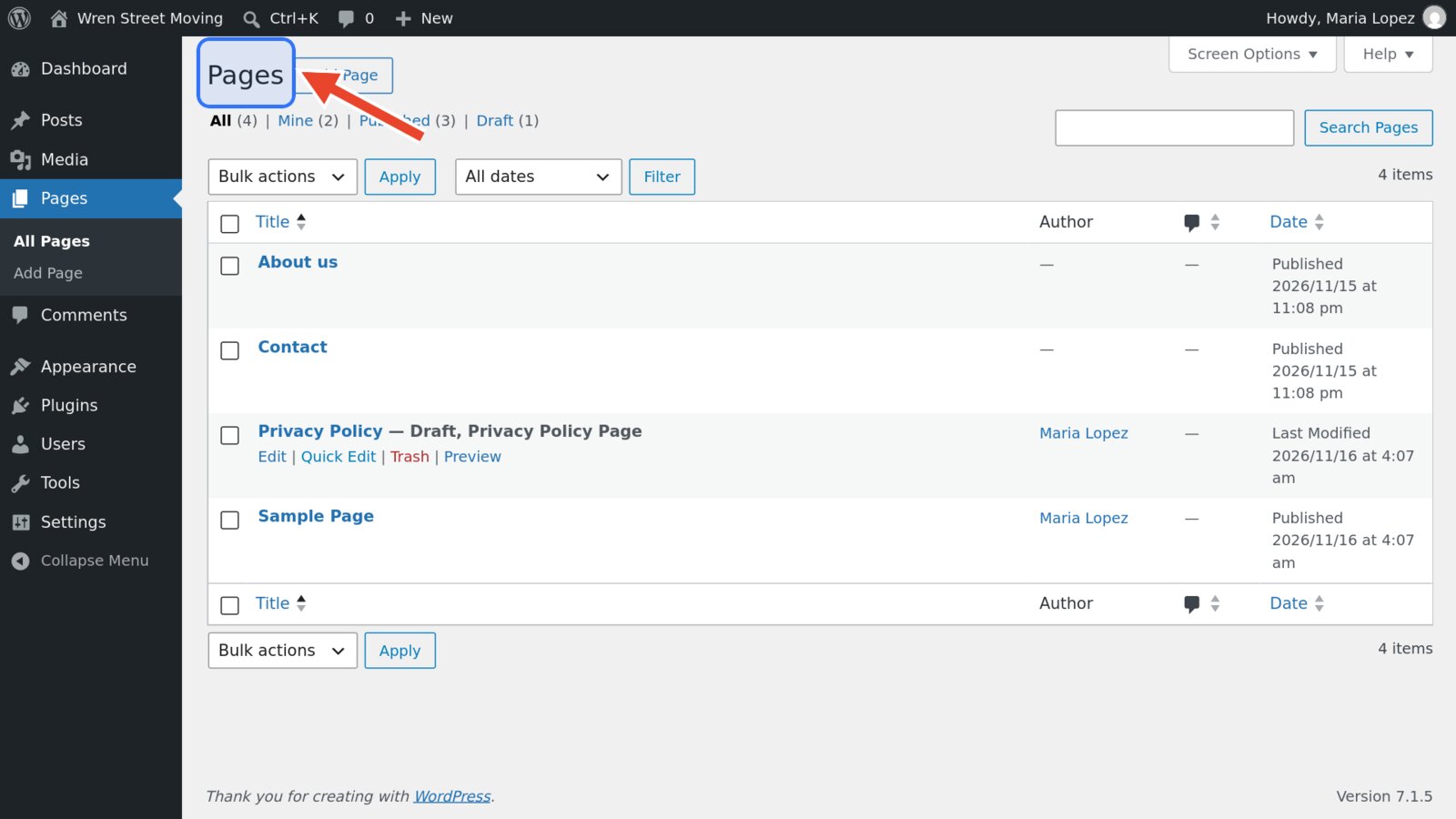
-
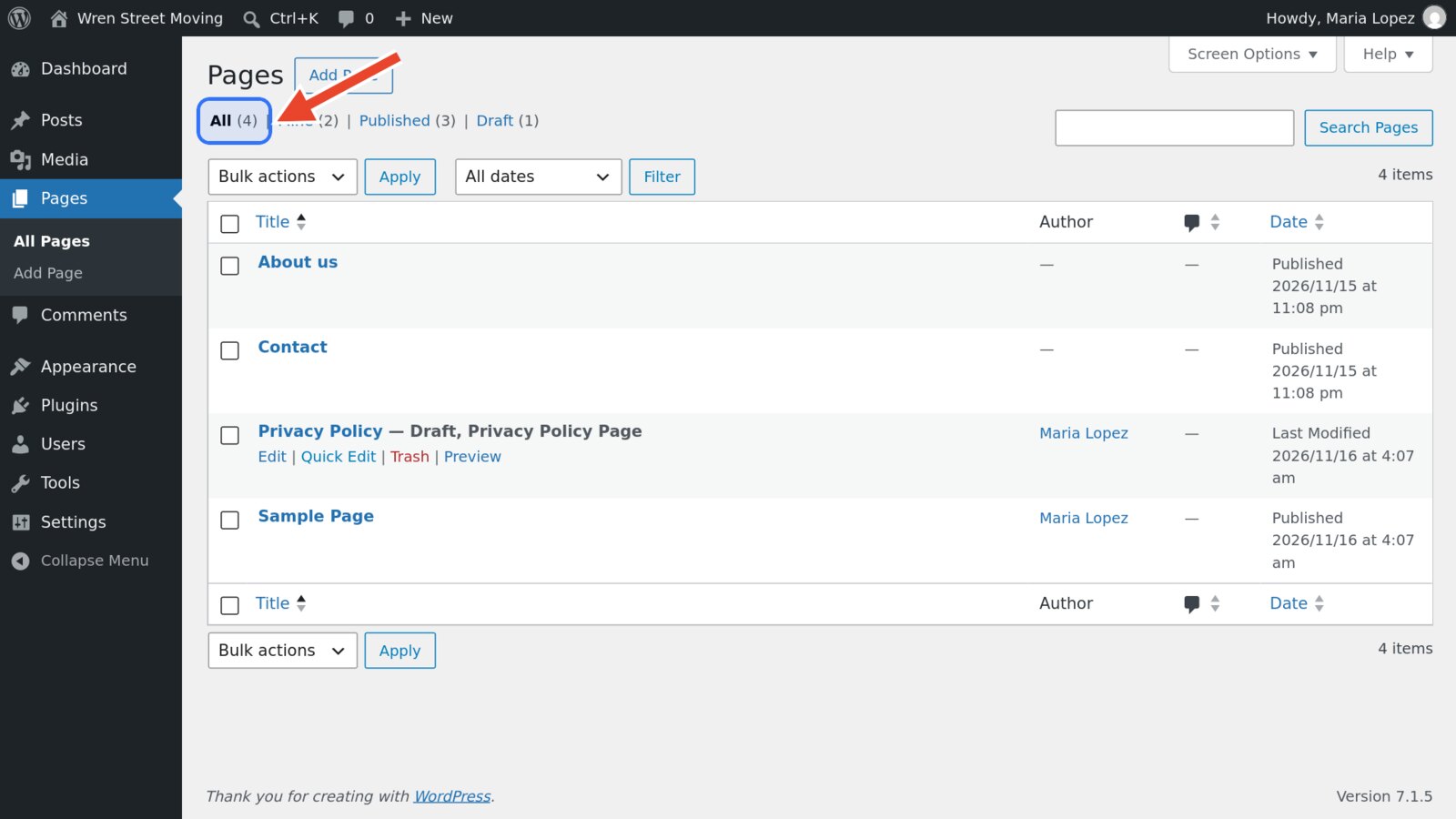
All (4) means this site has four pages in total.All (4) significa que este sitio tiene cuatro páginas en total.
-
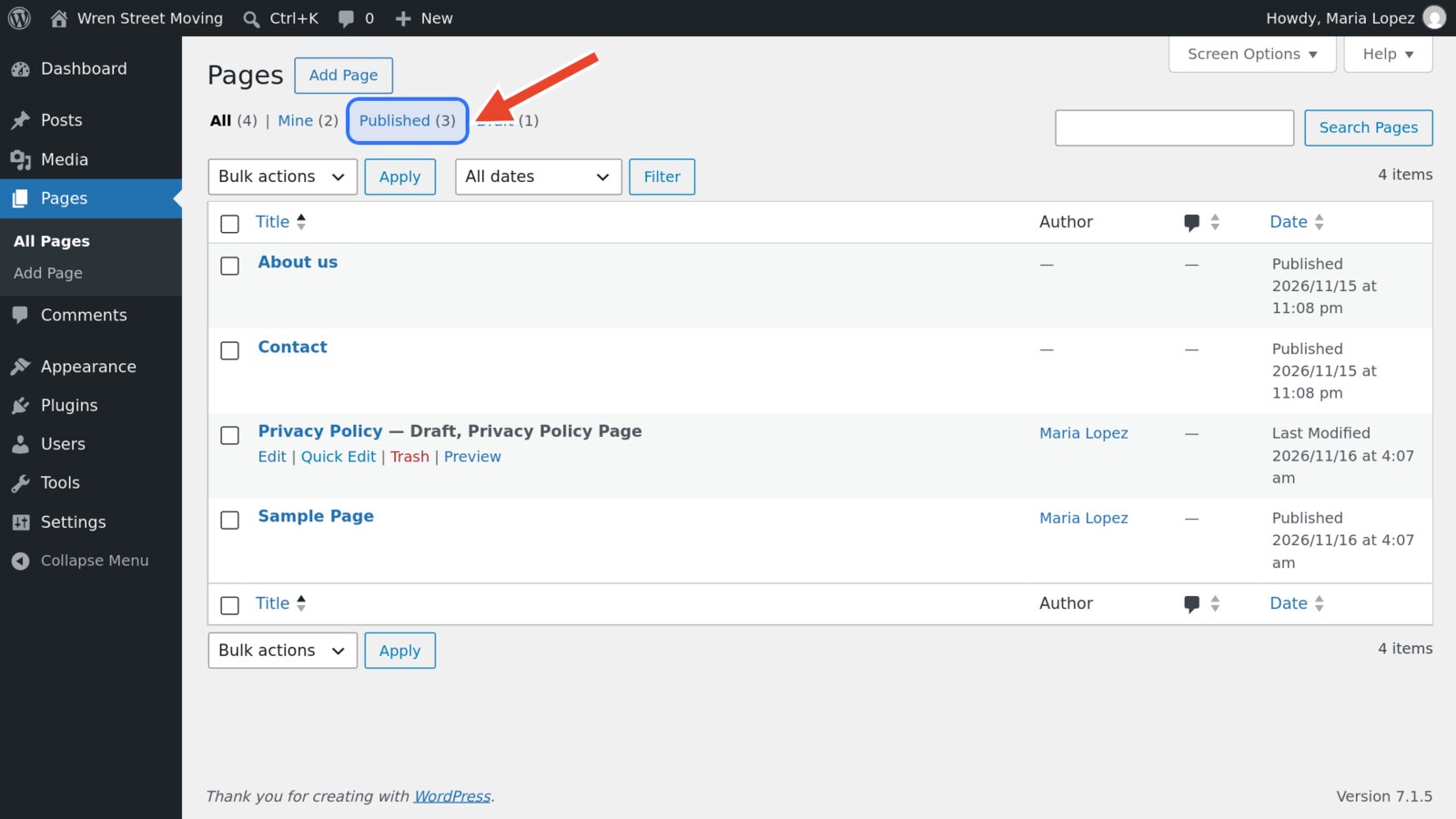
Three of them are Published, so visitors can see them.Tres están en Published, así que los visitantes las pueden ver.
-
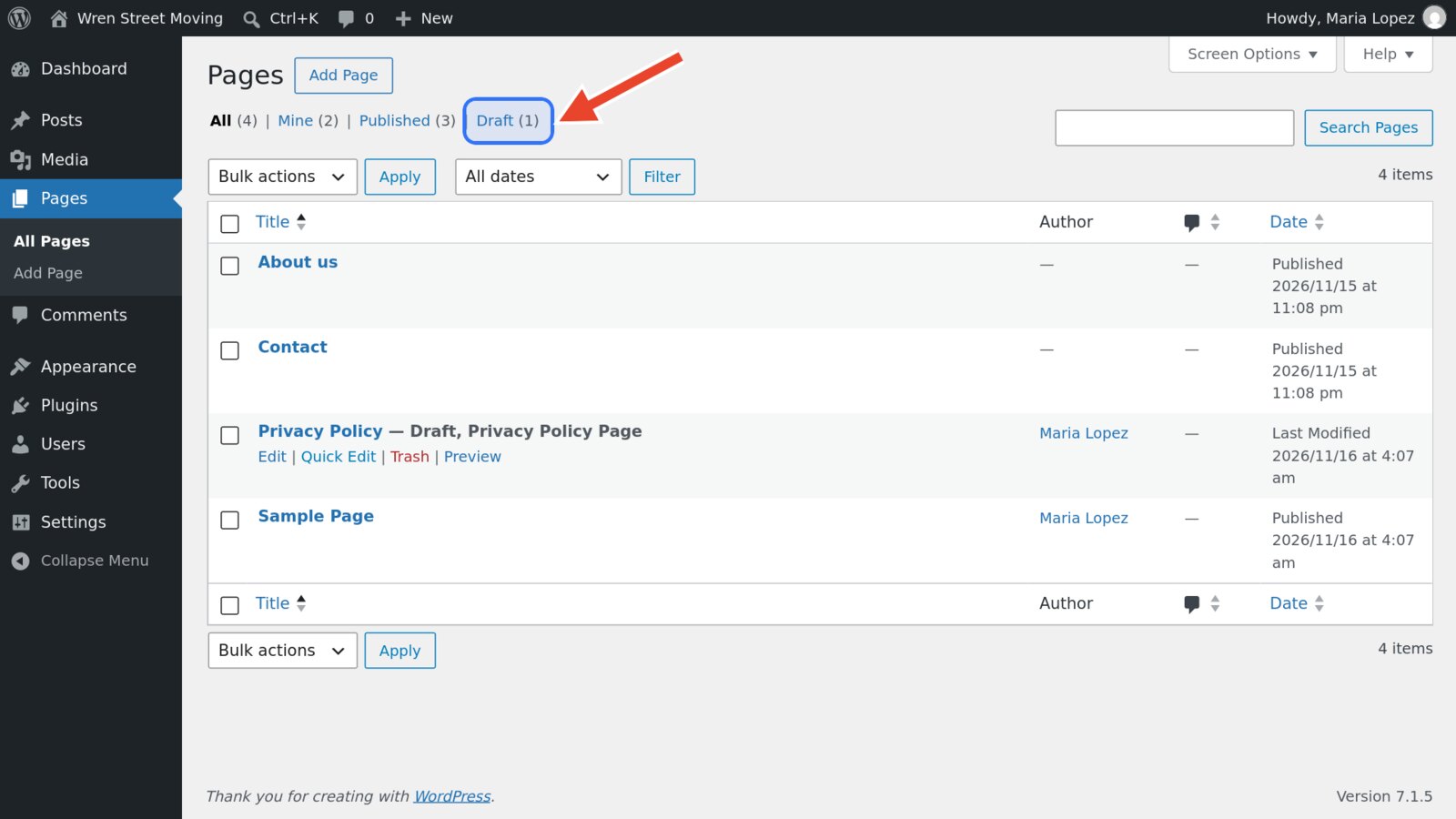
One is a Draft, still being worked on.Una es un Draft, todavía en preparación.
-
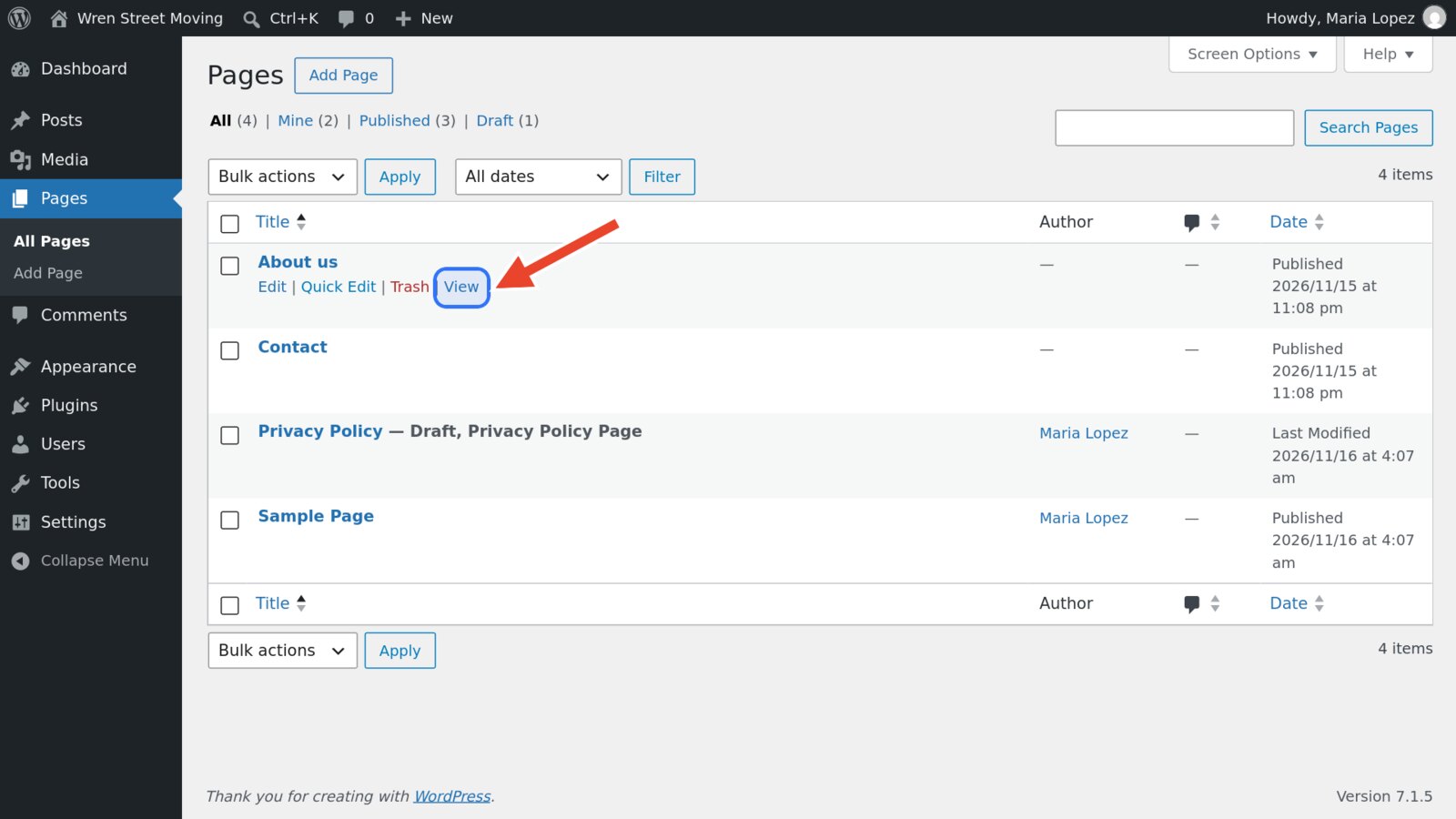
Hover over a page row and its actions appear. View shows the page.Pasa el mouse sobre una fila y aparecen sus acciones. View muestra la página.
-
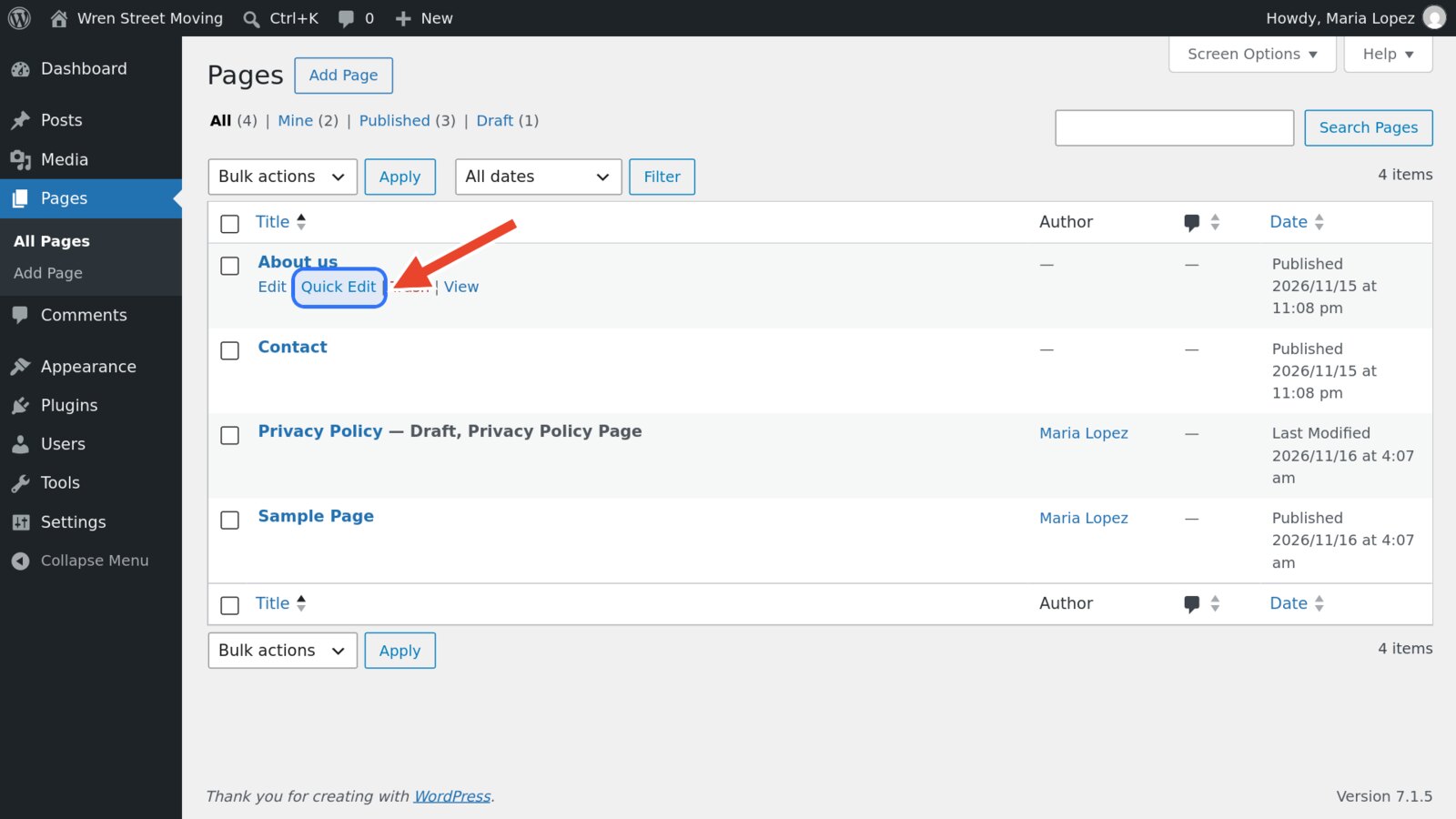
Quick Edit changes details like the title or slug without opening the page.Quick Edit cambia datos como el título o el slug sin abrir la página.
-
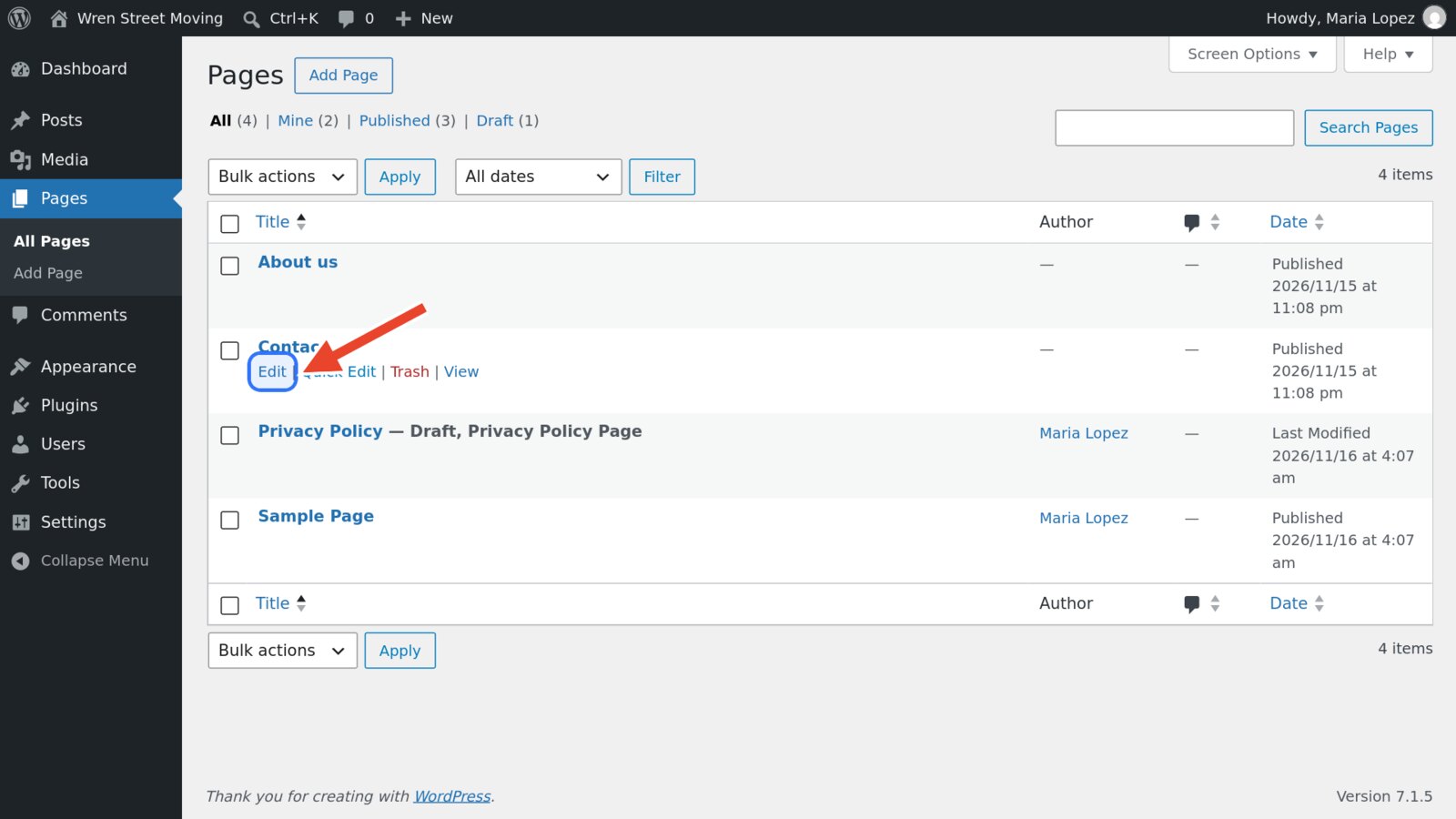
Edit opens the full page editor.Edit abre el editor completo de la página.
-
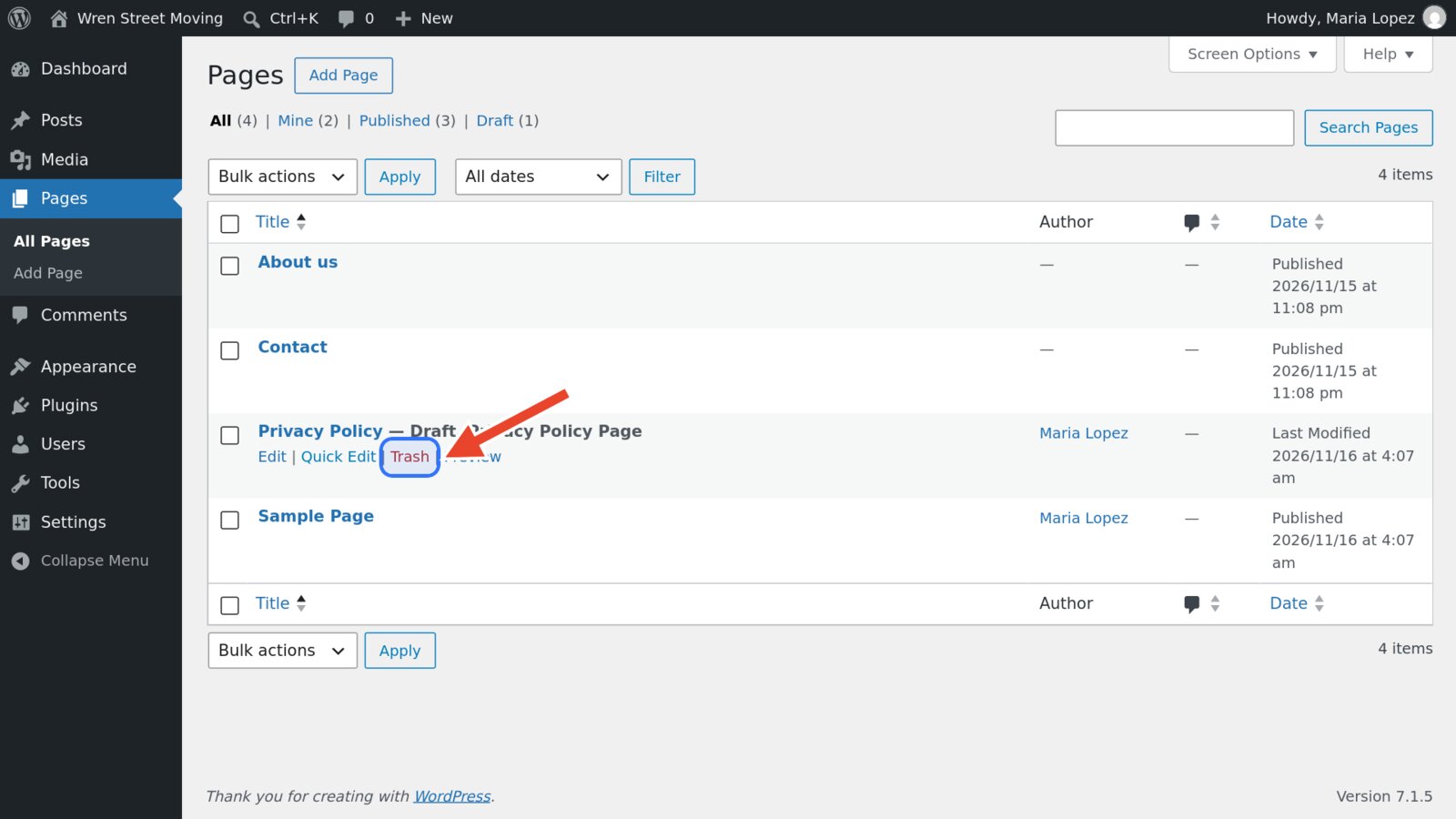
Trash removes a page. Only use it when you truly want it gone.Trash elimina una página. Úsalo solo cuando de verdad quieras quitarla.
-
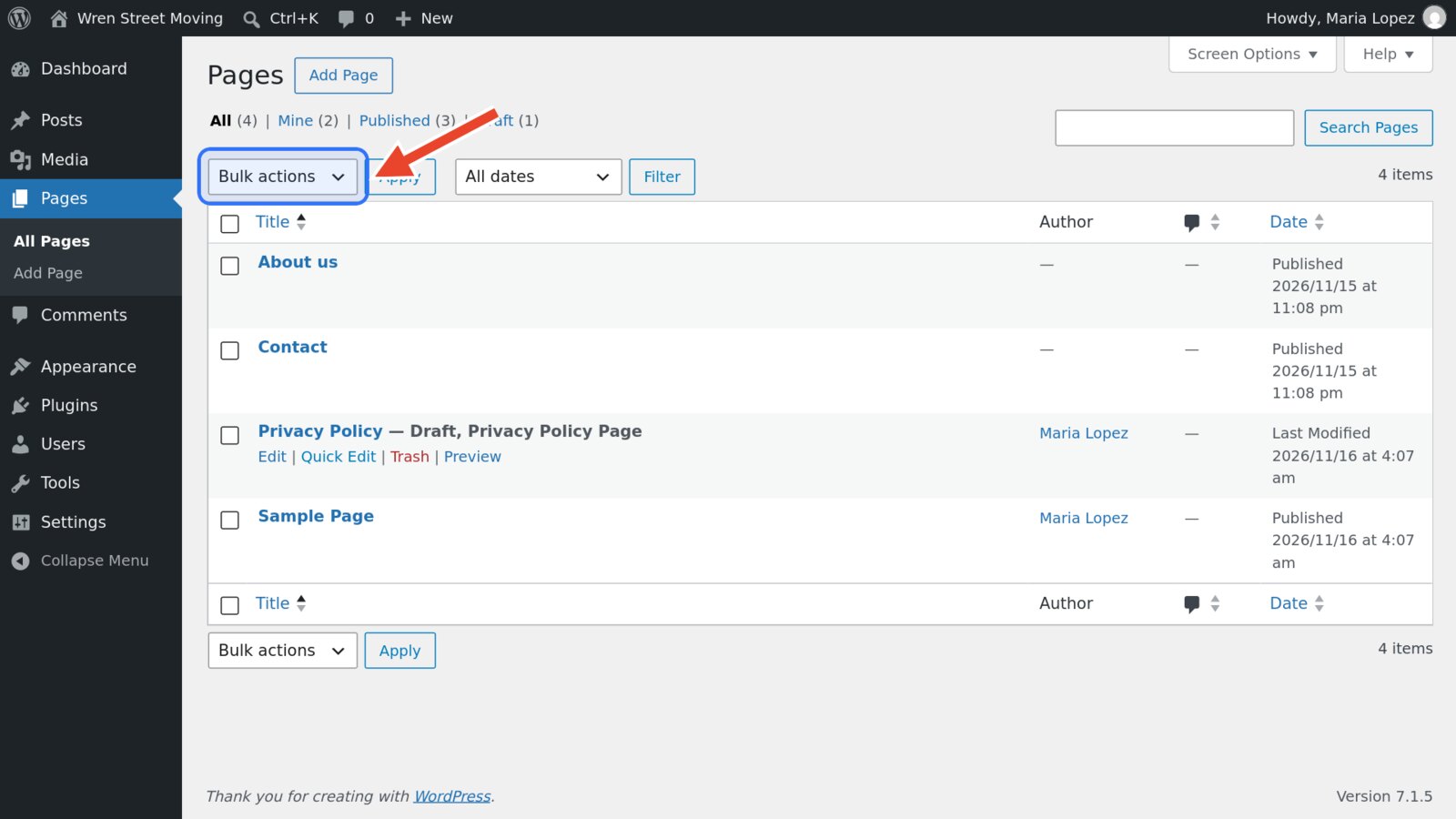
Bulk actions work on all the pages you have checked at once.Bulk actions actúa sobre todas las páginas que marcaste a la vez.
-
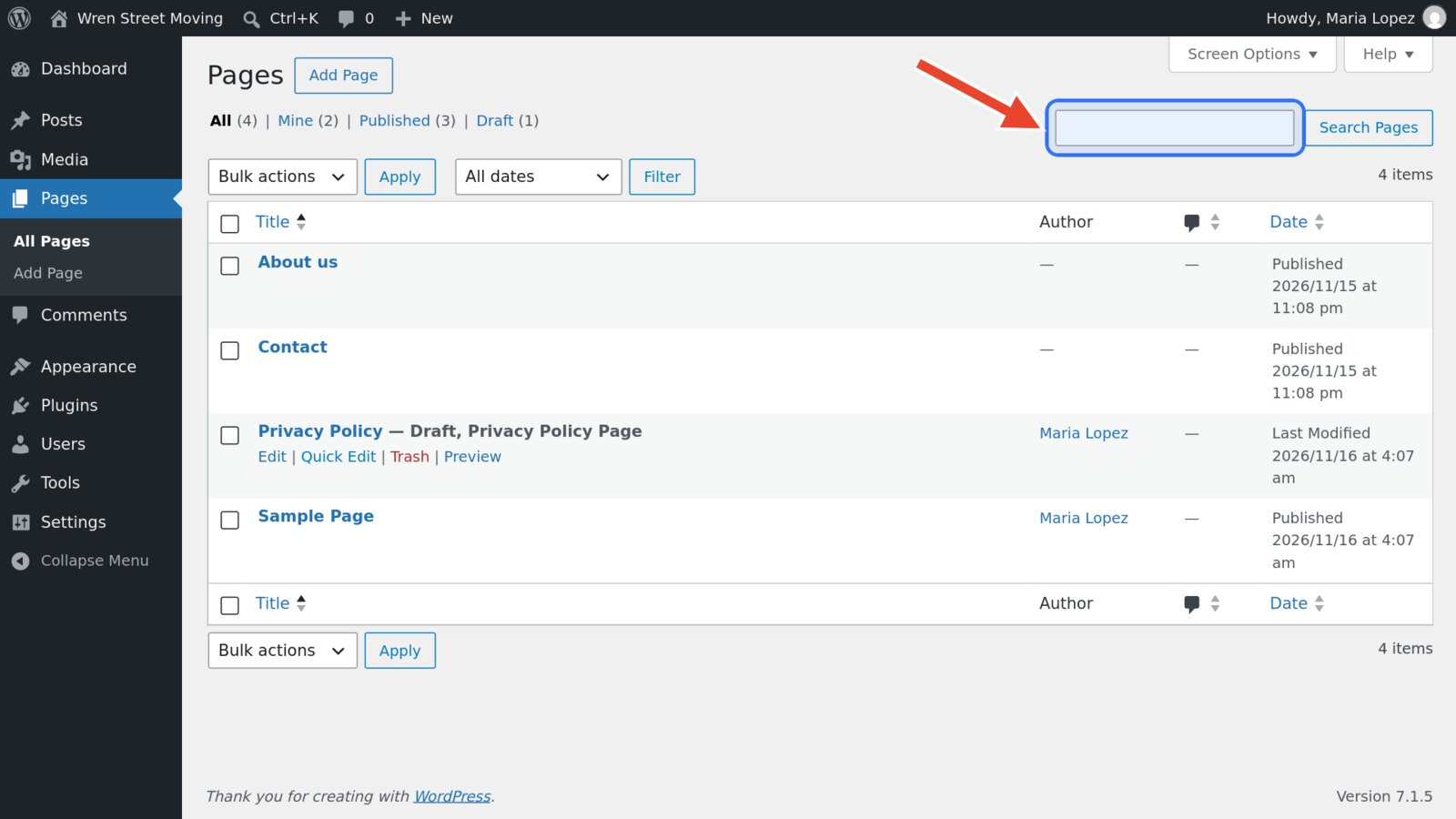
To find a page quickly, type its name in this search box.Para encontrar una página rápido, escribe su nombre en este cuadro de búsqueda.
-
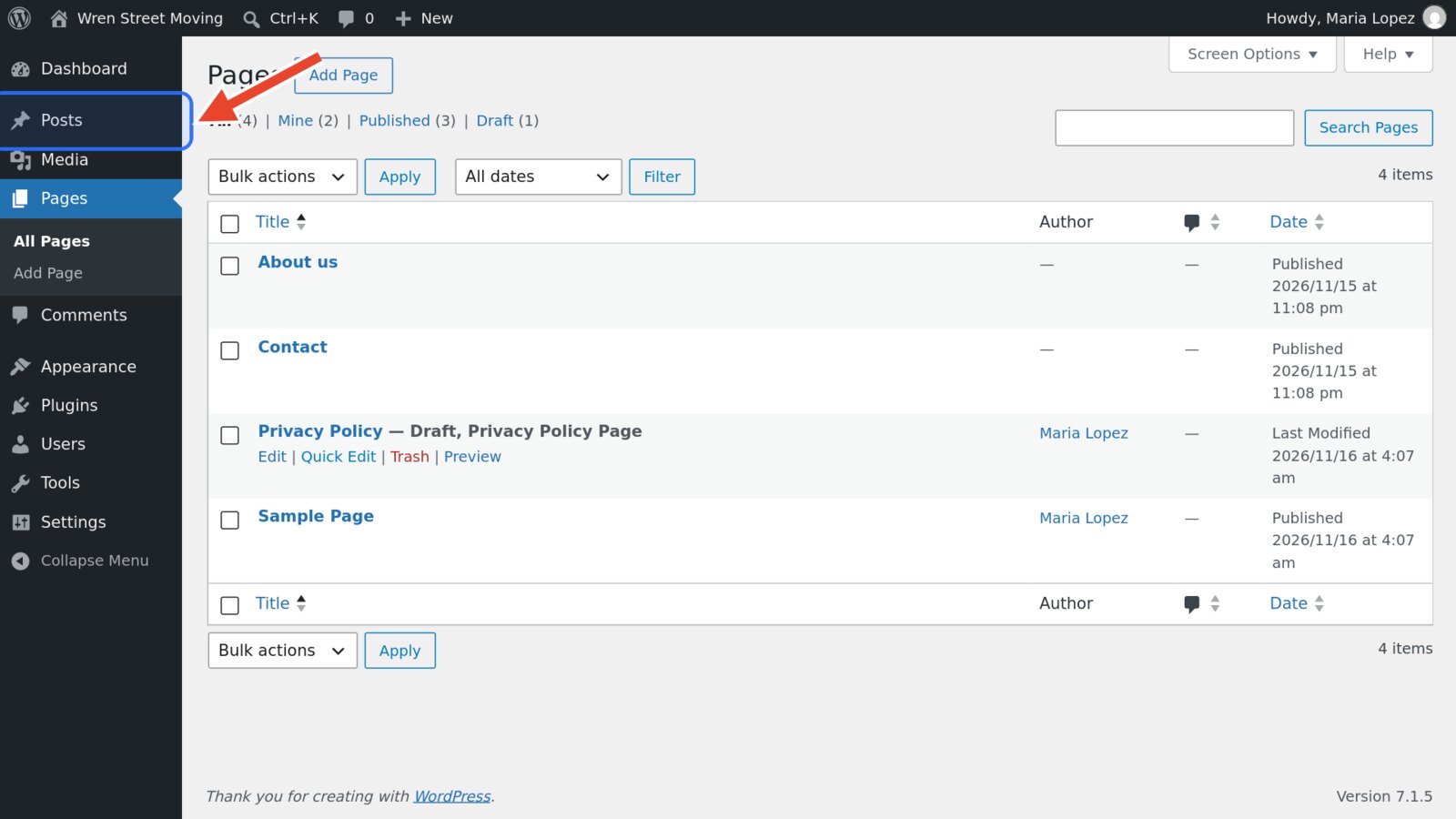
Posts is a separate item in the menu, with its own list.Posts es otro elemento del menú, con su propia lista.
-
Back on the list, all four pages are still here, unchanged.De vuelta en la lista, las cuatro páginas siguen aquí, sin cambios.
Stuck on your own site?
Get walked through it one-on-one, on video, on your real site. Or hand the job over and have it done.
- You click, I guide
- One price per job, set before work starts
- English or Spanish
Where this comes from
Every step was run on a real WordPress site and checked against the official WordPress documentation: