Find, quick edit and trash a post
The steps
-
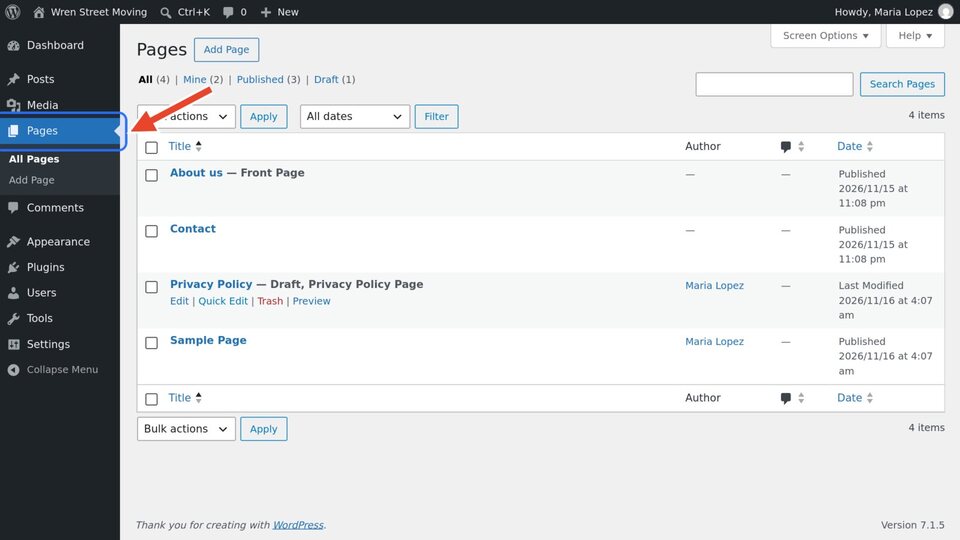
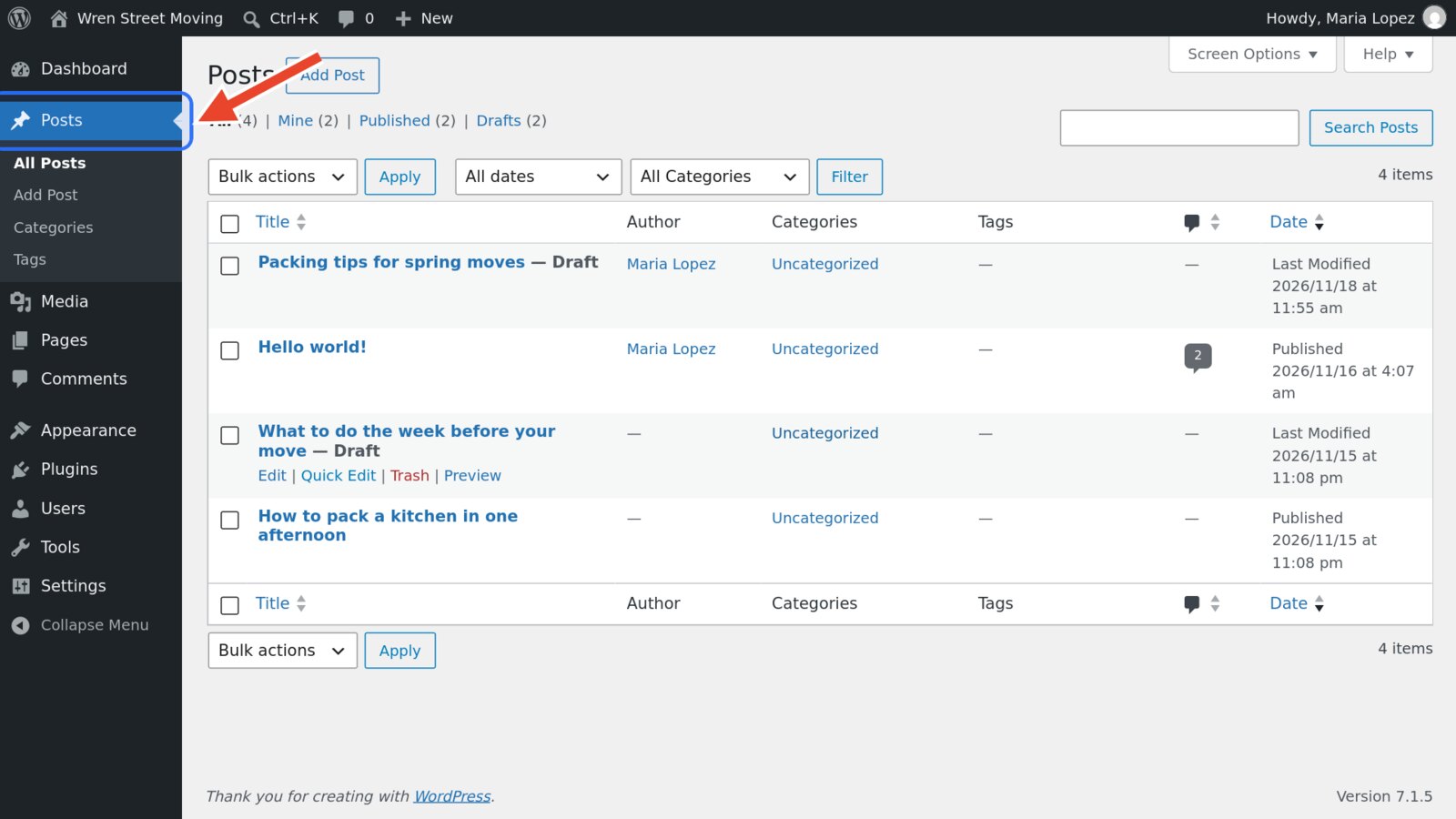
Posts is in the left menu. This is where all your posts live.Posts está en el menú de la izquierda. Ahí viven todas tus publicaciones.
-
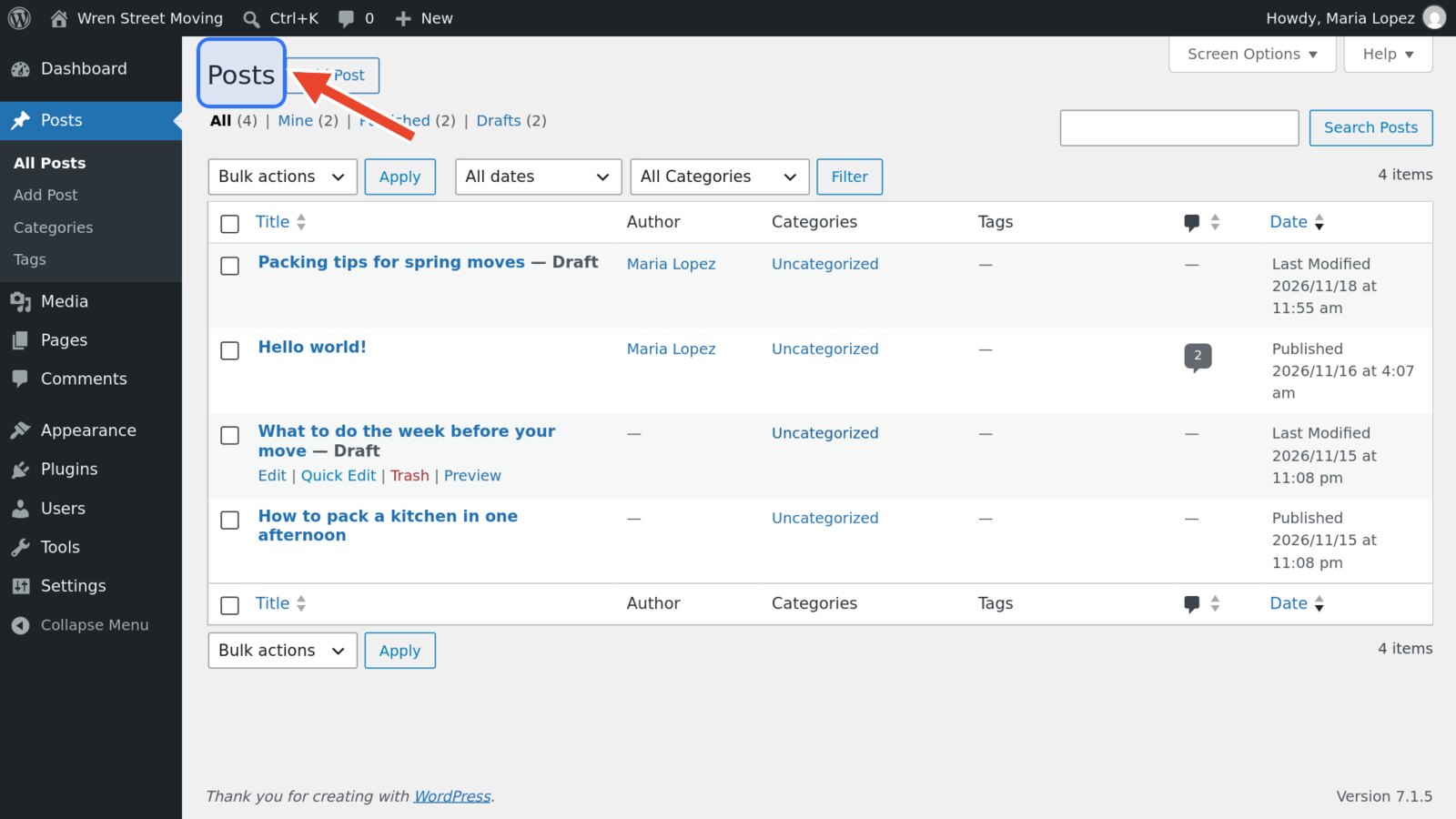
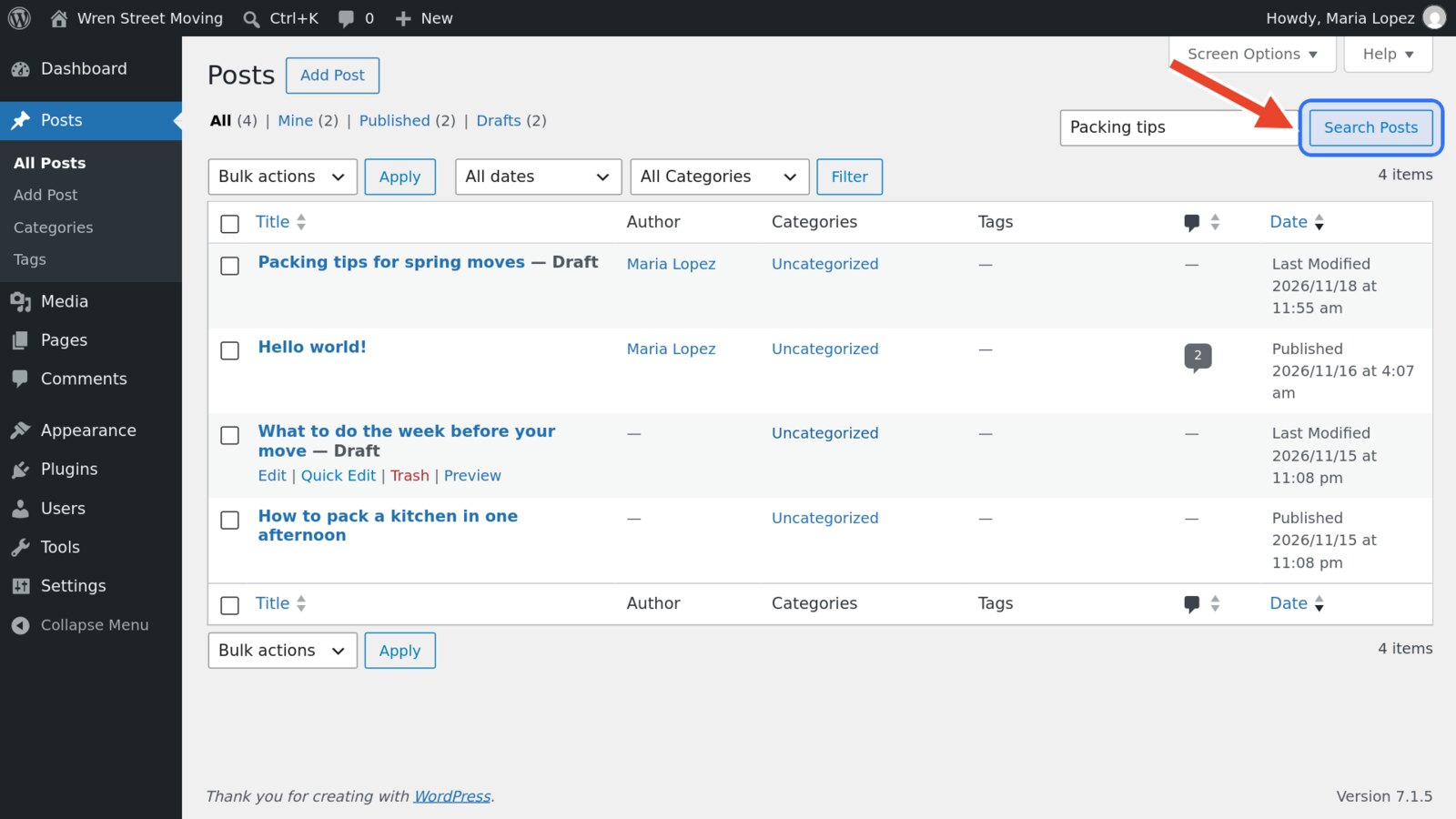
This is the Posts screen. It lists every post on the site.Esta es la pantalla Posts. Muestra todas las publicaciones del sitio.
-
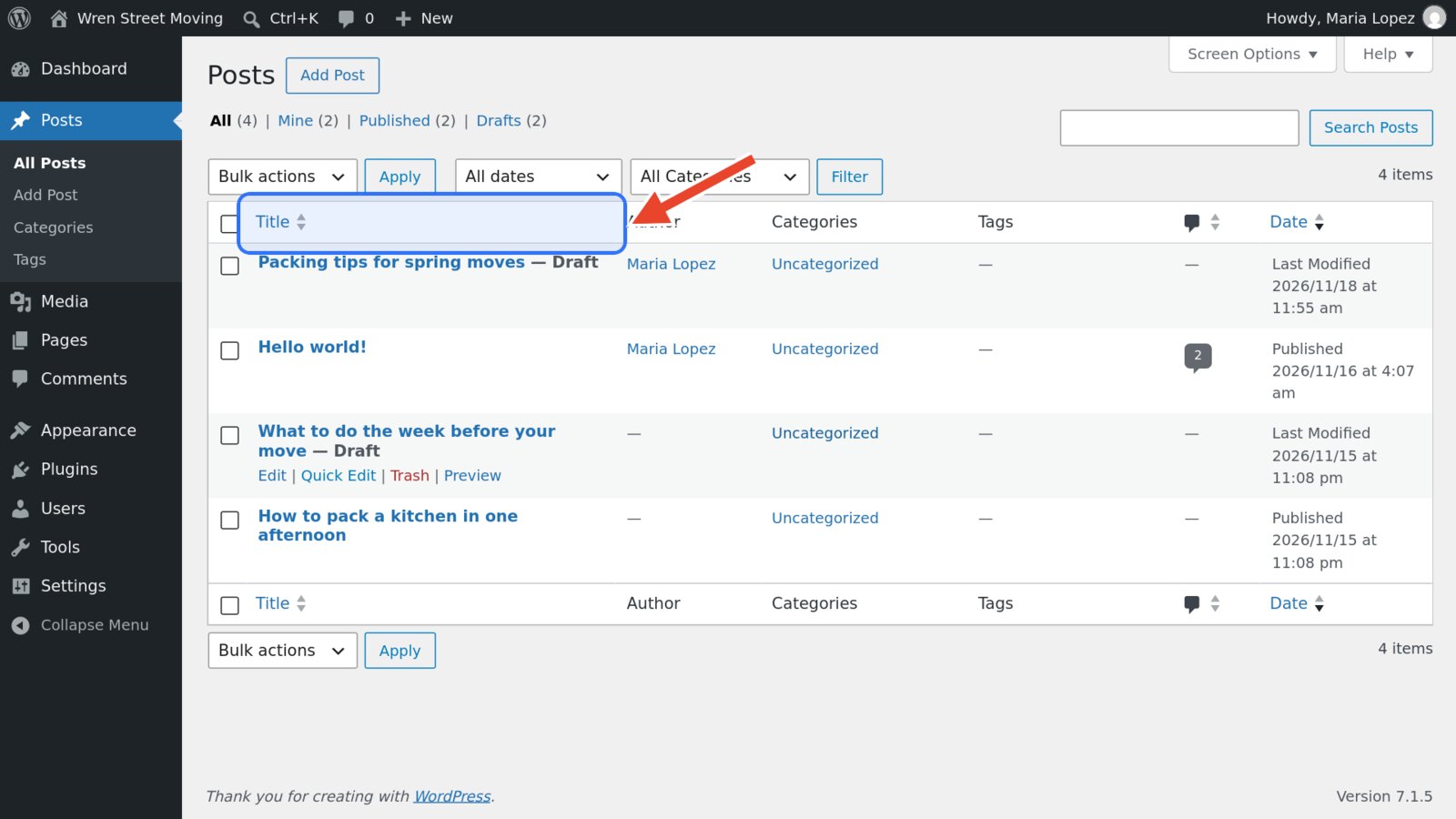
Each row is one post. The Title column shows its name, and Draft appears next to unpublished posts.Cada fila es una publicación. La columna Title muestra el nombre, y Draft aparece junto a las no publicadas.
-
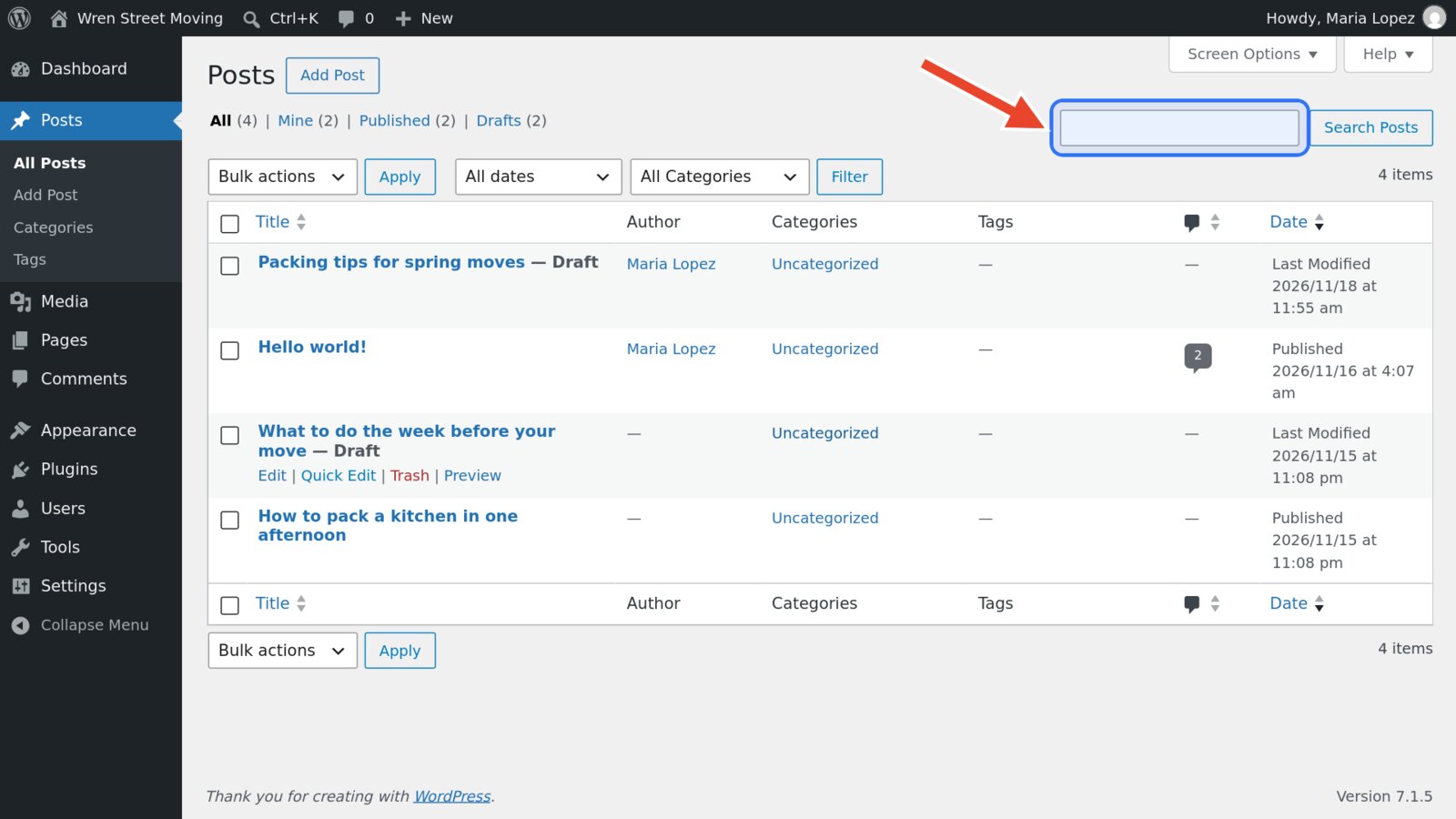
To find a post fast, type part of its title in the search box.Para encontrar una publicación rápido, escribe parte del título en el cuadro de búsqueda.
-
Press Search Posts to run the search.Presiona Search Posts para hacer la búsqueda.
-
Point at the row and links appear under the title. Quick Edit is one of them.Pasa el mouse por la fila y aparecen enlaces bajo el título. Quick Edit es uno de ellos.
Tip: Quick Edit changes the title, date or category without opening the post.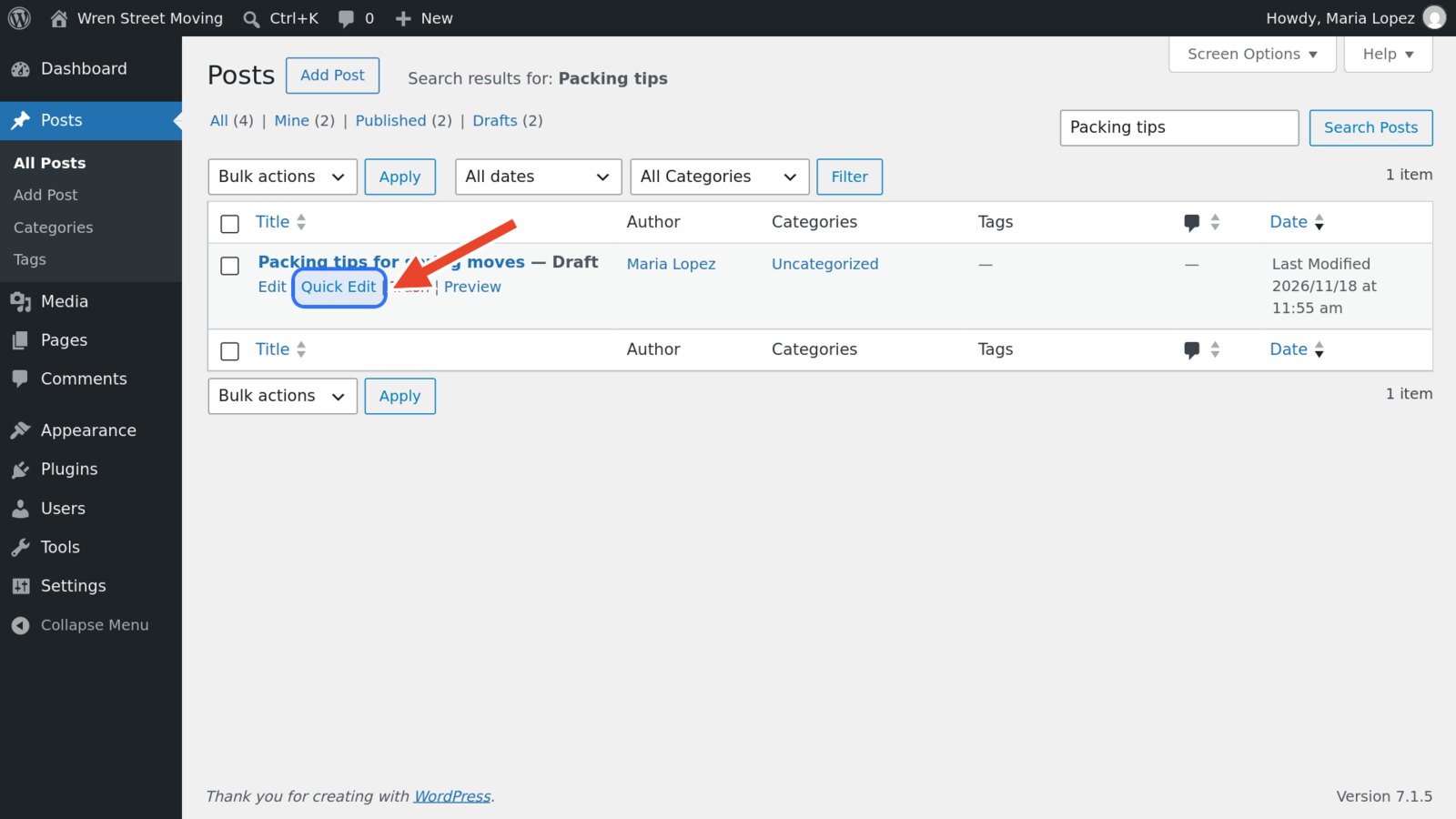
-
This is the draft we want to remove. Press Trash.Este es el borrador que queremos quitar. Presiona Trash.
Tip: Check the row says Draft before pressing Trash.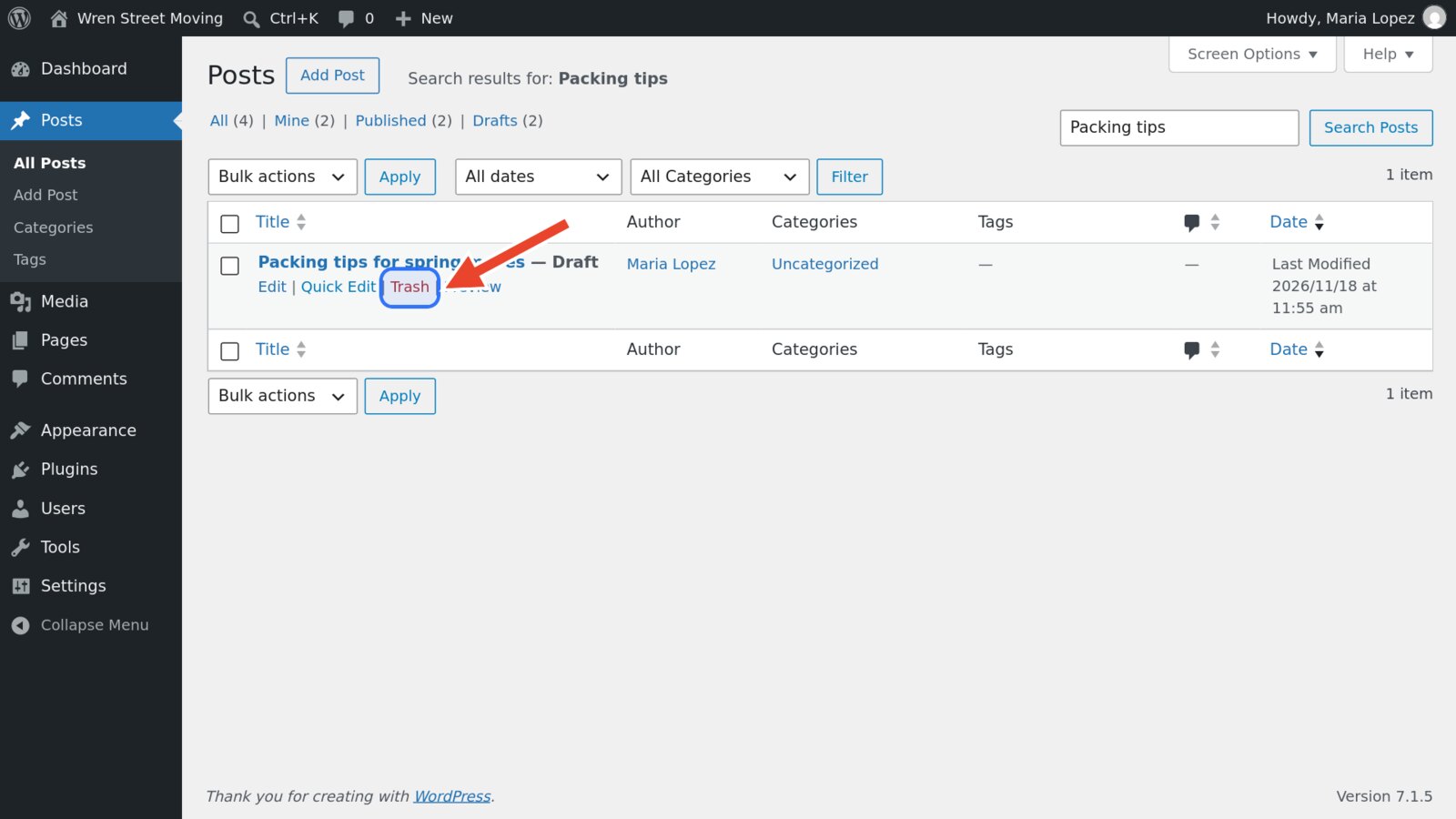
-
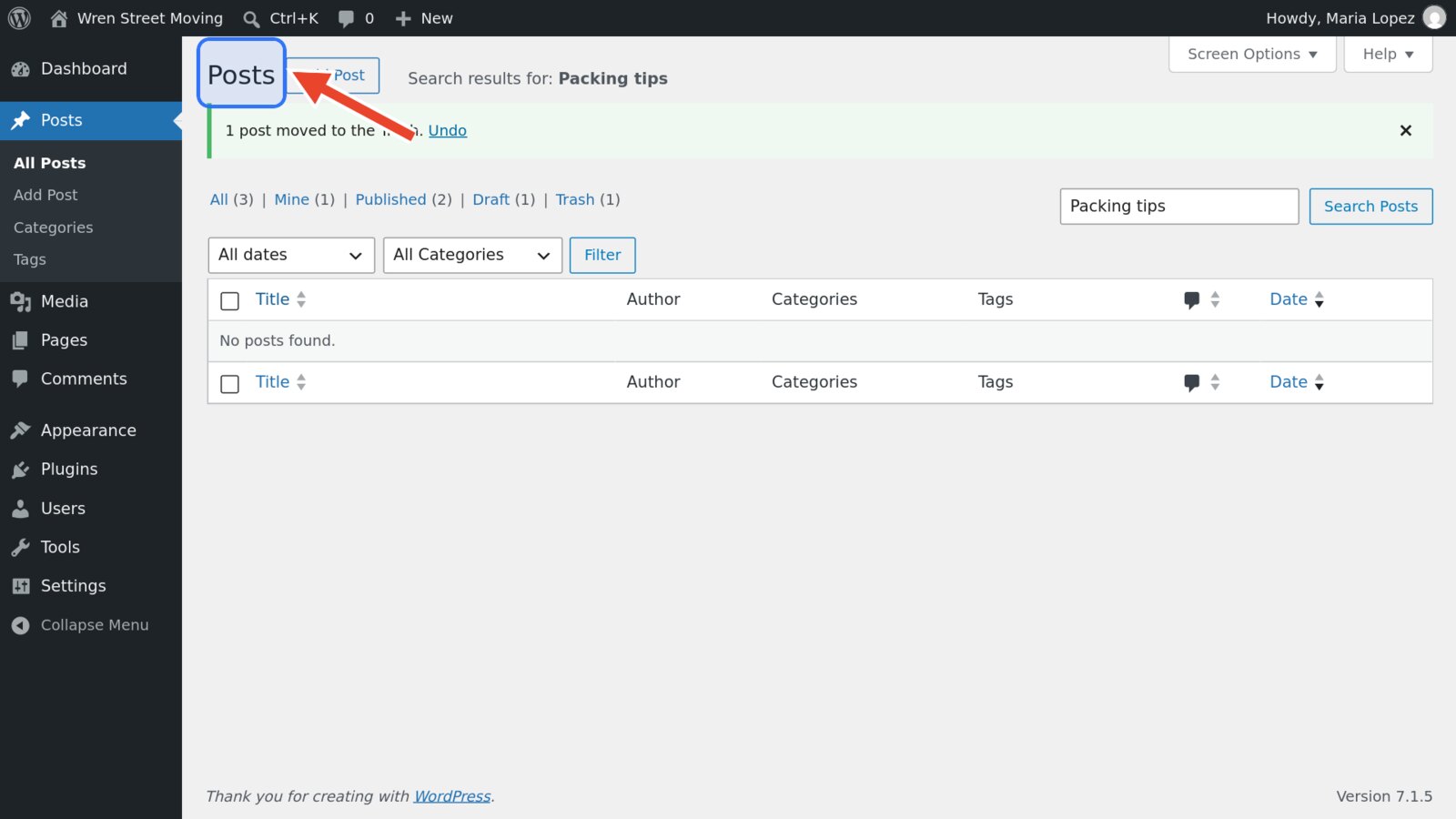
The post was moved to the Trash and no longer shows in this list.La publicación se movió a la papelera y ya no aparece en esta lista.
-
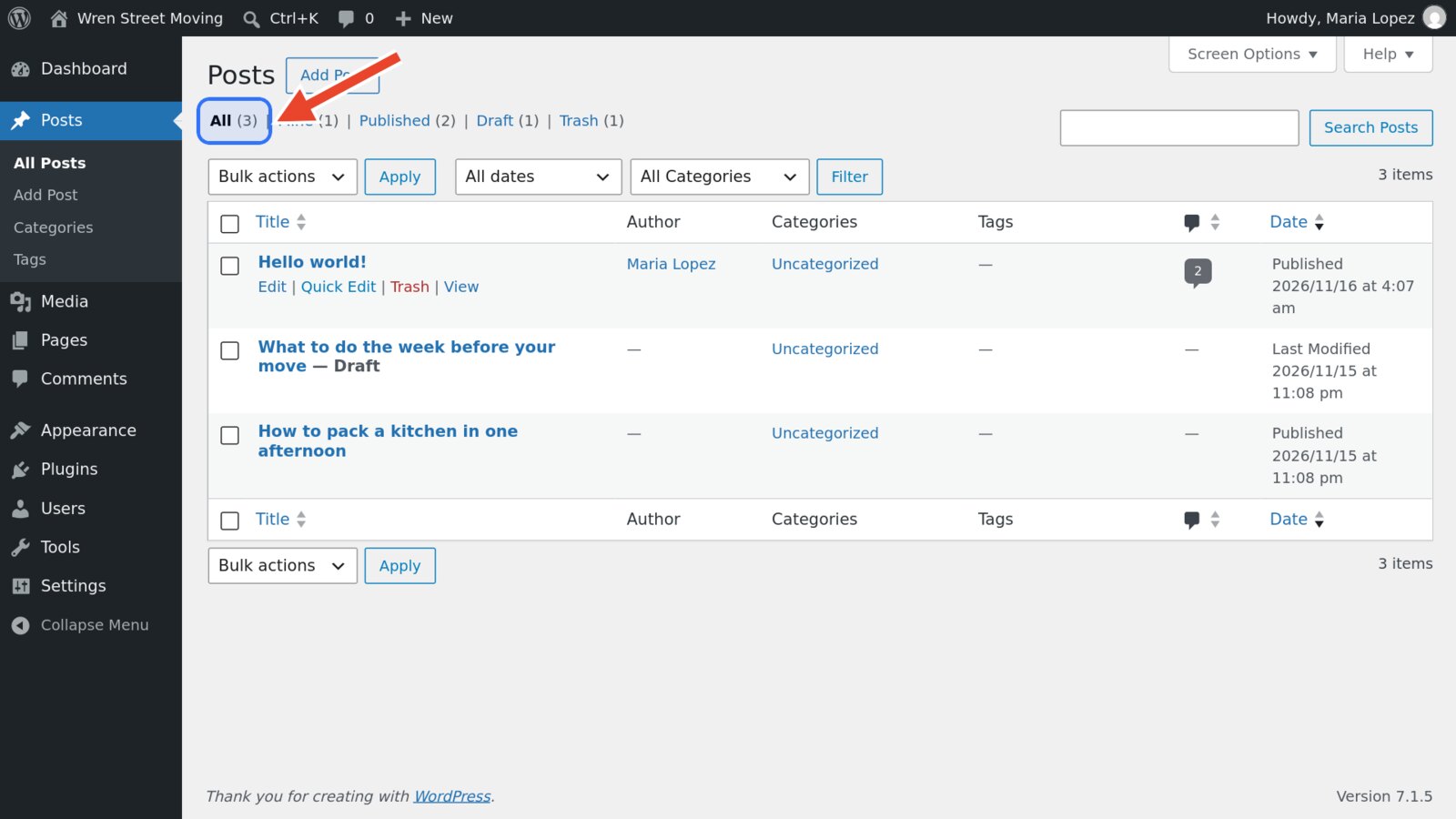
The All count went down by one, because the draft is gone.El conteo de All bajó en uno, porque el borrador ya no está.
-
Drafts now shows one post, and both published posts are still here.Drafts ahora muestra una publicación, y las dos publicadas siguen aquí.
Tip: Published posts stay untouched. Only the draft was moved to the Trash.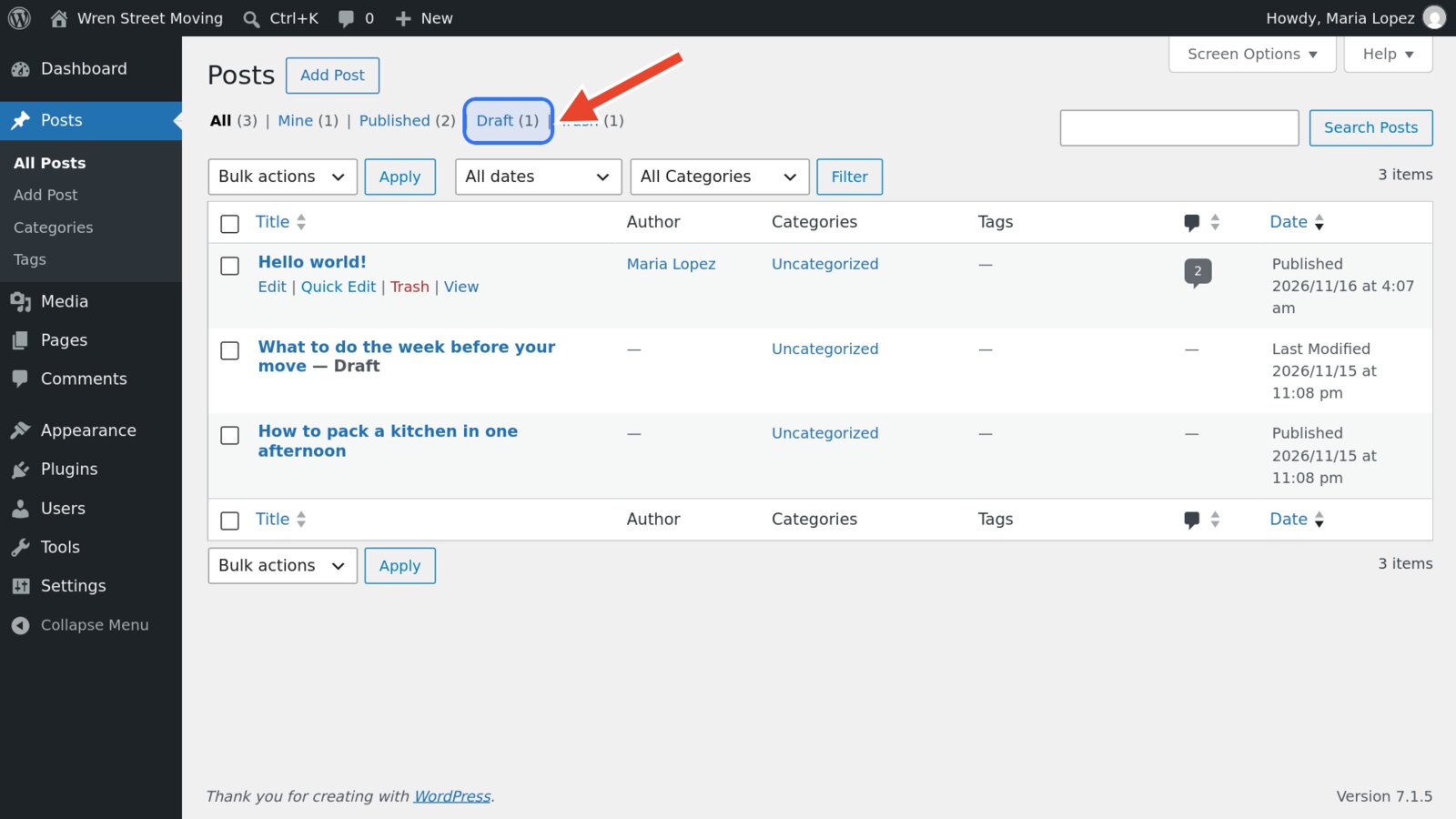
Stuck on your own site?
Get walked through it one-on-one, on video, on your real site. Or hand the job over and have it done.
- You click, I guide
- One price per job, set before work starts
- English or Spanish
Where this comes from
Every step was run on a real WordPress site and checked against the official WordPress documentation: