Control who can comment on your site
The steps
-
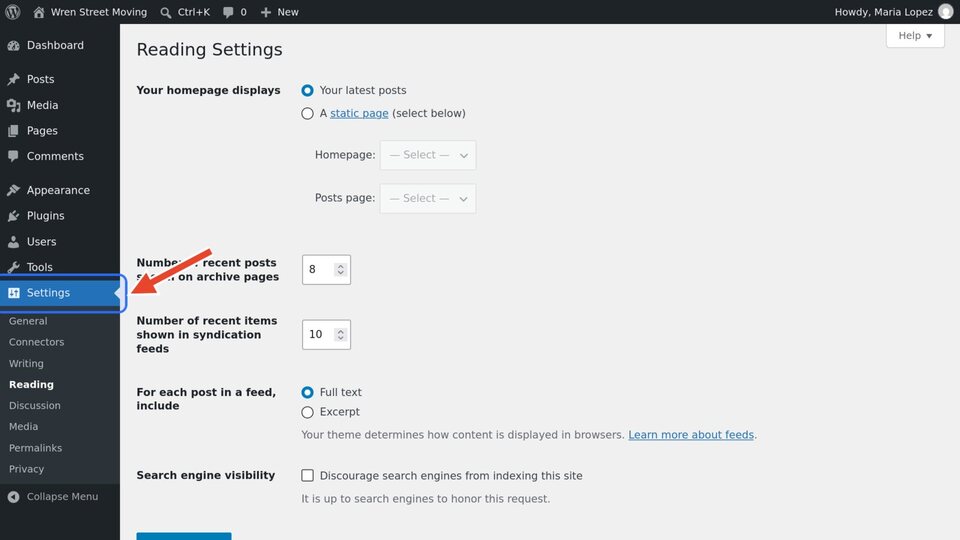
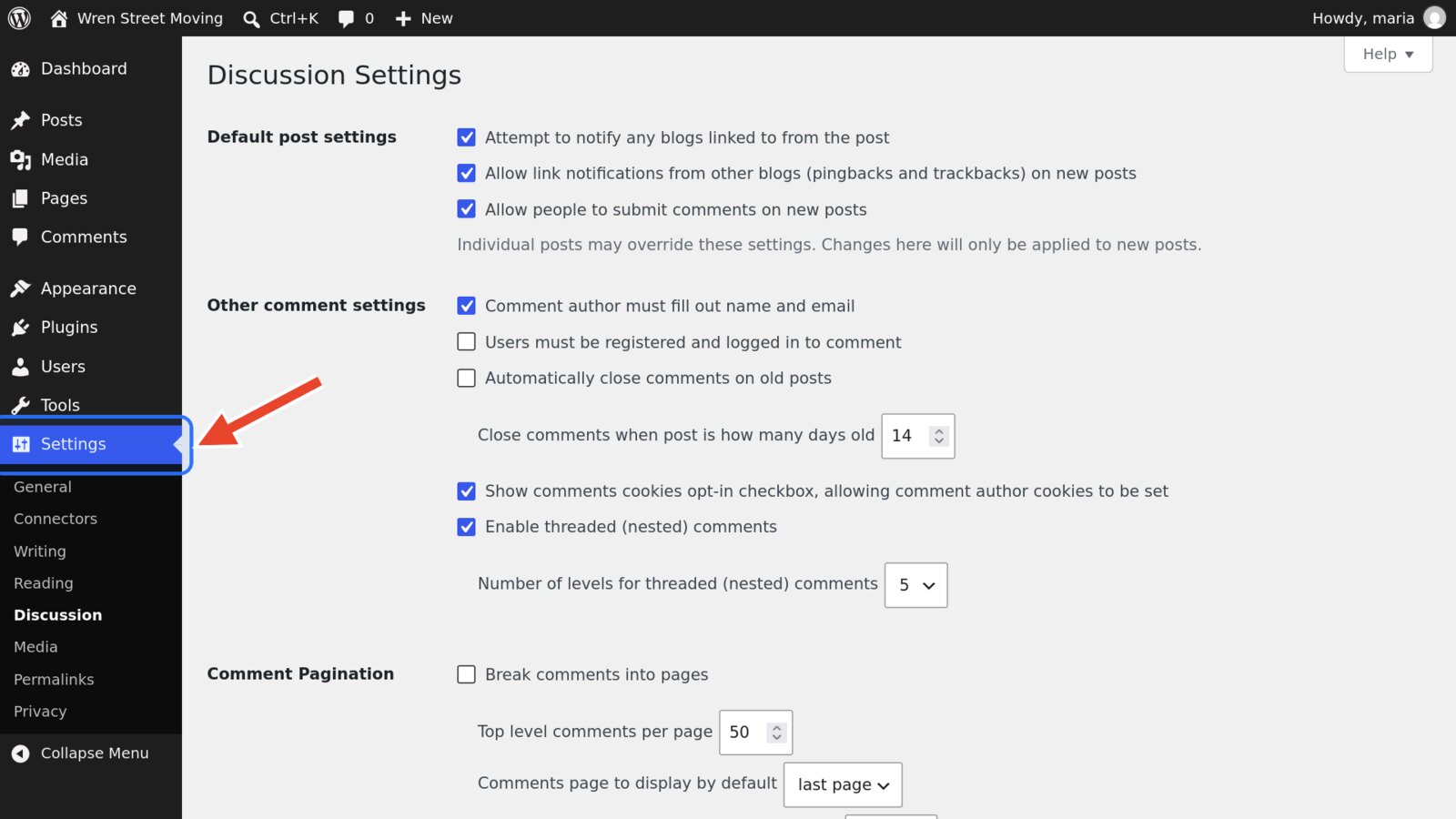
Settings is in the left menu. Discussion is inside it.Settings está en el menú de la izquierda. Discussion está dentro.
-
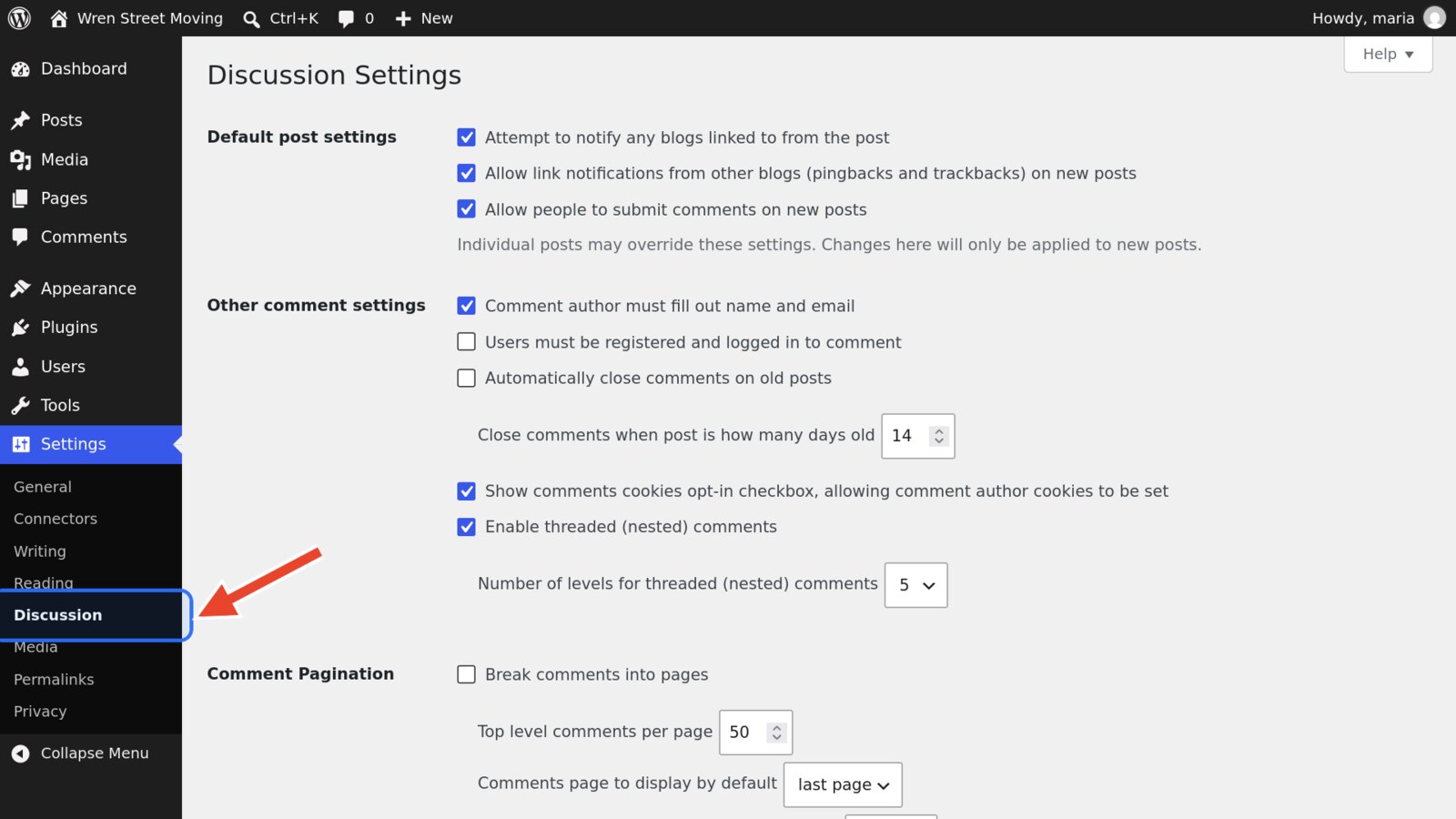
Discussion opens the comment settings.Discussion abre los ajustes de comentarios.
-
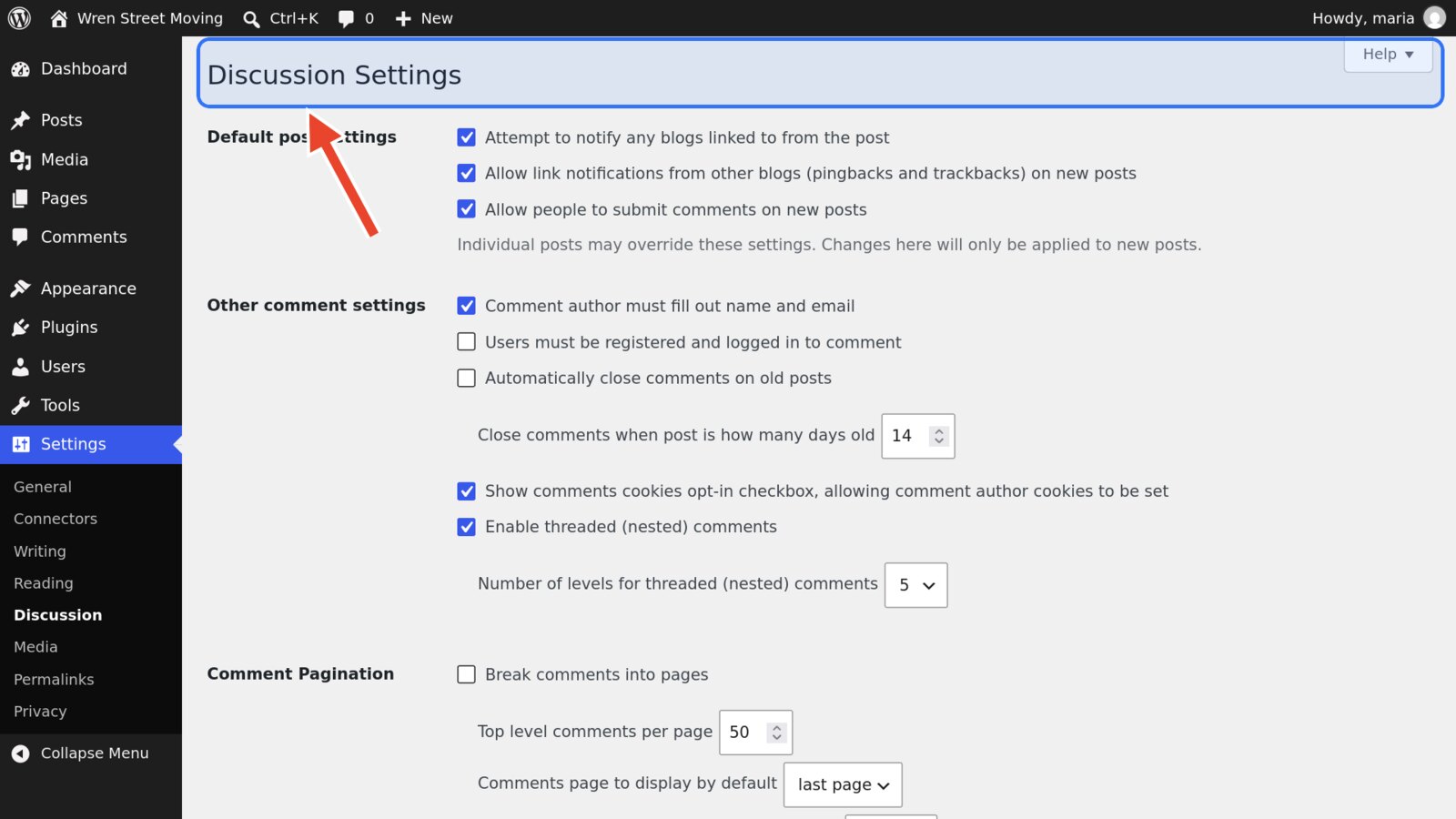
This is Discussion Settings, where you control comments.Esta es la pantalla Discussion Settings, donde controlas los comentarios.
-
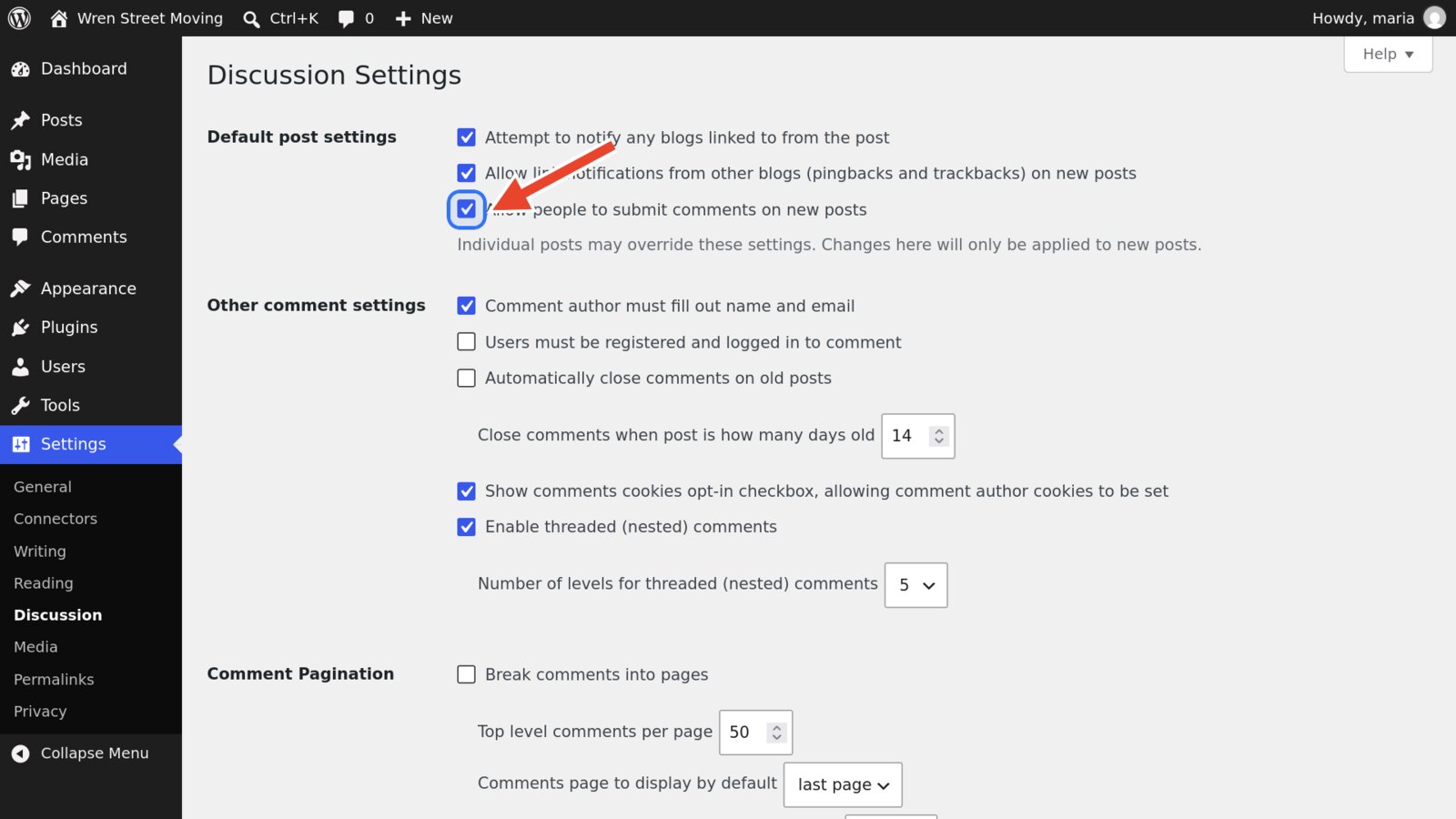
This box lets people post comments on new articles. Leave it as it is.Esta casilla permite comentarios en artículos nuevos. Déjala como está.
-
This box makes every comment wait for your approval.Esta casilla hace que cada comentario espere tu aprobación.
Tip: Hold a first comment from a new person for approval.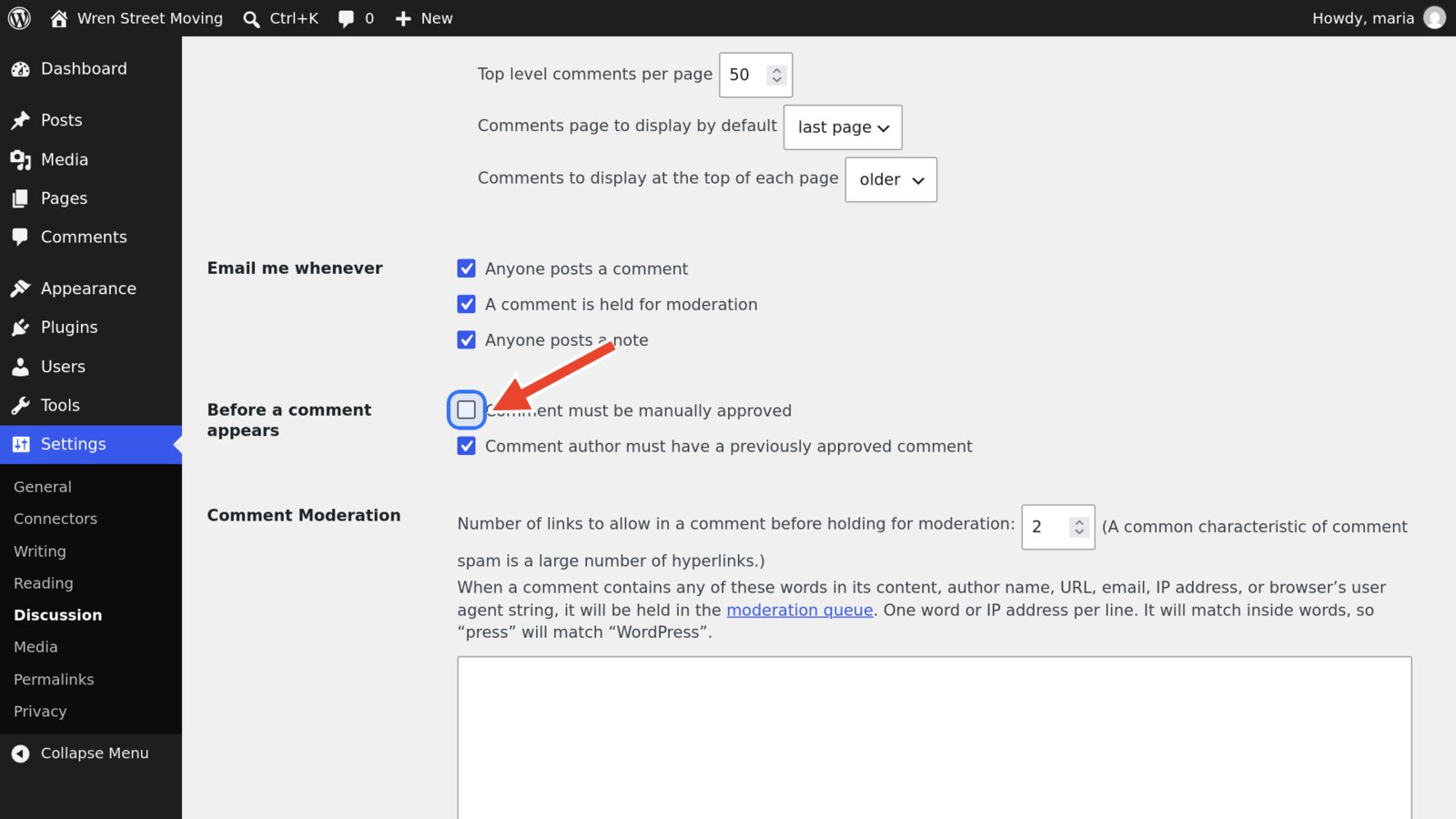
-
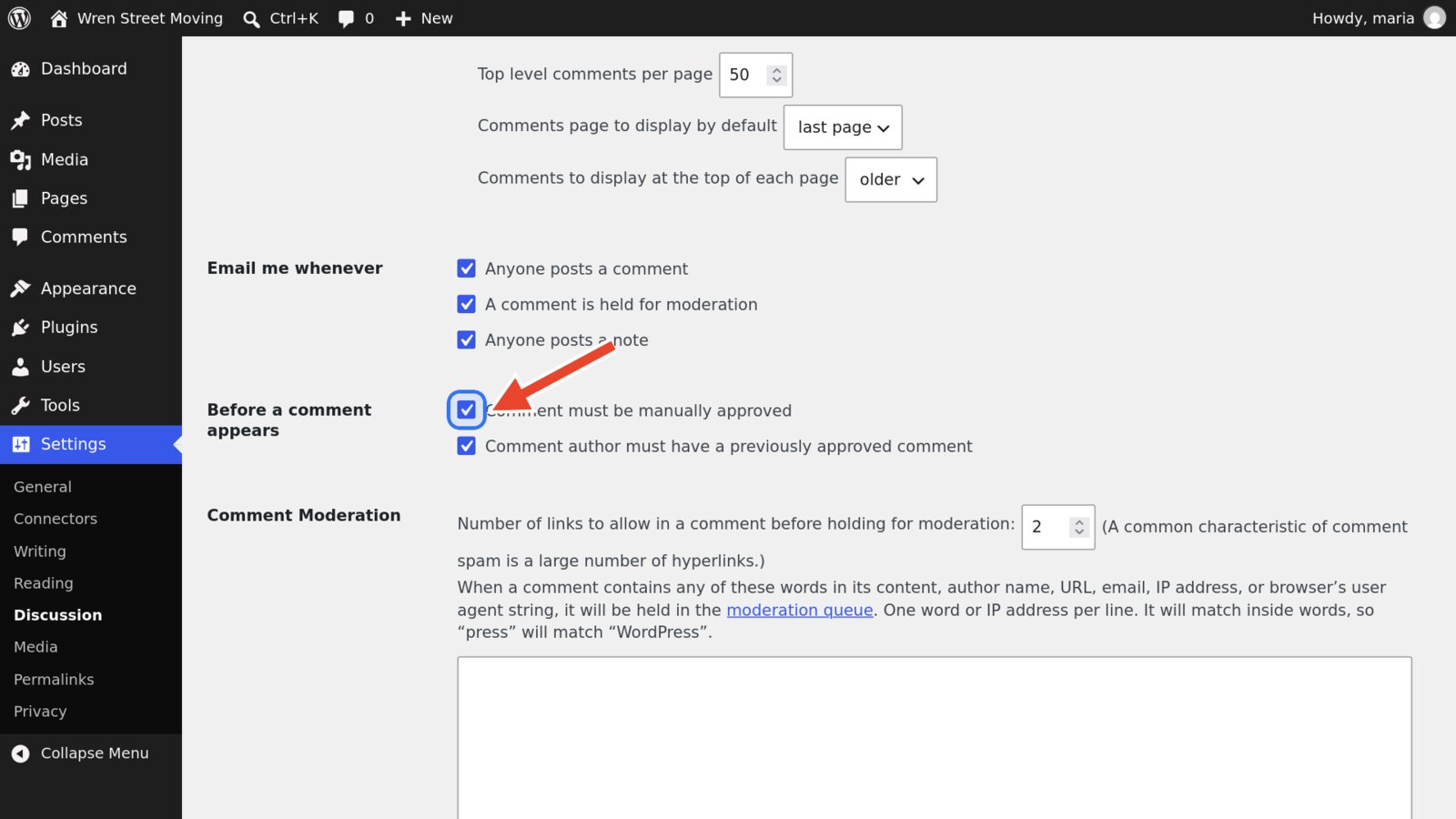
Tick this box to turn on manual approval.Marca esta casilla para activar la aprobación manual.
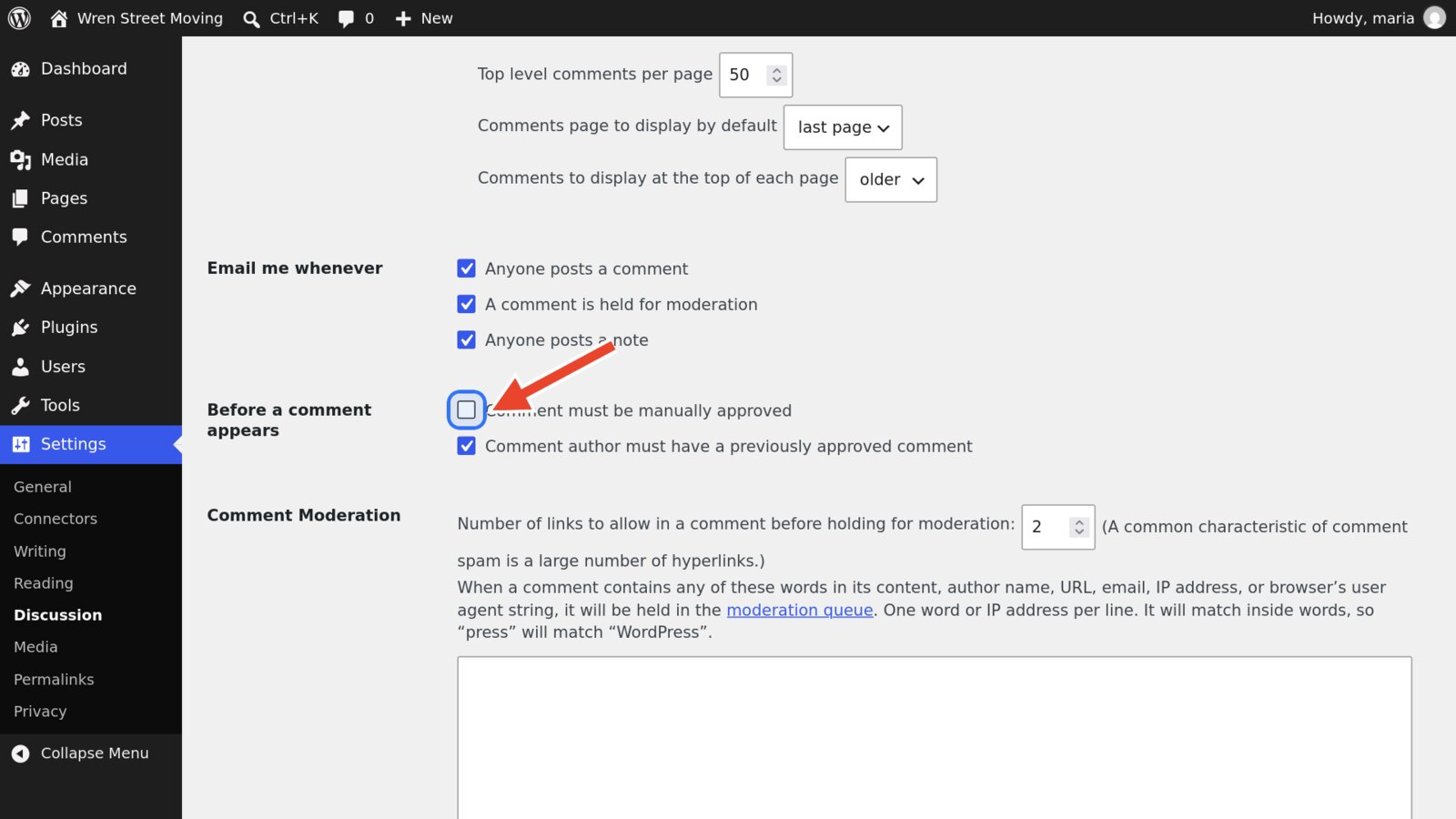
-
This option lets people with an approved comment skip the wait.Esta opción deja que quien ya tiene un comentario aprobado no espere.
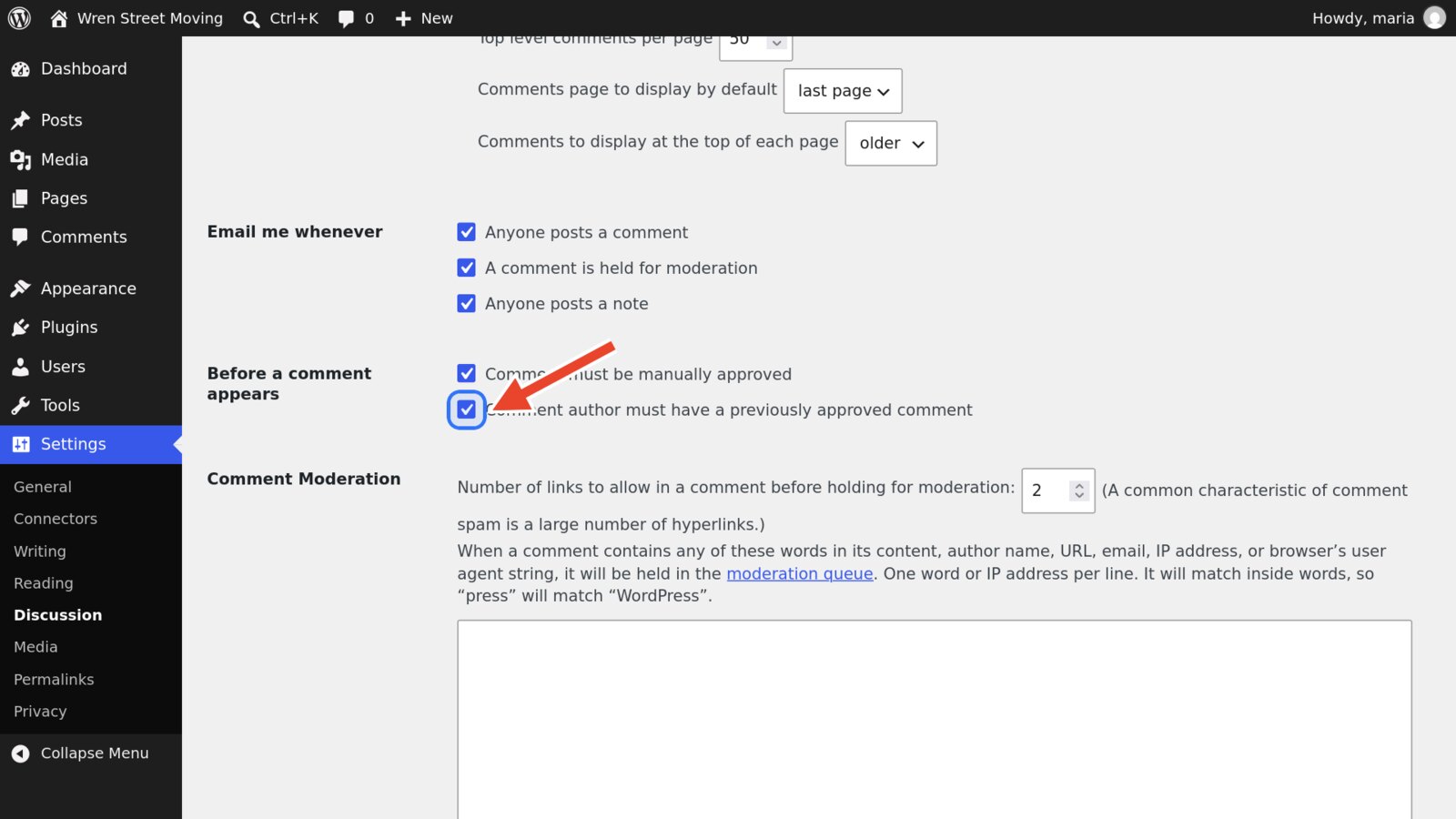
-
Press Save Changes at the bottom.Presiona Save Changes, abajo.
Tip: Nothing is kept until you press Save Changes.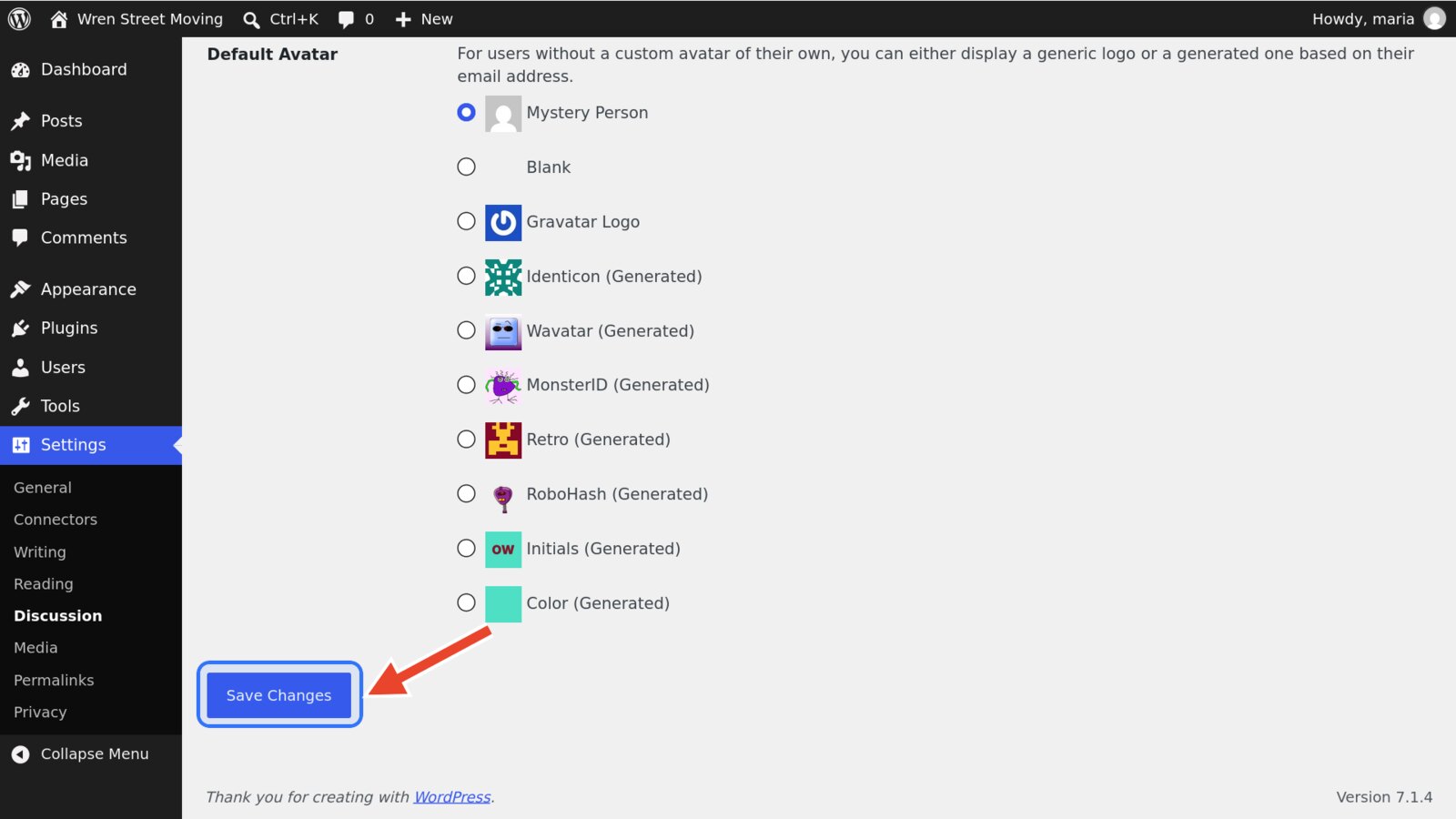
-
The page reloaded and the box is still ticked. Your setting is saved.La página se recargó y la casilla sigue marcada. Tu ajuste quedó guardado.
Stuck on your own site?
Get walked through it one-on-one, on video, on your real site. Or hand the job over and have it done.
- You click, I guide
- One price per job, set before work starts
- English or Spanish
Where this comes from
Every step was run on a real WordPress site and checked against the official WordPress documentation: