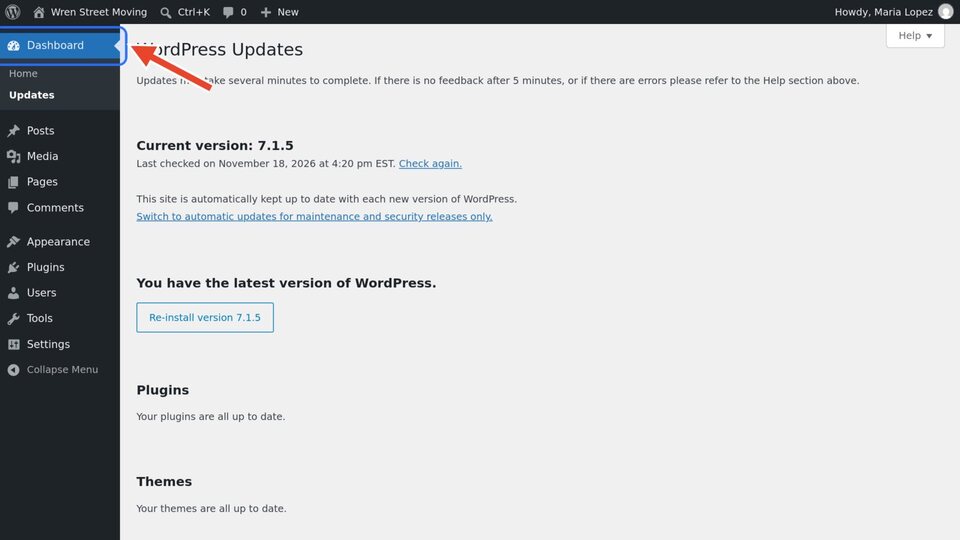
Check Site Health and export your content
The steps
-
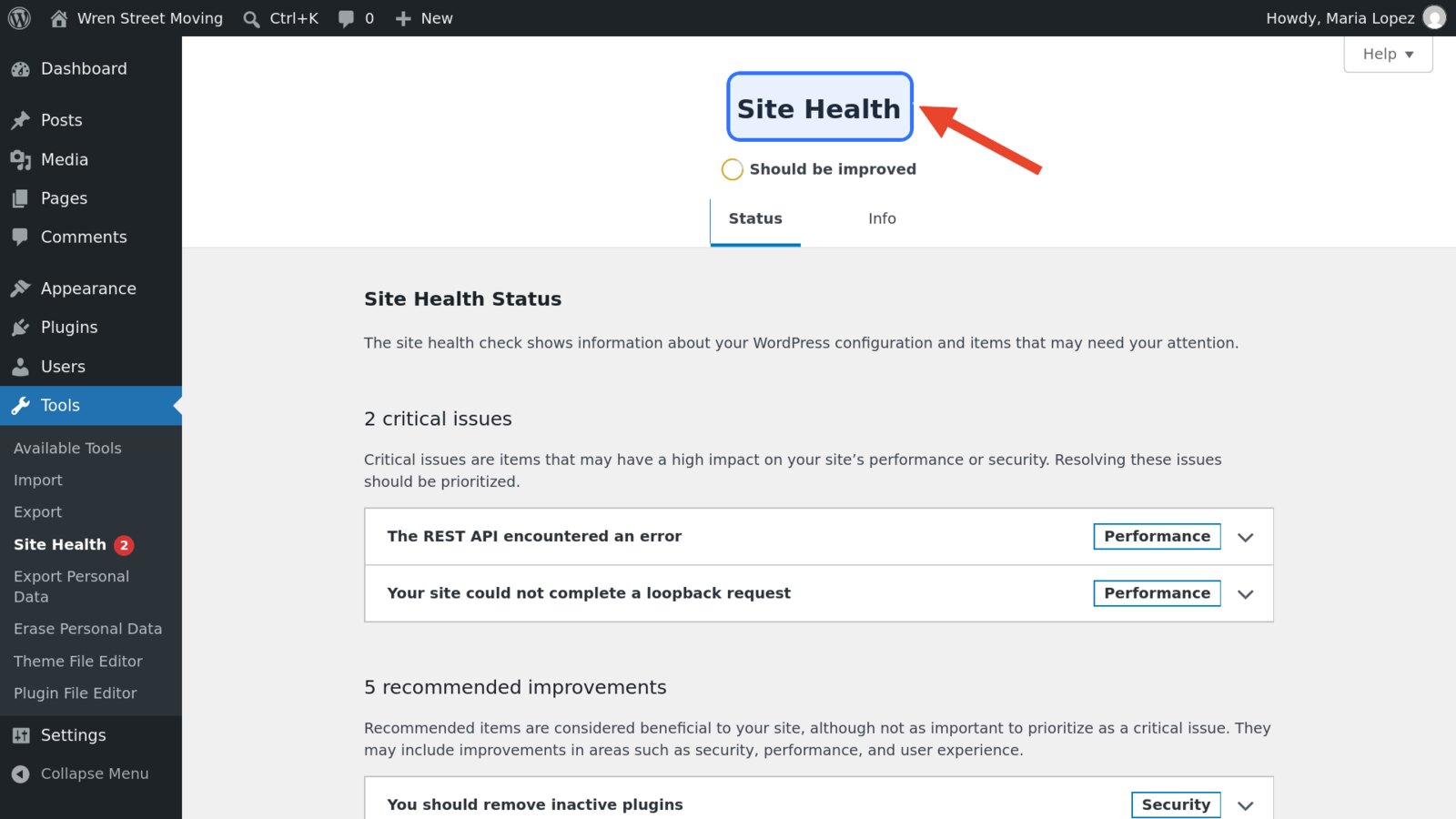
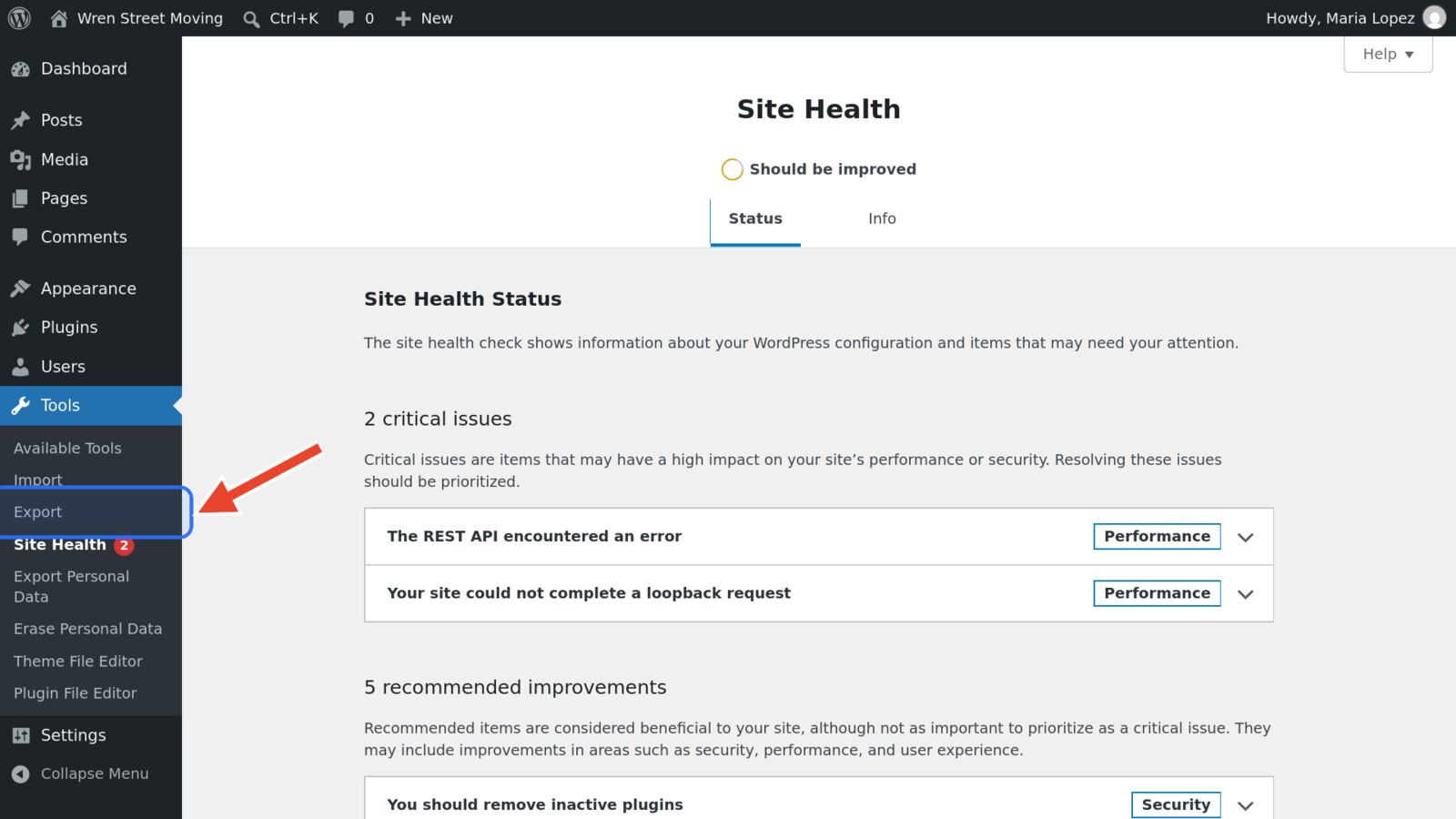
This is the Site Health screen. WordPress checks your site here.Esta es la pantalla Site Health. Aquí WordPress revisa tu sitio.
-
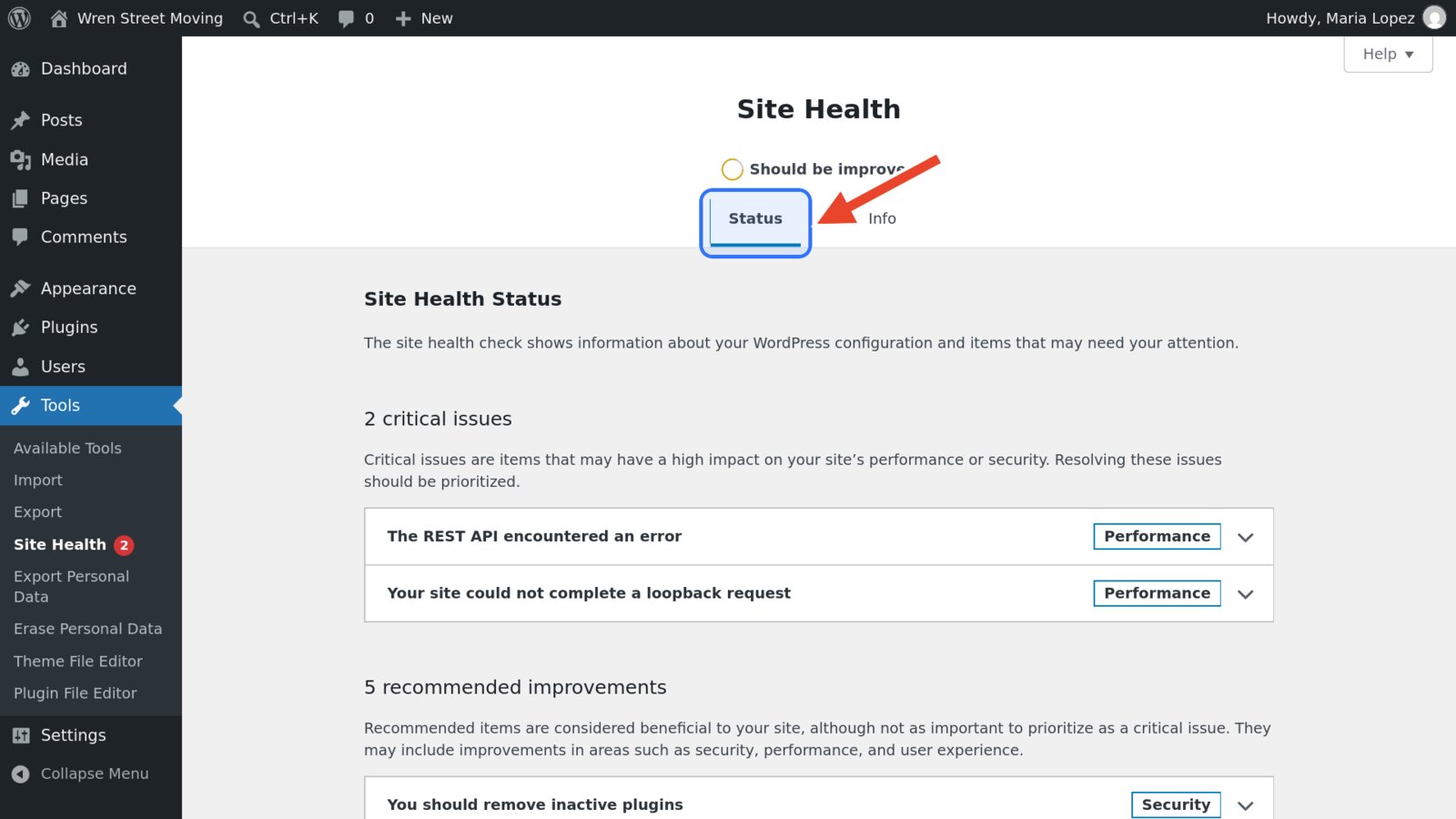
The Status tab shows what needs your attention.La pestaña Status muestra lo que necesita tu atención.
-
Results are grouped by severity: critical issues, recommended improvements and passed tests.Los resultados se agrupan por gravedad: problemas críticos, mejoras recomendadas y pruebas aprobadas.
Tip: Fix what Site Health marks as critical first.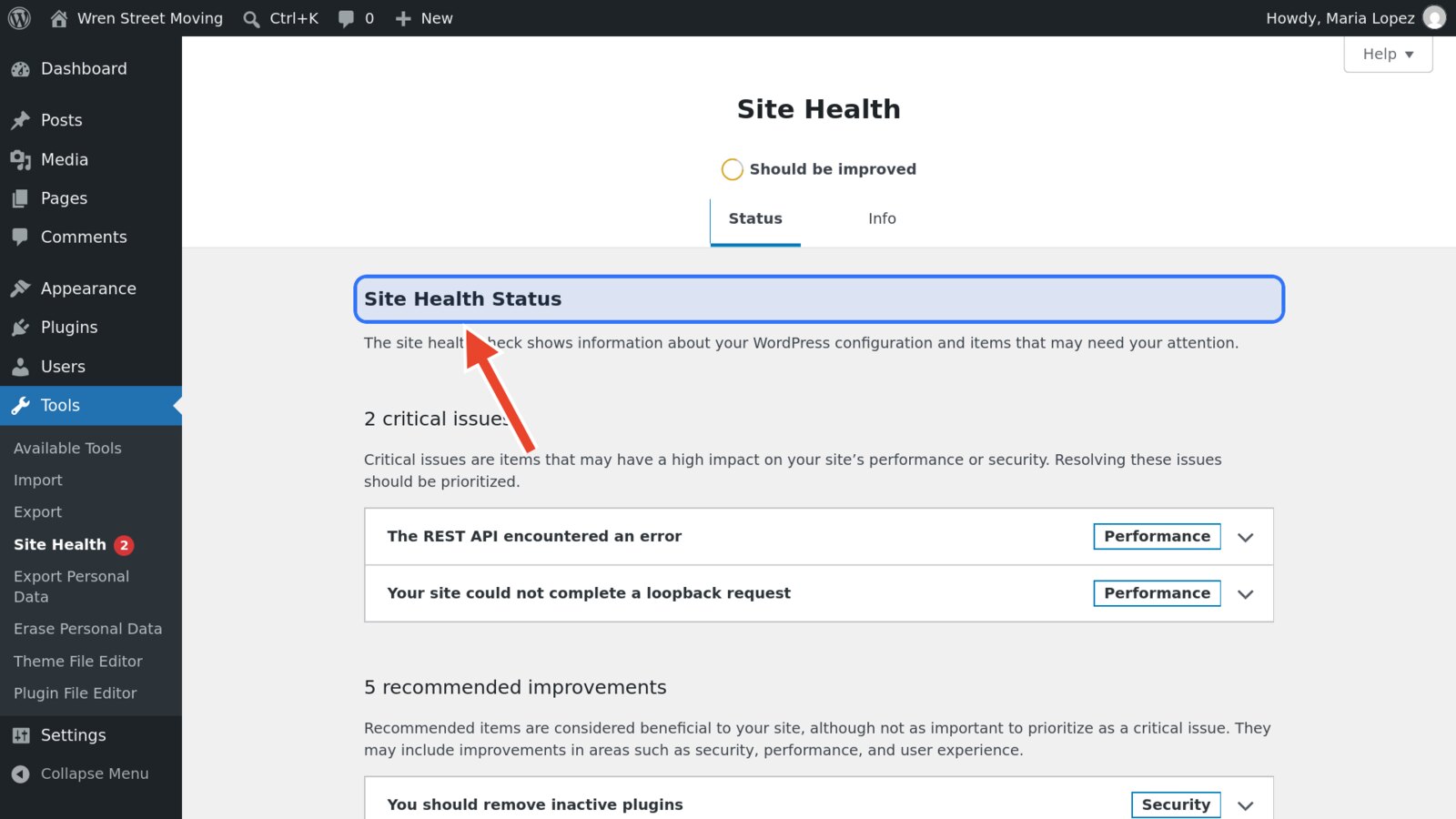
-
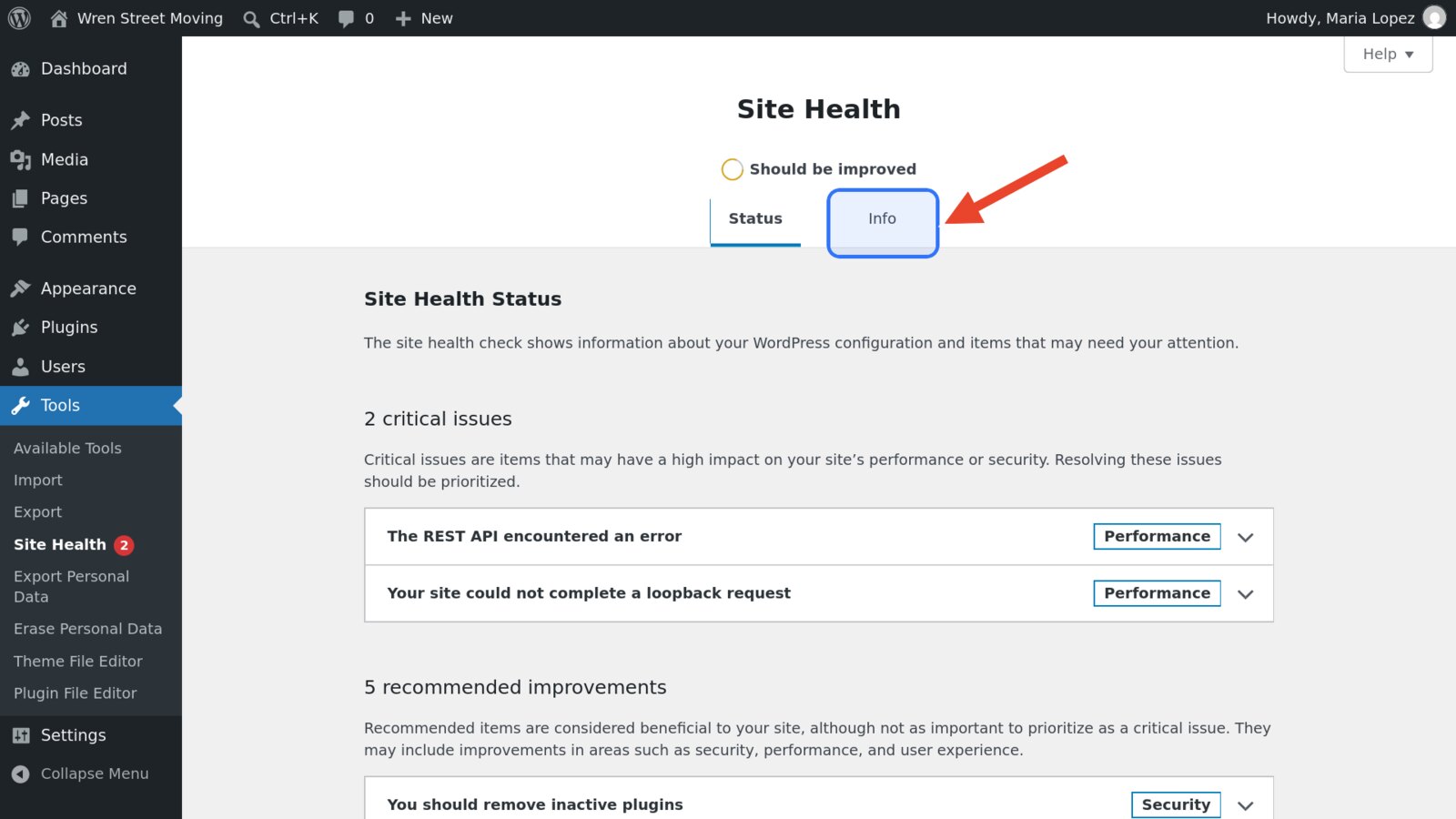
The Info tab holds technical details about your themes, plugins and media.La pestaña Info tiene detalles técnicos de tus themes, plugins y medios.
-
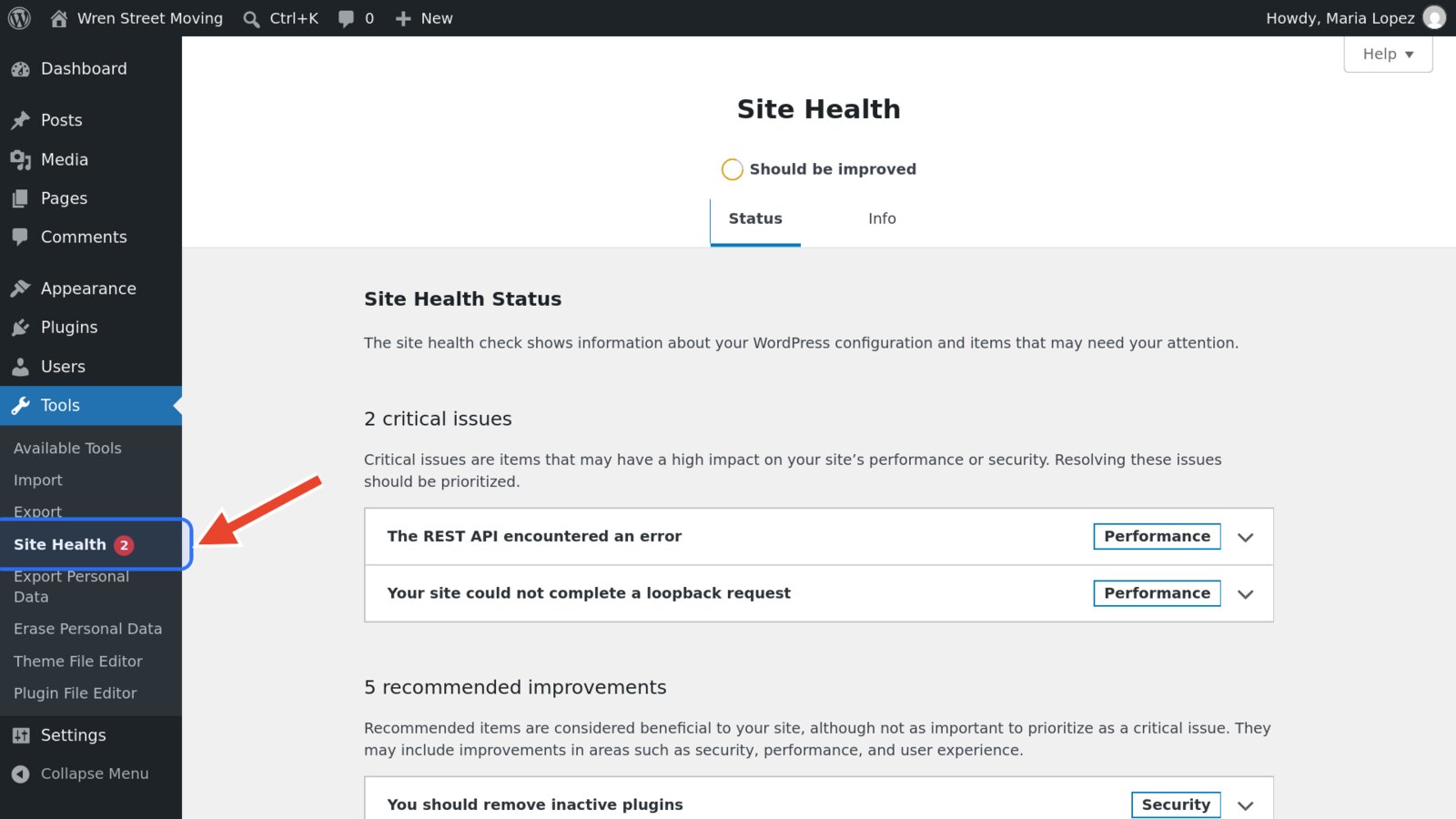
The number beside Site Health counts the items waiting for you.El número junto a Site Health cuenta los puntos que esperan tu revisión.
-
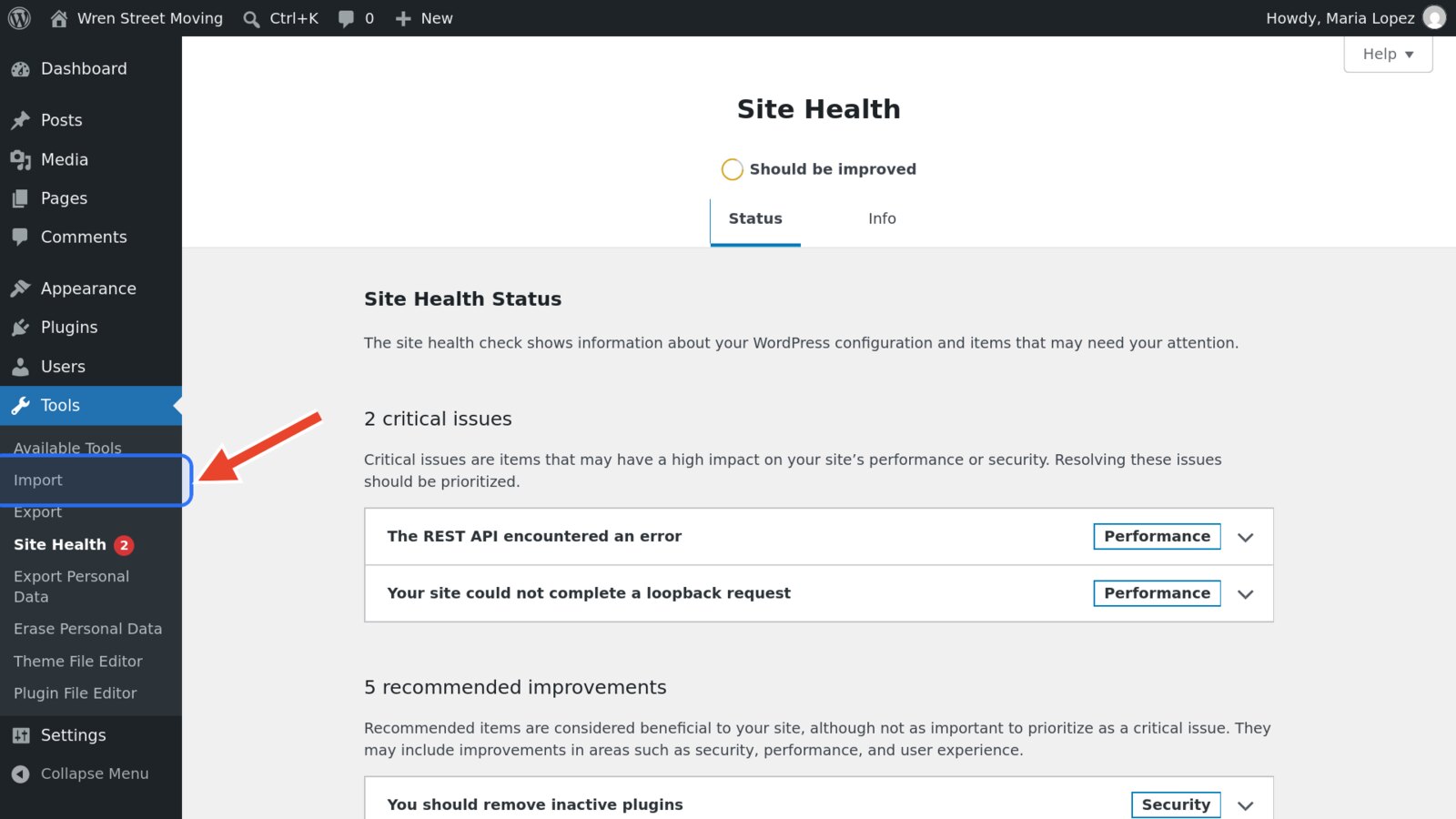
Under Tools you also find Import, next to Export.En Tools también está Import, junto a Export.
-
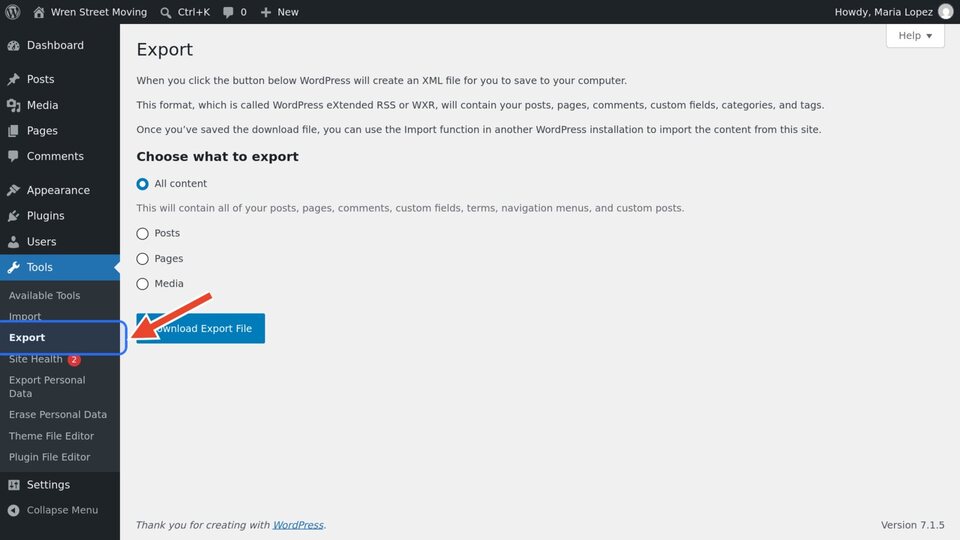
Now press Export in the Tools menu.Ahora presiona Export en el menú Tools.
-
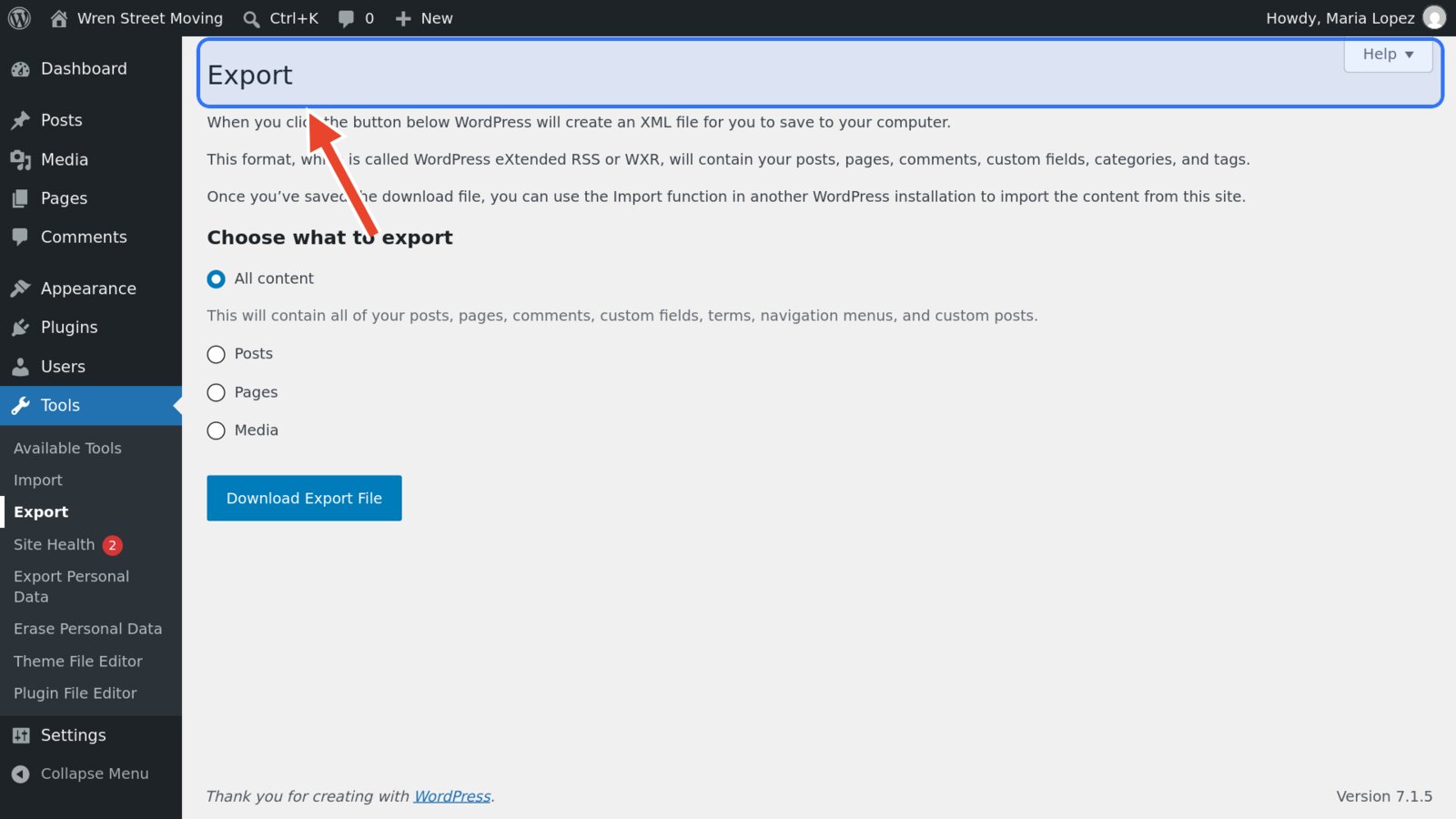
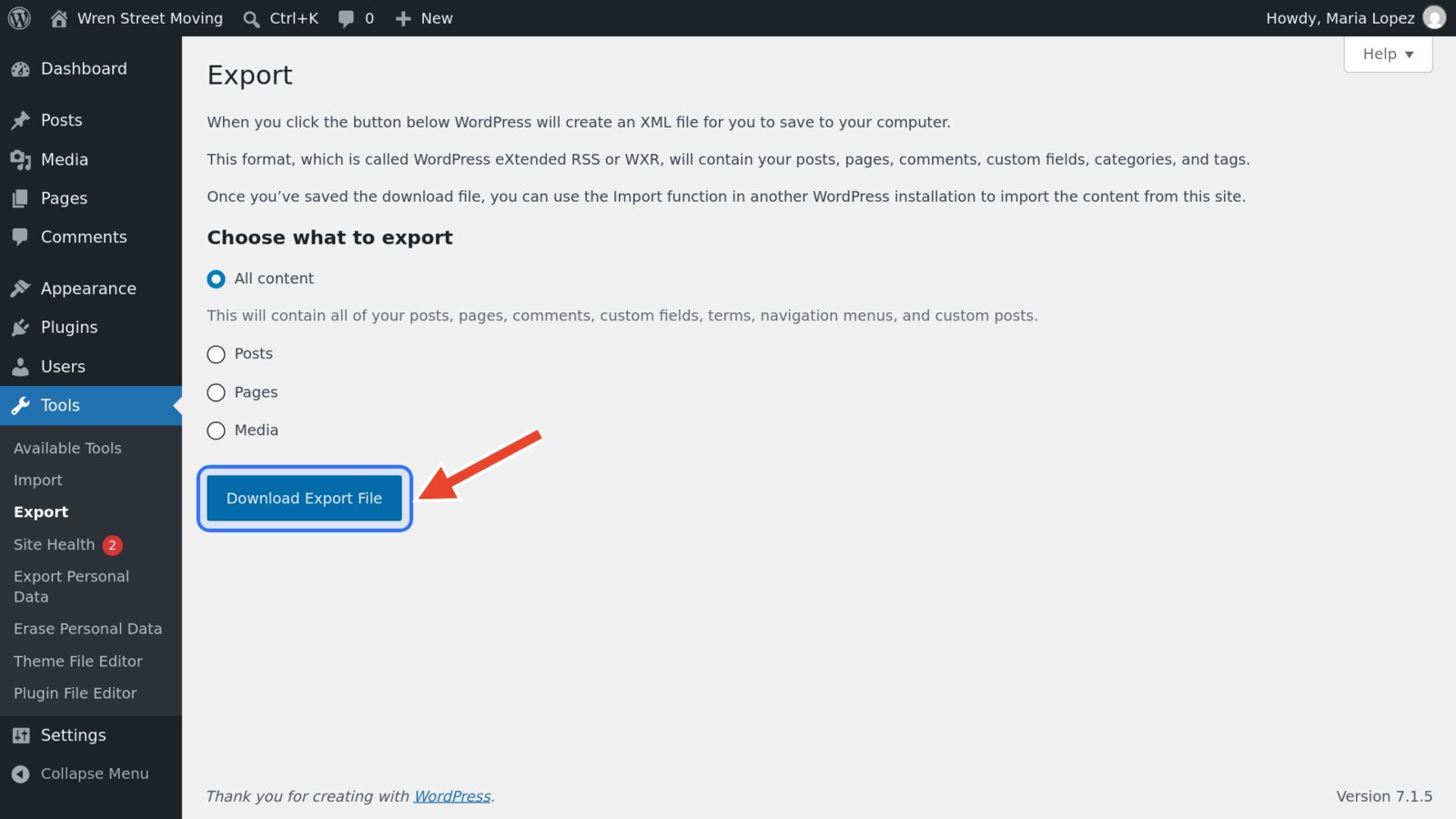
This is the Export screen.Esta es la pantalla Export.
-
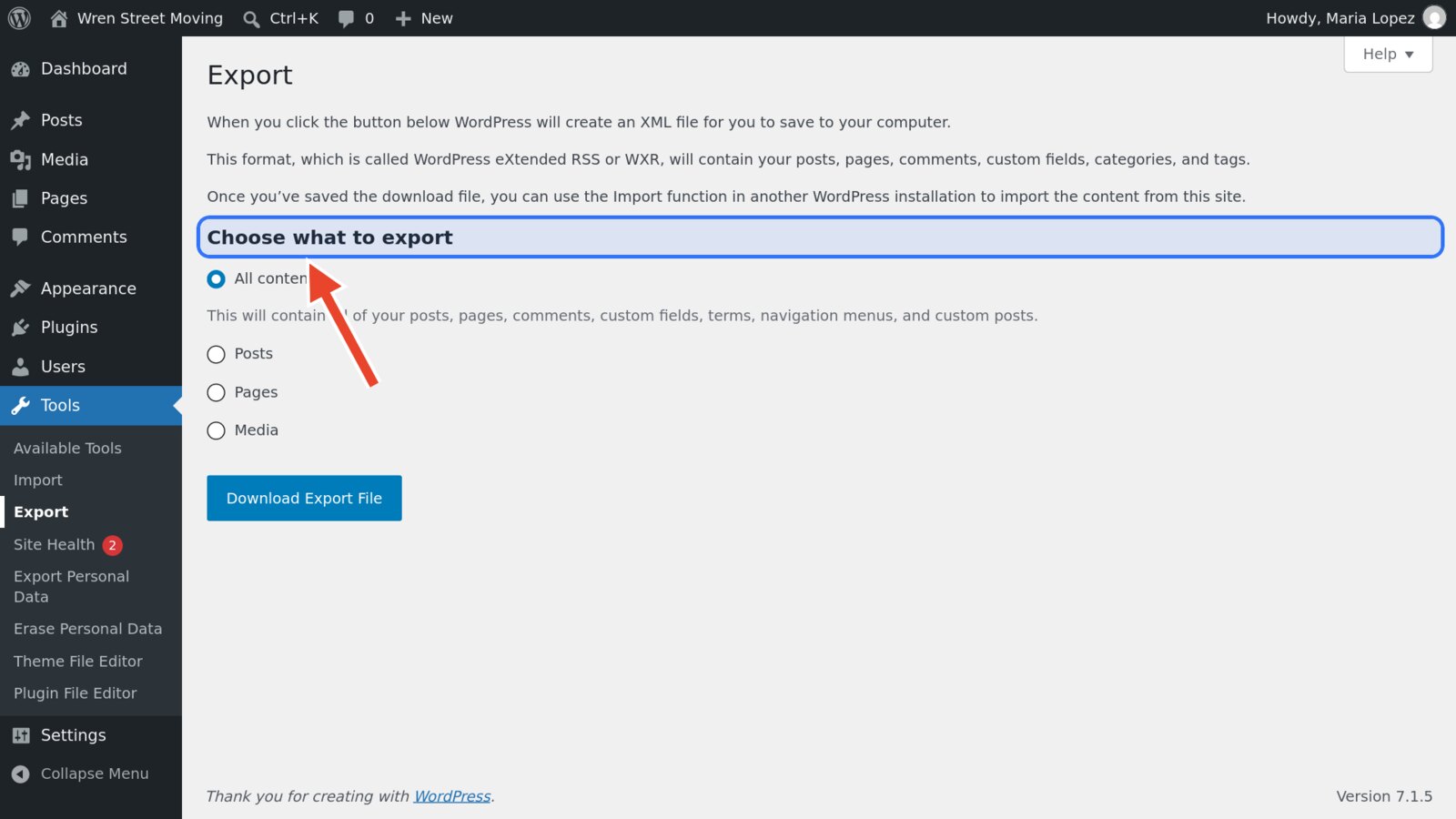
Here you choose what to export.Aquí eliges qué exportar.
-
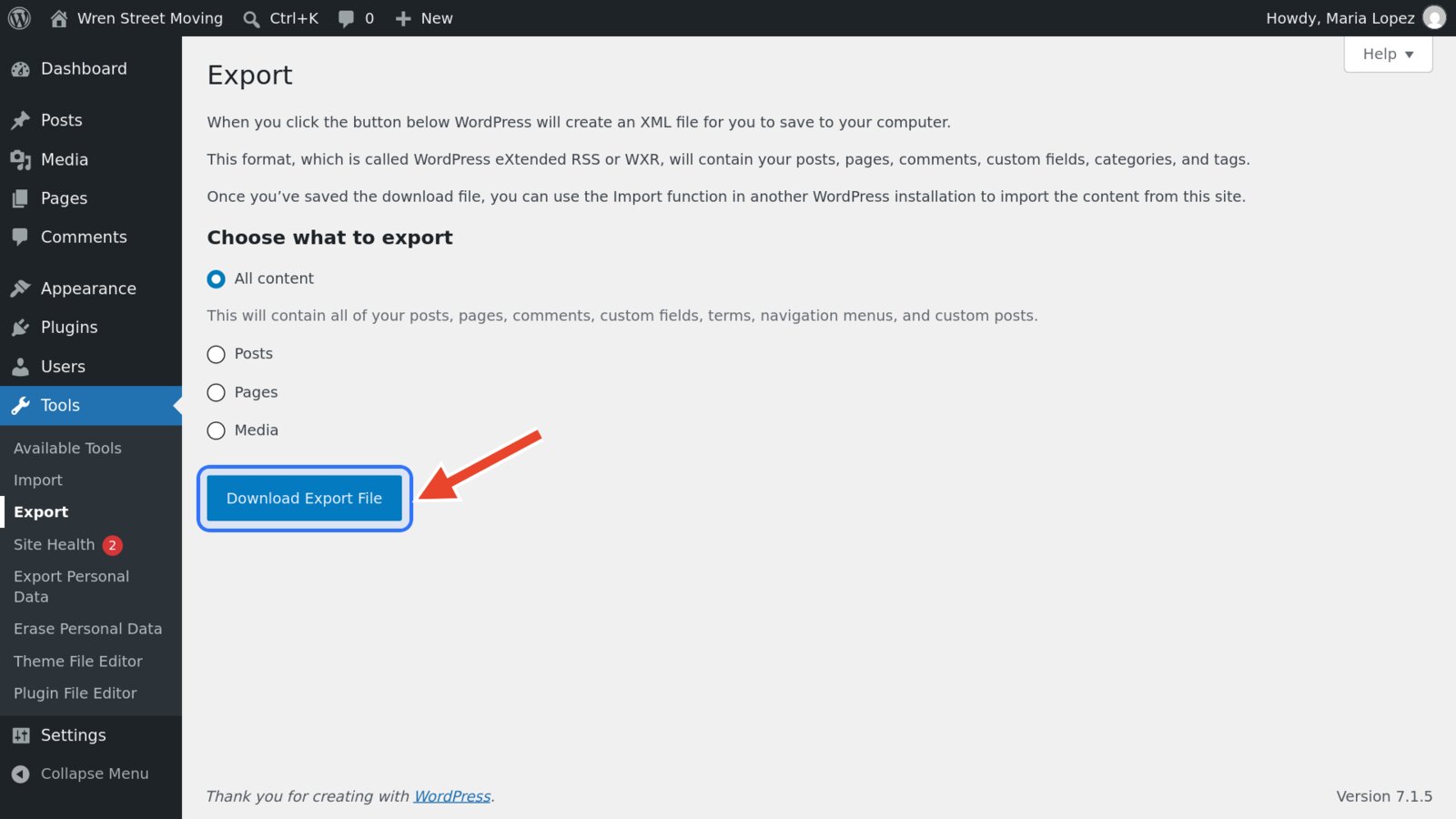
Press Download Export File to save your content.Presiona Download Export File para guardar tu contenido.
-
Your browser downloads the export file. Check your downloads list to confirm it.Tu navegador descarga el archivo de exportación. Revisa tus descargas para confirmarlo.
Stuck on your own site?
Get walked through it one-on-one, on video, on your real site. Or hand the job over and have it done.
- You click, I guide
- One price per job, set before work starts
- English or Spanish
Where this comes from
Every step was run on a real WordPress site and checked against the official WordPress documentation: