Reading the WordPress Updates screen
The steps
-
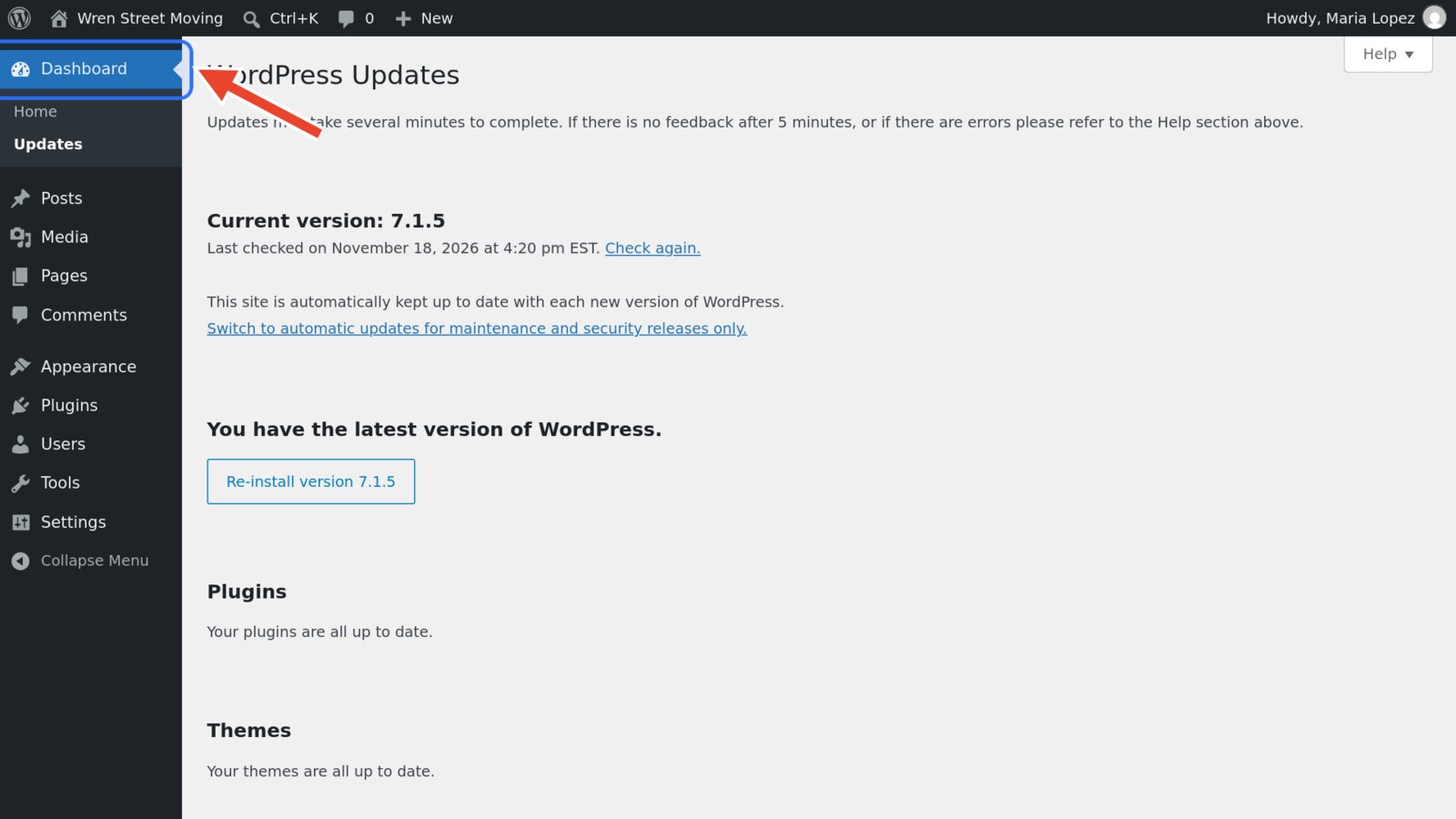
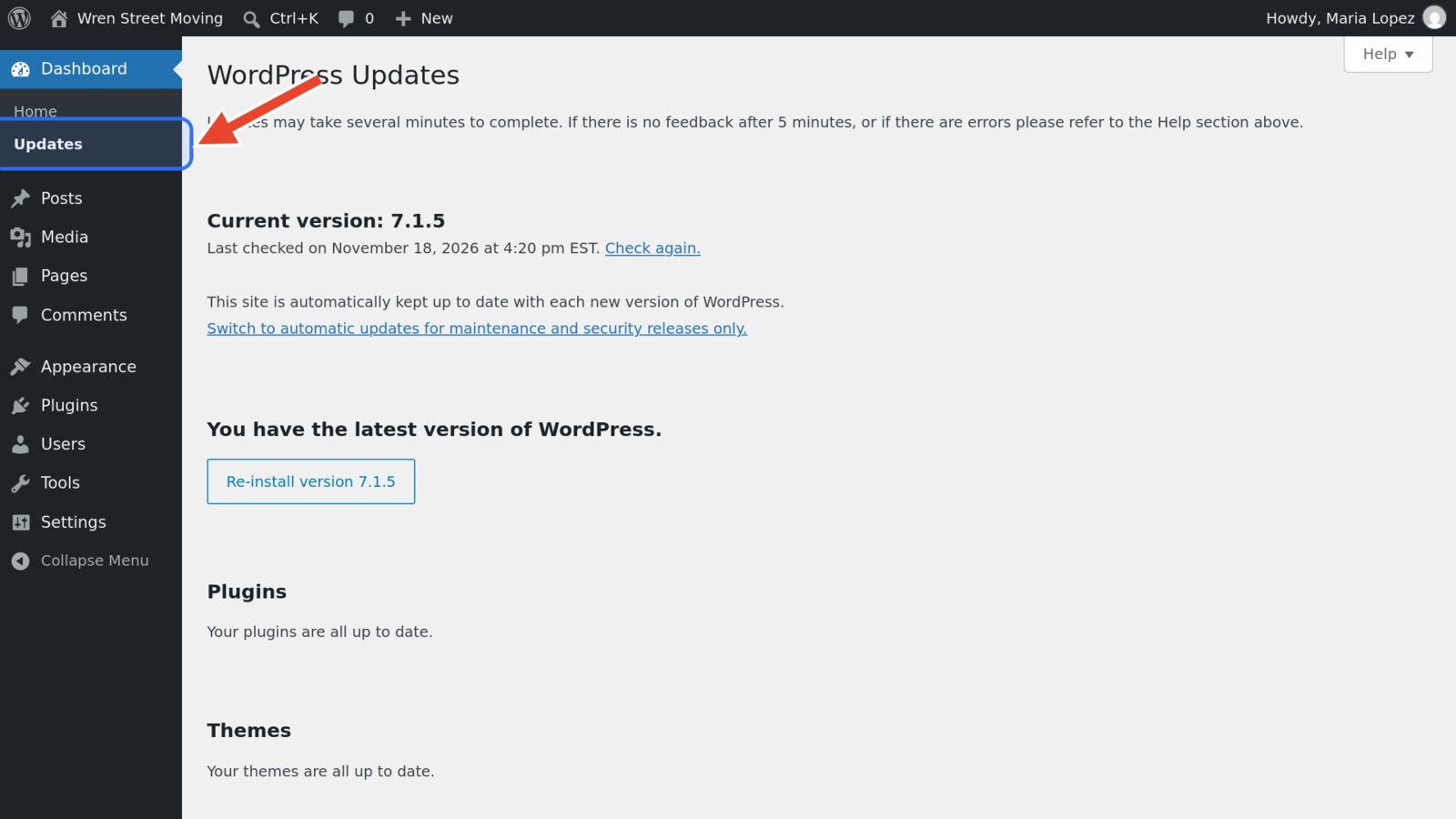
Updates lives under Dashboard in the left menu.Updates está dentro de Dashboard, en el menú de la izquierda.
-
Updates is the item under Dashboard that opens this screen.Updates es la opción bajo Dashboard que abre esta pantalla.
-
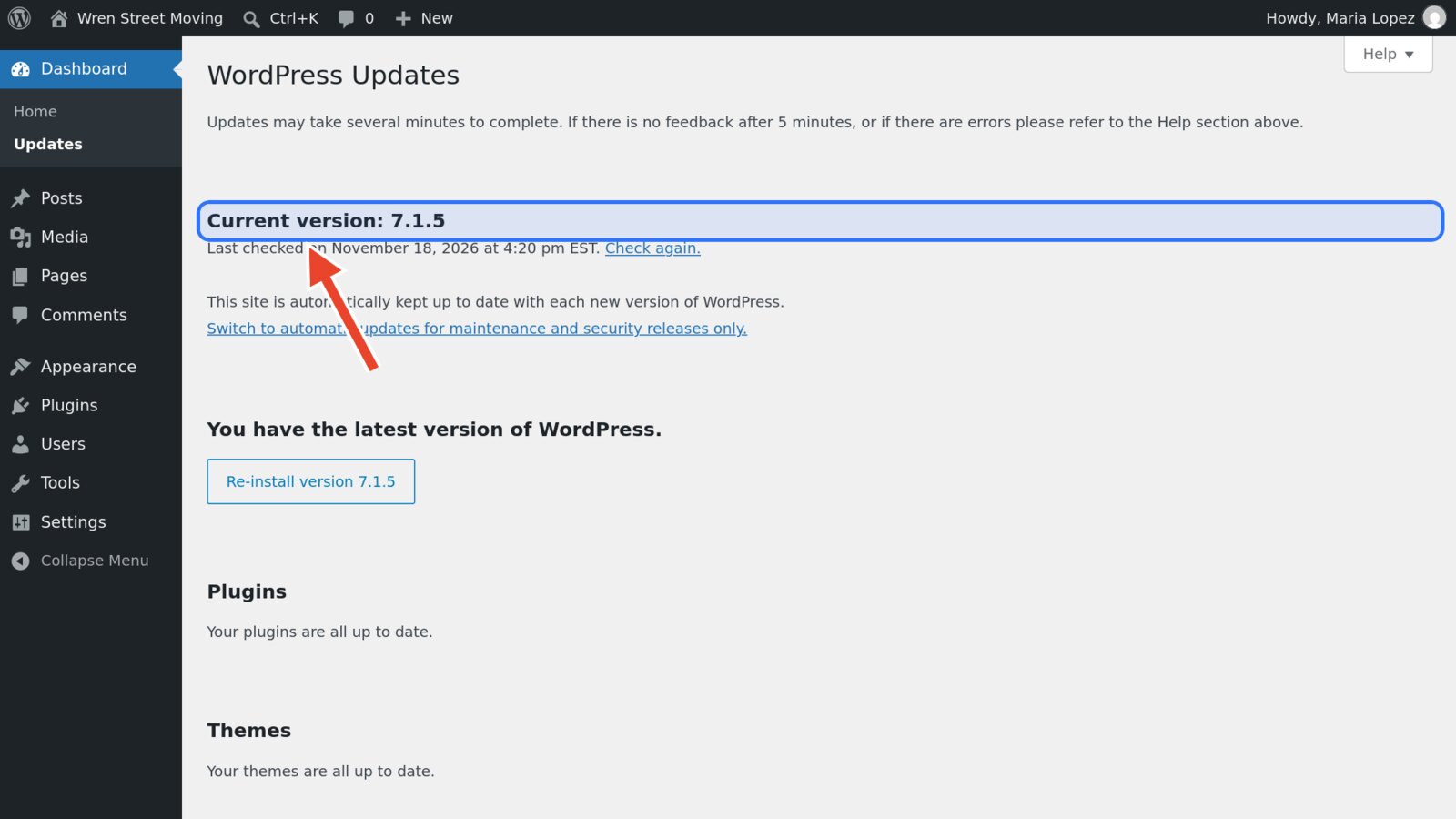
This line shows the version of WordPress your site runs now.Esta línea muestra la versión de WordPress que usa tu sitio ahora.
-
Check again looks for new updates right away.Check again busca actualizaciones nuevas en ese momento.
Tip: Press it after a while if you expect an update.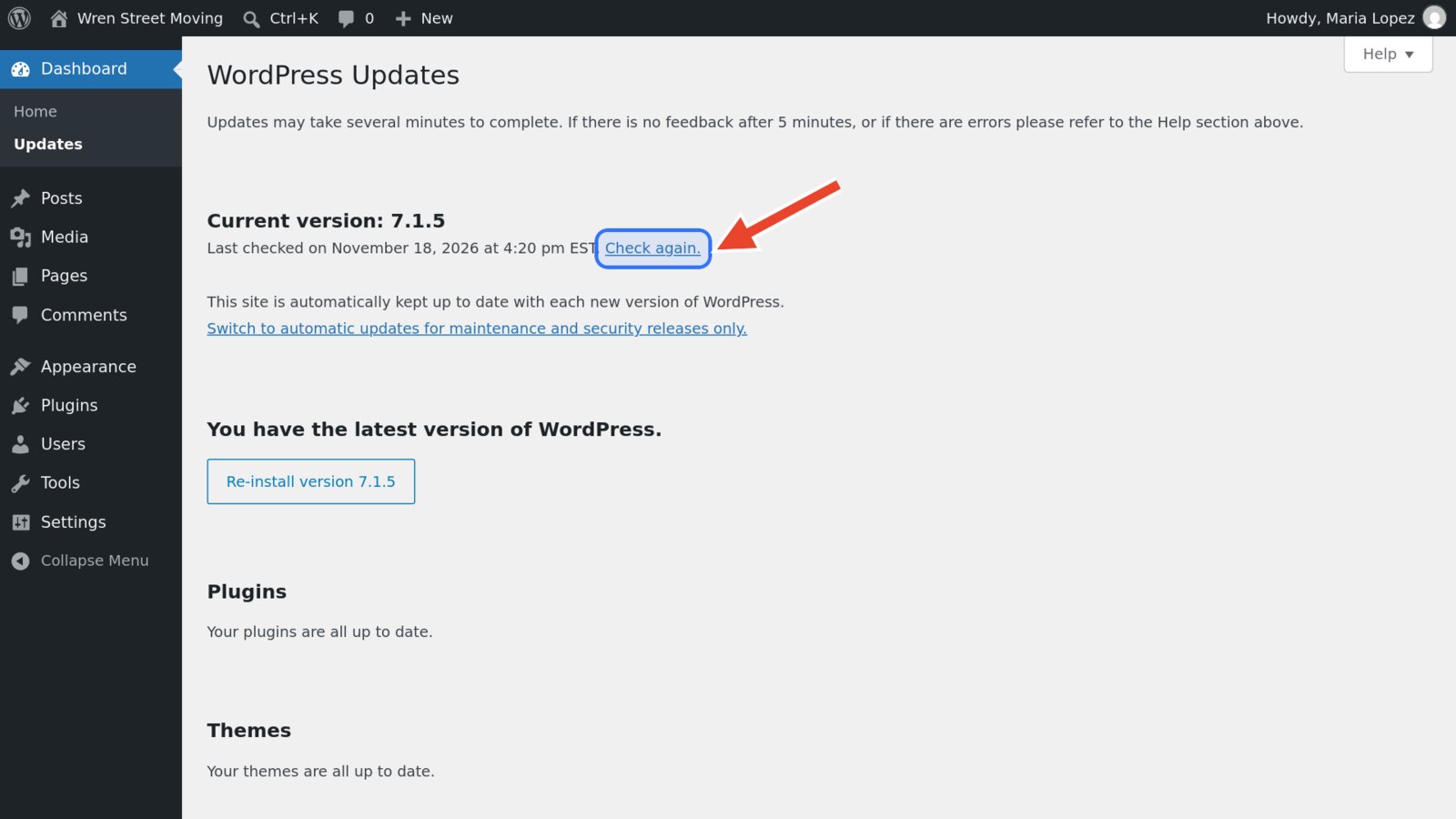
-
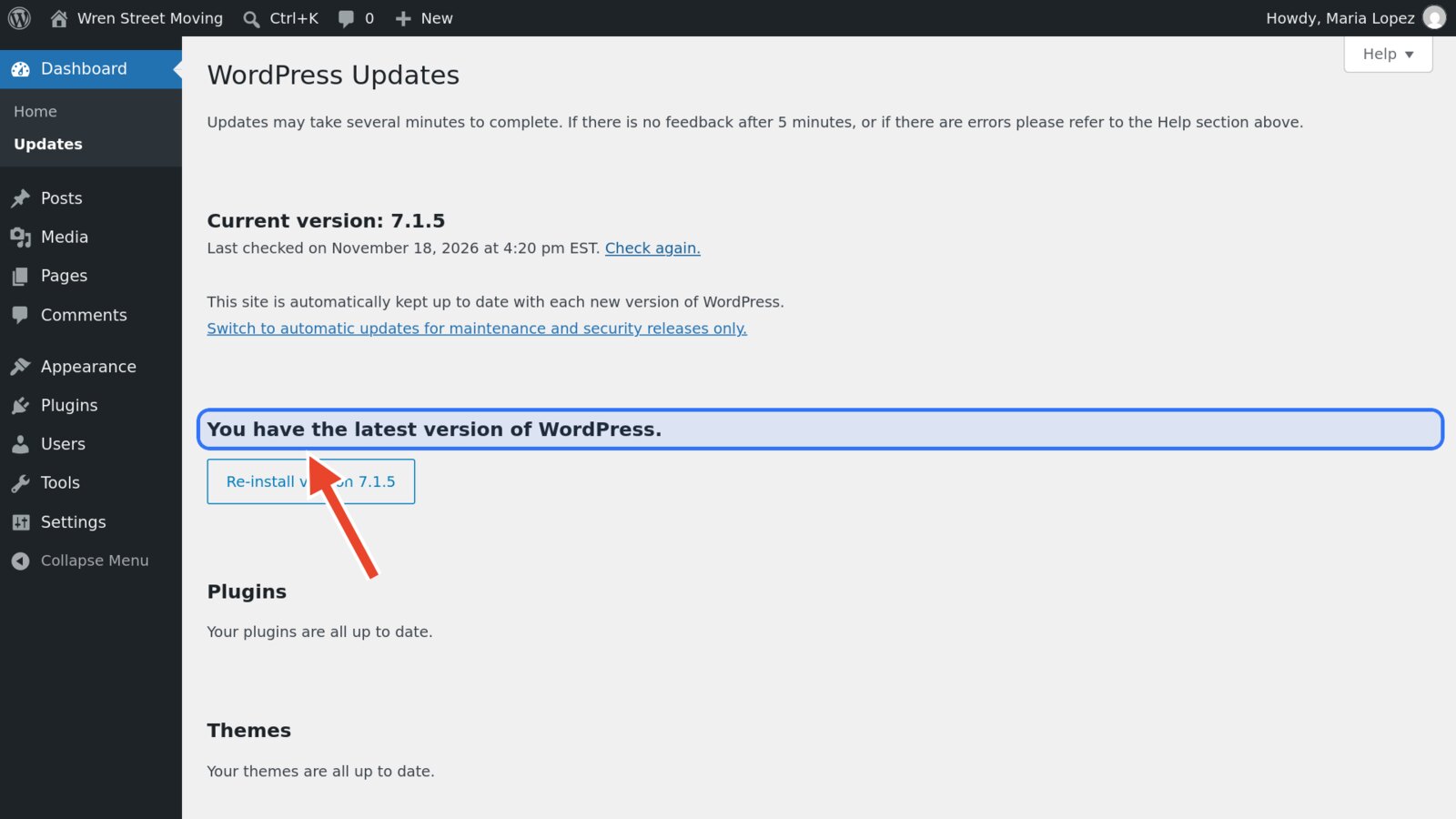
This message says you have the latest version of WordPress.Este mensaje dice que tienes la última versión de WordPress.
-
This button re-installs the current version. You do not need it now.Este botón reinstala la versión actual. No lo necesitas ahora.
Tip: Back up first, update one thing at a time, then look at the site.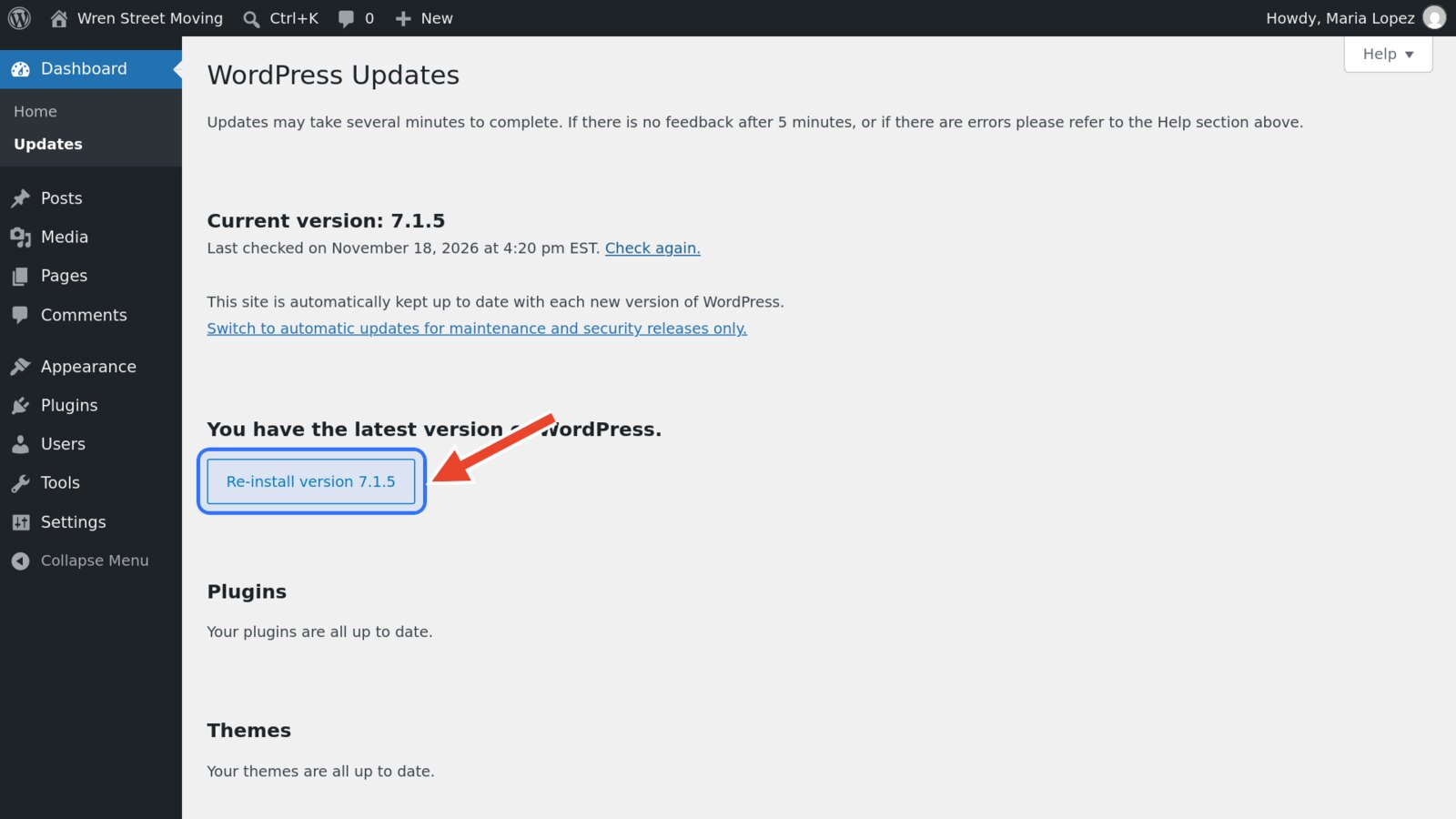
Stuck on your own site?
Get walked through it one-on-one, on video, on your real site. Or hand the job over and have it done.
- You click, I guide
- One price per job, set before work starts
- English or Spanish
Where this comes from
Every step was run on a real WordPress site and checked against the official WordPress documentation: