How to update WordPress without breaking your site
WordPress updates deliver essential security patches, bug fixes, and performance improvements to your website. But clicking every update link at once can trigger plugin conflicts or database errors that take pages offline. Establishing a calm, methodical routine lets you keep software current without disrupting visitors or risking lost data.
Why WordPress updates matter for your website
WordPress core, plugins, and themes update regularly to patch security vulnerabilities, fix bugs, and maintain compatibility. Plugins have deep access to your website. When developers discover flaws, they release updates to close those gaps. Out-of-date files leave known weaknesses open.
Updates also resolve coding bugs and improve performance. Plugins are written for current versions of WordPress, so an old core version can also stop newer plugins from working.
Check your Site Health screen before updating
Before updating, run the Site Health check to spot server issues early. Located under Tools > Site Health, this built-in diagnosis tests your configuration and groups findings into critical issues, recommended improvements, and passed tests.
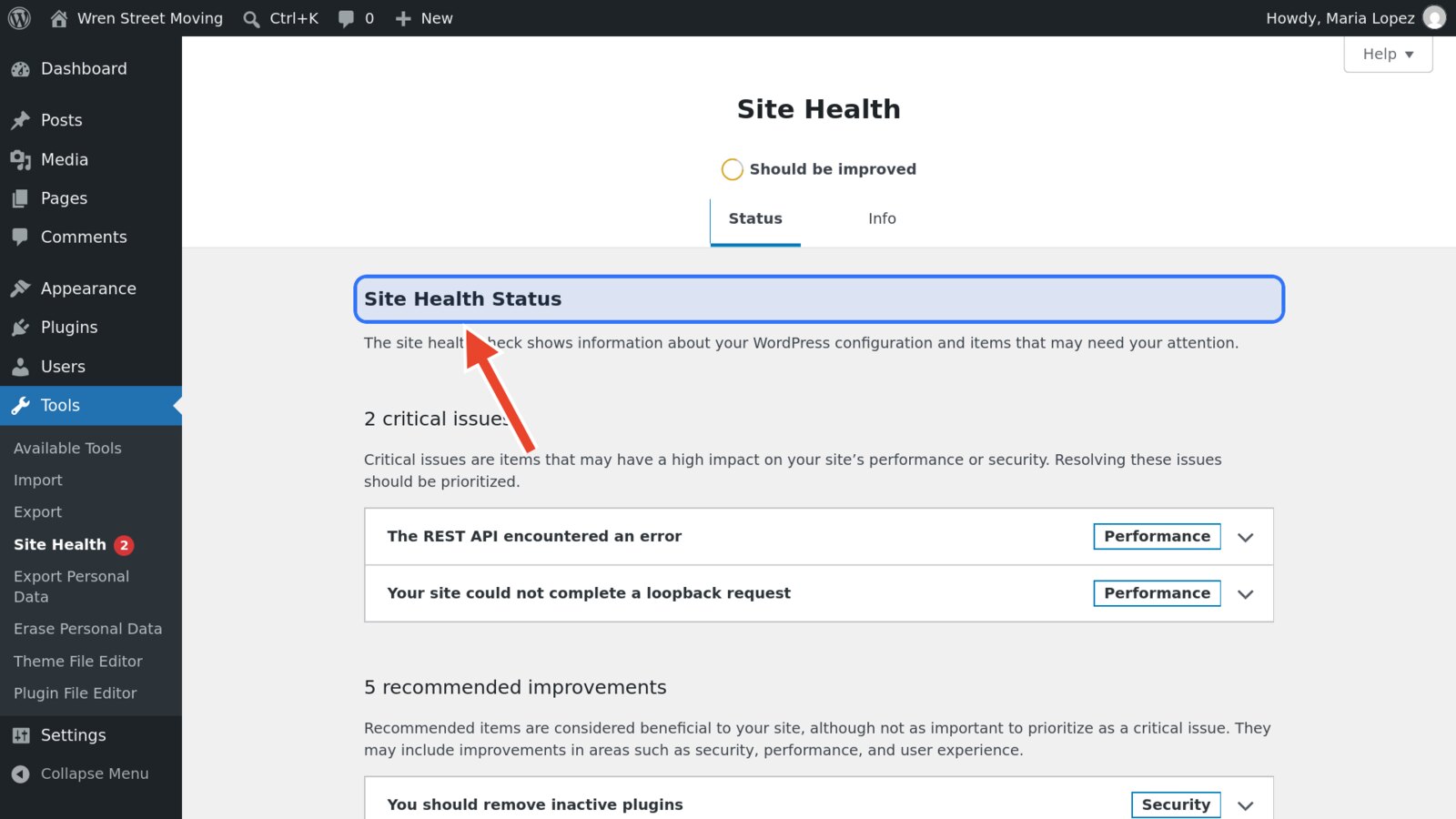
The Status tab checks whether your site can reach api.wordpress.org, verifies background updates function, and whether your PHP version is out of date. It also confirms debug mode is not exposing sensitive errors on live pages.
Under Info > Filesystem Permissions, WordPress confirms whether your root, wp-content, uploads, plugins, and themes directories are writable. If it reports folders it cannot write to, ask your host to look at it. The video lesson on the Site Health tool walks through these checks, and the official Site Health documentation explains each one.
Back up both your database and your files
A WordPress site consists of two separate elements: your database and your files. You need both to restore a broken site.
WordPress database
Stores posts, pages, comments, user accounts and settings.
WordPress files
Stores core system code, themes, plugins, uploads, and server configuration files on disk.
Backing up only files does not save your database, because the database lives outside your website directory. Before making changes, back up both your database and your files as a single set created together. Back up your database first, then back up your files.
Most hosts offer a backup tool in their control panel, and some back up for you. Ask your host how to make and restore a backup before you need one. The WordPress backup documentation explains the options.
Download an offline content export
Alongside a full backup, you can save a quick snapshot of your written content using Tools > Export.
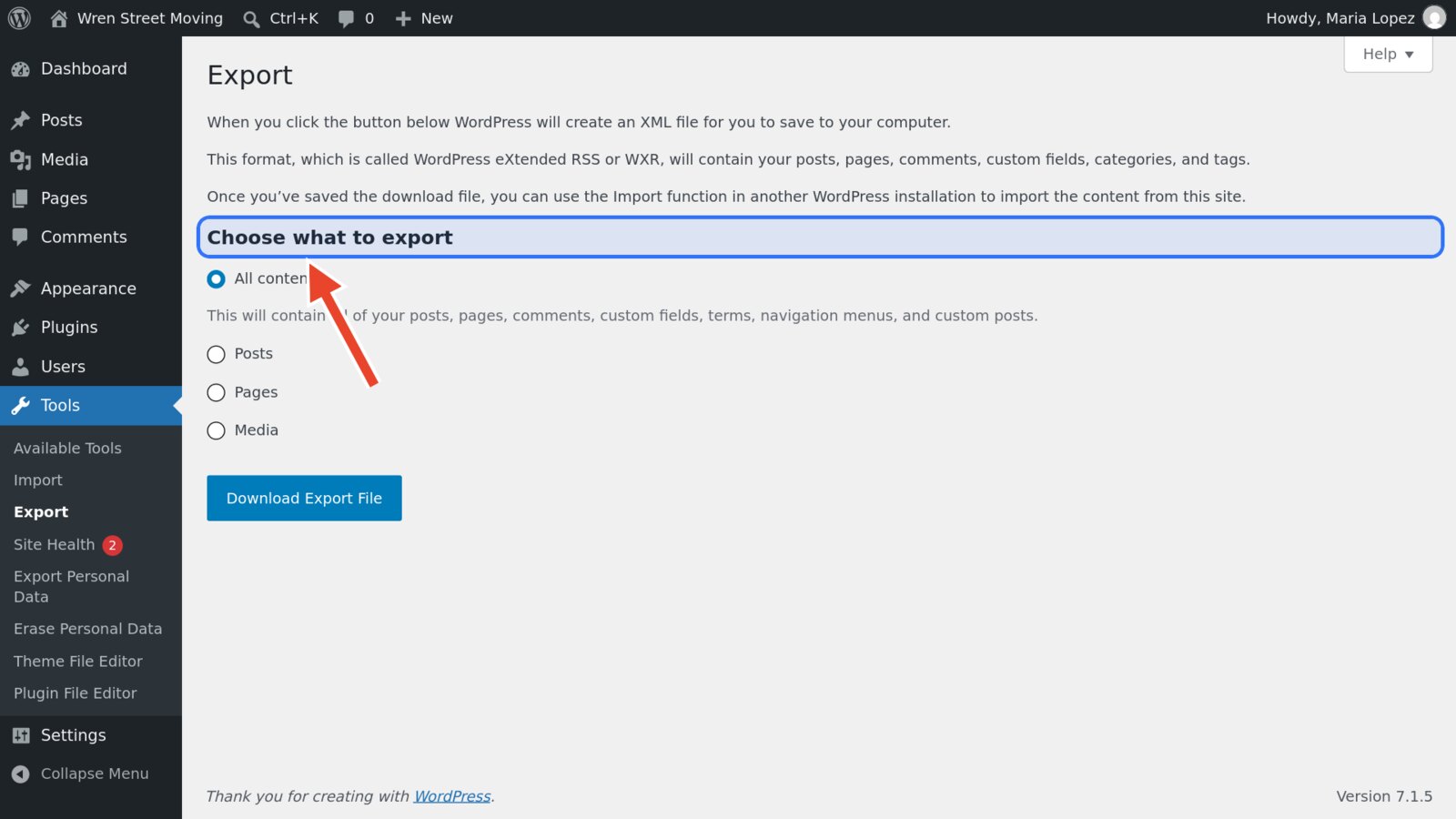
Clicking Download Export File creates an XML file in WordPress eXtended RSS (WXR) format containing your posts, pages, comments, categories, tags, navigation menus, and users. You can export all content or filter by author, date range, or publishing status.
While an XML export does not replace a database and file backup, it provides an independent record of your content that can be imported using Tools > Import. Learn more in the lesson on exporting WordPress content.
Understanding the Dashboard Updates screen
The central hub for updates is Dashboard > Updates. This screen notifies you when new releases of WordPress core, plugins, themes, or translations are ready.
| Update type | What it updates | Where files live |
|---|---|---|
| WordPress core | Main publishing engine and admin files | Root folder, wp-admin, and wp-includes |
| Plugins | Feature add-ons and functionality extensions | wp-content/plugins |
| Themes | Page layouts, templates, and styling rules | wp-content/themes |
| Translations | Language packs for core, plugins, and themes | wp-content/languages |
When your website is current, the screen confirms that WordPress, plugins, and themes are up to date. If core files ever become damaged, this screen provides a Re-install now button to reinstall the current version without touching content. I review these controls in the lesson on the Dashboard Updates screen.
The safe update order: one component at a time
If you update everything at once and something breaks, it is hard to tell which update caused it.
When updating multiple tools, update your plugins one by one rather than running bulk updates. There is no single order that suits every site, but this one keeps each change small:
- Review available plugin updates under Plugins > Installed Plugins and check version details.
- Update your plugins one at a time, and look at your site after each one.
- Update WordPress core under Dashboard > Updates.
- Update your active theme, ensuring custom styles are housed in a child theme.
- Apply any translation updates listed under Dashboard > Updates.
Some plugins require a newer version of WordPress. Check update notes if you are uncertain. The lesson on managing installed plugins shows those controls.
What happens during a WordPress update
When you click Update Now, WordPress performs file replacement through automated steps. Understanding this sequence helps you monitor progress calmly.
WordPress downloads the package from WordPress.org, unpacks the archive, and verifies files. It then enables maintenance mode by writing a .maintenance file to the root directory. Visitors viewing your site during this window see a brief notice: “Briefly unavailable for scheduled maintenance. Check back in a minute.”
WordPress replaces outdated files, upgrades database tables if required, and deletes the .maintenance file to restore public browsing. Keep your browser open until the update finishes.
If your web server user owns your files, WordPress updates directly. If files are owned by an FTP account, WordPress displays a dialog box asking for FTP credentials.
What automatic background updates handle on their own
WordPress includes background updating to protect sites from security vulnerabilities without requiring constant manual oversight.
Since WordPress 3.7, minor and security updates apply automatically in the background without requiring you to click Update Now. Major feature releases still require manual confirmation from your dashboard.
Automatic updates for plugins and themes were introduced in WordPress 5.5. On Plugins > Installed Plugins, each plugin includes an “Enable auto-updates” link in the right-hand column. You can toggle automatic updates for individual plugins, or keep them manual to test updates yourself. Theme auto-updates can similarly be toggled under Appearance > Themes by clicking Theme Details.
Checking your site after each update
Never assume an update succeeded just because the dashboard says it finished. Always test your live site immediately in a separate browser window.
Check your home page, key service pages, and interactive features like contact forms. Ensure layouts, navigation menus, and images load cleanly.
If you use caching, clear your cache after updating so visitors receive new files immediately. If you encounter login issues after updating, clearing browser cookies resolves authentication errors.
What to do if an update breaks your site
Even with careful preparation, an incompatible plugin or server timeout can cause an error. Having a clear recovery plan keeps minor faults manageable.
If an update stops partway, your site can stay on a “briefly unavailable for scheduled maintenance” message. Wait a few minutes first. If it does not clear, ask your host to remove the leftover maintenance file; it is a one-minute job for them.
If a plugin update causes an error, deactivate that specific tool. From your dashboard, click Deactivate under Plugins > Installed Plugins. If you cannot get into the dashboard at all, contact your host or a developer rather than changing files on the server yourself.
If an update causes severe corruption, follow the official WordPress updating guide and restore your clean backup set: restore your files first, then import your database backup.
Safe update checklist
Run through this pre-update checklist every time you prepare to maintain your website software.
For more practical walkthroughs on managing your website, explore the WordPress resource library.
Keeping your site updated with confidence
Updating WordPress does not need to be stressful. By backing up first, checking Site Health, updating one component at a time, and verifying your live pages, you keep your site secure and reliable.
Need a hand?
Update your WordPress site safely
Get walked through your updates one-on-one on your own site, or hand the updates over. One price per job, set before work starts.
How does your site score?
The free site check opens your site the way a customer does and lists what to fix first.
- Speed on a phone
- What search engines see
- Broken links and forms