Entender los tamaños de imagen en Ajustes de medios
Los pasos
-
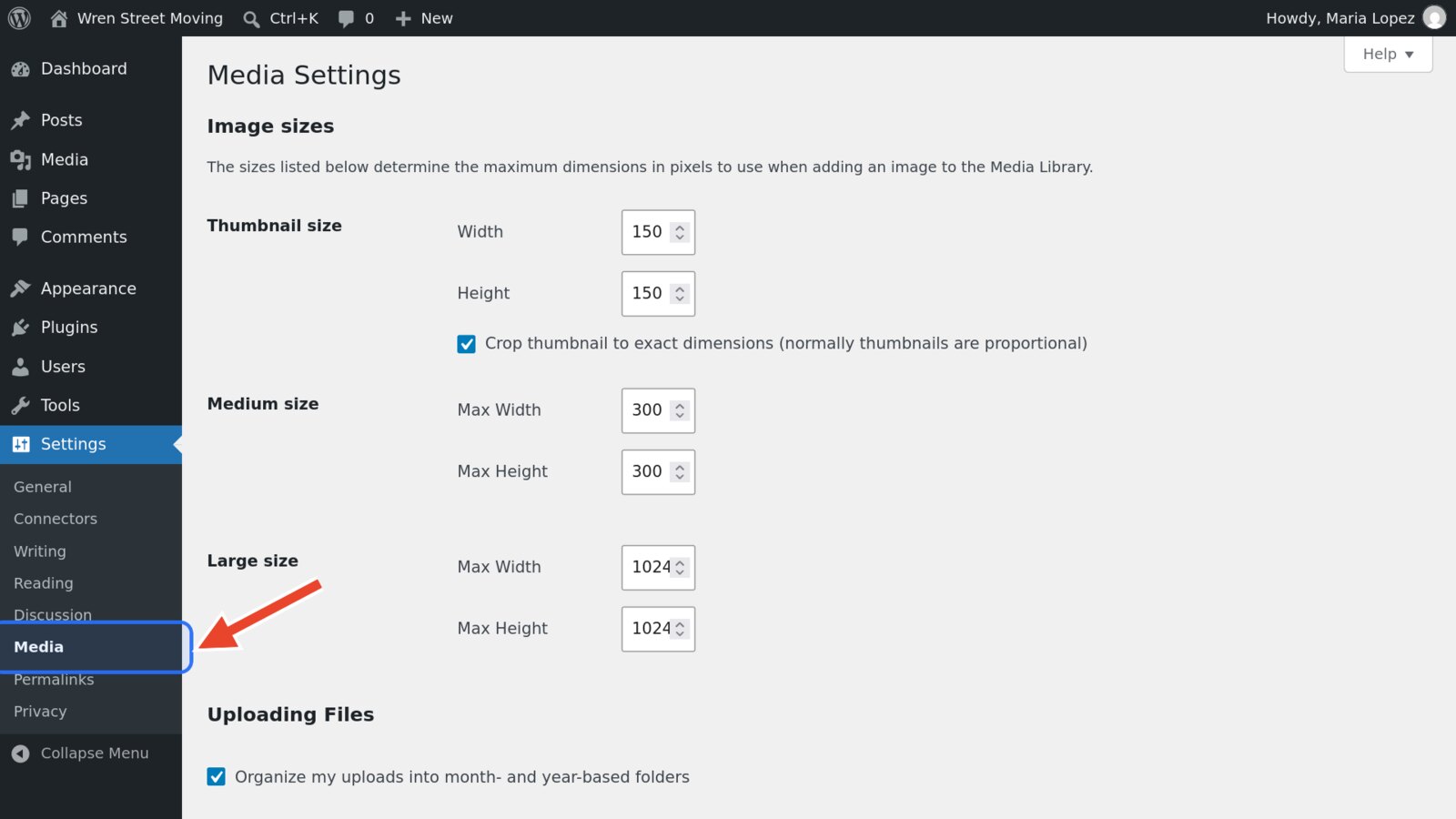
Media, under Settings in the left menu, opens the Media Settings screen.Media, dentro de Settings en el menú izquierdo, abre la pantalla Media Settings.
-
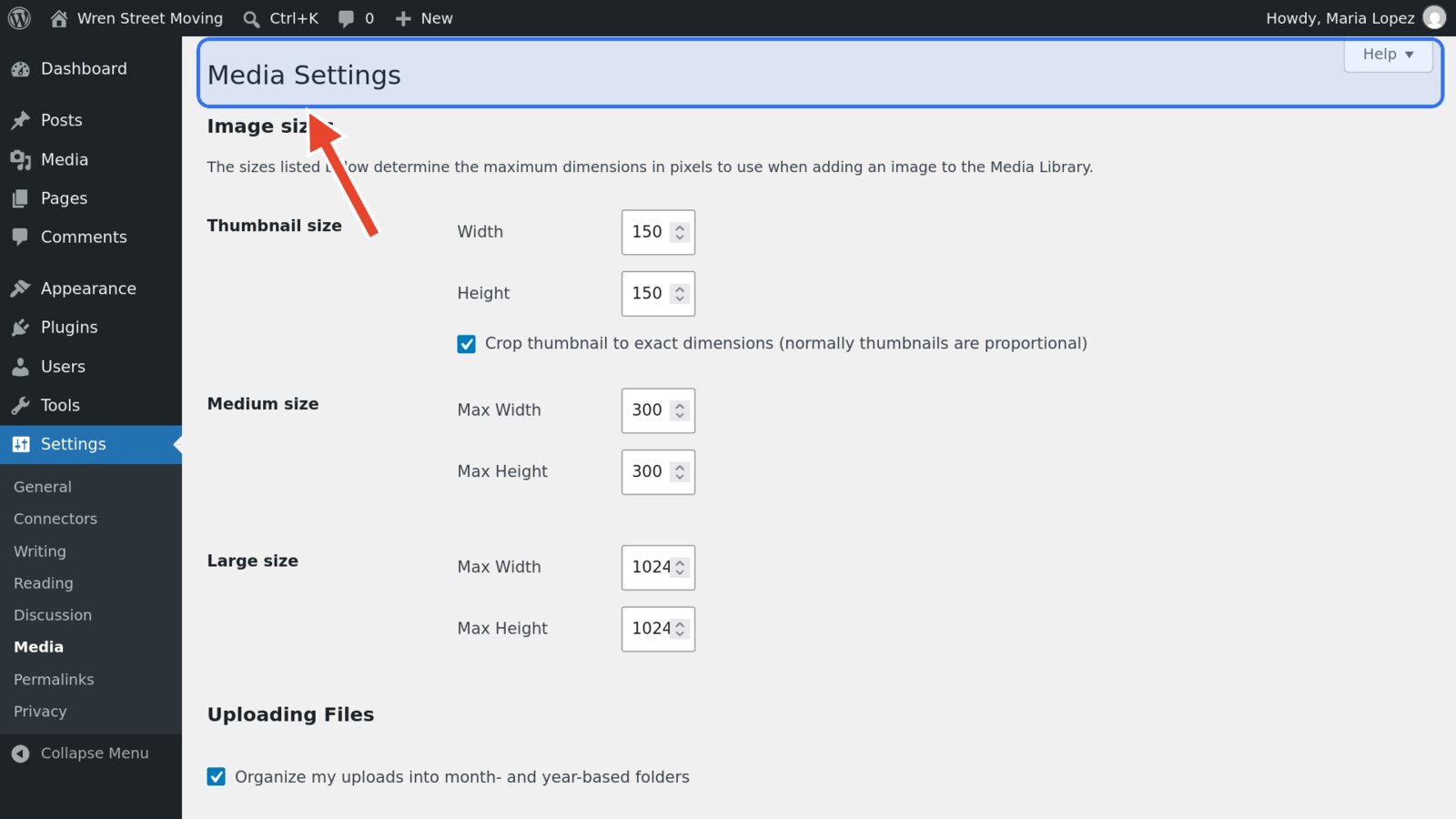
This screen controls settings for the pictures and files you use in posts and pages.Esta pantalla controla los ajustes de las imágenes y archivos que usas en entradas y páginas.
-
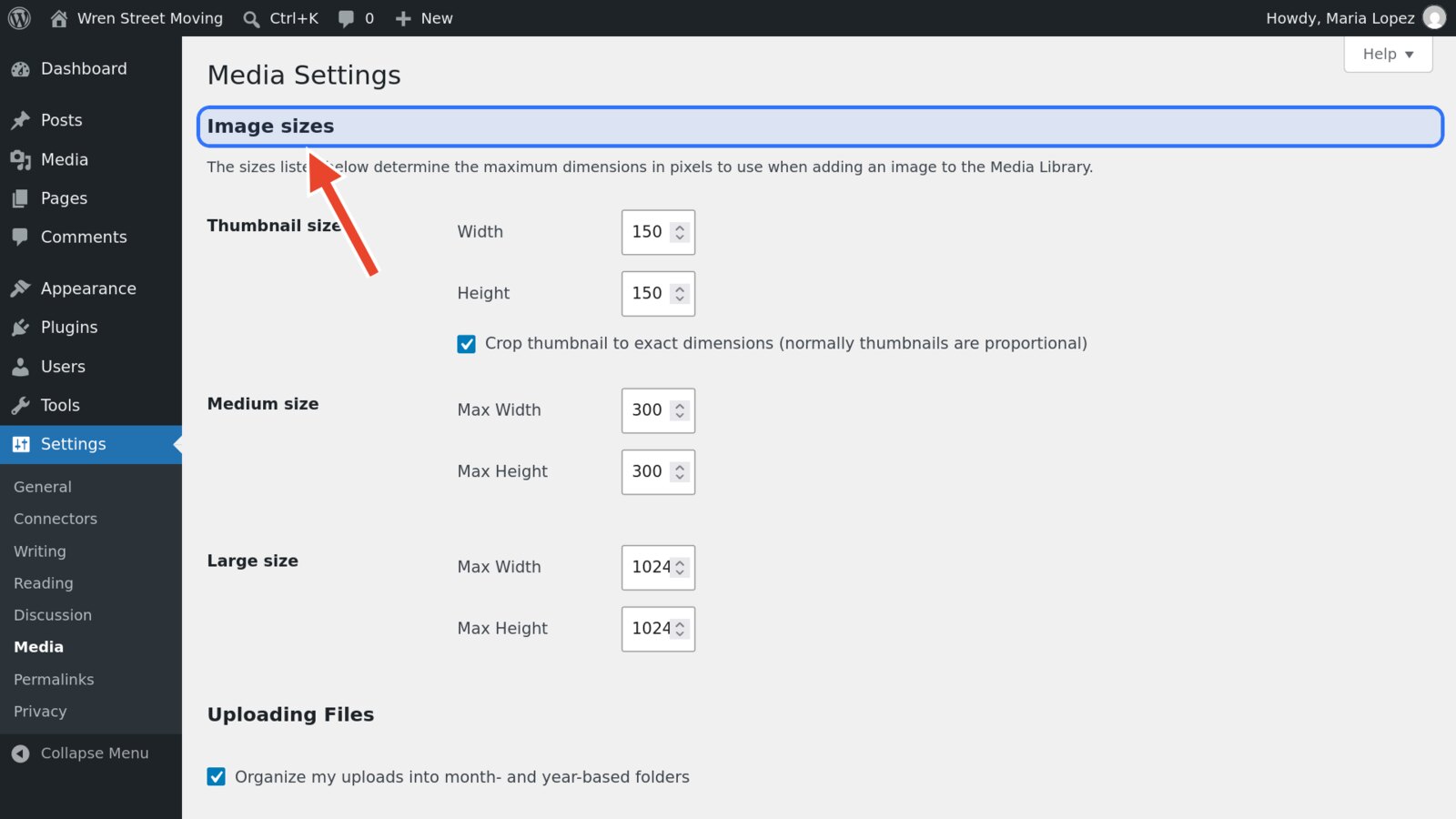
Image sizes sets the maximum size, in pixels, for pictures you insert in a post.Image sizes define el tamaño máximo, en píxeles, de las imágenes que insertas en una entrada.
-
Thumbnail size has a Width and a Height. Both start at 150.Thumbnail size tiene un Width y un Height. Ambos empiezan en 150.
Consejo: Leave the sizes alone unless your theme asks for something else.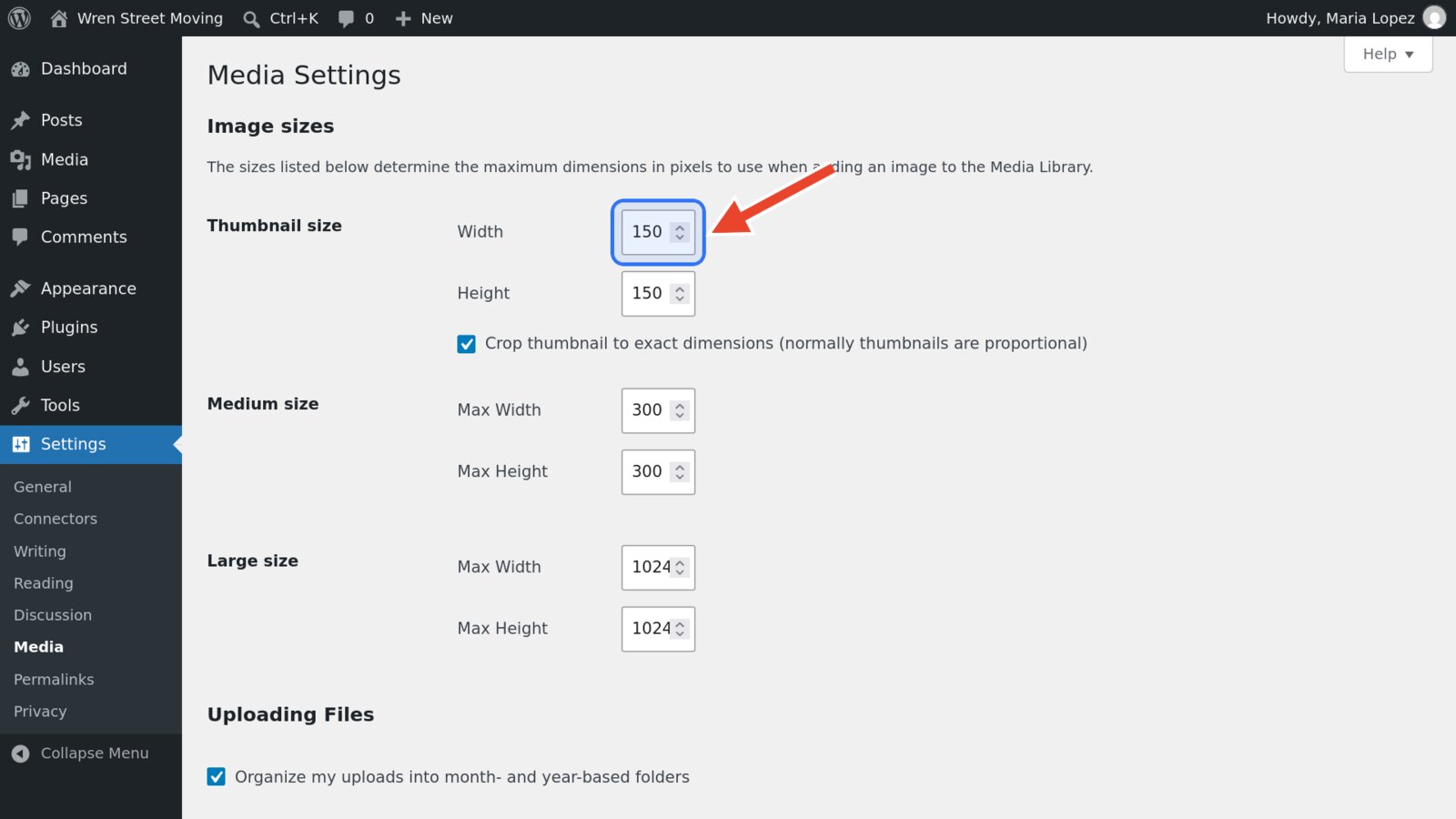
-
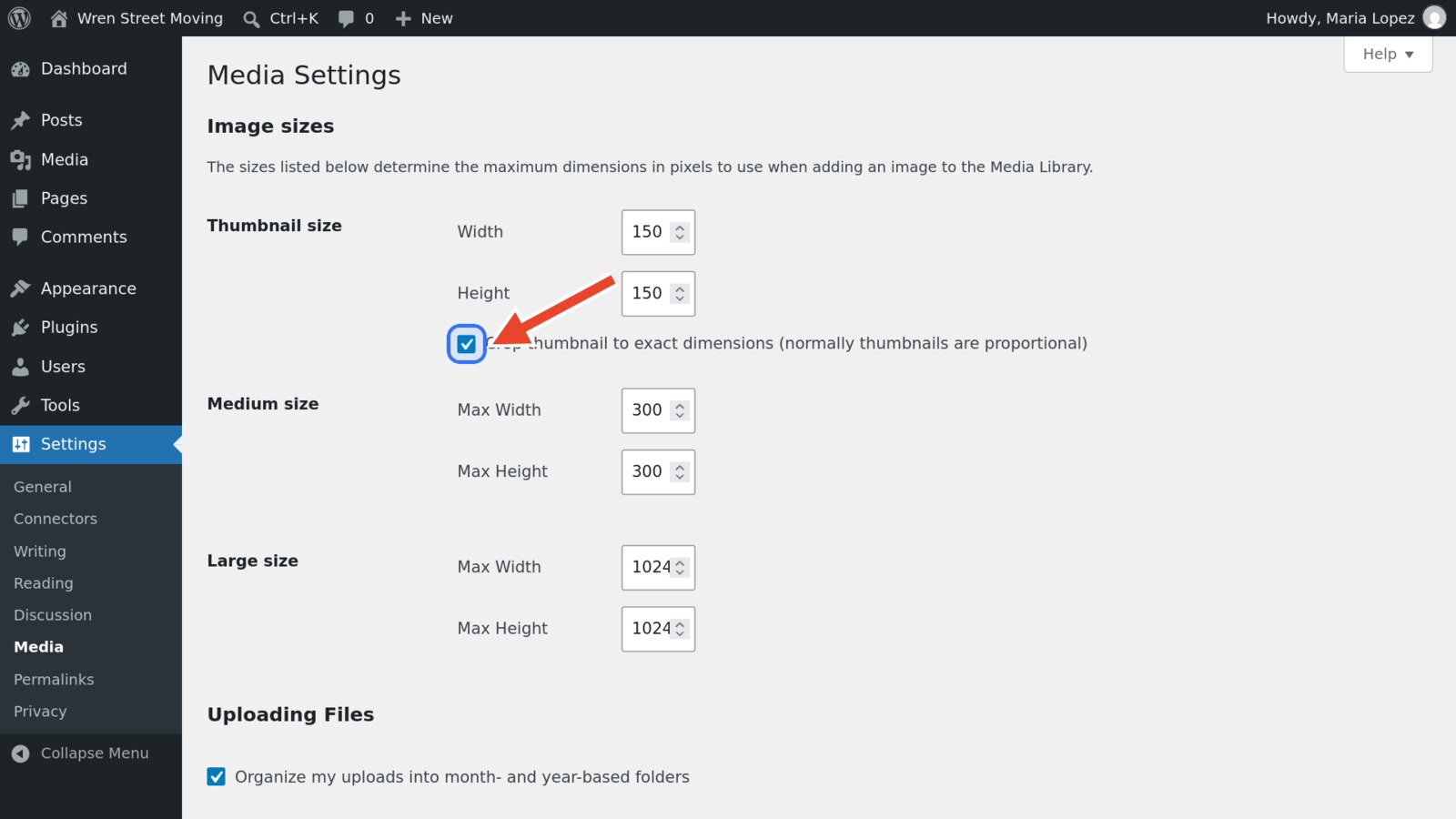
This checkbox crops thumbnails to the exact size. Normally thumbnails keep their proportions.Esta casilla recorta las miniaturas al tamaño exacto. Normalmente conservan su proporción.
-
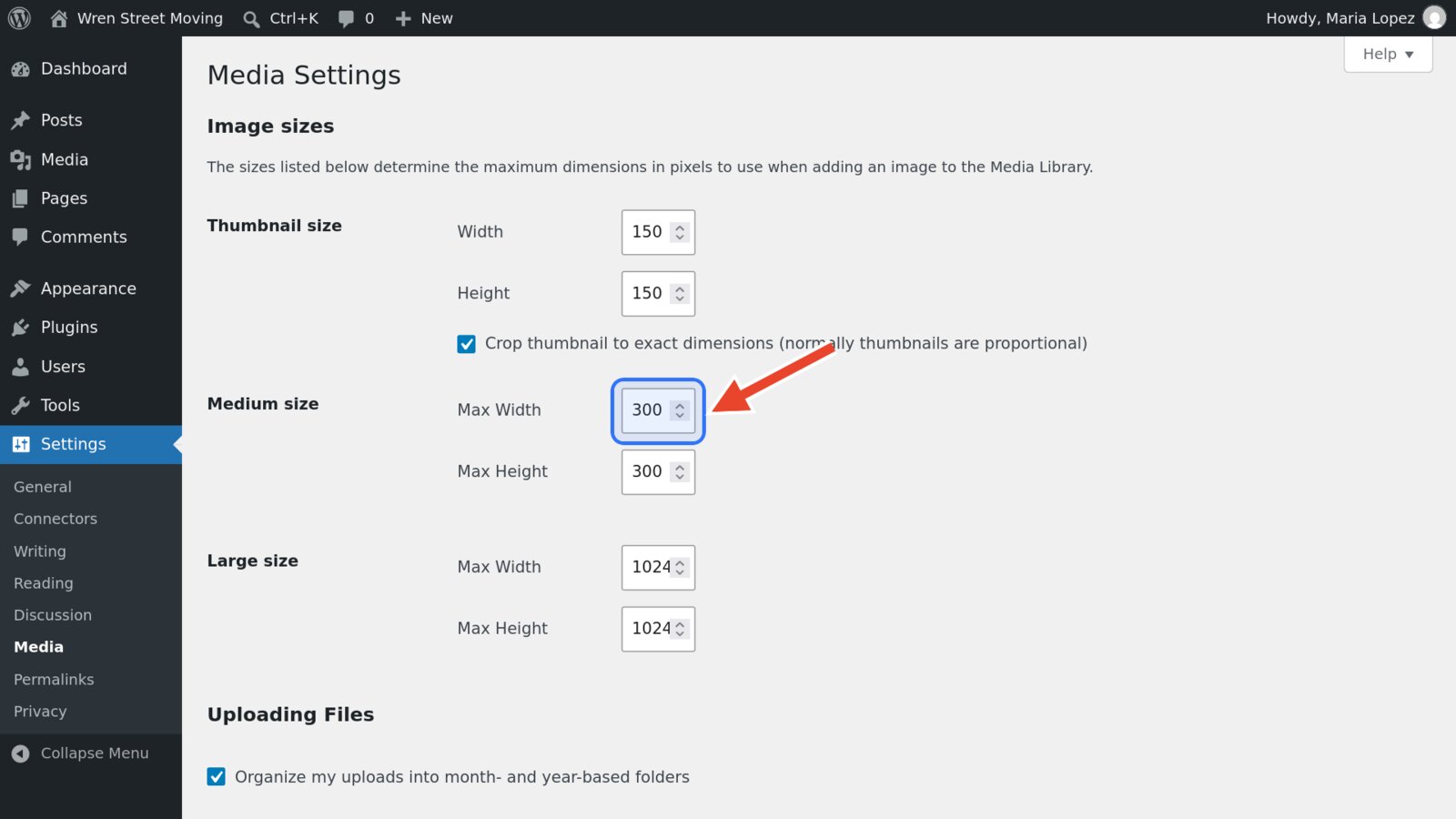
Medium size has a Max Width and a Max Height. Here both are 300.Medium size tiene un Max Width y un Max Height. Aquí ambos son 300.
-
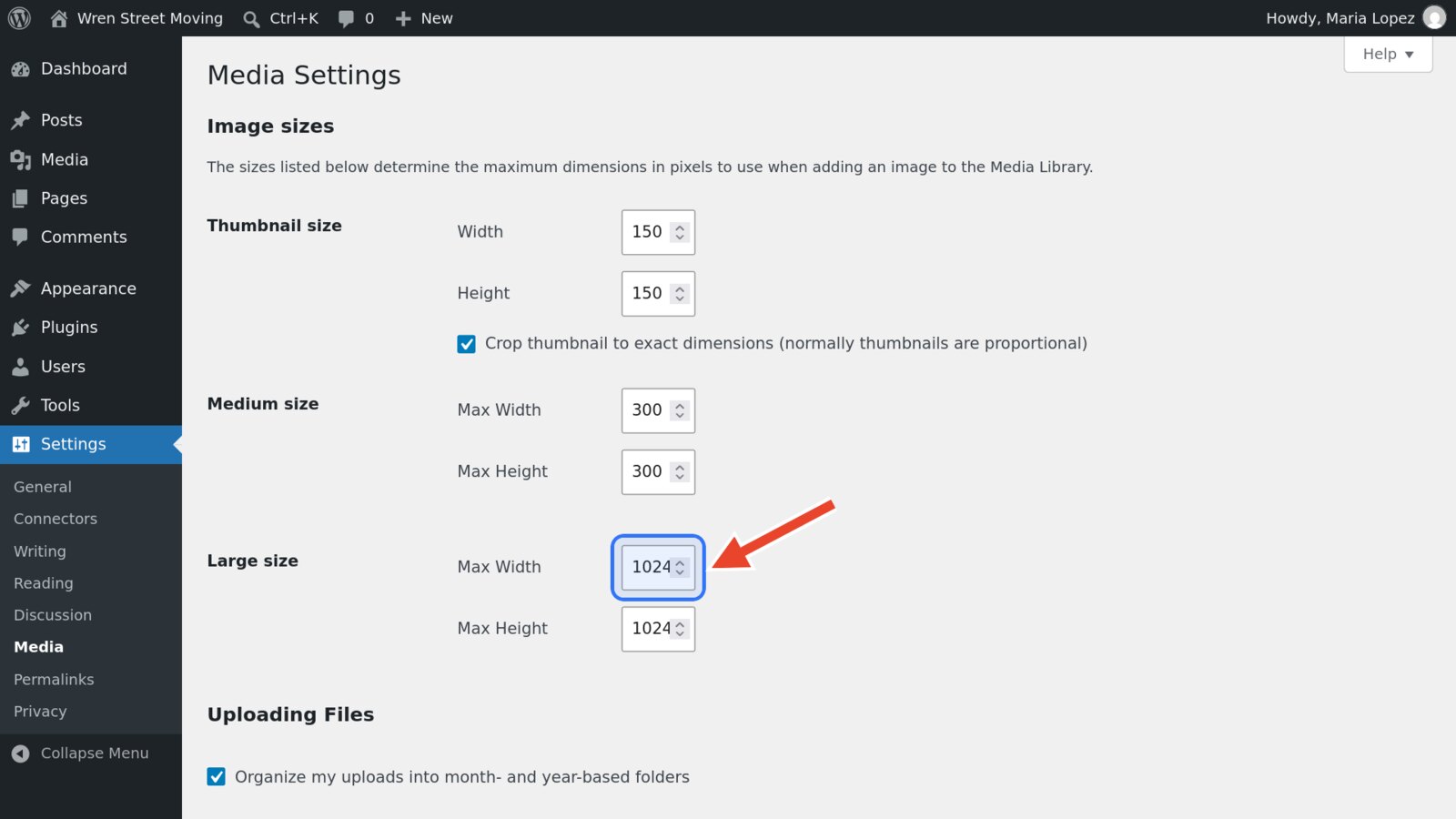
Large size also has a Max Width and Max Height. Here both are 1024.Large size también tiene un Max Width y un Max Height. Aquí ambos son 1024.
-
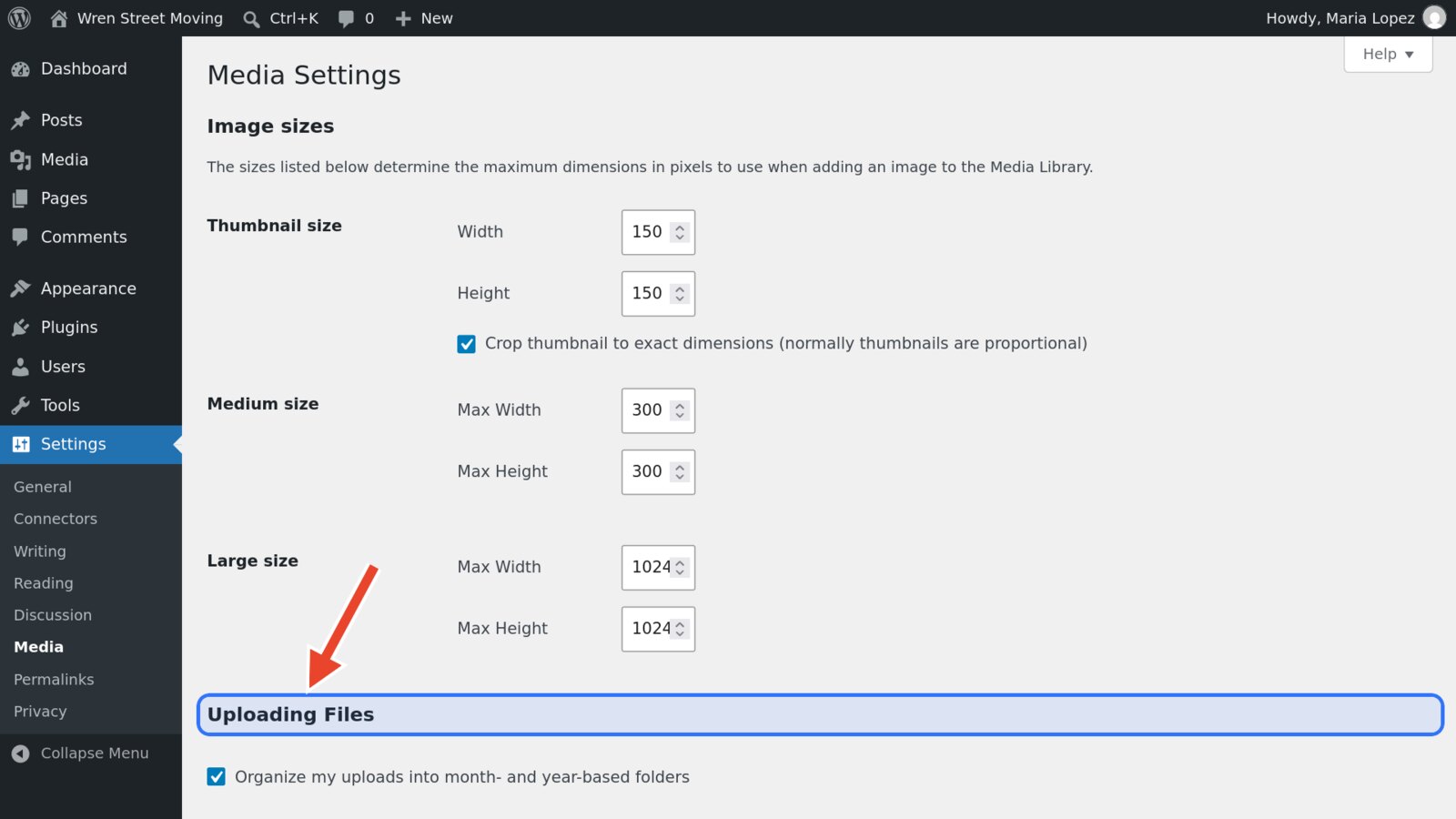
Uploading Files holds the default setting used when you upload a file.Uploading Files tiene el ajuste predeterminado que se usa al subir un archivo.
-
Checked, this box sorts uploads into folders by year and month, like 2018/06.Marcada, esta casilla ordena las subidas en carpetas por año y mes, como 2018/06.
Consejo: Leave it ticked. It keeps your files in tidy folders.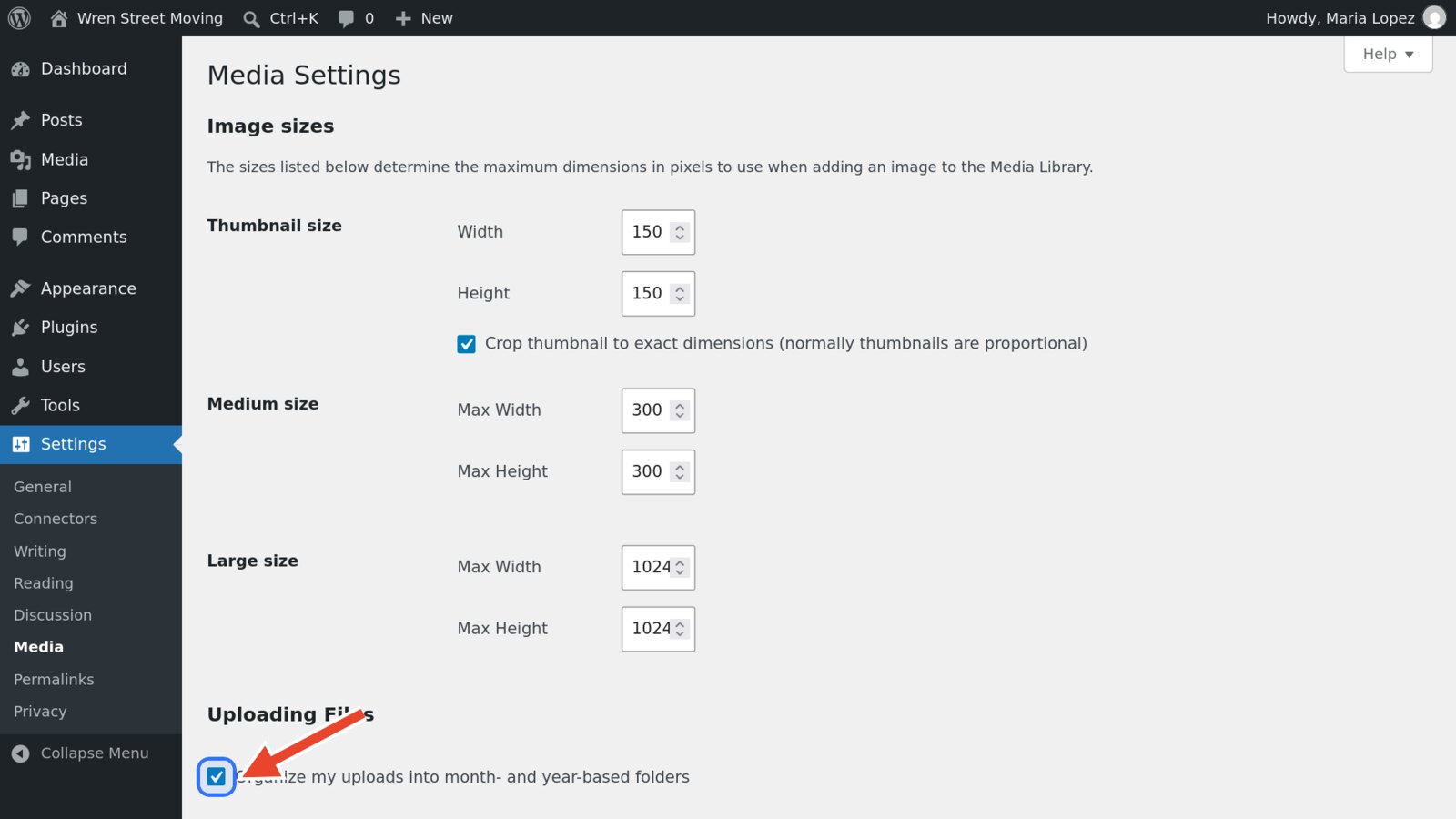
-
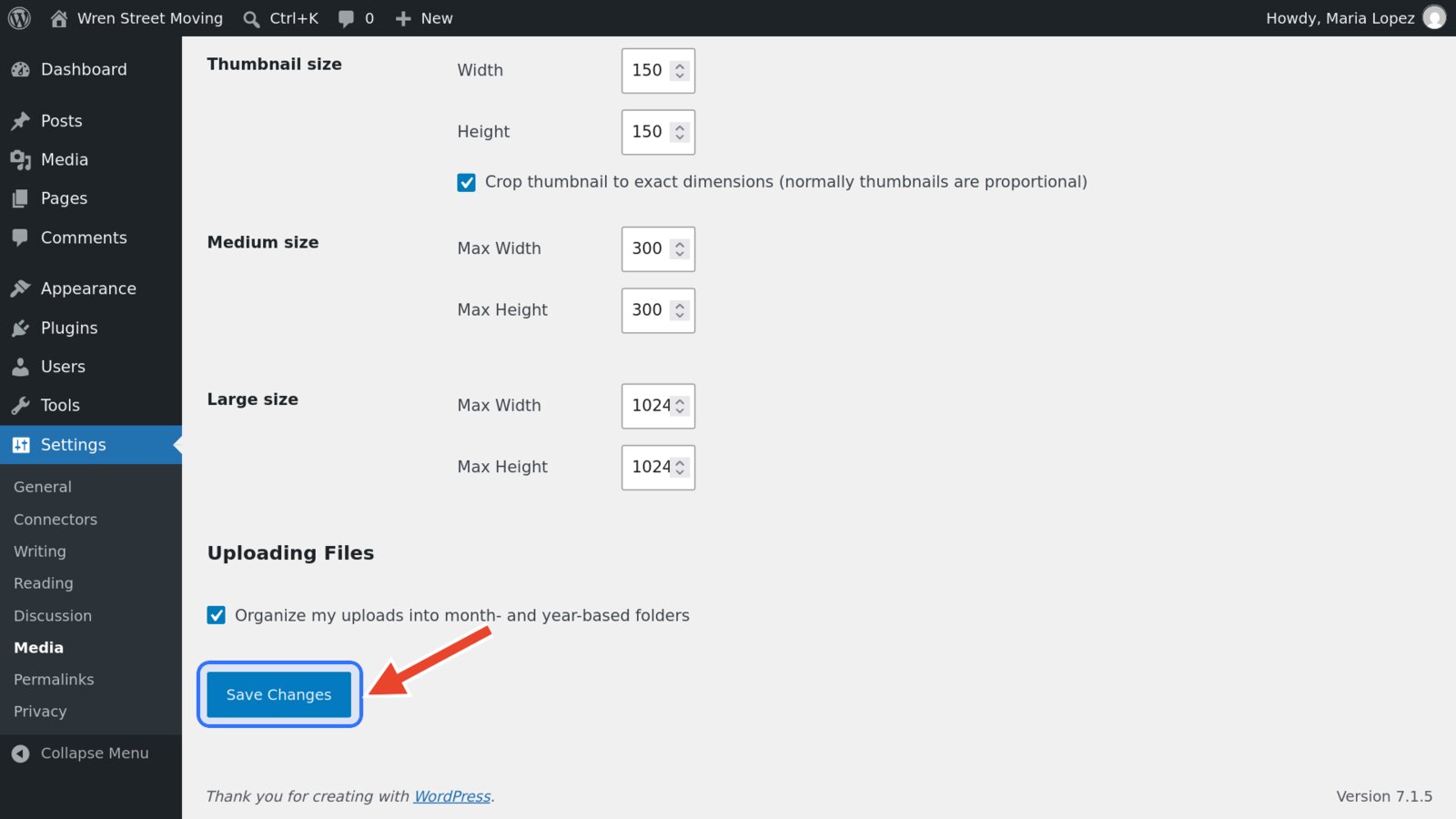
Press Save Changes to store your settings.Presiona Save Changes para guardar tus ajustes.
-
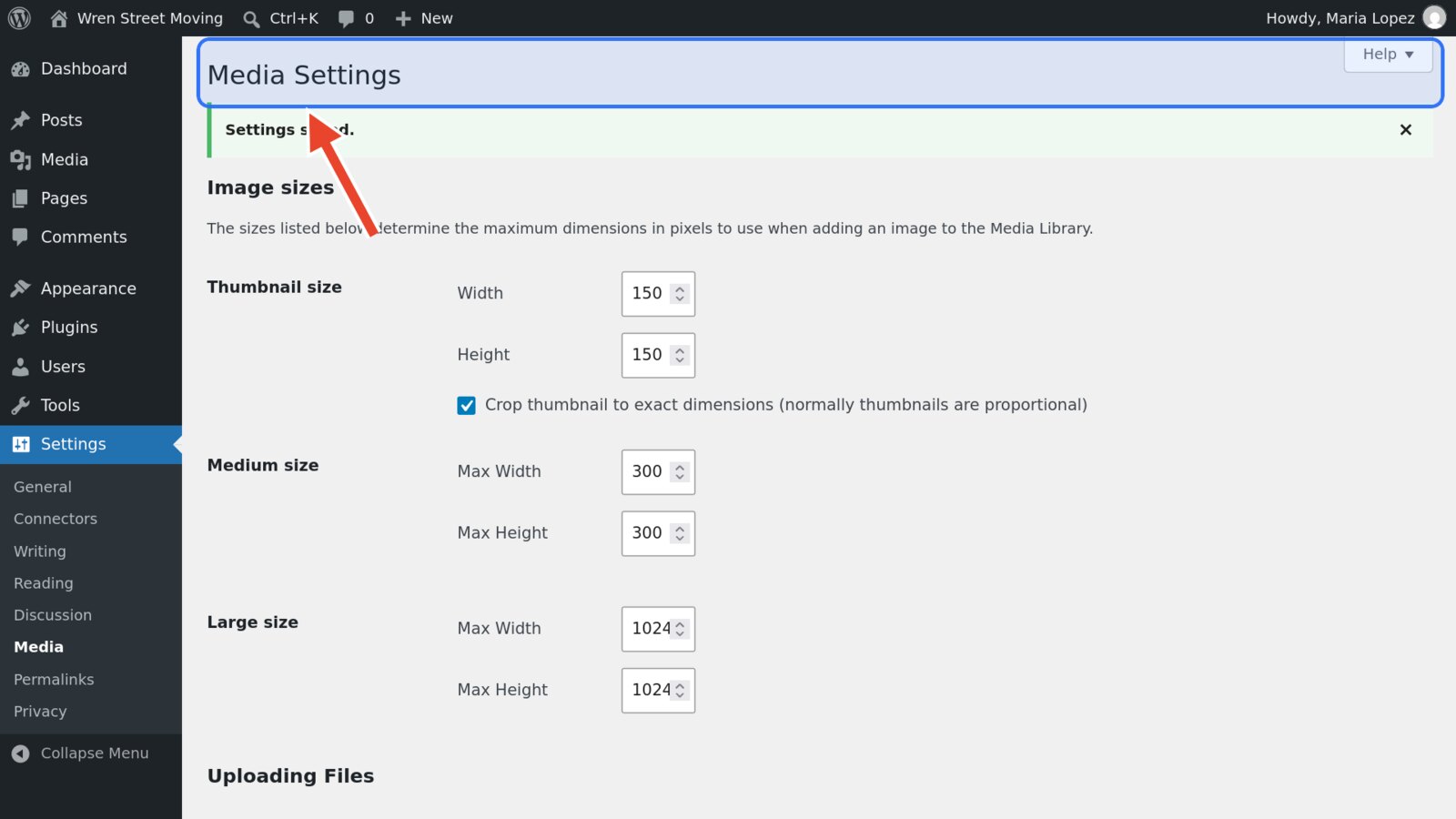
A confirmation box now appears at the top, telling you the settings were saved.Ahora aparece arriba un cuadro de confirmación que indica que los ajustes se guardaron.
¿Atascado en tu propia página web?
Te guío paso a paso, en video, en tu sitio real. O déjame el trabajo y lo dejo hecho.
- Tú haces clic, yo guío
- Un solo precio por trabajo, fijado antes de empezar
- Inglés o español
De dónde viene esto
Cada paso se realizó en un sitio de WordPress real y se verificó con la documentación oficial de WordPress: