Find and install a WordPress plugin
The steps
-
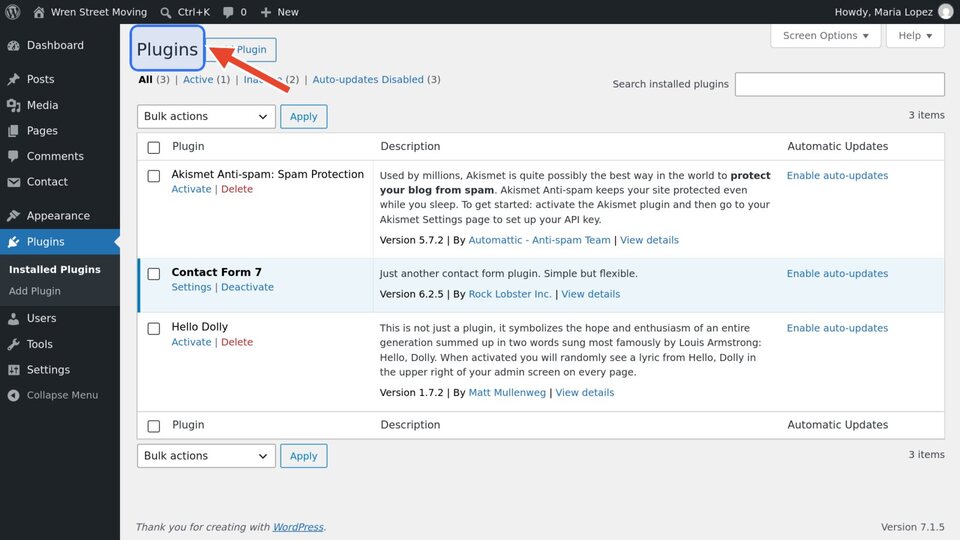
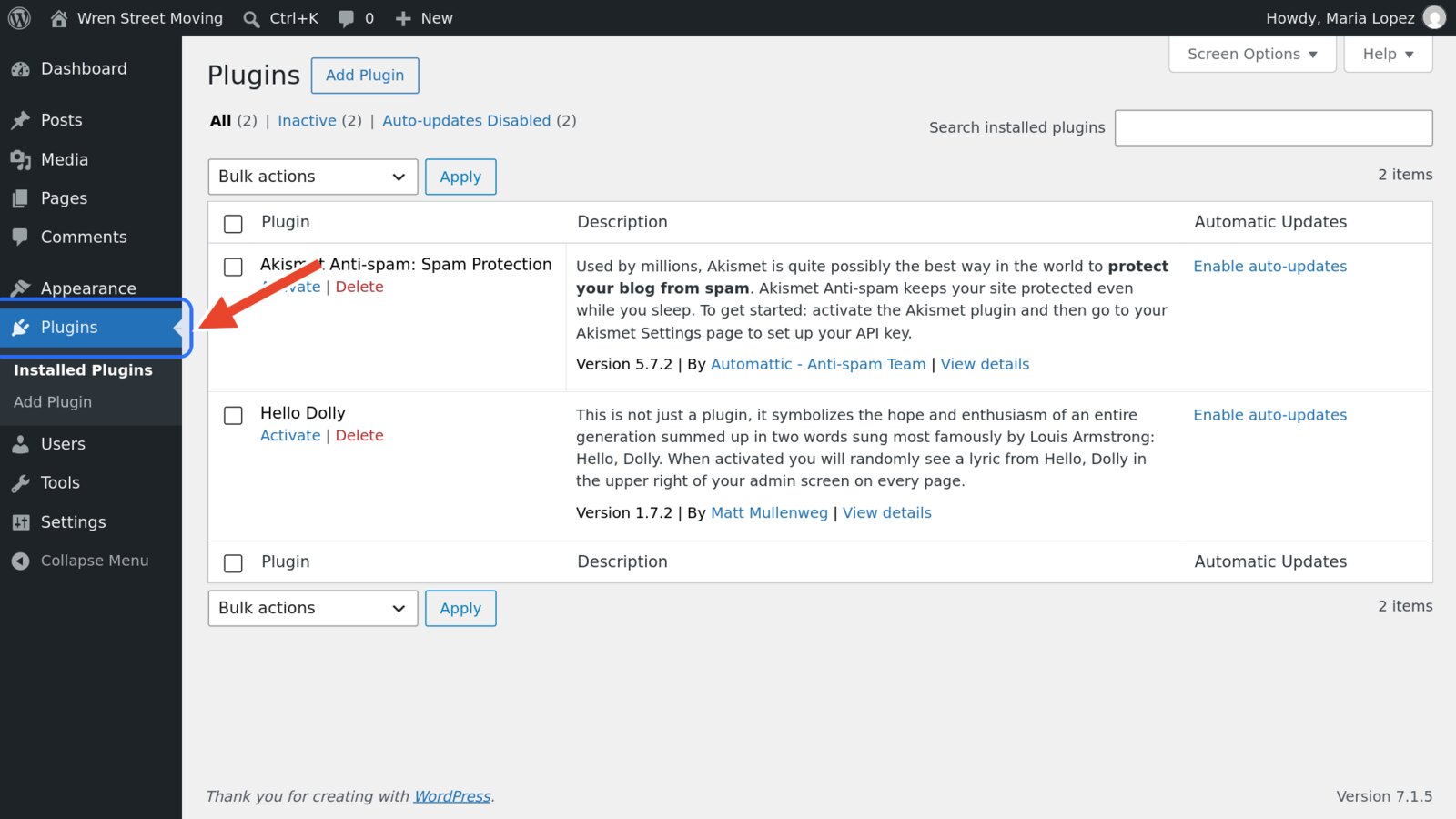
Plugins add new features to your site. They live under Plugins, in the left menu.Los plugins agregan funciones nuevas a tu sitio. Están en Plugins, en el menú de la izquierda.
-
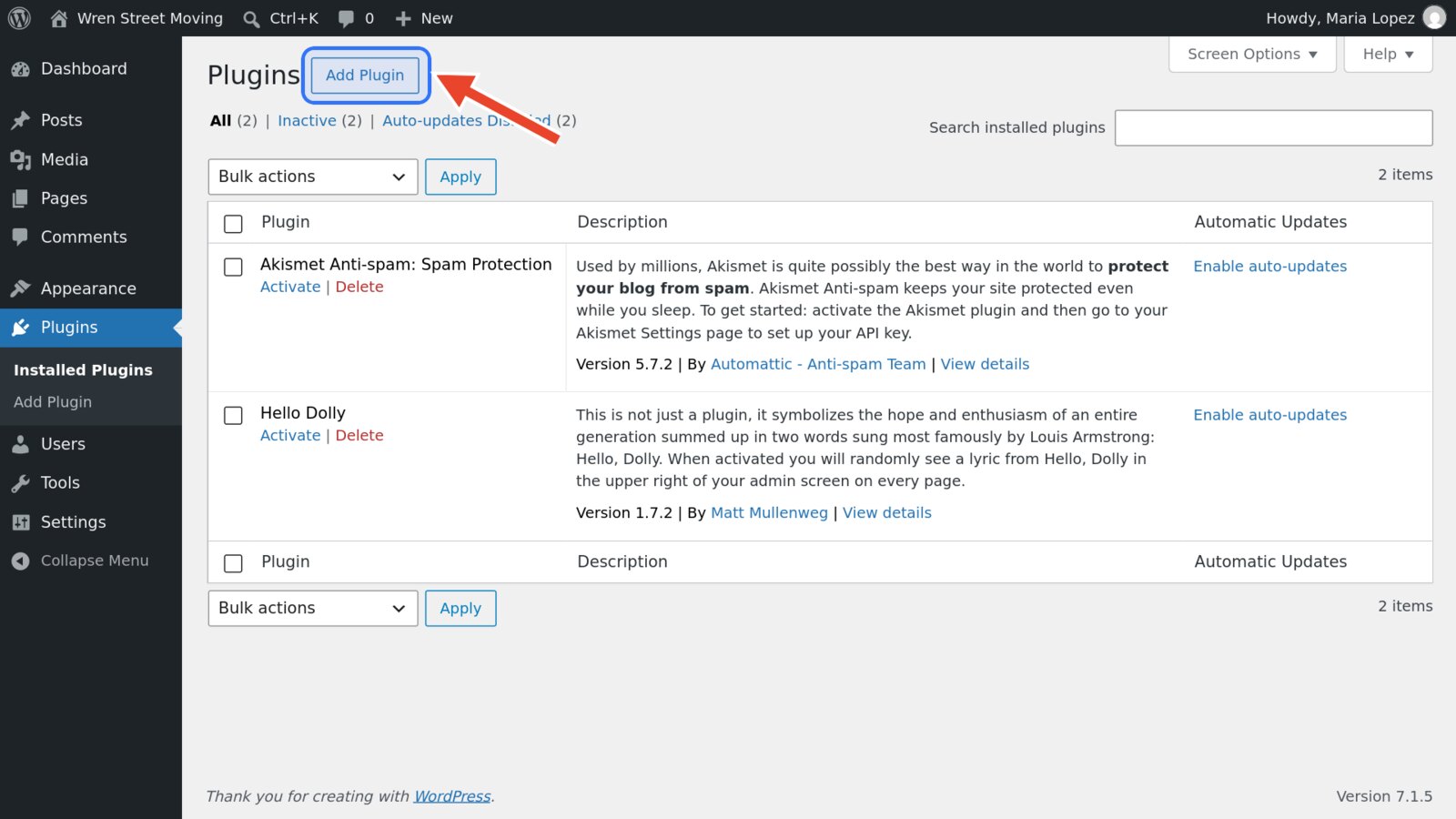
To get a new one, press Add Plugin, at the top.Para conseguir uno nuevo, presiona Add Plugin, arriba.
-
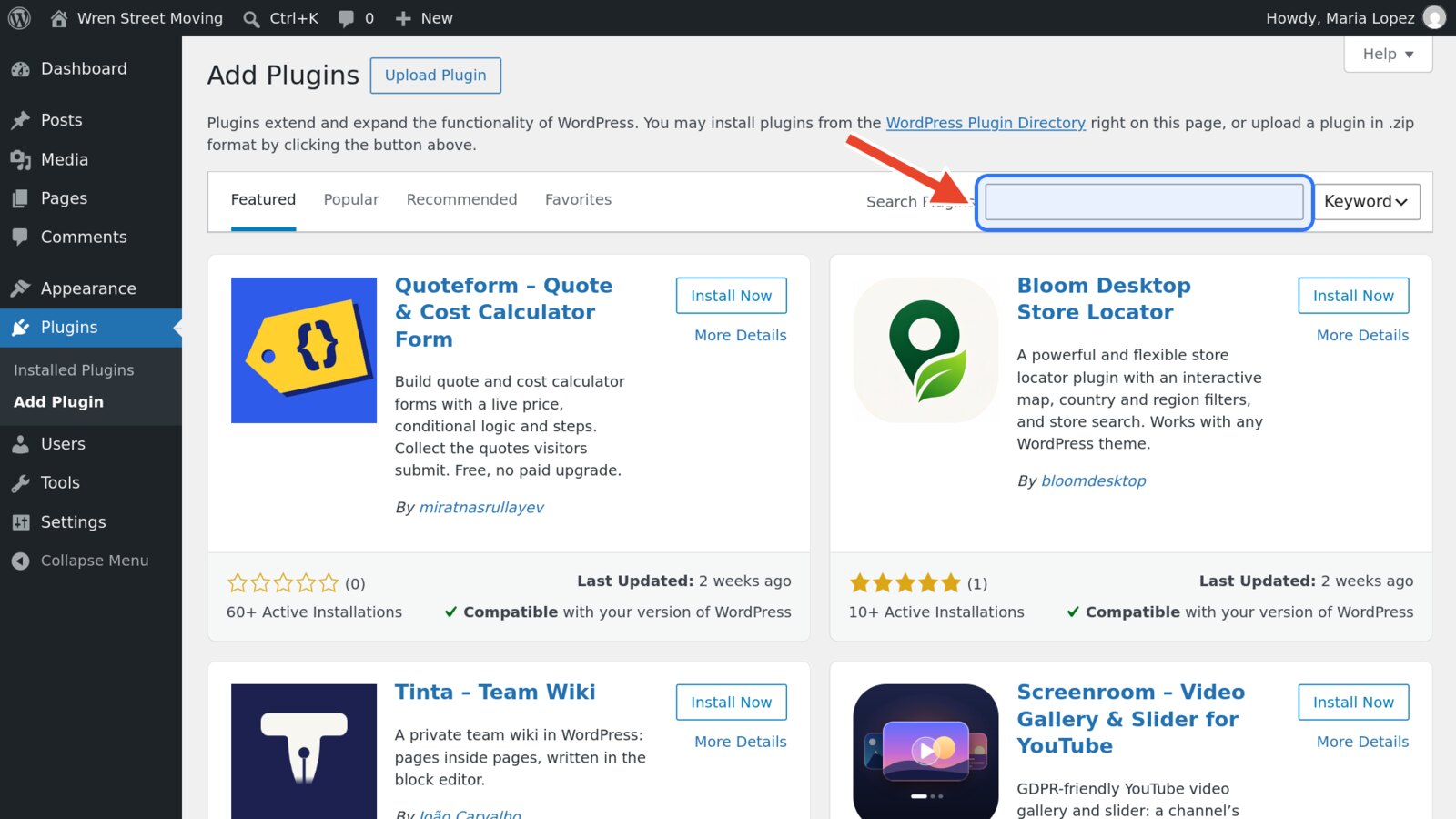
Type what you need in the search box. We will look for a contact form.Escribe lo que necesitas en el cuadro de búsqueda. Vamos a buscar un formulario de contacto.
-
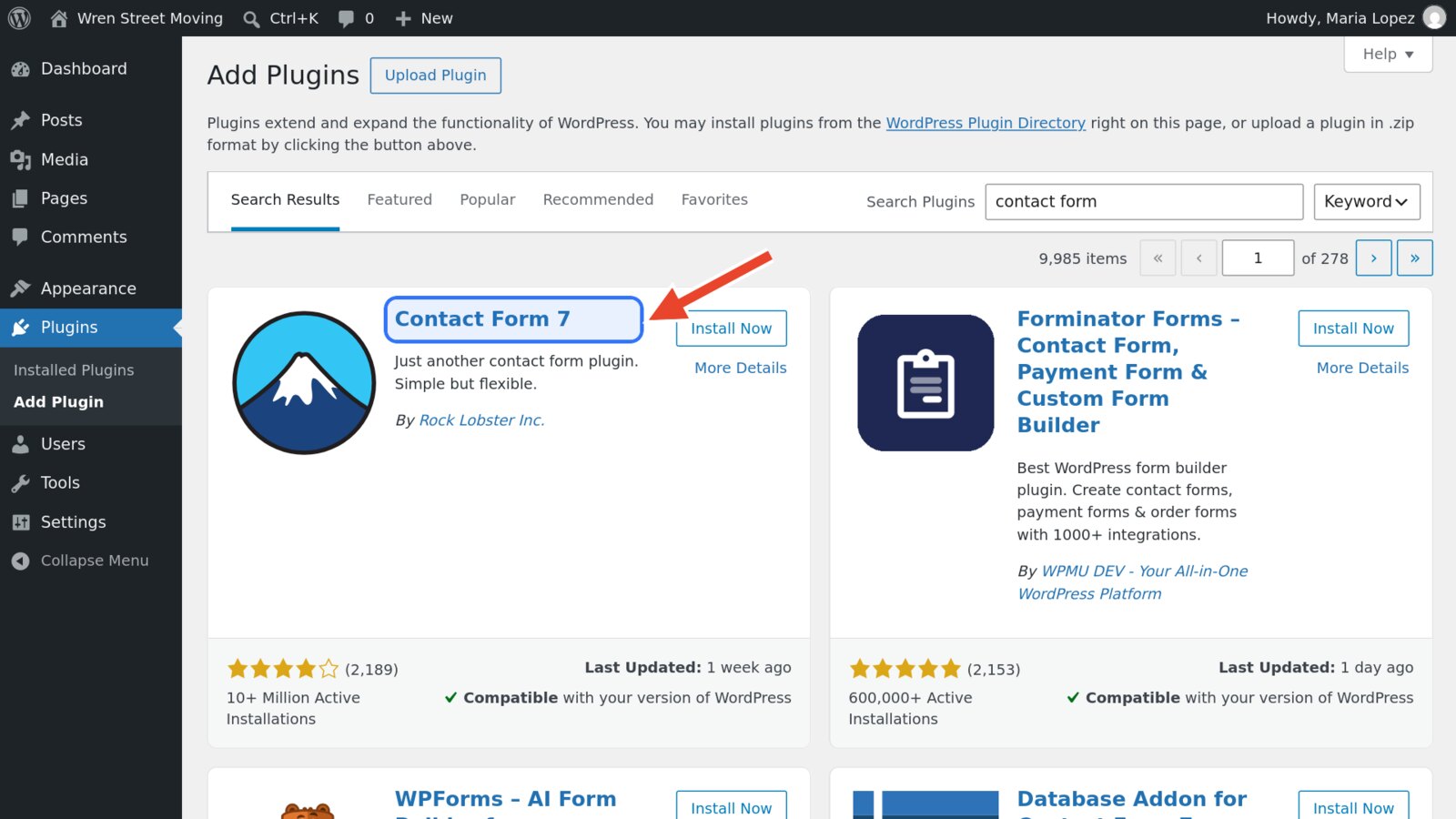
Each result is a card. This one is Contact Form 7.Cada resultado es una tarjeta. Esta es Contact Form 7.
-
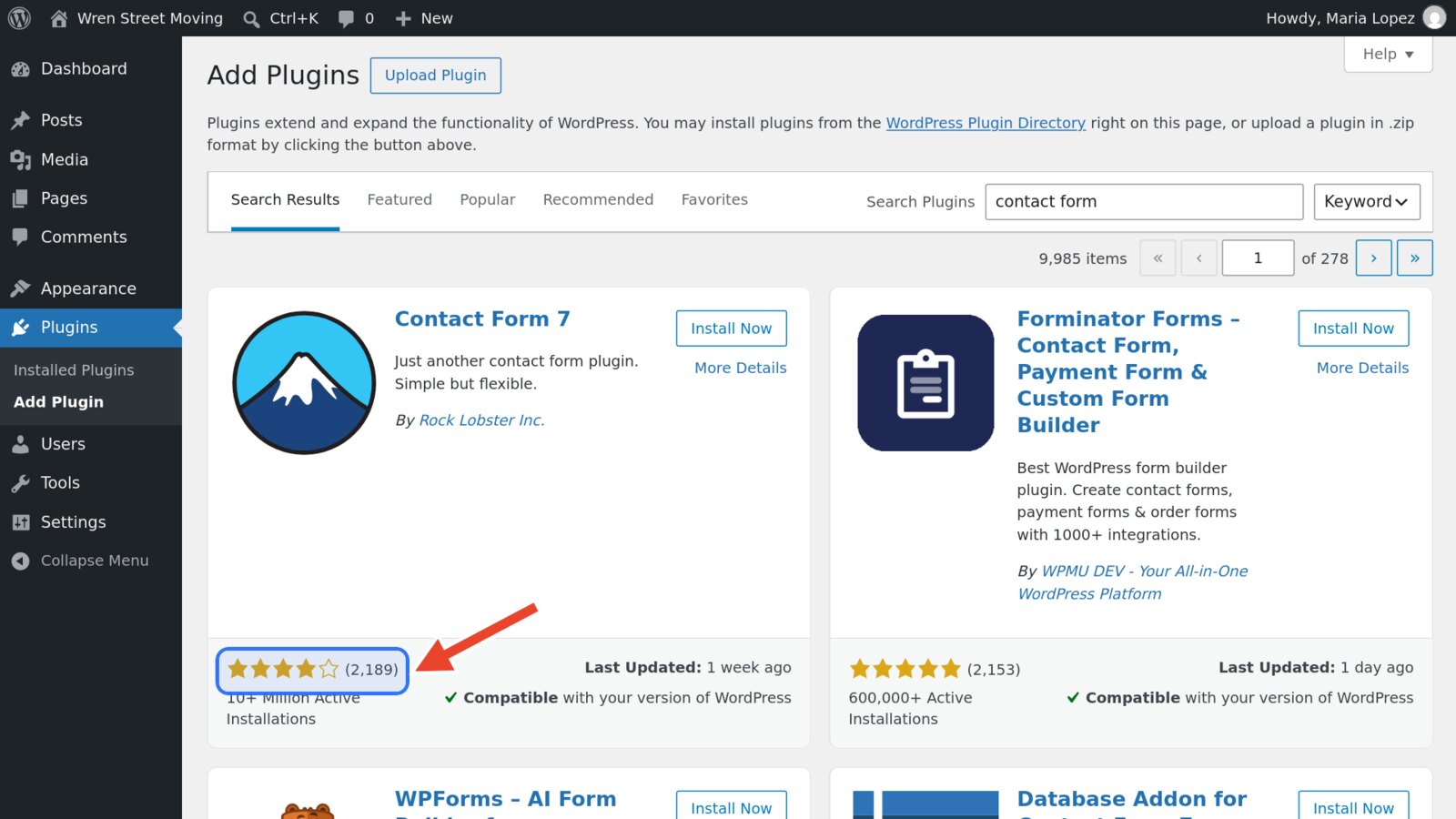
Look at the star rating, and how many people rated it.Mira la calificación con estrellas y cuántas personas la calificaron.
-
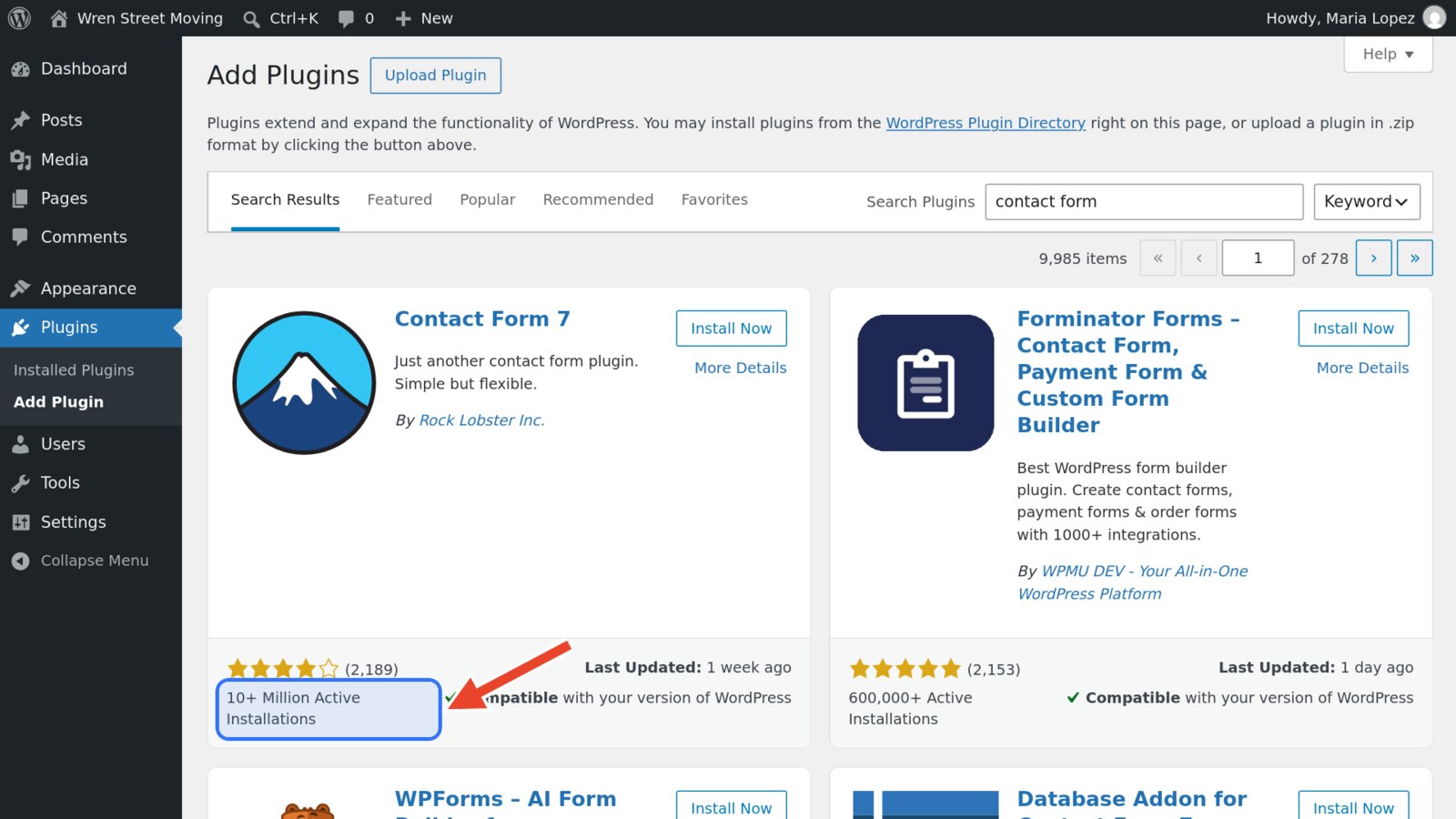
Active Installations is how many sites use this plugin right now.Active Installations indica cuántos sitios usan este plugin ahora mismo.
-
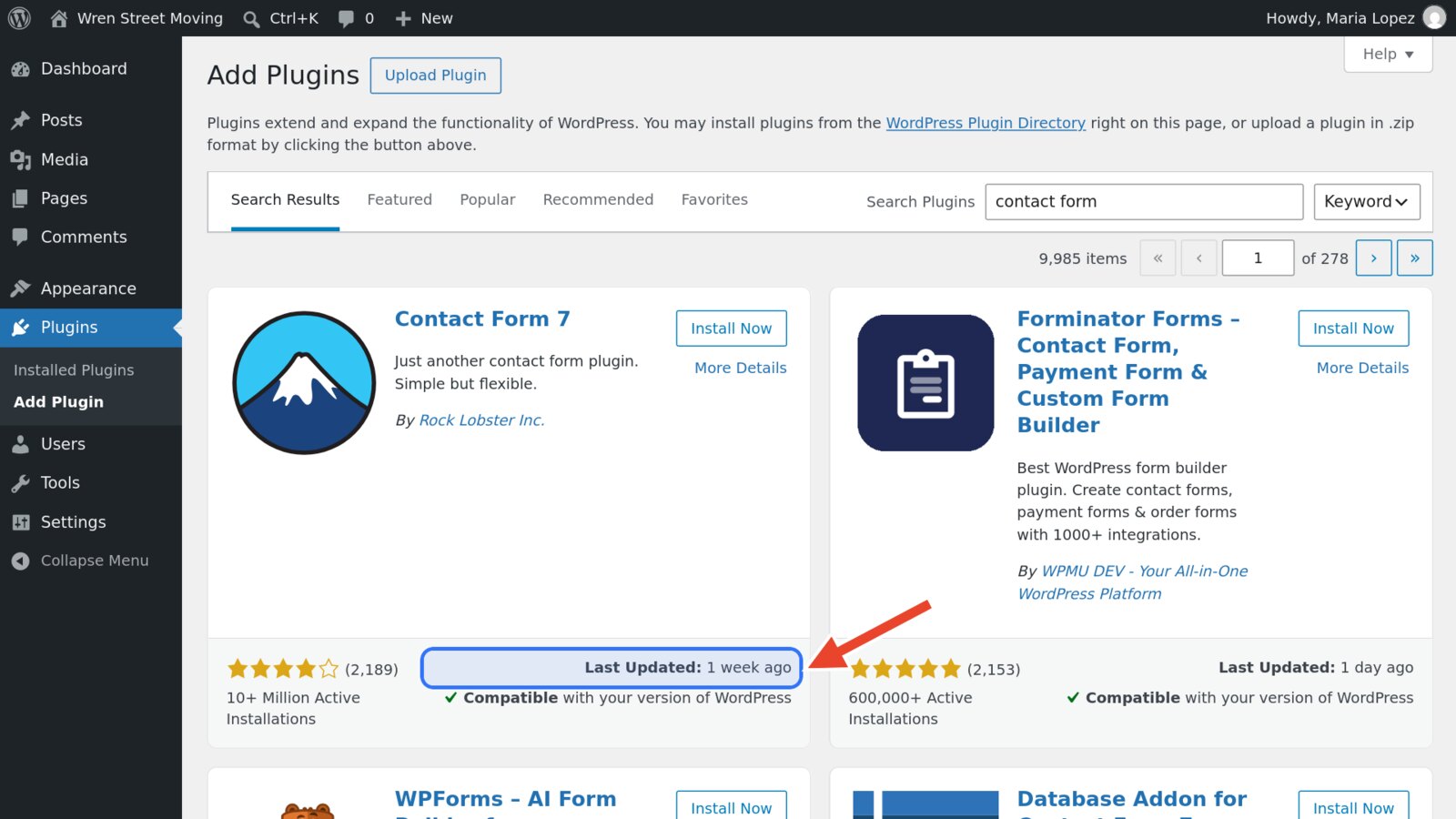
Last Updated shows how long ago the plugin was last changed.Last Updated muestra hace cuánto se cambió el plugin por última vez.
-
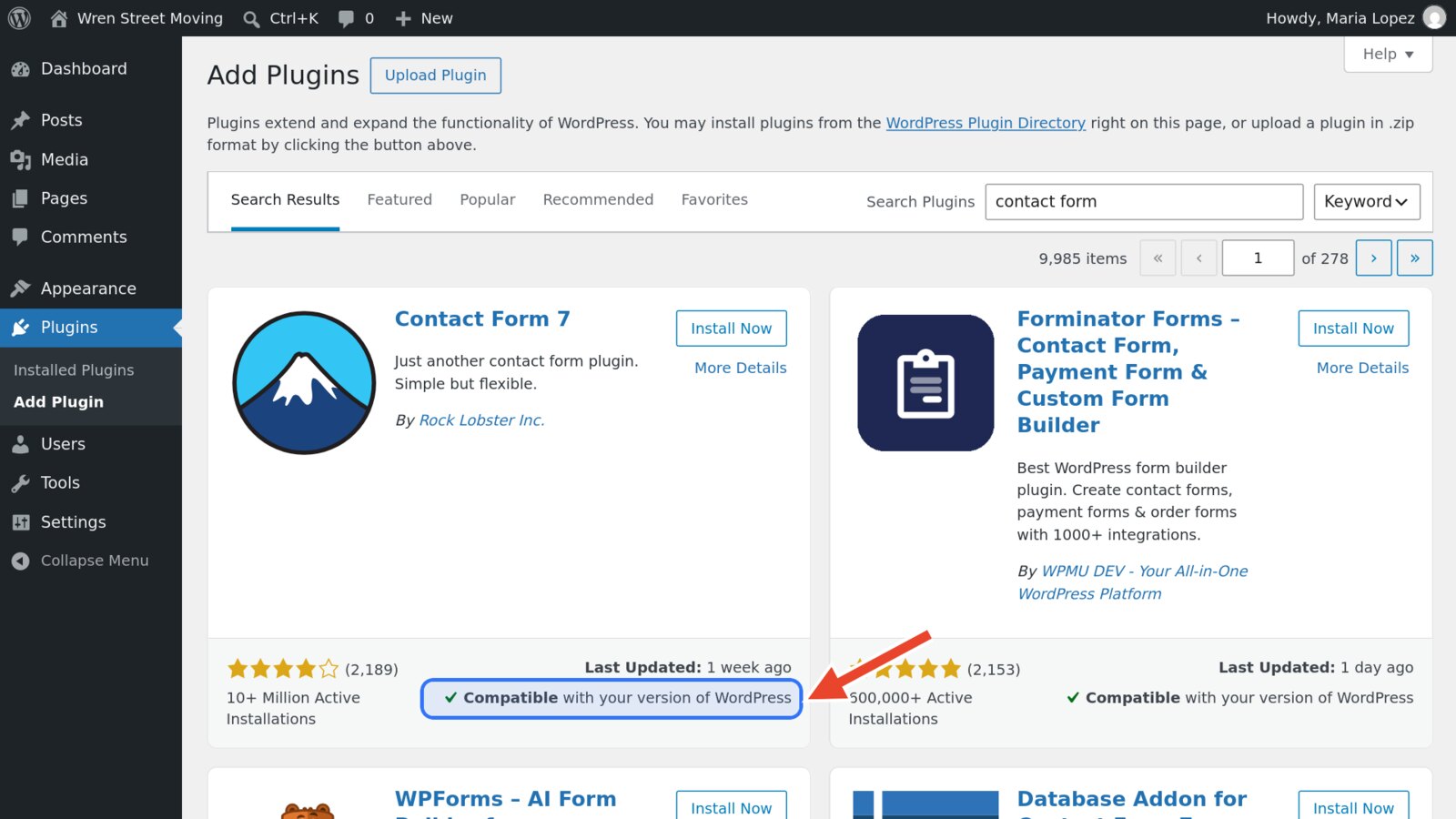
This line tells you it works with your version of WordPress.Esta línea te dice que funciona con tu versión de WordPress.
-
More Details opens the full description, screenshots and reviews.More Details abre la descripción completa, las capturas de pantalla y las reseñas.
Tip: Read More Details before you install.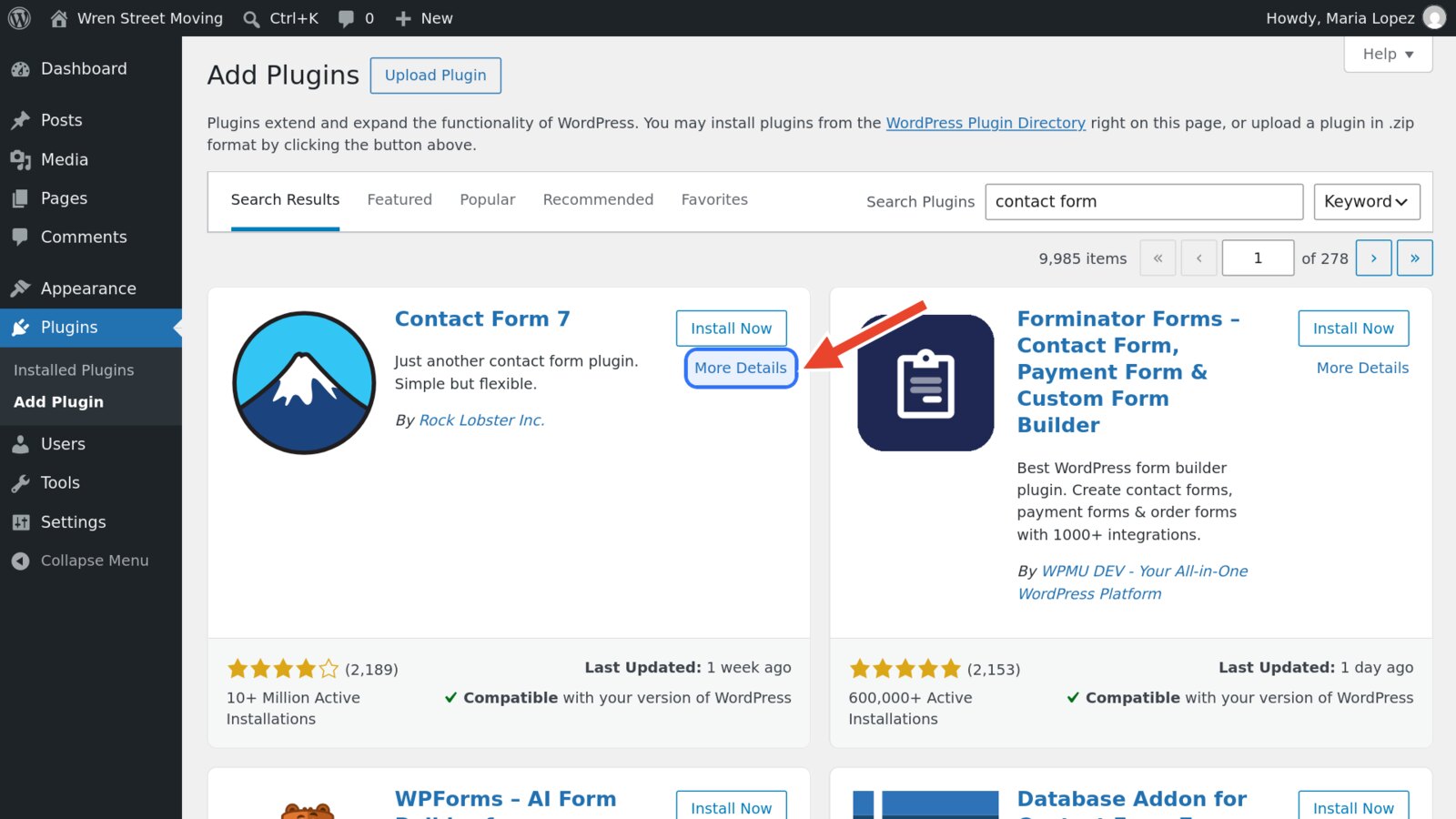
-
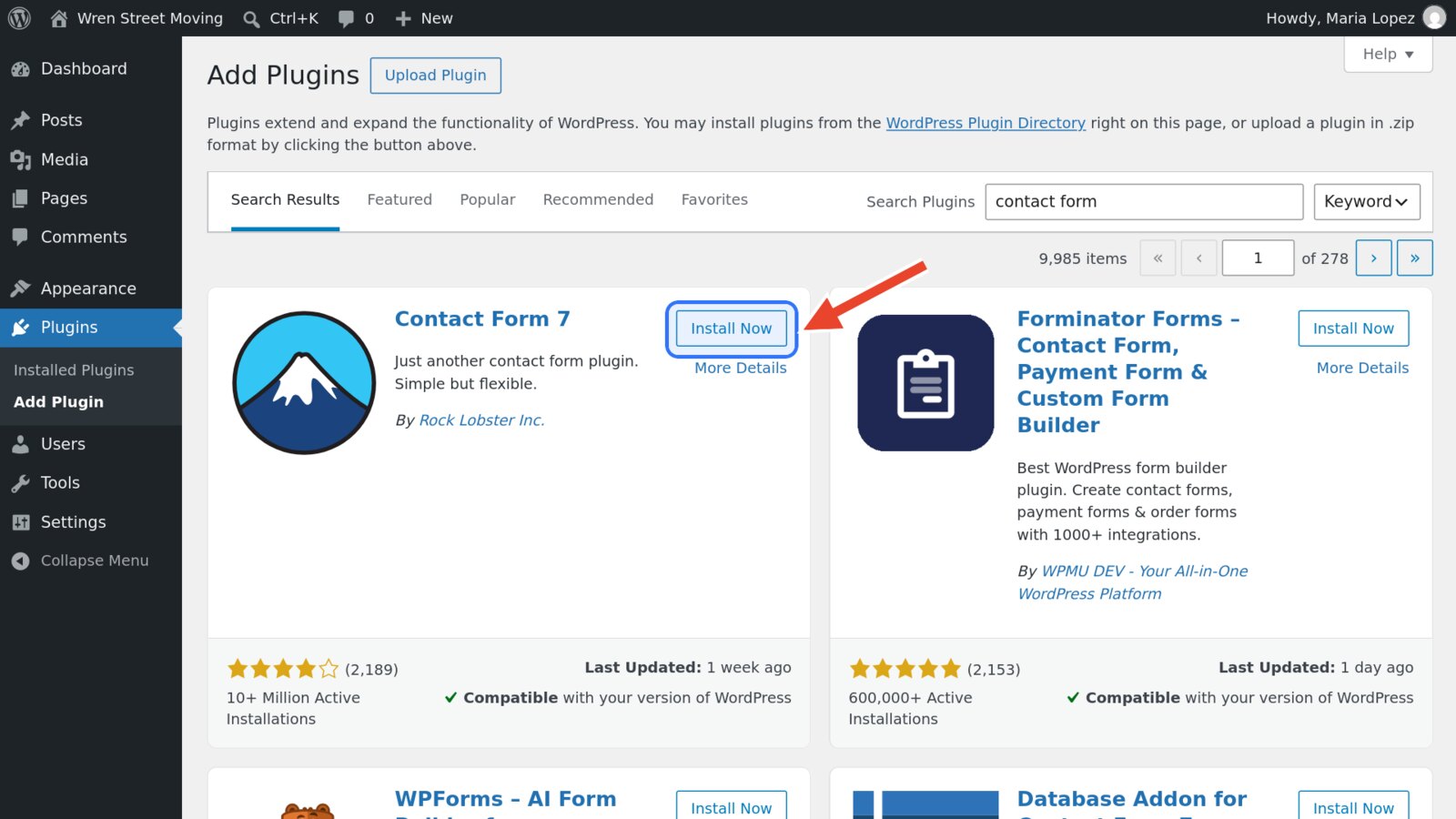
When you are happy with it, press Install Now.Cuando estés conforme, presiona Install Now.
-
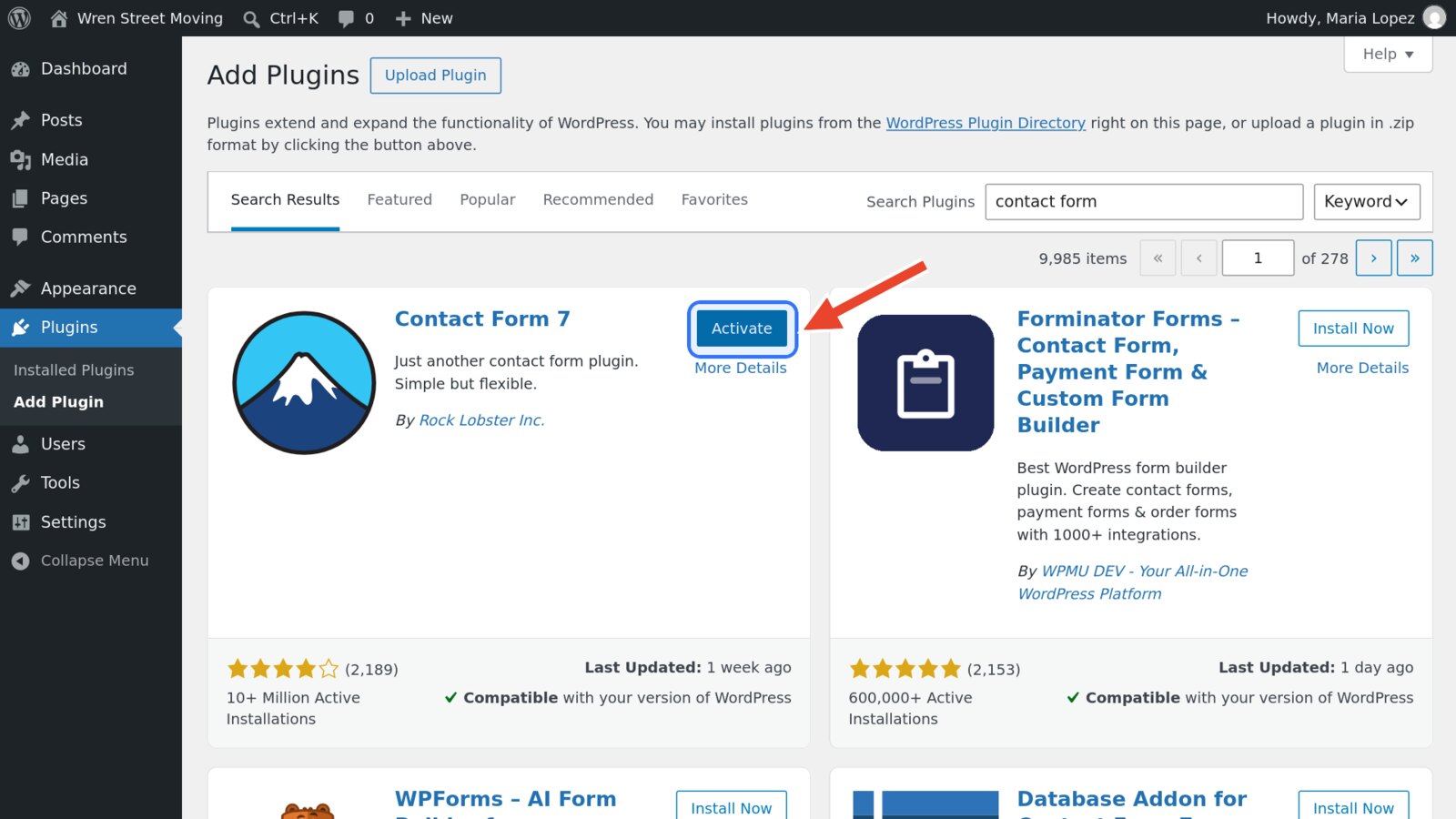
The button changes to Activate. Installed does not mean on. Press Activate to turn it on.El botón cambia a Activate. Instalado no significa encendido. Presiona Activate para encenderlo.
-
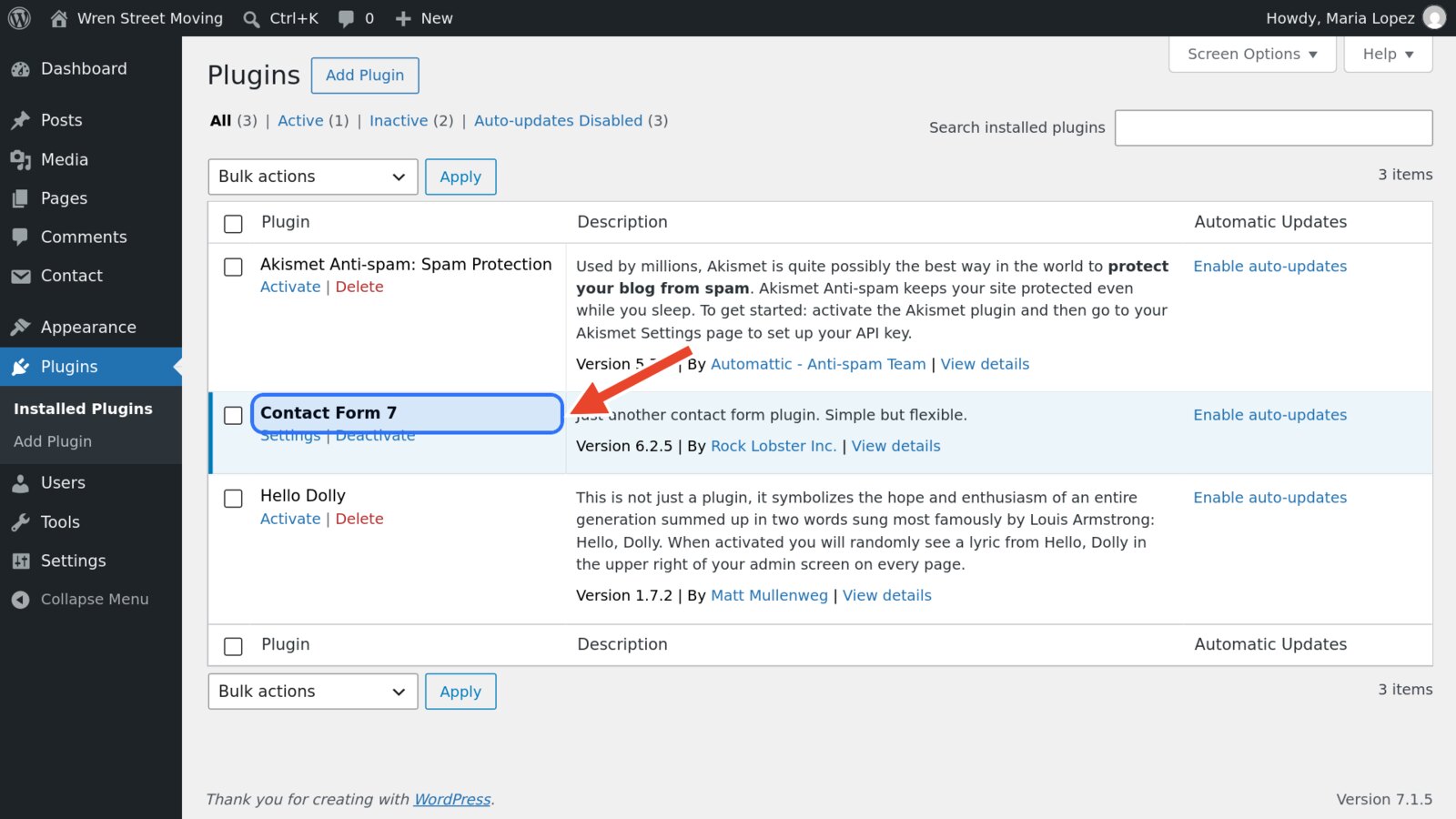
Back on the Plugins screen, Contact Form 7 is now in your list.De vuelta en la pantalla Plugins, Contact Form 7 ya está en tu lista.
-
It shows Deactivate under its name. That is how you know it is on.Muestra Deactivate debajo de su nombre. Así sabes que está encendido.
Tip: After you turn a plugin on, look at your site.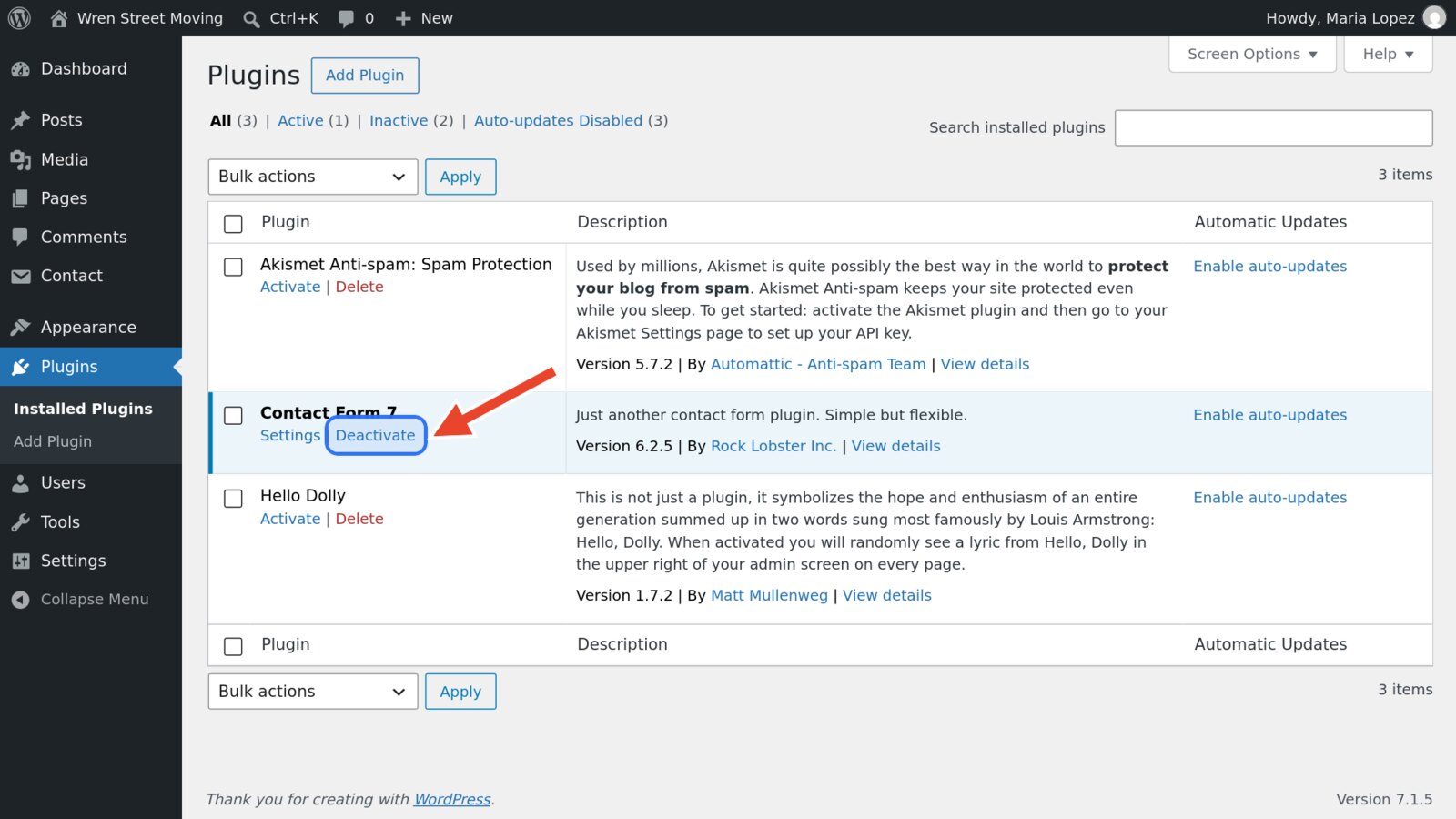
Stuck on your own site?
Get walked through it one-on-one, on video, on your real site. Or hand the job over and have it done.
- You click, I guide
- One price per job, set before work starts
- English or Spanish
Where this comes from
Every step was run on a real WordPress site and checked against the official WordPress documentation: