Add a user and pick the right role
The steps
-
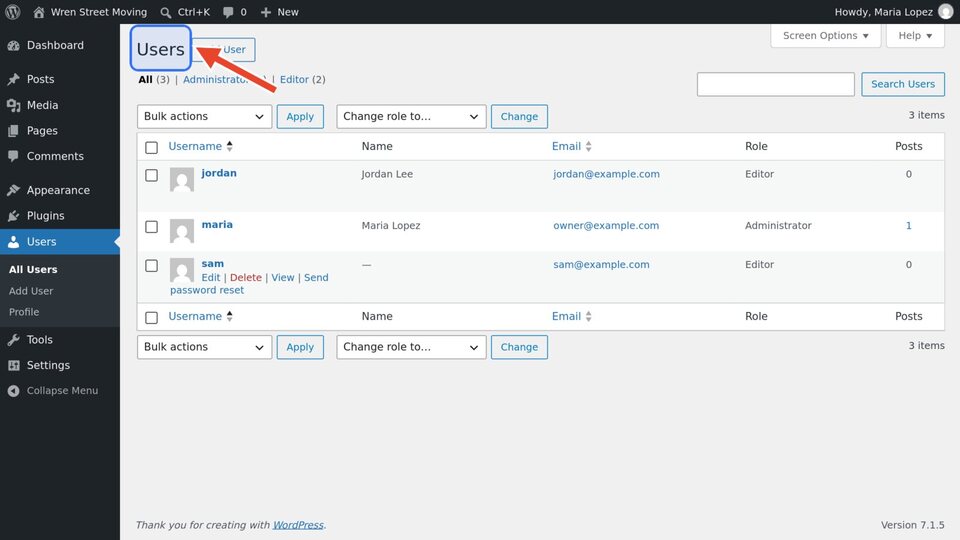
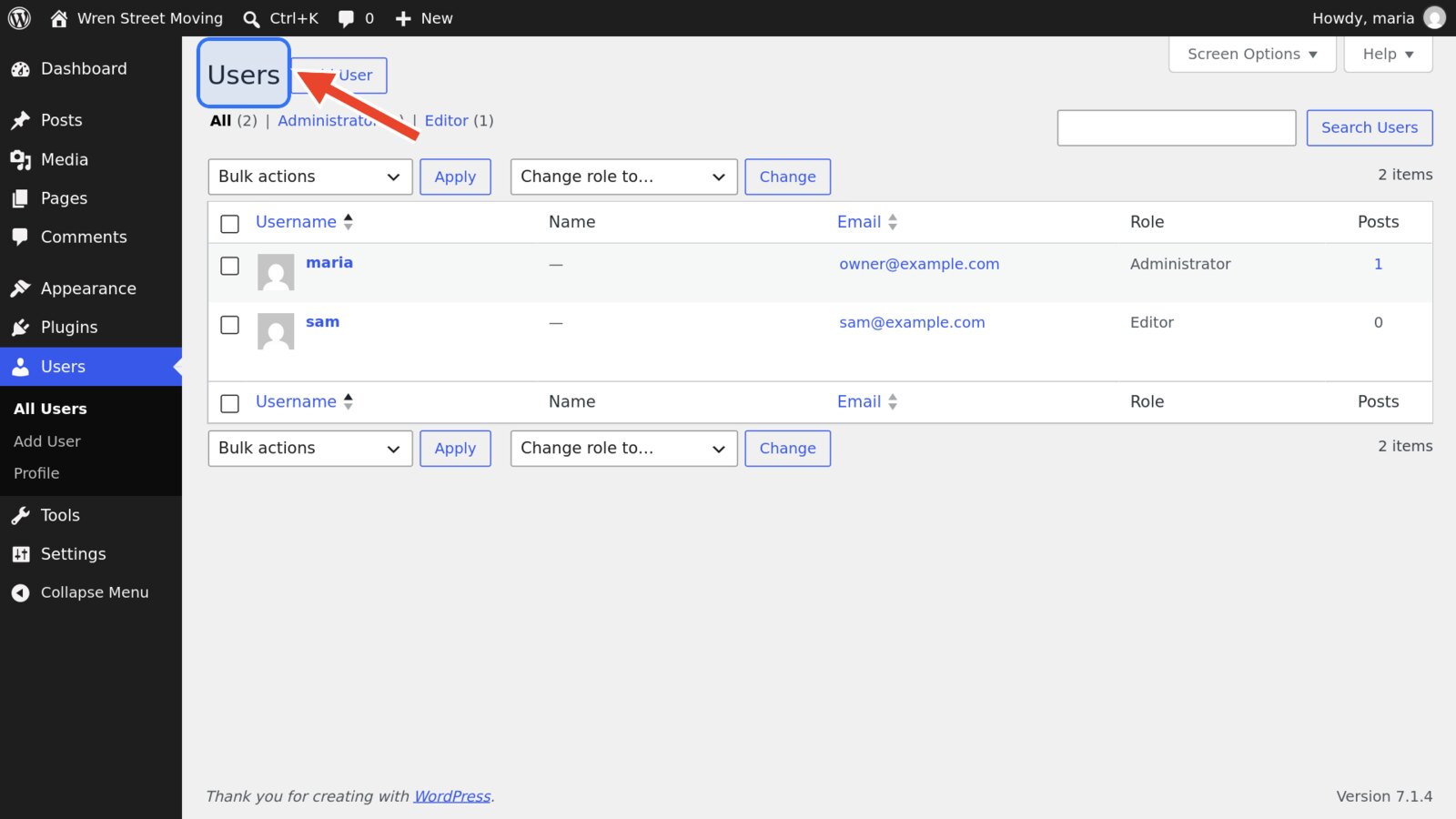
This is the Users screen. It lists everyone who can sign in to this site.Esta es la pantalla Users. Muestra a todas las personas que pueden entrar a este sitio.
-
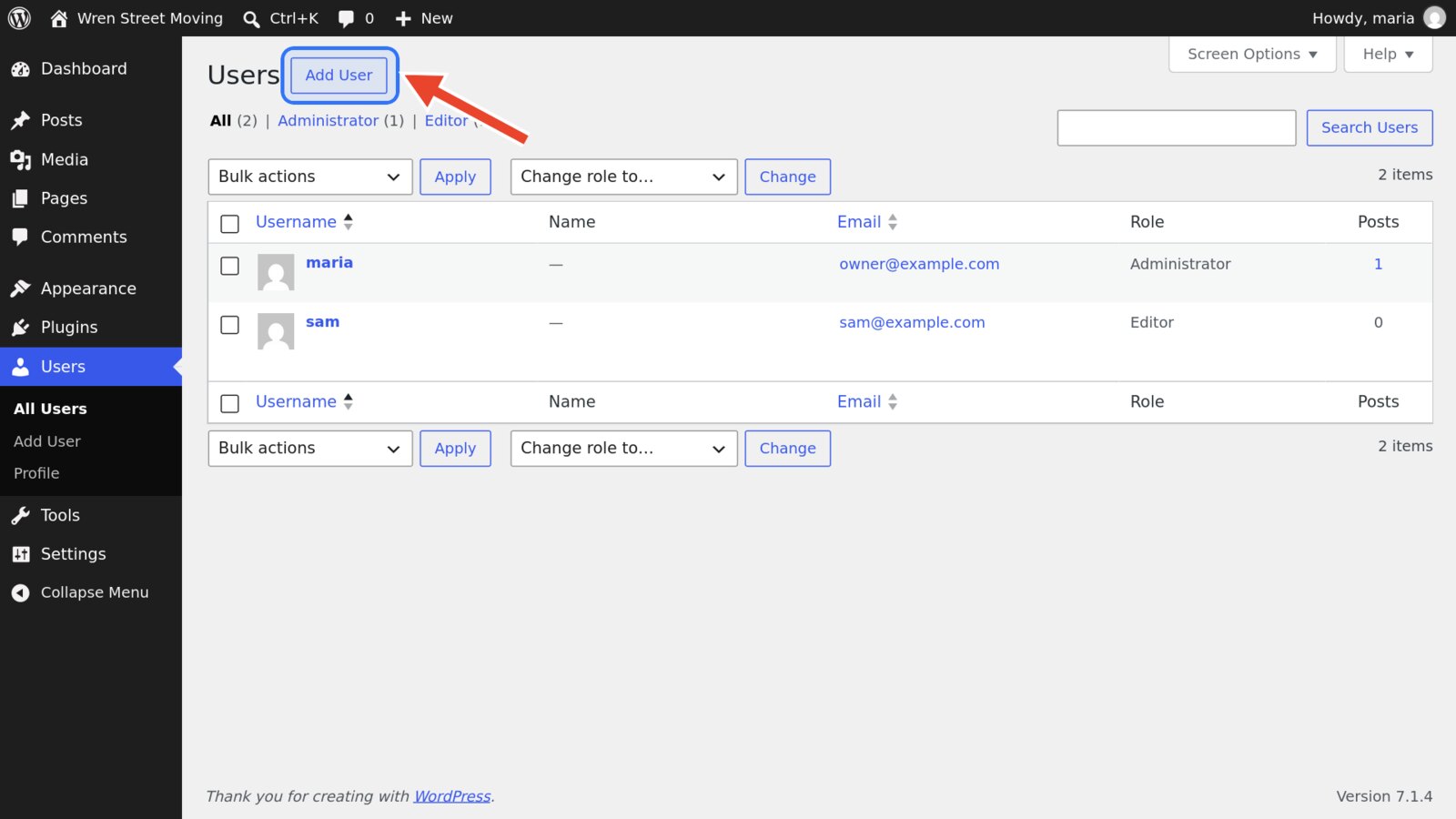
Press Add User, at the top.Presiona Add User, arriba.
-
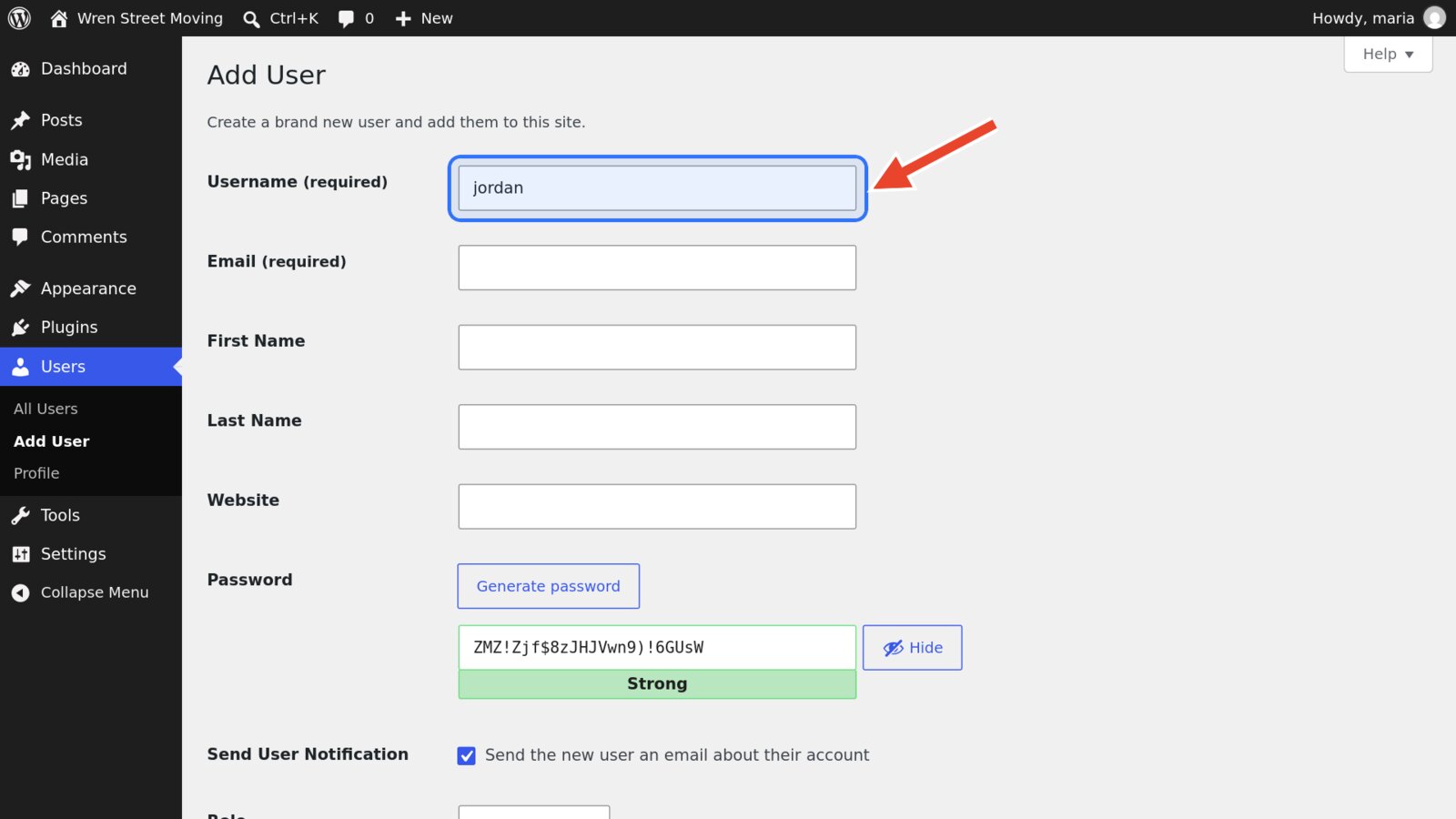
Type a username. This is the name the person signs in with.Escribe un nombre de usuario. Es el nombre con el que la persona inicia sesión.
-
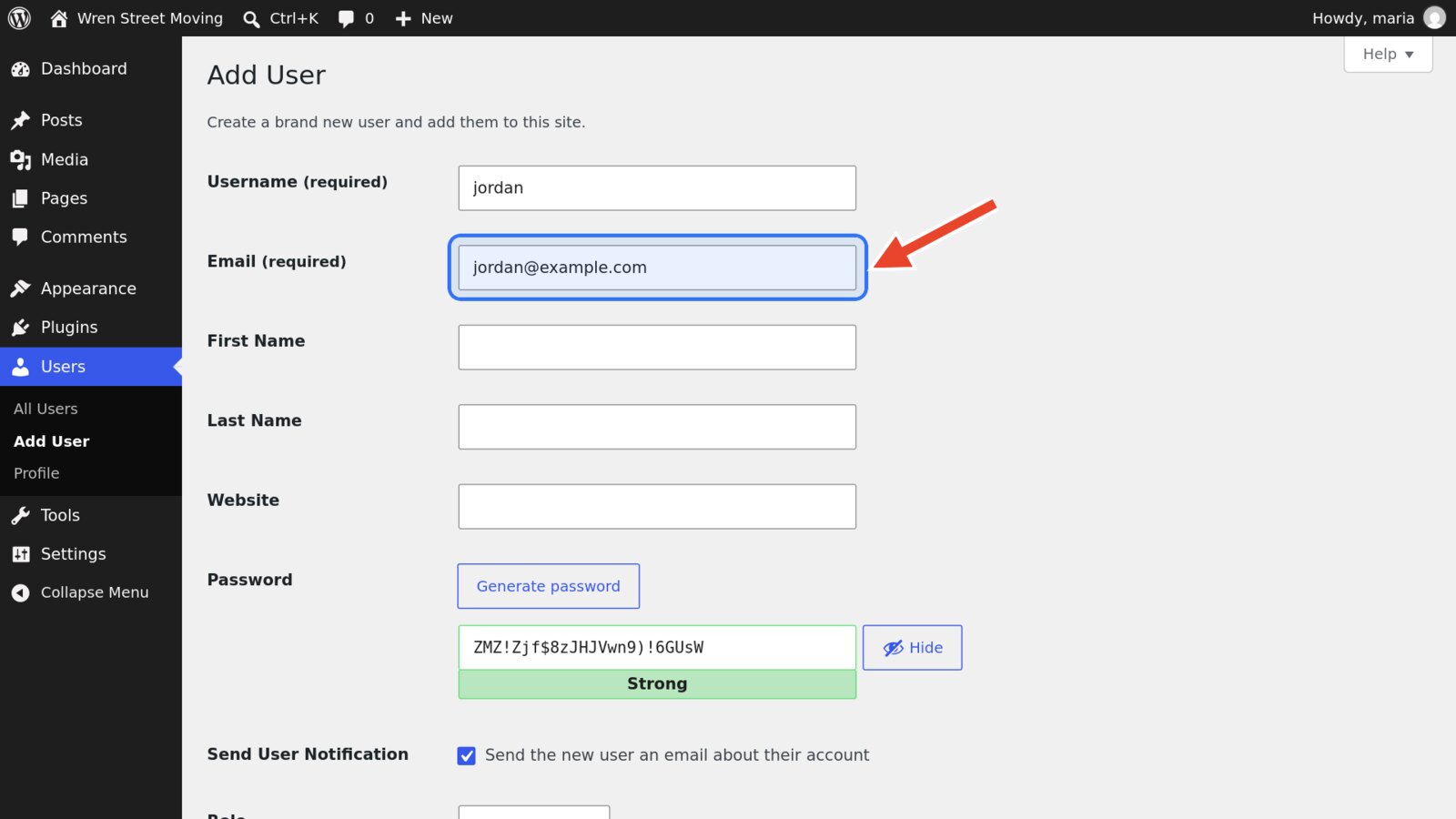
Type the person's email address.Escribe el correo electrónico de la persona.
-
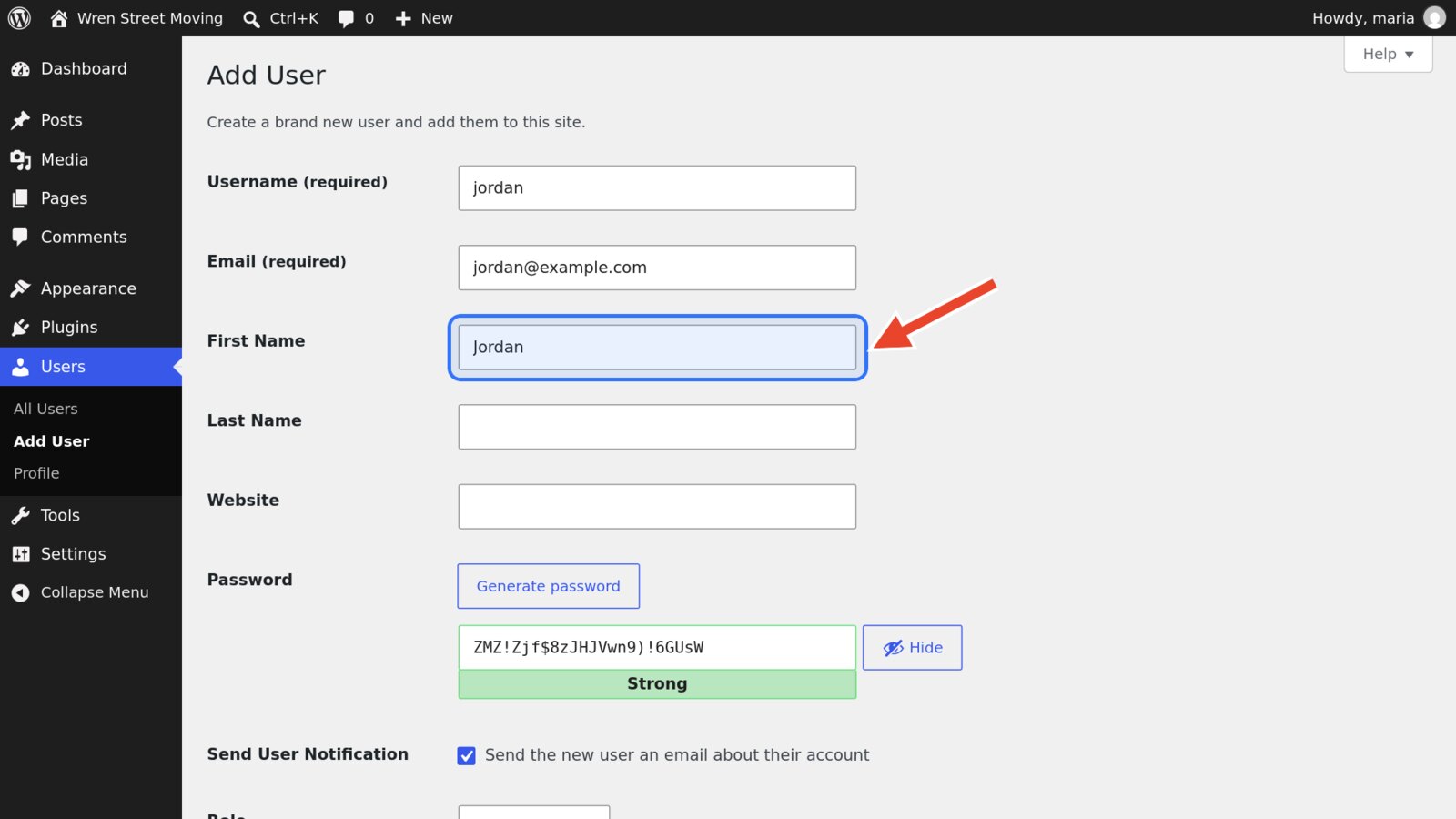
Type the first name.Escribe el nombre.
-
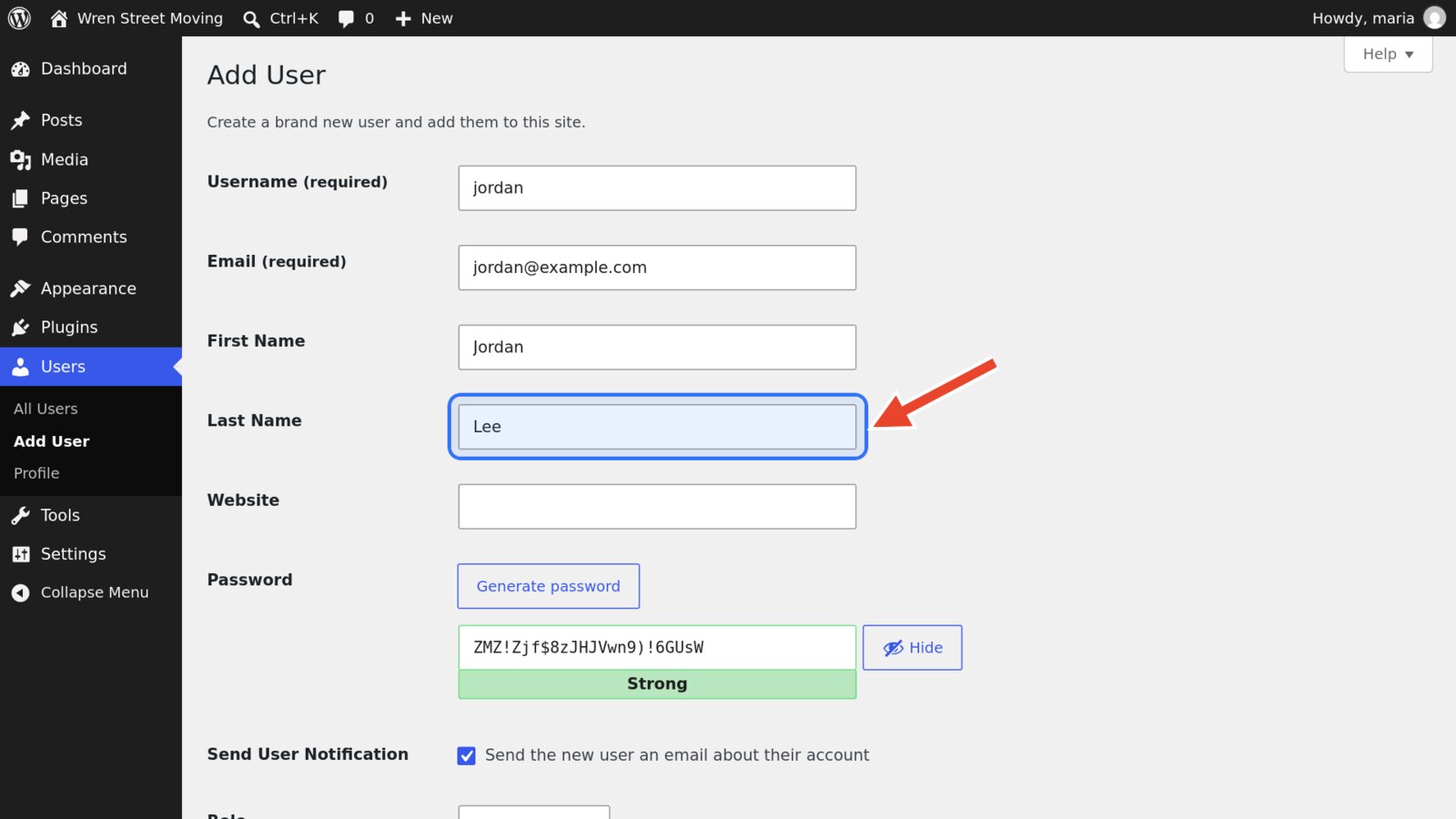
Type the last name.Escribe el apellido.
-
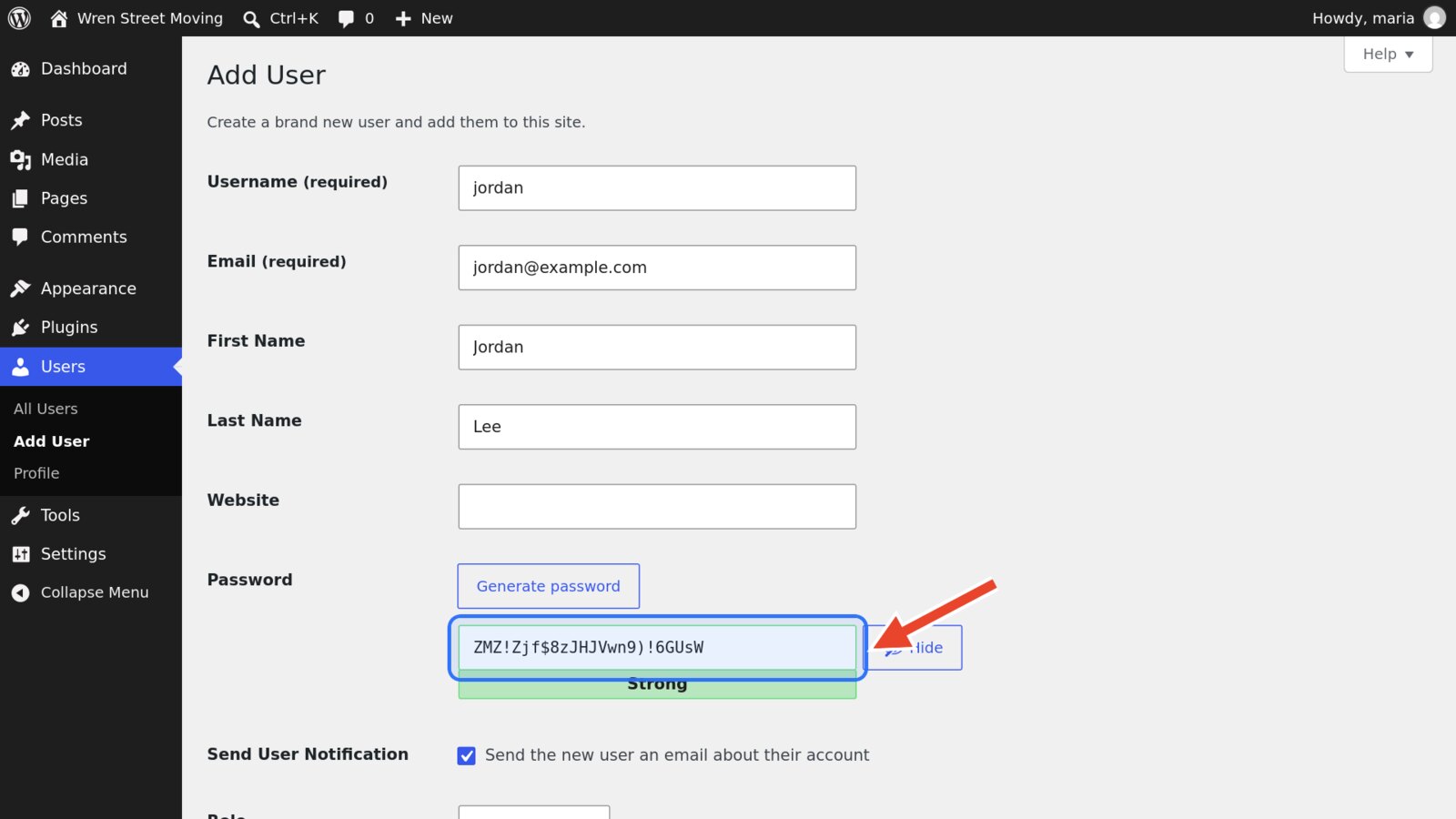
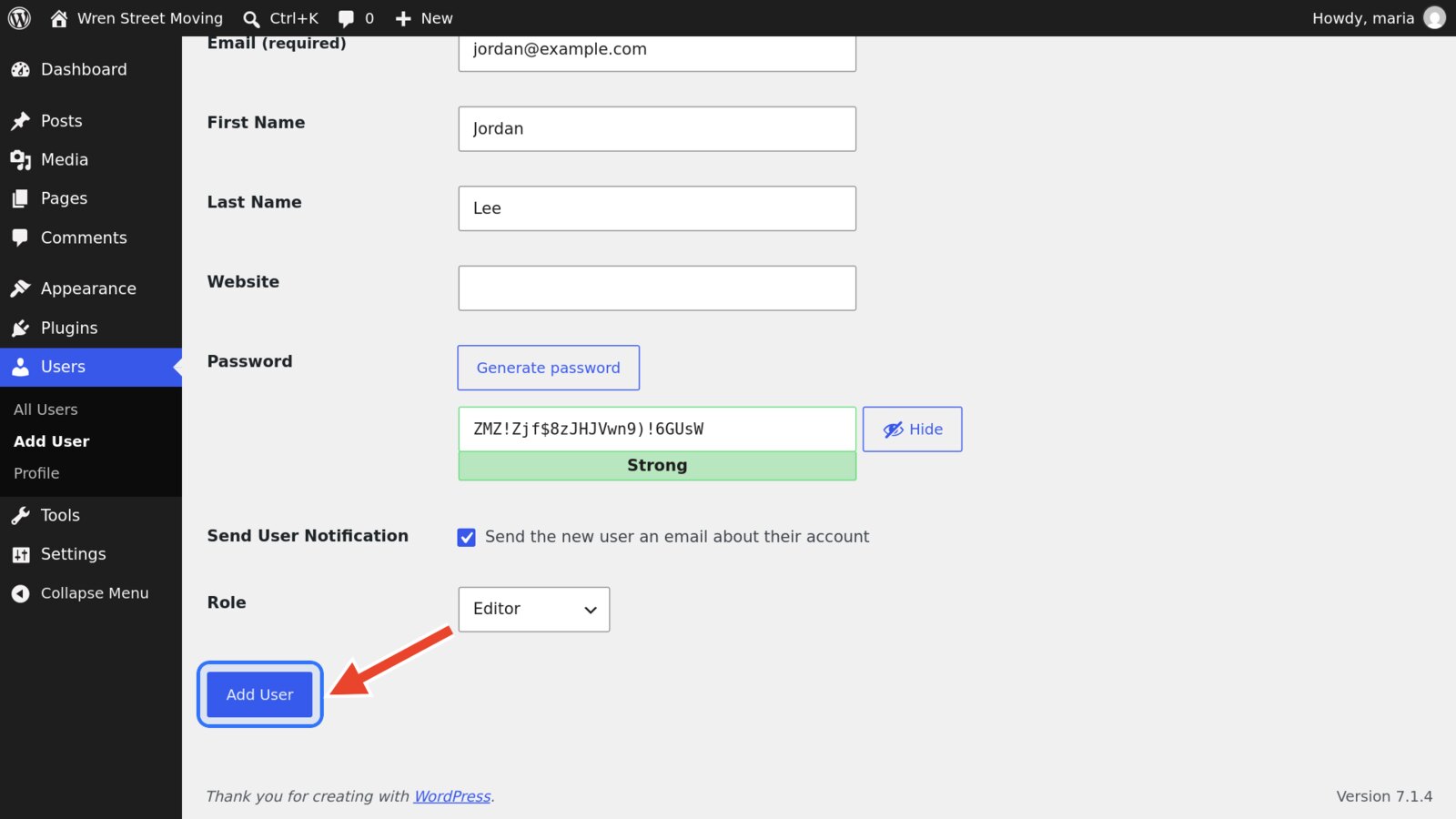
WordPress already filled in a strong password. You can keep it.WordPress ya puso una contraseña segura. Puedes dejarla así.
-
Choose Editor in the Role list.Elige Editor en la lista Role.
Tip: Give each person the lowest role that lets them do their job.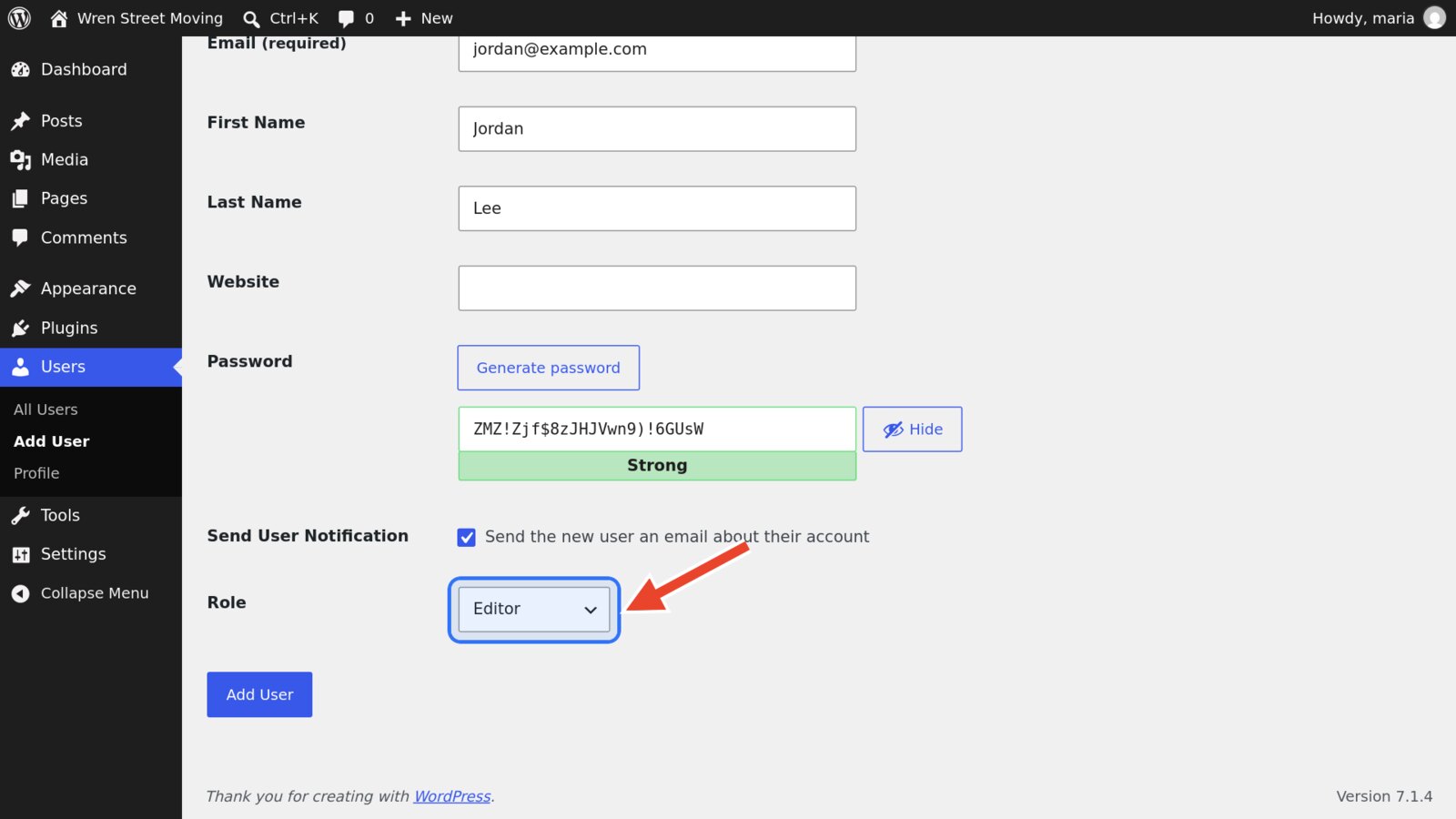
-
Press Add User at the bottom of the form.Presiona Add User al final del formulario.
-
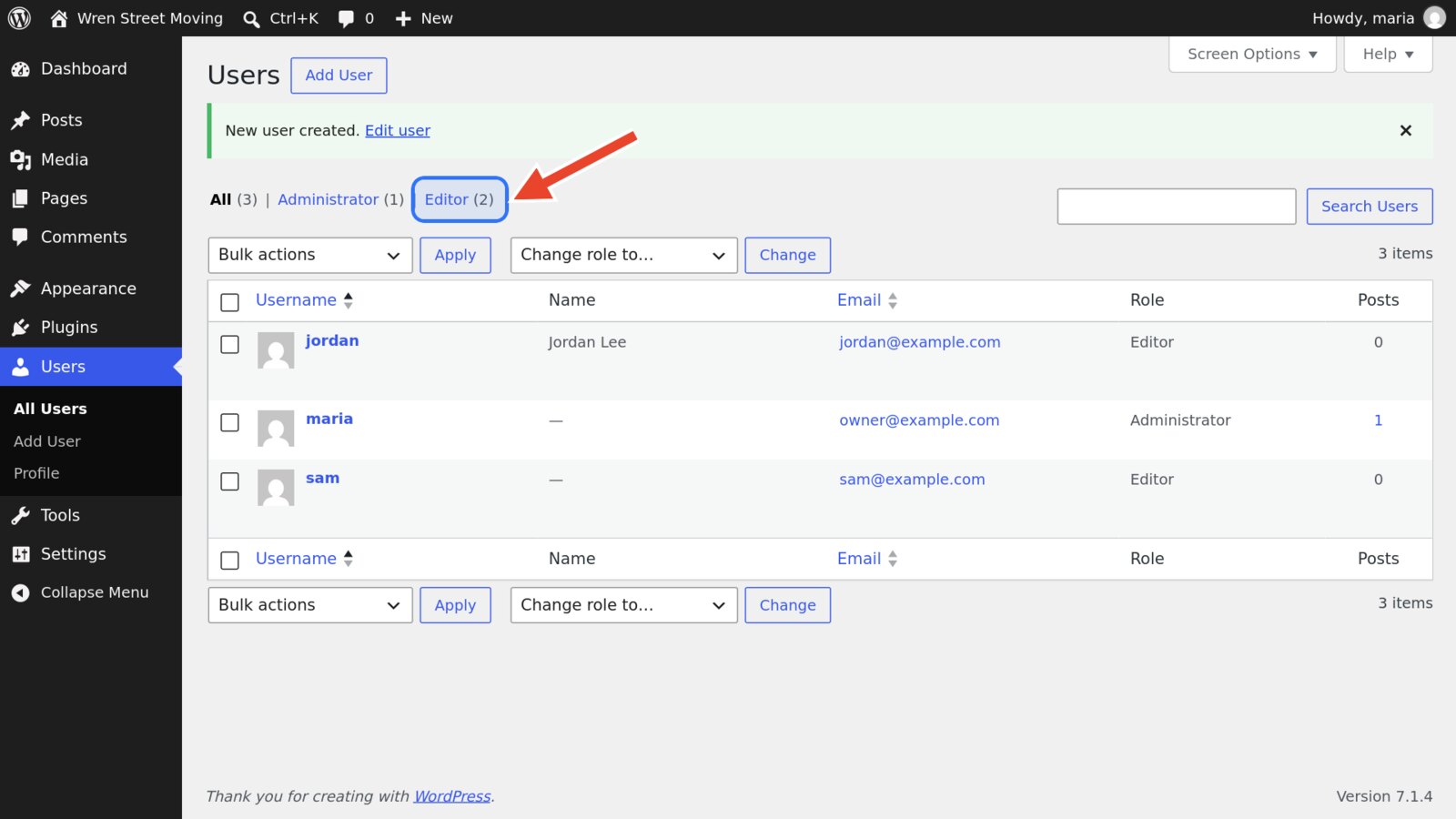
The Editor count now shows two people. The new user was added.El conteo de Editor ahora muestra dos personas. El usuario nuevo se agregó.
-
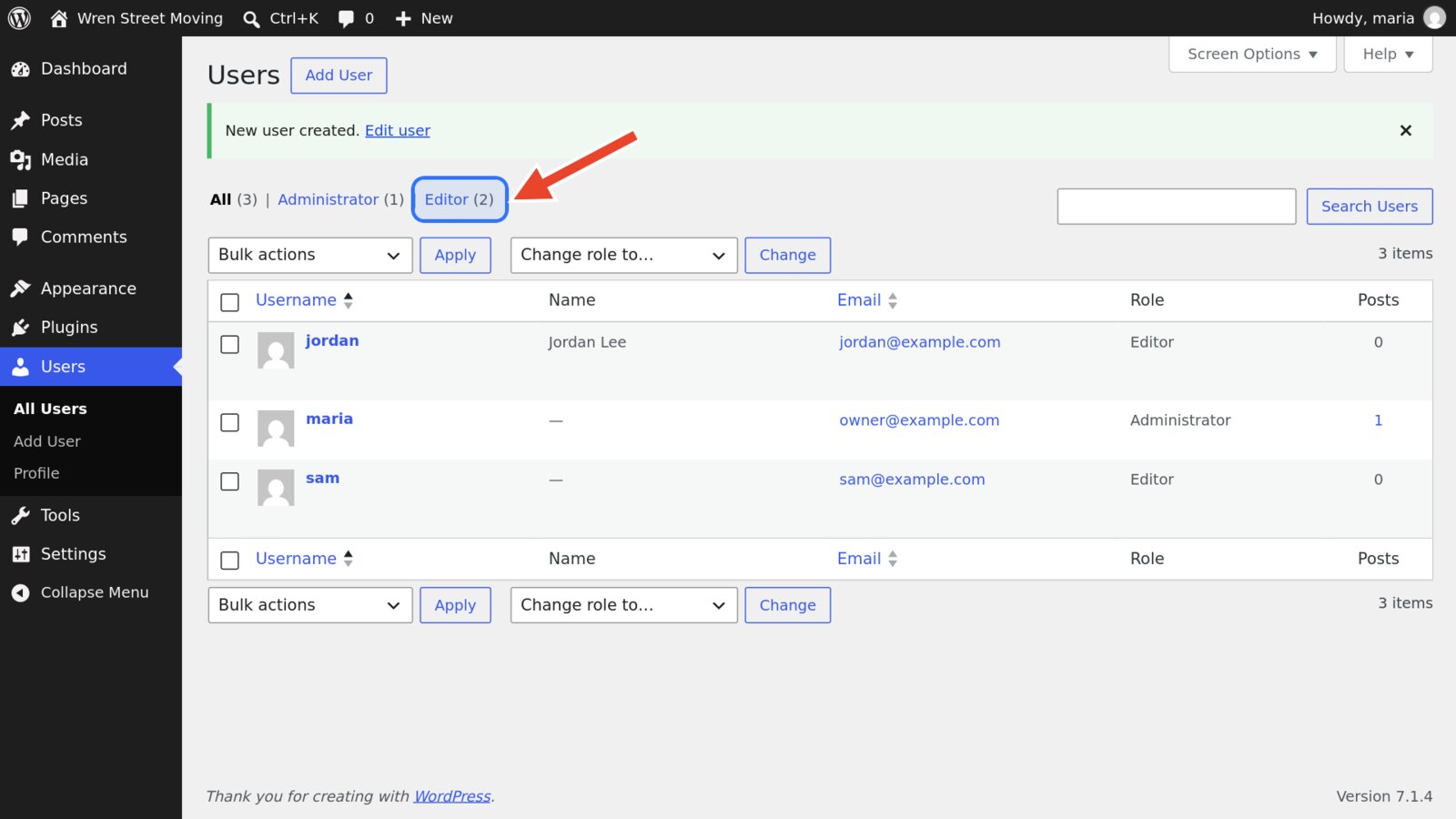
Press Editor to list only the people with that role.Presiona Editor para ver solo a las personas con ese rol.
-
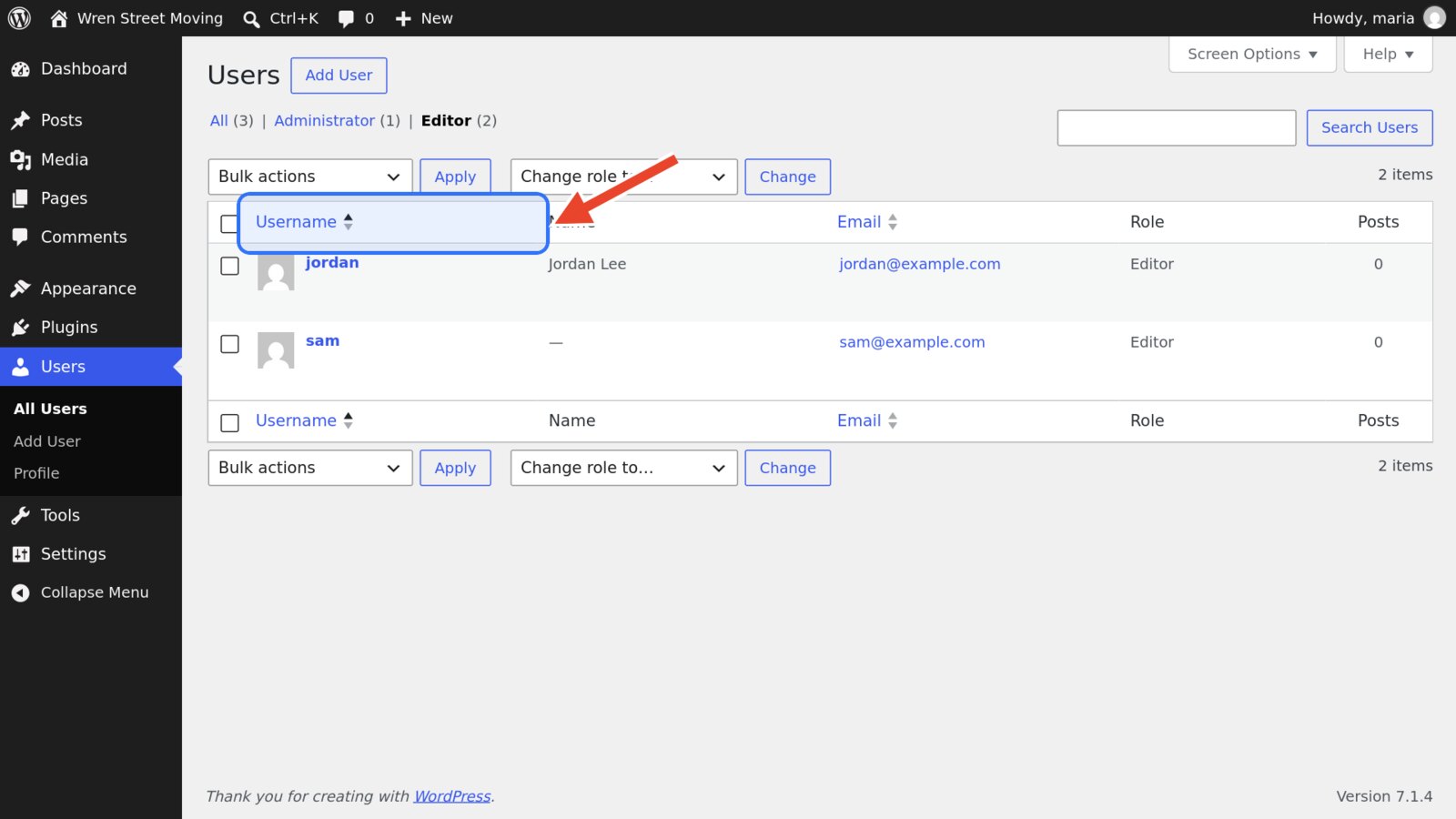
Here is the list of Editors, and the new user is in it.Aquí está la lista de Editors, y el usuario nuevo aparece en ella.
Stuck on your own site?
Get walked through it one-on-one, on video, on your real site. Or hand the job over and have it done.
- You click, I guide
- One price per job, set before work starts
- English or Spanish
Where this comes from
Every step was run on a real WordPress site and checked against the official WordPress documentation: