Switch WordPress themes and delete one you do not use
The steps
-
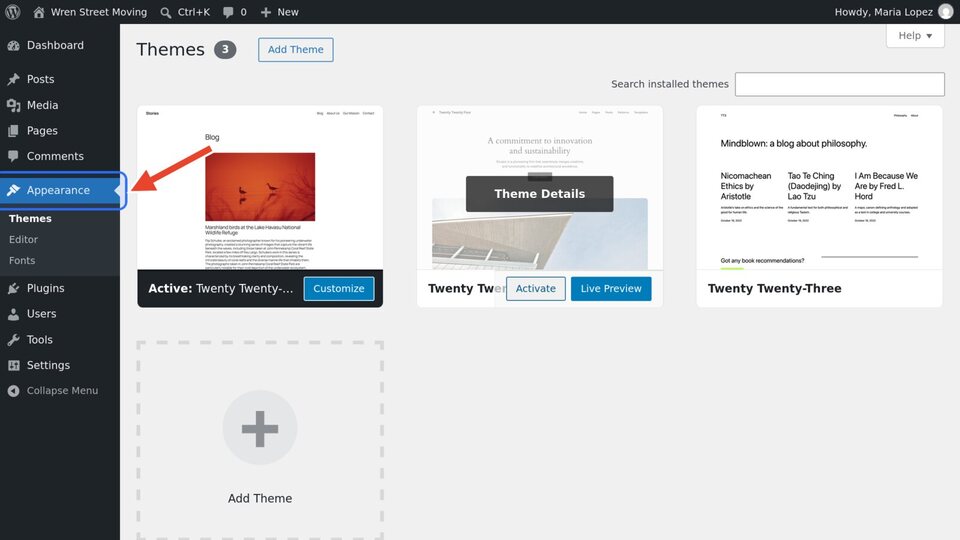
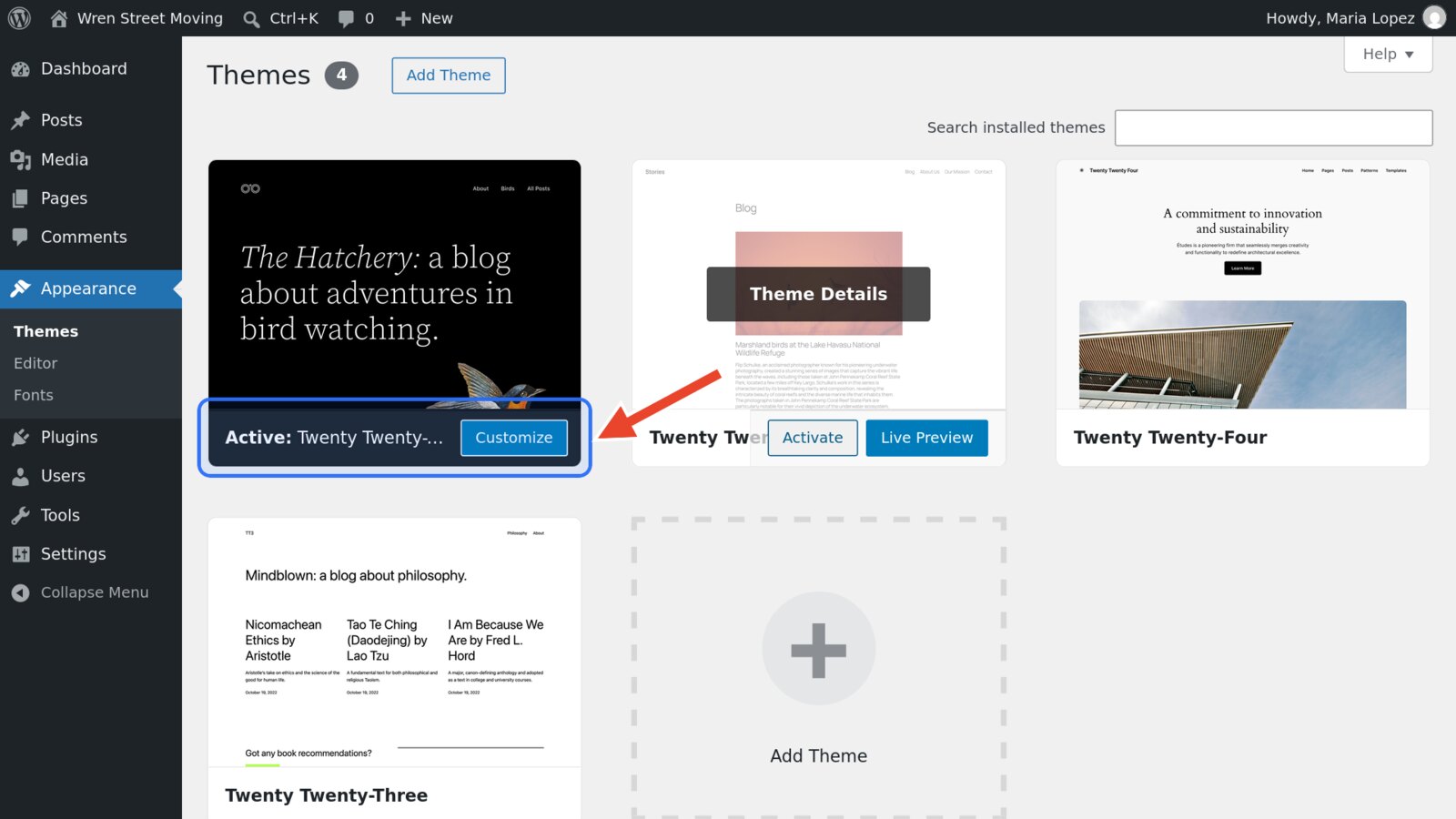
On the Themes screen, the active theme comes first and is marked Active.En la pantalla Themes, el tema activo aparece primero y está marcado como Active.
-
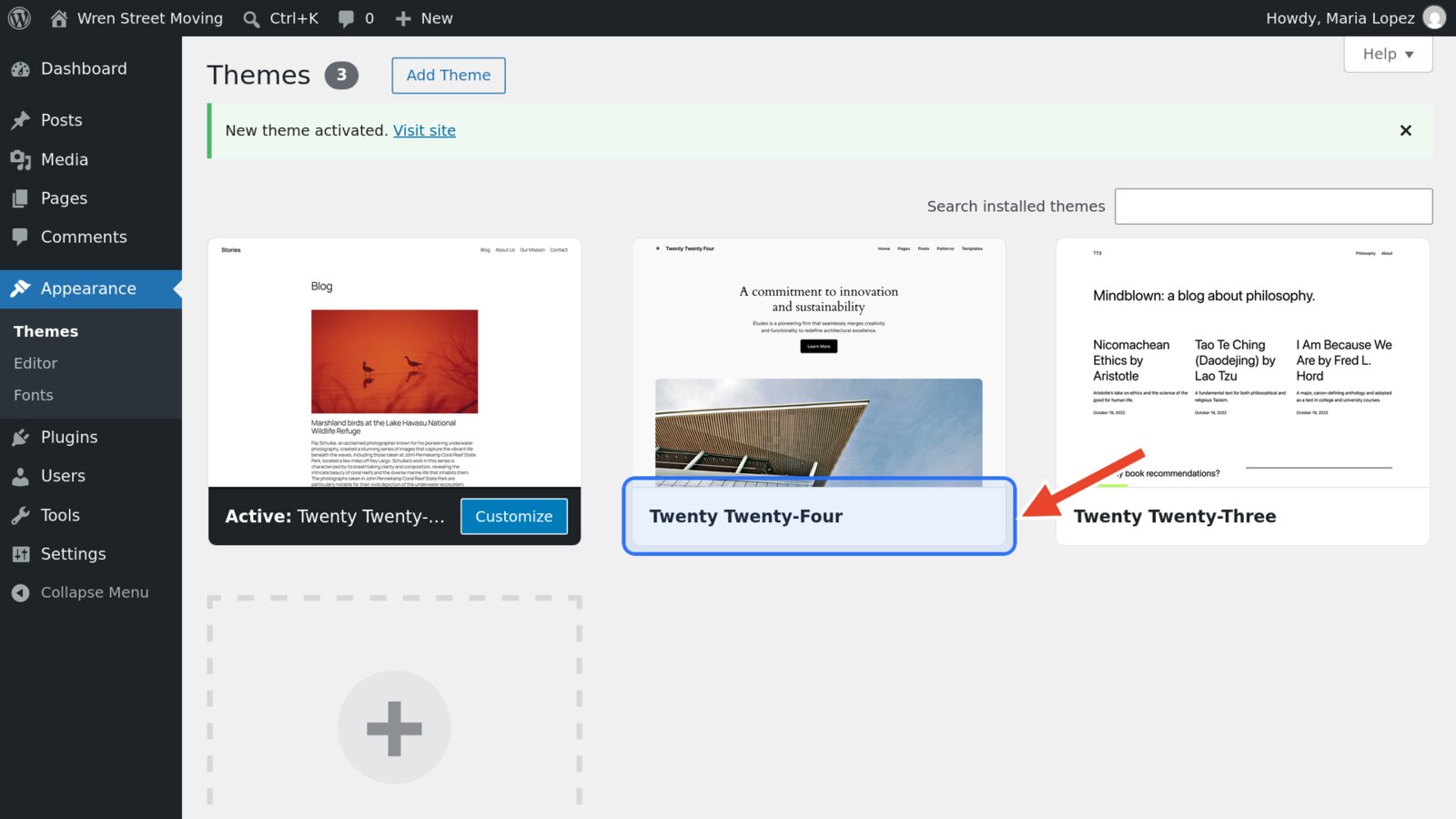
Hold the mouse over another theme. Live Preview lets you try it without changing the site.Pon el mouse sobre otro tema. Live Preview te deja probarlo sin cambiar el sitio.
Tip: Use Live Preview to see a theme on your own content first.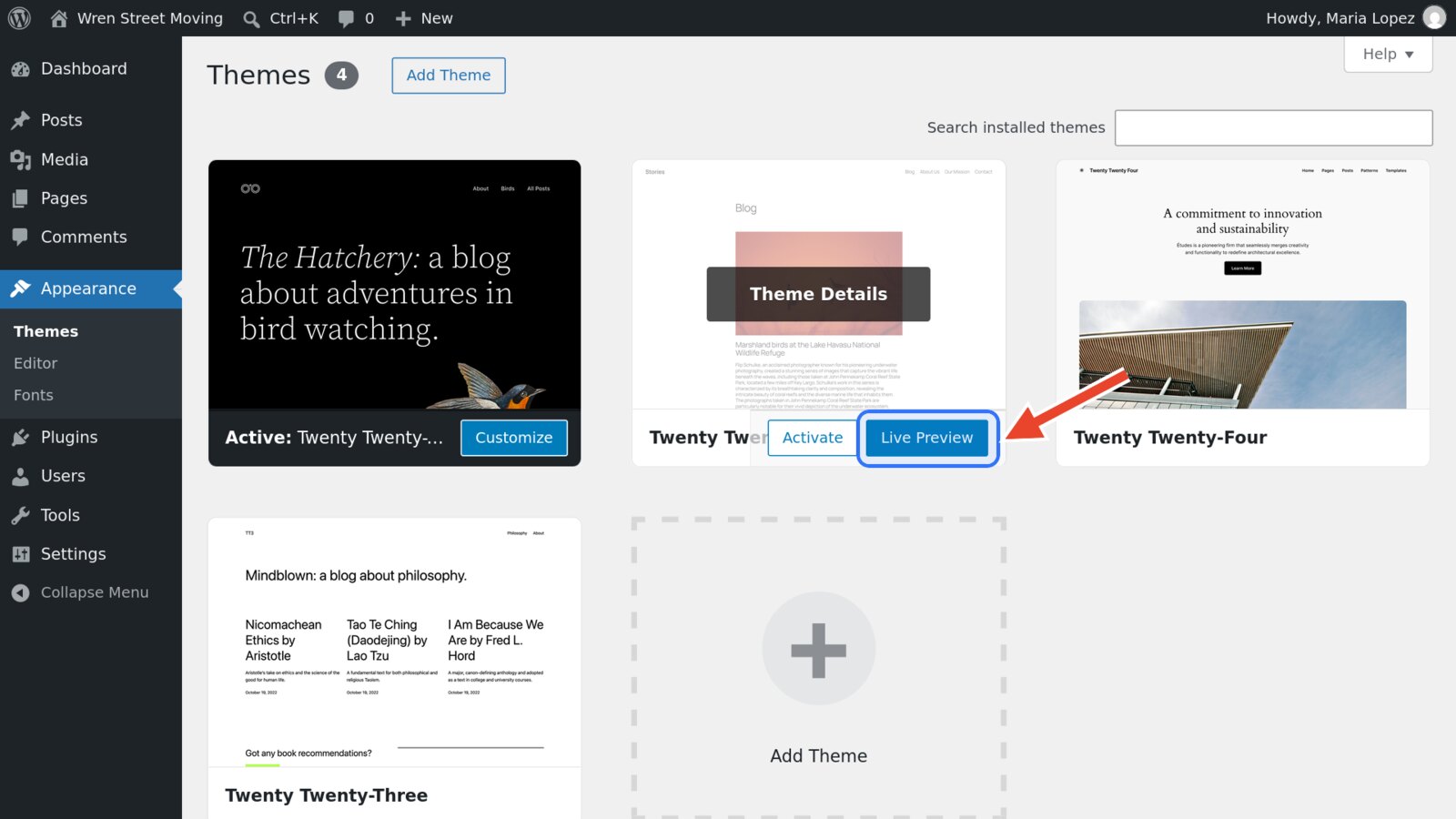
-
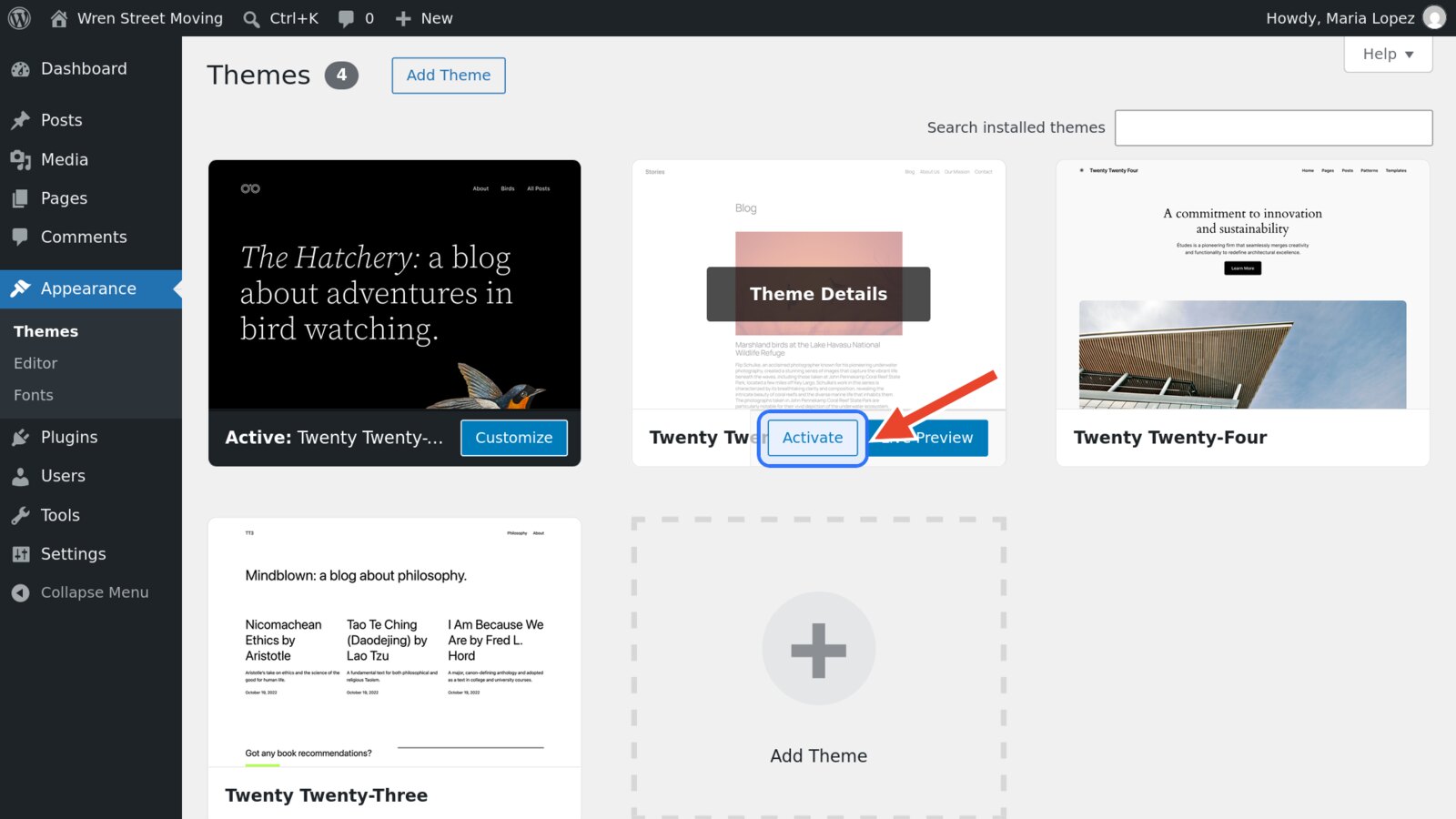
Press Activate to switch your site to this theme.Presiona Activate para cambiar tu sitio a este tema.
-
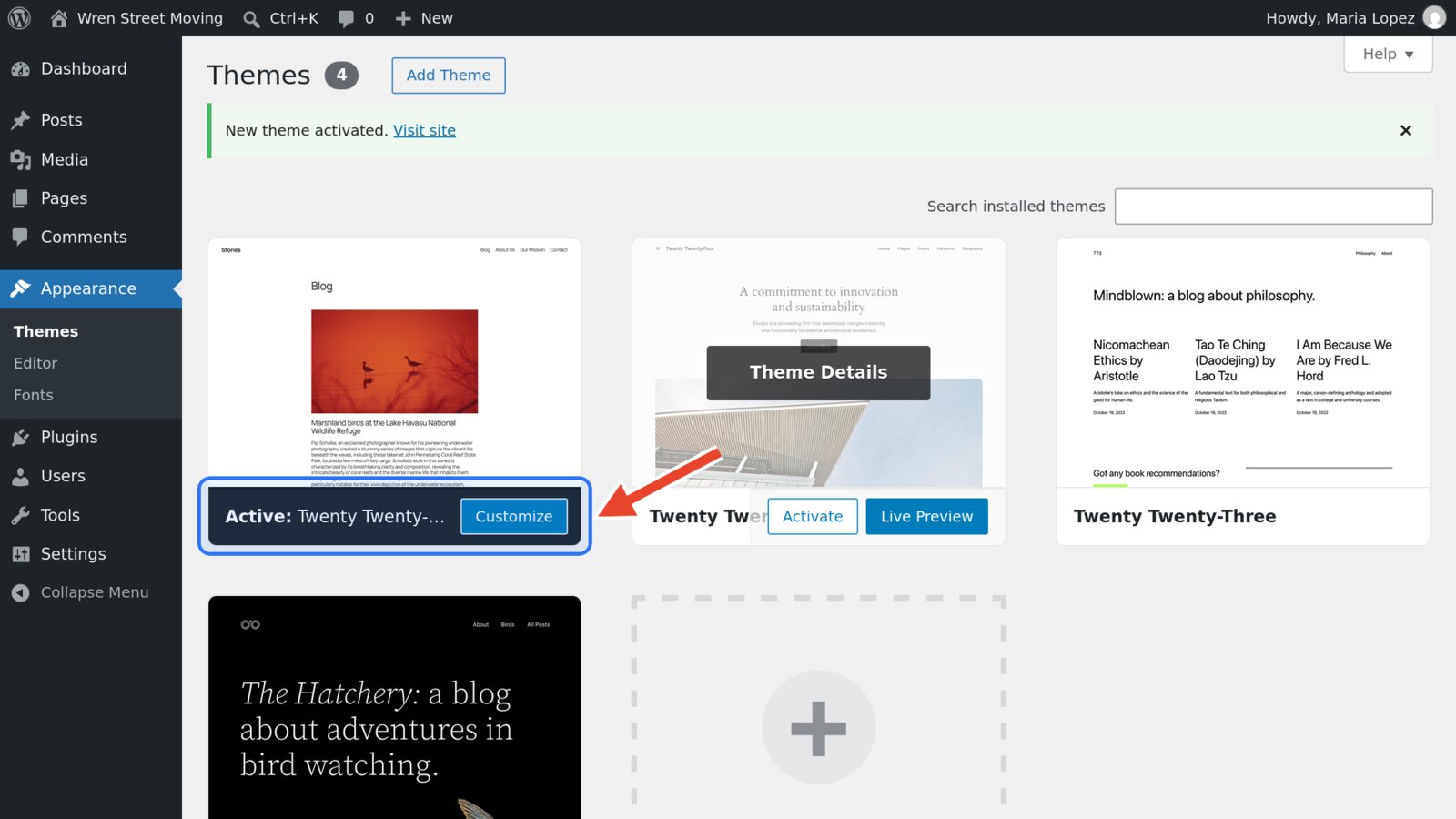
Twenty Twenty-Five is the active theme again.Twenty Twenty-Five es otra vez el tema activo.
-
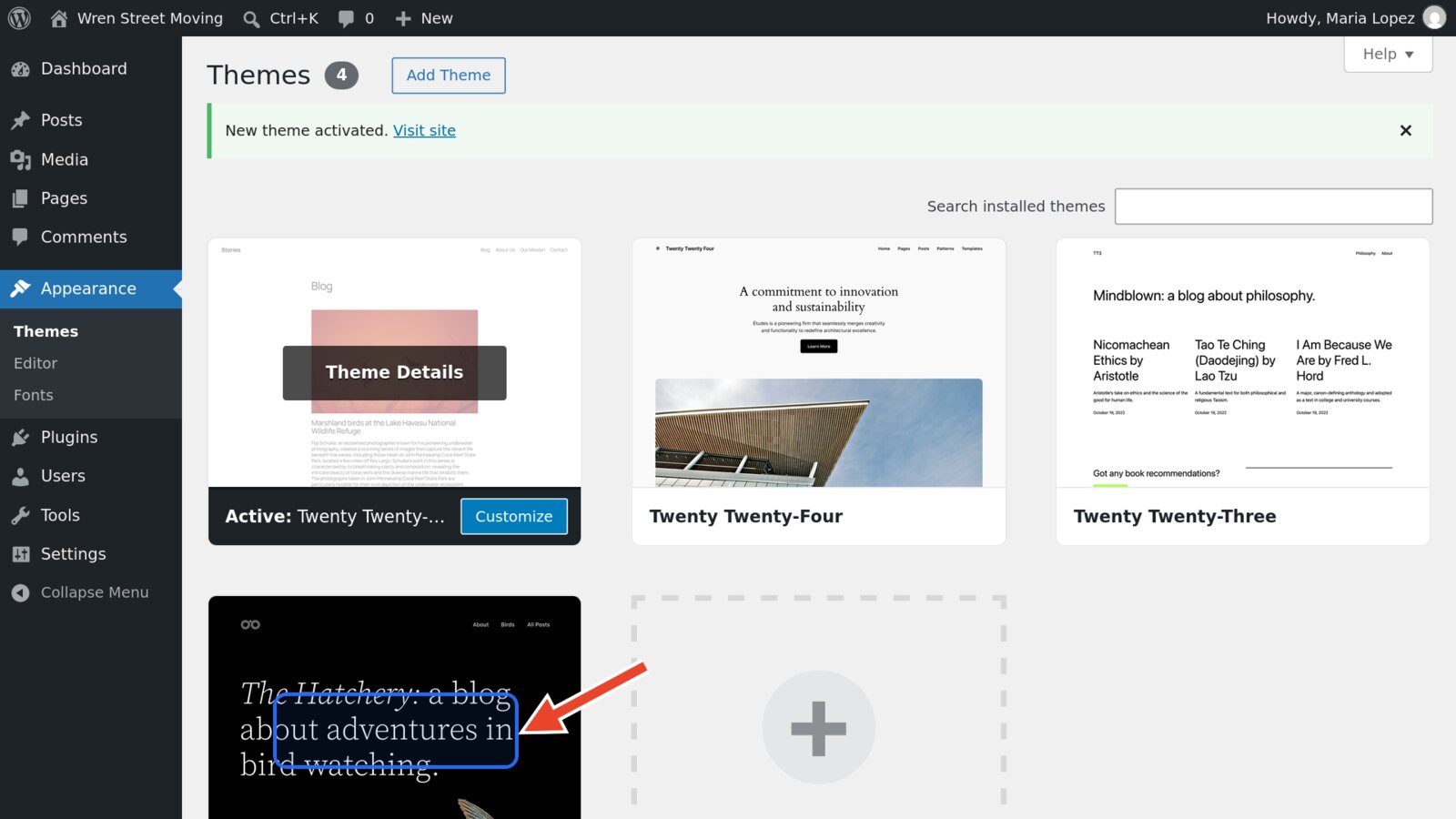
Now remove the theme we stopped using. Hold the mouse over it and press Theme Details.Ahora quita el tema que dejamos de usar. Pon el mouse sobre él y presiona Theme Details.
-
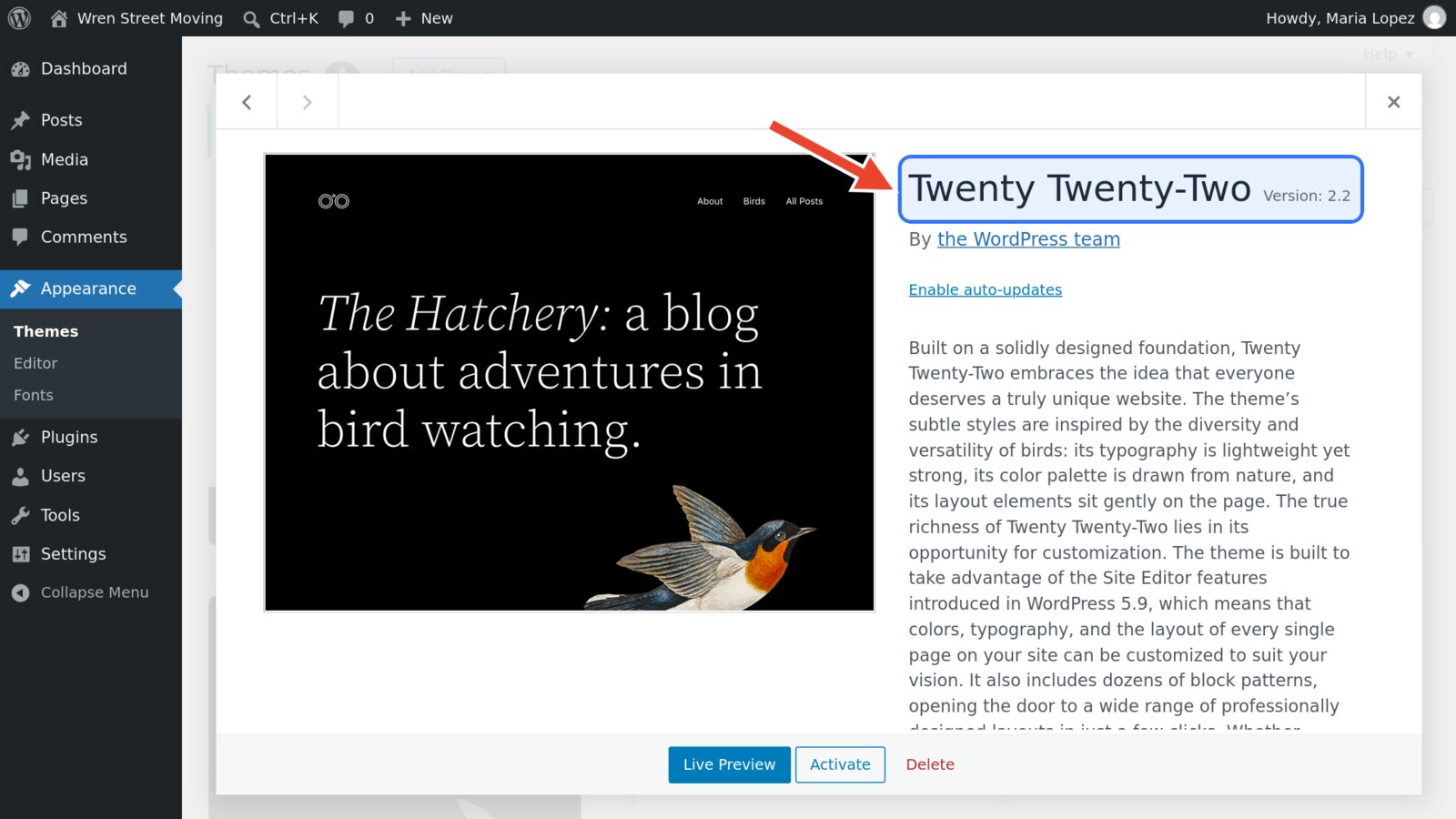
Theme Details shows the theme's name, version and description.Theme Details muestra el nombre, la versión y la descripción del tema.
-
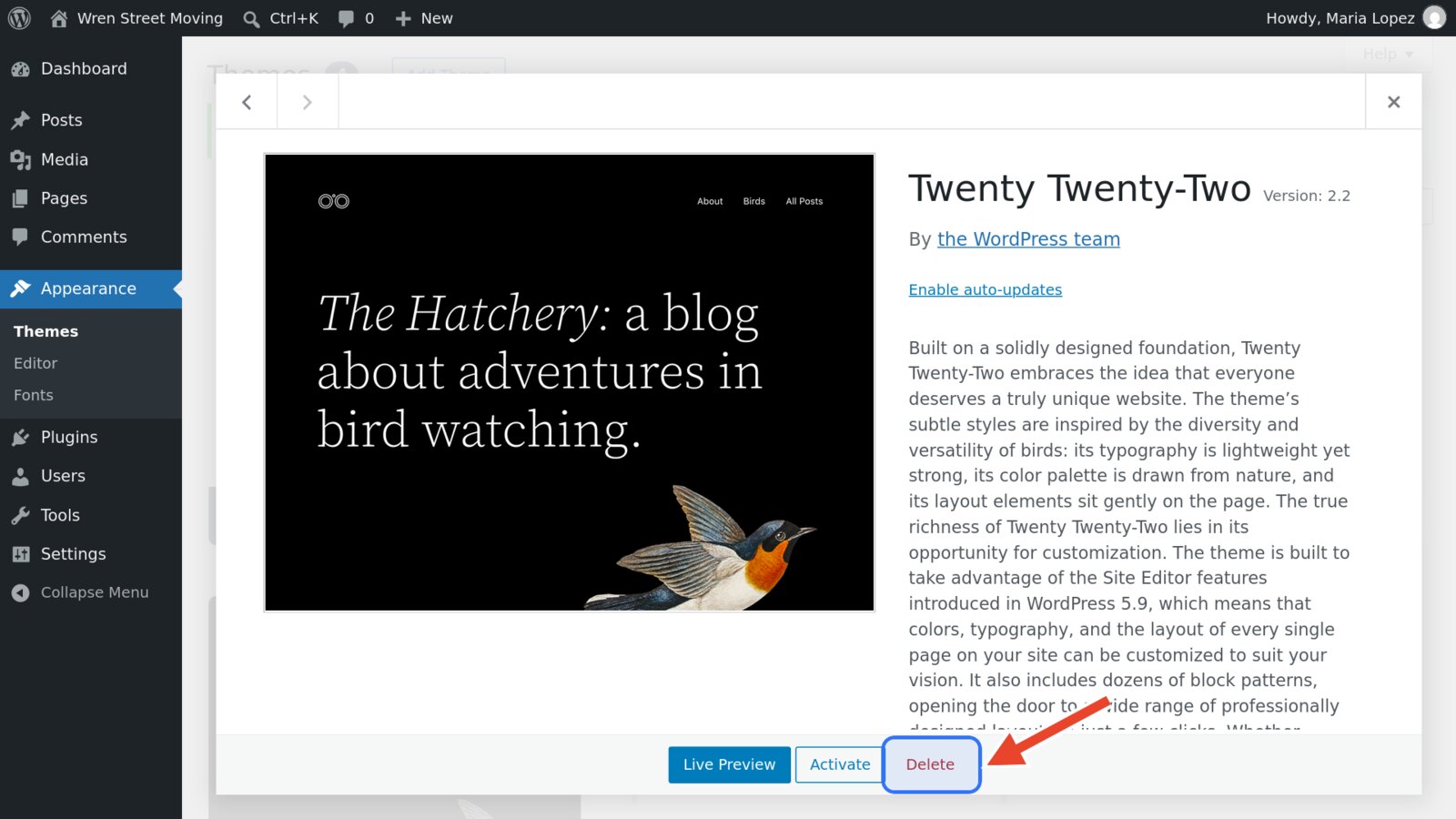
Delete is in the bottom corner. It only shows for themes that are not active.Delete está en la esquina de abajo. Solo aparece en los temas que no están activos.
-
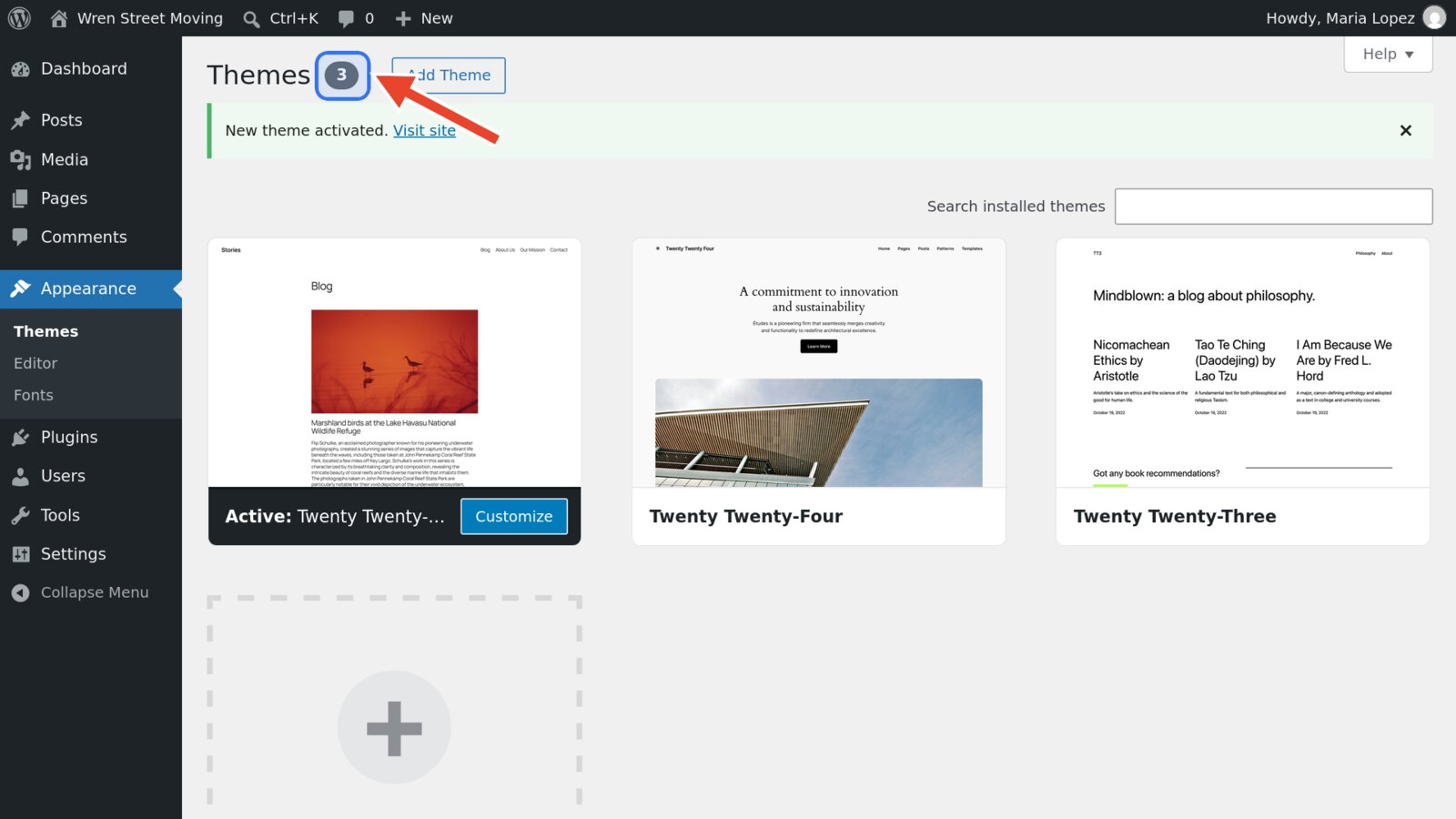
WordPress asks you to confirm. Press OK, and the theme is gone from the list.WordPress te pide confirmar. Presiona OK, y el tema desaparece de la lista.
-
The other themes are still here, ready if you want to switch again.Los otros temas siguen aquí, listos si quieres cambiar otra vez.
Stuck on your own site?
Get walked through it one-on-one, on video, on your real site. Or hand the job over and have it done.
- You click, I guide
- One price per job, set before work starts
- English or Spanish
Where this comes from
Every step was run on a real WordPress site and checked against the official WordPress documentation: