Your profile, display name and password
The steps
-
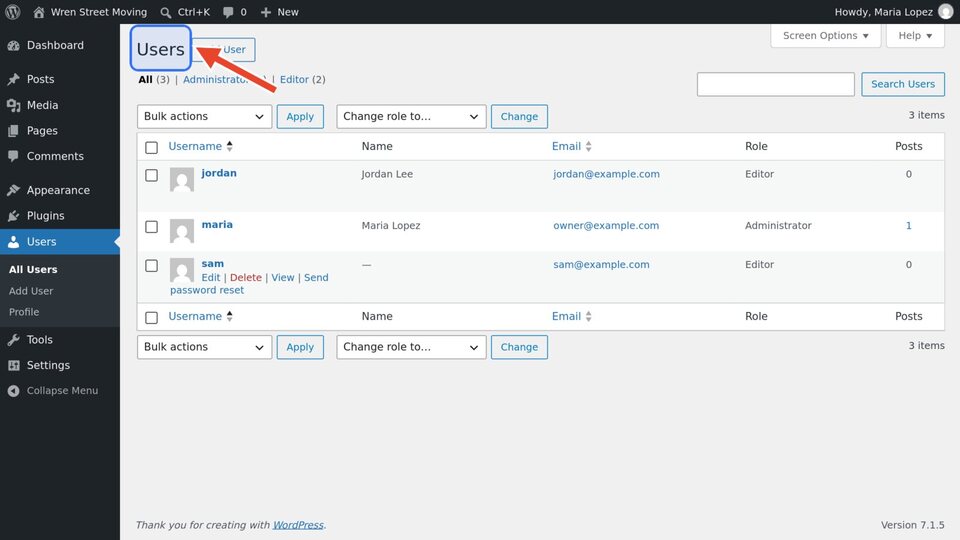
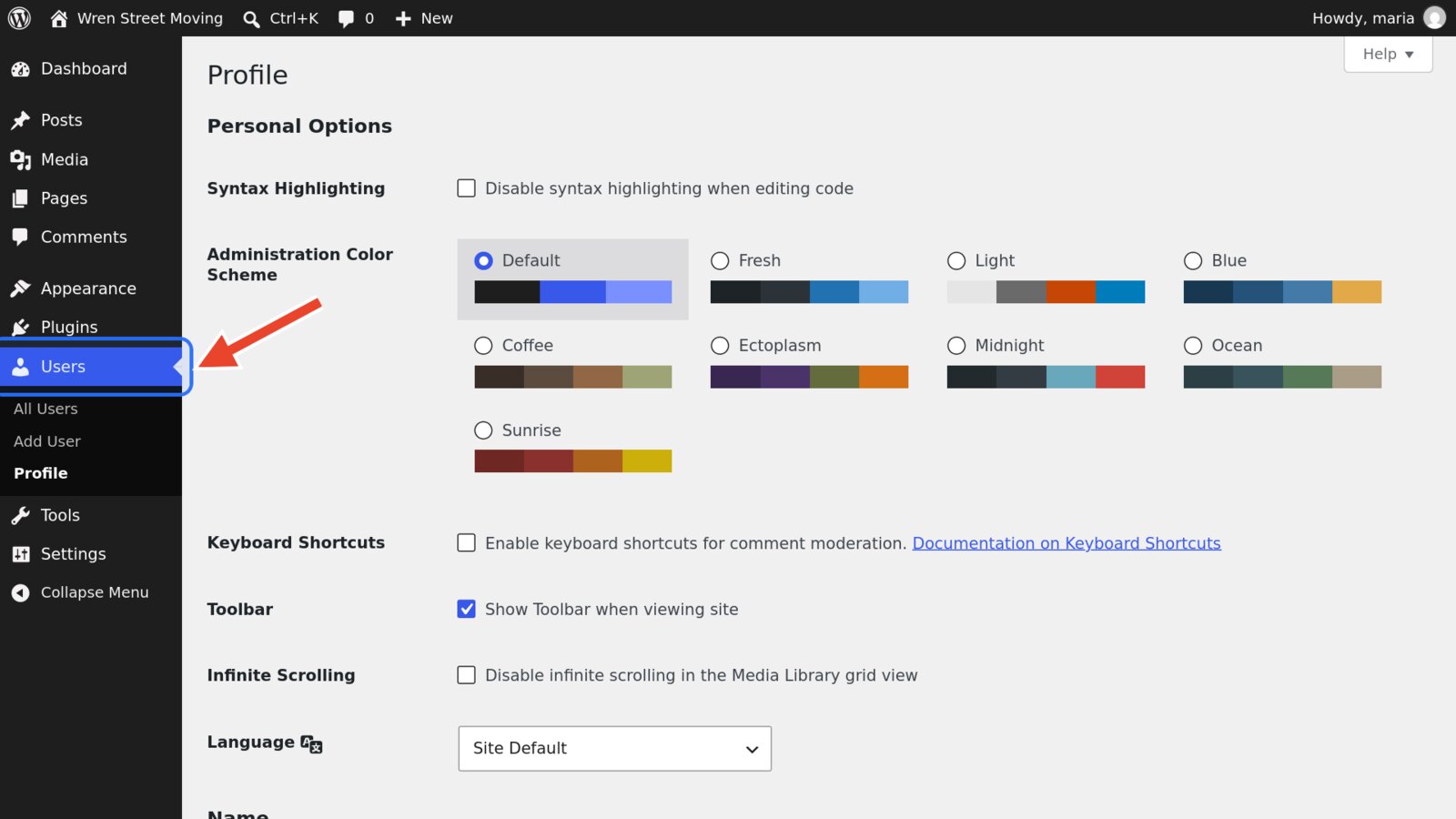
Your profile lives under Users in the left menu.Tu perfil está en Users, en el menú de la izquierda.
-
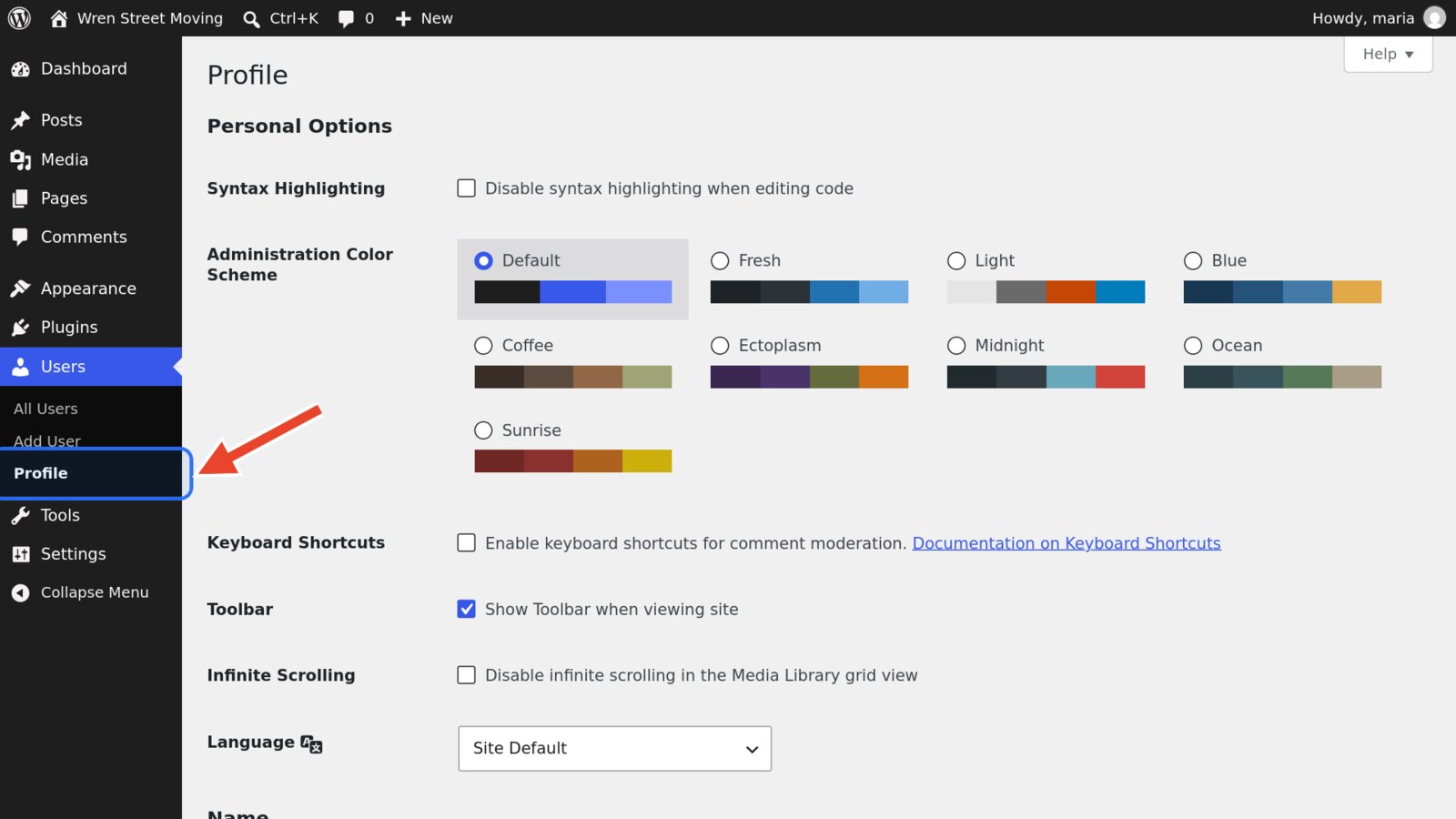
Profile is the page we are on. Here you manage your own details.Profile es la página donde estamos. Aquí administras tus propios datos.
-
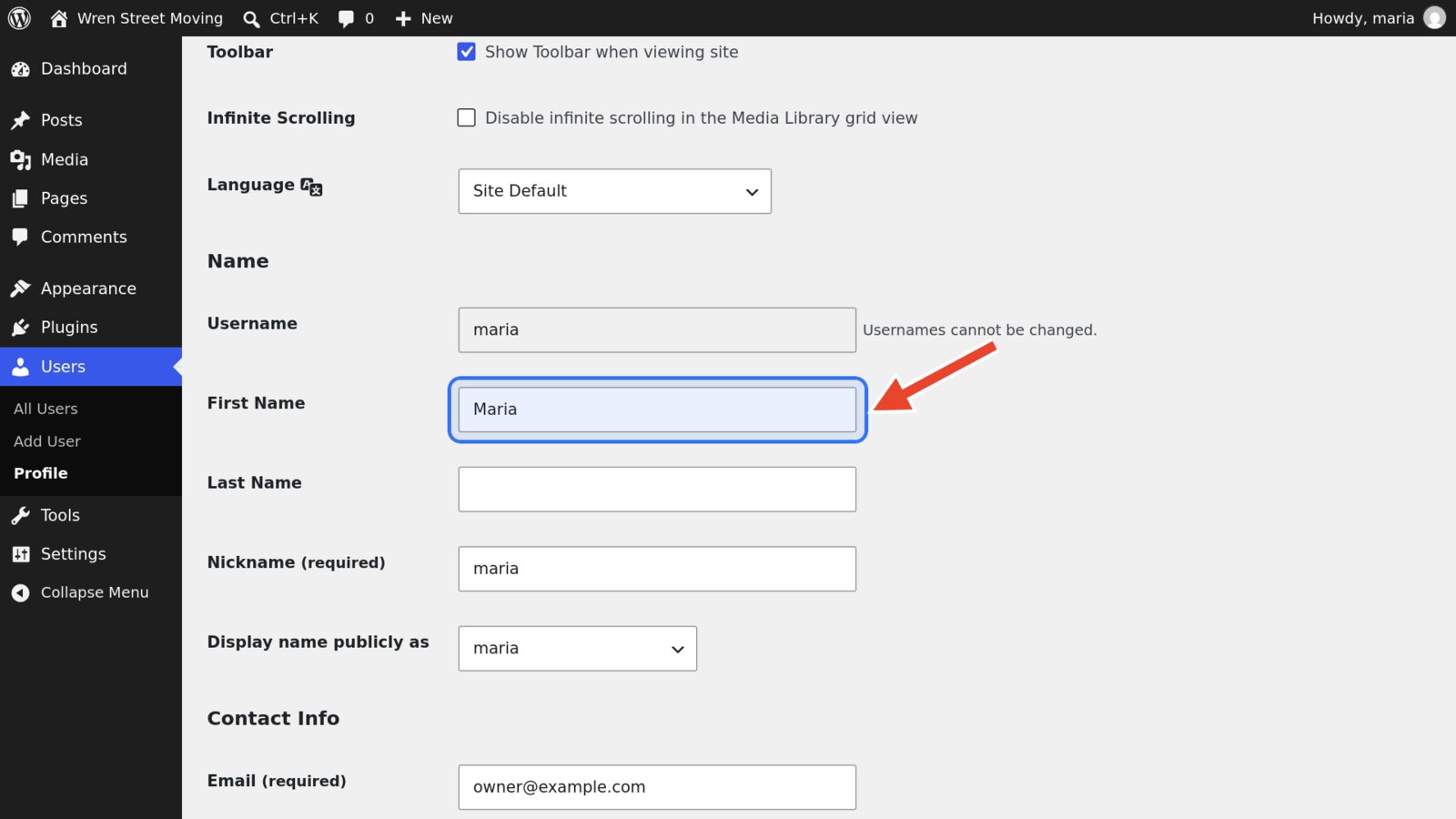
Type your first name in the First Name box.Escribe tu nombre en el cuadro First Name.
-
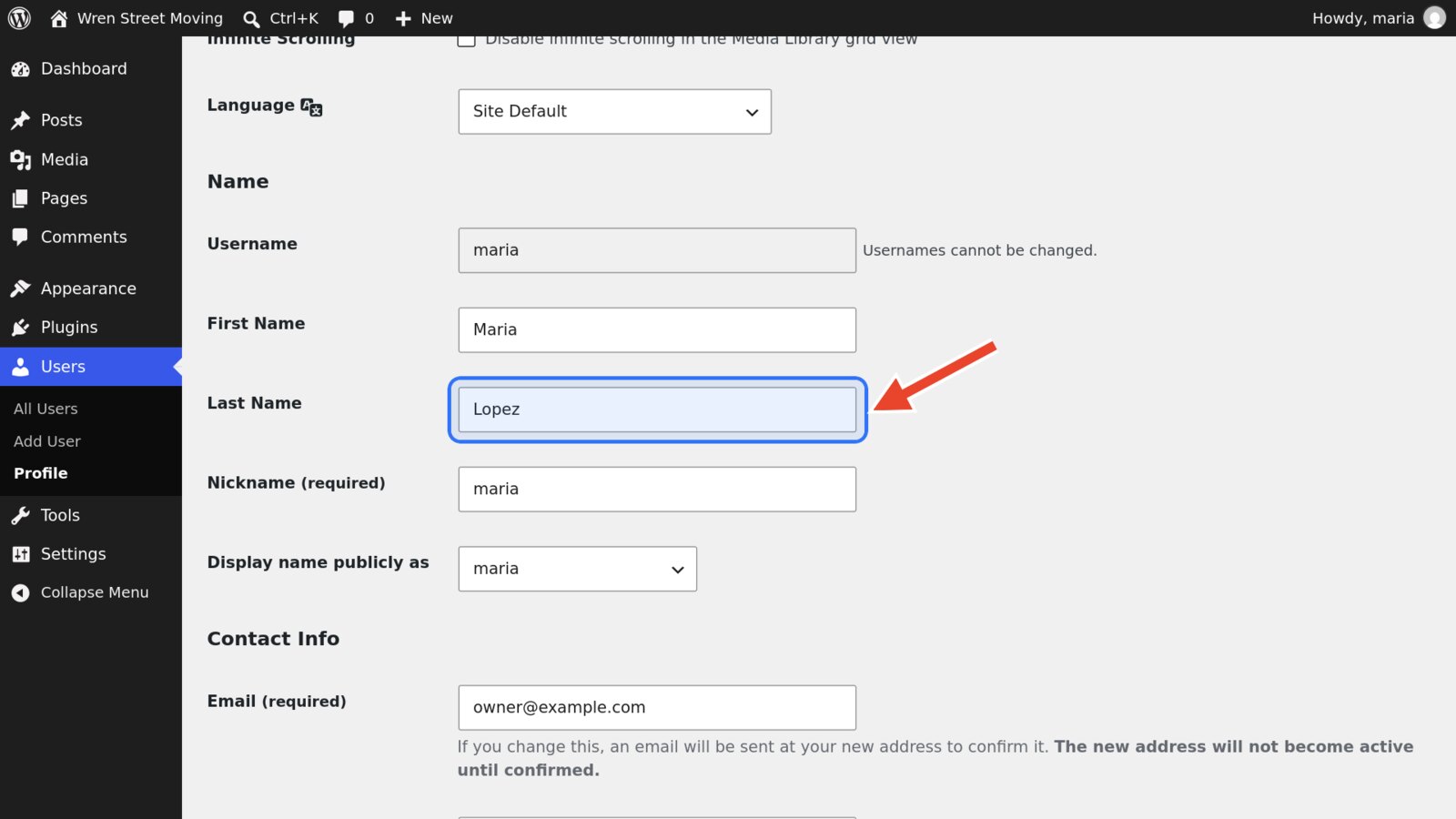
Type your last name in the Last Name box.Escribe tu apellido en el cuadro Last Name.
-
Pick Maria Lopez here. This is the name shown publicly.Elige Maria Lopez aquí. Este es el nombre que se muestra públicamente.
Tip: Your login name stays the same, even when the displayed name changes.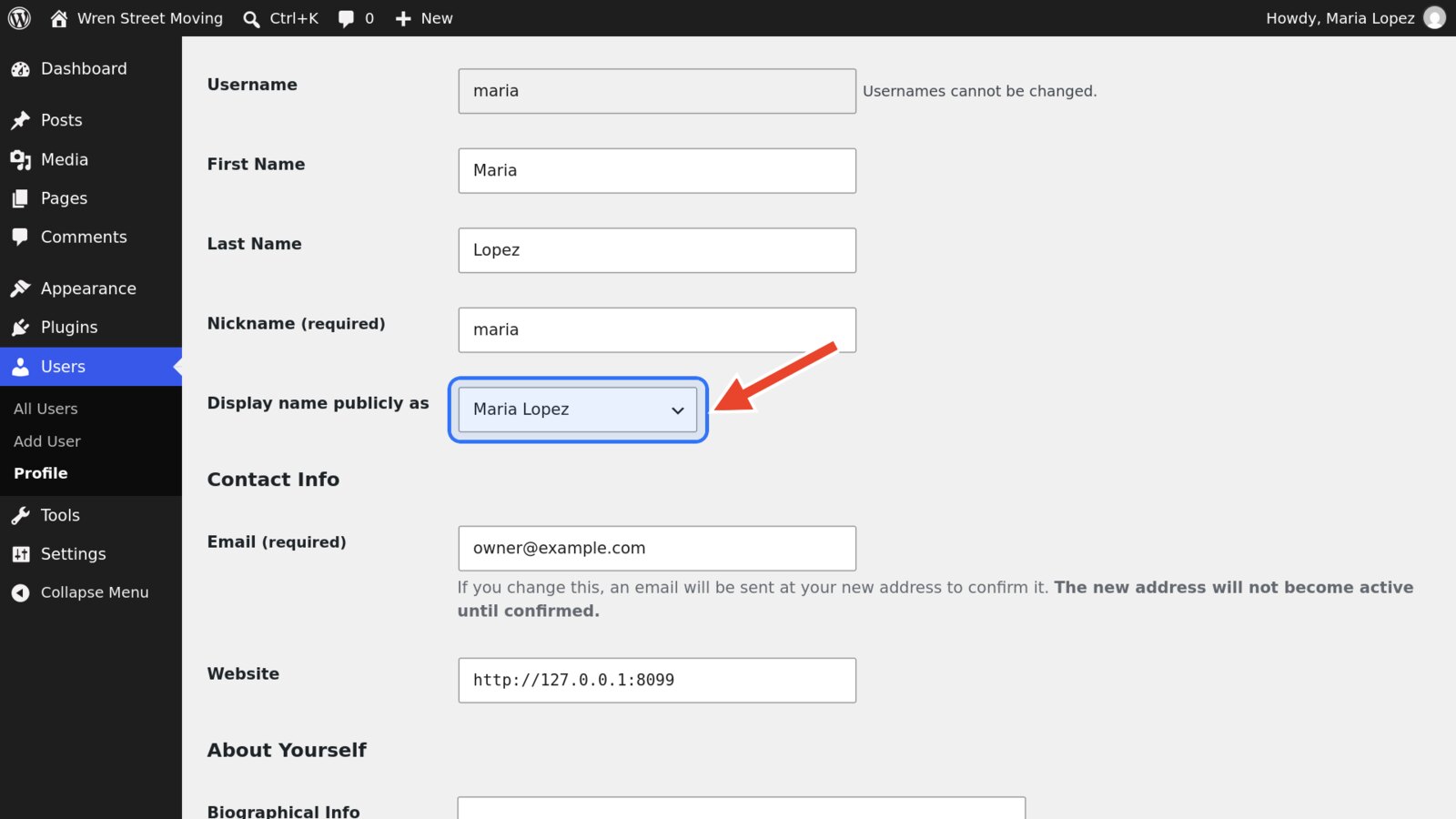
-
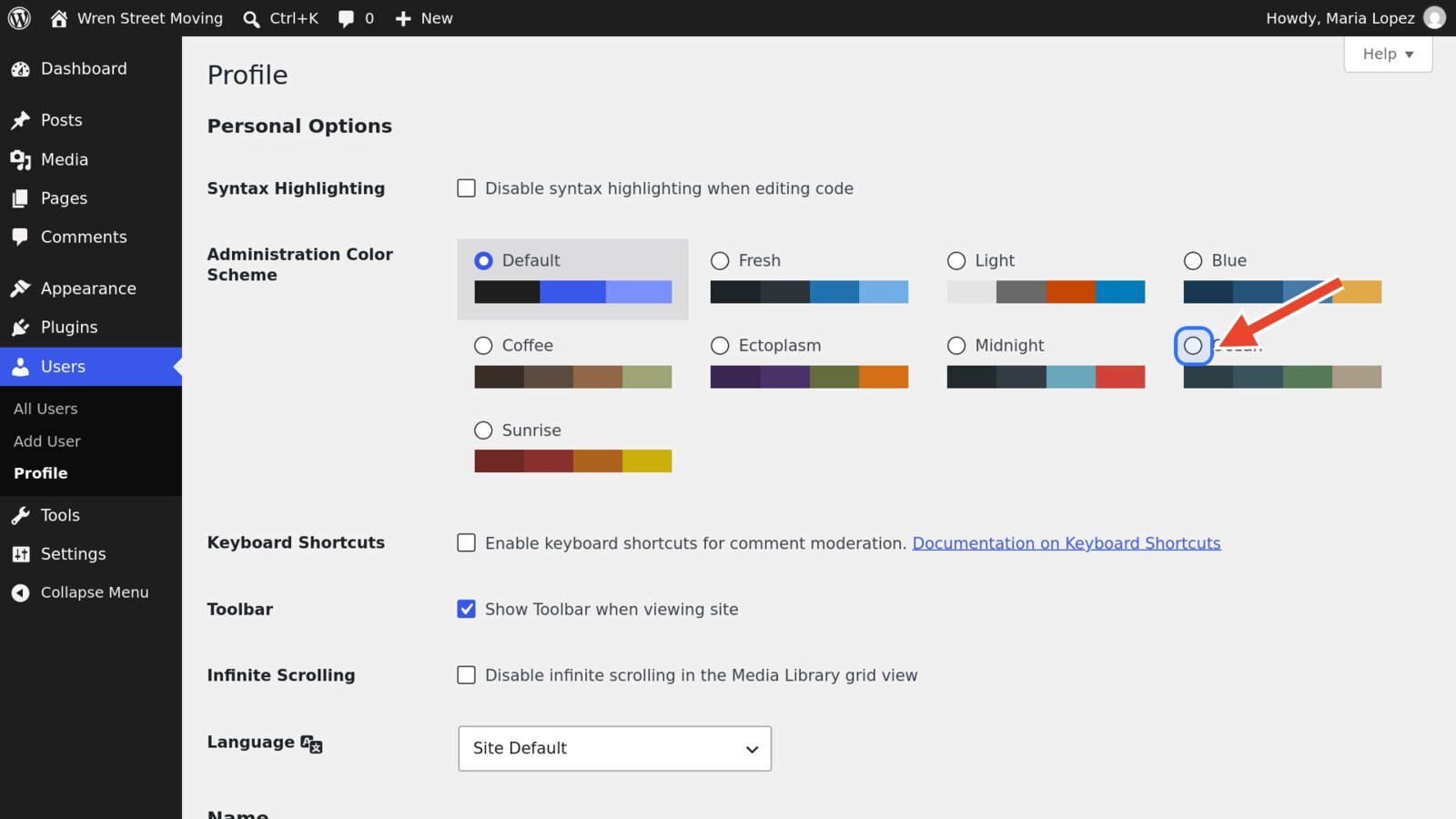
Now choose an admin color scheme. Press Ocean.Ahora elige un esquema de color. Presiona Ocean.
-
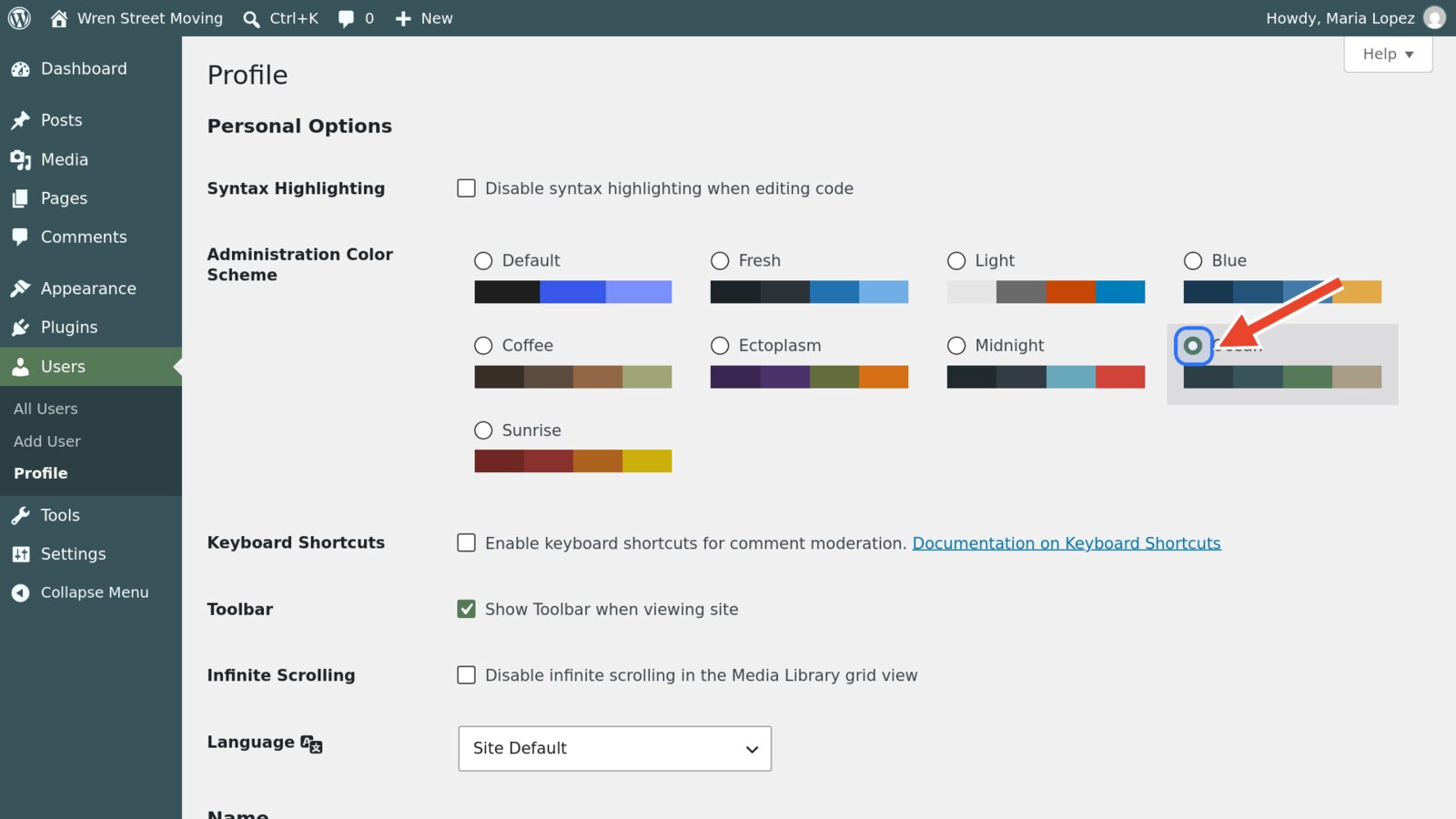
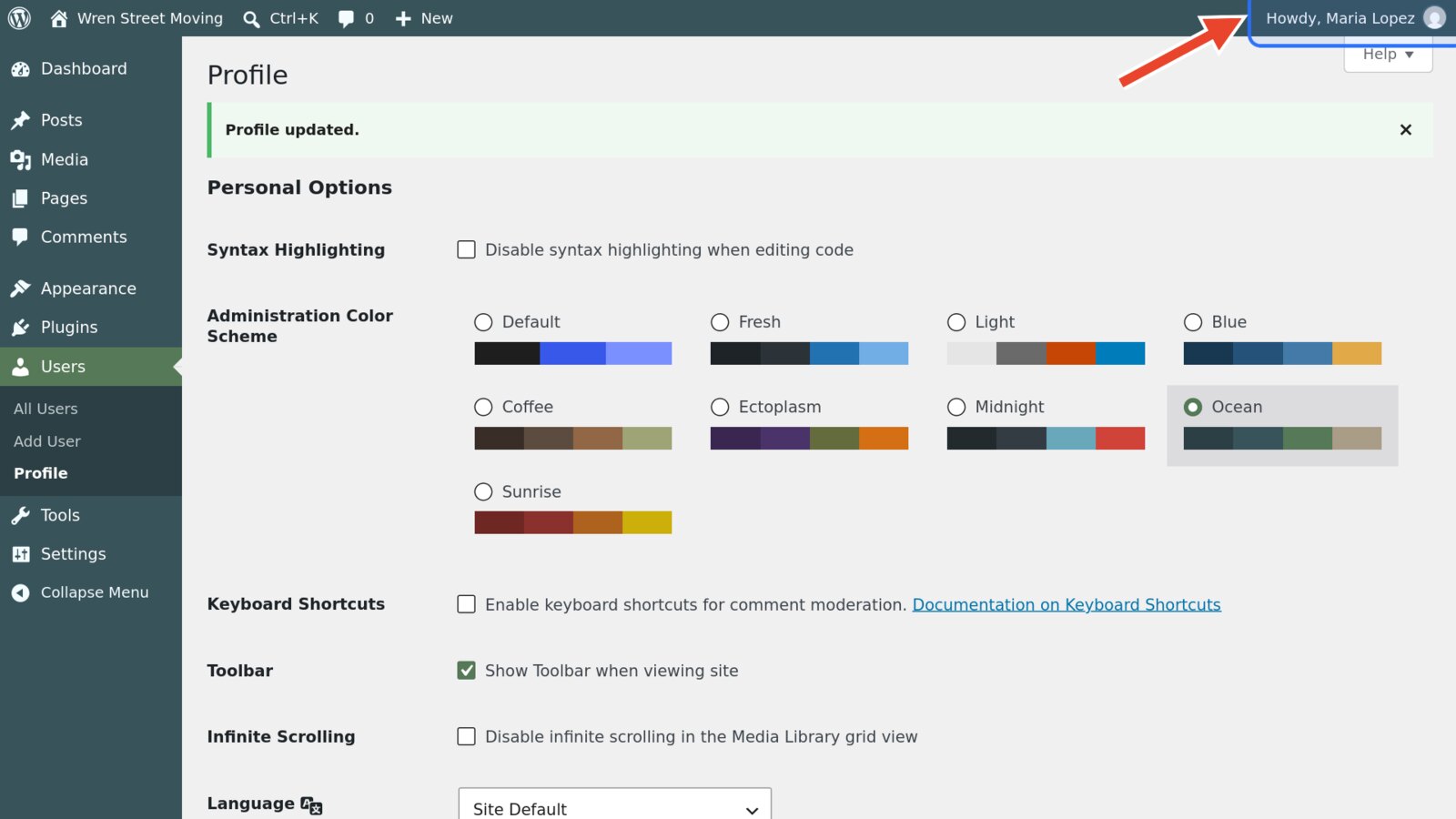
Ocean is selected, and the menu colors change right away.Ocean está seleccionado y los colores del menú cambian de inmediato.
-
A new password is set here, with Set New Password.Aquí se pone una contraseña nueva, con Set New Password.
Tip: Use a long password from a password manager.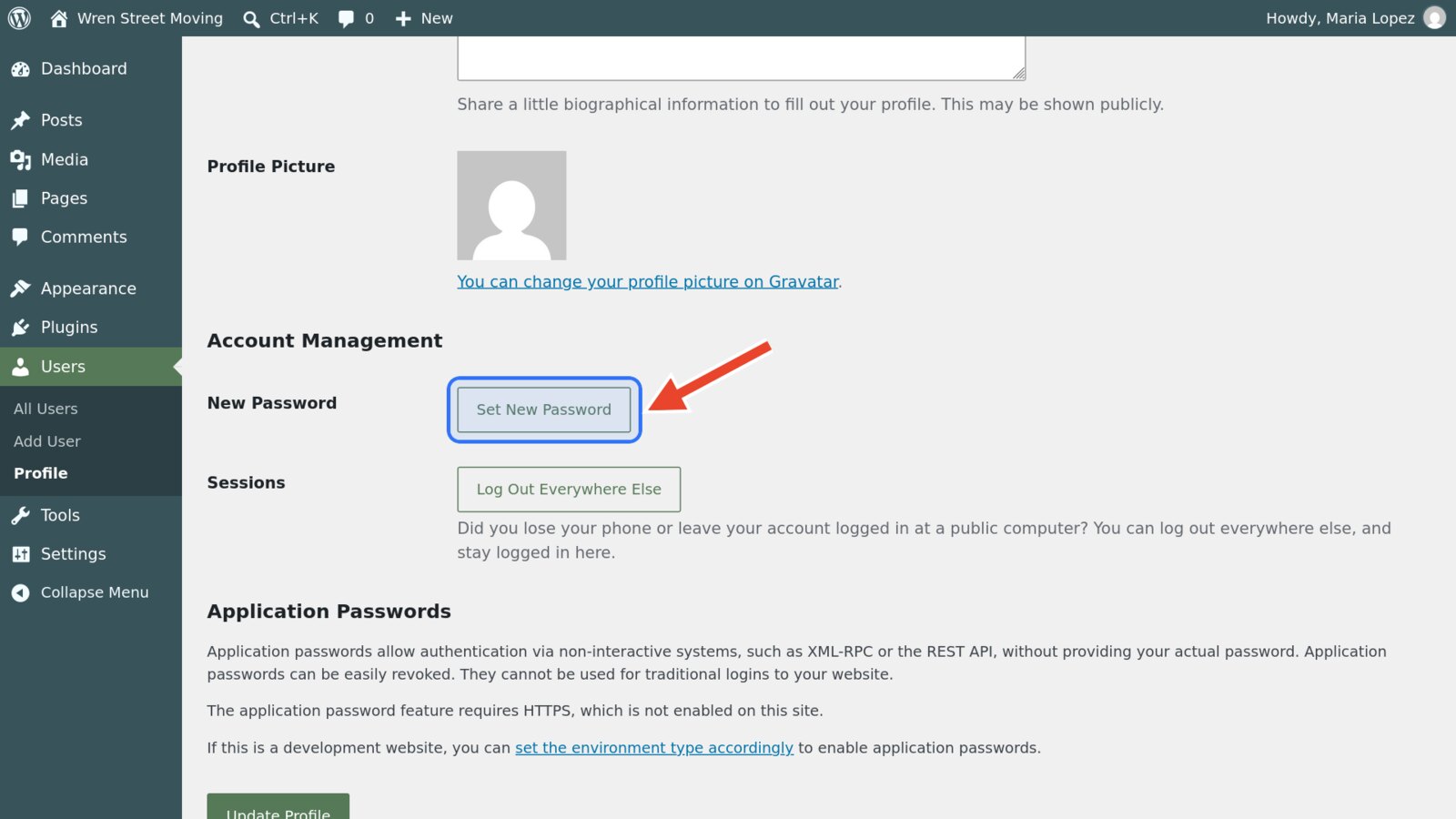
-
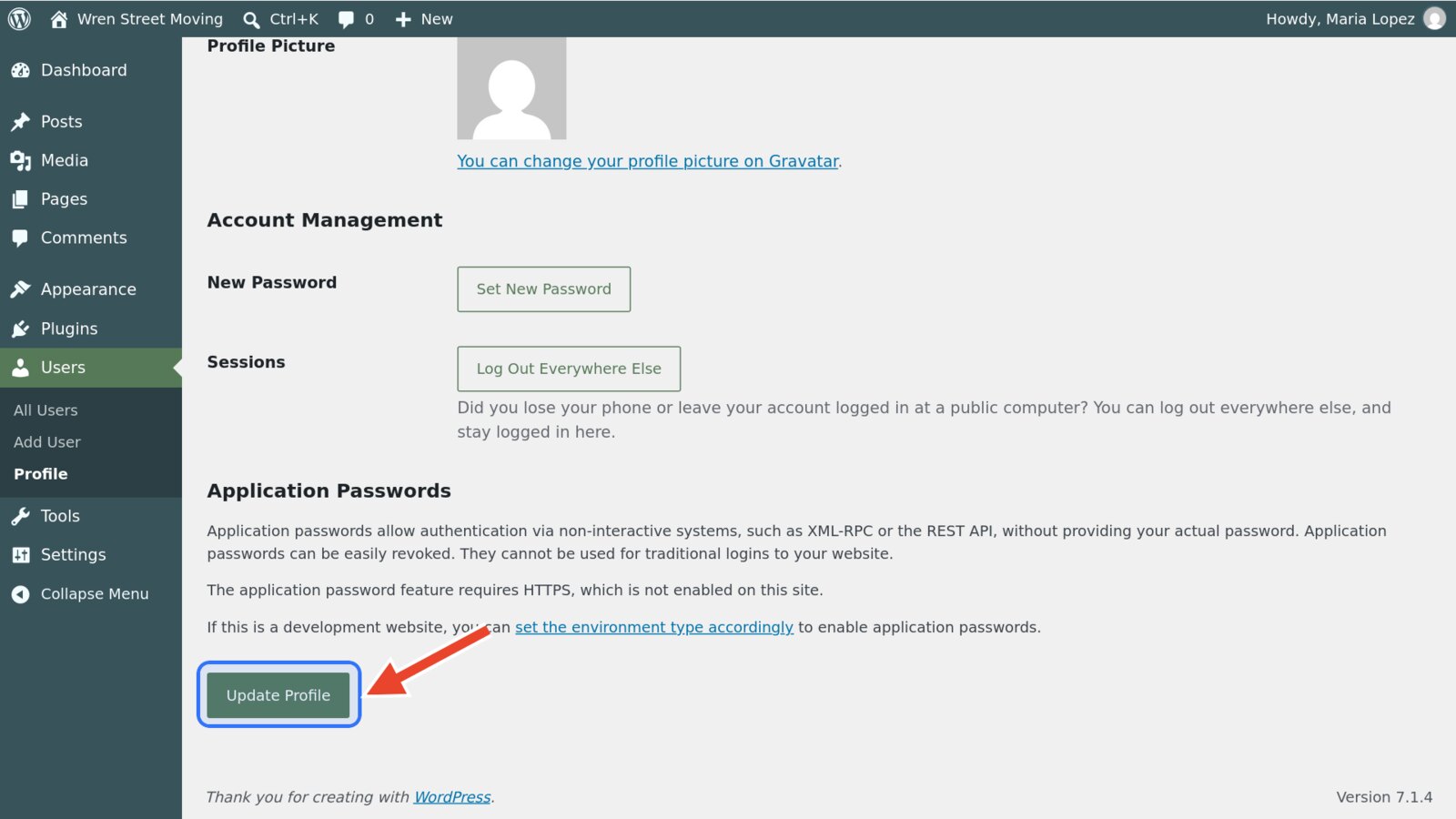
Press Update Profile to save your changes.Presiona Update Profile para guardar tus cambios.
-
Saved. The top right now greets you as Maria Lopez.Guardado. La esquina superior derecha ahora te saluda como Maria Lopez.
Stuck on your own site?
Get walked through it one-on-one, on video, on your real site. Or hand the job over and have it done.
- You click, I guide
- One price per job, set before work starts
- English or Spanish
Where this comes from
Every step was run on a real WordPress site and checked against the official WordPress documentation: