Site title, tagline and time zone
The steps
-
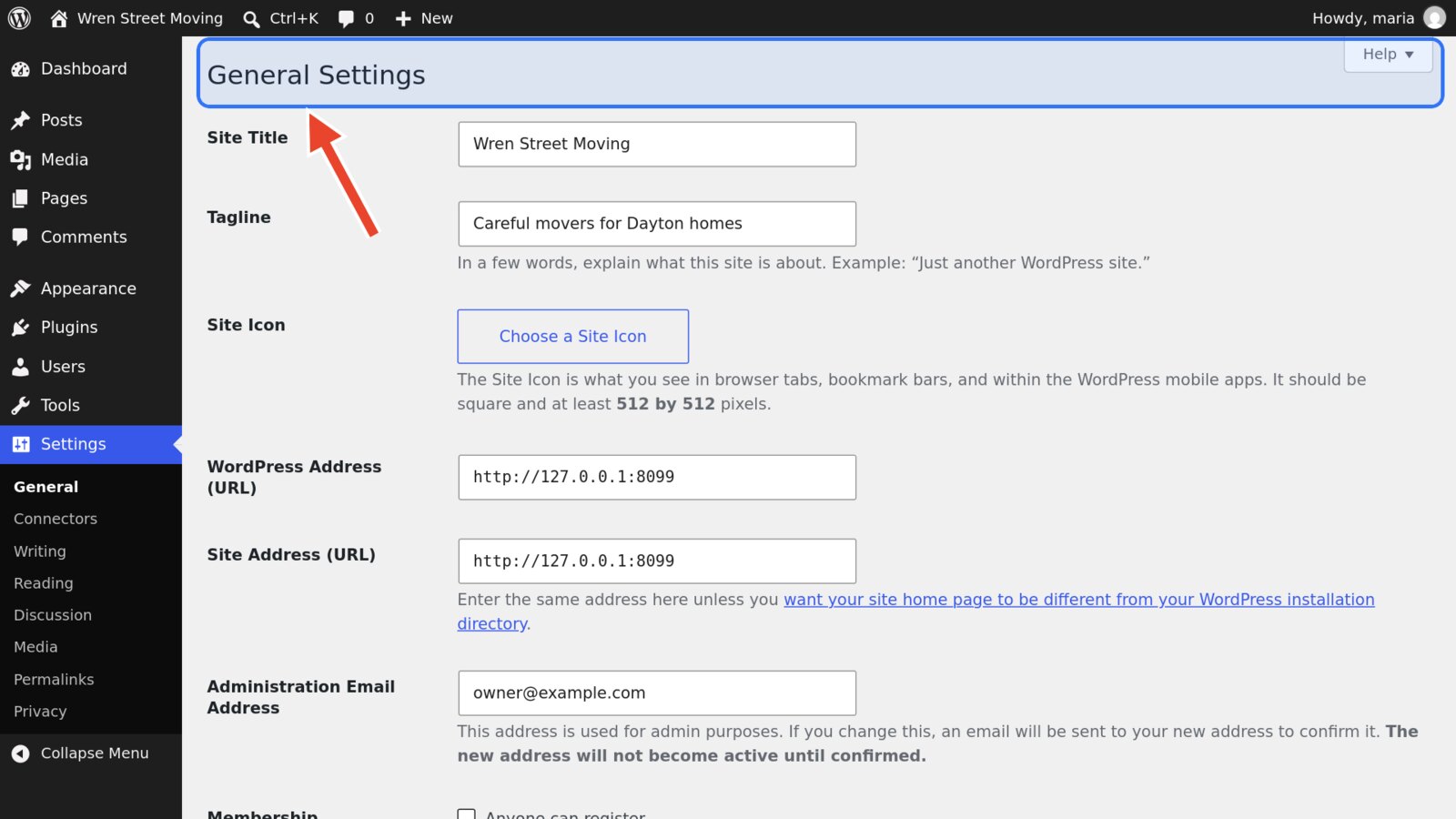
This is the General Settings screen, with your site's basic details.Esta es la pantalla General Settings, con los datos básicos de tu sitio.
-
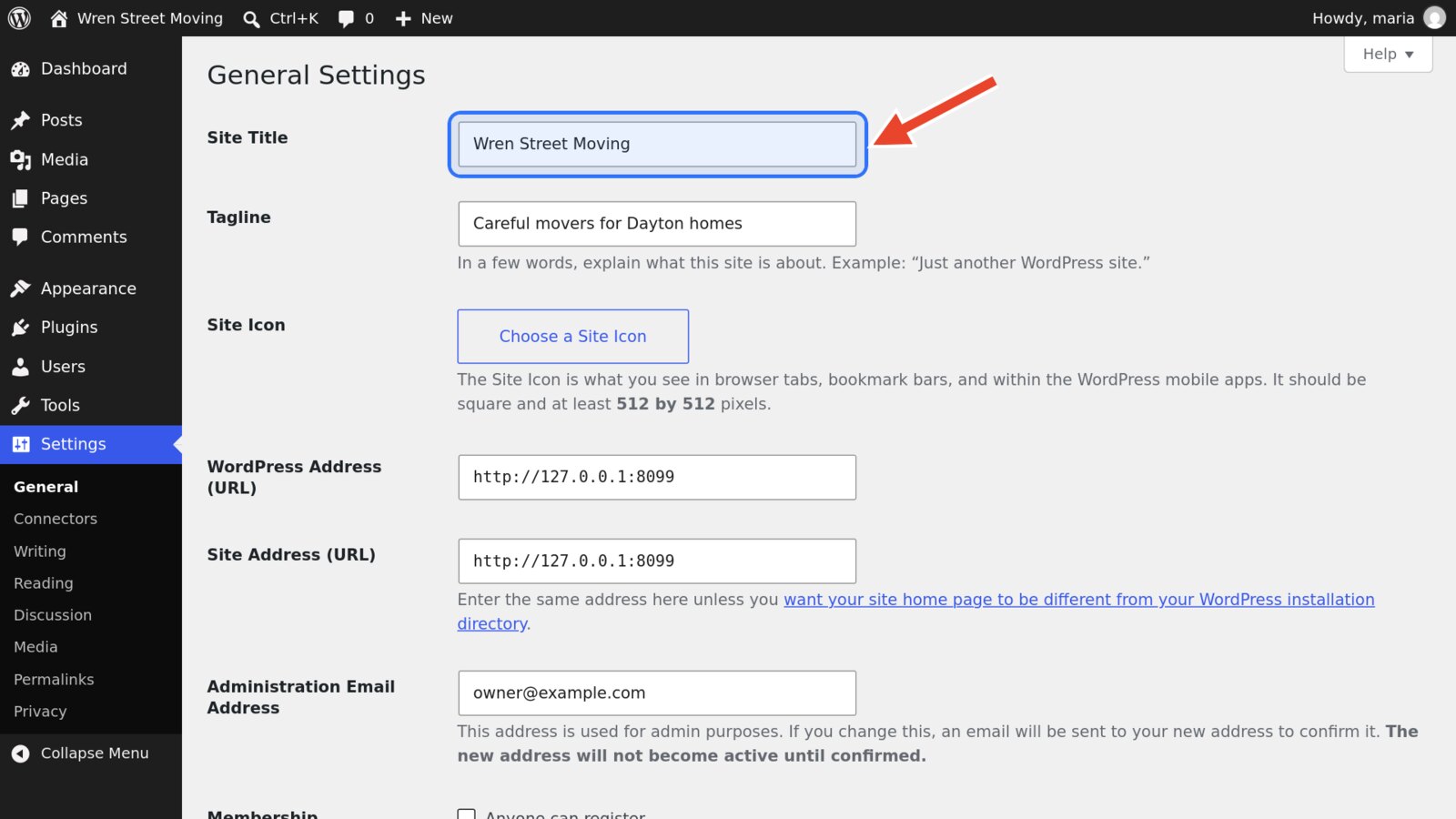
Site Title is the name of your site. We will leave it as is.Site Title es el nombre de tu sitio. Lo dejaremos igual.
-
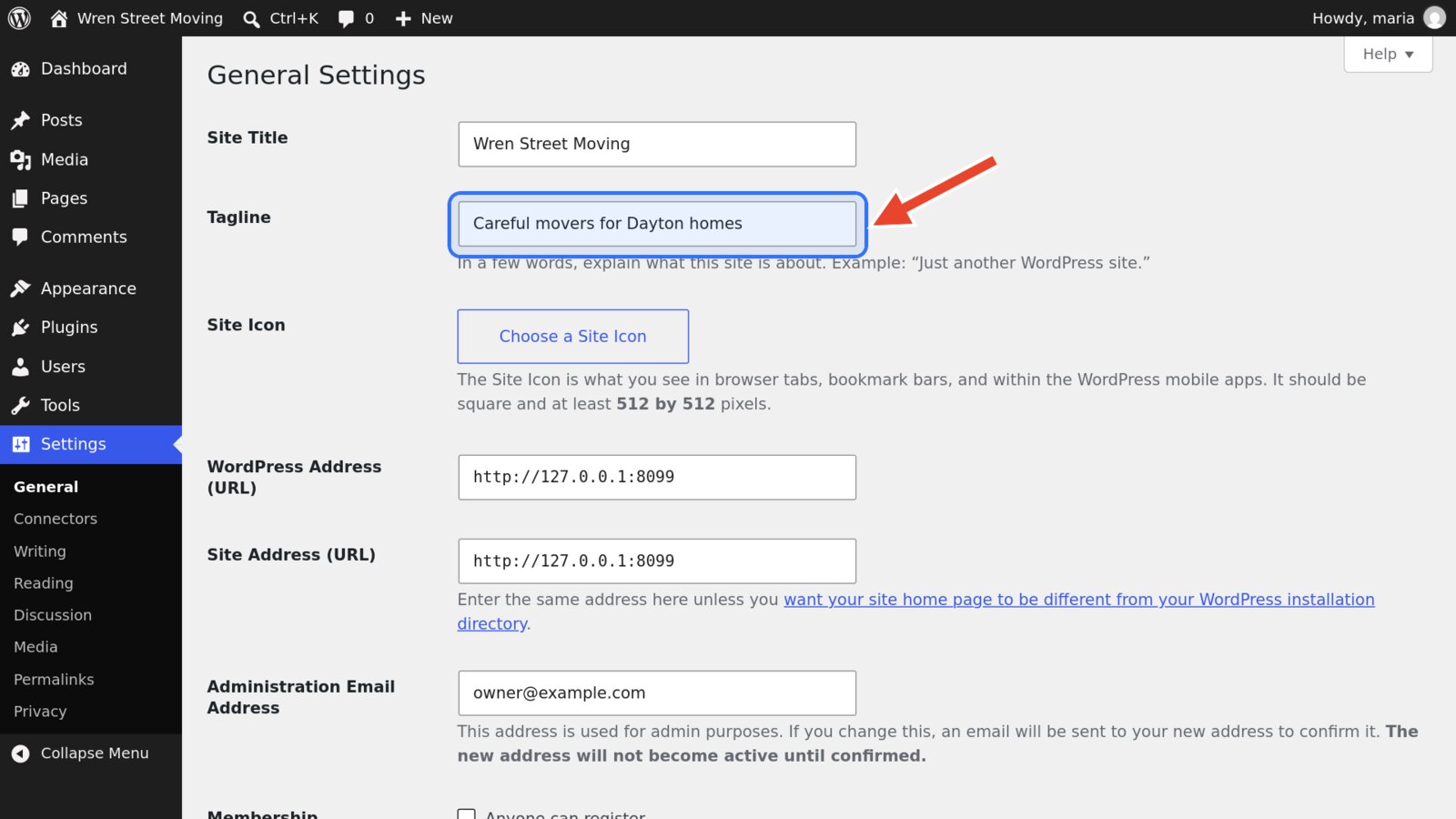
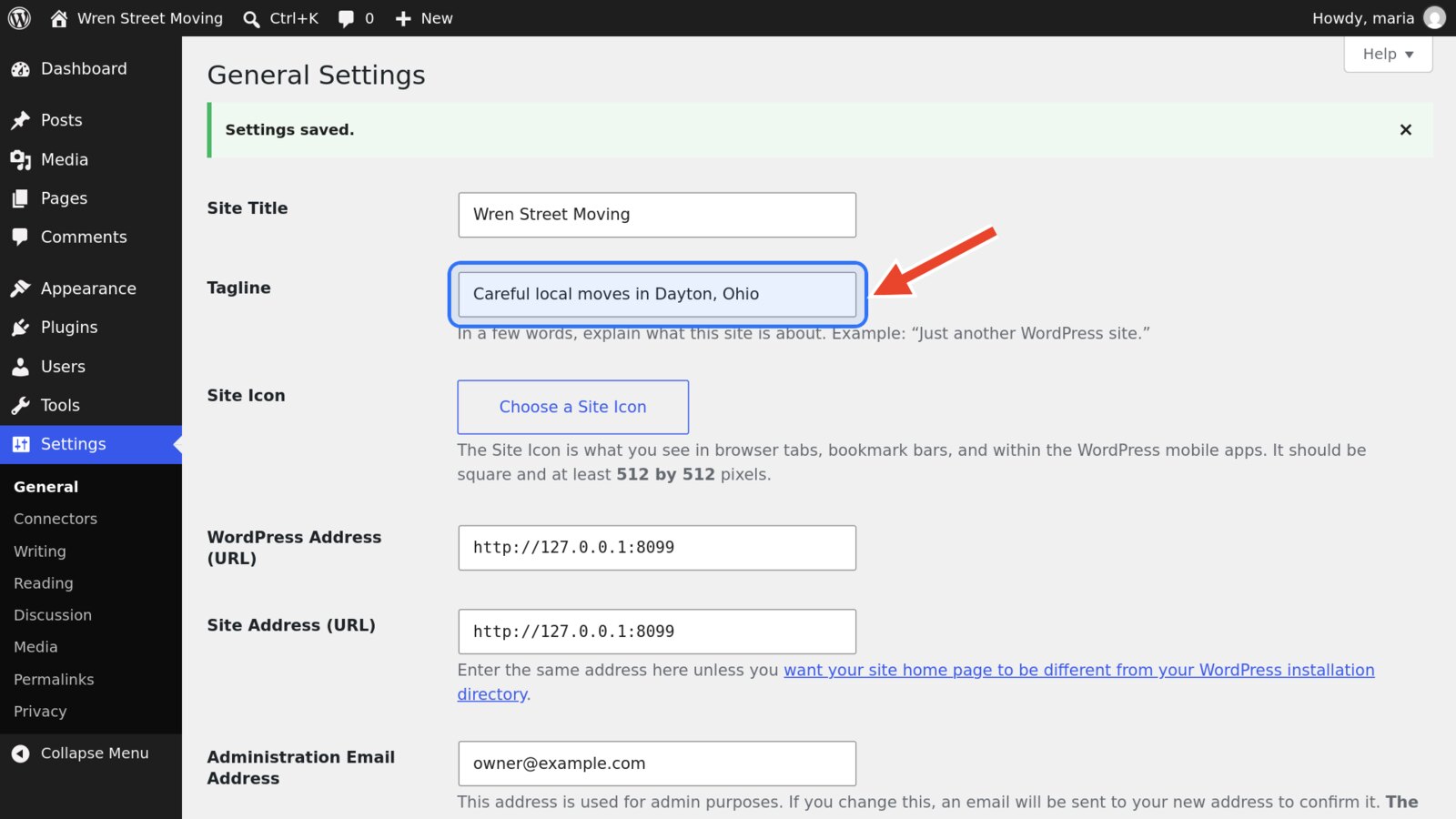
Tagline is a short phrase that says what your site is about.Tagline es una frase corta que dice de qué trata tu sitio.
-
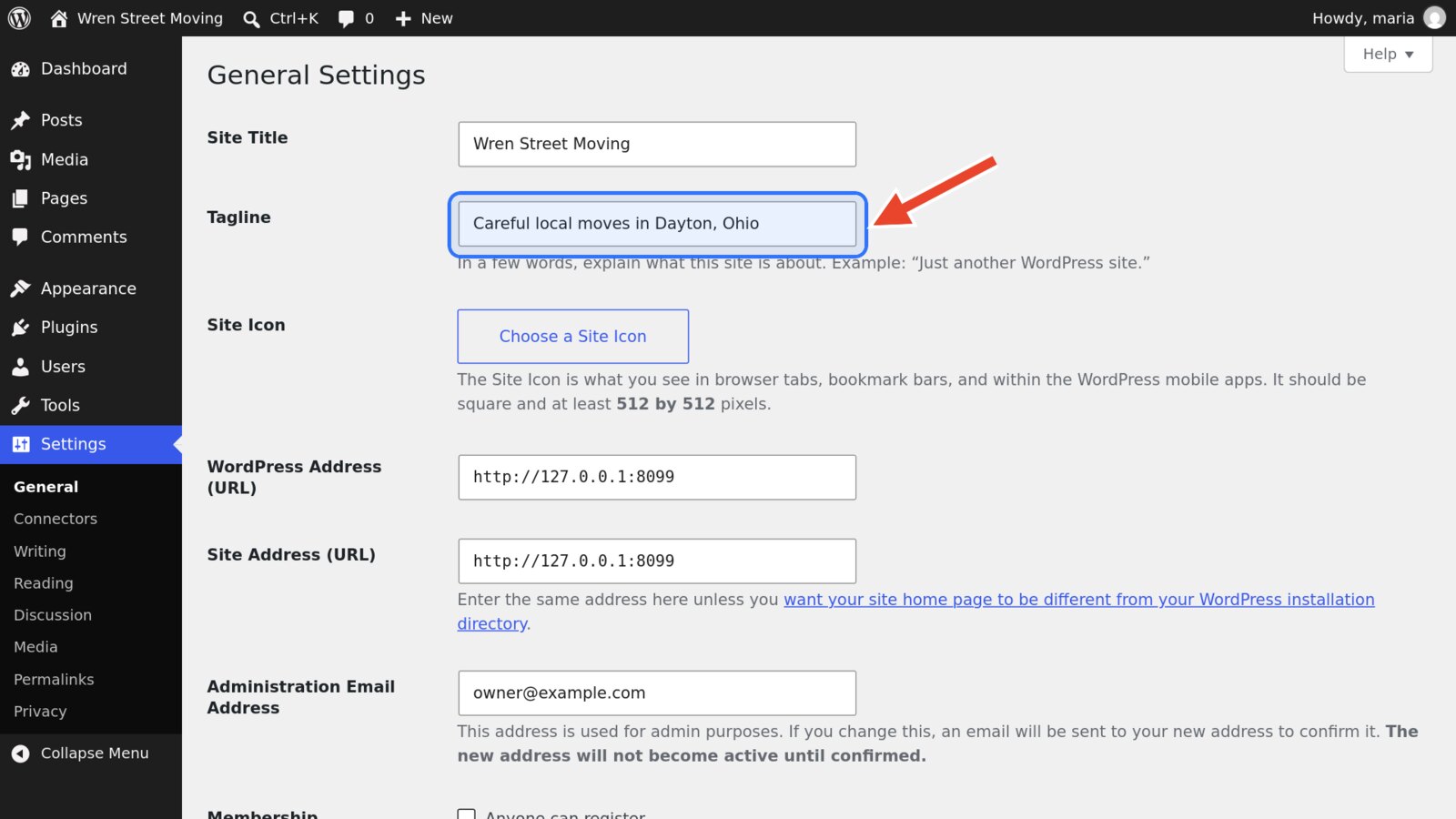
Type your new tagline in this box.Escribe tu nuevo tagline en este cuadro.
-
Do not touch the WordPress Address. Leave it exactly as it is.No toques el WordPress Address. Déjalo exactamente como está.
Tip: A wrong address here can lock you out of your site.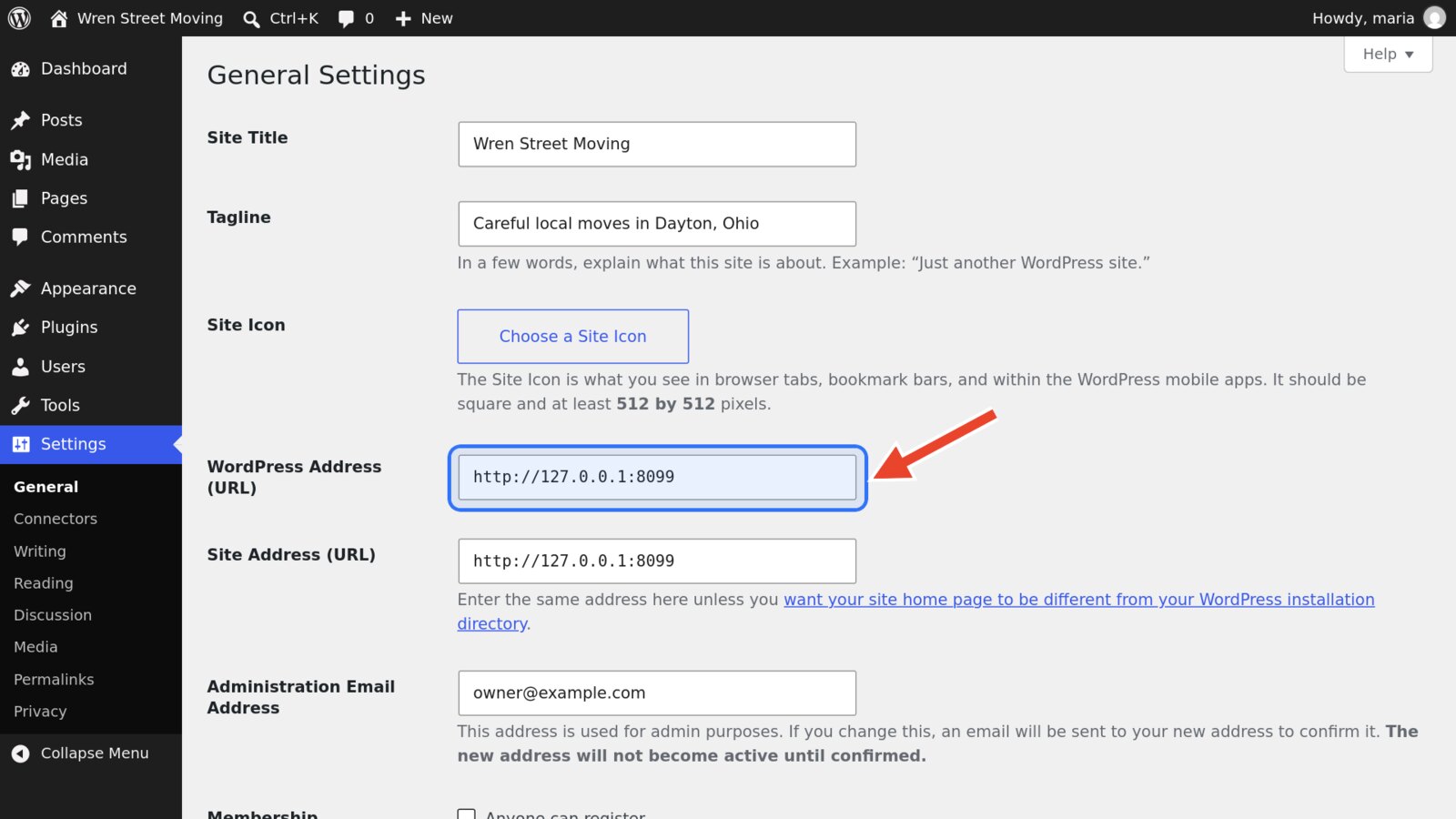
-
Time zone is set to New York, which fits Dayton, Ohio.Time zone está en New York, que corresponde a Dayton, Ohio.
Tip: Set the time zone so scheduled posts go out when you expect.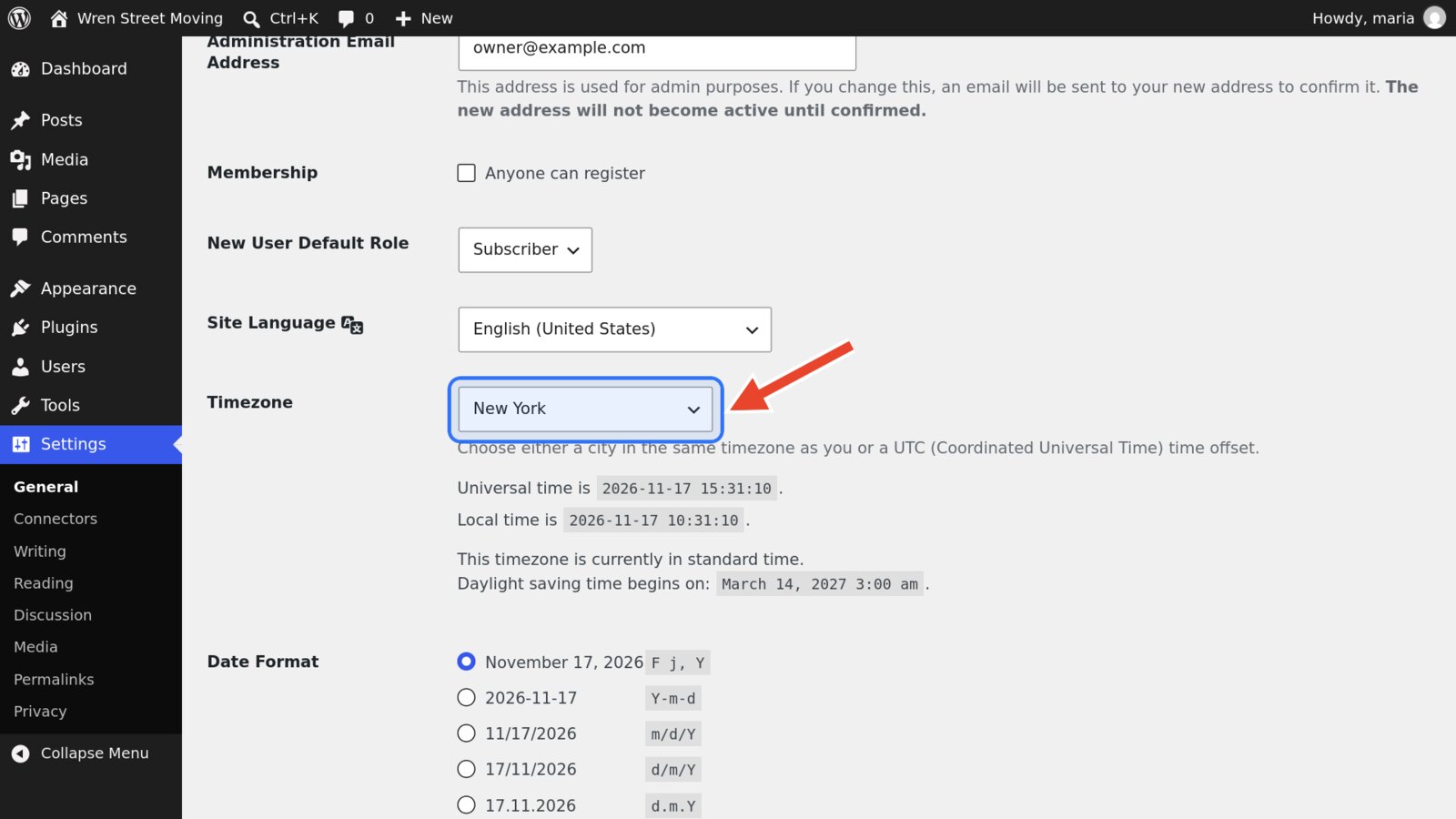
-
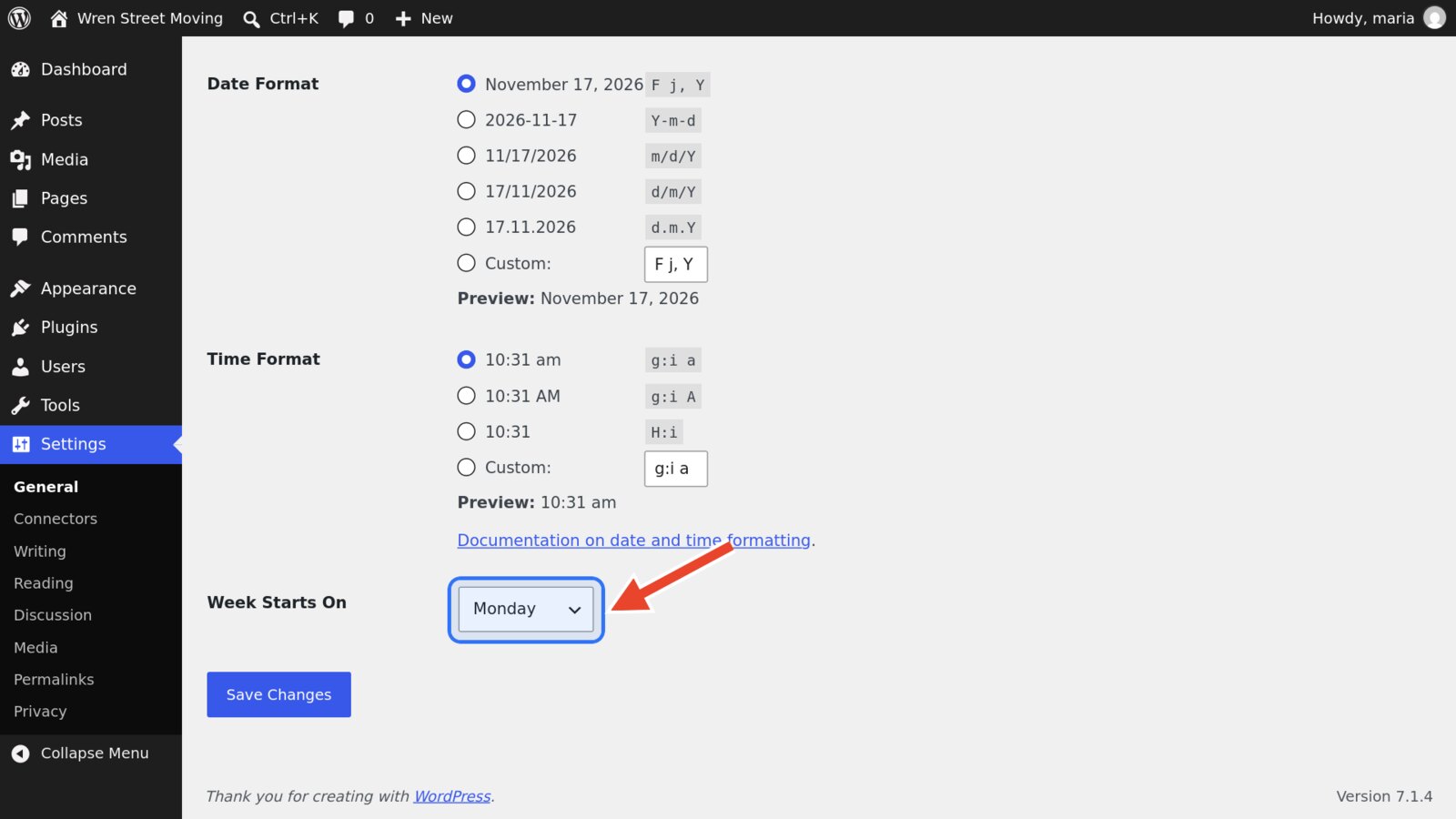
Week Starts On controls which day your calendars begin with.Week Starts On define con qué día empiezan tus calendarios.
-
Press Save Changes at the bottom to keep your edits.Presiona Save Changes, abajo, para guardar tus cambios.
Tip: Nothing is saved until you press this button.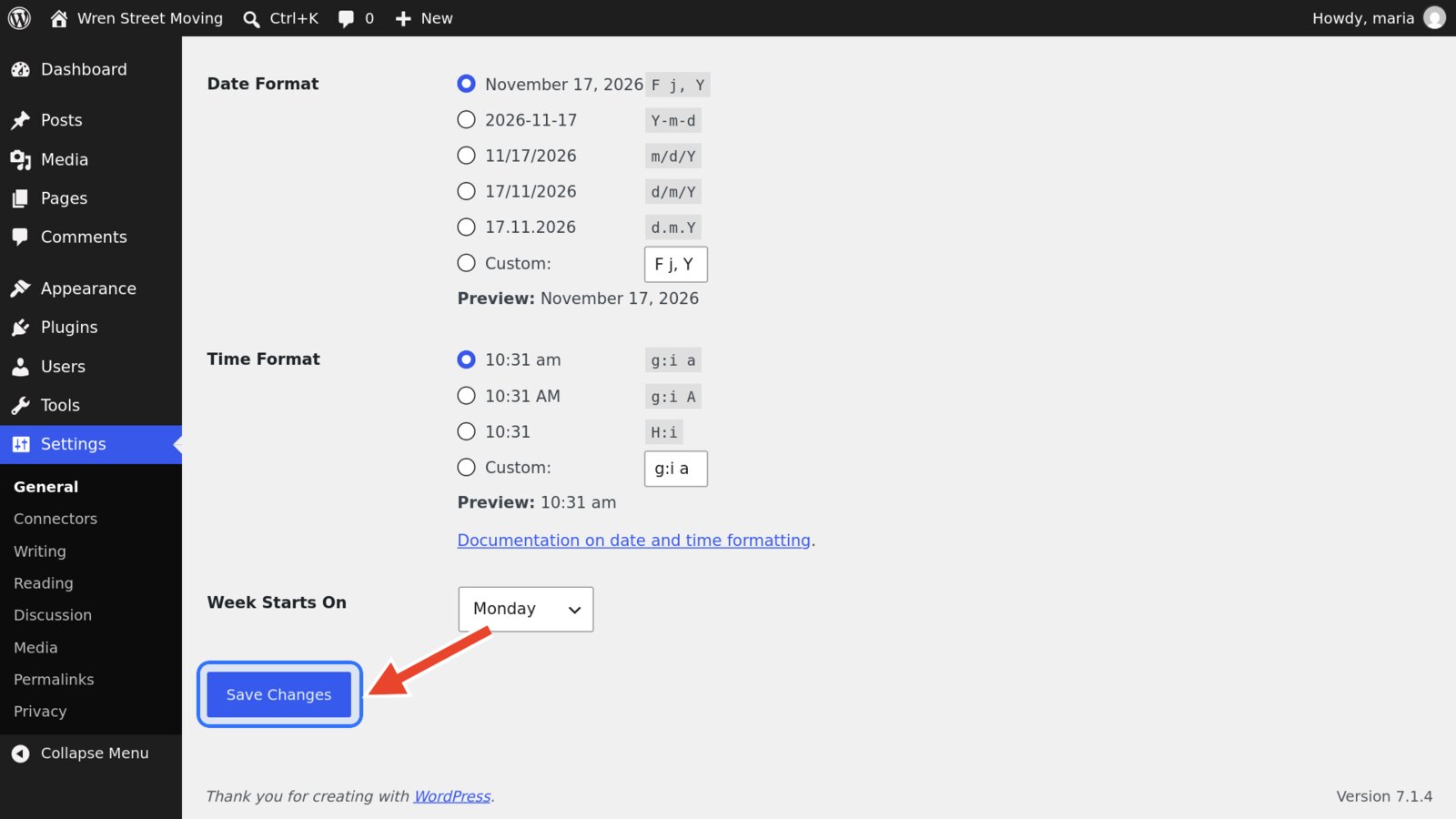
-
Saved. The new tagline now shows in the Tagline box.Guardado. El nuevo tagline ya aparece en el cuadro Tagline.
-
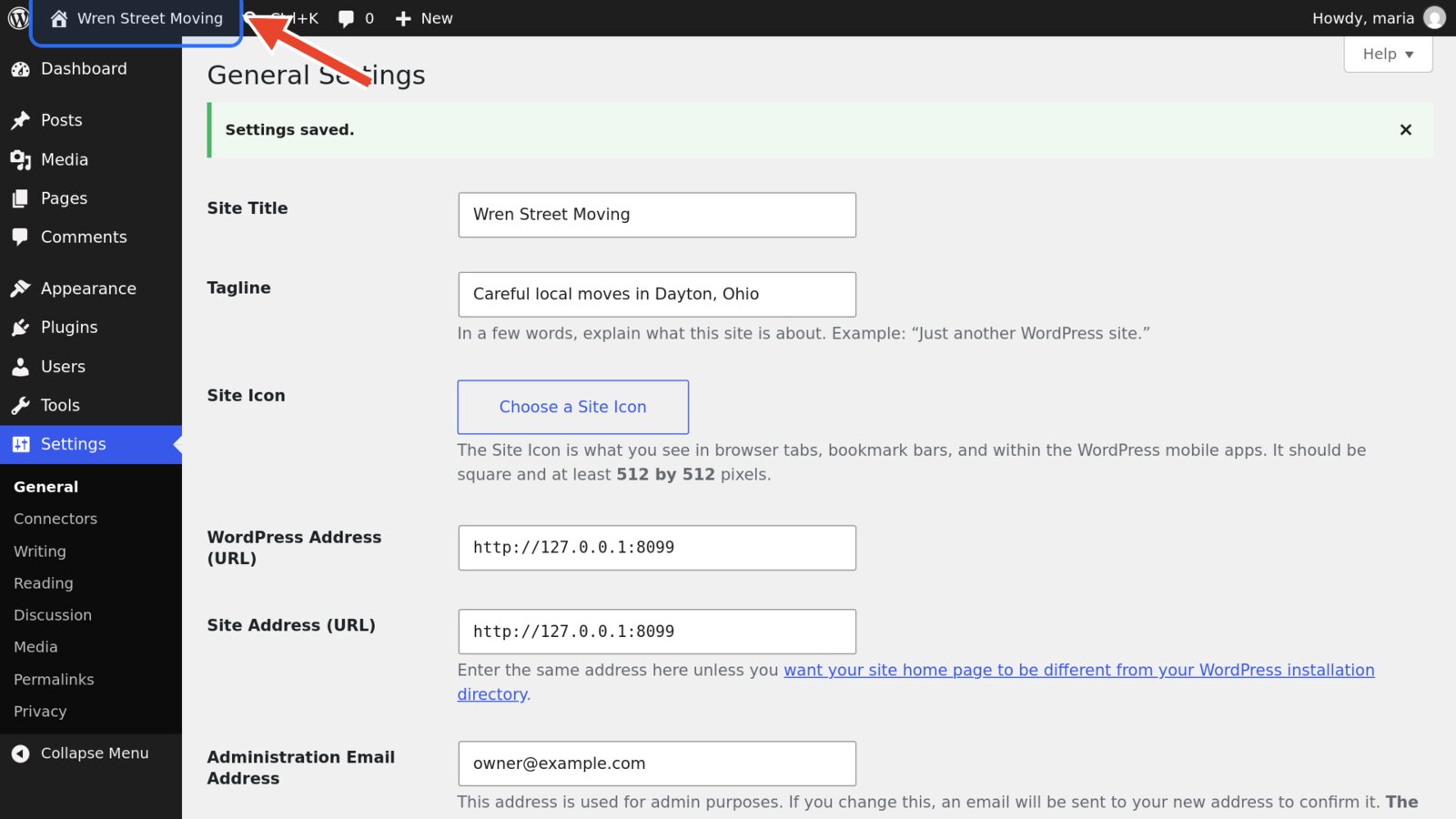
Your site name stays at the top, and your changes are now stored.El nombre de tu sitio sigue arriba y tus cambios ya quedaron guardados.
Stuck on your own site?
Get walked through it one-on-one, on video, on your real site. Or hand the job over and have it done.
- You click, I guide
- One price per job, set before work starts
- English or Spanish
Where this comes from
Every step was run on a real WordPress site and checked against the official WordPress documentation: