Choose your privacy policy page
The steps
-
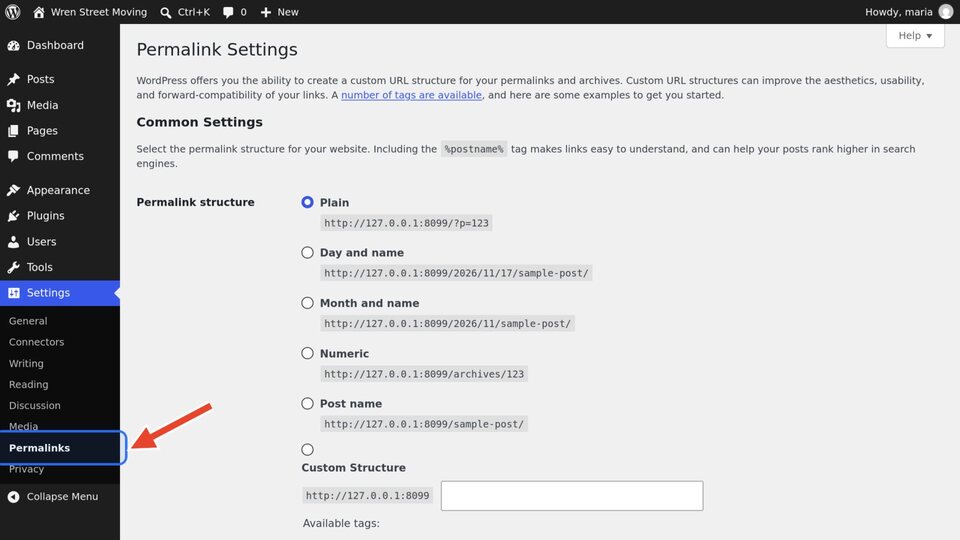
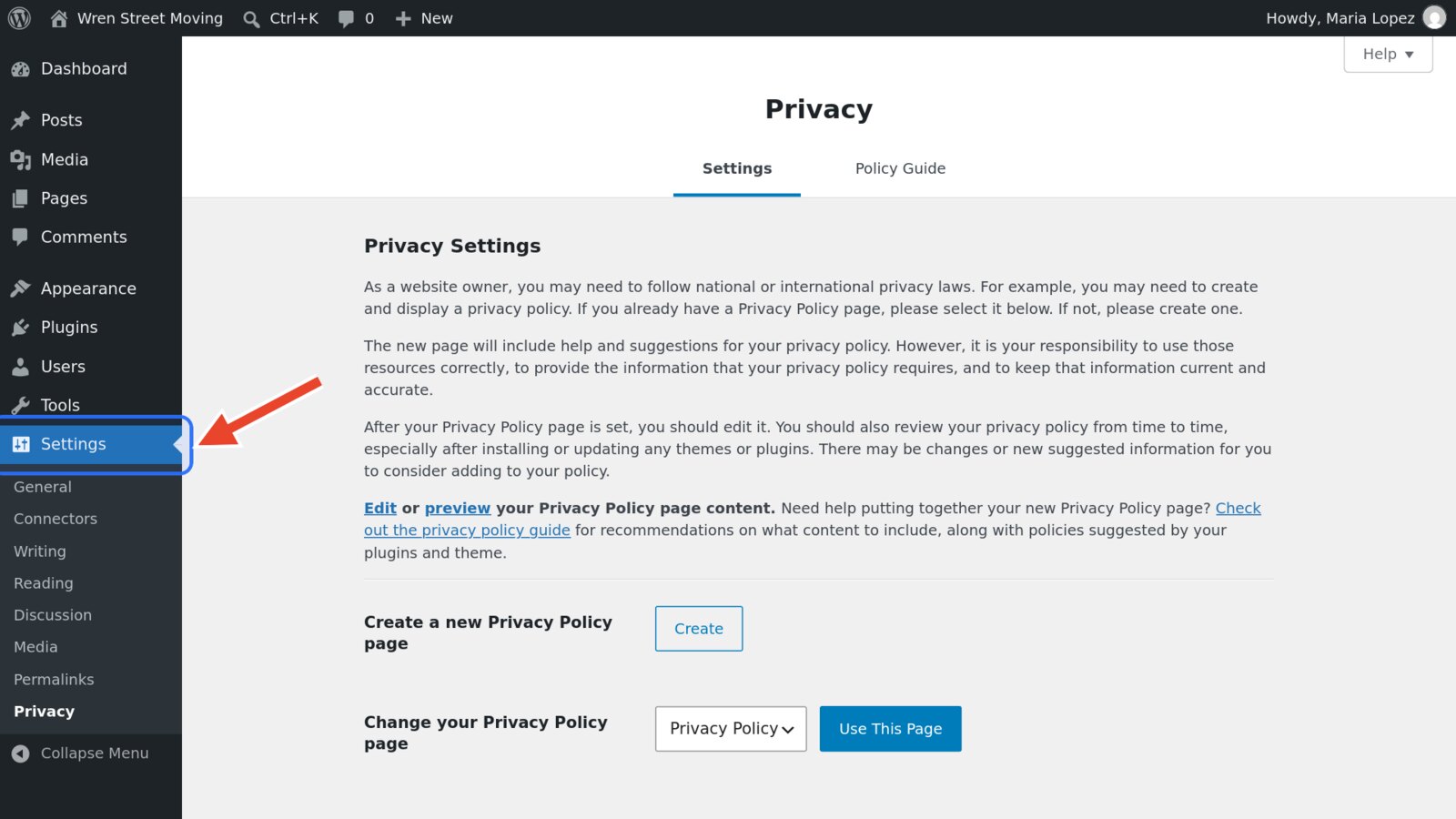
Settings in the left menu holds the Privacy screen.Settings, en el menú de la izquierda, tiene la pantalla Privacy.
-
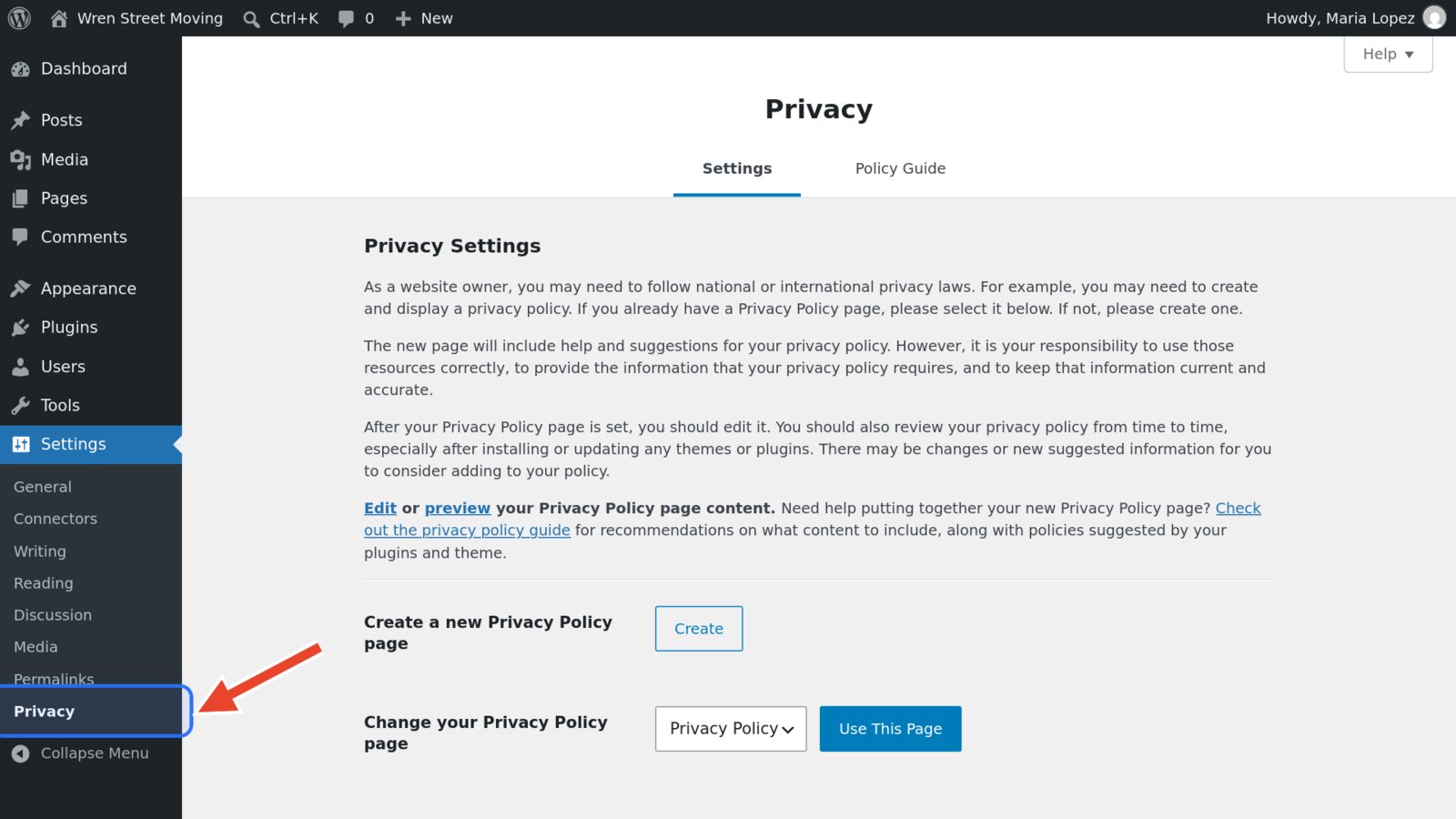
Privacy is listed under Settings. That is the screen we are on.Privacy está dentro de Settings. Esa es la pantalla donde estamos.
-
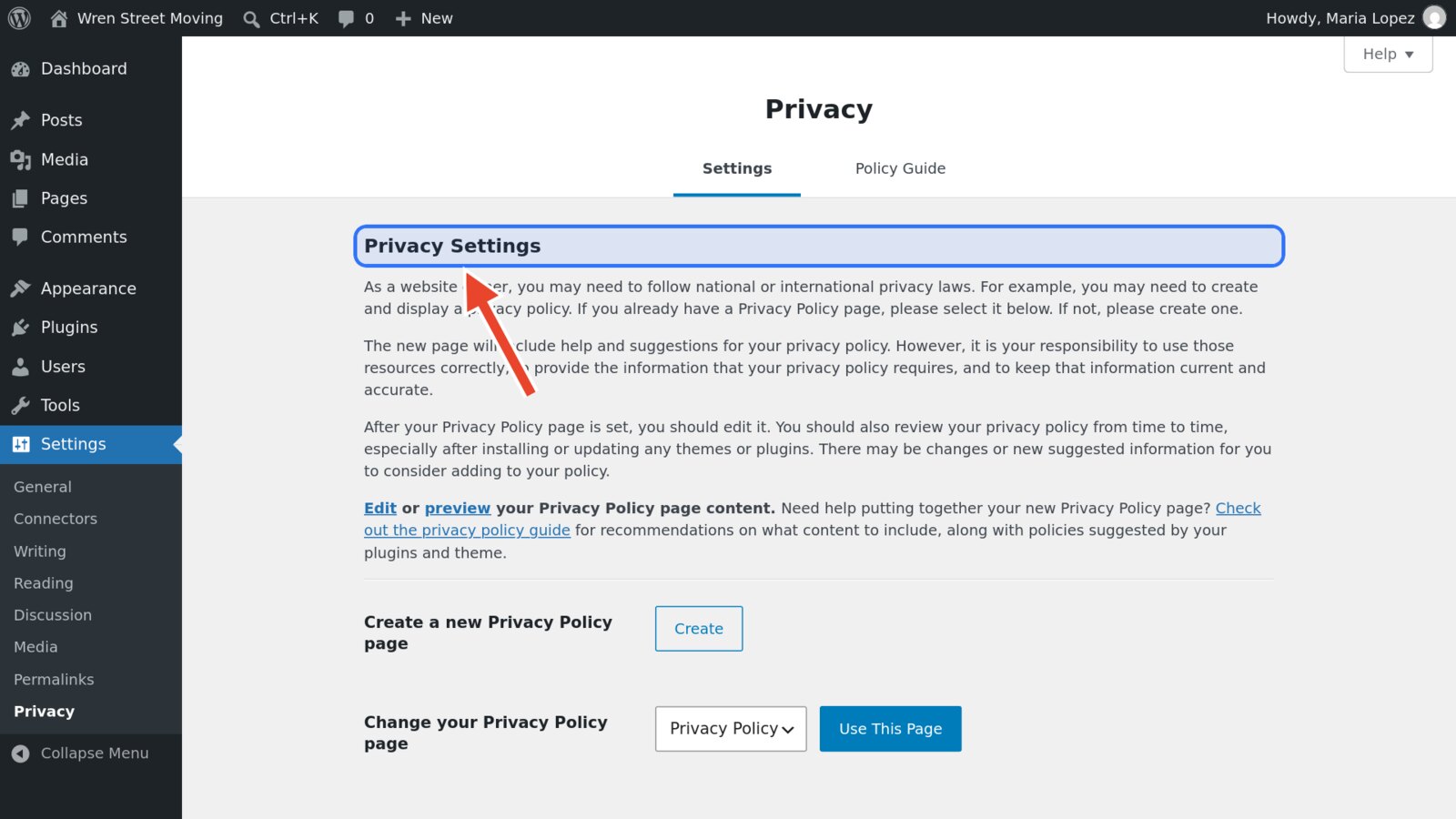
A privacy policy page tells visitors how your site handles their information.Una página de política de privacidad explica a los visitantes cómo tu sitio maneja su información.
-
The Create button makes a new starter privacy page.El botón Create crea una página de privacidad inicial.
Tip: WordPress gives you a starter privacy policy draft to edit.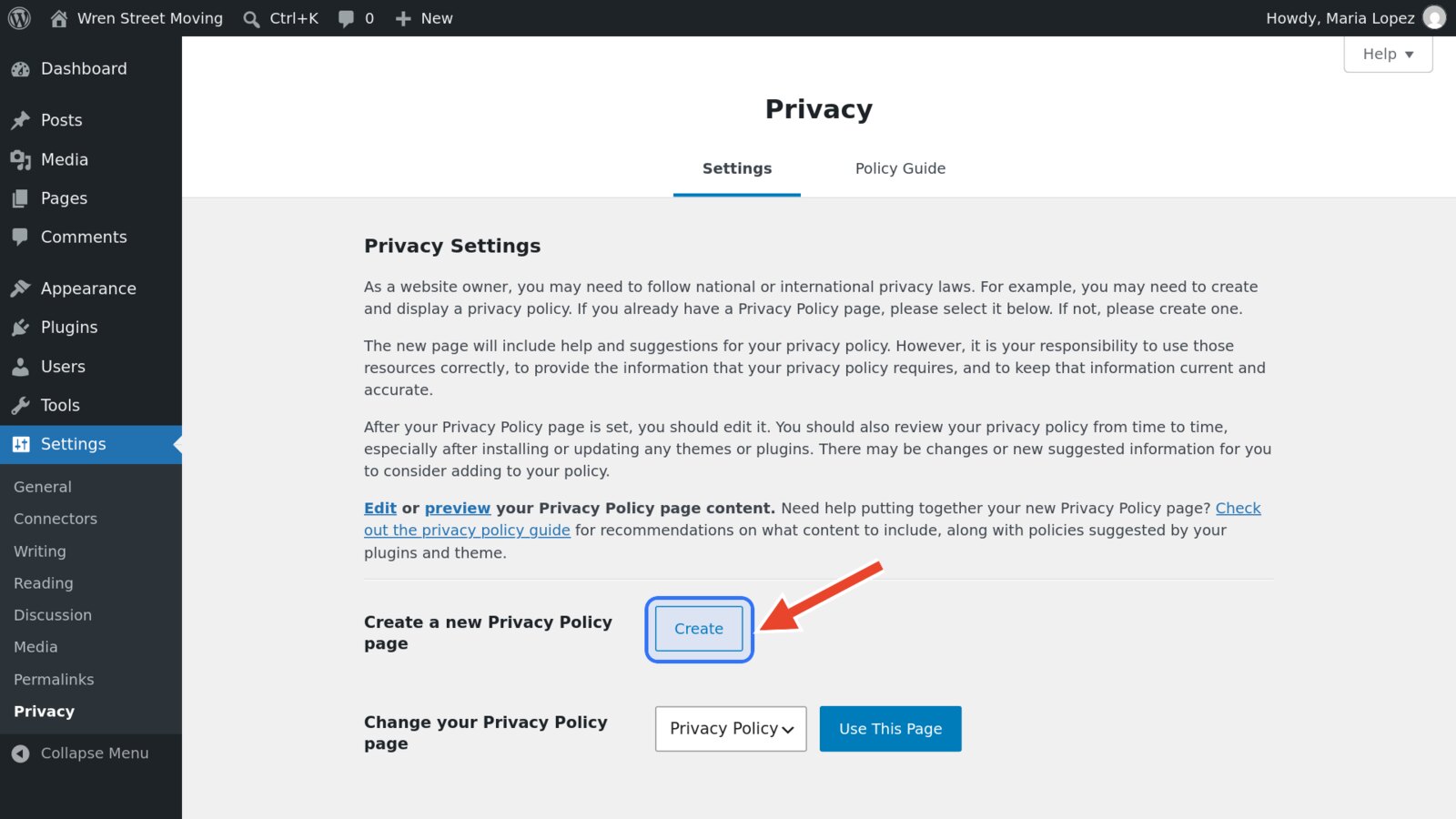
-
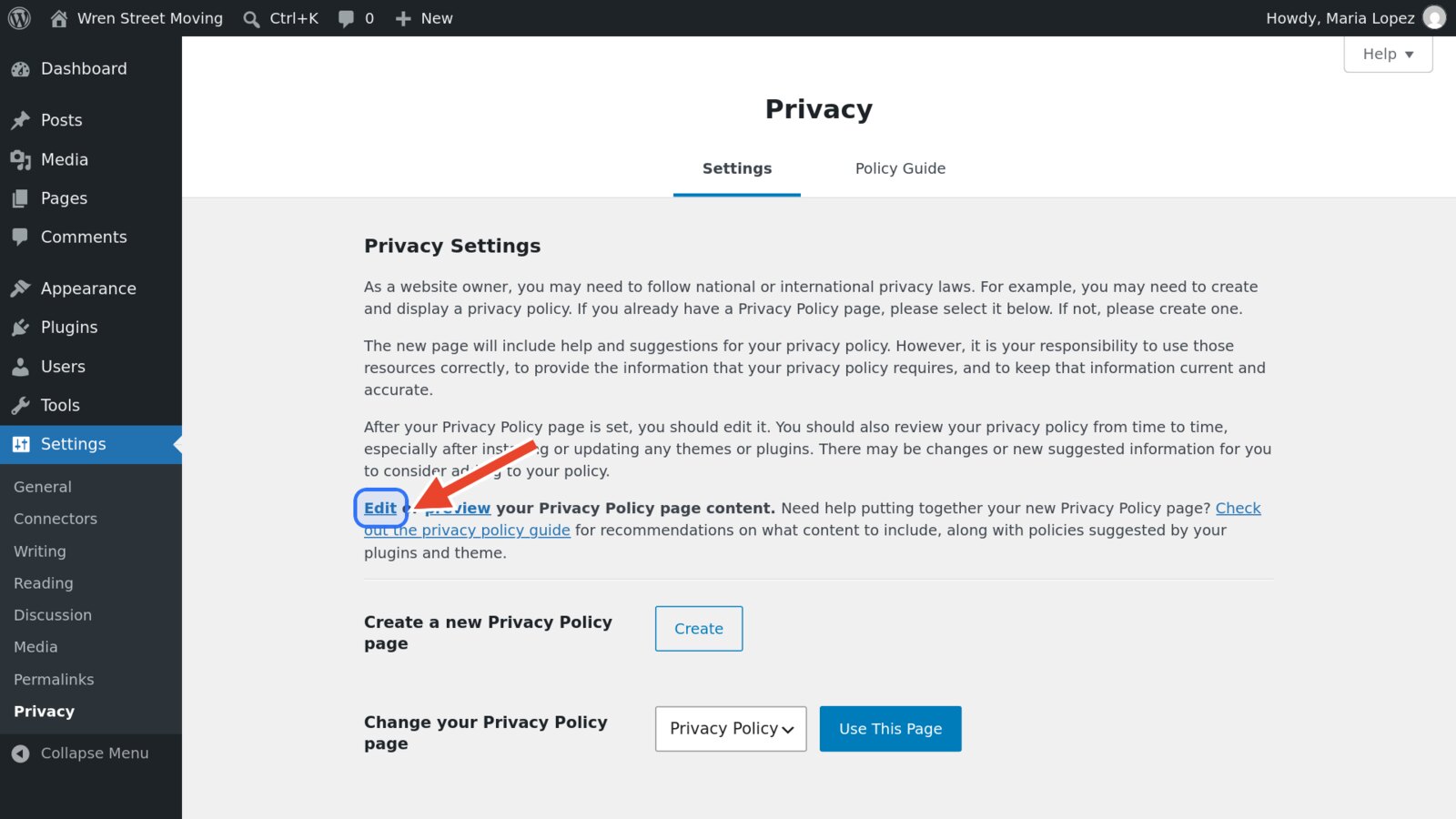
This site already has a page for it. Edit would open that page.Este sitio ya tiene una página para esto. Edit abriría esa página.
-
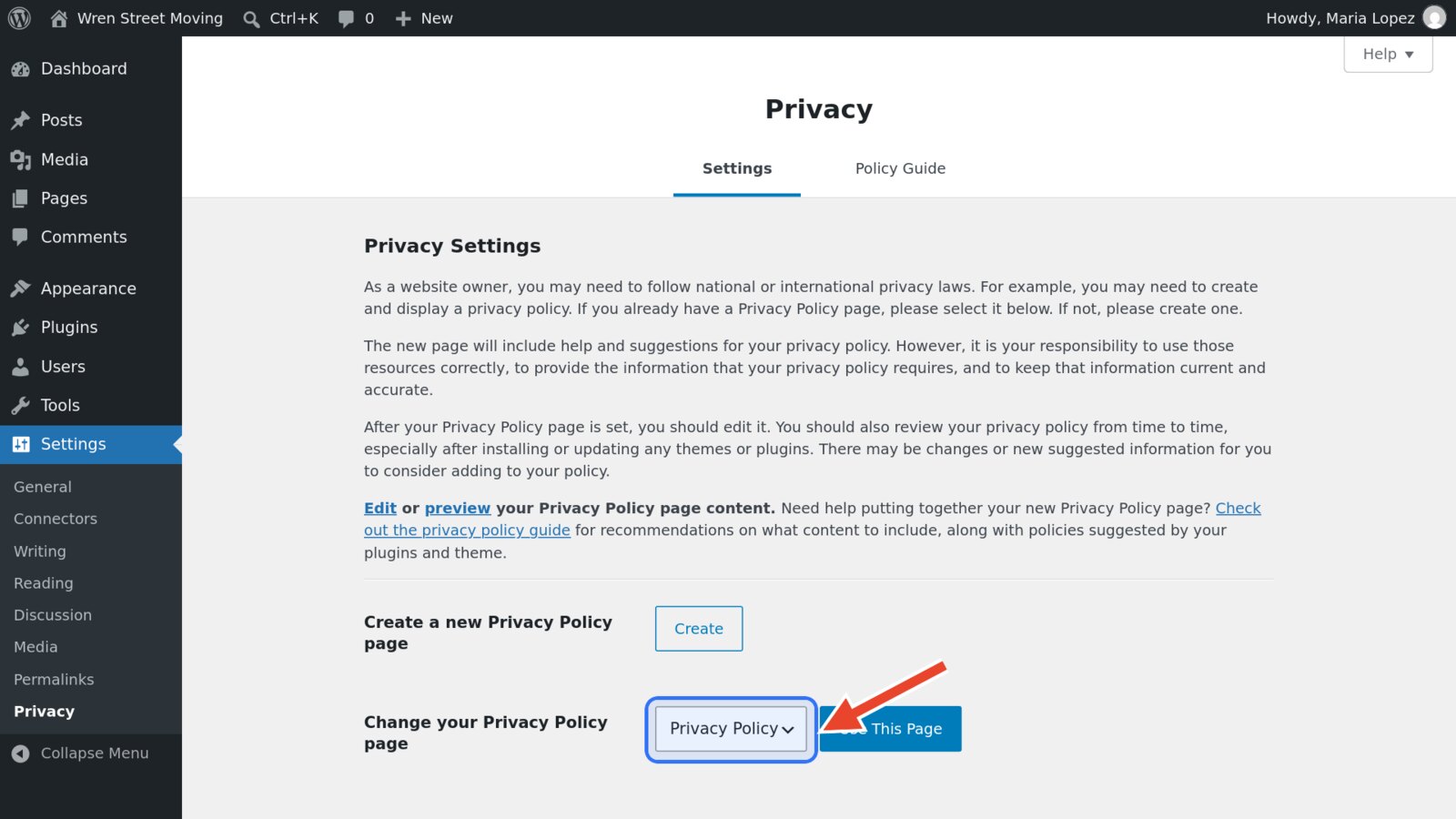
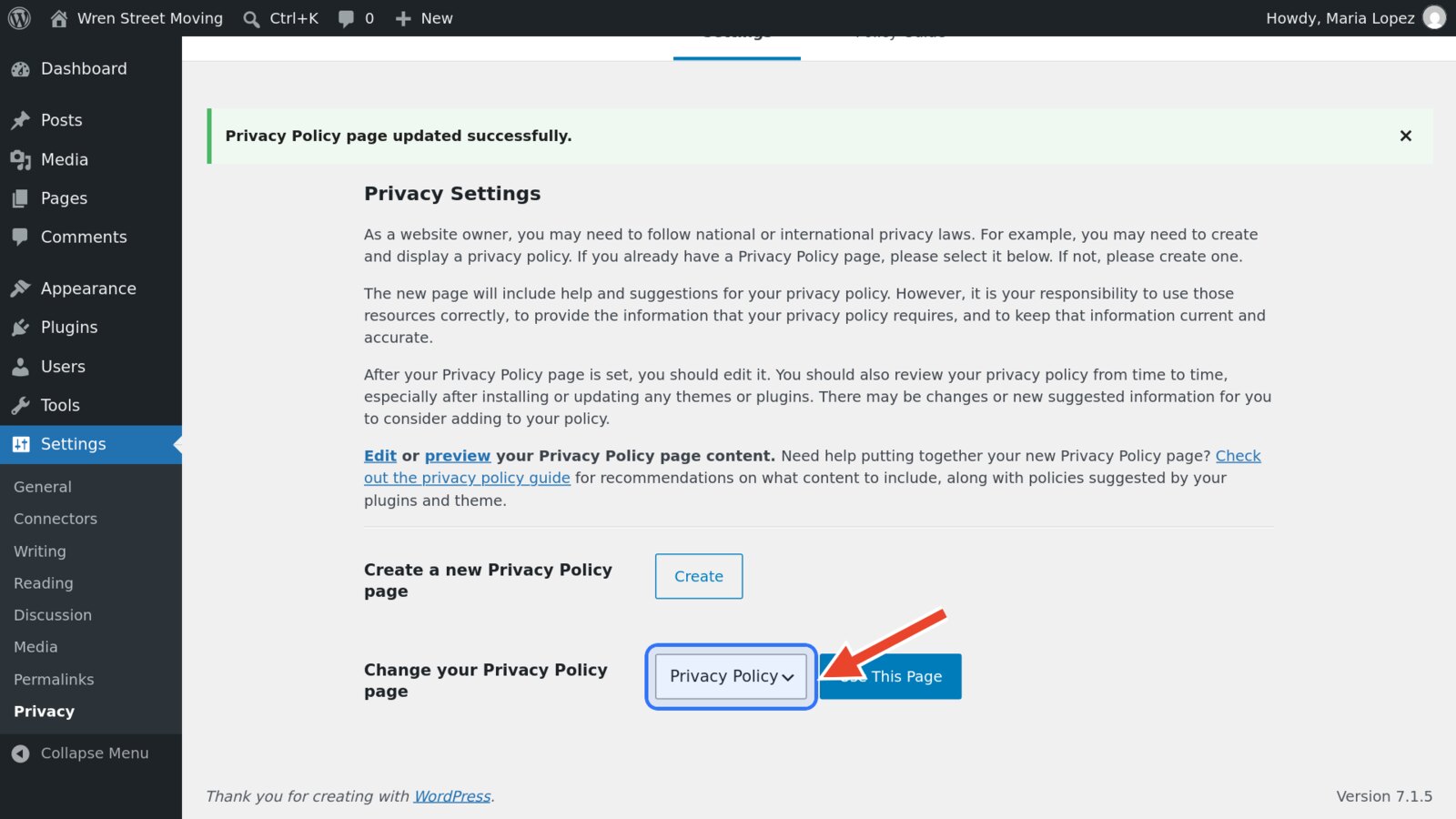
Or pick an existing page from this dropdown.O elige una página que ya existe en este menú desplegable.
-
Choose Privacy Policy from the list.Elige Privacy Policy de la lista.
Tip: Skip pages like About us or Contact. Pick the one with your policy.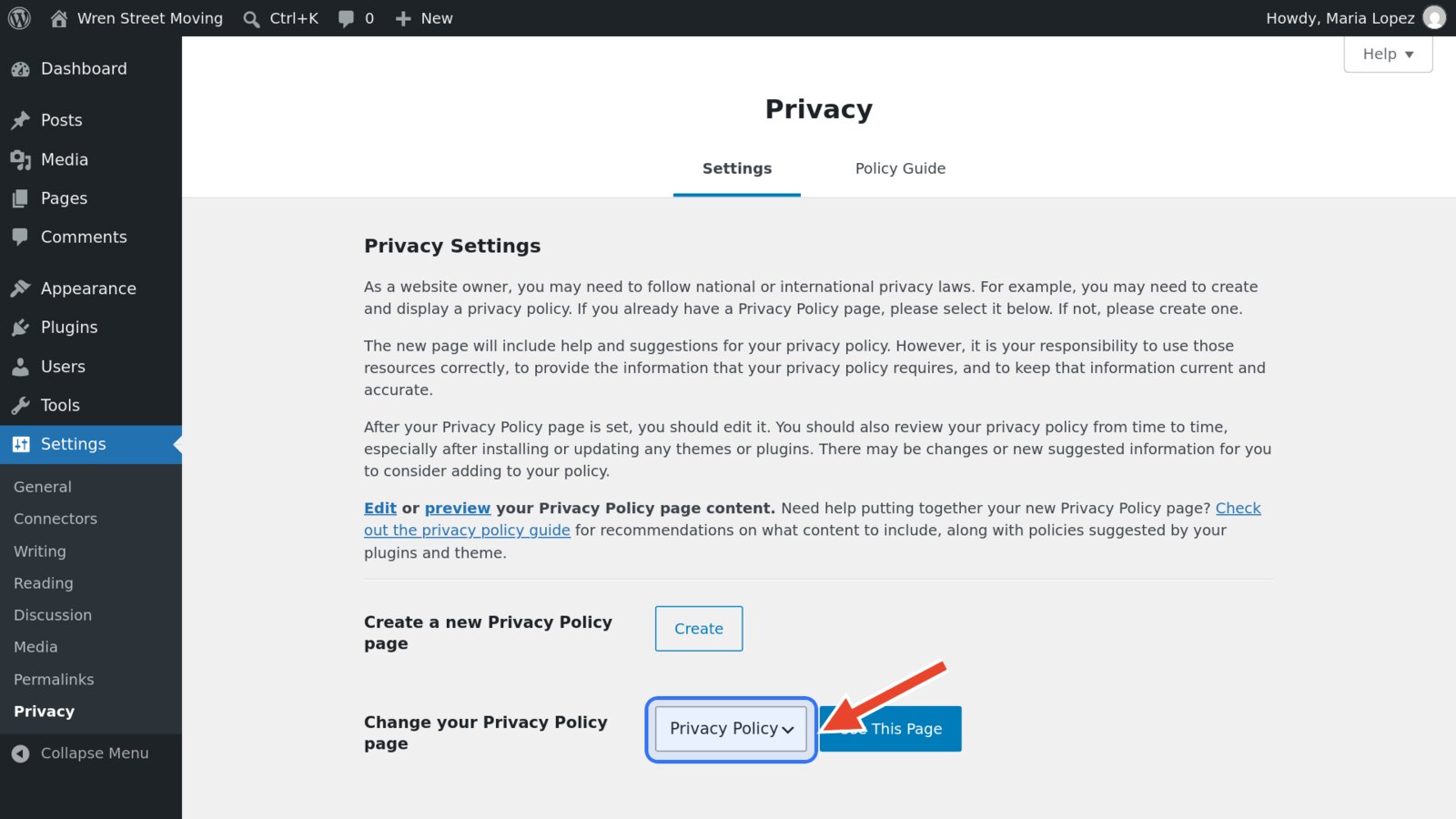
-
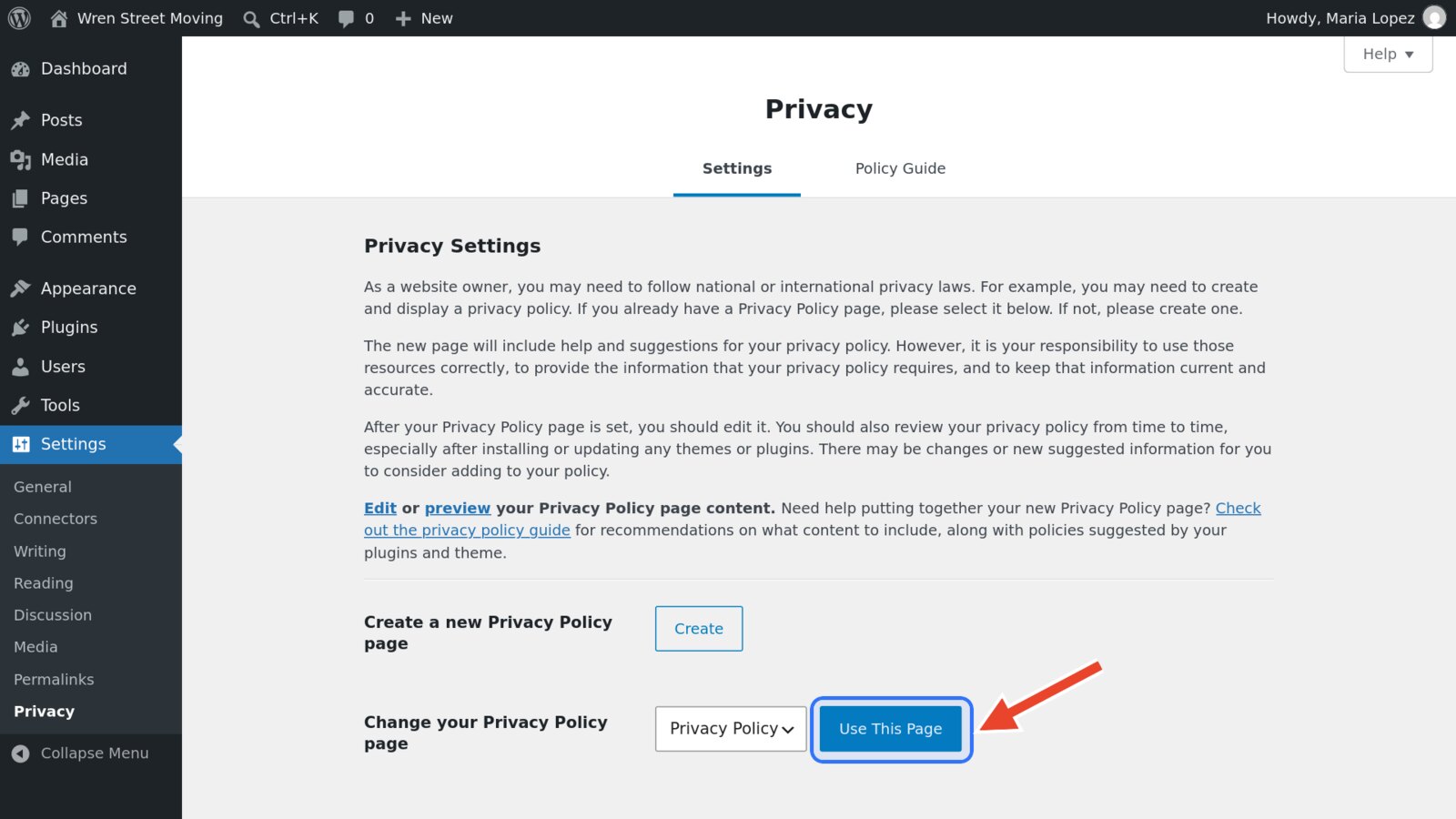
Press Use This Page to save your choice.Presiona Use This Page para guardar tu elección.
-
The dropdown now shows Privacy Policy as your chosen page.El menú ahora muestra Privacy Policy como la página elegida.
-
Use preview to see the page visitors will read.Usa preview para ver la página que leerán los visitantes.
Tip: Check that the policy text is complete and accurate.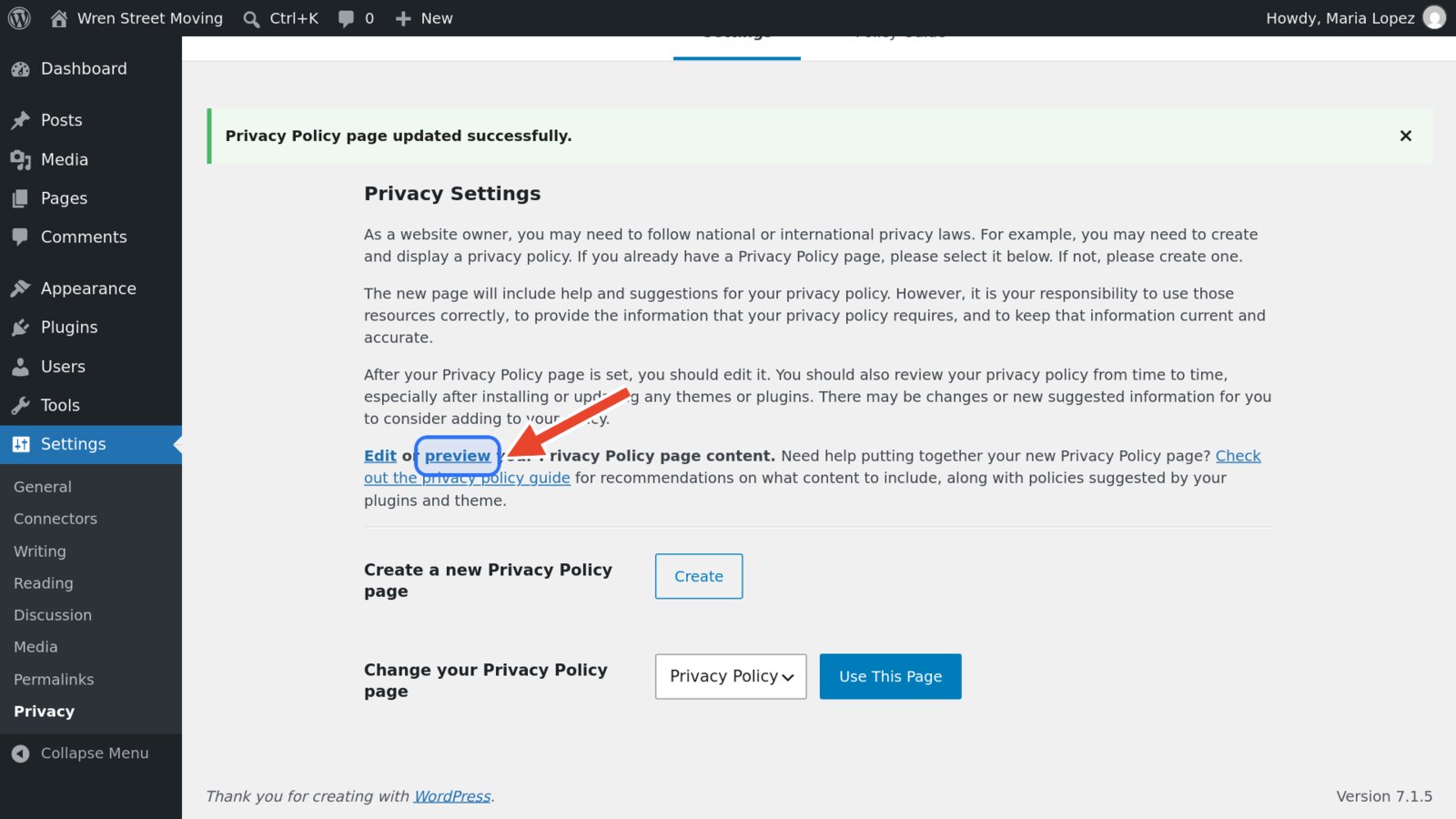
Stuck on your own site?
Get walked through it one-on-one, on video, on your real site. Or hand the job over and have it done.
- You click, I guide
- One price per job, set before work starts
- English or Spanish
Where this comes from
Every step was run on a real WordPress site and checked against the official WordPress documentation: