WordPress user roles: who should get which login
If you run your own WordPress site, you can give other people access without giving everyone the same keys. A user’s role sets what they can do. Here is how to choose a role, add or change a user, and tidy up access when someone leaves.
What the five default roles can do
WordPress has five default roles for a single site. Each role has a different set of permissions. These roles are not ranks or job titles; choose based on the tasks a person needs to handle.
| Role | What the person can do | Typical fit |
|---|---|---|
| Administrator | Manage the site’s administration, including users, settings, themes, and plugins. | You, or a trusted web helper who needs site-wide access. |
| Editor | Publish and manage posts and pages, including work by other users. Editors can also moderate comments and manage categories. | An employee who looks after the site’s content. |
| Author | Write, publish, and manage their own posts. Authors can upload files. | A writer who should publish their own posts. |
| Contributor | Write and manage their own posts, but cannot publish them. | A writer whose posts you want to review before publishing. |
| Subscriber | Read the site and manage their own profile. | Someone who only needs to manage their profile. |
Editors can change other people’s content, so this role suits someone you trust to manage the site’s posts and pages. An Author’s post access is limited to their own posts. A Contributor can prepare a post, but someone else must publish it.
These are the default roles. A site can have different settings or custom roles, and WordPress multisite has a separate Super Admin role. If your site is part of a network, check with the person who manages it before changing access.
For the full list of default permissions, see the WordPress guide to roles and capabilities.
Which role should you give an employee?
Start with the work you expect the employee to do in WordPress. If they only need to prepare their own blog posts, Contributor may be enough. If they should publish their own posts, Author is a closer fit. If they must edit pages or manage posts written by other people, consider Editor.
Do not choose Administrator just because someone is helping with the website. Administrators can change site settings and manage other users, and on a single site can also install or edit themes and plugins. Give that access only when the person needs it and you trust them with those tasks.
Which role should you give a writer?
Choose between Contributor and Author based on who will publish the finished post. A Contributor can write and manage their own posts but cannot publish them. That works when you want to check the work before it goes live. An Author can publish and manage their own posts, which works when the writer is responsible for publishing them.
Neither role is meant for managing the entire site. A writer who needs to edit pages, moderate comments, or manage other people’s posts may need a different role. Give them only the access needed for the agreed work.
You can watch the video lesson on WordPress user roles if you want to see where role choices fit in the dashboard.
Which role should you give a web helper?
Ask what the helper needs to change. If they only need to work on posts, Editor or another content role may be enough. If they need to manage settings, users, themes, or plugins, those tasks can require Administrator access on a single site.
Administrator access carries more responsibility. A person with those permissions can make broad changes to your site. Keep the number of administrators low, and use a separate account for each person who needs access. If you are unsure which tasks the helper needs, ask them to list them before choosing a role.
How do you add a user?
Use the Users area in your WordPress dashboard to add a person and assign a role. Have the person use their own account. Do not hand over your login or create a shared account for several people.
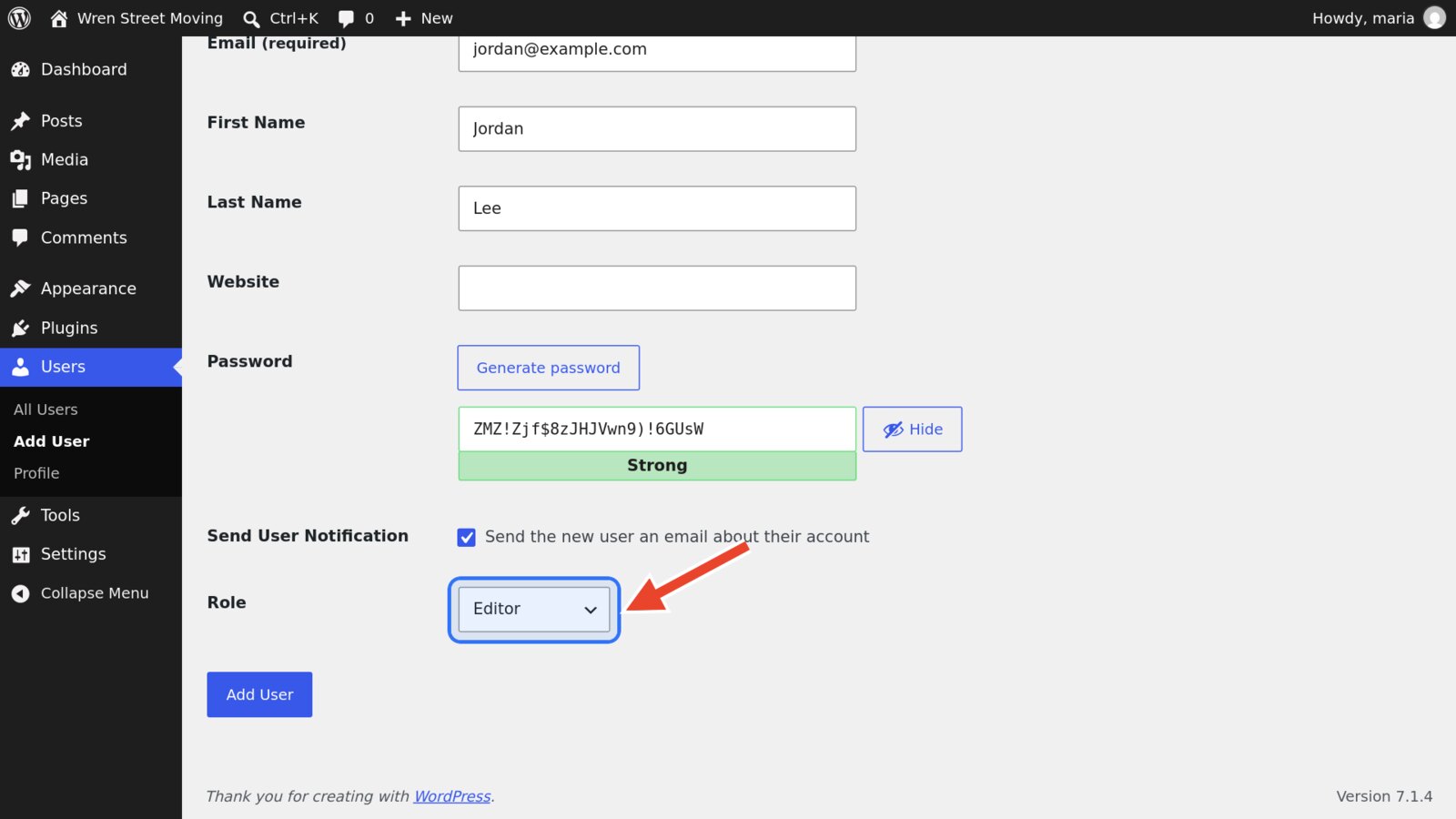
- Open Users in the dashboard and choose the option to add a user.
- Enter the person’s account details, including an email address.
- Choose the role that matches the work they need to do.
- Save the new user, then ask the person to sign in with their own account.
If you want a visual walk-through, see the video lesson on adding WordPress users. The WordPress guide to the Users screen explains how to find, edit, and manage accounts.
Why should each person have their own login?
Give each person a separate account. When people share one login, it is harder to know who made a change. It also means you may need to change the shared password whenever one person stops helping. Separate accounts let you change or remove one person’s access without changing everyone else’s.
Ask each user to choose a strong password that is hard to guess. Avoid passwords based on a person’s name, username, company name, or website name. Avoid short passwords, dictionary words, and passwords made only of letters or only of numbers. WordPress displays a password strength meter when changing a password. Two-step authentication can add another security measure.
One person should have one login, and that account should use a strong password. These habits reduce the chance that someone can guess an account password and get into your site.
How do you change a person’s role?
Review a person’s role when their work changes. If a writer now needs to publish their own posts, you may change them from Contributor to Author. If an employee no longer manages pages, they may no longer need Editor access.
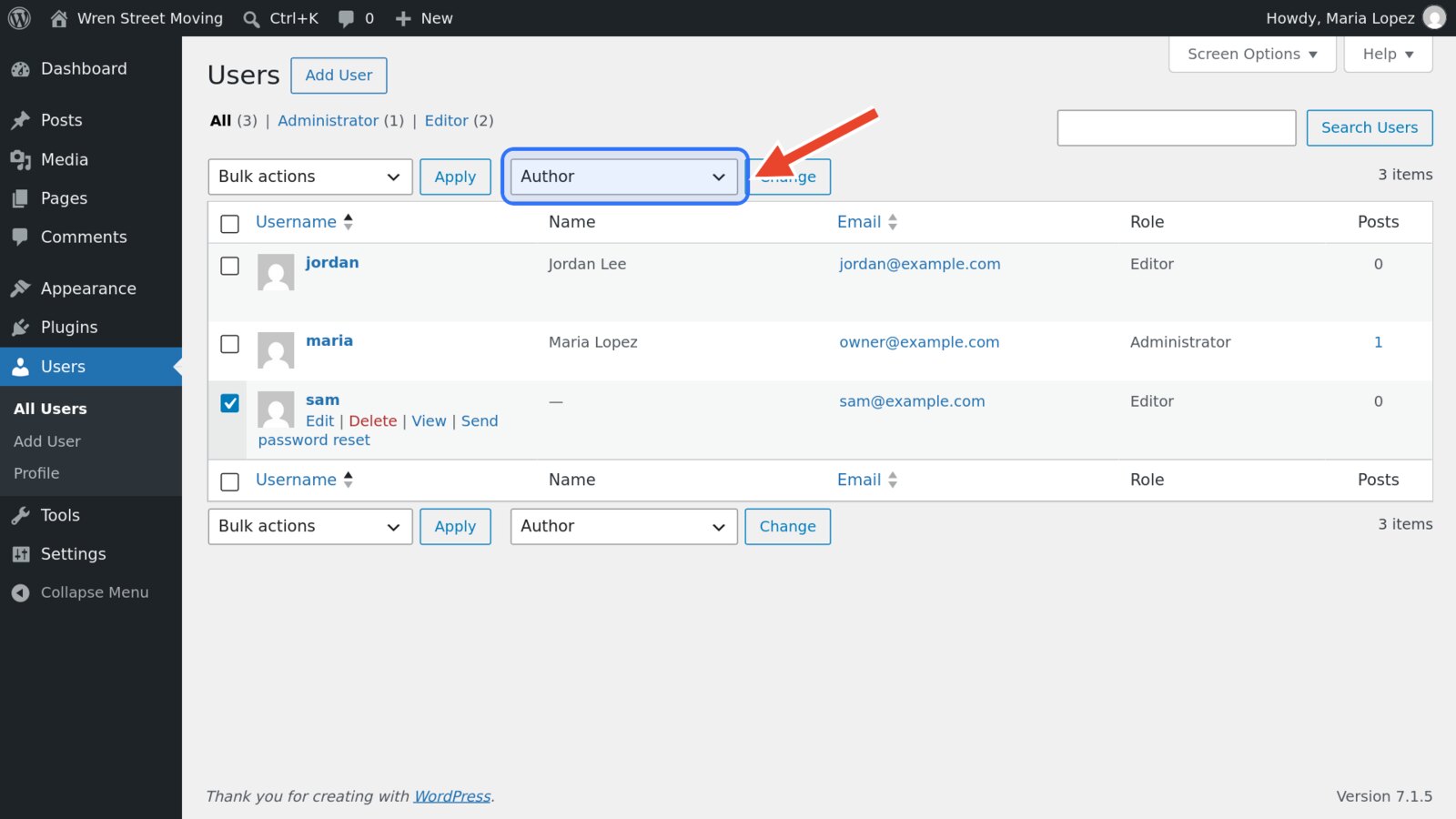
- Open Users in the dashboard and find the person’s account.
- Choose the account’s edit option.
- Change the role to the one that fits their current work, then save the change.
You can also select users in the Users list and use the change-role control for selected accounts. Check the names carefully before applying a role change to several people. The video lesson on your WordPress profile can help you find the account and profile area.
What should you do when someone leaves?
Remove a person’s account when they no longer need access. In the Users list, you can delete another user; WordPress does not let you delete the account you are currently using. During deletion, choose whether to delete that person’s posts and links or assign them to another user. If their posts should stay on your site, assign them to an account you will keep.
Before confirming, check which account you selected and what should happen to its posts. This matters when the person has published work you want to keep. You can also reduce their role if they still need limited access for a while but no longer need their former permissions.
Remove access when the work ends, and decide what should happen to the person’s posts before deleting the account.
Keep access simple
Review the user list from time to time. Check that each account belongs to someone who still works on the site, and that the role matches what they do now. Keep Administrator access to a minimum. For more WordPress guides, visit the WordPress learning resources.
Need a hand?
Set up WordPress access for your staff and helpers
I can walk you through user roles one-on-one on your own site, or handle the setup for you. One price per job, set before work starts.
How does your site score?
The free site check opens your site the way a customer does and lists what to fix first.
- Speed on a phone
- What search engines see
- Broken links and forms