Cómo actualizar WordPress sin romper tu sitio
Las actualizaciones de WordPress entregan parches de seguridad esenciales, correcciones de errores y mejoras de rendimiento para tu página web. Pero hacer clic en todos los enlaces de actualización a la vez puede provocar conflictos de plugins o errores de base de datos que dejen tus páginas fuera de línea. Establecer una rutina tranquila y metódica te permite mantener el software al día sin interrumpir a los visitantes ni arriesgar la pérdida de datos.
Por qué las actualizaciones de WordPress importan para tu página web
El núcleo de WordPress, los plugins y los temas se actualizan regularmente para corregir vulnerabilidades de seguridad, arreglar errores y mantener la compatibilidad. Los plugins tienen acceso profundo a tu página web. Cuando los desarrolladores descubren fallas, lanzan actualizaciones para cerrar esas brechas. Los archivos desactualizados dejan abiertas debilidades conocidas.
Las actualizaciones también resuelven errores de código y mejoran el rendimiento. Los plugins están escritos para las versiones actuales de WordPress, por lo que una versión antigua del núcleo también puede impedir que los plugins más nuevos funcionen.
Revisa la pantalla de Salud del sitio antes de actualizar
Antes de actualizar, ejecuta la verificación de Salud del sitio para detectar problemas del servidor a tiempo. Ubicada en Herramientas > Salud del sitio, este diagnóstico integrado prueba tu configuración y agrupa los hallazgos en problemas críticos, mejoras recomendadas y pruebas superadas.
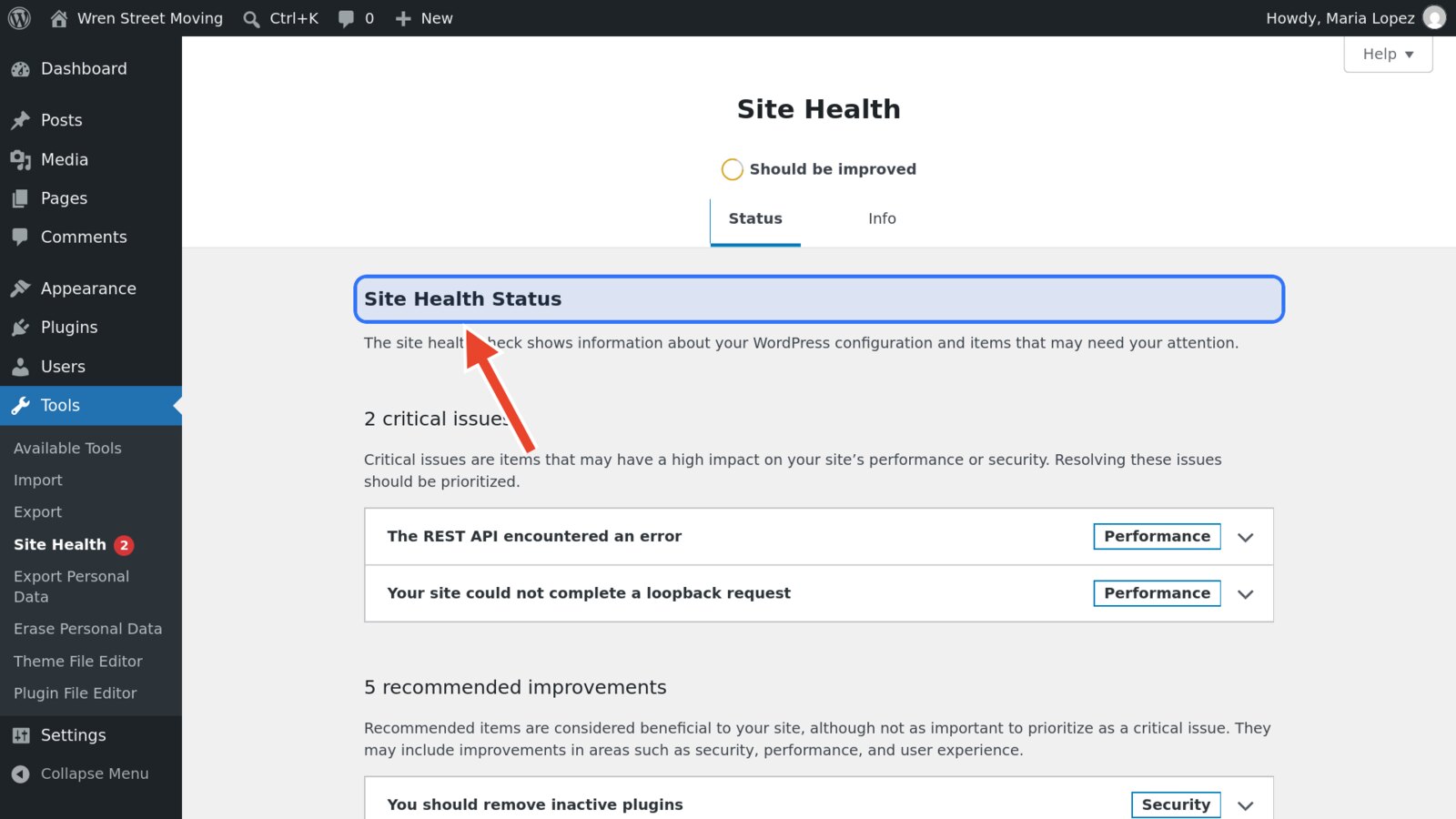
La pestaña Estado verifica si tu sitio puede alcanzar api.wordpress.org, confirma que las actualizaciones en segundo plano funcionan y si tu versión de PHP está desactualizada. También confirma que el modo de depuración no esté exponiendo errores sensibles en páginas en vivo.
Bajo Información > Permisos del sistema de archivos, WordPress confirma si tus directorios raíz, wp-content, uploads, plugins y themes son escribibles. Si informa carpetas a las que no puede escribir, pide a tu proveedor de hosting que lo revise. La lección en video sobre la herramienta de Salud del sitio recorre estas verificaciones, y la documentación oficial de Salud del sitio explica cada una.
Haz una copia de seguridad de tu base de datos y de tus archivos
Un sitio de WordPress consta de dos elementos separados: tu base de datos y tus archivos. Necesitas ambos para restaurar un sitio dañado.
Base de datos de WordPress
Almacena publicaciones, páginas, comentarios, cuentas de usuario y ajustes.
Archivos de WordPress
Almacena el código del sistema principal, temas, plugins, subidas y archivos de configuración del servidor en el disco.
Hacer una copia de seguridad solo de los archivos no salva tu base de datos, porque la base de datos vive fuera del directorio de tu página web. Antes de hacer cambios, haz una copia de seguridad de tu base de datos y de tus archivos como un conjunto único creado juntos. Haz la copia de seguridad de tu base de datos primero, luego haz la copia de seguridad de tus archivos.
La mayoría de los proveedores de hosting ofrecen una herramienta de copia de seguridad en su panel de control, y algunos la hacen por ti. Pregunta a tu proveedor cómo hacer y restaurar una copia de seguridad antes de que la necesites. La documentación de copias de seguridad de WordPress explains the options.
Download an offline content export
Alongside a full backup, you can save a quick snapshot of your written content using Tools > Export.
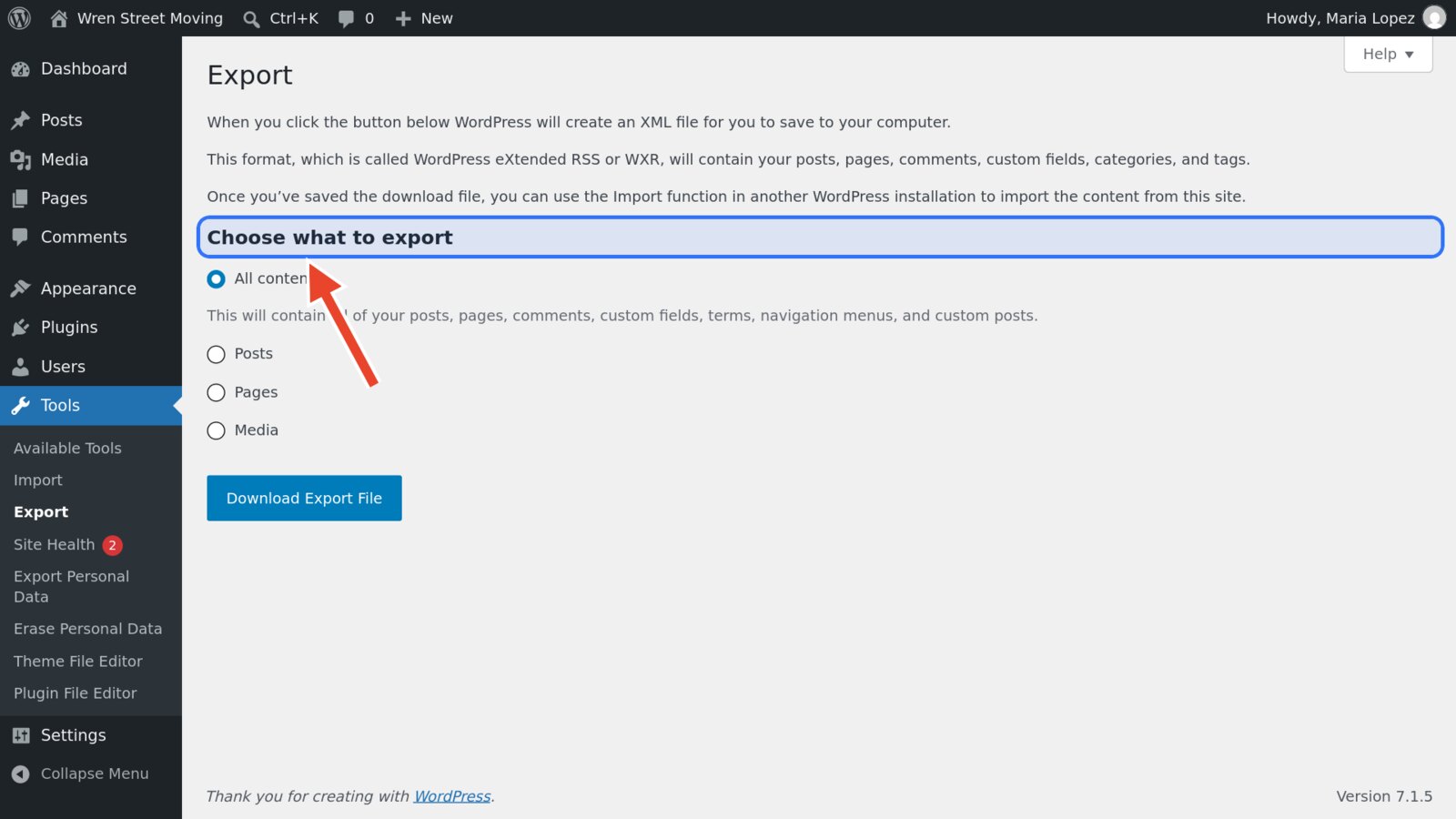
Clicking Download Export File creates an XML file in WordPress eXtended RSS (WXR) format containing your posts, pages, comments, categories, tags, navigation menus, and users. You can export all content or filter by author, date range, or publishing status.
While an XML export does not replace a database and file backup, it provides an independent record of your content that can be imported using Tools > Import. Learn more in the lesson on exporting WordPress content.
Understanding the Dashboard Updates screen
The central hub for updates is Dashboard > Updates. This screen notifies you when new releases of WordPress core, plugins, themes, or translations are ready.
| Update type | What it updates | Where files live |
|---|---|---|
| WordPress core | Main publishing engine and admin files | Root folder, wp-admin, and wp-includes |
| Plugins | Feature add-ons and functionality extensions | wp-content/plugins |
| Themes | Page layouts, templates, and styling rules | wp-content/themes |
| Translations | Language packs for core, plugins, and themes | wp-content/languages |
When your website is current, the screen confirms that WordPress, plugins, and themes are up to date. If core files ever become damaged, this screen provides a Re-install now button to reinstall the current version without touching content. I review these controls in the lesson on the Dashboard Updates screen.
The safe update order: one component at a time
If you update everything at once and something breaks, it is hard to tell which update caused it.
When updating multiple tools, update your plugins one by one rather than running bulk updates. There is no single order that suits every site, but this one keeps each change small:
- Review available plugin updates under Plugins > Installed Plugins and check version details.
- Update your plugins one at a time, and look at your site after each one.
- Update WordPress core under Dashboard > Updates.
- Update your active theme, ensuring custom styles are housed in a child theme.
- Apply any translation updates listed under Dashboard > Updates.
Some plugins require a newer version of WordPress. Check update notes if you are uncertain. The lesson on managing installed plugins shows those controls.
What happens during a WordPress update
When you click Update Now, WordPress performs file replacement through automated steps. Understanding this sequence helps you monitor progress calmly.
WordPress downloads the package from WordPress.org, unpacks the archive, and verifies files. It then enables maintenance mode by writing a .maintenance file to the root directory. Visitors viewing your site during this window see a brief notice: “Briefly unavailable for scheduled maintenance. Check back in a minute.”
WordPress replaces outdated files, upgrades database tables if required, and deletes the .maintenance file to restore public browsing. Keep your browser open until the update finishes.
If your web server user owns your files, WordPress updates directly. If files are owned by an FTP account, WordPress displays a dialog box asking for FTP credentials.
What automatic background updates handle on their own
WordPress includes background updating to protect sites from security vulnerabilities without requiring constant manual oversight.
Since WordPress 3.7, minor and security updates apply automatically in the background without requiring you to click Update Now. Major feature releases still require manual confirmation from your dashboard.
Automatic updates for plugins and themes were introduced in WordPress 5.5. On Plugins > Installed Plugins, each plugin includes an “Enable auto-updates” link in the right-hand column. You can toggle automatic updates for individual plugins, or keep them manual to test updates yourself. Theme auto-updates can similarly be toggled under Appearance > Themes by clicking Theme Details.
Checking your site after each update
Never assume an update succeeded just because the dashboard says it finished. Always test your live site immediately in a separate browser window.
Check your home page, key service pages, and interactive features like contact forms. Ensure layouts, navigation menus, and images load cleanly.
If you use caching, clear your cache after updating so visitors receive new files immediately. If you encounter login issues after updating, clearing browser cookies resolves authentication errors.
What to do if an update breaks your site
Even with careful preparation, an incompatible plugin or server timeout can cause an error. Having a clear recovery plan keeps minor faults manageable.
If an update stops partway, your site can stay on a “briefly unavailable for scheduled maintenance” message. Wait a few minutes first. If it does not clear, ask your host to remove the leftover maintenance file; it is a one-minute job for them.
If a plugin update causes an error, deactivate that specific tool. From your dashboard, click Deactivate under Plugins > Installed Plugins. If you cannot get into the dashboard at all, contact your host or a developer rather than changing files on the server yourself.
If an update causes severe corruption, follow the official WordPress updating guide and restore your clean backup set: restore your files first, then import your database backup.
Safe update checklist
Run through this pre-update checklist every time you prepare to maintain your website software.
For more practical walkthroughs on managing your website, explore the WordPress resource library.
Keeping your site updated with confidence
Updating WordPress does not need to be stressful. By backing up first, checking Site Health, updating one component at a time, and verifying your live pages, you keep your site secure and reliable.
¿Necesitas una mano?
Update your WordPress site safely
Get walked through your updates one-on-one on your own site, or hand the updates over. One price per job, set before work starts.
¿Qué puntaje tiene tu página web?
La revisión gratis abre tu página web como lo haría un cliente y lista lo que debes corregir primero.
- Velocidad en el celular
- Lo que ven los buscadores
- Enlaces y formularios rotos