Add blocks in the WordPress editor
The steps
-
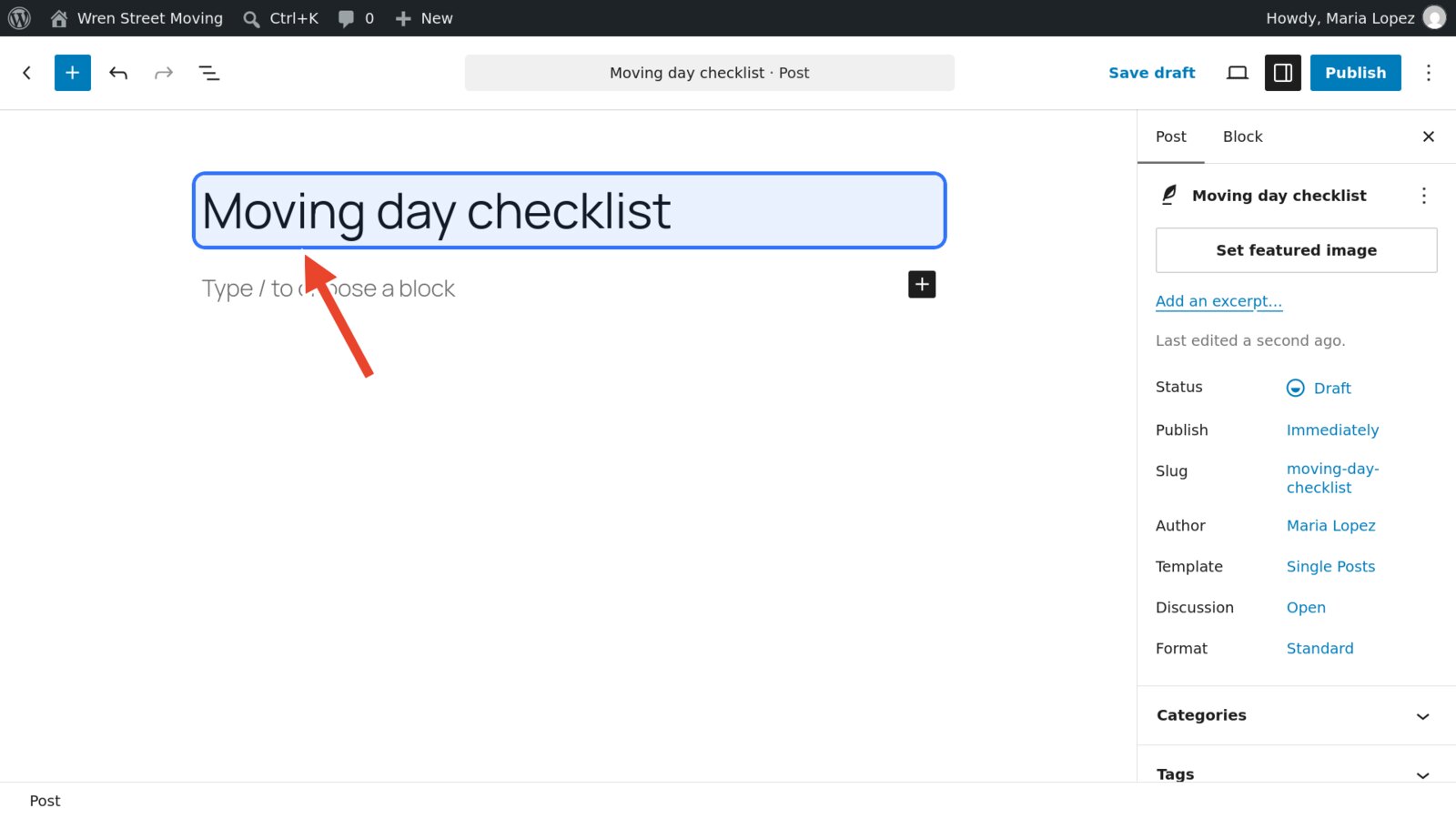
Every post starts with the title at the top. Here it says Moving day checklist.Toda entrada empieza con el título arriba. Aquí dice Moving day checklist.
-
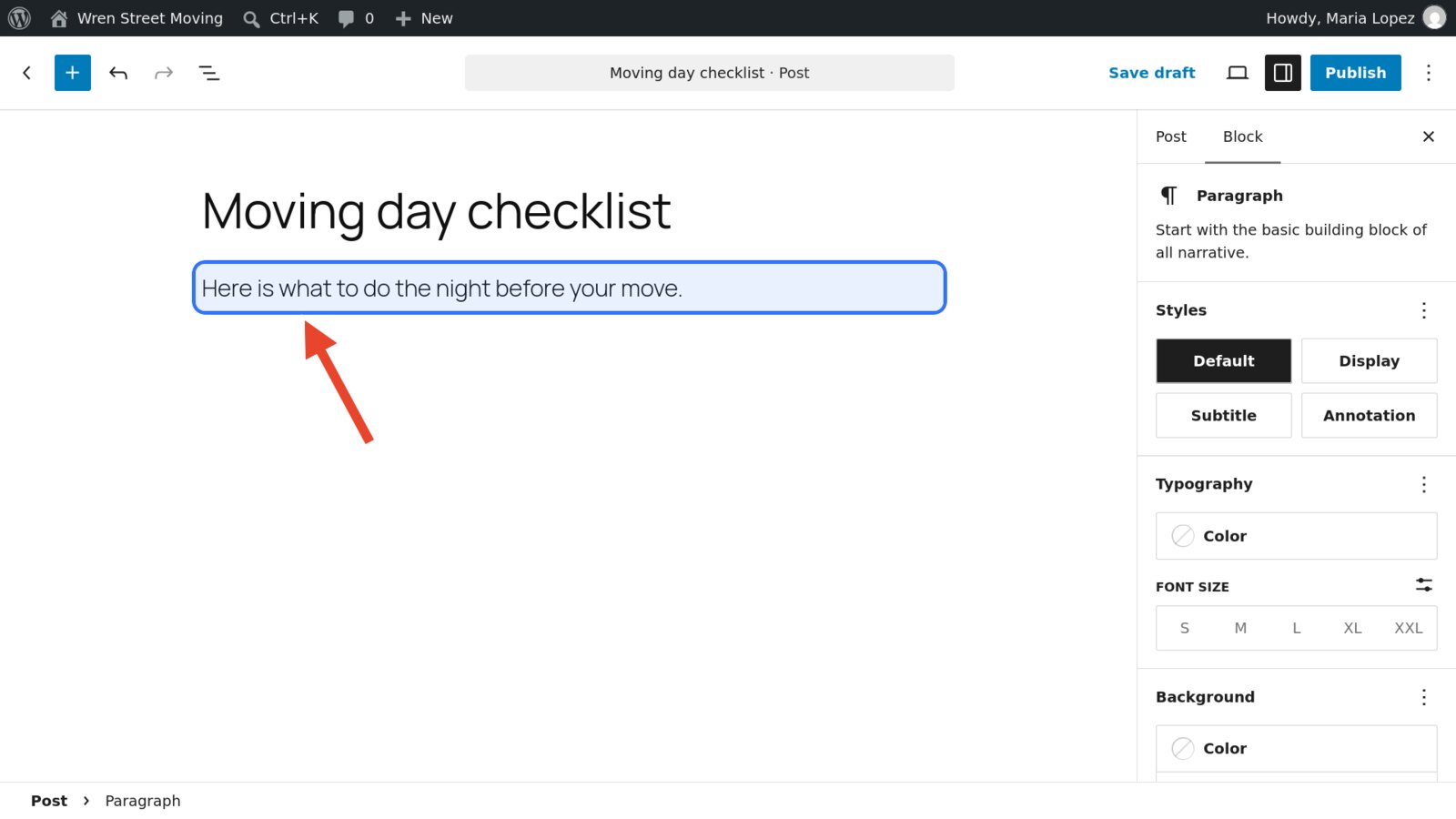
Each paragraph you type is its own block.Cada párrafo que escribes es su propio bloque.
-
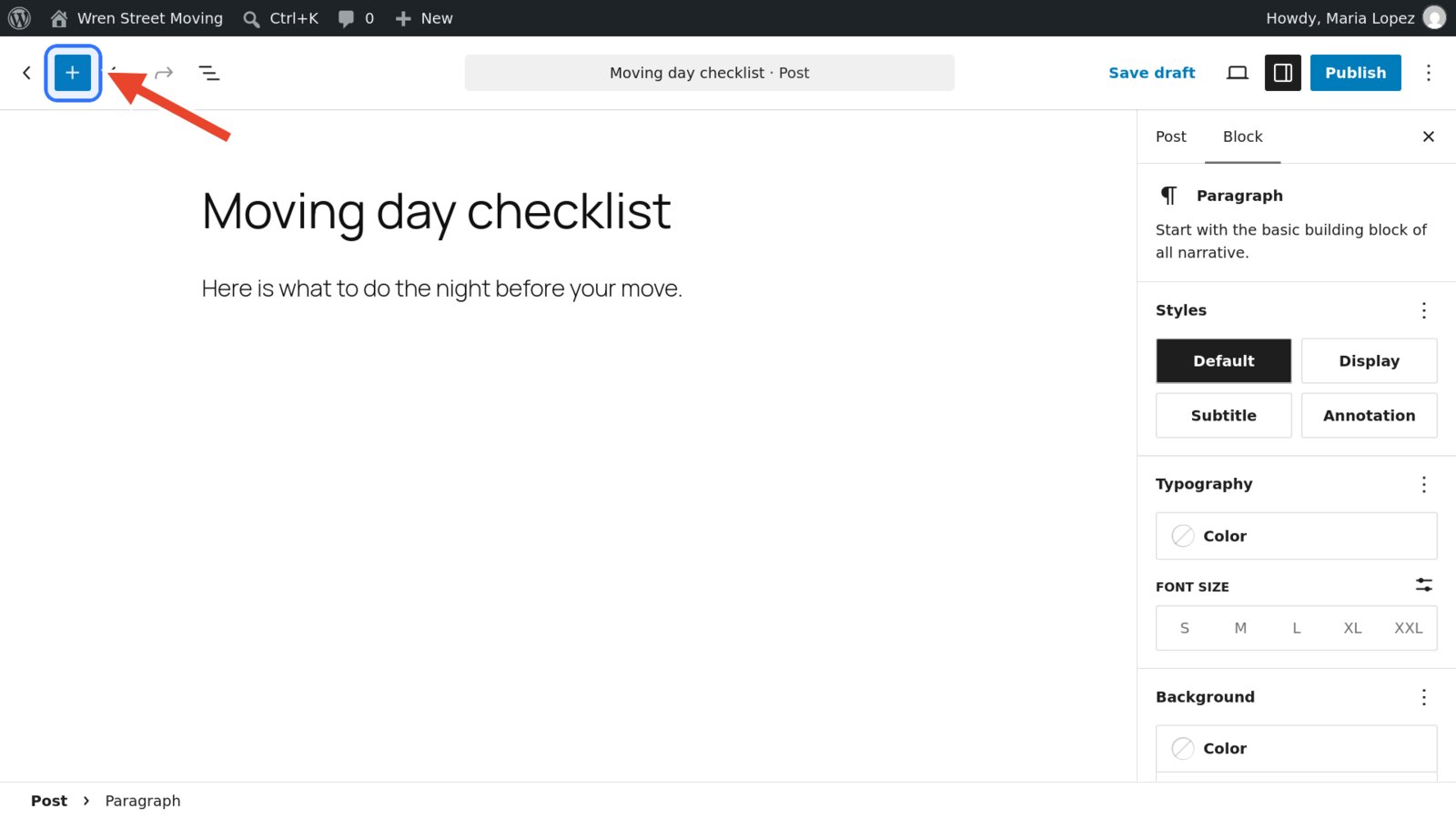
The blue plus button, top left, opens the list of every block.El botón azul con el signo más, arriba a la izquierda, abre la lista de todos los bloques.
-
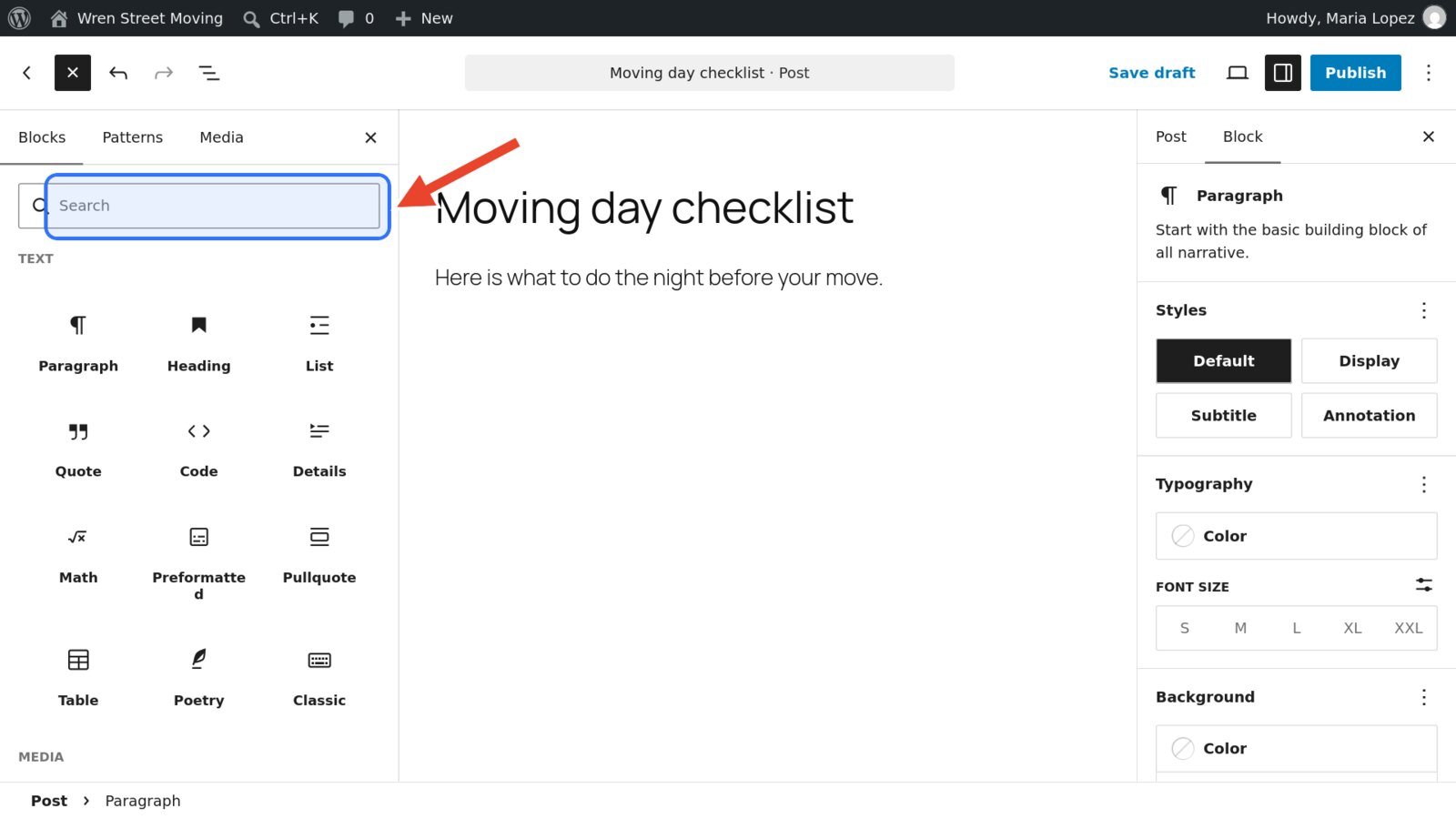
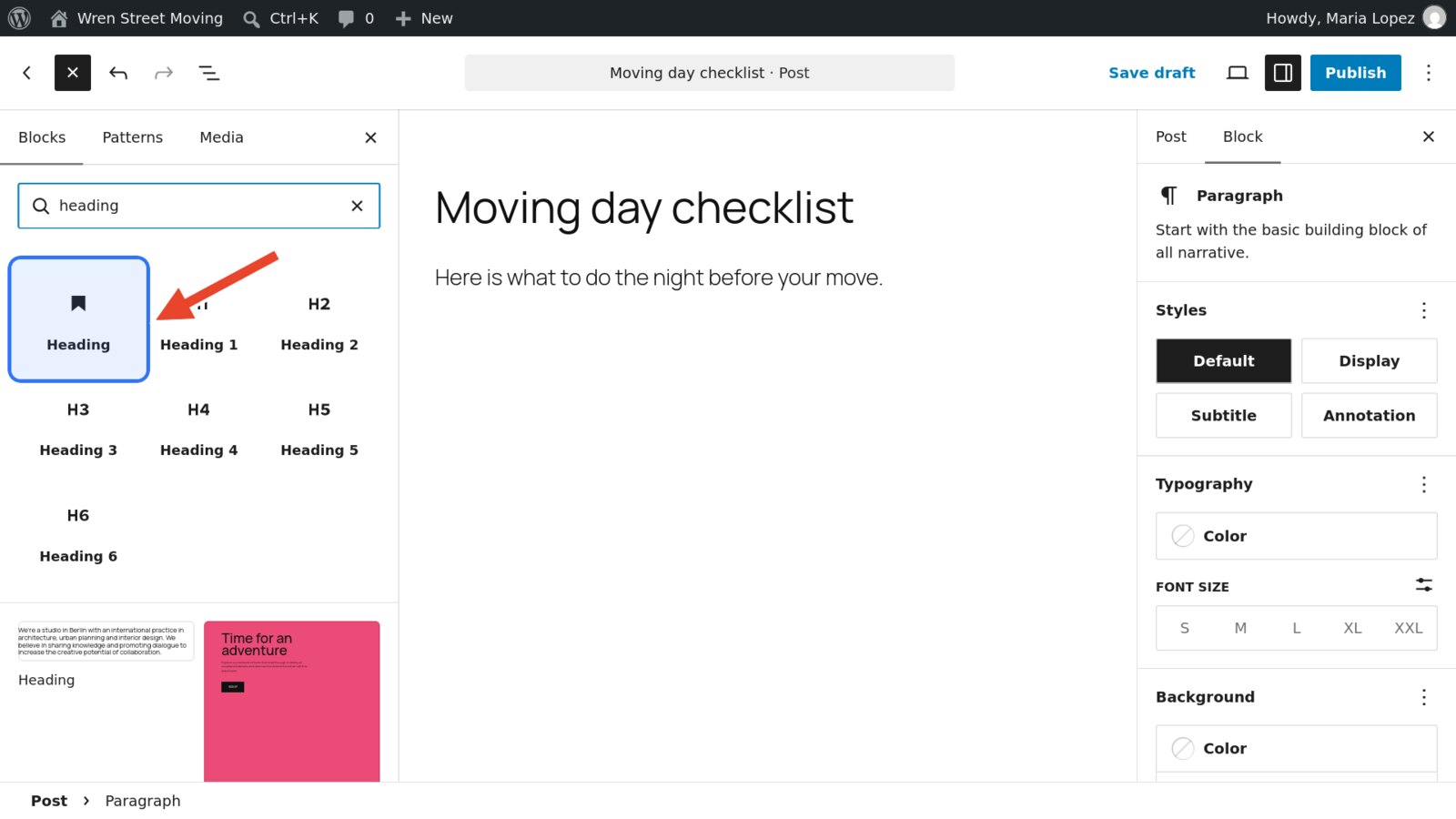
Search for the block you need. We will type heading.Busca el bloque que necesitas. Vamos a escribir heading.
-
Click Heading to add it below your paragraph.Haz clic en Heading para agregarlo debajo de tu párrafo.
-
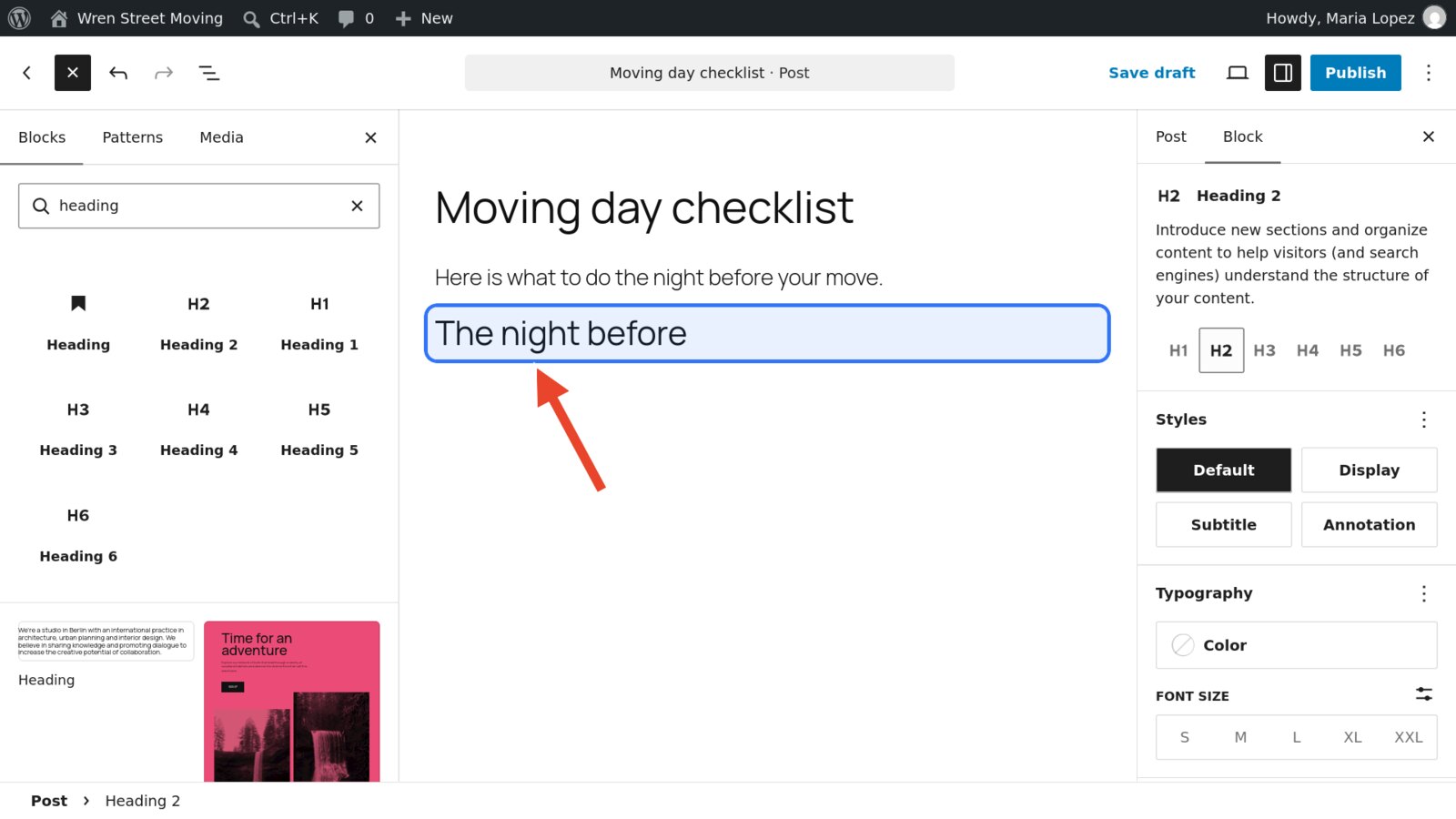
Type the heading. Headings split a long post into parts readers can scan.Escribe el encabezado. Los encabezados dividen una entrada larga en partes fáciles de leer.
-
Faster still: on a new line, type a slash and the block's name, like list.Más rápido aún: en una línea nueva, escribe una barra y el nombre del bloque, como list.
Tip: Type a slash on an empty line to pick any block by name.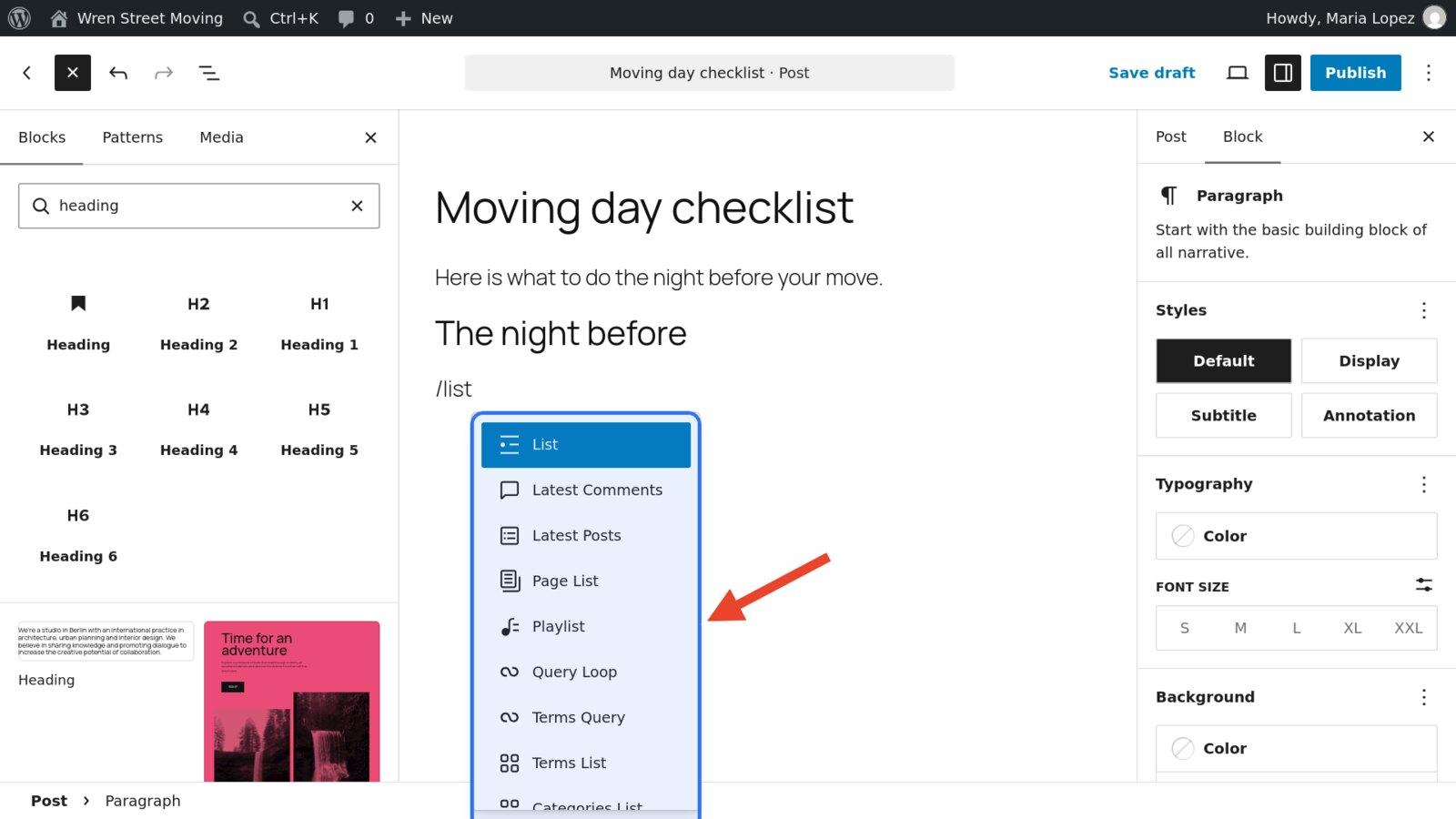
-
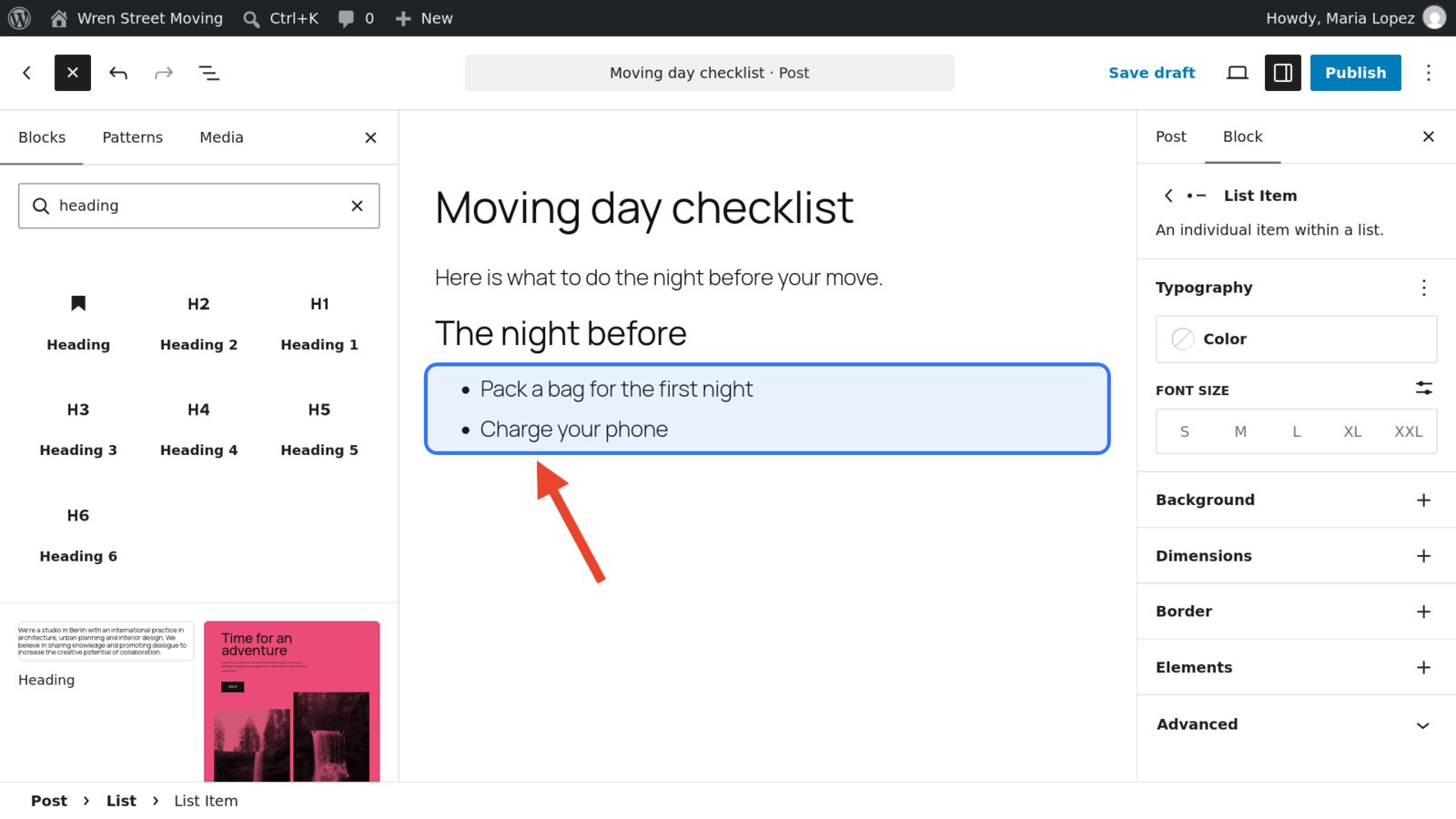
Press Enter, and the list is ready. Each Enter adds a new item.Presiona Enter y la lista está lista. Cada Enter agrega un elemento nuevo.
-
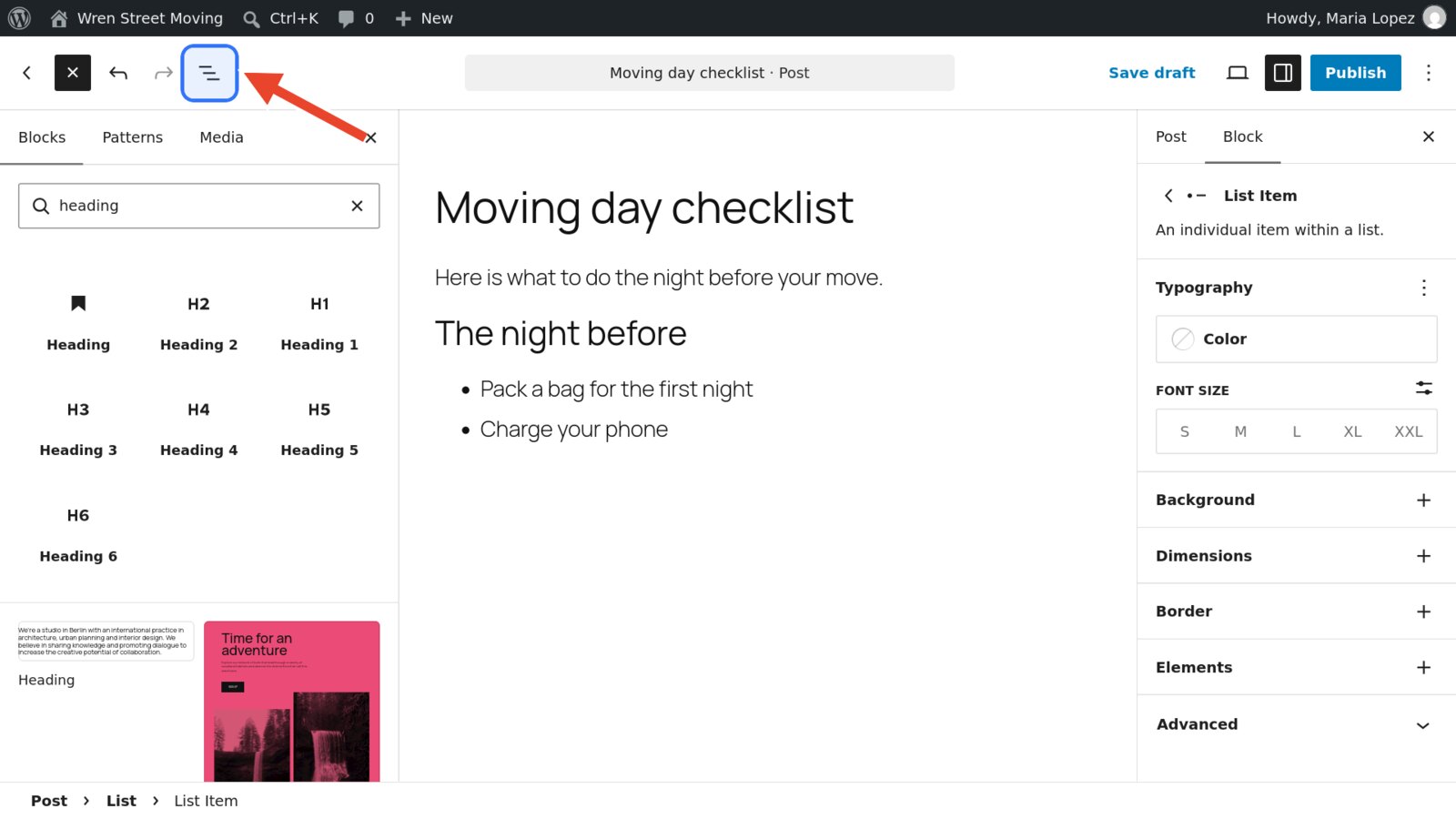
Document Overview lists every block in the post, from top to bottom.Document Overview muestra todos los bloques de la entrada, de arriba abajo.
-
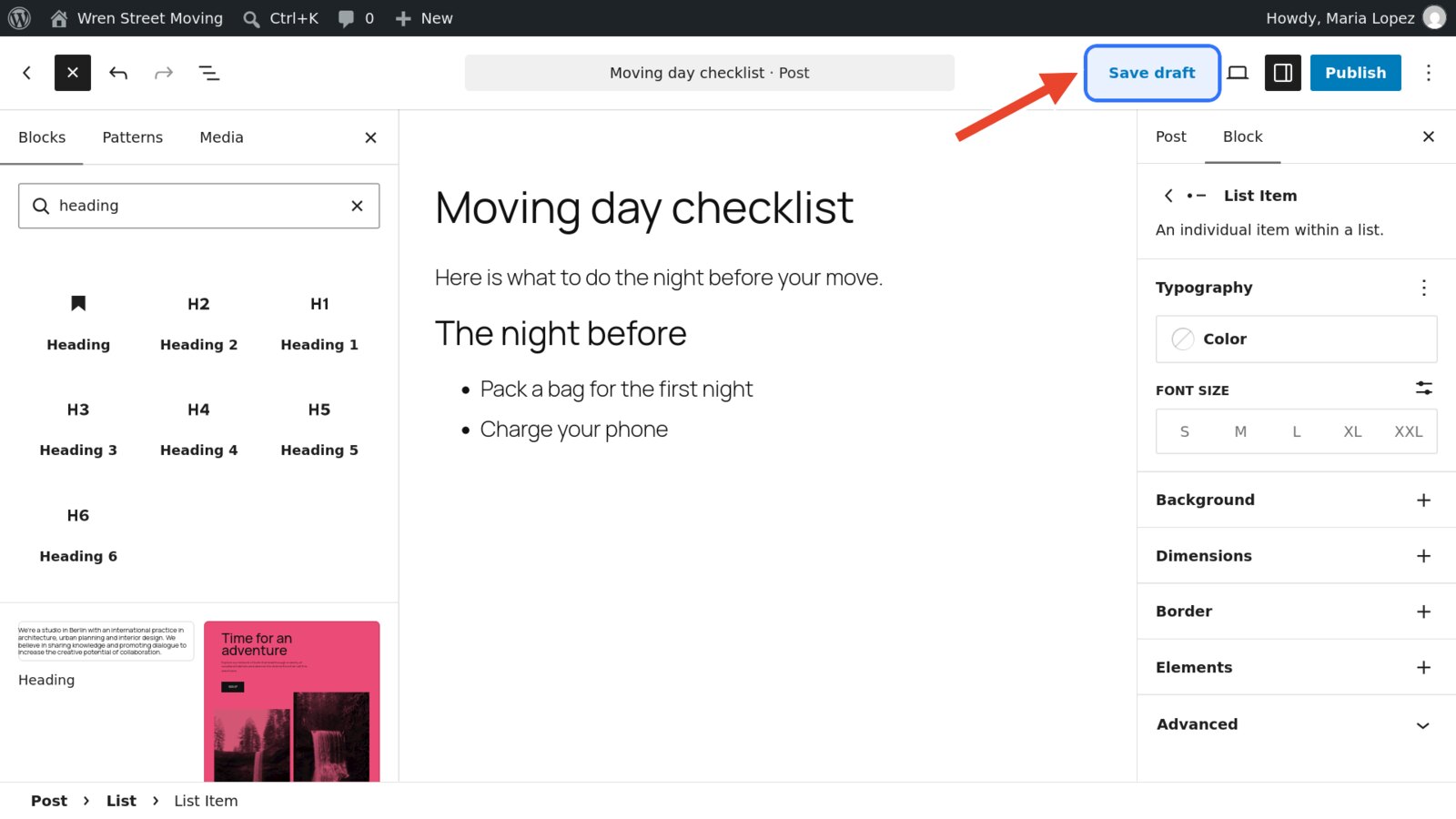
Press Save draft to keep your work.Presiona Save draft para guardar tu trabajo.
-
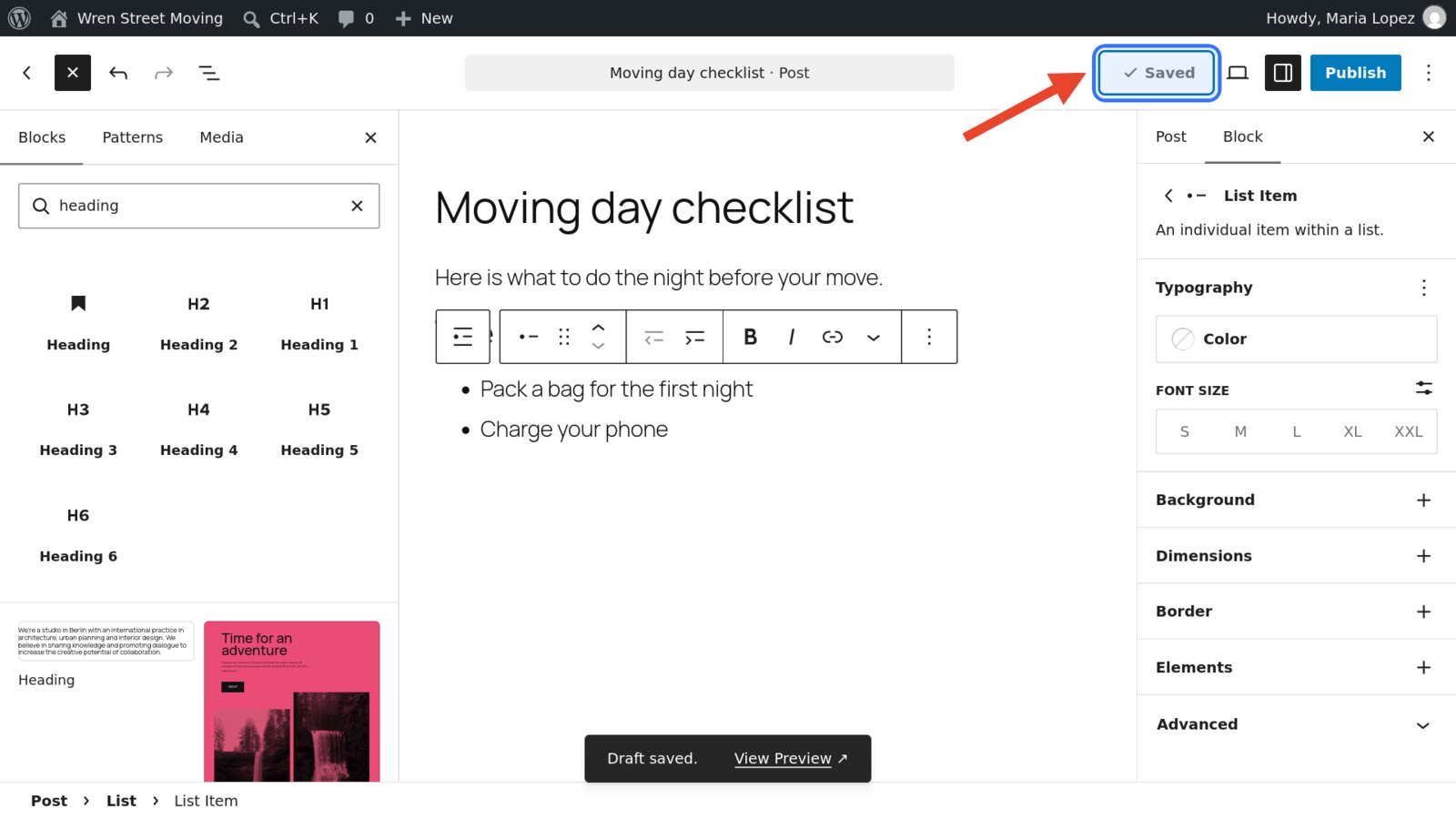
It says Saved. The draft is kept, and nothing is public yet.Dice Saved. El borrador está guardado y nada es público todavía.
Stuck on your own site?
Get walked through it one-on-one, on video, on your real site. Or hand the job over and have it done.
- You click, I guide
- One price per job, set before work starts
- English or Spanish
Where this comes from
Every step was run on a real WordPress site and checked against the official WordPress documentation: