Find a media file and open its details
The steps
-
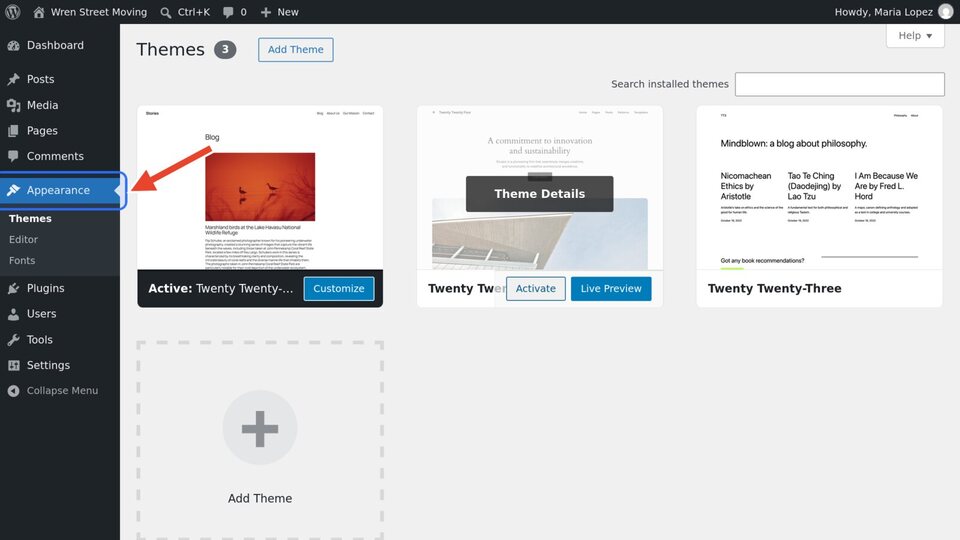
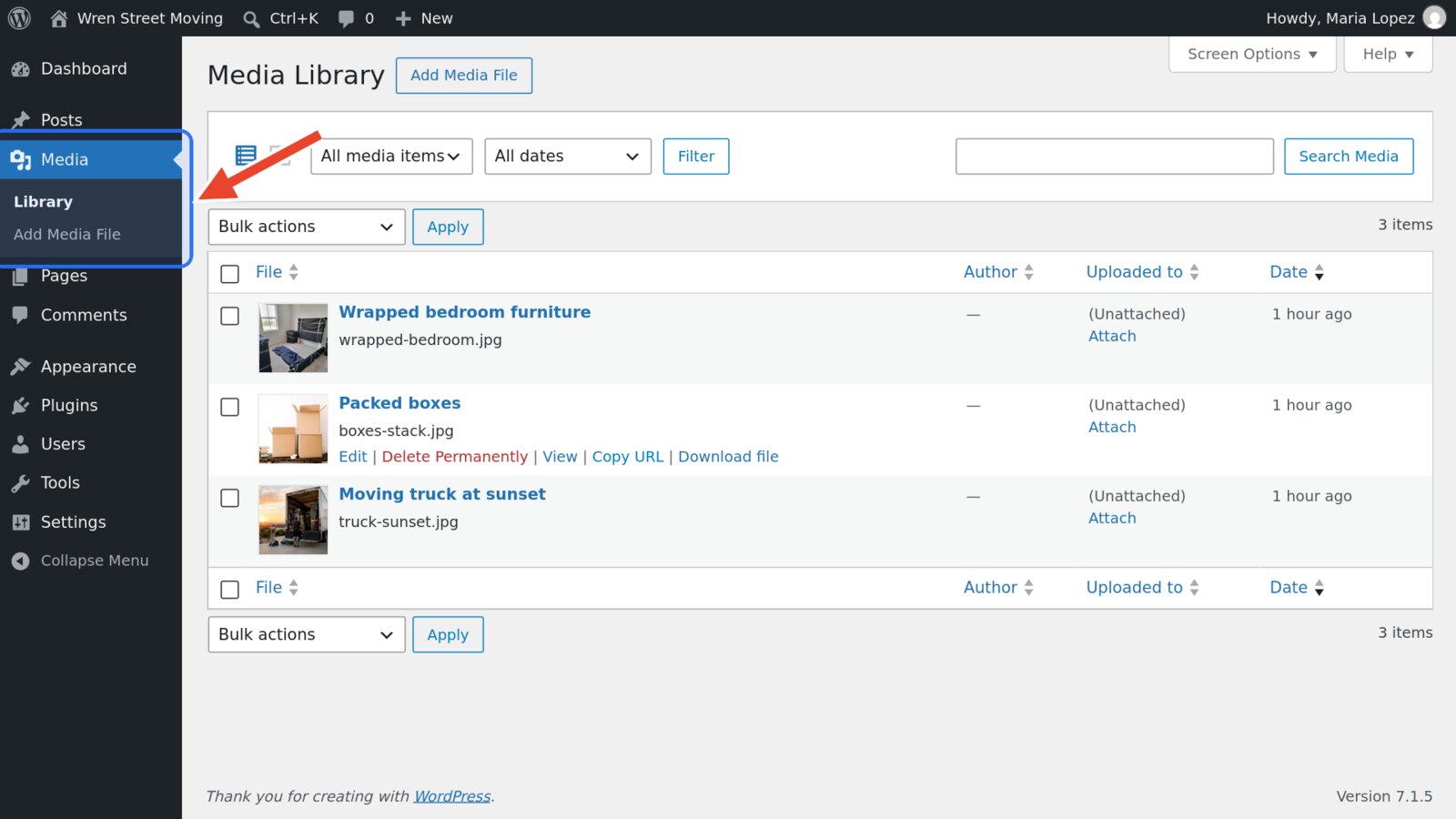
Media is in the left menu. Library is under it.Media está en el menú de la izquierda. Library está debajo.
-
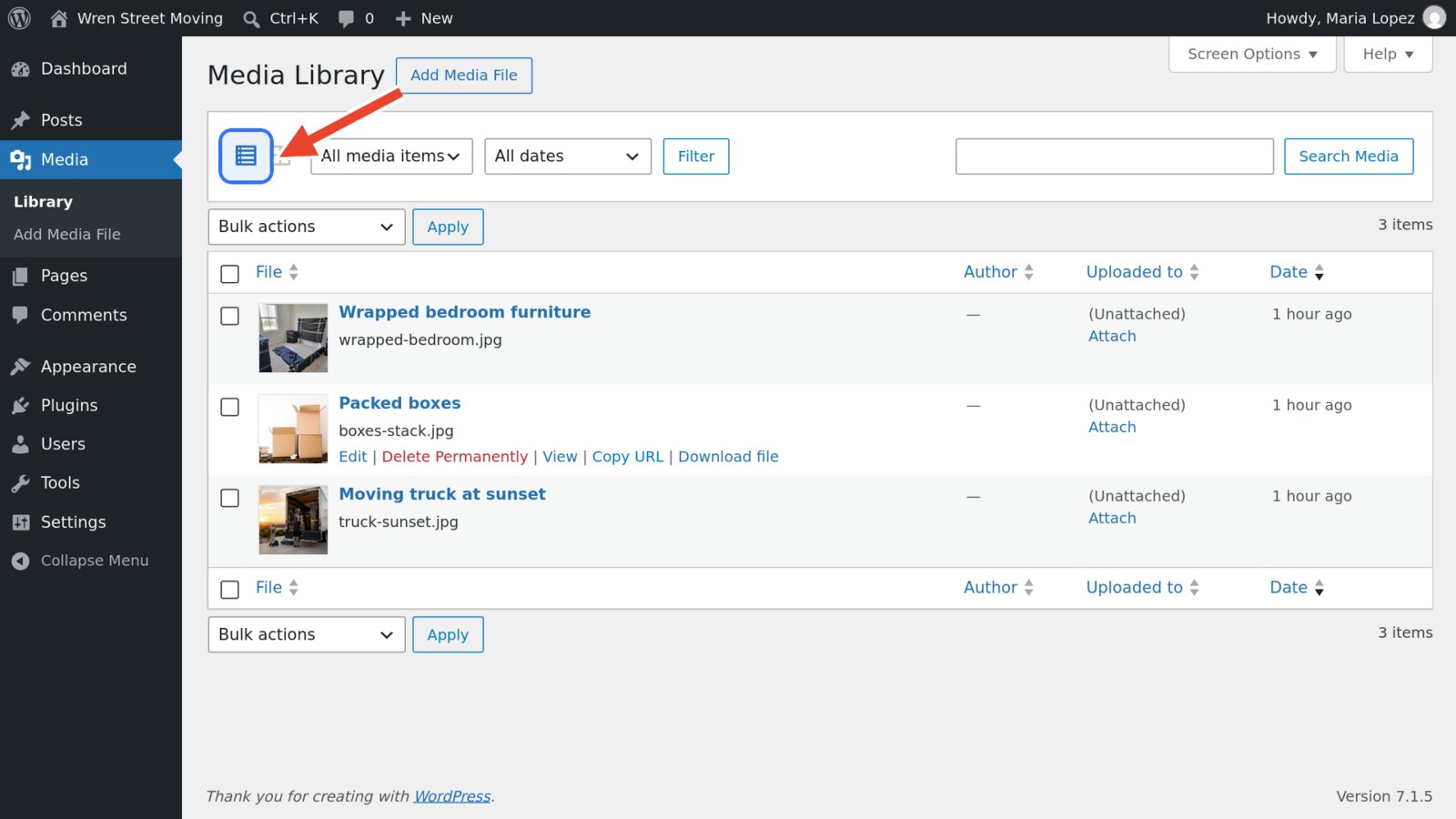
List view shows your files in a table, one row each.List view muestra tus archivos en una tabla, una fila por archivo.
-
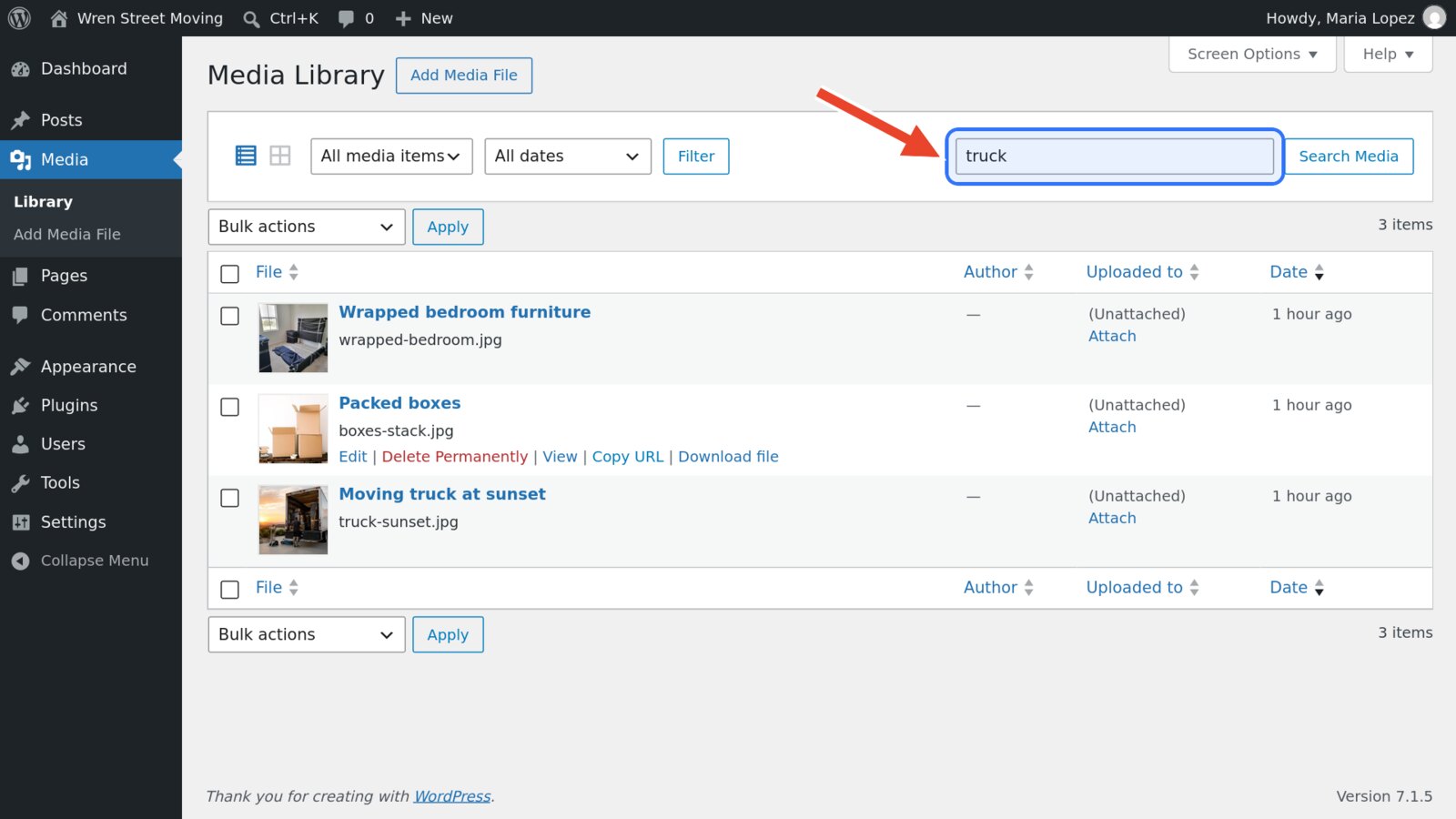
Type part of the file name in the search box.Escribe parte del nombre del archivo en el cuadro de búsqueda.
-
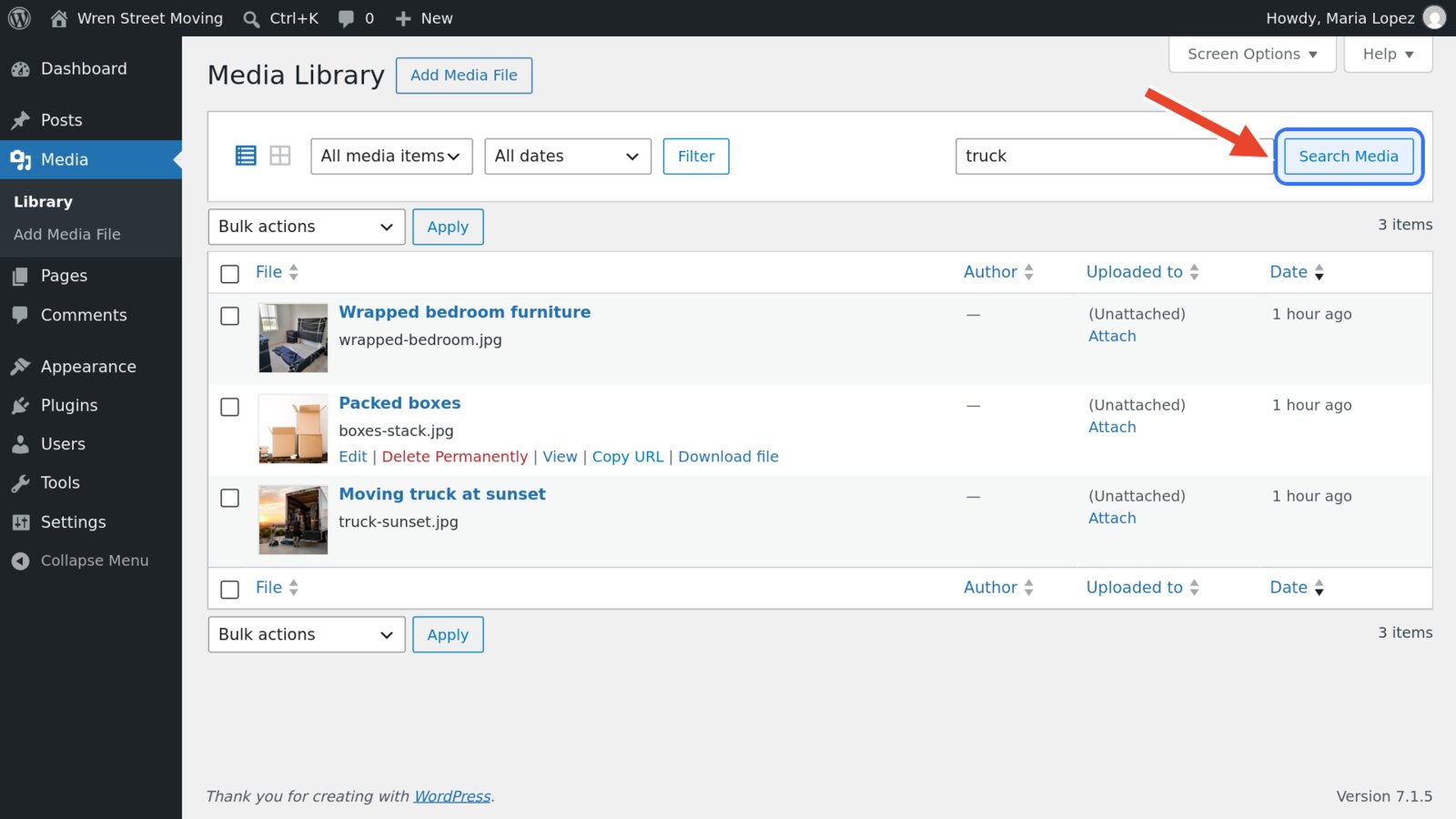
Press Search Media.Presiona Search Media.
-
Only the matching file is left. Press Edit under its name.Solo queda el archivo que buscaste. Presiona Edit debajo de su nombre.
Tip: Check the file name before you open it.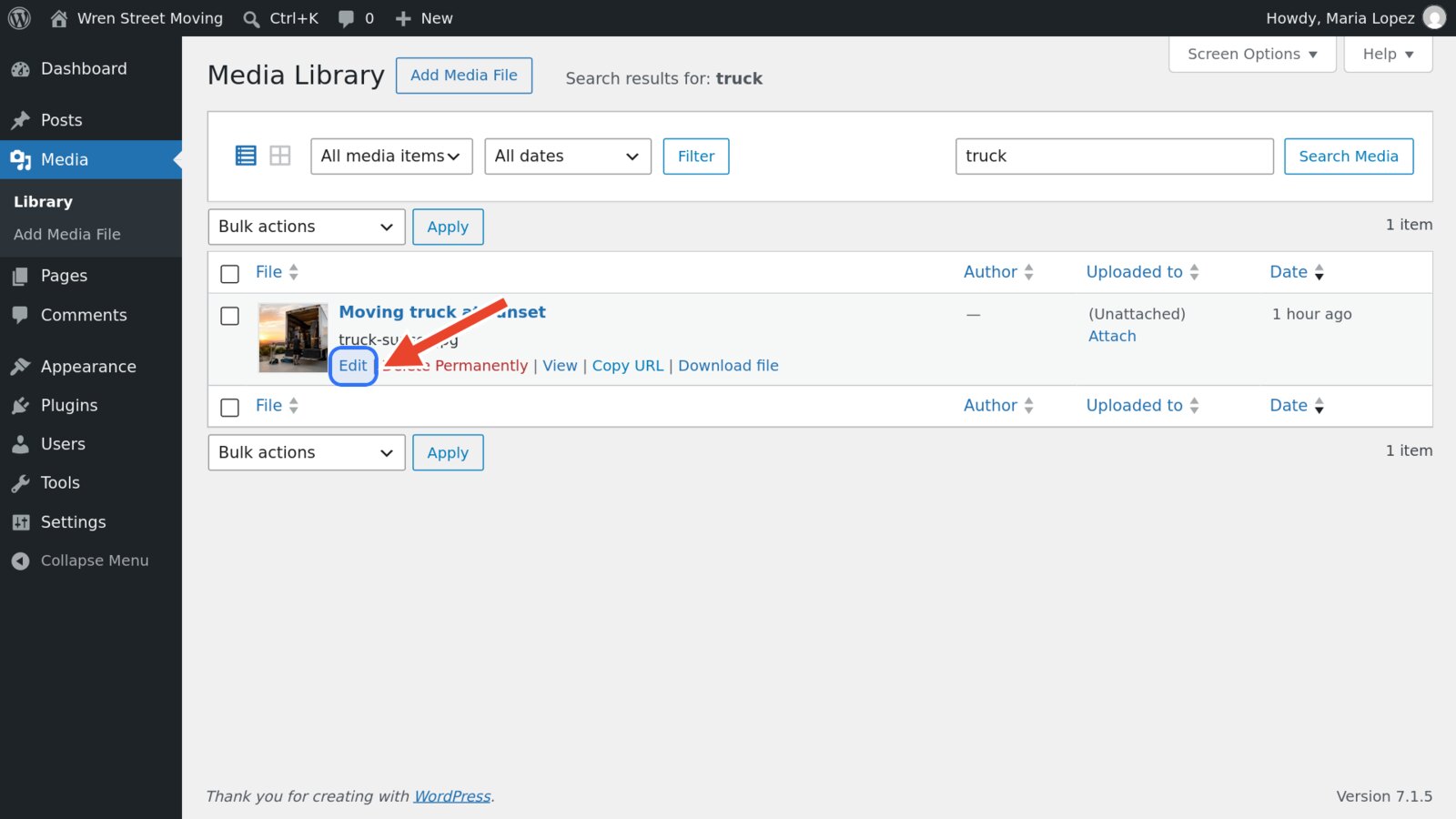
-
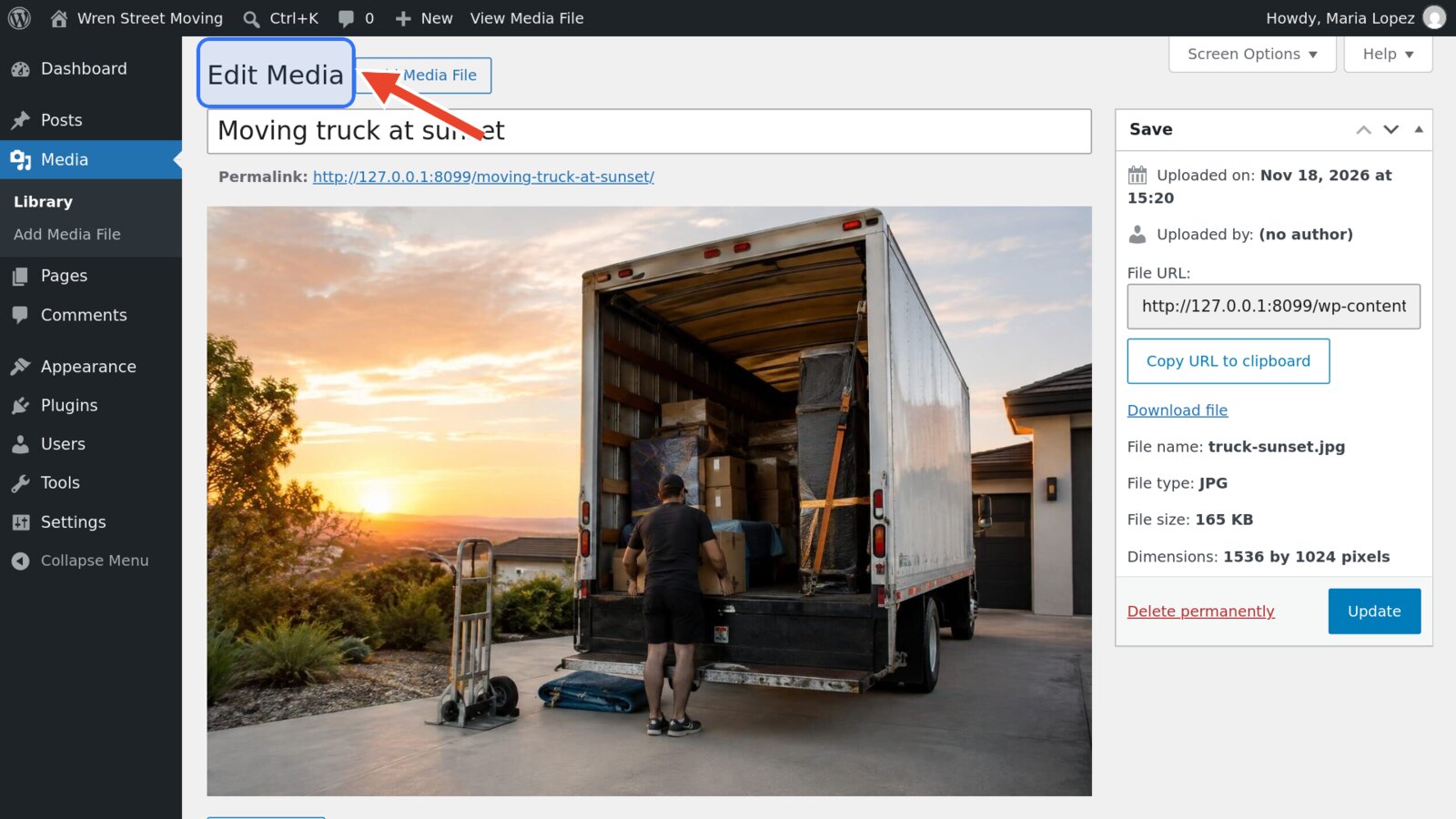
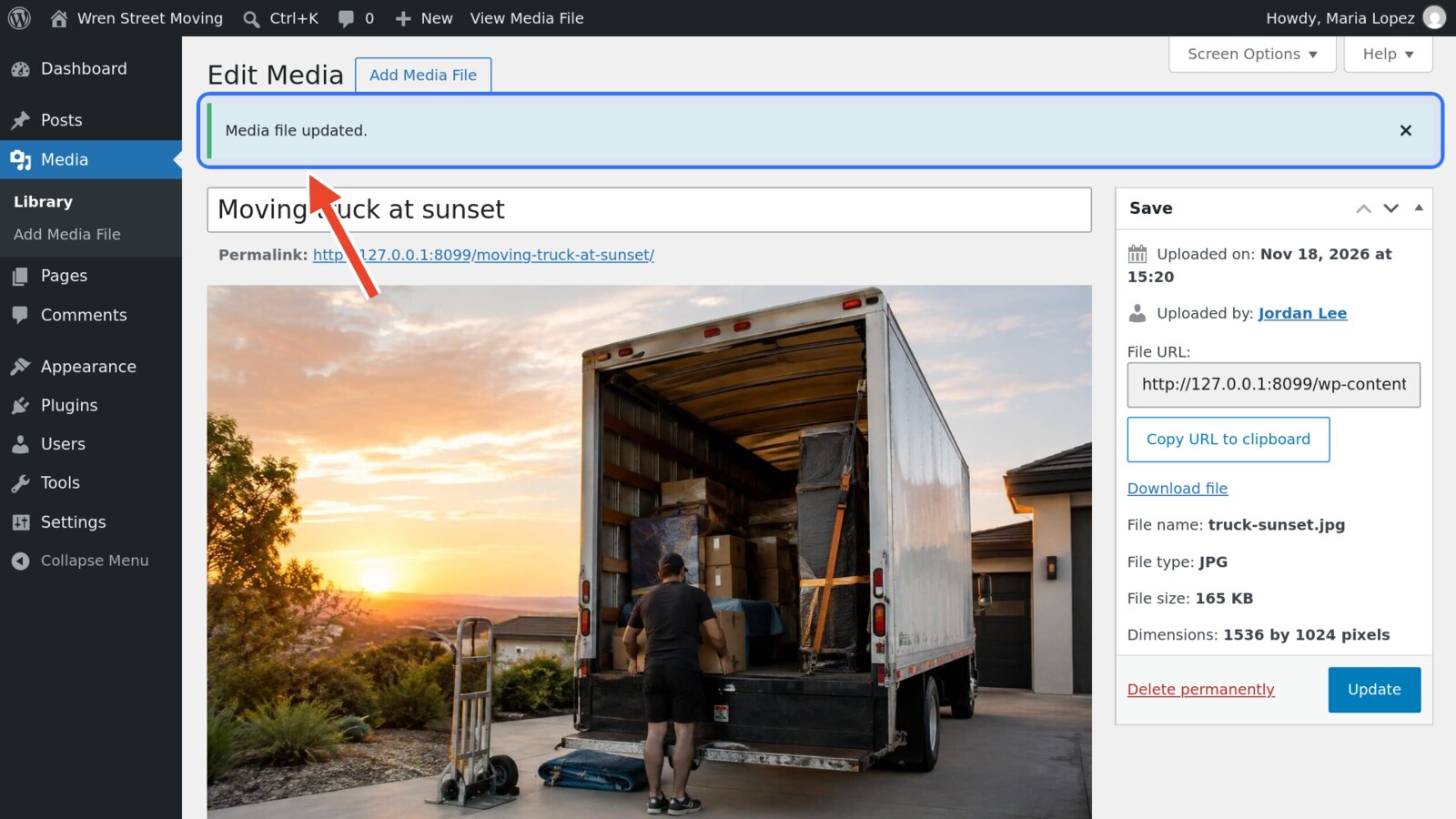
This is the file's details screen.Esta es la pantalla de detalles del archivo.
-
Type a short description of the picture in Alternative Text. Screen readers read it out.Escribe una descripción corta de la imagen en Alternative Text. Los lectores de pantalla la leen en voz alta.
Tip: Describe what is in the picture, not the file name.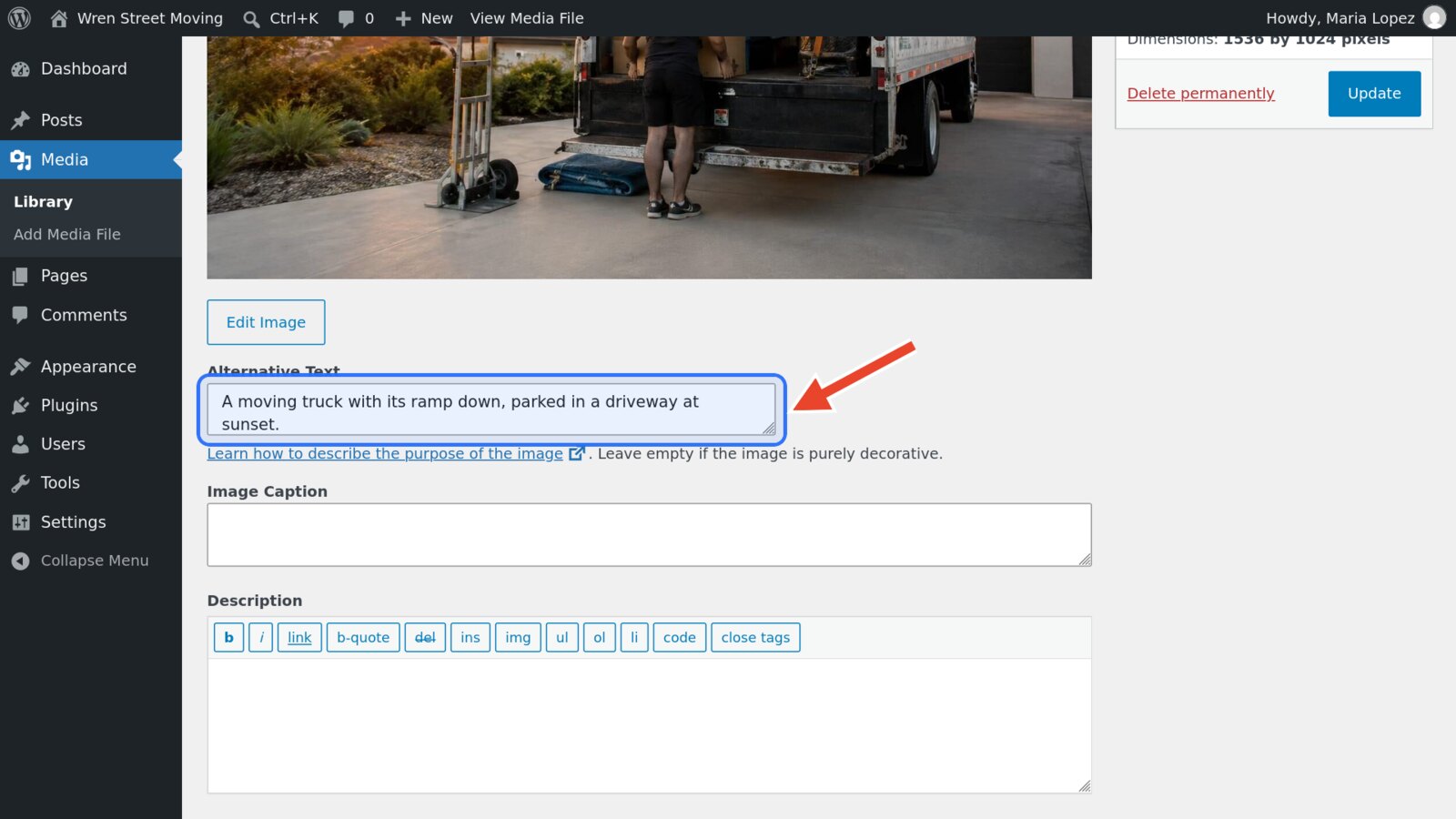
-
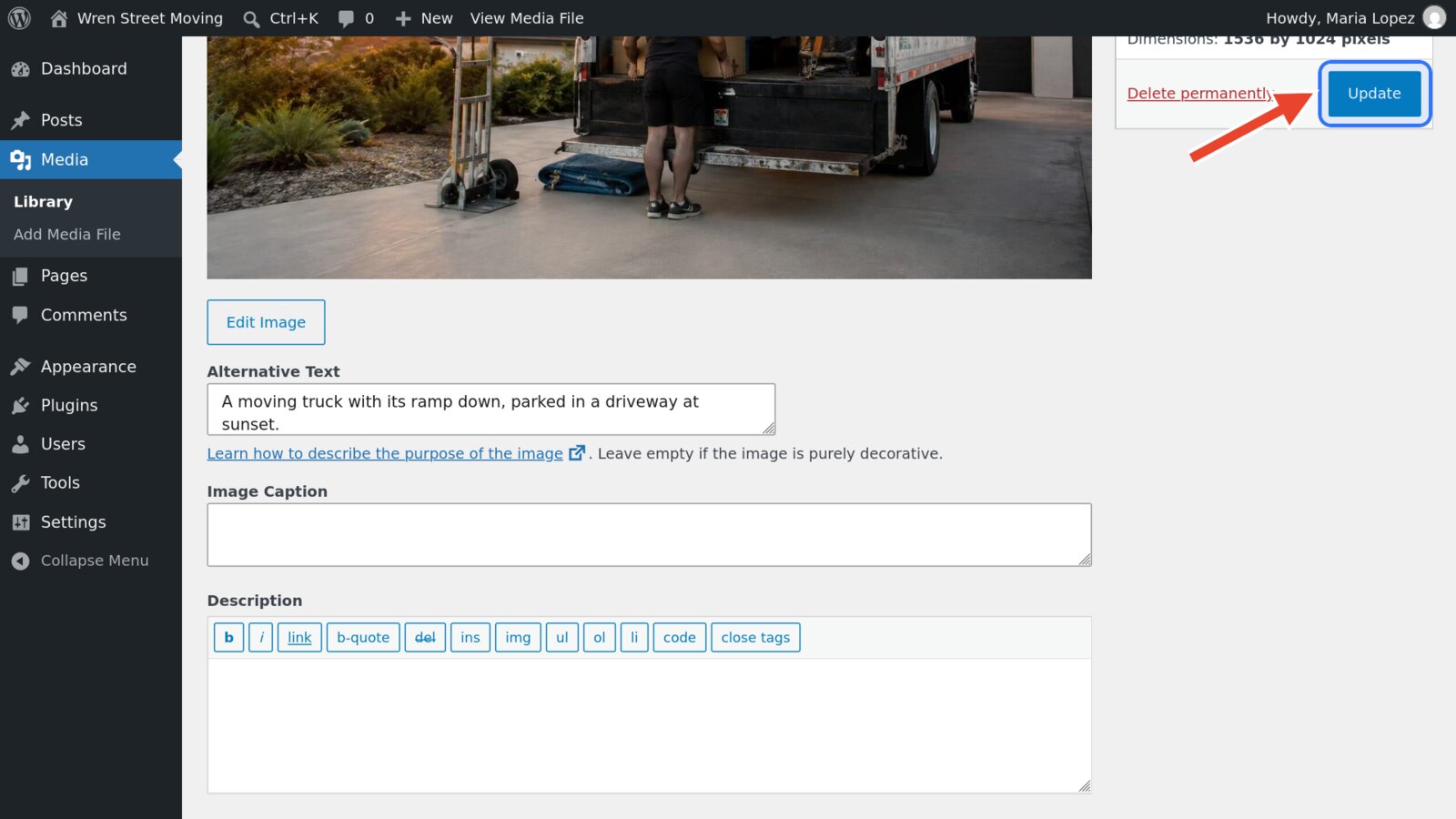
Press Update, on the right.Presiona Update, a la derecha.
-
The alt text is saved with the picture. It is used wherever the picture appears.El texto alternativo queda guardado con la imagen. Se usa dondequiera que aparezca.
Stuck on your own site?
Get walked through it one-on-one, on video, on your real site. Or hand the job over and have it done.
- You click, I guide
- One price per job, set before work starts
- English or Spanish
Where this comes from
Every step was run on a real WordPress site and checked against the official WordPress documentation: