Turn a WordPress plugin off and delete it
The steps
-
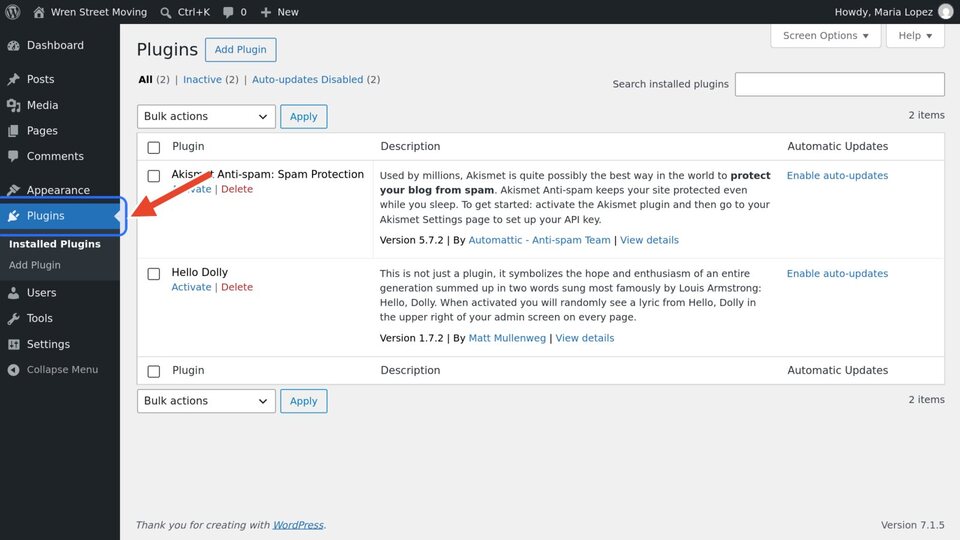
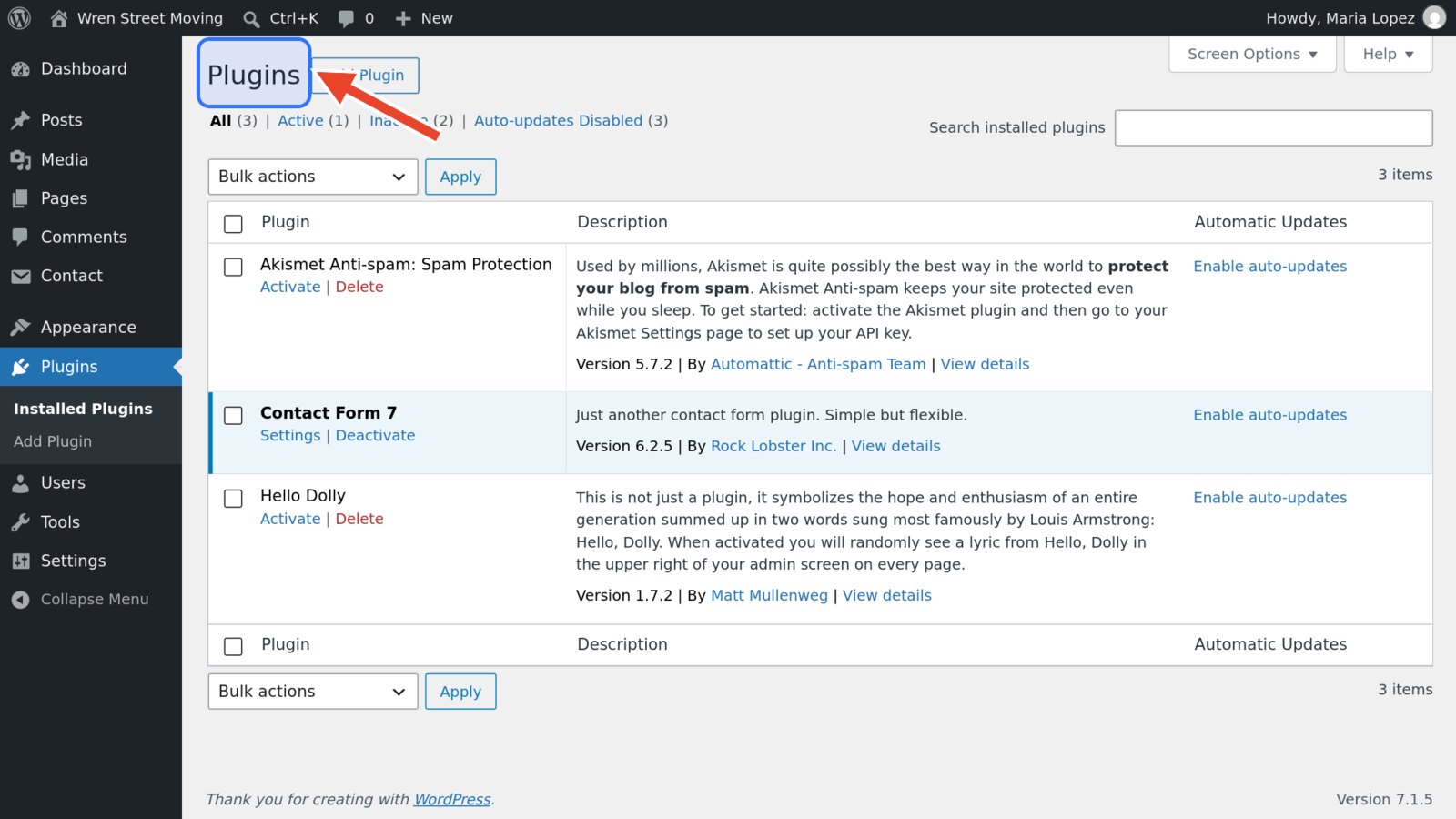
This is the Plugins screen. It lists every plugin installed on your site.Esta es la pantalla Plugins. Muestra todos los plugins instalados en tu sitio.
-
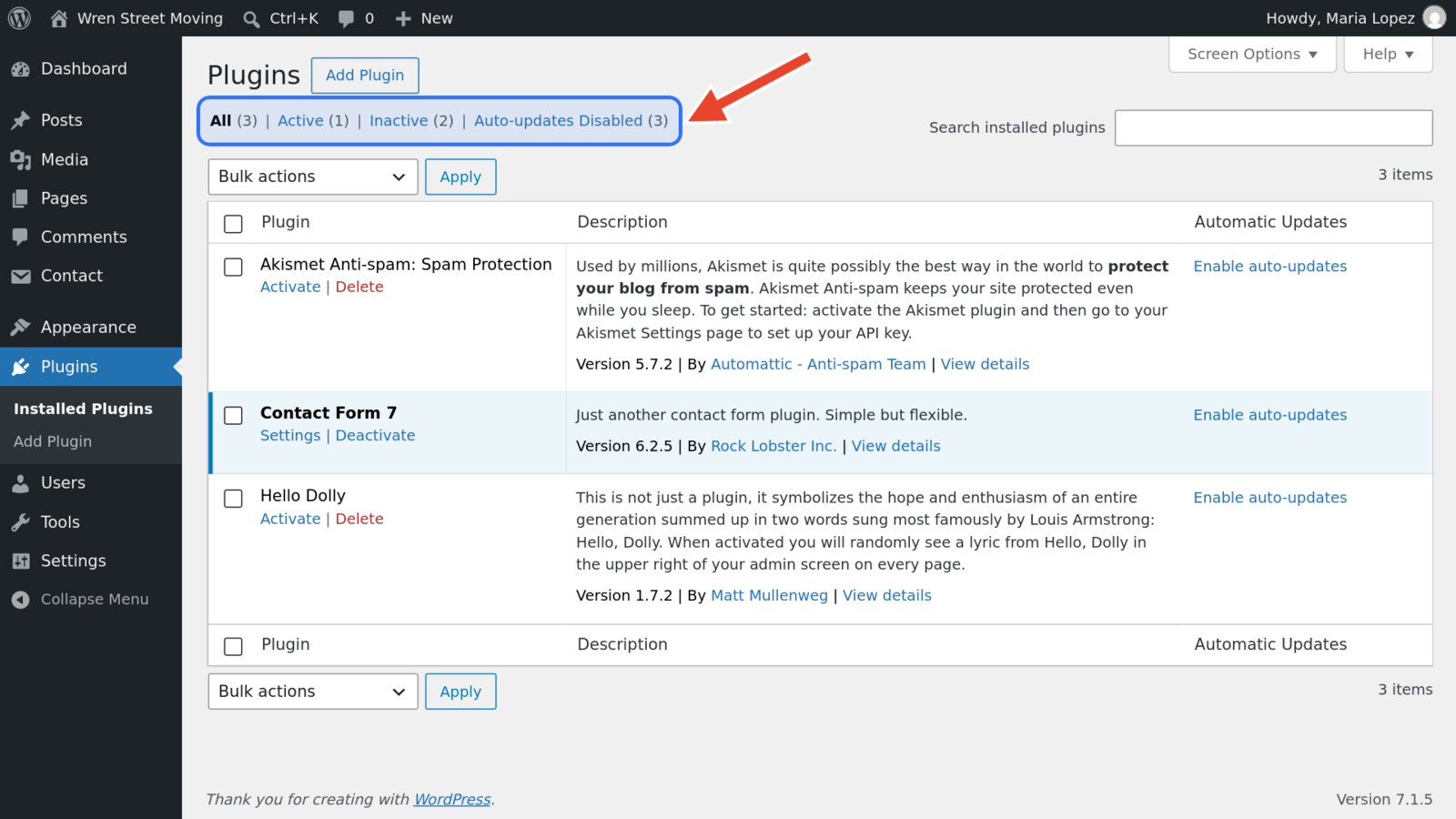
These links filter the list, for example to show only active or inactive plugins.Estos enlaces filtran la lista, por ejemplo para ver solo los plugins activos o inactivos.
-
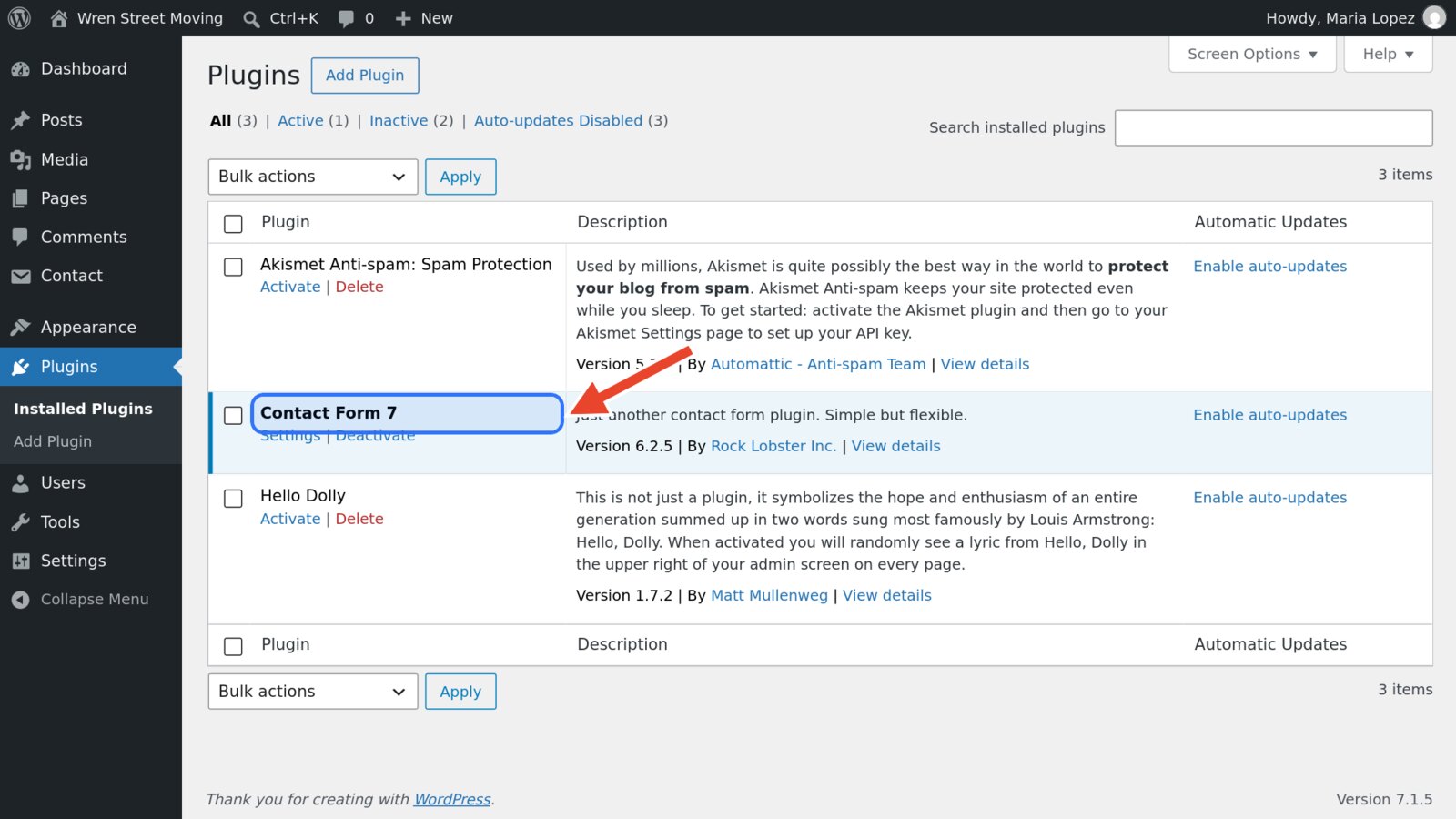
Contact Form 7 is active. Active plugins are highlighted in the list.Contact Form 7 está activo. Los plugins activos aparecen resaltados en la lista.
-
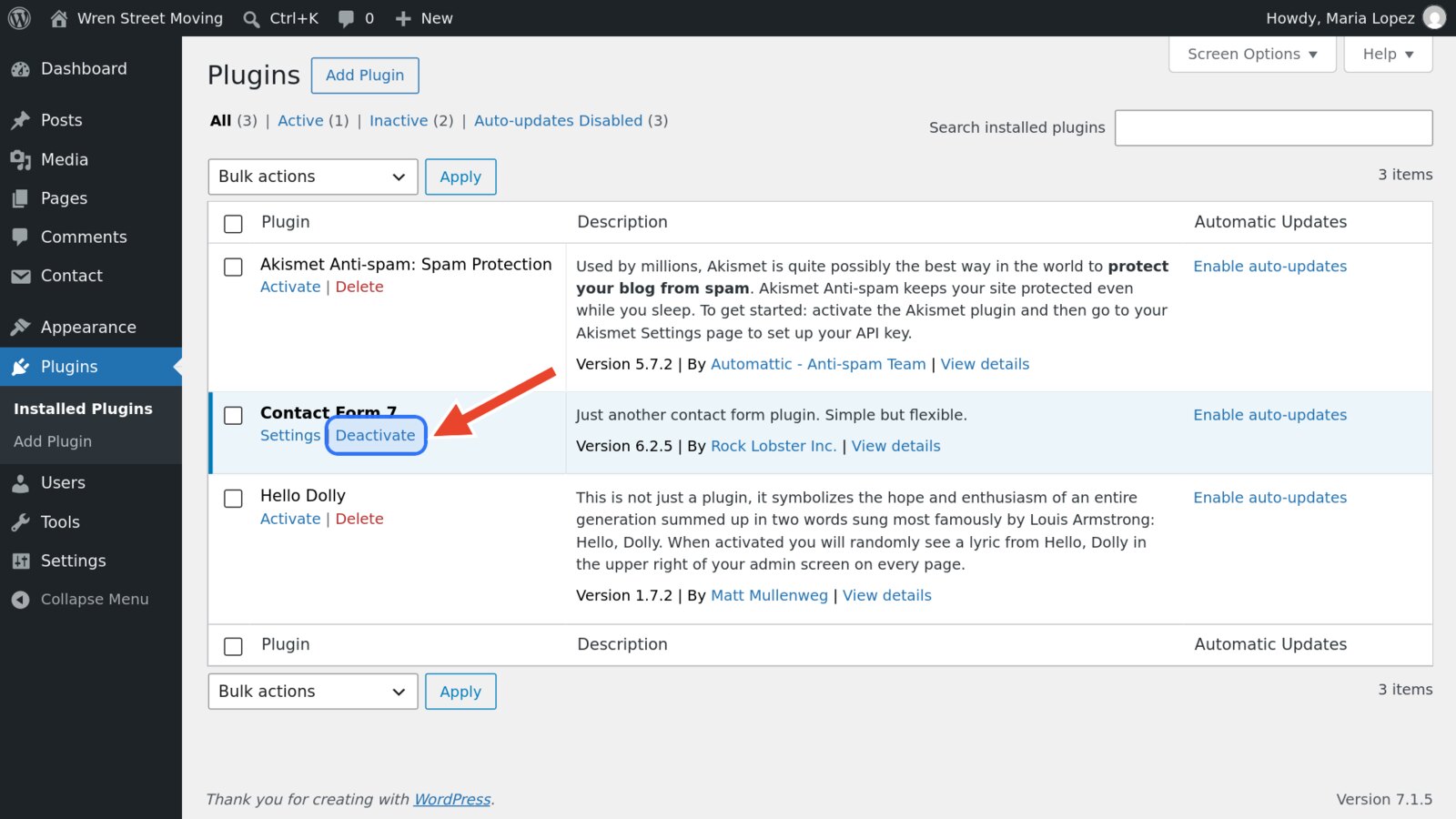
To turn a plugin off, press Deactivate under its name.Para apagar un plugin, presiona Deactivate debajo de su nombre.
-
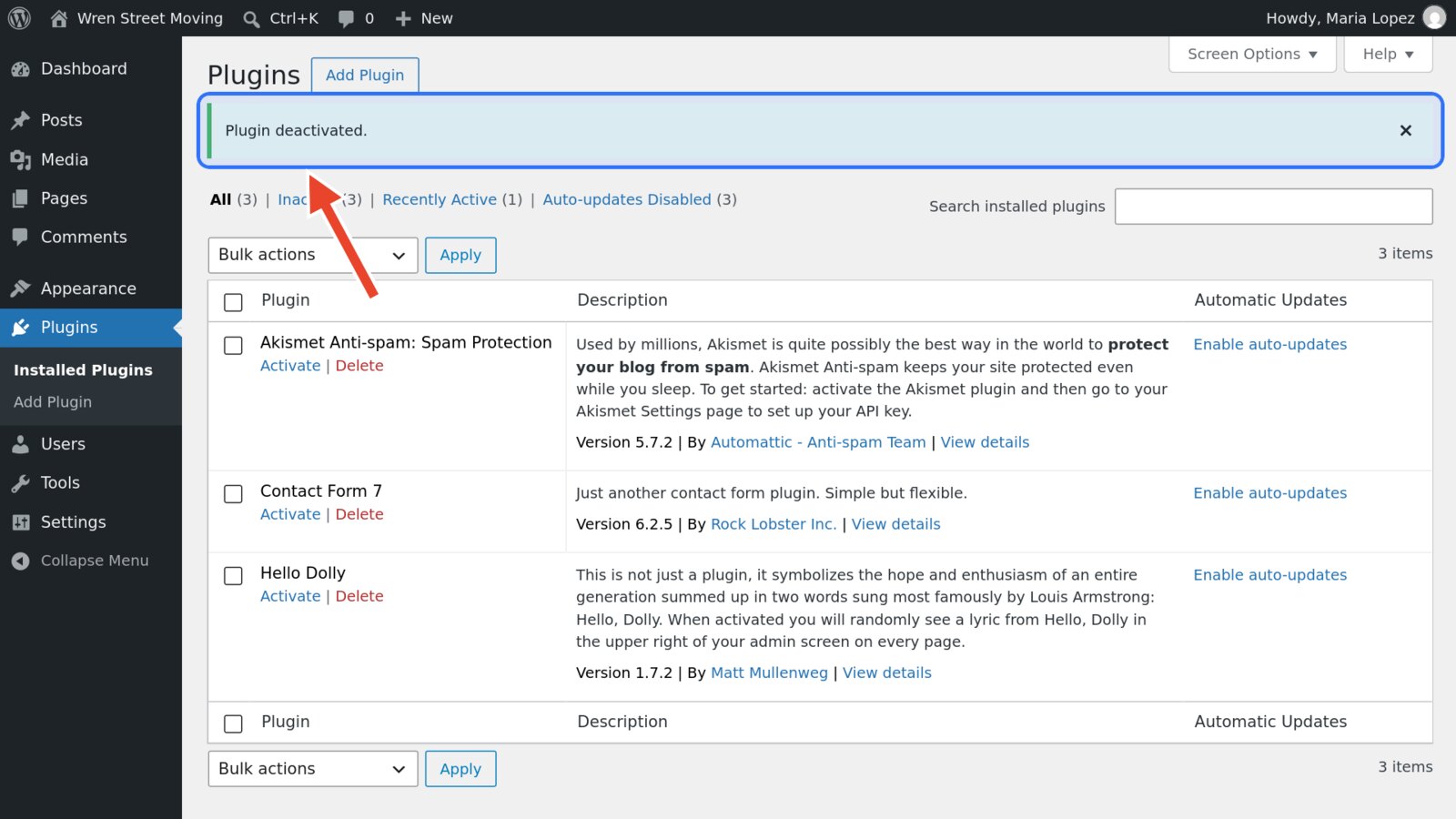
The message at the top confirms the plugin is deactivated.El mensaje de arriba confirma que el plugin está desactivado.
-
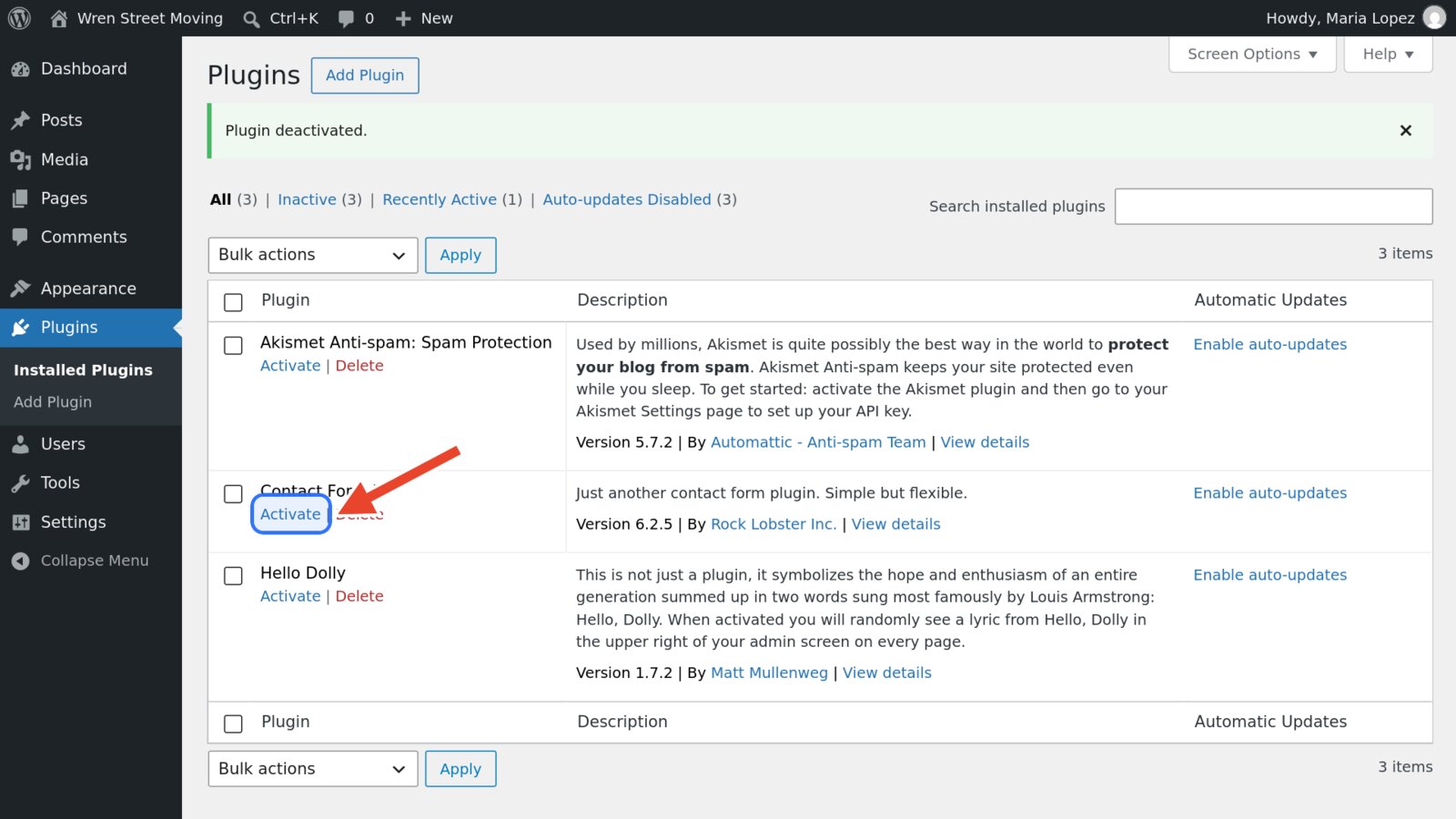
The plugin is off but still installed. Activate turns it back on.El plugin está apagado pero sigue instalado. Activate lo vuelve a encender.
-
Before deleting, open your site from the top bar and check nothing broke.Antes de borrar, abre tu sitio desde la barra superior y revisa que nada se rompió.
Tip: Turn a plugin off first and check the site before you delete it.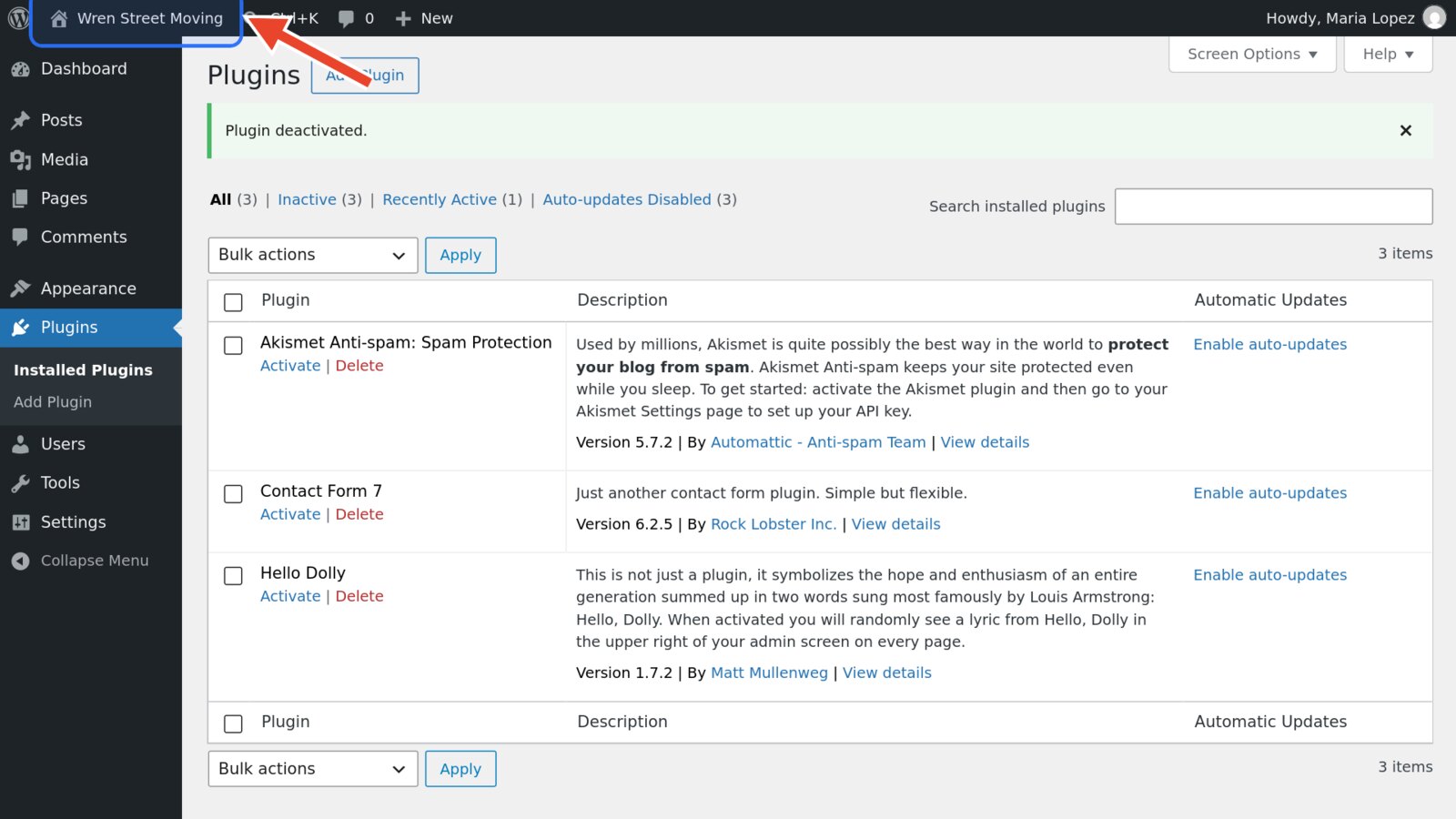
-
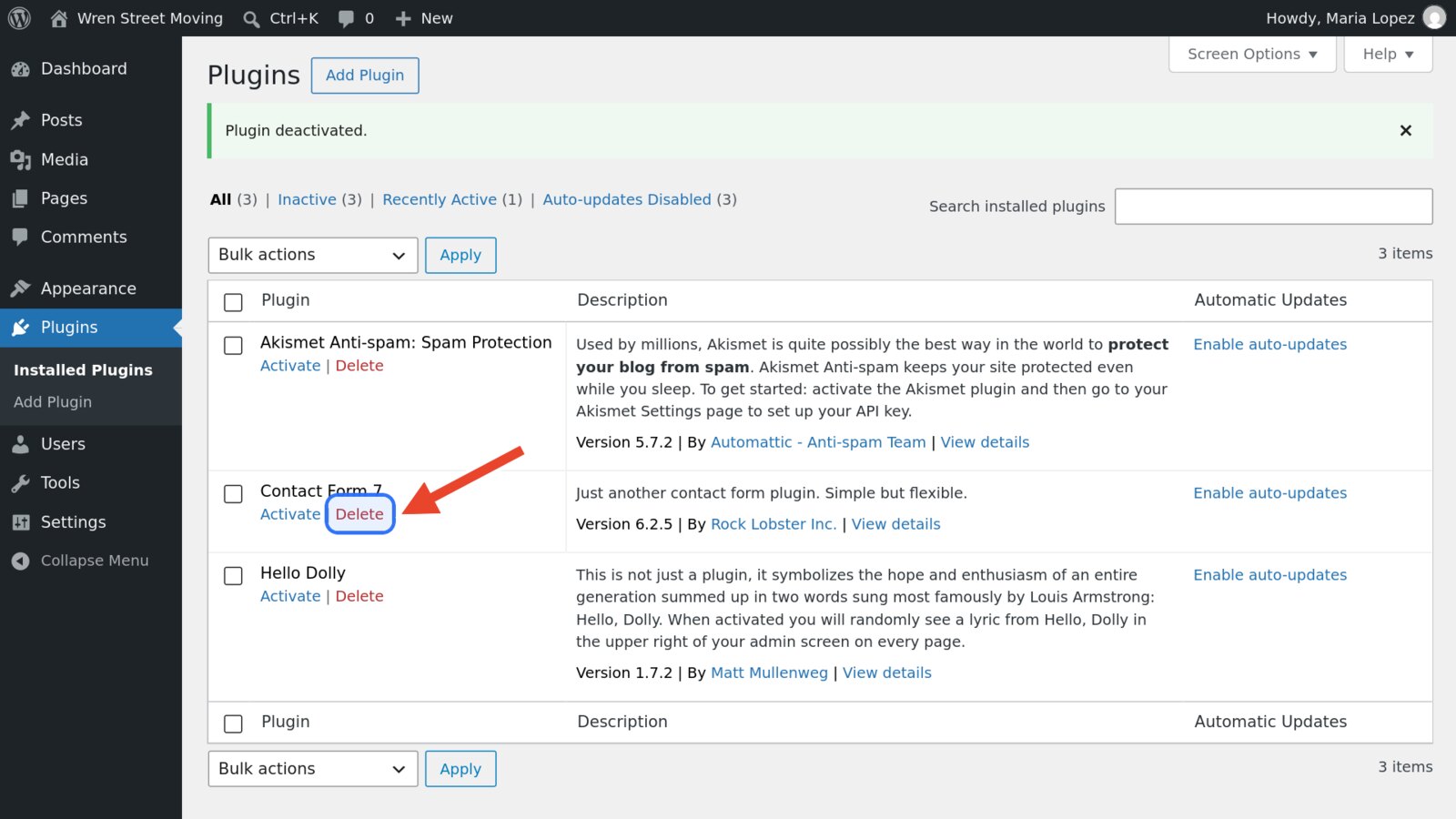
Delete only shows when a plugin is off. Press it to remove the plugin.Delete solo aparece cuando el plugin está apagado. Presiónalo para quitar el plugin.
-
WordPress asks you to confirm. Press OK, and this line says it was deleted.WordPress te pide confirmar. Presiona OK, y esta línea dice que fue borrado.
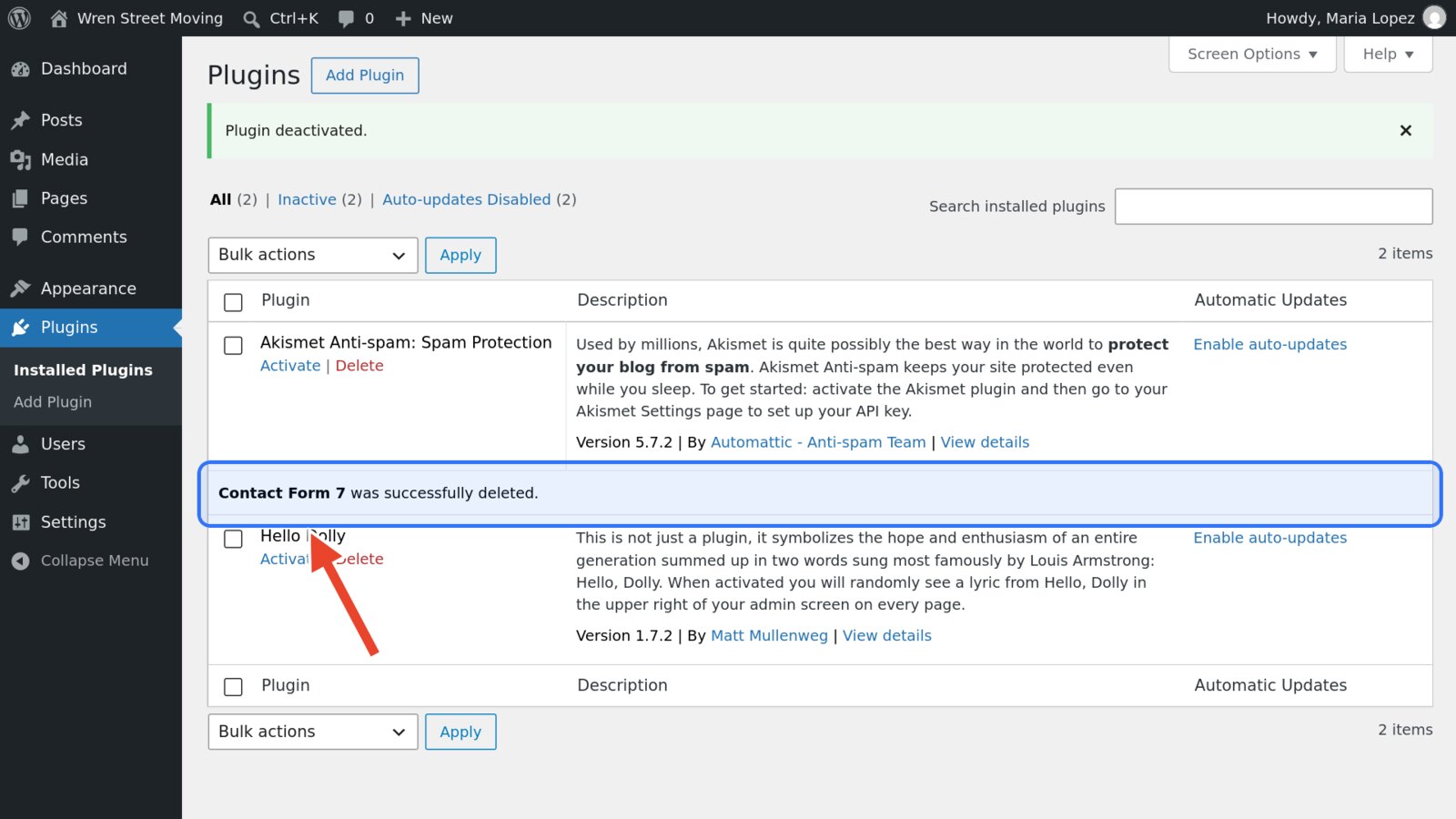
-
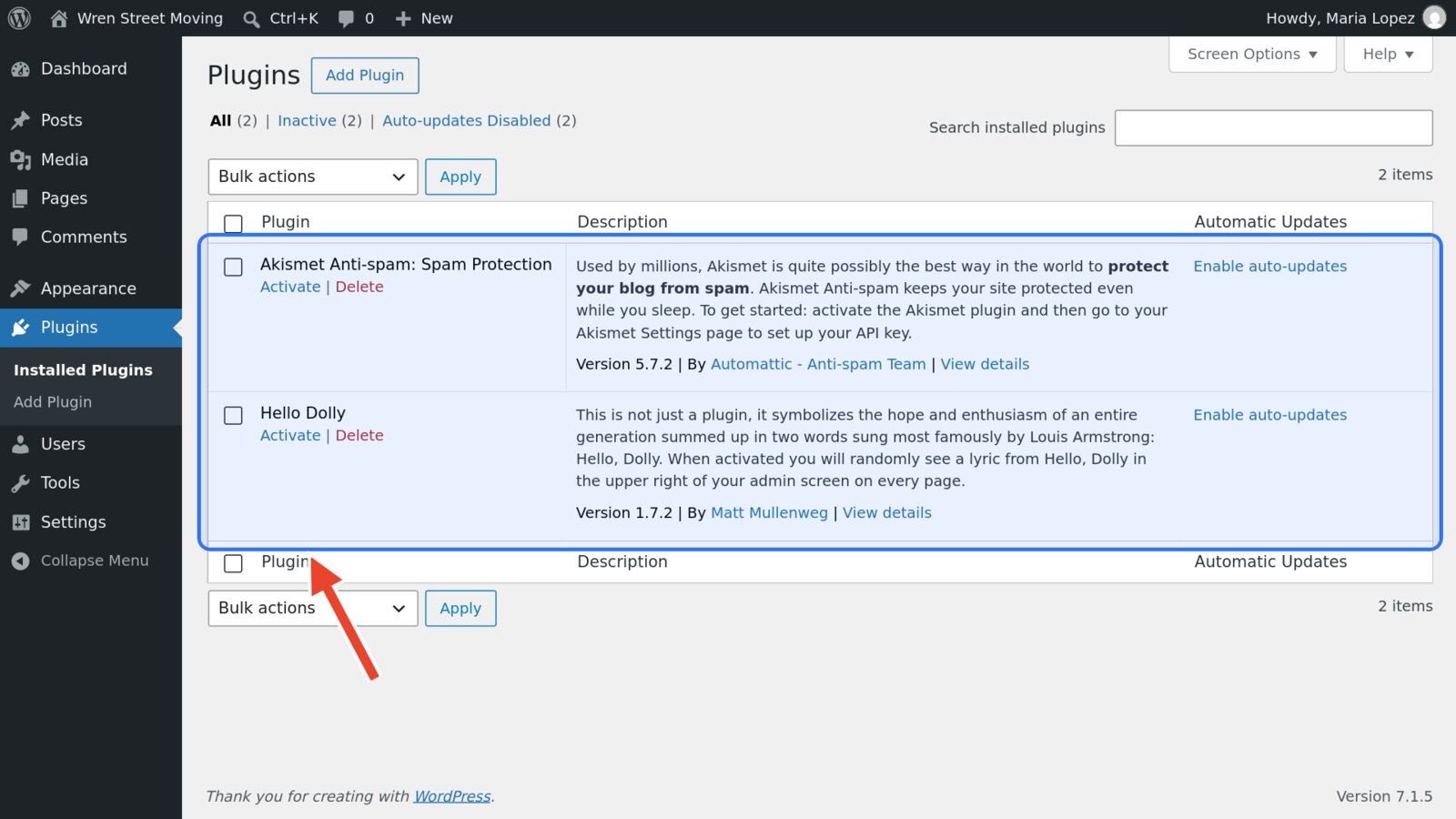
Open the Plugins screen again, and Contact Form 7 is gone from the list.Abre la pantalla Plugins otra vez, y Contact Form 7 ya no está en la lista.
Stuck on your own site?
Get walked through it one-on-one, on video, on your real site. Or hand the job over and have it done.
- You click, I guide
- One price per job, set before work starts
- English or Spanish
Where this comes from
Every step was run on a real WordPress site and checked against the official WordPress documentation: