The WordPress jobs you can do yourself, and the ones to hand off
You do not need to understand every part of WordPress to look after your site. The useful question is what a change might affect if it goes wrong. I’d start with small tasks you can check and reverse, and get help when a change reaches across the site or affects access.
A quick way to judge a job
Before you change anything, ask yourself three questions: Can I undo it? Does it affect one piece of content or every page? Could it stop you from reaching your site or signing in?
If a mistake would be limited to one post or photo, and you know how to put it back, it is often reasonable to try it yourself. If the change affects the whole site, relies on code, or could cut off your access, hand it off. When the answer is unclear, stop before saving and ask for help.
Your WordPress Dashboard is a good place to get your bearings. It shows links to manage posts, pages and comments, and a summary of those items. The WordPress Dashboard guide explains the screen and its widgets. You can also watch the Dashboard tour.
Everyday jobs you can usually do yourself
Publishing a post or adding a page changes content, rather than the site’s basic setup. You can draft a post, review it, and publish it when it is ready. You can add a page for information such as your opening hours or services. If you want a walk-through, see the lessons on publishing a post and adding a page.
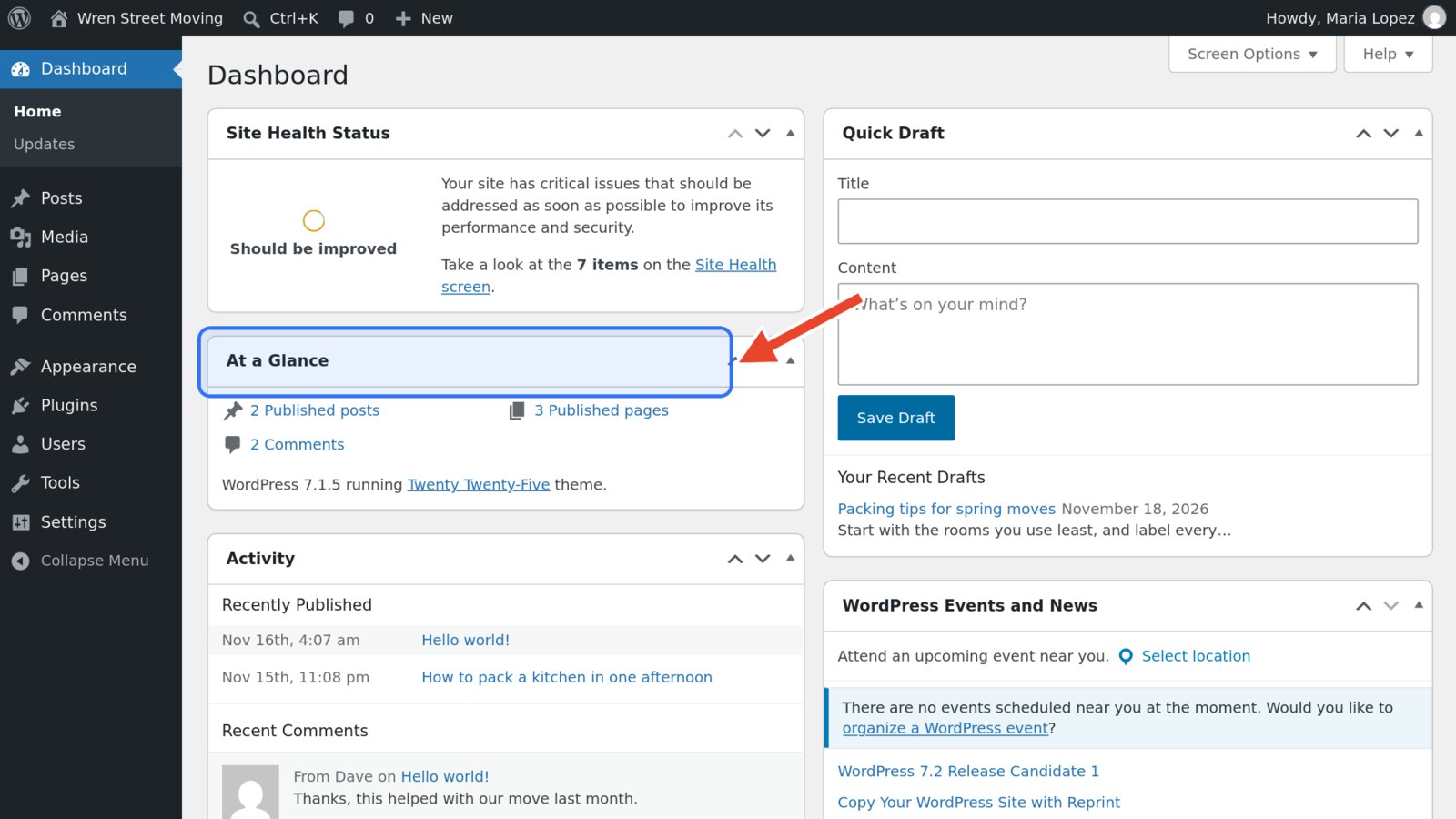
You can also approve comments from the Comments screen. The Dashboard’s Activity area shows recent comments and gives you ways to approve, unapprove, edit, reply to, mark as spam or delete them. If you want to learn the comment controls first, use the comments lesson.
Swapping a photo is another contained job. You can add and manage images in the media area, then choose the right image for the post or page you are editing. If you are not sure where an image lives, the Media Library lesson can help you find your way around.
These jobs still deserve a quick review. Check the page or post after saving. Make sure the words and photo are the ones you intended, and that the change appears where you expected. For a draft, you can save it without publishing it while you check your work.
Adding users: take care with access
You can add a user through WordPress, but choose their role with care. Roles determine what someone can do. An Administrator can manage all administration features on a single site. An Editor can publish and manage posts, including other people’s posts. An Author can manage their own posts, while a Subscriber can manage only their profile.
Give someone the access needed for their work. If they only need to write their own posts, for example, an Administrator role gives them more control than that task requires. WordPress lets you set the default role for new users in Settings, too, so check that setting if people can register on your site. The users lesson covers the user screen.
Adding an account is manageable when you know who needs access and which tasks they need to do. If you are unsure which role to choose, pause before creating the account. A user with broad permissions may be able to change settings, themes, plugins or other users.
Changing the tagline and other simple settings
The tagline is a short phrase that explains what your site is about. You can change it in Settings → General. The same screen includes basic details such as the site title, language and timezone. After saving, WordPress displays a confirmation that your settings were saved. The General Settings lesson shows where to make these edits.
Keep a setting change narrow. A tagline edit is different from changing the WordPress Address or Site Address. Those fields control where WordPress files are located and what address people use to reach the site. Changing them can affect access to your site, so get help before you edit either address.
It is also sensible to check whether you can still reach your site after a settings change. If you have changed a field and can no longer sign in or see the site as expected, do not keep making guesses in the settings screen. Ask someone who can diagnose the problem.
Installing a plugin: check before you activate
A plugin adds features to WordPress. You can install one from Plugins → Add New in the Dashboard. The official directory tests listed plugins against a set of rules, but it also says that plugins vary in quality and may still be works in progress. Look at the plugin details and its compatibility information before installing. The Add Plugins screen notes whether it is compatible with your WordPress version or untested with it.
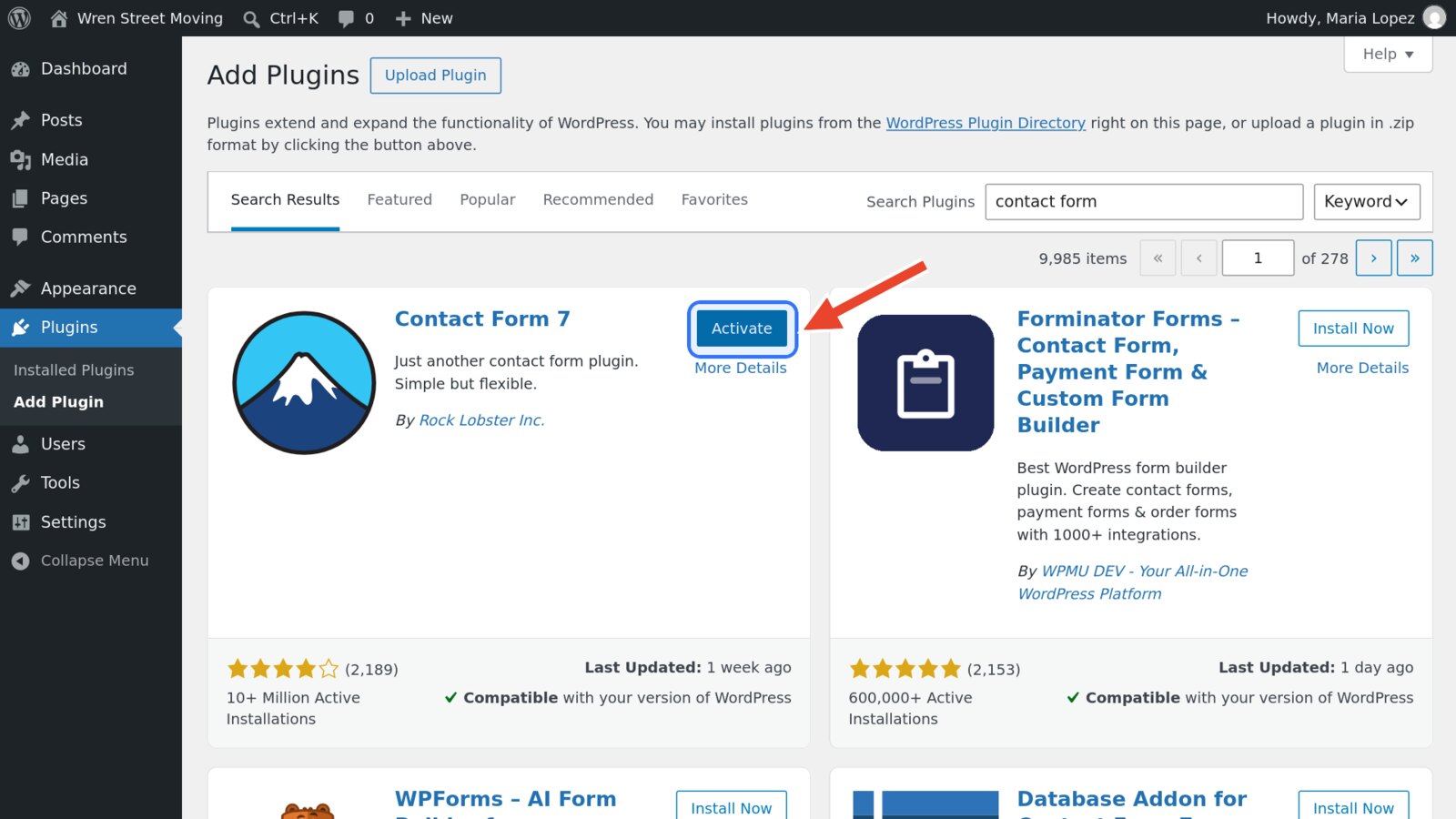
Installation and activation are separate steps. After installing, WordPress offers an option to activate the plugin. Read the details first so you understand what it does and whether it fits your need. If the compatibility information is unclear, or the plugin does something that would affect important parts of your site, ask for help before activating it. The adding plugins lesson covers the steps.
Keep in mind that an update is another change to the site. WordPress recommends having a current backup before updating plugins because problems can happen during an update. The WordPress backup guide explains that a full backup needs both your site files and database. If you do not know whether you have a usable backup, check before updating.
When to hand off the job
| Job | Why it is worth handing off |
|---|---|
| Moving the site | A move involves the site files and database. Backups are recommended before moving to a new location, and restoring requires bringing both parts back together. |
| Changing the site address | The address fields control where WordPress lives and what address visitors use. A change can affect whether you can reach the site. |
| Adding custom code | Code changes how the site works. A mistake can cause a wider problem than an incorrect word or photo. |
| Fixing a broken site after an update | If the site no longer works as expected, more changes made by guesswork can make it harder to find the cause. Get someone to check it. |
| A full redesign | A theme changes the site’s appearance and can also affect how parts of the site behave. A full design change touches more than one page. |
| Setting up a store | A store adds features for selling products. It is a larger setup job than changing a page or post, so arrange help if you are unsure how the parts fit together. |
The table is a guide, not a test of your ability. If you have done one of these jobs before and know how to recover from a problem, you may feel comfortable taking it on. If not, handing it off gives you someone to plan and check the change.
Why a theme change deserves extra care
A theme controls how your site presents its content and can affect the behavior of site elements. You can preview a theme using your own content before activating it. But activating a theme applies its style and functionality to the site right away. If the preview is blank, the WordPress guidance says not to activate it without investigating first.
That is why changing a theme for a full redesign is different from swapping a photo. It can change what visitors see across the site. If you want to explore the options, the theme installation lesson can show you the screen. You can also read the official WordPress documentation for guidance. If you plan to change the live site and are unsure what the preview means, have someone review it with you.
Make a backup part of bigger changes
A backup gives you a way to restore the site if something goes wrong. WordPress describes two parts: the database, which holds posts, comments and other site data, and the files, which include items such as themes, plugins and uploads. You need both for a full restore. A copy of the files alone is not the same as a full backup.
The backup guide recommends backing up the database regularly and before an upgrade or a move. It also explains that automatic backups are available, while suggesting that you occasionally check they are working. If a big change is coming and you cannot tell whether both parts are backed up, get help checking that first.
Keep a simple rule for your next change
Try the jobs that affect one piece of content and that you know how to undo. Take more care with access, plugins and settings. Hand off work that changes the site address, adds code, changes the whole design, moves the site or leaves it broken. You can find more free WordPress lessons when you want to learn a task before trying it.
Need a hand?
Get help with your WordPress changes
I can walk you through it one-on-one on your own site, or take the job over. Each job has one price, set before work starts.
How does your site score?
The free site check opens your site the way a customer does and lists what to fix first.
- Speed on a phone
- What search engines see
- Broken links and forms